How to Create a Dramatic Spotlight Effect in the Sky in Photoshop

How to Create a Dramatic Spotlight Effect in the Sky in Photoshop

Adding a dramatic spotlight effect to your images can transform an ordinary sky into a captivating scene, drawing the viewer's eye and enhancing the overall mood. This technique is particularly effective for emphasizing specific elements or creating a sense of grandeur and focus within a composition.

In this tutorial, you will learn how to integrate a realistic spotlight with text into a stormy sky, utilizing Photoshop's powerful blending modes, transformation tools, and non-destructive editing techniques to achieve a seamless and impactful visual.

Watch the Tutorial

Video by Blue Lightning. Any links or downloads mentioned by the creator are available only on YouTube

Integrating Light and Perspective in Digital Compositing

Creating realistic light effects in digital art, such as a spotlight, involves more than simply adding a bright shape. It requires a nuanced understanding of how light interacts with its environment and how perspective influences the appearance of objects. When compositing elements like text into a scene, accurately matching the perspective and luminosity is crucial for believability.

Photoshop's blending modes, particularly Overlay, play a vital role in this process by allowing layers to interact based on their luminosity, enabling the spotlight to naturally illuminate the underlying clouds. Furthermore, the Blend If feature within Layer Styles offers precise control over how pixels from one layer blend with those of the layers beneath it, based on their shadow and highlight values. This advanced blending capability is essential for seamlessly integrating light effects and ensuring they appear as part of the original scene rather than an added overlay.

Achieving a natural look also depends on correctly applying perspective transformations and warping. These tools allow artists to manipulate the shape and angle of elements to align with the scene's vanishing points, ensuring that the text within the spotlight appears to recede into the distance or conform to the contours of the clouds. This attention to detail in both light interaction and spatial positioning elevates a simple effect into a compelling visual narrative.

Practical Tips for Spotlight Effects

  • Utilize Smart Objects for text layers to enable non-destructive editing and easy replacement of text without redoing effects.
  • Employ the Overlay blend mode for the spotlight and text layers to allow them to interact naturally with the underlying cloud luminosity.
  • Master perspective transformations using keyboard shortcuts (e.g., Ctrl/Cmd + Alt/Option + Shift for independent corner manipulation) to align text realistically with the spotlight's angle.
  • Use the Transform Warp tool with a custom grid (e.g., 3x3) to subtly deform text, simulating how light might interact with uneven surfaces like clouds.
  • Leverage the Blend If feature in Layer Styles to seamlessly blend the spotlight and text into the background based on luminosity, creating a more integrated appearance.

Explore more techniques for enhancing skies and manipulating light in your Photoshop projects with these additional resources.
Create colorful dramatic skies with a simple blending trick in Photoshop
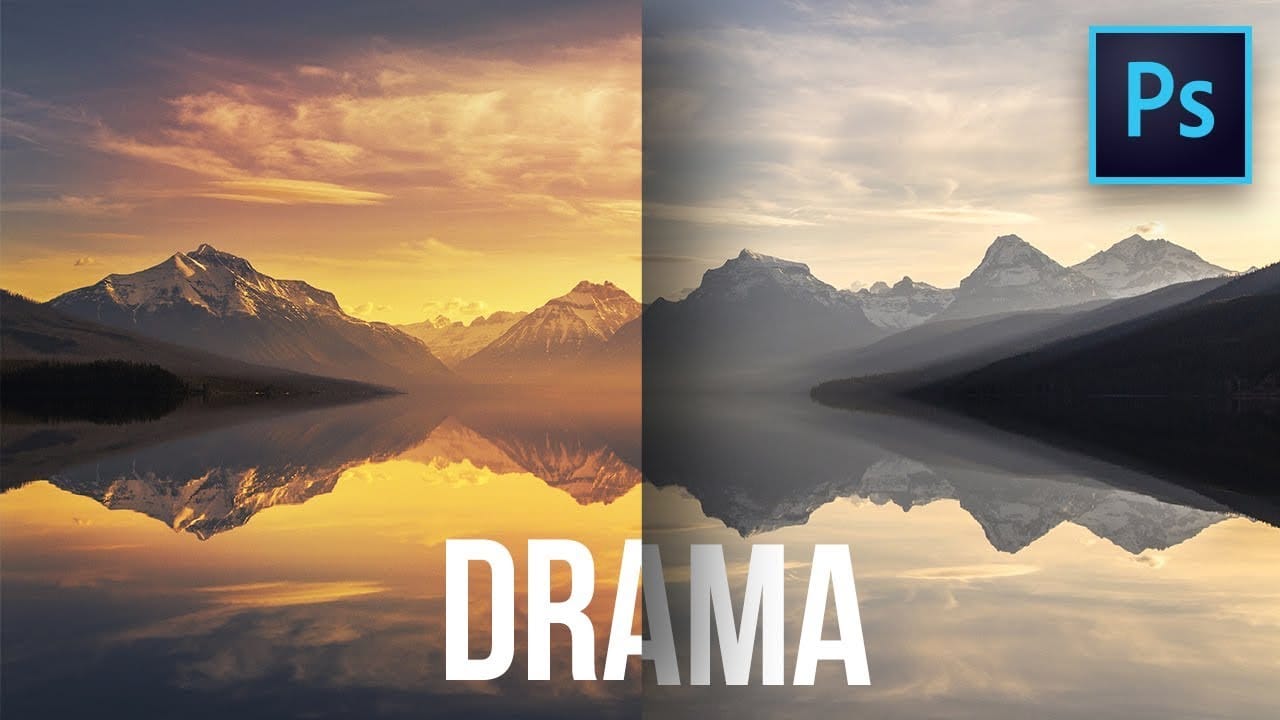
In this Photoshop tutorial by Unmesh Dinda from PiXimperfect you will learn how to extract amazing details from the sky, bring out the clouds, and add brilliant colors just using the Blend If sliders in Photoshop. Learn how to add drama, mood, and details to your skies by utilizing the power of Blending Options, Blend Modes, and Layers. In this video, we will simply paint the sky with the colors we desire and the details will simply follow. Whether you want to add the colorful sunset lights or
How to create a sun glow effect in Photoshop
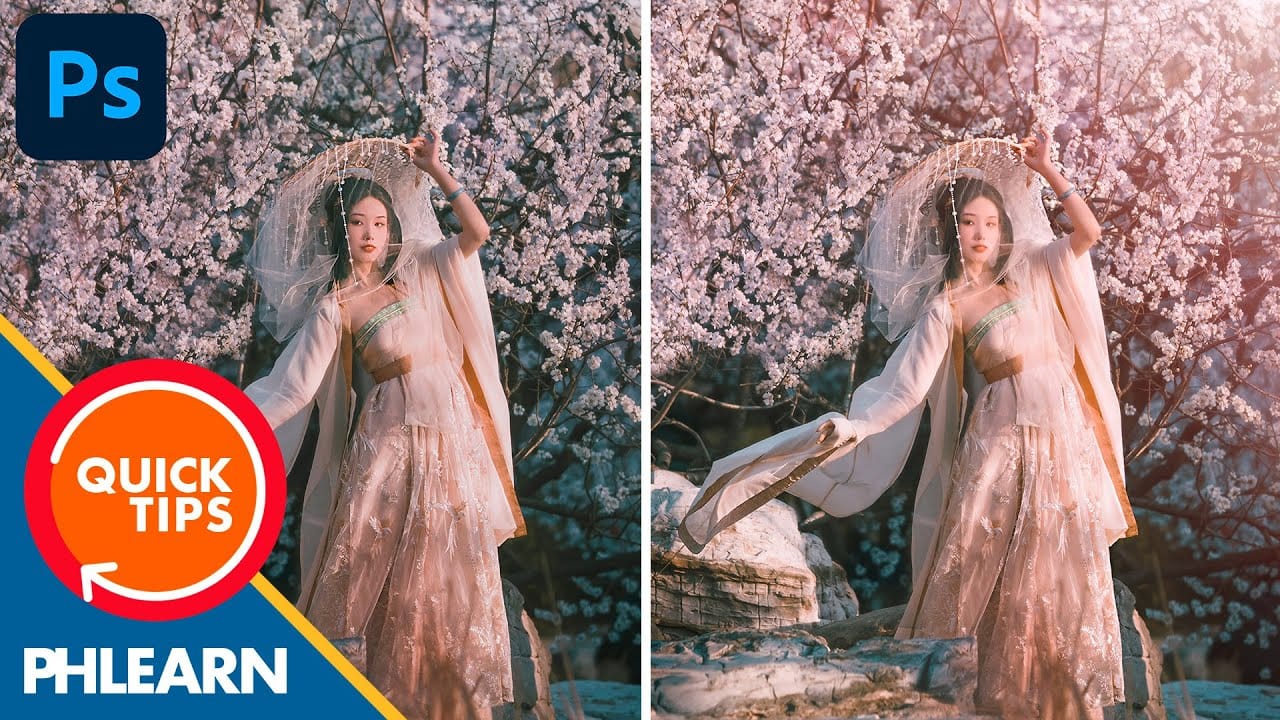
In this tutorial, Aaron Nace shows how to add a vibrant sun glow effect to your photos with ease. The process involves a few straightforward steps to simulate the warm, radiant look of sunlight. Aaron explains how to use blending modes, gradients, and layer adjustments to achieve a natural and eye-catching glow. The tutorial includes a free Sun Glow Gradient, which you can download and use immediately to enhance your images. This effect is perfect for adding a dreamy, sunlit atmosphere to your
How To Easily Change The Sky In Photoshop
In this lesson, you’ll explore how to replace skies in Photoshop effortlessly. The tutorial begins by showing you how to access the Sky Replacement Panel. This tool gives you control over enhancing images with dynamic skies. You’ll also learn how to add a new sky to your photo, transforming the atmosphere and overall impact of the image. The video breaks this step down for you, making it easy to follow along. Additionally, the tutorial covers creating realistic sky reflections. This step is cr
Add clouds to a sky in Photoshop
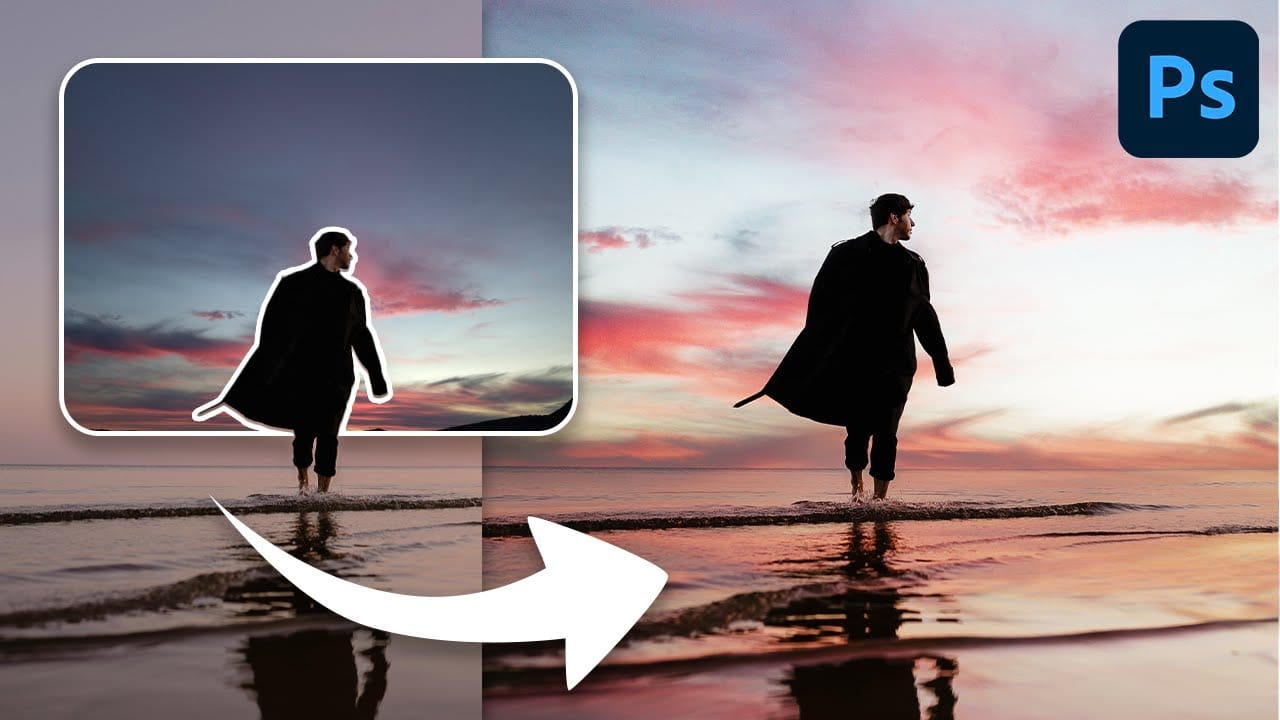
In this Photoshop tutorial by Phlearn, you’ll learn how to replace the sky in an image, ensuring it complements the original photo in terms of color, contrast, and tone. Start by using the Move Tool to drag and drop the new sky onto your image, then turn off the layer. Select the old sky using a selection tool like the Magic Wand Tool. Once the selection is refined, turn the new sky layer back on and click the Layer Mask button to mask in just the sky. Unlink the layer from its mask to position

Get tutorials & freebies delivered to you.

Subscribe to the Photoshop Roadmap newsletter, a weekly roundup of new tutorials, insights and quality downloads, trusted by 6500+ readers.

You might also like

How to Wrap Designs Around Complex Objects Using Displacement Maps in Photoshop

Professional mockups require more than simply placing a design onto an object. Complex surfaces like crushed aluminum cans demand advanced techniques to achieve realistic wrapping that follows every contour and deformation. This process combines displacement mapping, smart objects, and blending modes to create reusable templates that automatically conform any design...

How to Fix Three Confusing Default Settings in Photoshop

Sometimes Photoshop's default settings can make beginners think their software or hardware is broken. Images that fly around uncontrollably when panning, scroll bars appearing on full-size images, and zoom tools that seem to have a mind of their own are all caused by simple preference settings that can...

How to Create Better Shadows Than Drop Shadow in Photoshop

The basic drop shadow effect often looks flat and artificial compared to how shadows actually behave in real environments. Professional designers know that convincing shadows require understanding light direction, surface interaction, and atmospheric perspective. This technique demonstrates how to create custom shadows that respond naturally to your composition's...

How to Customize Your Photoshop Toolbar and Find Hidden Tools

A cluttered toolbar can slow down your workflow when you can't find the tools you need. Meanwhile, dozens of useful tools remain hidden in groups or completely out of sight. Learning to customize your toolbar lets you organize tools according to your actual workflow, remove tools you never...

How to Change Backgrounds and Match Lighting in Photoshop

Creating seamless background replacements requires more than just cutting out your subject. The real challenge lies in making the new composition look natural through proper lighting, color matching, and depth of field consistency. Modern Photoshop tools have simplified this process significantly, allowing you to achieve professional results with automated background...

How to Create a Colorful Aura Effect for Portraits in Photoshop

Portrait photography becomes truly captivating when enhanced with atmospheric effects that draw the viewer's eye. The colorful aura effect transforms ordinary portraits into striking visual statements by surrounding the subject with ethereal, glowing light that feels both magical and professional. This technique works best with portraits shot against...

You’ve successfully subscribed to Photoshop Roadmap
Welcome back! You’ve successfully signed in.
Great! You’ve successfully signed up.
Success! Your email is updated.
Your link has expired
Success! Check your email for magic link to sign-in.