How to Create a Steel Engraving Effect from Photos in Photoshop

How to Create a Steel Engraving Effect from Photos in Photoshop

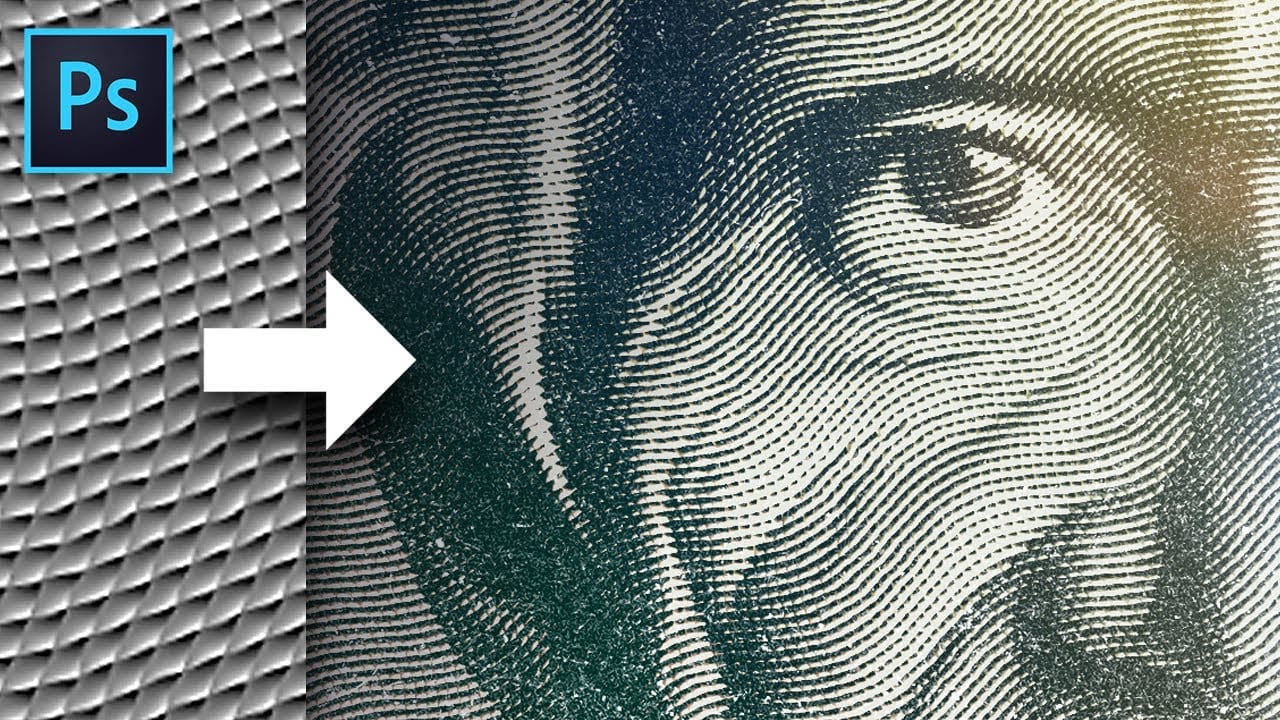
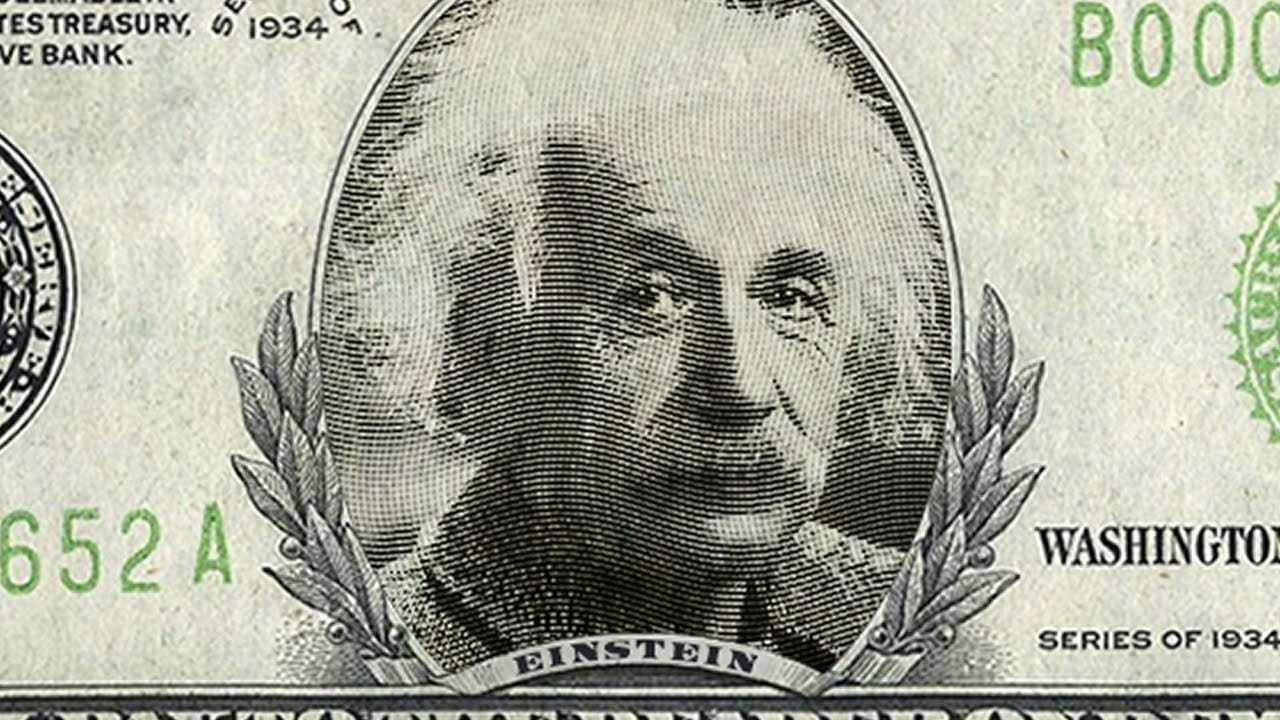
Steel engravings were a traditional printmaking technique that created intricate illustrations with fine lines and rich tonal variation. This effect transforms ordinary photographs into artwork that mimics the detailed crosshatching and precise lines characteristic of vintage engravings found in old books and currency.

The technique combines strategic filter combinations with smart objects, allowing you to create reusable templates that preserve the original photo while applying convincing engraved textures and patterns.

Watch the Video

Video by Photoshop Arthouse. Any links or downloads mentioned by the creator are available only on YouTube

Practical Tips

These key techniques will help you achieve a more convincing steel engraving effect:

  • Set your image resolution to 150 pixels per inch with minimum 1000 pixels width or height for optimal filter results
  • Use 50% gray as your base layer and convert to smart object before applying filters to maintain editability
  • Apply Halftone Pattern first with size 2, contrast 0, and dot pattern, then duplicate and replace with Torn Edges
  • Set Torn Edges to image balance 25, smoothness 15, contrast 15, then change blend mode to Hard Mix at 70% fill
  • Finish with Twirl distortion at 50° angle to add organic variation to the linear patterns

Explore more vintage and artistic photo effects with these specialized techniques.
Create a Photo-Realistic Metal Apple in Photoshop
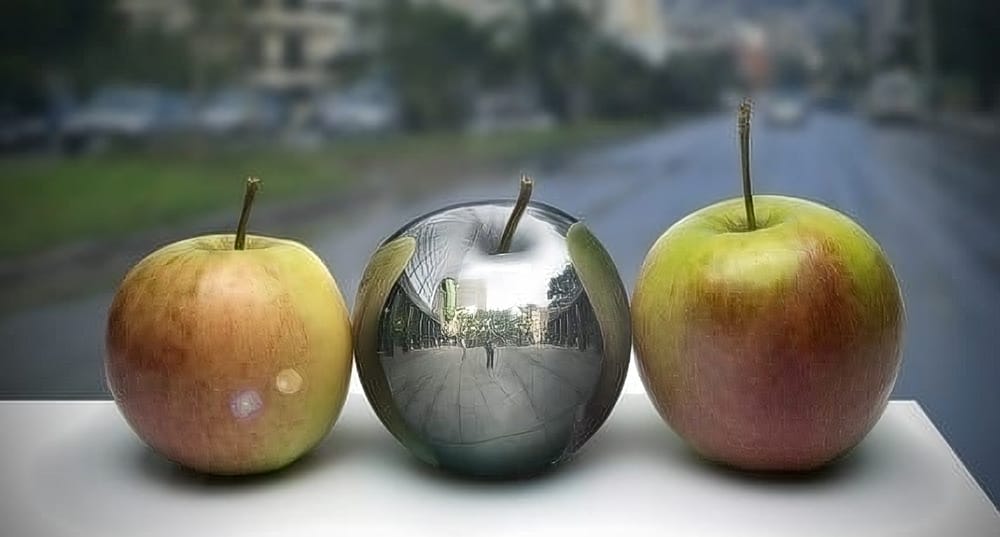
In this engaging tutorial by Adrian Scheffe, you will learn to create a chrome metallic apple featuring mirror-like reflections. The step-by-step instructions make it easy to follow along, even if you are a beginner. You will explore essential techniques such as warping objects, which allows for more realistic shapes, and applying dodge and burn methods to enhance depth and detail. The tutorial also emphasizes the importance of adding reflections, ensuring your metallic surface looks convincing
This magic texture creates an engraved money effect in Photoshop
Transform ordinary photos into vintage, engraved artwork using Photoshop's powerful texture and filter techniques. This tutorial reveals a simple method to create a classic dollar bill-style illustration effect that adds depth and artistic character to your images. Watch the Video Practical Tips for Creating the Engraved Money Effect Master the art of transforming photographs into vintage, engraved illustrations with these key techniques: * Create a custom 10x10 pixel grayscale texture as
How to Put a Face onto Paper Money in Photoshop
This tutorial explores the intricate process of digitally placing a portrait onto a paper money template. It delves into transforming standard photographs into a style reminiscent of traditional steel engravings. Viewers will discover techniques to convert a photo into a realistic engraved look, seamlessly blend it with a currency design, and add customized text, enhancing the illusion of authenticity and detail. Watch the Video Replicating Engraving Effects for Photo Manipulation Creating
Create a 1-Click Photo to Pencil Drawing Sketch Effect in Photoshop
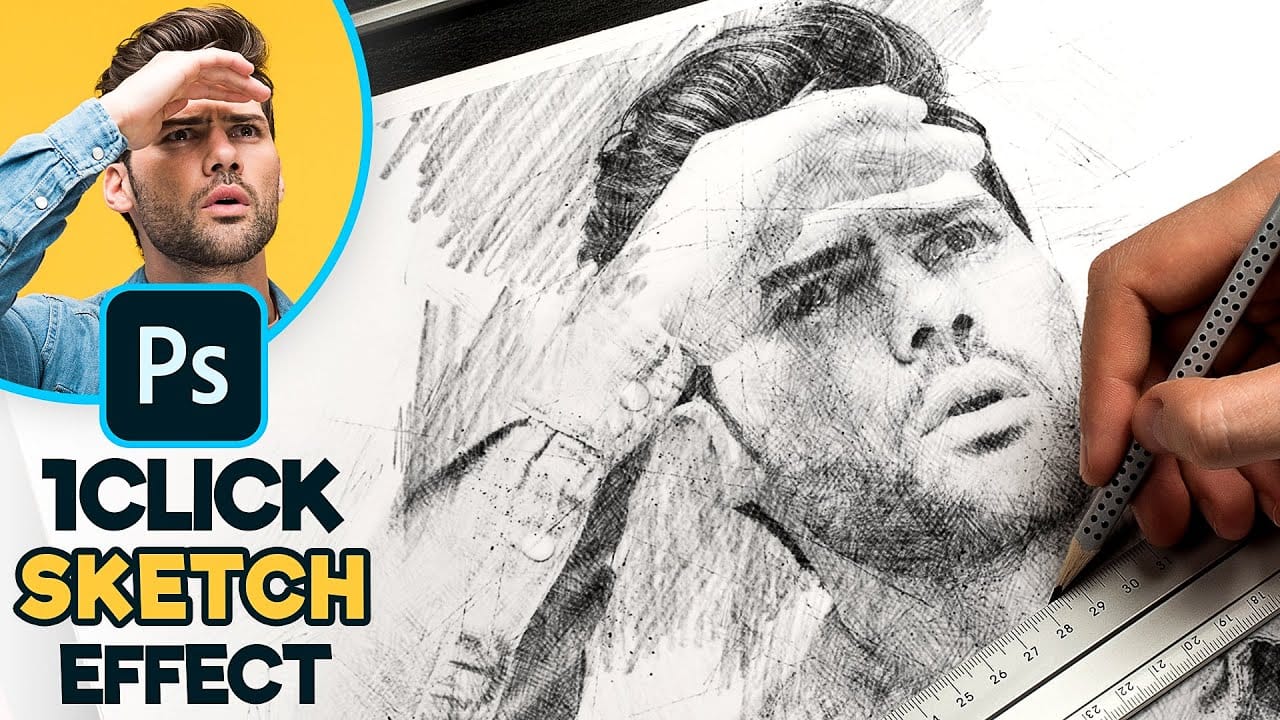
Turn any photograph into a realistic pencil drawing with this comprehensive Photoshop technique. This method creates a reusable template that transforms photos into detailed sketches with multiple texture layers and smart object functionality. The tutorial builds a complete PSD file you can use repeatedly on different images with just a few clicks. Watch the Tutorial Tips for Better Pencil Sketch Effects These techniques will help you create more realistic and professional-looking sketch e
Carved Stone Text Effect in Photoshop
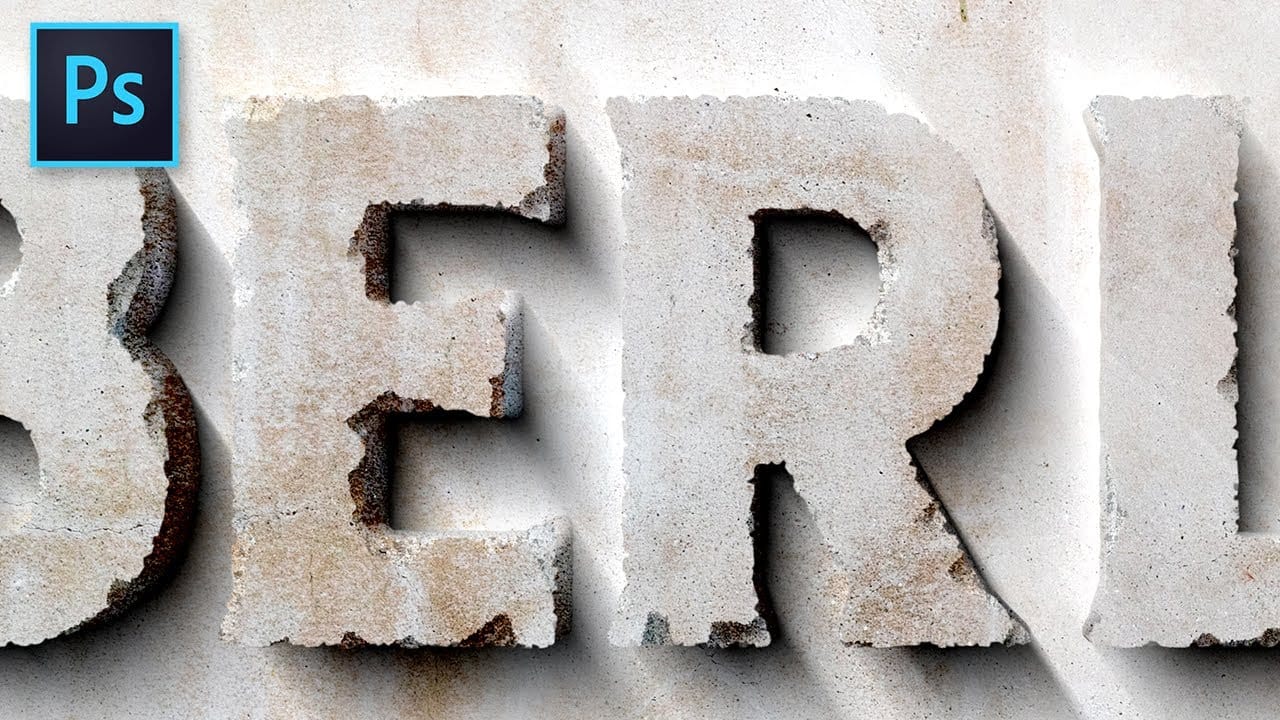
Learn to create a realistic carved stone or concrete text effect in Photoshop without complex 3D tools. This tutorial guides you through simulating depth and adding texture, achieving a dramatic, chiseled look. Watch the Video Practical Tips for Carved Stone Text Effects Achieve a convincing stone or concrete text effect by implementing these core Photoshop techniques: * Roughen Edges with Masks: Create a solid black layer with a mask, then apply *Filter Gallery* effects like Spatter and
Create a realistic tattoo out of any design in Photoshop
Digital tattoo creation transforms flat illustrations into convincing skin art through careful texture work and blending techniques. The key lies in making computer-generated designs look hand-drawn and naturally integrated with skin. This technique converts vector artwork or digital drawings into realistic tattoos by adding organic line variation, proper lighting effects, and skin integration that mimics how real ink settles beneath the surface. Watch the Video Practical Tips Master these
Turn a Photo into a Pencil Sketch Drawing in Photoshop
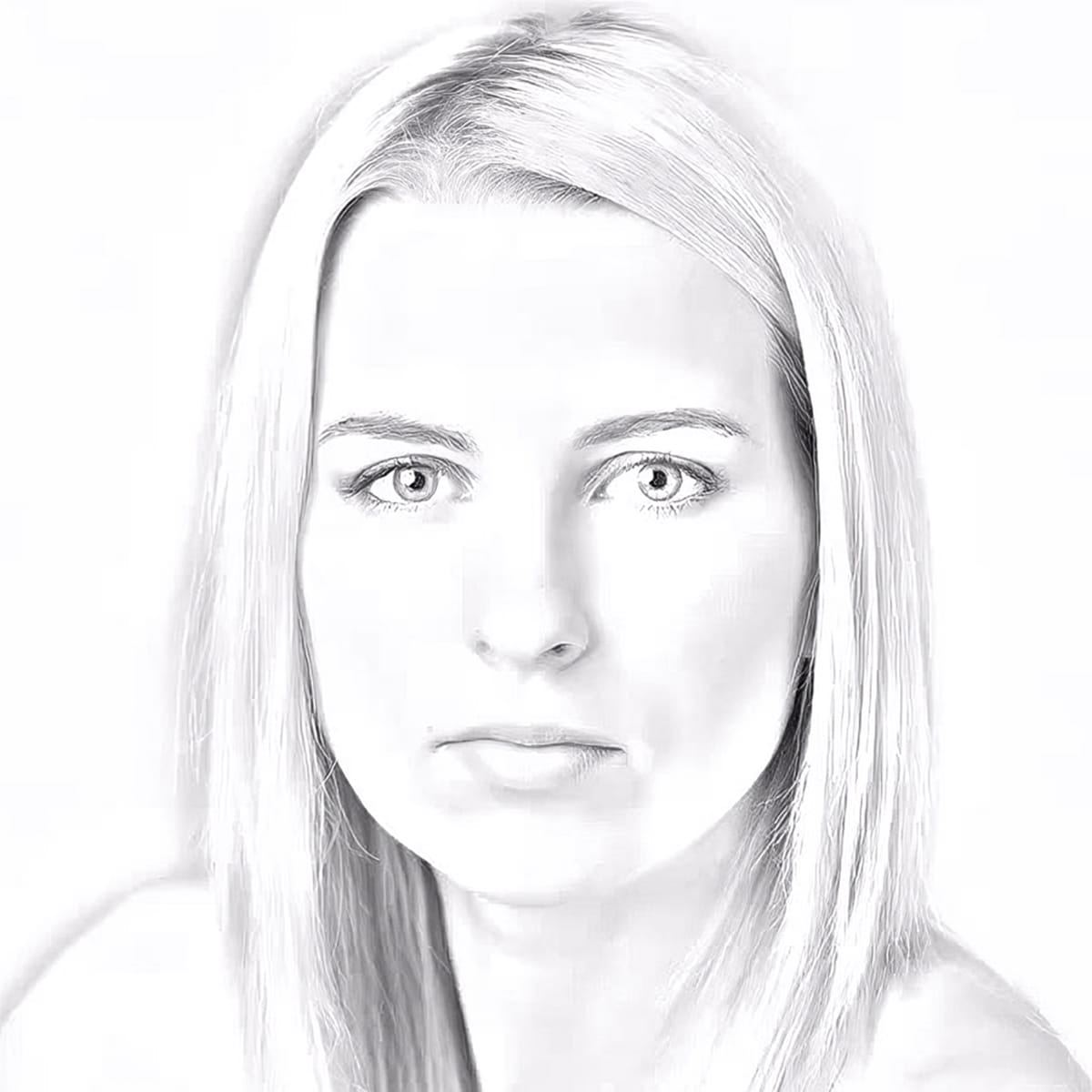
Transforming a photograph into a realistic pencil sketch creates an artistic effect that mimics traditional hand-drawn artwork. This technique uses adjustment layers and blending modes to simulate the appearance of graphite on paper. The process involves desaturating the image, duplicating layers, and applying specific filters to achieve the characteristic lines and shading of a pencil drawing. Watch the Video Practical Tips These key techniques will help you achieve a more realistic sketc
How to Create a Molten Metal Text Effect in Photoshop
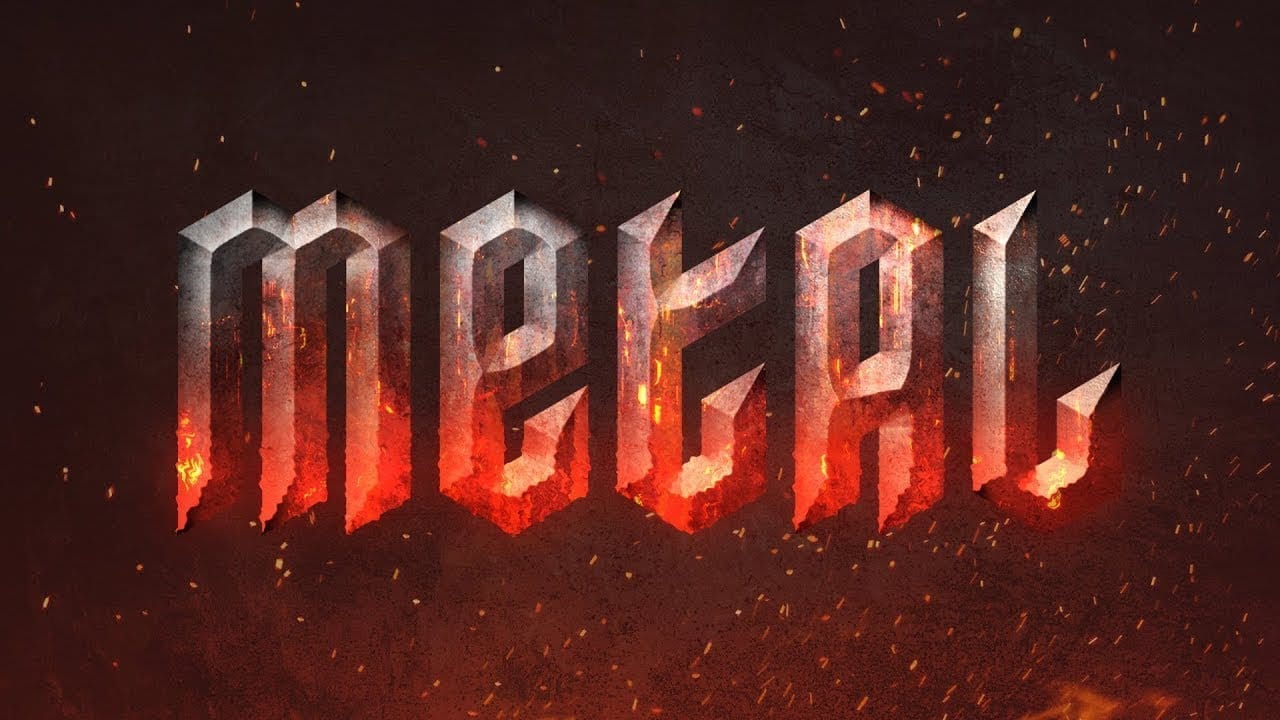
Molten metal text effects transform ordinary typography into blazing, dimensional masterpieces that appear to glow with intense heat. This technique combines strategic layer styles, textural overlays, and color grading to simulate the appearance of scorching hot metal with fiery edges and realistic surface details. The process builds layers of metallic gradients, rust textures, and glowing ember effects that create convincing depth and heat distortion. Smart objects keep the text fully editable
How to Transform Photos into Oil Paintings Using Generative Fill in Photoshop
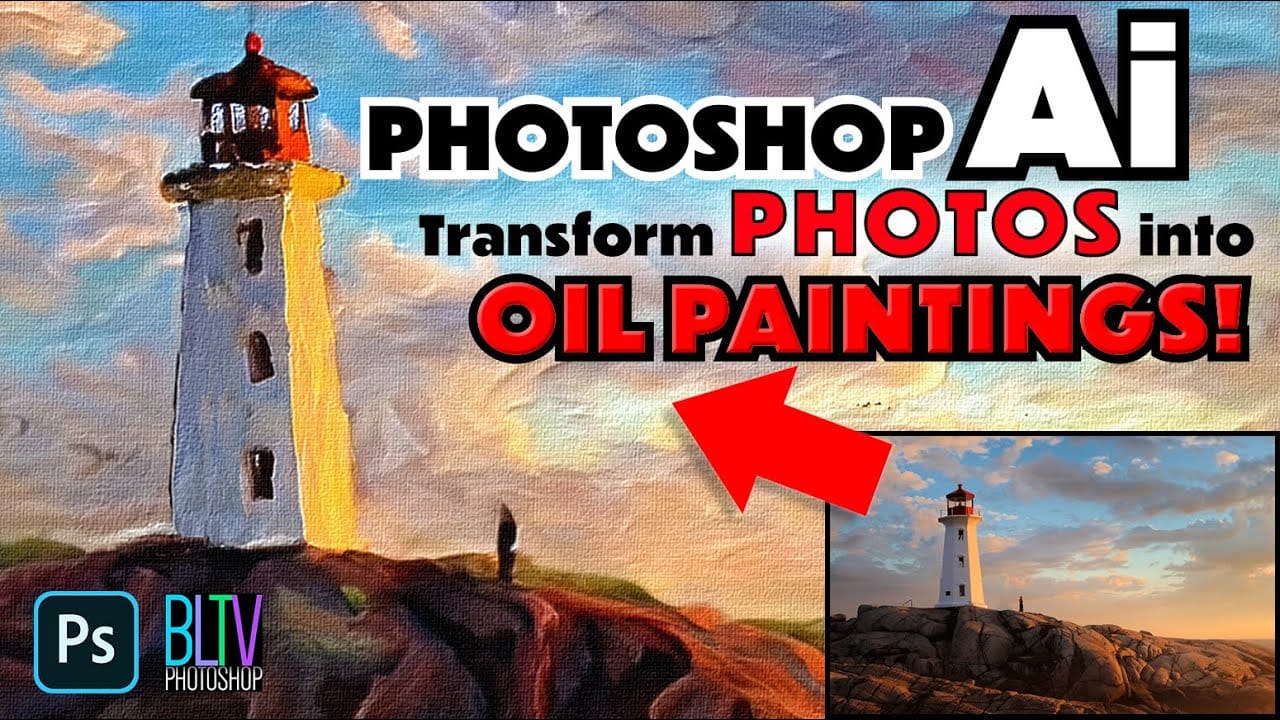
Generative Fill can transform ordinary photographs into convincing oil paintings when combined with the right selection technique. The key is using channel-based selections rather than selecting the entire image, which allows the AI to apply painterly effects while preserving the original composition and lighting. This method also works for watercolor effects and other artistic styles. Adding texture and brush stroke details through layer styles creates even more realistic painted results. Wa

Get tutorials & freebies delivered to you.

Subscribe to the Photoshop Roadmap newsletter, a weekly roundup of new tutorials, insights and quality downloads, trusted by 6500+ readers.

You might also like

How to Use Color Average for Color Toning in Photoshop

Color average creates a unified color tone by analyzing all the colors in your image and calculating their mathematical average. This technique adds depth and cohesion to photos, composites, and AI-generated images by applying a subtle color wash that ties all elements together. The method works particularly well for composites...

How to Remove Complex Background Elements Using AI in Photoshop

Removing complex background elements like fencing or wire mesh has traditionally been one of the most time-consuming tasks in photo editing. New AI-powered tools in Photoshop can now eliminate these distracting elements while preserving fine details in your subject. This tutorial demonstrates two practical workflows: one using the latest Firefly...

How to Use Photoshop's Auto Layer Rename Feature

Messy layer names like "Layer 52 copy 4" and "Untitled 5" clutter your workspace and slow down complex projects. Photoshop's new auto-rename feature uses AI to automatically identify and name layers based on their content, from "Woman in yellow shirt" to "...

New Generative Fill Features in Photoshop Beta: Reference Images and Credit Tracking

Photoshop Beta introduces significant improvements to Generative Fill that address the most requested features from users. The updated interface now displays your generative credit balance and usage, while the new reference image capability lets you add up to eight specific images to guide AI generation with precise visual examples. These...

Essential Photoshop Tools for Beginners: Brush, Crop, and Move Tool Tutorial

Learning Photoshop tools feels overwhelming when you don't know where to start. This tutorial focuses on three essential tools that form the foundation of most Photoshop work: the brush tool for painting and retouching, the crop tool for resizing and straightening images, and the move tool for positioning...

How to Add Custom Textures to Photos in Photoshop

Adding textures to photographs can transform ordinary images into compelling artistic compositions. This technique uses multiple texture layers combined with strategic blending modes and color adjustments to create depth and visual interest. The process involves layering different texture types—color overlays, surface patterns, and lighting effects—then using masking techniques...

You’ve successfully subscribed to Photoshop Roadmap
Welcome back! You’ve successfully signed in.
Great! You’ve successfully signed up.
Success! Your email is updated.
Your link has expired
Success! Check your email for magic link to sign-in.