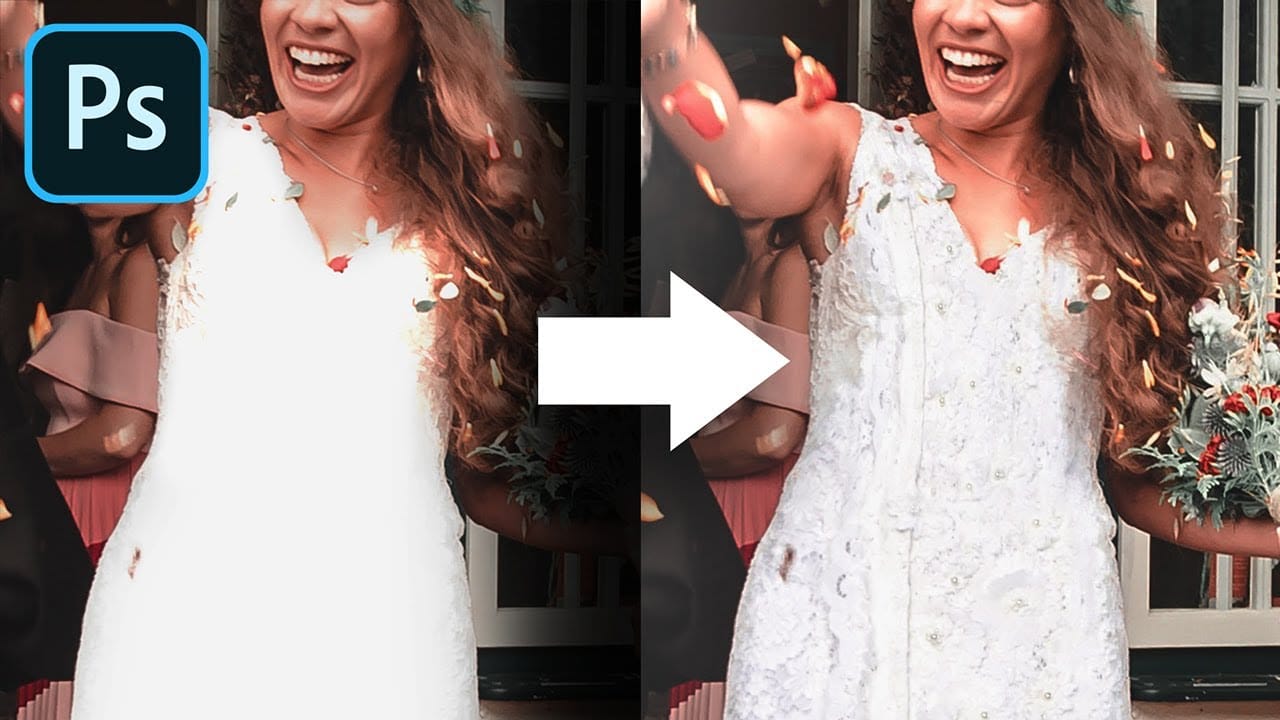
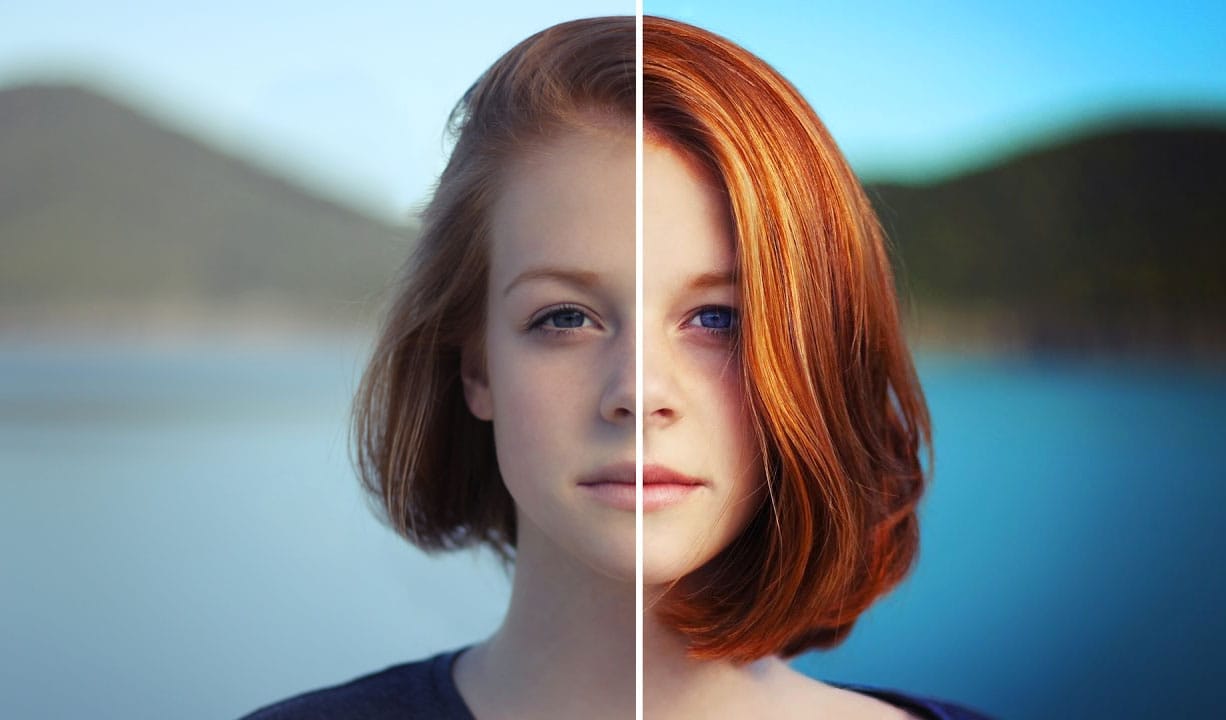
Creating natural-looking highlights and skin glow in portraits requires techniques that enhance existing light rather than adding artificial effects. The Blend If feature in Photoshop offers precise control over how highlights appear, targeting only the brightest areas of your image while preserving natural skin texture.
This method works by selectively applying adjustments based on the underlying tonal values, ensuring that enhancements only affect areas where highlights would naturally occur. The result is a healthy, luminous appearance that maintains the authenticity of your original photograph.
Watch the Video
Video by Vera Change. Any links or downloads mentioned by the creator are available only on YouTube
Practical Tips
These key techniques will help you achieve natural-looking highlights that enhance rather than overwhelm your portraits:
- Create separate layers for different facial areas like eyes, lips, and cheeks to control blend settings independently for each region
- Hold Alt while splitting the Blend If slider points to create smooth transitions that prevent harsh edges in your highlight effects
- Use layer masks with black brushes to selectively remove highlights from areas that are already well-lit, maintaining balanced exposure
- Start with overexposed curves adjustments, then use Blend If to make the effect appear only in naturally bright areas
- Apply selective color adjustments to whites with negative black values, then blend using underlying layer settings for realistic glow
Related Articles and Tutorials
Explore these beauty retouching tutorials to enhance your portrait editing skills with professional techniques.