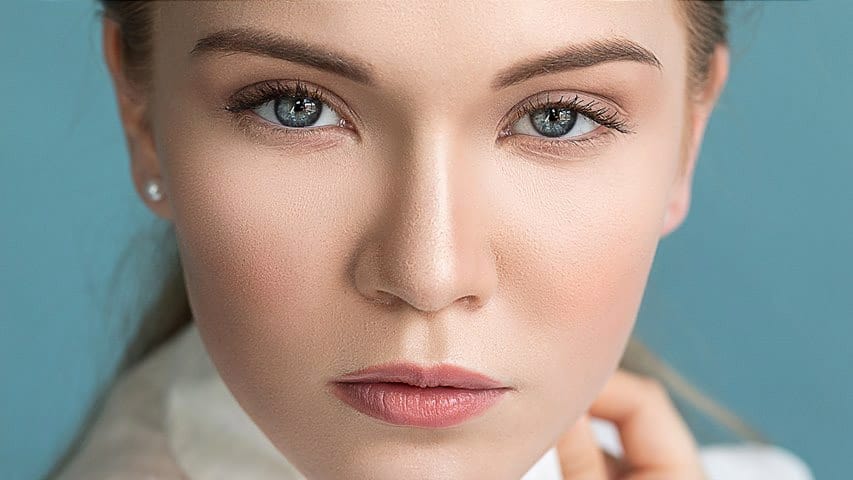
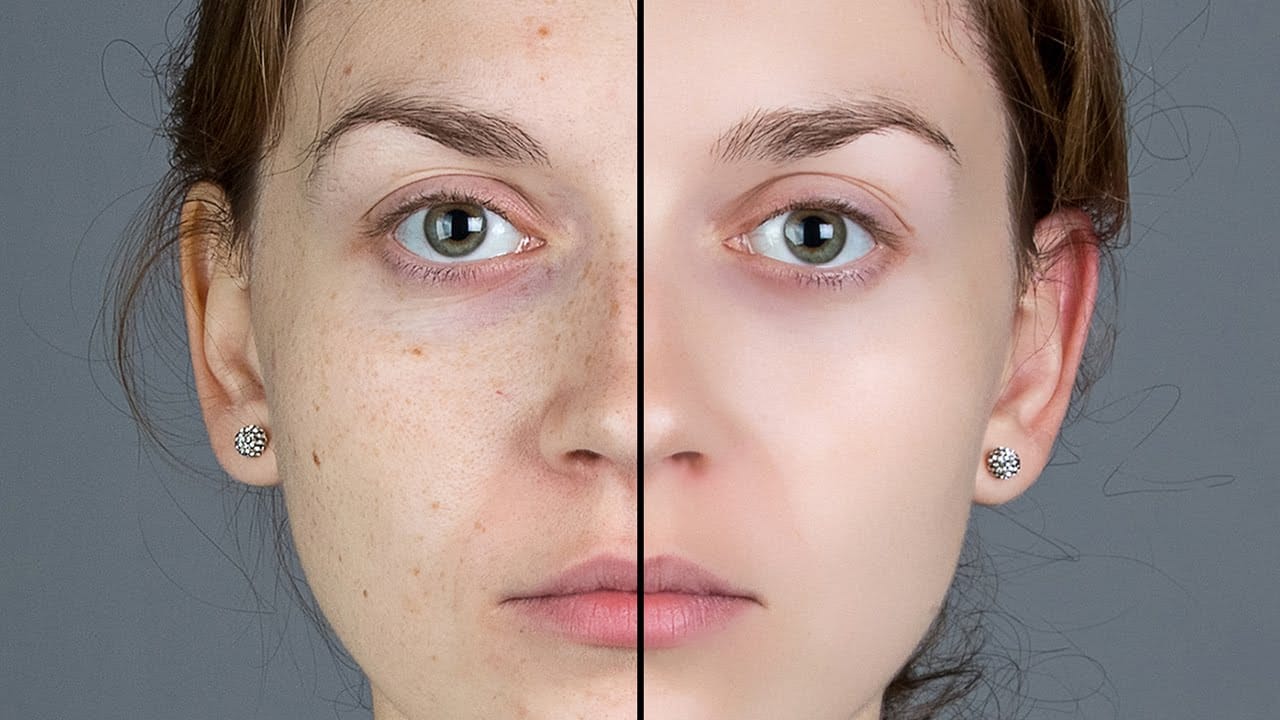
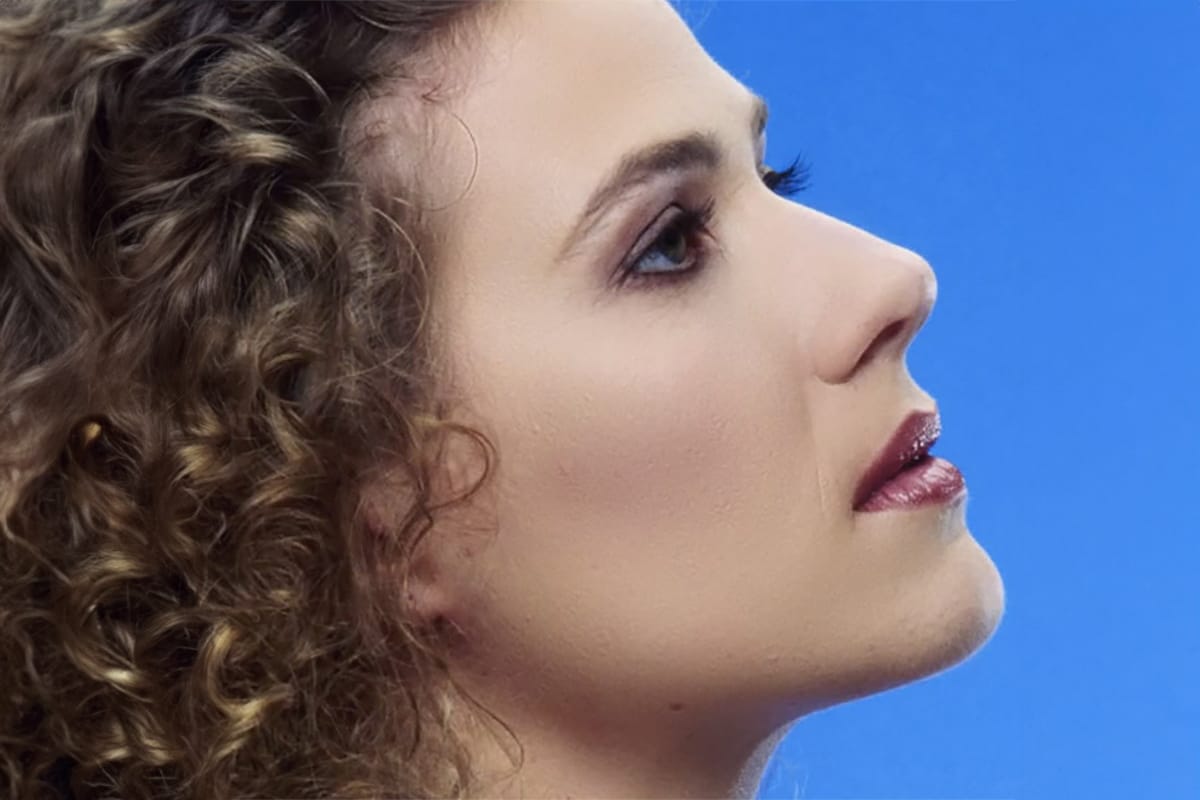
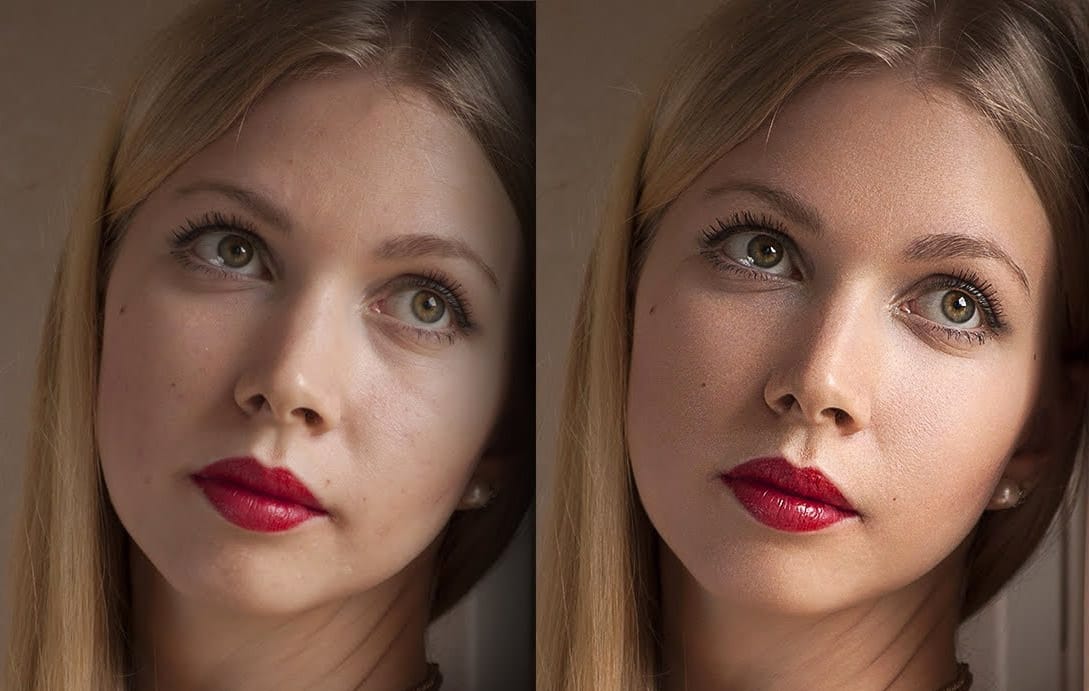
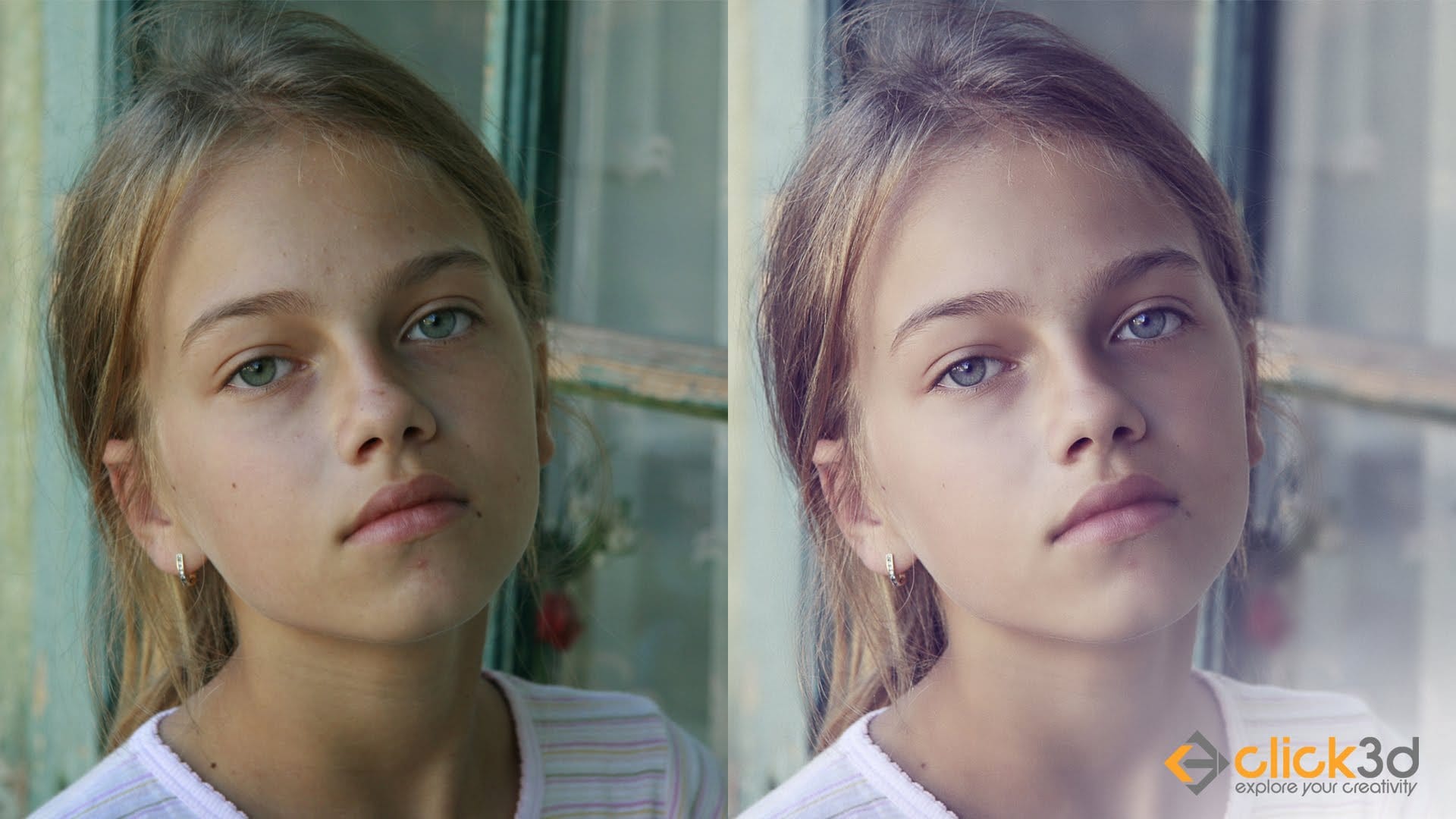
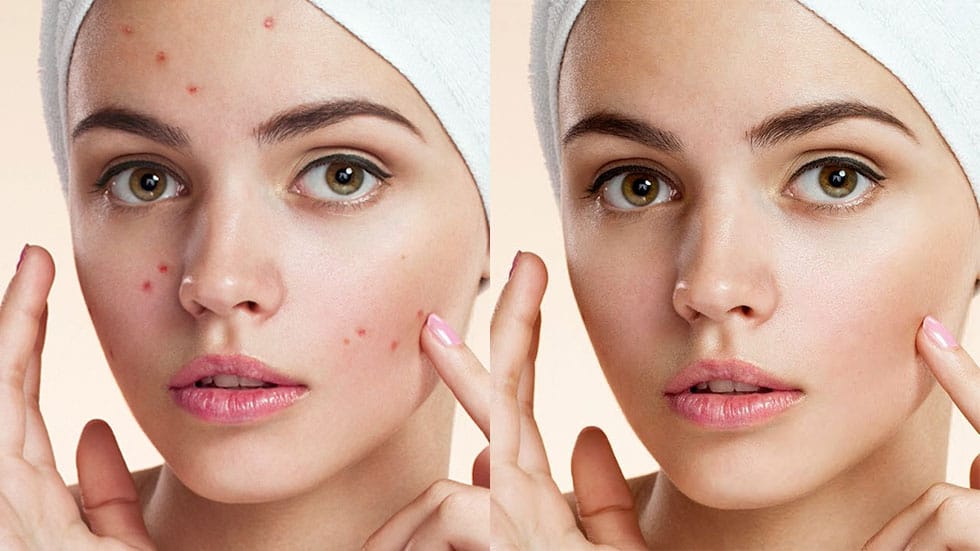
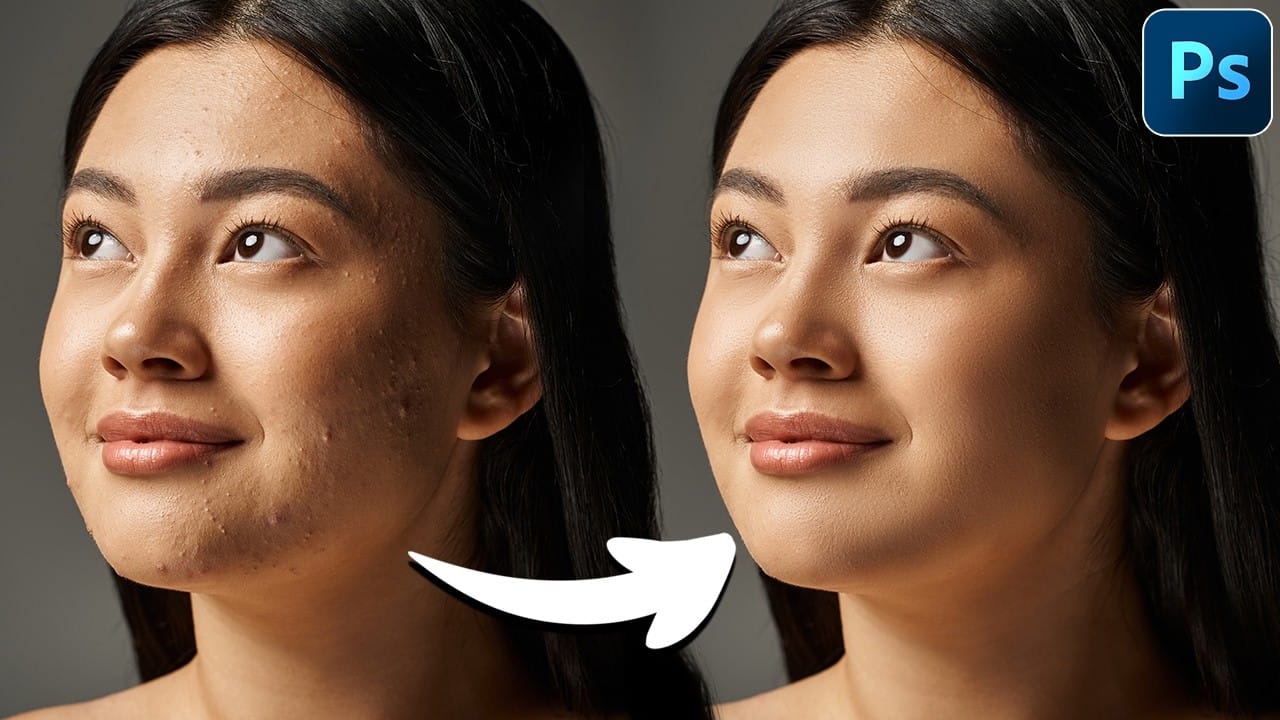
Skin tones can make or break a portrait, yet color casts and uneven lighting often leave subjects looking unnatural or flat. Whether dealing with mixed lighting conditions, camera white balance issues, or post-processing mishaps, getting skin colors right requires a systematic approach that works consistently across different scenarios.
This comprehensive method addresses the root causes of skin tone problems while preserving natural texture and detail, ensuring your portraits look both polished and authentic.
Watch the Video
Video by PiXimperfect. Any links or downloads mentioned by the creator are available only on YouTube
Practical Tips
Apply these key techniques to achieve natural-looking skin tones every time:
- Start with proper white balance correction before making any skin tone adjustments
- Use targeted color selection tools to isolate skin areas without affecting other image elements
- Work with subtle adjustments in small increments rather than dramatic changes
- Check your results against neutral reference points like whites and grays in the image
- Always compare your edited version with the original to avoid over-processing
Related Articles and Tutorials
Explore these comprehensive skin retouching tutorials to master professional portrait editing techniques.