How to Flip Images Horizontally and Vertically in Photoshop

How to Flip Images Horizontally and Vertically in Photoshop

Flipping images is a fundamental technique that can dramatically change the composition and impact of your photos. Whether you need to correct the orientation of a subject, create mirror effects, or simply improve the visual flow of your design, knowing how to quickly flip images both horizontally and vertically gives you essential control over your creative process.

The key requirement before flipping any image is ensuring your layer is unlocked, which allows you to make transformations without restrictions.

Watch the Video

Video by PiXimperfect. Any links or downloads mentioned by the creator are available only on YouTube

Practical Tips

Here are the essential techniques for flipping images efficiently:

  • Always unlock your layer first by clicking the lock icon before attempting any transformations
  • Use Edit > Transform > Flip Horizontal or Flip Vertical for the straightforward menu approach
  • Press Ctrl/Cmd + T to activate transform controls, then right-click for quick flip options
  • When dragging new objects into your document, transform controls appear automatically for immediate flipping
  • Press Enter or Return to confirm your transformation, or continue making adjustments while transform mode is active

Explore more image transformation and creative effect tutorials to expand your editing skills.
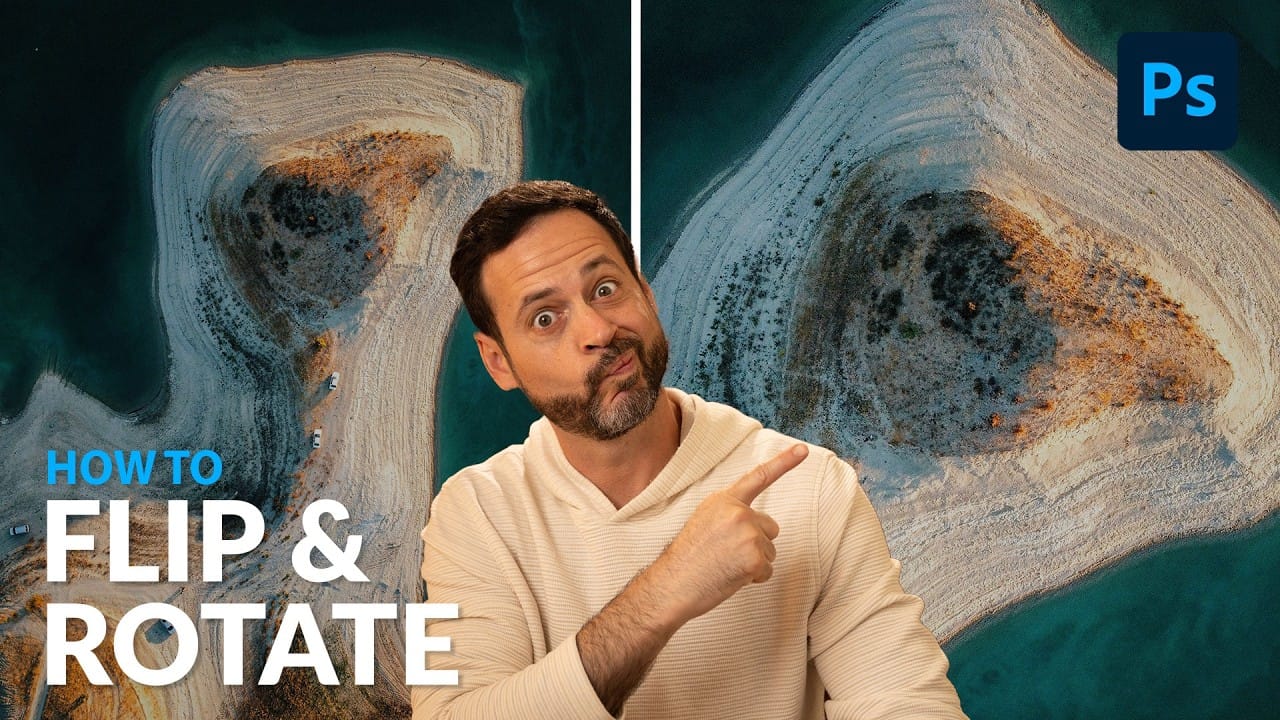
Rotate and Flip Images and Layers with Precision in Photoshop
Often in image editing, photographs or design elements are not oriented correctly or require a creative re-orientation for a new composition. This common challenge can be frustrating when simple rotation tools affect the entire canvas, disrupting other layers, or when precise control over individual elements is needed. This tutorial demonstrates two distinct methods for rotating and flipping images in Photoshop: one for the entire canvas and another for individual layers. Understanding these a
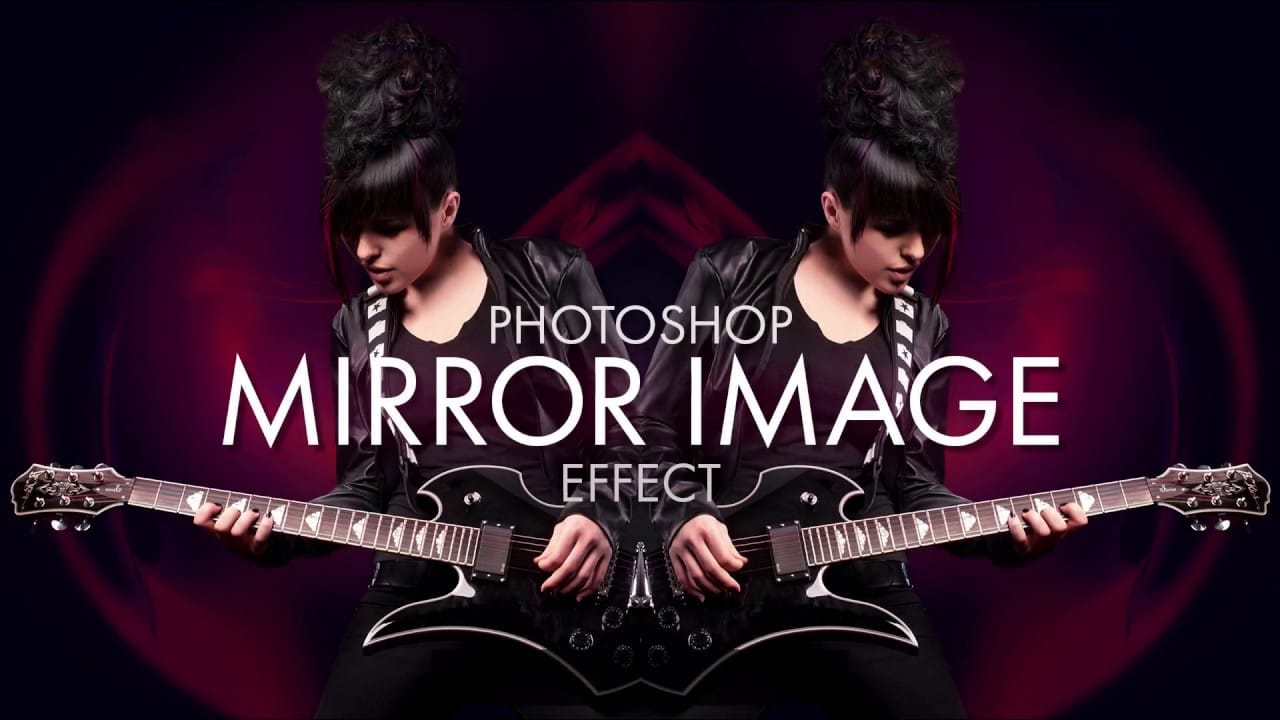
Create a mirror image photo effect in Photoshop
Symmetry is all around us in nature, and as human beings, we can't get enough of it. Symmetry brings math, science and art together in a way that captures both our eye and our imagination. The most basic form of symmetry is Reflection Symmetry, also known as Mirror Symmetry, where one half of something is a perfect mirror reflection of the other half. In this video from Photoshop Essentials, Steve Patterson shows us how to take our natural fascination with symmetry and apply it to any image in
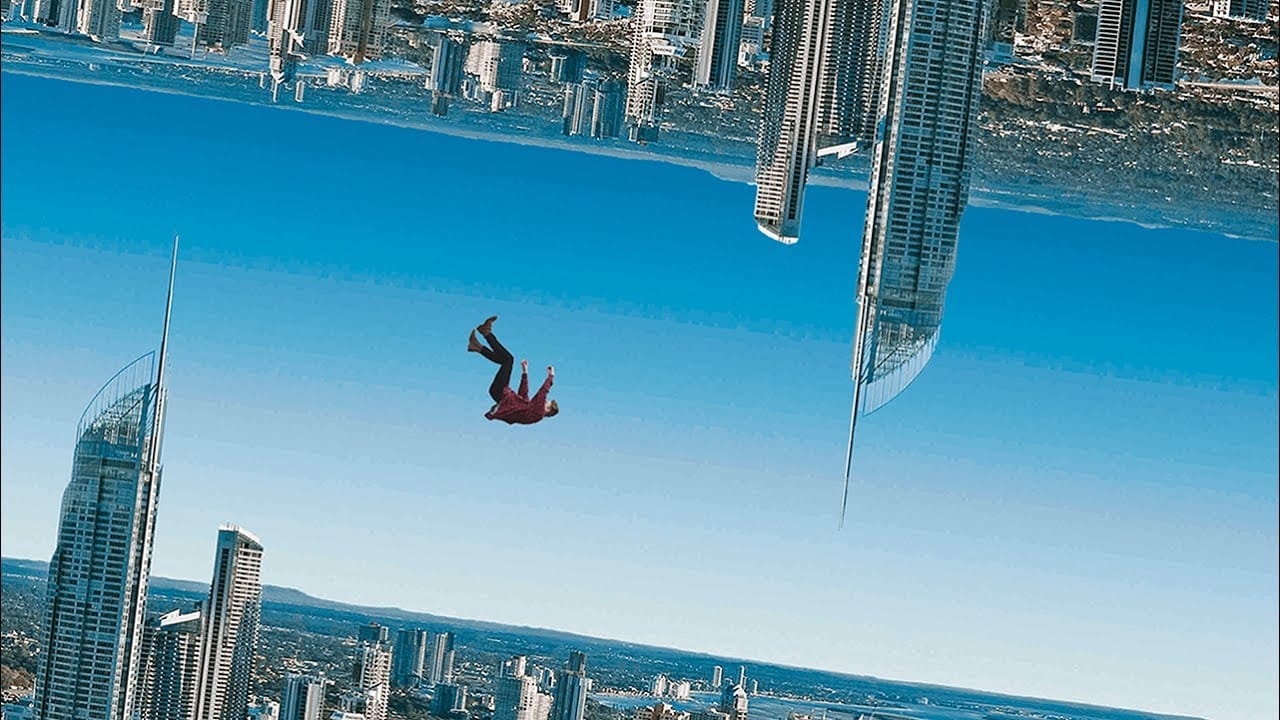
Create an intriguing upside down effect in Photoshop
In this tutorial from Tutorials Junction, you will learn how to create an intriguing upside-down effect with just a single picture. The effect is achieved by rotating and flipping an image. To make it more interesting, you'll be adding a person traveling between both worlds. The author explains that this is a simple effect, but it can be quite striking. By manipulating the image in Photoshop, you can create the illusion of a person existing in two different orientations simultaneously. This can
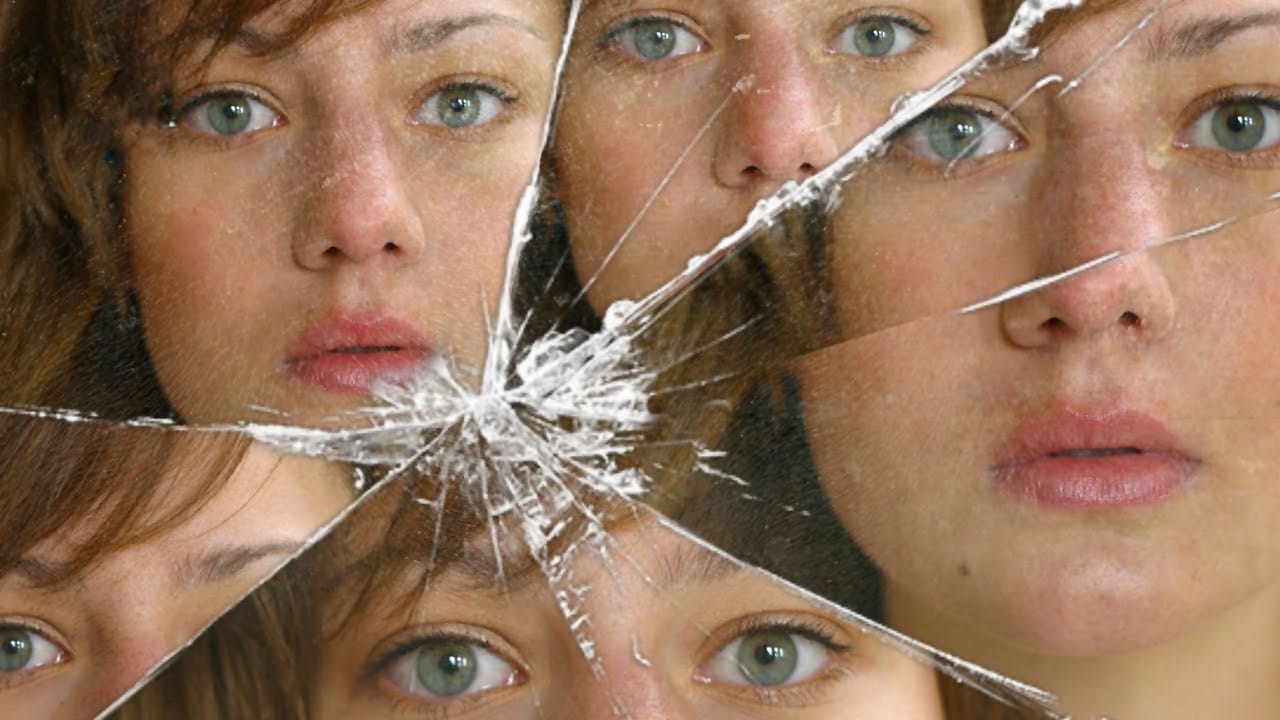
Create a broken mirror effect with a reflected face
In this Photoshop tutorial, the author guides you through the process of creating a broken mirror or broken glass photo effect. The tutorial is designed to be straightforward, requiring only a basic understanding of masking techniques. The author explains the steps in a clear and concise manner, making it accessible to users of all skill levels. By following the instructions, you can transform your images and add a unique, eye-catching effect to your digital creations. The tutorial is well-str
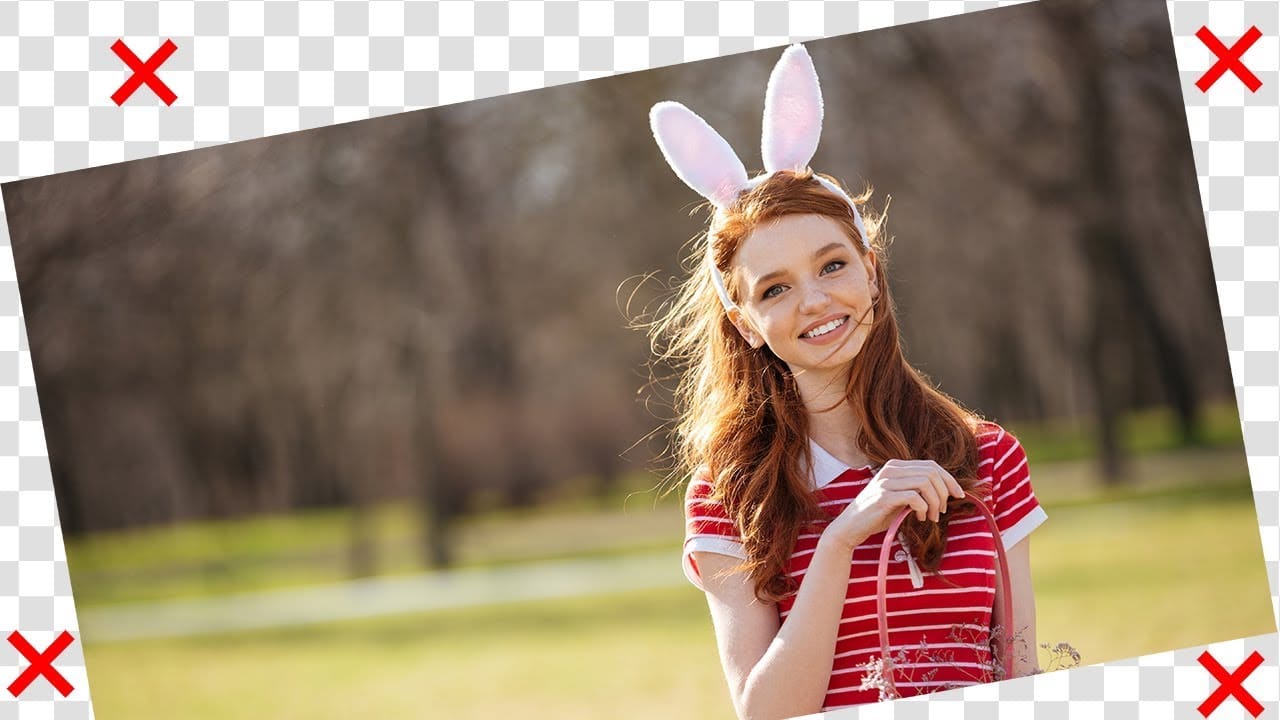
Rotate or straighten images without cropping in Photoshop
In this tutorial, PiXimperfect shows how to rotate or straighten an image without having to crop it in Photoshop. The instructor explains the process of using the Content-Aware Fill feature to fill in the spaces created when rotating the image. The tutorial guides the viewer through the step-by-step process. First, the image is rotated to the desired angle. Then, the Content-Aware Fill tool is used to fill in the empty spaces around the edges of the image. The author demonstrates how this techn
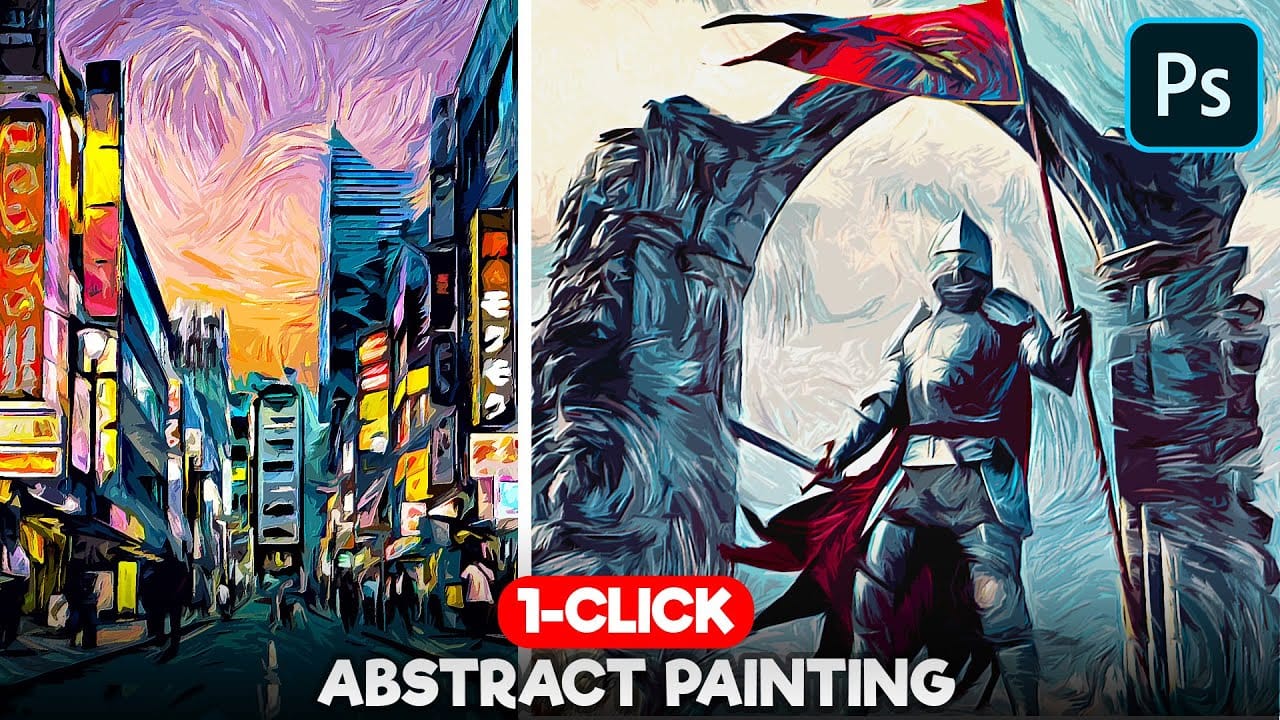
1-Click Photo to Digital Painting Effect in Photoshop
In this digital painting effect Photoshop Tutorial, you'll learn how to make a quick digital art effect out of any image in a few seconds! You'll learn how to use a simple combination of filters and patterns to make a realistic digital painting effect in photoshop. You will also learn how to use smart objects and reuse them to reapply this painting effect in photoshop with a SINGLE CLICK. Watch tutorial
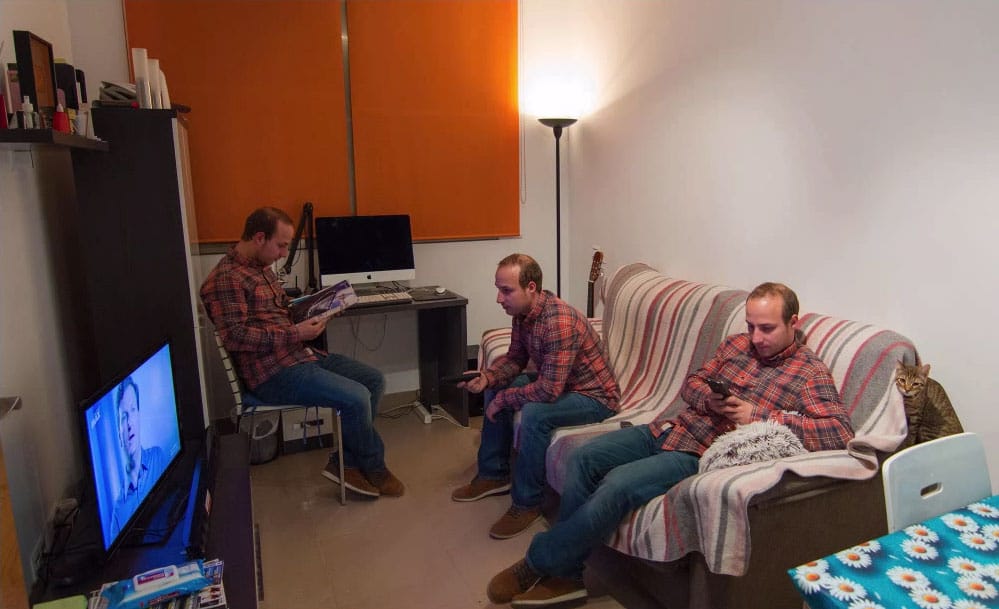
Amazing Photoshop Multiplicity Effect
The multiple exposure effect is an impressive Photoshop technique that is straightforward to create using any software that supports layers. In this tutorial, by PSD Box you will learn how to use this effect to clone yourself and achieve a stunning result in your photos. The tutorial guides you through the process, making it easy to follow and replicate the effect, enhancing your creative projects with a professional touch. Watch tutorial
How to Swap a Person Out in Photoshop
In this Photoshop tutorial, the author, Aaron Nace from Phlearn, will show you how to swap a person out of an image. This technique can be particularly useful for group shots, such as capturing bridal parties. The tutorial guides the user through the process step-by-step. By following the instructions, individuals can learn how to seamlessly replace one person in a photograph with another. This skill can come in handy when dealing with group photos, where someone may be absent or need to be sub
8 Crazy and Unusual Photoshop Effects That Will Make You Say “What the…?!”
You know that feeling when you see an image and your brain just... stops for a second? Not because it’s beautiful or well-composed. Because it’s weird. Because someone’s face is splitting open with flowers pouring out, or a city is curled into a tiny floating planet, or two faces are
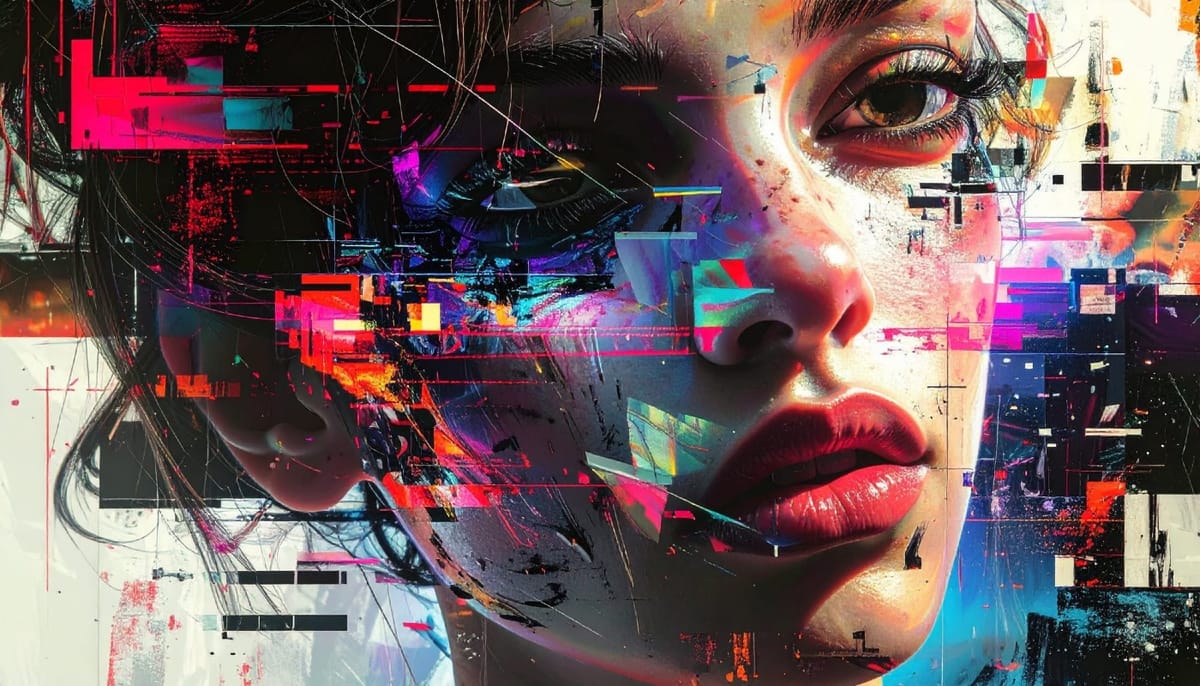
The Beauty of Digital Mistakes: Glitch Effects and Visual Aberrations in Photoshop
Once, a broken image or pixelated frame meant something had gone wrong. Now, those same visual errors are a creative choice. Designers and digital artists are using glitch effects to turn imperfections into style — bending pixels, breaking color channels, and distorting shapes until they feel alive again. Maybe it’s

Get tutorials & freebies delivered to you.

Subscribe to the Photoshop Roadmap newsletter, a weekly roundup of new tutorials, insights and quality downloads, trusted by 6500+ readers.

You might also like

Painting Digital Art Backgrounds: Techniques and Workflow

A well-crafted background can anchor an entire digital painting, providing atmosphere, depth, and visual context for the subject. This video demonstrates practical approaches to building backgrounds from scratch using digital tools, covering brush selection, color layering, and compositional thinking. Watch the Video Practical Tips Keep these core principles in...

How to Use the Light Adjustment Layer in Photoshop

Photoshop's new Light adjustment layer brings Camera Raw controls — exposure, contrast, highlights, shadows, whites, and blacks — directly into the layers panel as a fully non-destructive, maskable layer. This means you can stack multiple light adjustments, target specific subjects, and combine them with Blend If and other adjustment...

How to Use Object Selection, Remove Background, and the Selection Brush in Photoshop

Selections determine the quality and flexibility of almost every edit you make in Photoshop. Three modern tools — the Object Selection tool, Remove Background with Harmonize, and the Selection Brush — handle the most common selection tasks with far less manual effort, while keeping your original image intact through non-destructive layers....

How to Paint a Digital Background and Composite Wildlife Into It

Building a painted digital background from scratch gives you full control over color, mood, and composition before a single wildlife photo is placed. This walkthrough covers the complete process: blocking in shadows on a black canvas, layering foliage with textured brushes, positioning bird subjects on hand-painted stones, and using...

How to Sharpen Skin Texture Using Frequency Separation in Photoshop

Retouched skin can look great up close but lose all its natural texture the moment you zoom out. Rather than relying on standard sharpening filters, you can recover that texture by duplicating the high-frequency layer inside a frequency separation setup — a method that works whether or not you'...

You’ve successfully subscribed to Photoshop Roadmap
Welcome back! You’ve successfully signed in.
Great! You’ve successfully signed up.
Success! Your email is updated.
Your link has expired
Success! Check your email for magic link to sign-in.