How to Remove Dust and Sensor Spots Using Photoshop Tools

How to Remove Dust and Sensor Spots Using Photoshop Tools

Dust spots and sensor particles are inevitable challenges in digital photography, appearing as dark specks that distract from otherwise clean images. Camera sensors collect dust over time, creating consistent spots that show up across multiple photos, particularly in bright sky areas or uniform backgrounds.

Both Lightroom and Photoshop offer specialized tools designed to tackle these imperfections efficiently. Understanding when to use each application's strengths can streamline your workflow and deliver professional results.

Watch the Video

Video by PHLEARN. Any links or downloads mentioned by the creator are available only on YouTube

Practical Tips

Master dust removal with these essential techniques for cleaner images:

  • Use Lightroom's Spot Removal tool for quick fixes across multiple images from the same shoot
  • Set your brush size slightly larger than the dust spot to ensure complete coverage
  • Work at 100% zoom level to accurately identify and target small sensor spots
  • Switch to Photoshop's Healing Brush for complex areas where Lightroom's tool struggles
  • Create a separate layer in Photoshop for dust removal to maintain non-destructive editing

Explore more photo cleanup and retouching techniques with these helpful tutorials:

Add Dust to a Road Photo in Photoshop
Adding realistic dust clouds to car photos can transform static images into dynamic scenes that suggest motion and atmosphere. This technique uses cloud brush presets and layering methods to build convincing dust effects without complex particle systems or advanced compositing. The approach works by layering different cloud brushes with varying opacities, then using masks and dodge-and-burn techniques to integrate the dust naturally with the vehicle and road surface. Watch the Video Practic
Learn how to create light rays and dust particles in Photoshop
As a reader, you'll find this tutorial by Aaron Nace from Phlearn to be an informative and practical guide. He'll show you how to create stunning light rays and dust particles from scratch in Photoshop, using a custom brush. The step-by-step instructions are easy to follow, making it accessible even for beginners. You'll learn how to set up the brush, adjust the opacity and size, and apply it to your image to achieve the desired effect. The resulting light rays and dust particles will add dept
How to Remove Objects from Photos Using Photoshop's Remove Tool and Clean Plate Technique
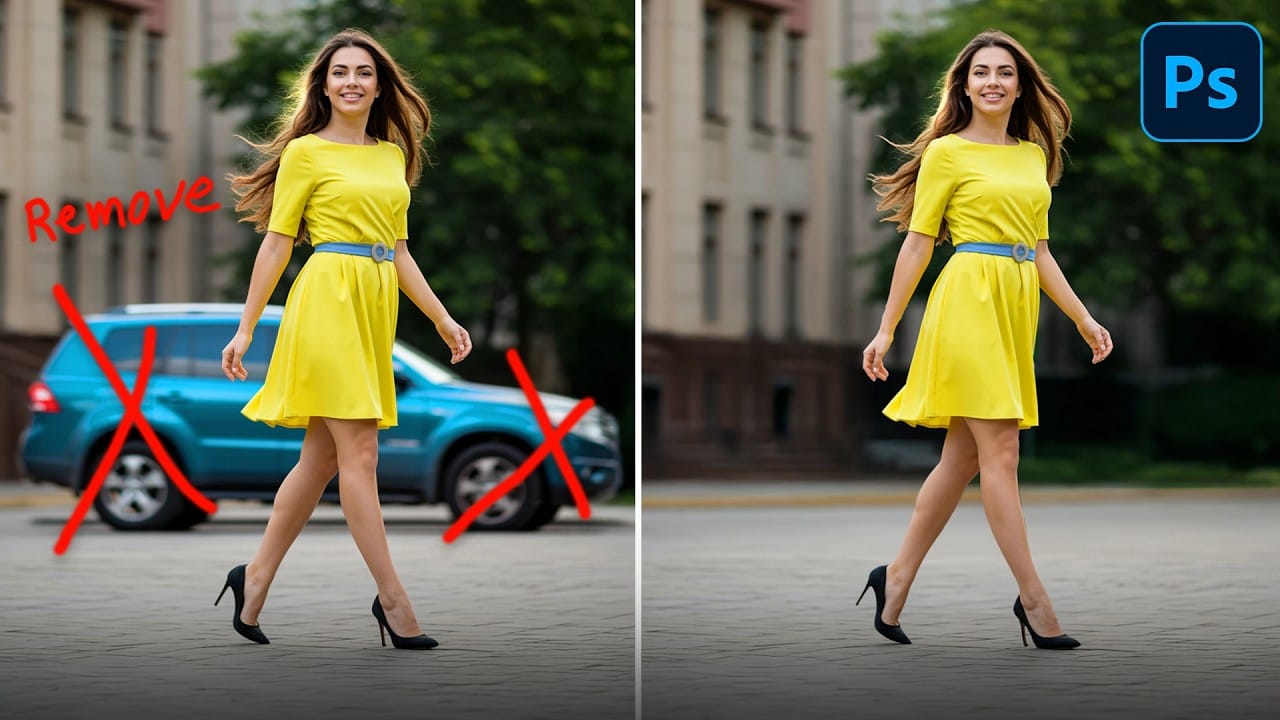
Professional photo editing often requires removing unwanted objects while maintaining natural-looking results. The challenge lies in creating seamless edges and realistic backgrounds, especially around complex subjects like hair or intricate details. This tutorial demonstrates both basic object removal using Photoshop's Remove Tool and an advanced "clean plate" technique used in professional TV and movie poster production. Watch the Tutorial Essential Tips for Object Removal * Create a ne
How to Remove People From Photos in Photoshop: Easy and Advanced Methods
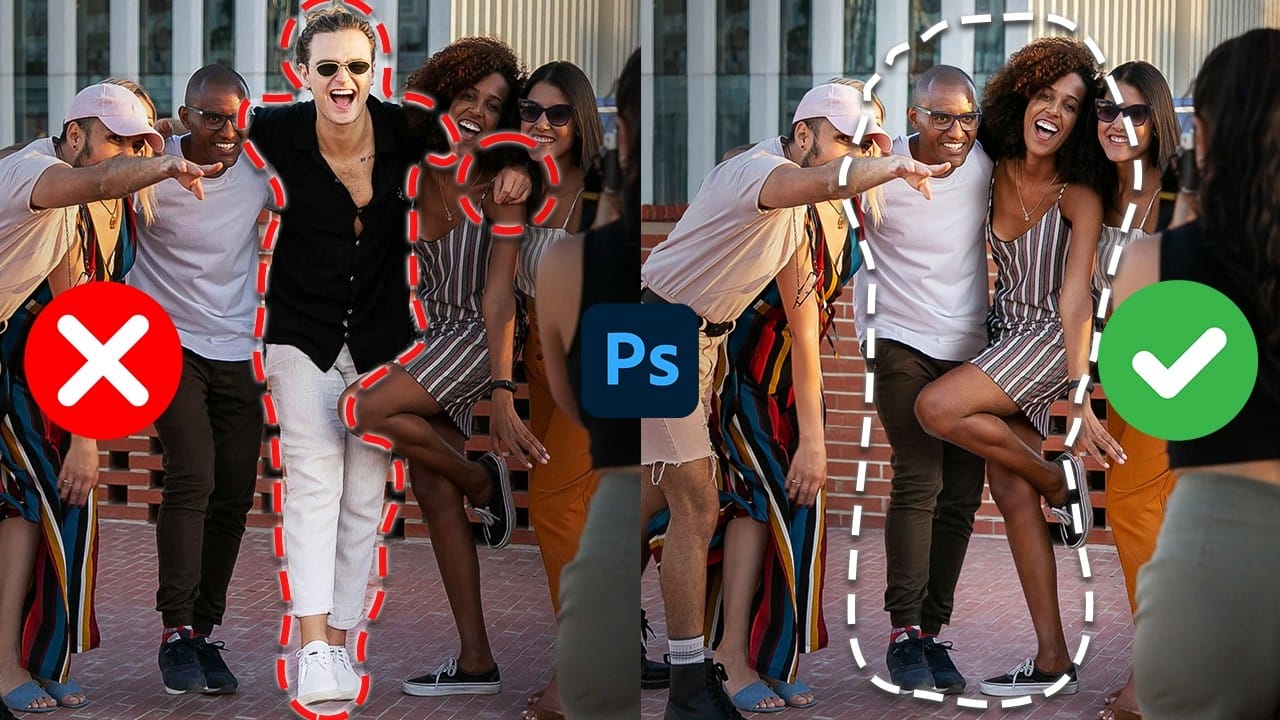
Removing unwanted elements from photographs, especially people, is a common task in digital image editing. Whether you're a professional photographer or an enthusiast, the ability to clean up a scene can transform an ordinary shot into a compelling visual, allowing the true subject or landscape to shine without distractions. This video explores two distinct approaches to achieve this in Photoshop. Viewers will discover how to use the automated features for simpler scenarios involving crowds, an
Remove All Distractions From a Photo in One Click using Adobe Photoshop
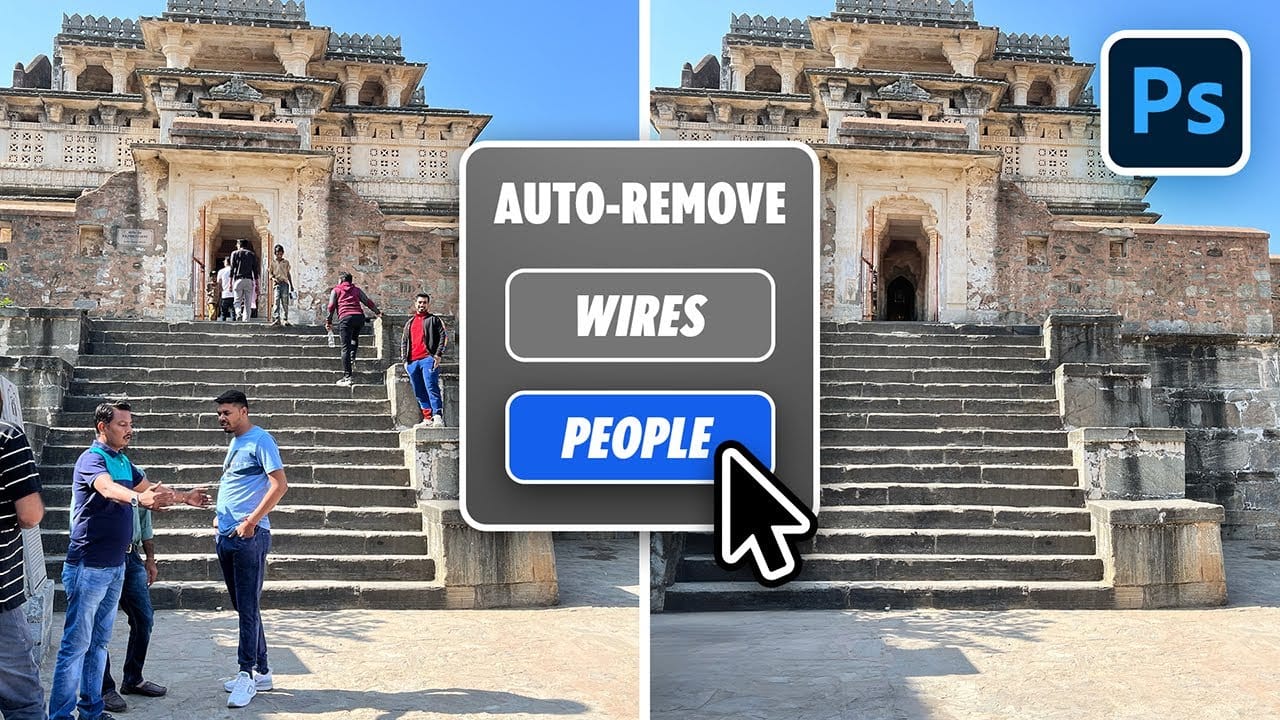
This tutorial by PiXimperfect introduces an impressive new feature in Adobe Photoshop Beta that simplifies photo editing. By utilizing the updated Remove Tool, users can effortlessly eliminate distractions from their images with just one click. The tutorial highlights how this feature can efficiently remove unwanted elements such as people, power lines, and various other distractions that can detract from the overall quality of a photograph. Ideal for photographers and graphic designers alike,
New Reflection Removal Tool in Photoshop
Capturing the perfect shot often means battling environmental challenges, and few are as persistent as unwanted reflections in windows or glass. These glare points can obscure subjects, distort details, and fundamentally compromise an image's impact. Fortunately, Photoshop has introduced a new AI-powered feature designed to tackle this common photographic issue. This video demonstrates how to activate and effectively use this tool, showcasing its capabilities and outlining crucial workflow cons
How to Edit Landscape Photos in Adobe Photoshop or Lightroom
Landscape photography often presents unique challenges and opportunities for post-processing. Capturing the grandeur of nature requires not only a keen eye but also the ability to refine and enhance images to truly convey the scene's atmosphere and depth. This video tutorial demonstrates a comprehensive workflow for editing landscape photos, primarily utilizing Adobe Camera Raw (compatible with Lightroom) and Photoshop. Viewers will learn how to apply non-destructive adjustments, create depth t
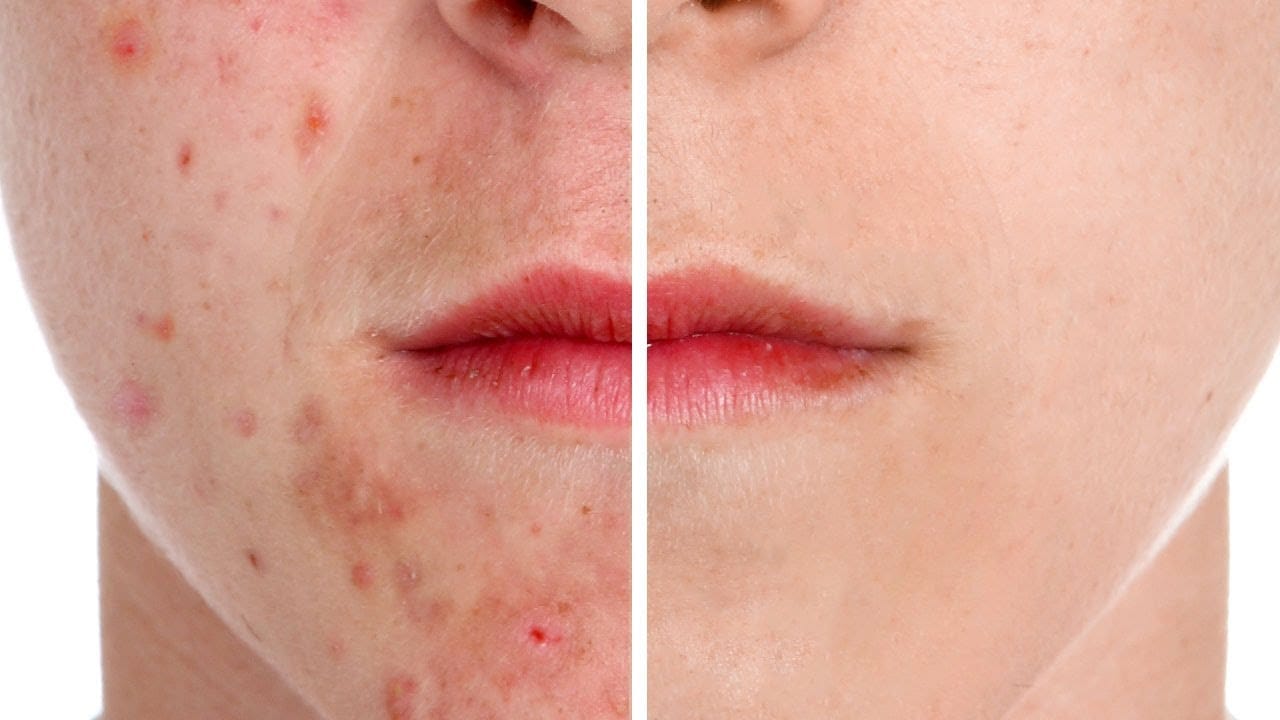
How to Remove Acne in Photoshop
In this tutorial by Aaron Nace from Phlearn, learn how to effectively remove acne in Photoshop. The process is divided into two steps: first, removing redness using Hue/Saturation to target specific red areas and make them look like normal skin tone. Second, removing blemishes with the Spot Healing Brush set to "Content Aware" and "Sample All Layers" to work non-destructively. After clearing the blemishes, a bit of red is added back to the skin using a soft light blend mode for a natural look.
How to Add and Remove Fog in Photoshop
In this Photoshop tutorial, the author, Aaron Nace from Phlearn, teaches how to add and remove fog in your photos. The process is straightforward and can be accomplished in a few easy steps. The tutorial guides the user through the necessary techniques to achieve the desired effect. By following the instructions provided, one can seamlessly incorporate or eliminate fog from their images, enhancing the overall visual impact. The tutorial offers a practical and accessible approach, making it sui
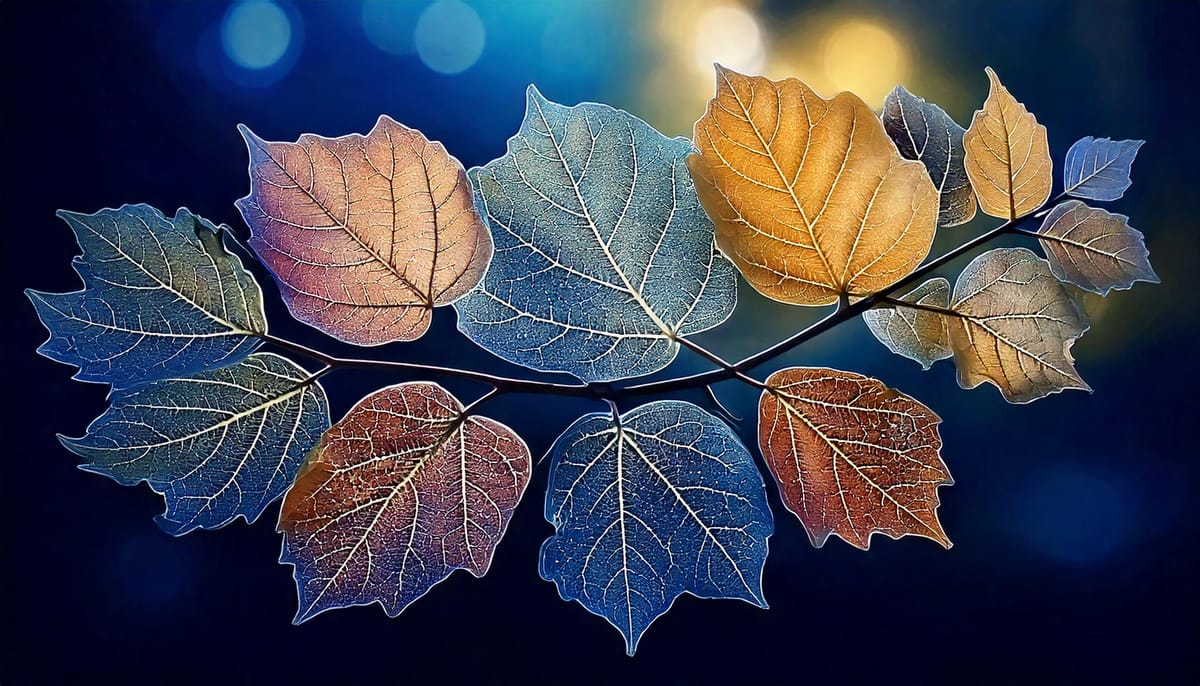
The Enchanting Beauty of Leaves: Exploring Nature’s Art Through Adobe Firefly
Leaves, in all their varied forms, have always held a special place in the world of art. Their delicate veins, intricate shapes, and vibrant colors offer endless inspiration. Now, with the help of AI, we can explore the artistic potential of leaves in entirely new ways. A Symphony of Shapes

Get tutorials & freebies delivered to you.

Subscribe to the Photoshop Roadmap newsletter, a weekly roundup of new tutorials, insights and quality downloads, trusted by 6500+ readers.

You might also like

How to Enhance Skin Tones Using Gradients in Photoshop

Skin tones often appear washed out or lifeless in photographs due to challenging lighting conditions or camera settings. This gradient-based technique brings vibrancy back to portraits while creating natural-looking dimensional highlights that draw the viewer's eye to key facial features. The method uses Color Range selections combined with...

7 Signs You're a Photoshop Pro - Skill Assessment Guide

Professional Photoshop mastery isn't about memorizing every menu or filter. It's about developing efficient workflows, understanding core concepts, and building muscle memory for essential techniques. Real pros focus on the right tools for their specific needs rather than trying to learn everything. This comprehensive assessment covers...

How to Use Generative Upscale with Multiple AI Models in Photoshop

Pixelated vintage photos and low-resolution images no longer need to stay small. Photoshop's Generative Upscale feature now offers multiple AI models to enlarge images up to 4x their original size while adding remarkable detail and clarity. This new feature includes three distinct AI models—Adobe's Firefly...

Create a Pointillism Effect in Photoshop

Pointillism, the late 19th-century painting technique that uses small dots of color to form images, creates a distinctive artistic look where colors blend optically when viewed from a distance. This digital recreation technique transforms ordinary photographs into artwork that mimics the style of masters like Paul Signac. The process combines...

How to Convert WebP to JPEG in Bulk Using Image Processor

Converting large folders of WebP images to JPEG format can be time-consuming when done manually. Image Processor provides an efficient solution for batch conversion, automatically handling multiple files while maintaining quality settings and organization. This method works with any image format conversion and creates organized output folders, making it ideal...

How to Use Generative Credits in Adobe Creative Cloud: Standard vs Premium Features

Adobe's generative AI features transform how creatives work, but understanding which tools consume credits can save you time and budget frustration. The credit system divides features into standard and premium tiers, with different consumption rates based on processing complexity. Knowing the difference between assistive AI tools that cost...

You’ve successfully subscribed to Photoshop Roadmap
Welcome back! You’ve successfully signed in.
Great! You’ve successfully signed up.
Success! Your email is updated.
Your link has expired
Success! Check your email for magic link to sign-in.