
A photograph carries detail that a painting would simplify, and that gap is exactly where this technique operates. By working through a structured layer-based workflow in Photoshop, you can reduce photographic sharpness, introduce painterly texture, and guide the eye the way a traditional artist would — all without picking up a brush.
Watch the Video
Video by Nikki Harrison's Fine Art Academy. Any links or downloads mentioned by the creator are available only on YouTube
Practical Tips
These key points from the tutorial will help you get a convincing painted result from any photo:
- Soften detail before adding texture — reducing sharpness first prevents photographic edges from fighting against brushstroke overlays.
- Work on duplicate layers — keeping the original intact lets you blend painted layers back at reduced opacity for a more natural transition.
- Sample colors directly from the photo — using the eyedropper while painting ensures tonal consistency between the painted areas and the underlying image.
- Build texture gradually — applying canvas or paper texture at low opacity in multiple passes looks more convincing than a single heavy application.
- Simplify backgrounds first — loosening background detail draws attention to the subject and reinforces the fine art composition.
Related Articles and Tutorials
Explore more techniques for converting photographs into painted artwork using a range of digital methods.
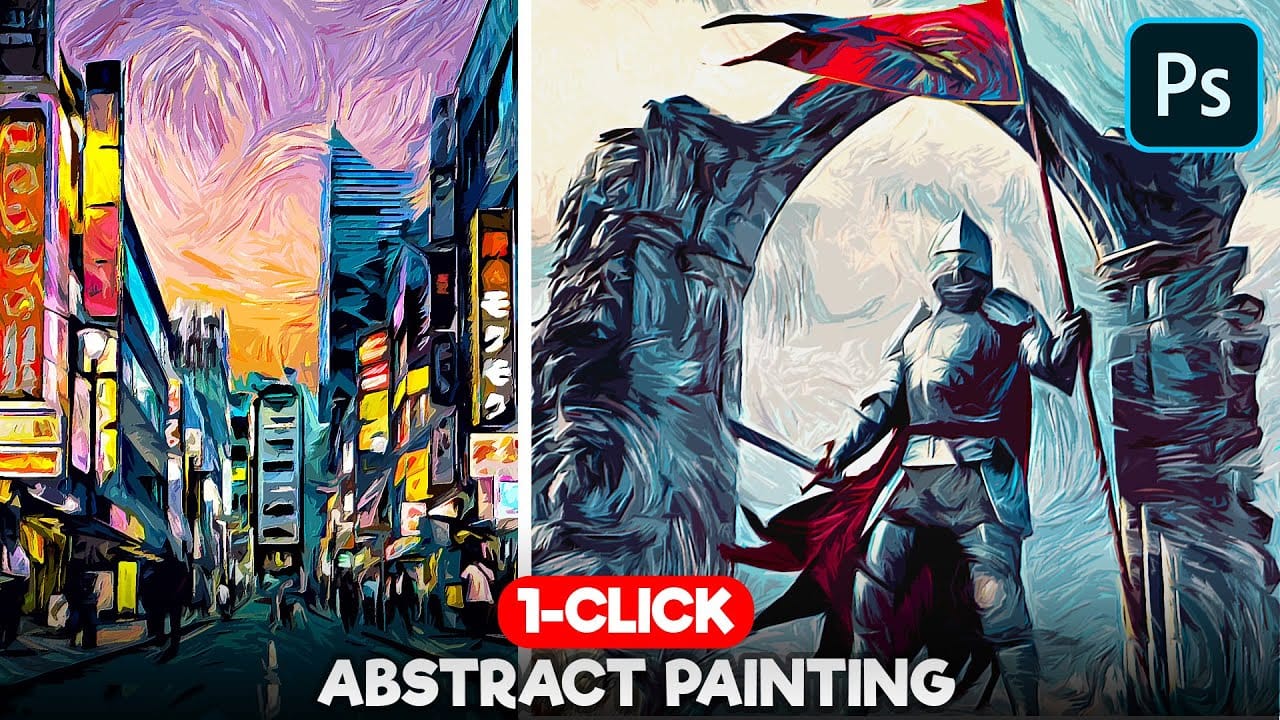
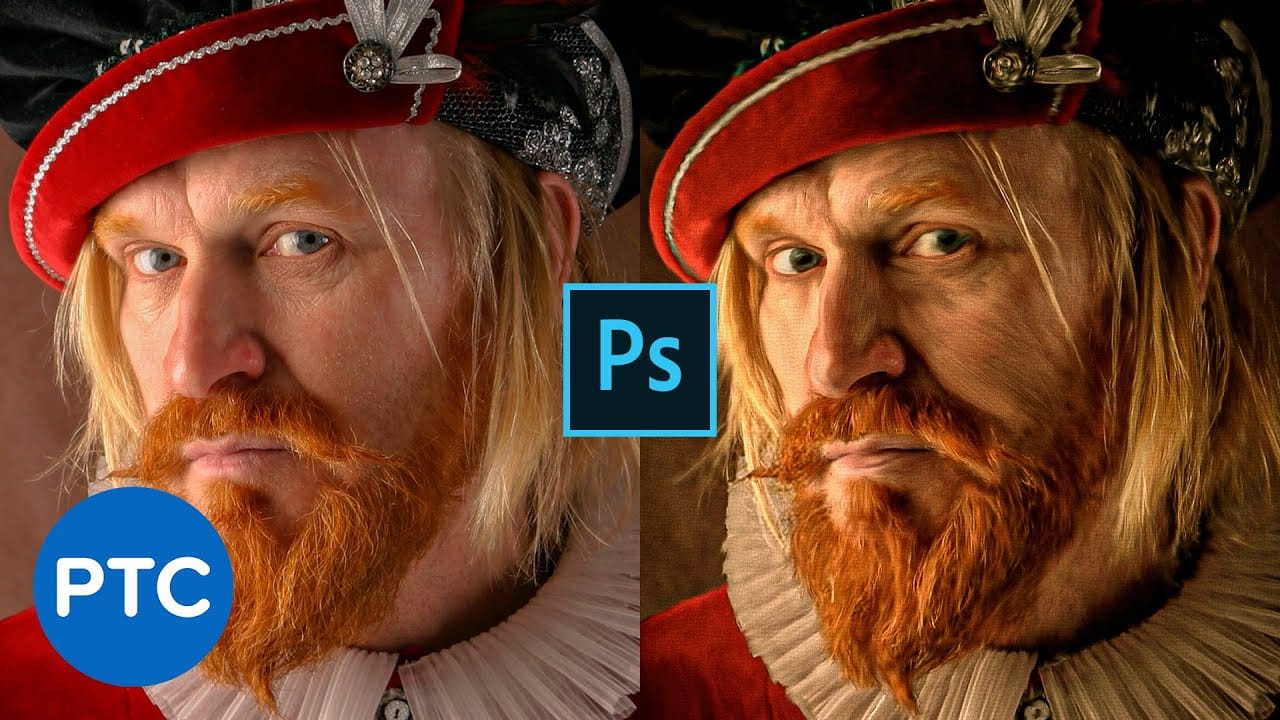
1-Click Photo to Digital Painting Effect in Photoshop
In this digital painting effect Photoshop Tutorial, you'll learn how to make a quick digital art effect out of any image in a few seconds! You'll learn how to use a simple combination of filters and patterns to make a realistic digital painting effect in photoshop. You will also learn how to use smart objects and reuse them to reapply this painting effect in photoshop with a SINGLE CLICK.
Watch tutorial
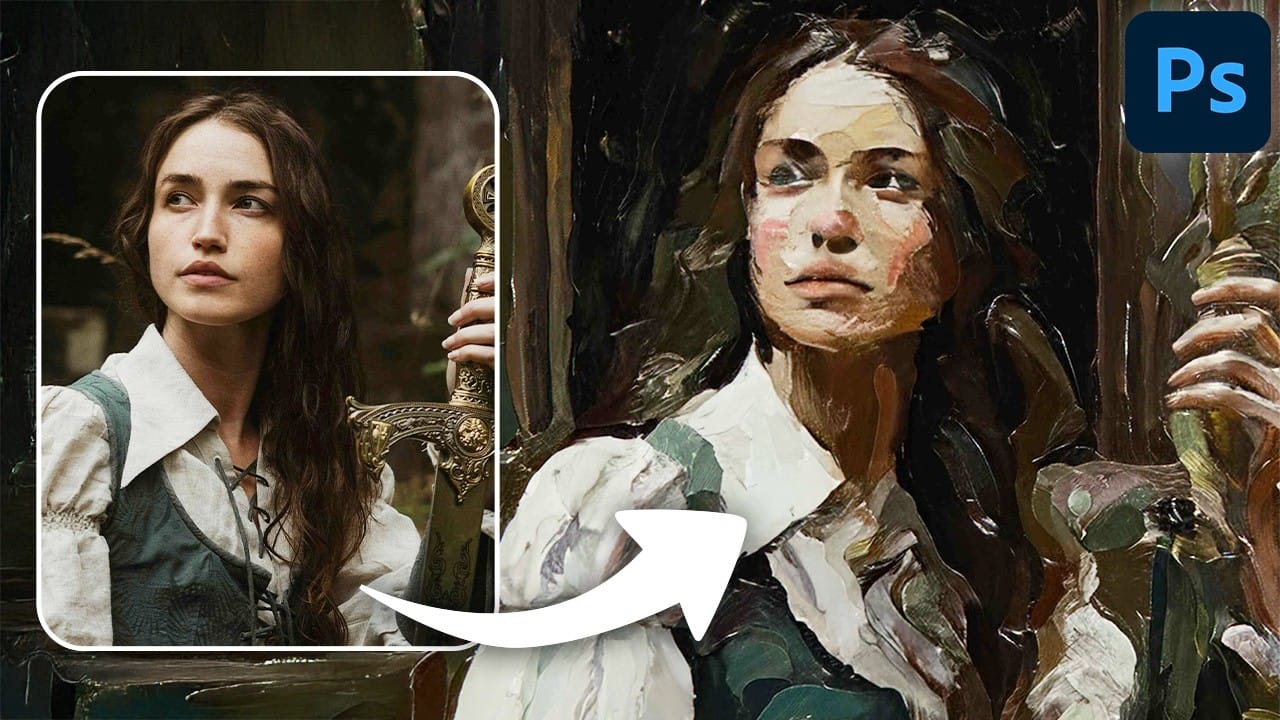
Turn Pictures Into Paintings Using Generative Fill In Photoshop
Converting photographs into artistic paintings has traditionally required advanced Photoshop skills, complex layer blending techniques, or expensive third-party plugins. Many photographers and designers struggle with creating convincing painted effects that maintain the original image's character while adding genuine artistic style.
This tutorial demonstrates how to transform photos into paintings using Photoshop's generative fill feature combined with channel-based selections. The technique cr
Beautiful Oil Painting Effect in Photoshop With Oil Paint Filter
Struggling to capture the artistic flair of oil paintings with your digital photos? Look no further! This short and sweet Photoshop tutorial, clocking in at just 90 seconds, will show you how to use the Mixer Brush to transform your photos into captivating works of art.
The instructor, Jesus Ramirez from photoshoptrainingchannel.com, will guide you through the entire process. You'll learn how to leverage the unique capabilities of the Mixer Brush, mimicking real-life oil painting techniques lik
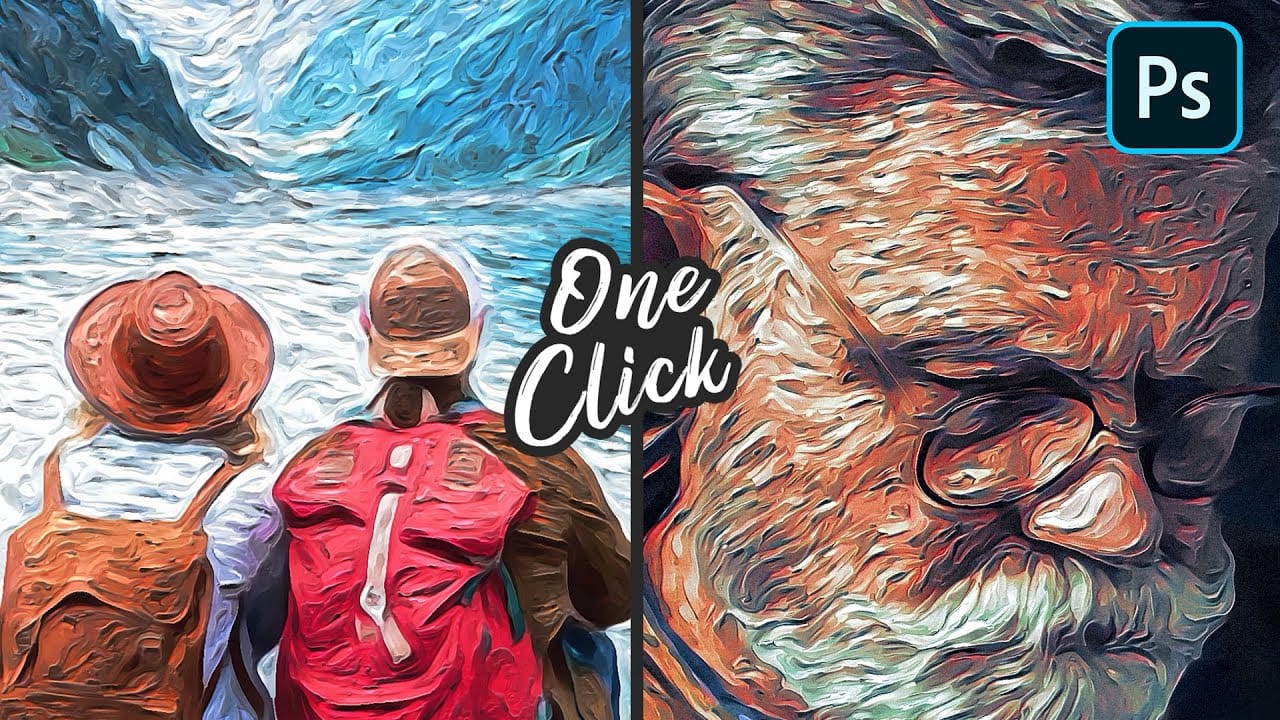
One-click Van Gogh Digital Painting in Photoshop
In this detailed tutorial, Pixivu demonstrates how to transform a photo into a digital painting masterpiece with just a few clicks using Adobe Photoshop.
By leveraging smart objects and a variety of filters, you can effortlessly create a stunning painting effect that mirrors the iconic style of Van Gogh. The final outcome features raised brush strokes, giving it a rich, textured, painted look. This tutorial is perfect for both beginners and experienced users who want to achieve a classic, artis
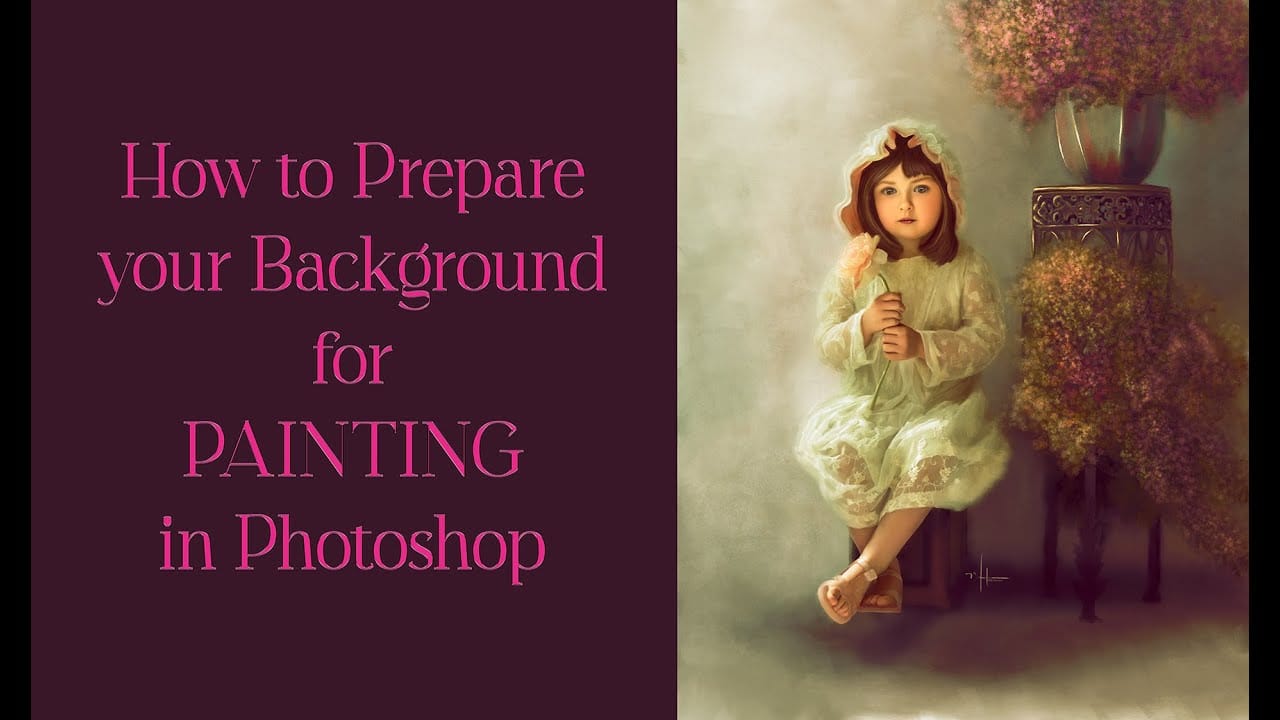
How to Transform Photos into Digital Paintings Using Photoshop Brushes
Busy backgrounds and photographic detail can overwhelm your artistic vision. This technique shows how to prepare photos for digital painting by strategically overpainting backgrounds and replacing photographic elements with painterly textures. The approach combines subject isolation, textured brush work, and color sampling to create a foundation that bridges photography and fine art.
Rather than simply filtering a photo, this method involves actually painting new elements while using the origin
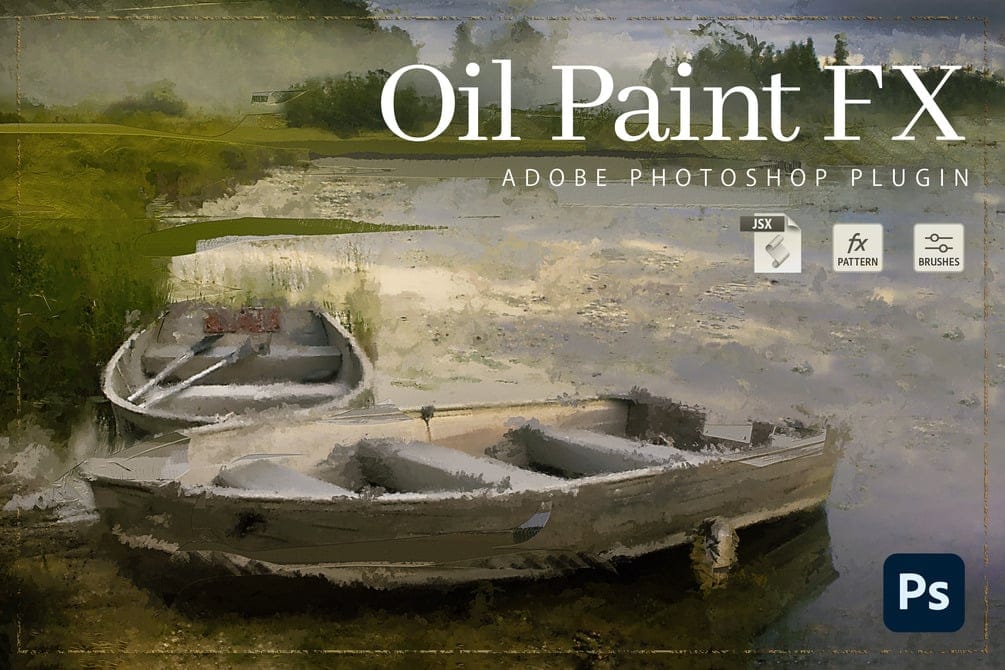
Oil Paint FX: From Photo to Fine Art in One Click
The Oil Paint FX Photoshop Plugin offers a straightforward way to apply a variety of painting effects to any image within Photoshop CC, compatible with both Mac and PC. It includes a UXP plugin, JavaScript code, three high-resolution editable mockups, a detailed PDF guide, and a video tutorial, making it accessible for users of all experience levels to quickly achieve professional results.
Designed to emulate traditional oil painting patterns, this plugin applies a versatile painted or oily eff