How to Transform Photos into Digital Paintings Using Photoshop Brushes

How to Transform Photos into Digital Paintings Using Photoshop Brushes

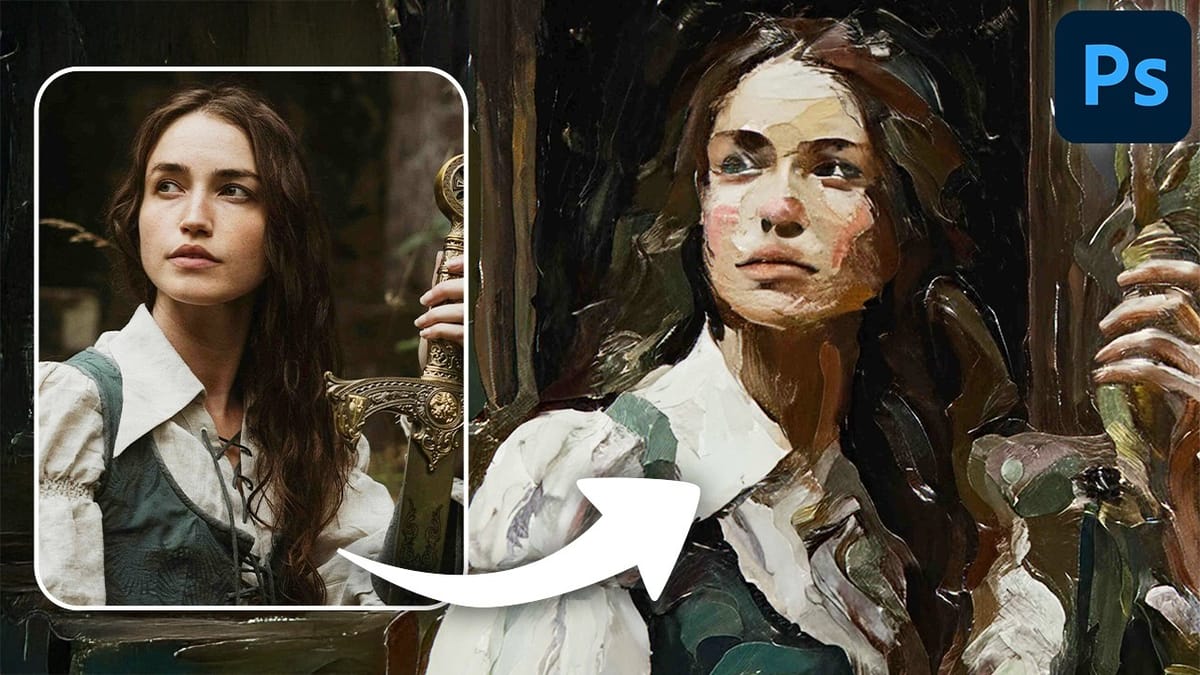
Busy backgrounds and photographic detail can overwhelm your artistic vision. This technique shows how to prepare photos for digital painting by strategically overpainting backgrounds and replacing photographic elements with painterly textures. The approach combines subject isolation, textured brush work, and color sampling to create a foundation that bridges photography and fine art.

Rather than simply filtering a photo, this method involves actually painting new elements while using the original image as a reference guide. The result maintains the structural integrity of your composition while achieving an authentic painted look.

Watch the Video

Video by Nikki Harrison. Any links or downloads mentioned by the creator are available only on YouTube

Practical Tips

These key techniques will help you achieve professional results when transforming photos into digital paintings:

  • Isolate your subject first using Select Subject and a layer mask to protect it while you work on the background
  • Use textured brushes at low flow settings (around 17%) with 100% opacity to build up painterly strokes gradually
  • Sample multiple colors from the existing image rather than painting with just one or two colors for realistic variation
  • Work in layers with darker base colors underneath and lighter colors on top for proper depth and dimension
  • Switch between regular brushes for initial overpainting and mixer brushes for blending and softening effects

Explore more digital painting techniques and brush-based effects to expand your artistic toolkit:
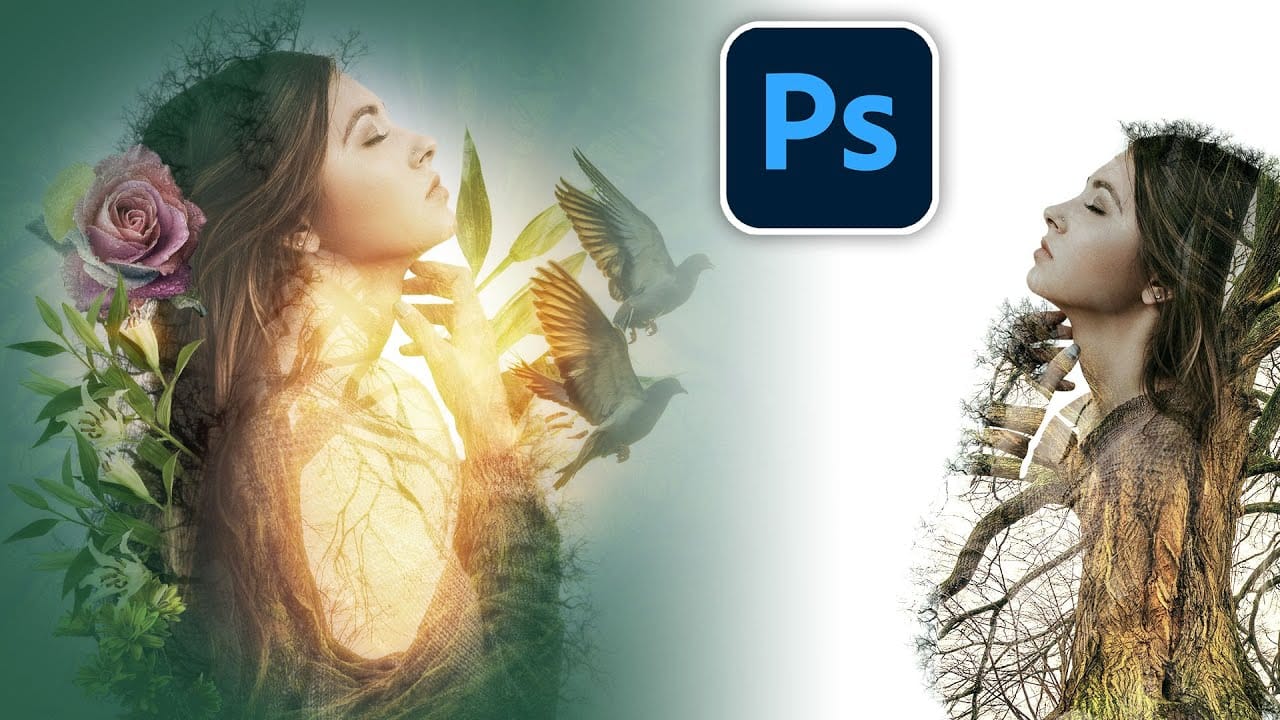
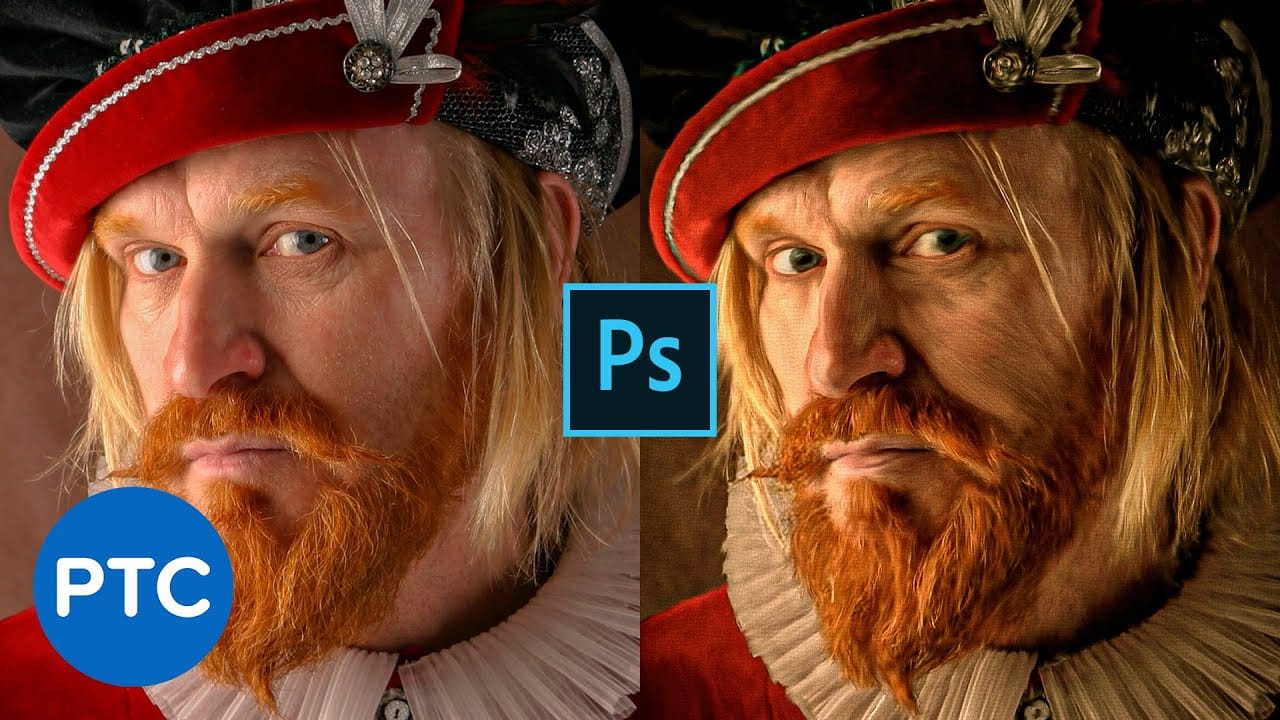
Make highly creative brushes from photos in Photoshop
Colin Smith from Photoshop Cafe presents an advanced method for creating the popular double exposure effect in Photoshop. In this tutorial, he explains how to make custom brushes from photos and use them to enhance your composites, digital art, and collages. Colin's technique focuses on blending two images seamlessly while maintaining their integrity, resulting in a professional and artistic composite. He also provides tips on layer management, masking techniques, and blending modes to elevate
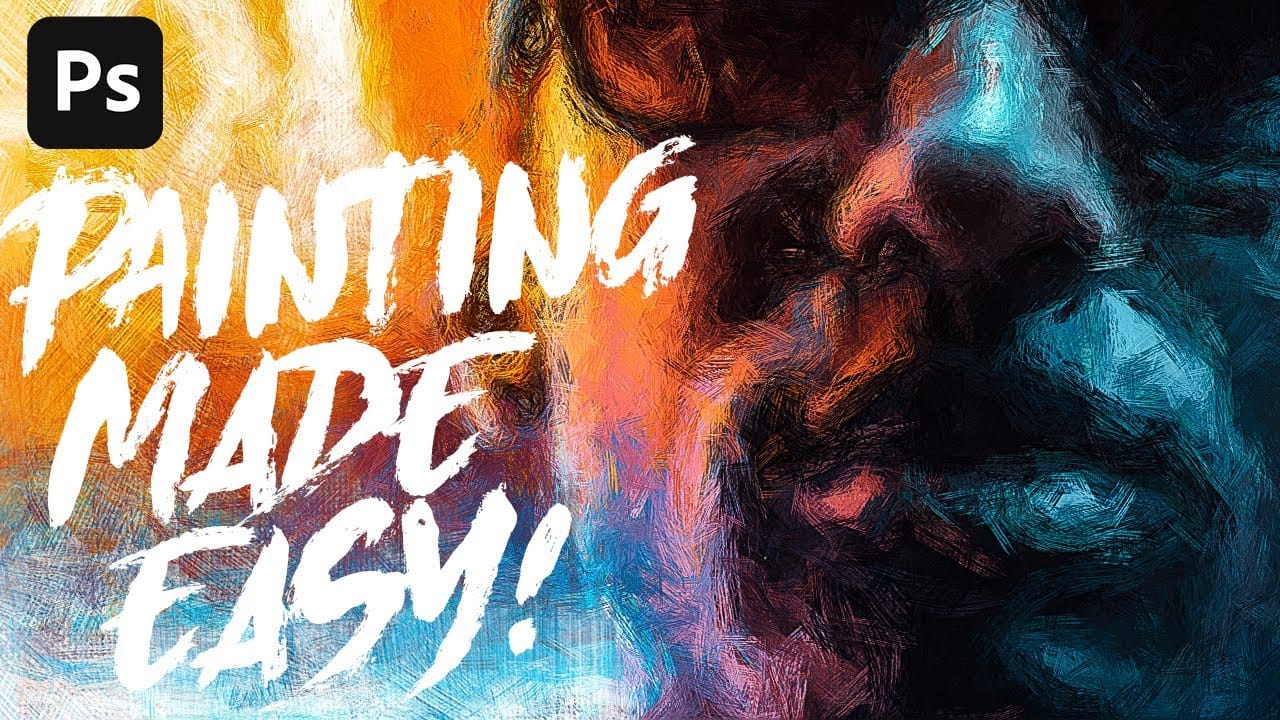
Anyone can create incredible paintings in Photoshop with a single tool
In this tutorial, we'll explore a fun and easy way to create digital oil paintings using Adobe Photoshop. Our focus will be on the art history brush tool, which allows you to produce unique and impressive results. However, before you start using this tool, it's important to understand its basic principles and be aware of some common issues that may arise during setup. Once you get the hang of it, the art history brush can unlock all sorts of possibilities for your digital art projects. So let'
Beautiful Oil Painting Effect in Photoshop With Oil Paint Filter
Struggling to capture the artistic flair of oil paintings with your digital photos? Look no further! This short and sweet Photoshop tutorial, clocking in at just 90 seconds, will show you how to use the Mixer Brush to transform your photos into captivating works of art. The instructor, Jesus Ramirez from photoshoptrainingchannel.com, will guide you through the entire process. You'll learn how to leverage the unique capabilities of the Mixer Brush, mimicking real-life oil painting techniques lik
Turn Pictures Into Paintings Using Generative Fill In Photoshop
Converting photographs into artistic paintings has traditionally required advanced Photoshop skills, complex layer blending techniques, or expensive third-party plugins. Many photographers and designers struggle with creating convincing painted effects that maintain the original image’s character while adding genuine artistic style. This tutorial demonstrates how to transform photos into paintings using
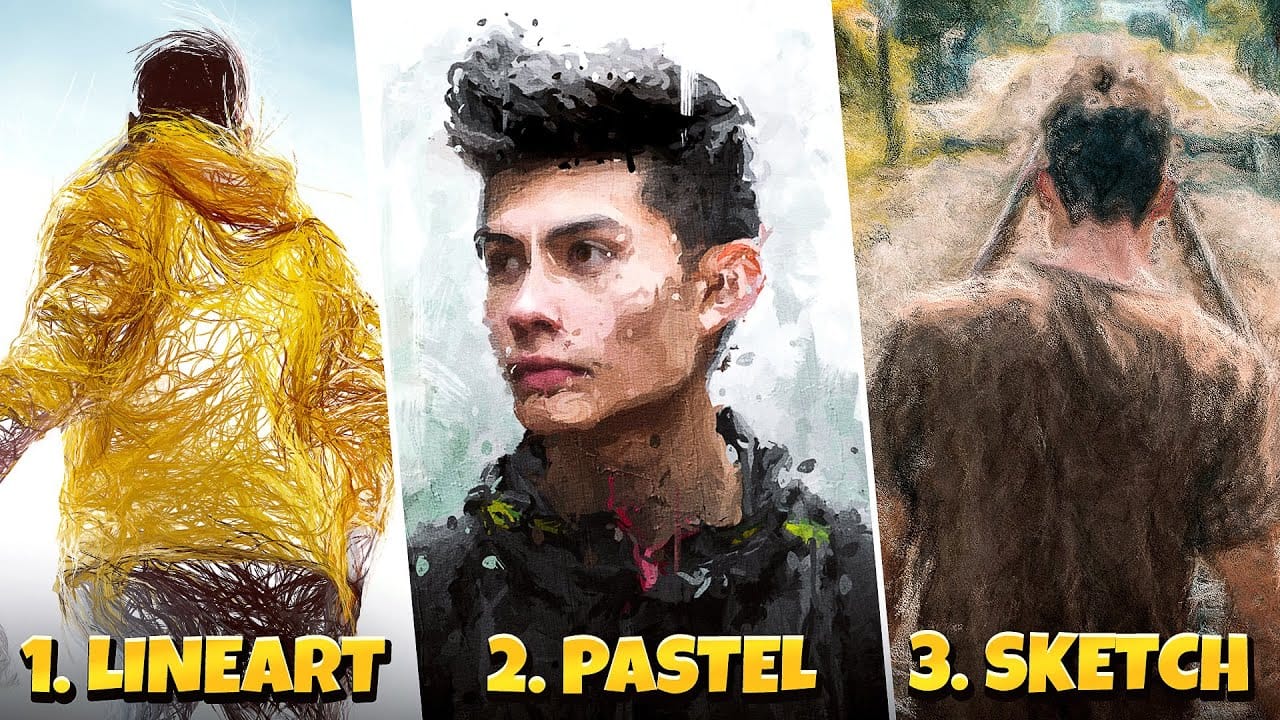
3 Digital Painting Effects With One Tool in Photoshop
In this tutorial by Pixivu, you'll learn how to create three distinct digital painting effects in Photoshop using just one tool. The tutorial starts with a sketch effect, where you'll use specific brushes to convert your photo into a detailed sketch. The process is straightforward and results in a highly realistic sketch effect. Next, it guides you through creating a pastel oil paint effect with an easy and innovative technique involving four unique brushes. This technique adds rich texture and
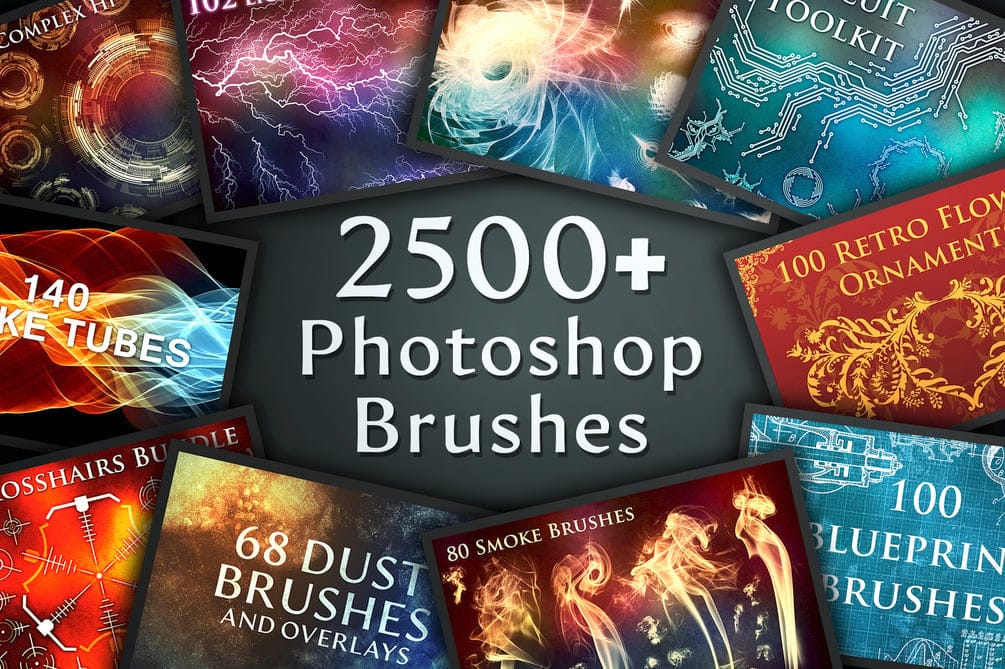
Create Stunning Artwork with the Ultimate 2500+ Photoshop Brushes Bundle
This extensive bundle has over 2500 high-resolution Photoshop brushes, making it an indispensable resource for designers and artists. Compatible with Photoshop CS6 and higher, these brushes, averaging 2400 x 2400px, ensure crisp details for various projects. Explore diverse categories ranging from photo manipulation effects like dust and bokeh to intricate shapes and lines, fire and smoke elements, and natural textures such as bark and water splashes. Explore advanced brushes for technology-the
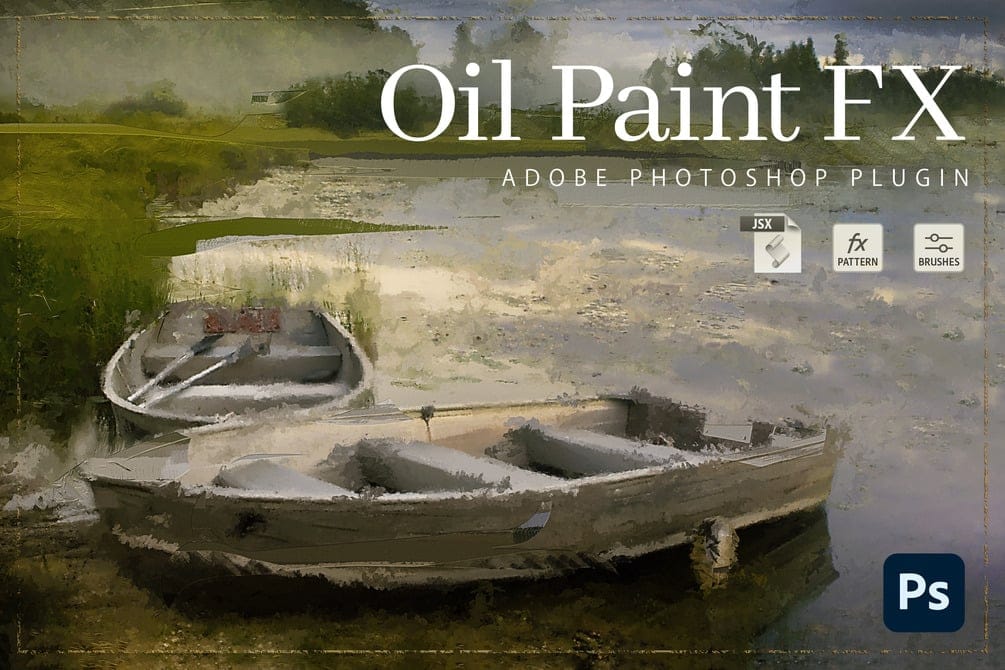
Oil Paint FX: From Photo to Fine Art in One Click
The Oil Paint FX Photoshop Plugin offers a straightforward way to apply a variety of painting effects to any image within Photoshop CC, compatible with both Mac and PC. It includes a UXP plugin, JavaScript code, three high-resolution editable mockups, a detailed PDF guide, and a video tutorial, making it
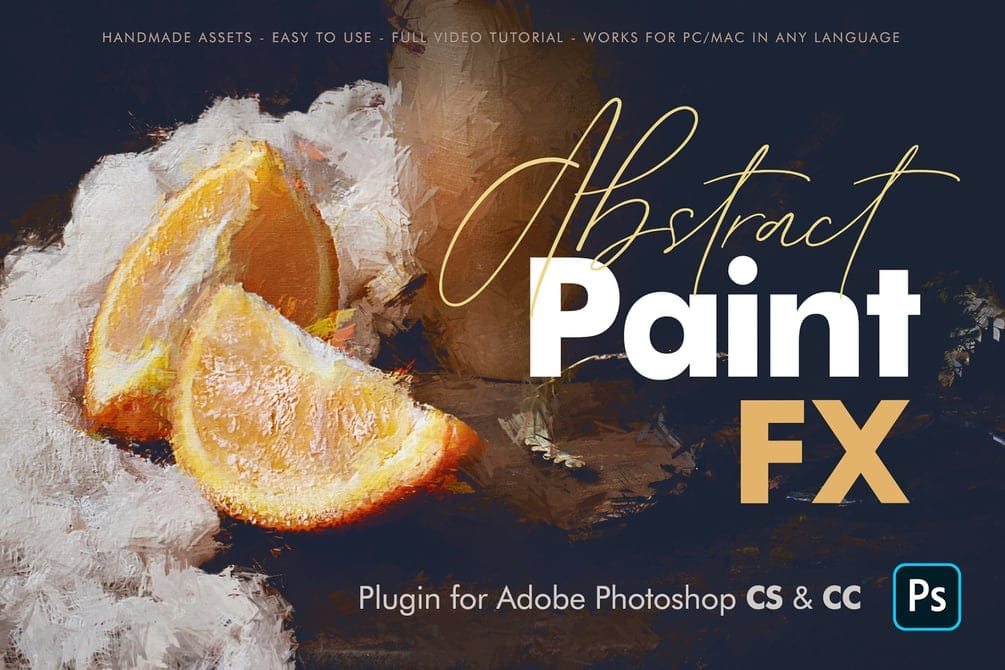
Create Beautiful Artworks with Abstract Paint FX for Photoshop
The Abstract Paint FX Photoshop Plugin is a powerful and intuitive tool designed to transform any image into a stunning abstract painting with a single click. Now updated as a user-friendly UXP Plugin, it offers exceptional ease of installation and use, making it ideal for both beginners seeking creative fun

Get tutorials & freebies delivered to you.

Subscribe to the Photoshop Roadmap newsletter, a weekly roundup of new tutorials, insights and quality downloads, trusted by 6500+ readers.

You might also like

How to Use Color Average for Color Toning in Photoshop

Color average creates a unified color tone by analyzing all the colors in your image and calculating their mathematical average. This technique adds depth and cohesion to photos, composites, and AI-generated images by applying a subtle color wash that ties all elements together. The method works particularly well for composites...

How to Remove Complex Background Elements Using AI in Photoshop

Removing complex background elements like fencing or wire mesh has traditionally been one of the most time-consuming tasks in photo editing. New AI-powered tools in Photoshop can now eliminate these distracting elements while preserving fine details in your subject. This tutorial demonstrates two practical workflows: one using the latest Firefly...

How to Use Photoshop's Auto Layer Rename Feature

Messy layer names like "Layer 52 copy 4" and "Untitled 5" clutter your workspace and slow down complex projects. Photoshop's new auto-rename feature uses AI to automatically identify and name layers based on their content, from "Woman in yellow shirt" to "...

New Generative Fill Features in Photoshop Beta: Reference Images and Credit Tracking

Photoshop Beta introduces significant improvements to Generative Fill that address the most requested features from users. The updated interface now displays your generative credit balance and usage, while the new reference image capability lets you add up to eight specific images to guide AI generation with precise visual examples. These...

Essential Photoshop Tools for Beginners: Brush, Crop, and Move Tool Tutorial

Learning Photoshop tools feels overwhelming when you don't know where to start. This tutorial focuses on three essential tools that form the foundation of most Photoshop work: the brush tool for painting and retouching, the crop tool for resizing and straightening images, and the move tool for positioning...

How to Add Custom Textures to Photos in Photoshop

Adding textures to photographs can transform ordinary images into compelling artistic compositions. This technique uses multiple texture layers combined with strategic blending modes and color adjustments to create depth and visual interest. The process involves layering different texture types—color overlays, surface patterns, and lighting effects—then using masking techniques...

You’ve successfully subscribed to Photoshop Roadmap
Welcome back! You’ve successfully signed in.
Great! You’ve successfully signed up.
Success! Your email is updated.
Your link has expired
Success! Check your email for magic link to sign-in.