Photoshop Selection Tools: Quick Methods for Better Cutouts

Photoshop Selection Tools: Quick Methods for Better Cutouts

Clean cutouts and precise selections form the foundation of professional composite work in Photoshop. The difference between amateur and polished results often comes down to mastering the right selection techniques for each situation.

Sandra demonstrates several quick selection methods that can streamline your workflow and improve your results. These techniques help you choose the most effective approach based on your specific image and project needs.

Watch the Tutorial

Video by SandraD Imagery. Any links or downloads mentioned by the creator are available only on YouTube

Understanding Selection Tool Strategy

Different images require different selection approaches. The key is understanding when to let Photoshop do the initial work and when manual refinement becomes necessary.

Modern Photoshop includes several AI-powered selection options that can handle much of the initial selection work. These tools work best as starting points rather than final solutions, especially for complex subjects with detailed edges.

  • Remove Background - Automatically detects and removes background elements
  • Select Subject - Identifies the main subject for selection
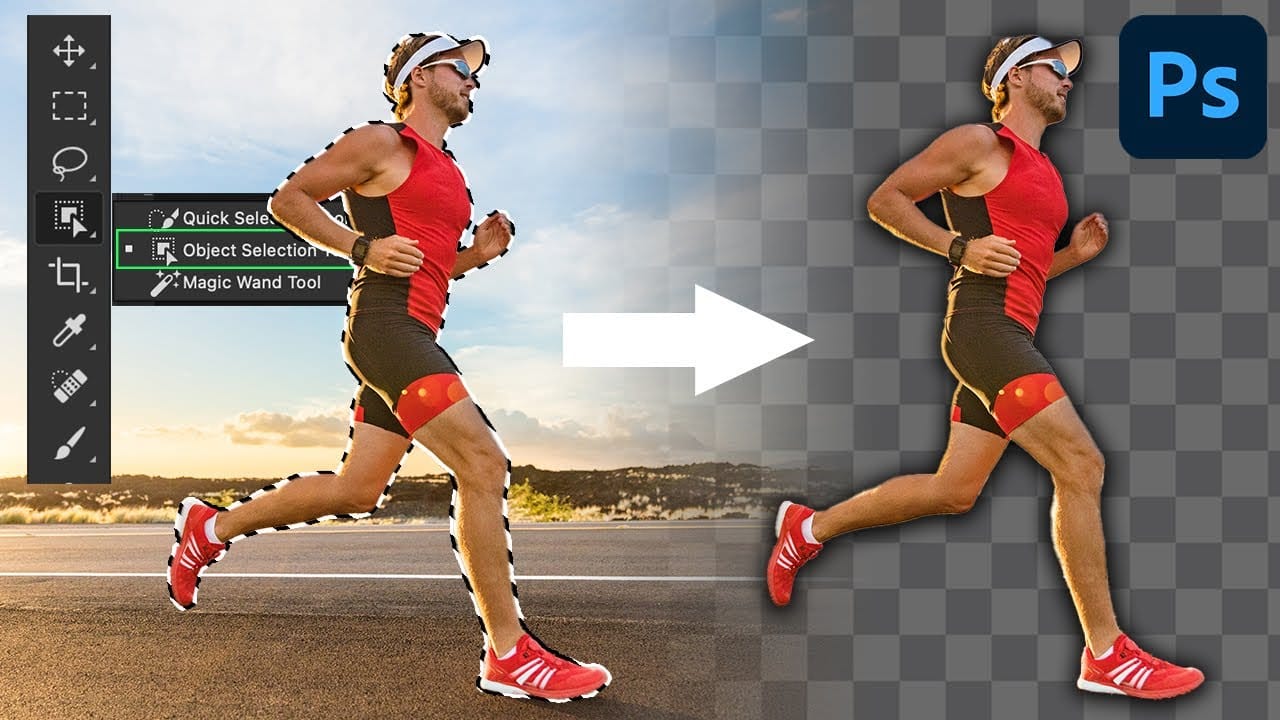
  • Object Selection Tool - Allows manual area definition for targeted selection
  • Layer masks - Convert selections into editable masks for refinement
  • Selection evaluation - Zoom in to check edge quality and accuracy

Practical Selection Tips

  • Unlock your background layer first to enable the contextual selection toolbar with quick options
  • Start with automated tools like "Select Subject" or "Remove Background" to handle the initial selection work
  • Convert selections to layer masks immediately to preserve your work and enable further editing
  • Use the Object Selection Tool when automatic options pick up unwanted background elements
  • Always zoom in to examine edge quality and identify areas that need manual refinement

More Tutorials about Photoshop Selections

Explore additional techniques for mastering selections and background removal.

How to make difficult selections easy in Photoshop
In this detailed Photoshop tutorial by TutVid, you will be guided through the process of making intricate selections within the software. The focus is on selecting a person and accurately cutting them out using the Select and Mask tool in a two-step approach. This method ensures precise selection edges, making it effective for both clean, straight lines and complex details such as hair. The tutorial aims to equip users with comprehensive knowledge about making refined selections in Photoshop, e
How to use the object selection tool for easy background removal in Photoshop
There are many different ways to cut out images and remove backgrounds in Photoshop, but one of the easiest options is with the object selection tool. This tool allows you to create accurate selections, remove backgrounds, and cut out images with very little effort. It's the perfect tool for both the beginner and advanced photoshop user. In this video, you'll learn everything you need to know about how to use the object selection tool and how you can refine selections in both the rectangle and
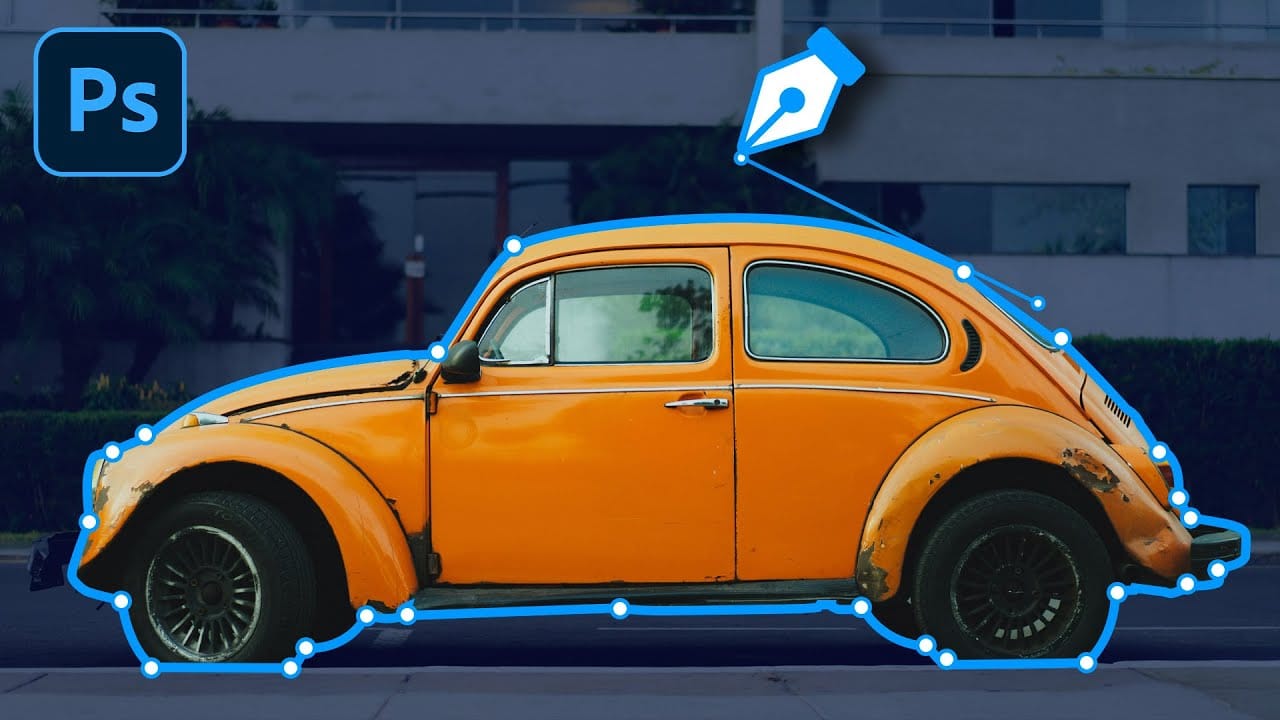
5 Essential Pen Tool Tips for Better Photoshop Selections
Perfect selections separate amateur work from professional results in Photoshop. When quick selection tools fail on complex subjects with curves and intricate edges, the Pen Tool becomes your most precise option for creating flawless cutouts. These five essential techniques transform the intimidating Pen Tool into a reliable selection method. Master these fundamentals to handle any subject, from smooth curves to sharp corners, with confidence and accuracy. Watch the Tutorial Understanding P
Six easy ways to select colors in Photoshop
In this episode of "3, 2, 1… Photoshop!", longtime Adobe evangelist Julieanne Kost shares essential tips and tricks for selecting colors in Photoshop. Julieanne introduces six easy methods to choose colors effectively, whether you're working on a detailed project or just need a quick color pick. You'll learn how to use the eyedropper tool for precise color selection, manipulate foreground and background colors, and utilize the heads-up-display (HUD) color picker for a more interactive experienc

Get tutorials & freebies delivered to you.

Subscribe to the Photoshop Roadmap newsletter, a weekly roundup of new tutorials, insights and quality downloads, trusted by 6500+ readers.

You might also like

When to Use Saturation vs Vibrance for Better Color Enhancement

While vibrance gets praised for being "gentler" than saturation, the reality is more nuanced. Saturation works like a universal volume knob, boosting all colors equally, while vibrance acts like a smart equalizer, selectively enhancing less saturated areas first. Understanding when each approach serves your creative vision makes the...

How to Check Your Generative Fill Credit Balance in Photoshop

Keeping track of your AI credit usage becomes essential when working with premium generative features. Understanding your remaining balance helps you budget your edits and avoid unexpected interruptions during important projects. The credit system divides features into standard tools (like basic generative fill) that don't consume credits, and...

How to Create Realistic Depth Blur Effects in Photoshop

Creating professional depth of field effects can transform flat images into dynamic photographs with natural-looking focus transitions. Two powerful methods in Photoshop offer different advantages: Neural Filters provide automated depth detection with atmospheric effects like haze, while Camera Raw Filter delivers precise manual control with customizable bokeh shapes. Both techniques...

Three Professional Methods to Fix White Balance in Photoshop

Color casts can ruin even the best photographs, making whites appear yellow, blue, or green instead of neutral. Poor white balance destroys the natural look of your images and creates an unprofessional appearance that's immediately noticeable to viewers. These three techniques provide increasingly precise control over white balance...

Creating Dark Moody Wildlife Photo Edits in Photoshop

Dark, moody wildlife photography transforms ordinary animal portraits into dramatic, atmospheric pieces that capture the mystery and power of nature. This editing approach combines strategic lighting placement, careful color grading, and atmospheric effects to create compelling images that draw viewers into the scene. The workflow begins with essential noise reduction...

How to Create Professional Photo Composites in Photoshop

Creating compelling photo composites requires more than simply placing images together. This comprehensive tutorial demonstrates how to blend multiple elements seamlessly, from matching lighting and color to painting realistic shadows and highlights. The project showcases a dramatic scene inspired by Stranger Things, combining buildings, characters, and atmospheric effects with precise...

You’ve successfully subscribed to Photoshop Roadmap
Welcome back! You’ve successfully signed in.
Great! You’ve successfully signed up.
Success! Your email is updated.
Your link has expired
Success! Check your email for magic link to sign-in.