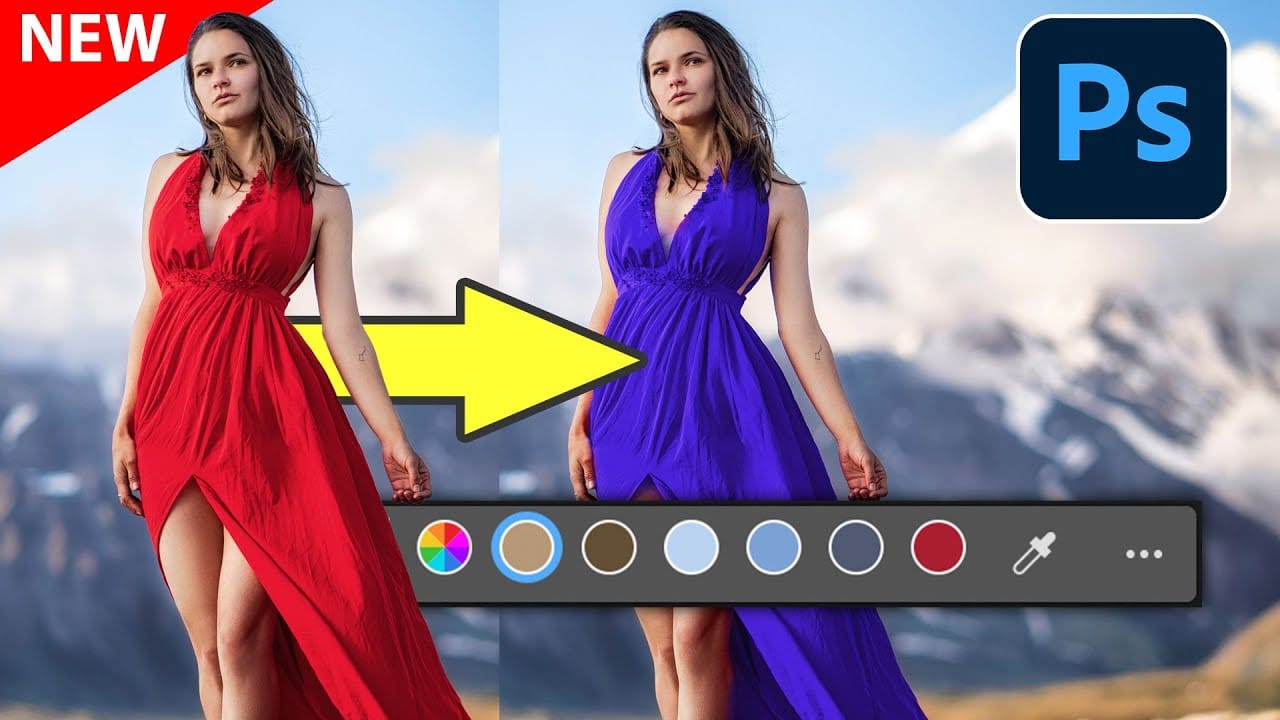
Select People, the most requested new photoshop feature

Select People, the most requested new photoshop feature

Achieving precise selections in image editing, especially when dealing with complex subjects like people, has historically been one of Photoshop's most time-consuming tasks. Manual masking of hair, intricate clothing, or multiple individuals often requires significant effort and a keen eye for detail, posing a common challenge for photographers and designers alike.

This video introduces a groundbreaking new feature in Photoshop that dramatically simplifies this process. Viewers will discover how to leverage intelligent automation to select individuals or specific body parts within an image, streamlining workflows for tasks such as localized adjustments, subject removal, and creative manipulations.

Watch the Video

Video by photoshopCAFE. Any links or downloads mentioned by the creator are available only on YouTube

Leveraging AI for Advanced Selections

The evolution of selection tools in image editing software reflects a continuous effort to bridge the gap between manual precision and automated efficiency. Historically, isolating subjects from their backgrounds or making targeted adjustments to specific elements required meticulous hand-painting of masks or complex channel operations. These traditional methods, while powerful, often demanded considerable time and expertise, particularly for subjects with intricate details like hair or translucent elements.

Modern advancements in artificial intelligence and machine learning are fundamentally transforming this landscape. Algorithms can now analyze image content with unprecedented accuracy, identifying distinct objects, people, and even specific anatomical features within a scene. This capability moves beyond simple edge detection, allowing software to understand the semantic context of pixels, leading to more intelligent and accurate automatic selections.

The integration of such AI-powered selection tools into professional applications like Photoshop significantly enhances workflow efficiency. By automating the initial, often tedious, selection process, users can dedicate more time to creative refinements and artistic expression, rather than being bogged down by technical masking challenges. This shift empowers creators to achieve complex results with greater speed and consistency.

Practical Tips for Using the Select People Feature

  • Access the new feature by selecting the Object Selection tool and looking for the "Select People" option.
  • Choose to select an entire person or specific parts like hair, teeth, eyes, or clothing.
  • Apply non-destructive adjustments by creating an adjustment layer (e.g., Hue/Saturation) directly from your selection.
  • Refine automatically generated masks by painting with white to add to the selection or black to remove from it.
  • Utilize the selection with Generative Fill to seamlessly remove a person from an image.

More Tutorials about Photoshop Selections and Features

Discover additional resources to deepen your understanding of Photoshop's powerful selection capabilities and other innovative features.


TOP New Features in Photoshop – May 2025 Update
Many Photoshop users frequently encounter common challenges such as time-consuming manual selections for complex objects, difficulties in achieving precise color adjustments across an image, or struggling with inconsistent results when removing unwanted elements like reflections. These hurdles often slow down the creative process, making it frustrating to achieve a desired professional look efficiently. This guide explains how Photoshop's latest updates introduce powerful new functionalities, i
Exploring the Latest Features in Photoshop 2025
Photoshop 2025 introduces powerful new tools designed to make creative work easier, faster, and more flexible. From fine-tuning selections to moving objects and speeding up your workflow, these features feel built for the way creators actually work. In this video, we’ll show you what’s new and how these updates can help you work smarter — saving time on routine tasks, giving you more control over details, and opening up new ways to bring your ideas to life. Watch the video Breaking It Down
New Photoshop Feature for Changing Colors
Working on the color palette of an image is a fundamental task in photo editing, enabling designers and photographers to evoke different moods, correct imbalances, or simply reimagine visual elements. While Photoshop has long offered robust tools for color manipulation, achieving precise and natural-looking changes often required a multi-step workflow and a deep understanding of complex adjustments. This video introduces a groundbreaking new feature in Photoshop's beta version, designed to stre
Exploring the latest features in Adobe Photoshop 2023
Adobe Photoshop continues to lead the way with its innovative tools and features. The year 2023 brings a fresh wave of updates, and in this video, Colin Smith from Photoshop Cafe will delve into the exciting features introduced recently. Renowned Photoshop expert, Colin takes us on a tour of these new additions and shows us how to make the most of them. * Adjustment Presets: Streamlining the Editing Workflow * Creating Custom Adjustment Presets: Tailoring Tools to Your Style * Revolutionizin

Get tutorials & freebies delivered to you.

Subscribe to the Photoshop Roadmap newsletter, a weekly roundup of new tutorials, insights and quality downloads, trusted by 6500+ readers.

You might also like

How to Remove Skin Blemishes and Fix Skin Tones in Camera Raw

Two recent additions to Camera Raw make skin retouching significantly faster: an automatic blemish removal tool with separate controls for moles and freckles, and a vectorscope-based skin tone indicator for correcting off-color skin. Both features work non-destructively inside a smart object workflow, so no pixel data is...

Portrait Retouching in Photoshop: Smooth Skin While Keeping Natural Texture

Smooth skin and natural texture are not opposites — achieving both at once is the mark of a professional retouch. This workflow covers blemish removal, flyaway hair cleanup, dark under-eye correction, and eye brightening, all while keeping the skin looking like skin. Watch the Video Practical Tips These key points...

How to Use Camera Raw's Blemish Removal Tool in Photoshop

Camera Raw 18.5 introduced an automatic blemish removal tool that does something previous solutions rarely managed: it removes skin imperfections while preserving the underlying skin texture. It also distinguishes between temporary marks and permanent ones like moles, giving you separate controls for each. Watch the Video Practical Tips These...

Portrait Slice Effect in Photoshop Using Step and Repeat

The portrait slice effect splits a single image into offset vertical bars, creating the illusion of a displaced or fragmented face. The entire technique relies on layer masks and a lesser-known Photoshop shortcut called step and repeat — no filters, no AI, no destructive edits required. Watch the Video Practical...

How to Remove Blemishes in Photoshop: Camera Raw vs. Generative AI

Photoshop now offers two distinct approaches to removing skin blemishes automatically. The Camera Raw Filter includes a dedicated Blemishes option that analyzes and cleans skin with a single checkbox, while Generative AI fills a face selection with clean, texture-consistent results using a simple text prompt. Each method has clear...

Common Photoshop Compositing Mistakes and How to Fix Them

Most compositing errors come down to a handful of repeatable problems: mismatched lighting direction, inconsistent white points, misaligned perspective, and atmosphere applied in the wrong layer order. Catching these issues early — ideally before you shoot — saves significant time in post. Watch the Video Practical Tips These corrections apply to nearly...

You’ve successfully subscribed to Photoshop Roadmap
Welcome back! You’ve successfully signed in.
Great! You’ve successfully signed up.
Success! Your email is updated.
Your link has expired
Success! Check your email for magic link to sign-in.