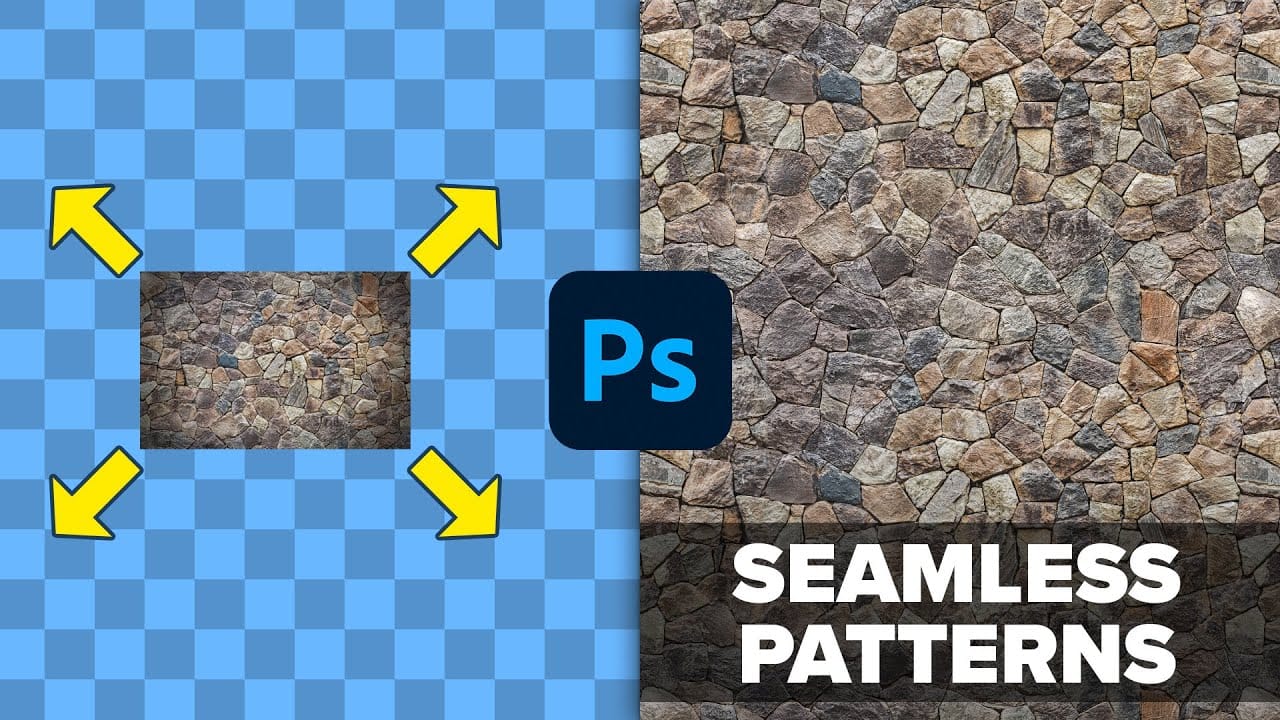
Using AI to Create Seamless Patterns For Photoshop

Using AI to Create Seamless Patterns For Photoshop

Creating beautiful, endless patterns for your design projects just got easier with the power of artificial intelligence. This tutorial explores an efficient workflow to generate intricate designs and transform them into perfectly tiling patterns.

Discover how to leverage AI tools to craft unique starting points, then refine them within Photoshop to achieve professional, seamless results. This process offers a creative boost for backgrounds, textiles, and other visual assets.

Watch the Full Tutorial

Video by Brendan Williams. Any links or downloads mentioned by the creator are available only on YouTube

Integrating AI Generation and Photoshop Refinement for Patterns

The creation of seamless patterns benefits significantly from a blended approach, combining the rapid ideation of AI with the precise control of traditional image editing software. AI platforms like Adobe Firefly excel at generating diverse graphic styles based on descriptive prompts, providing an initial creative spark that might otherwise take hours to conceptualize. However, achieving true seamlessness and rectifying subtle imperfections often requires a human touch.

This workflow highlights how a designer becomes a curator and editor, using AI as a powerful assistant rather than a full replacement. It underscores the importance of thoughtful prompt engineering to guide the AI towards desirable outcomes, such as specifying *Vector leaves*, *pastel tones*, and crucially, *repeating pattern*. Subsequent refinement in Photoshop addresses the inevitable artifacts and ensures that the final design tiles flawlessly without noticeable seams or anomalies. This iterative process of generation and meticulous adjustment ensures high-quality, production-ready patterns.

  • AI as a starting point: Generating initial designs.
  • Specific AI prompts: Guiding style and structure.
  • Offset filter: Revealing pattern seams in Photoshop.
  • Generative Fill: Automatically resolving inconsistencies.
  • Manual cleanup: Refining details with tools like the Remove Tool.

Practical Tips for Seamless Pattern Creation

  • Start your pattern design in AI tools like Adobe Firefly, as its generation excels for repeating patterns compared to Photoshop's native image generation feature.
  • Craft highly specific prompts for AI, including details on colors, object style (e.g., Vector leaves), and crucially, the phrase repeating pattern for edge-to-edge designs.
  • Apply Photoshop's Filter > Other > Offset with Wraparound enabled to expose the pattern's tiling edges, making visible any areas needing adjustment.
  • Use the Generative Fill tool across the exposed seams in Photoshop to automatically blend overlapping sections and remove visible lines.
  • Refine minor imperfections and clean up unwanted elements using the Remove Tool on a new layer, ensuring Sample All Layers is active for non-destructive edits.
  • Duplicate existing design elements using the Lasso Tool and Ctrl/Cmd + J to fill blank areas, then blend them seamlessly into the pattern.

More Tutorials about Seamless Patterns

Explore additional techniques and creative approaches to mastering seamless pattern design in Photoshop with these related resources.
Creating Seamless Patterns in Photoshop
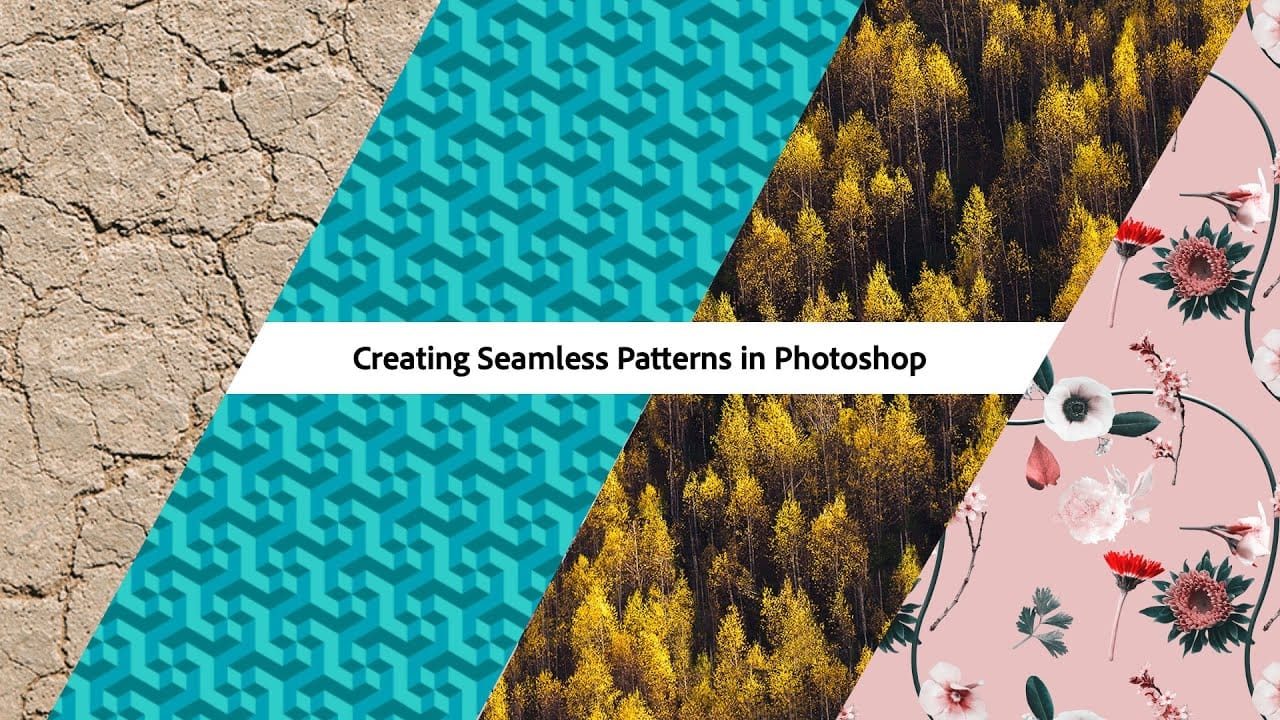
In this tutorial, Adobe Evangelist Paul Trani delves into the process of creating seamless patterns in Photoshop. Seamless patterns are essential for various design projects, from backgrounds to textiles, and mastering them can significantly enhance your design capabilities. Paul takes you through the entire process, from setting up your initial design to ensuring that the pattern tiles seamlessly across any surface. He covers essential techniques such as defining pattern edges, adjusting spaci
How to create seamless patterns in Photoshop with graphics or images
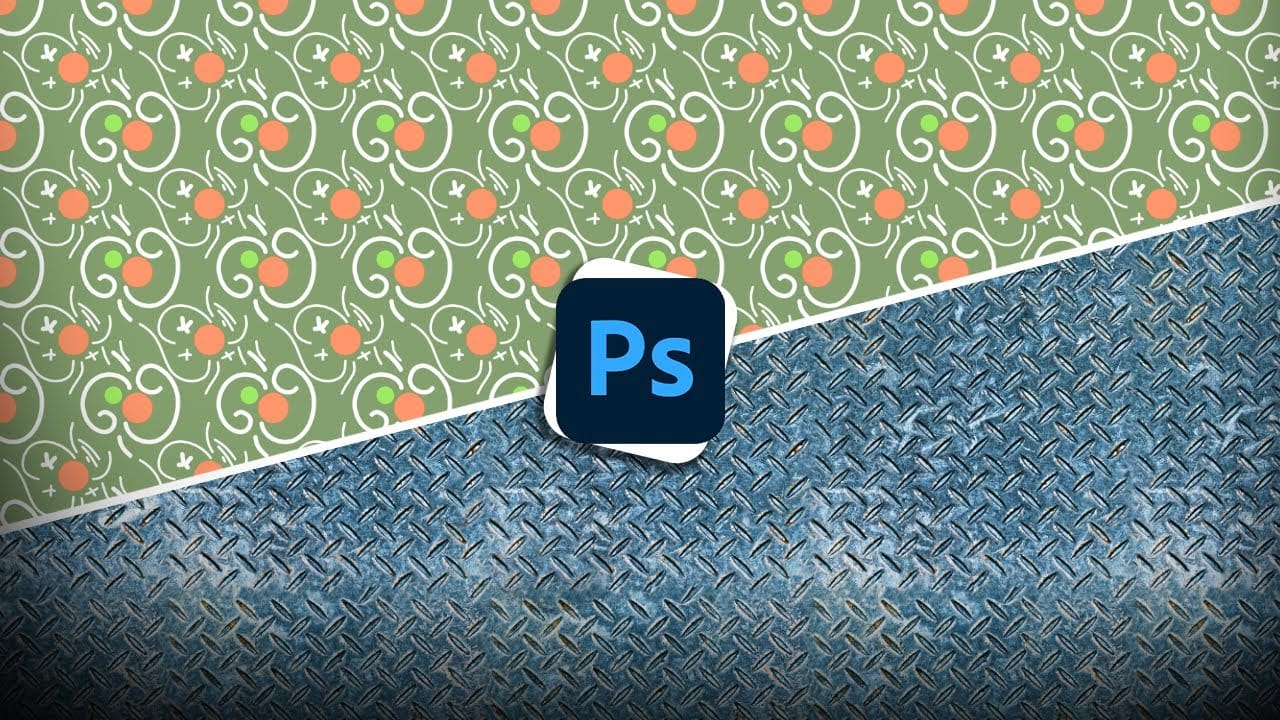
If you want to learn how to make a pattern in photoshop, this tutorial will share how to create a seamless repeating pattern with both graphics and an image. This way you can design a pattern for your digital art, printing, or graphic design, while also saving textured patterns from images to use in your composites and photo manipulations! With the help of the Offest filter, this entire process of making a pattern in photoshop is surprisingly simple and is an awesome way to add more creative as
Create AI Art inside Photoshop with Stable Diffusion
Introducing Stable Art – a novel plugin for Photoshop that lets you harness the power of your local Stable Diffusion setup within the software. This plugin is completely free and can be installed and utilized with utmost ease. Despite being fairly basic at the moment, it provides all the fundamental features needed to begin painting with Stable Diffusion models right inside Photoshop. F Follow along with this video as I demonstrate the installation process for this plugin on ANY version of Phot
3 Powerful Techniques to Create Seamless Patterns in Photoshop
This tutorial by Jesus Ramirez from the PTC Photoshop Training Channel introduces three effective techniques for creating seamless patterns in Photoshop. If you have ever wanted to transform a simple photo into a beautiful repeating design, this is a great place to start. You will become familiar with essential tools such as Pattern Preview and Generative Fill, which are crucial in this process. These tools will help simplify your workflow and enhance your designs. Additionally, you will discov

Get tutorials & freebies delivered to you.

Subscribe to the Photoshop Roadmap newsletter, a weekly roundup of new tutorials, insights and quality downloads, trusted by 6500+ readers.

You might also like

Create a Liquid Gel Logo Effect in Photoshop

Liquid gel effects transform flat logos into dimensional, glossy designs that appear to bubble and flow. This technique uses multiple layer styles and strategic duplication to build depth, creating surfaces that catch light like thick, viscous liquid. The method combines gradient overlays, bevel effects, and inner glows across several duplicated...

How to Use Photoshop's AI Sharpen Filter and When It's Worth the Cost

Photoshop's new AI Sharpen filter promises one-click sharpening powered by advanced algorithms. This tool uses technology from Topaz Labs to enhance image details without manual adjustments, but it comes with a significant cost in credits. Understanding when to use this automated approach versus traditional methods like the High...

How to Use Harmonize and Generative Upscale Tools in Photoshop

Creating realistic photo composites requires matching lighting and color between different images—a traditionally time-consuming process. Two new AI-powered tools in Photoshop solve these challenges: Harmonize automatically adjusts lighting and shadows to blend subjects seamlessly into backgrounds, while Generative Upscale enlarges small images without losing detail. These tools work together...

How to Create Convincing Scale Effects in Photoshop Composites

Creating believable scale effects requires more than simply resizing objects—it demands understanding how light, perspective, and atmospheric conditions change with distance. When tiny subjects appear massive or giant objects seem miniature, viewers should feel the illusion is completely natural. This technique combines careful attention to lighting consistency, depth cues,...

How to Flip Images Horizontally and Vertically in Photoshop

Flipping images is a fundamental technique that can dramatically change the composition and impact of your photos. Whether you need to correct the orientation of a subject, create mirror effects, or simply improve the visual flow of your design, knowing how to quickly flip images both horizontally and vertically gives...

How to Use Nano Banana Pro in Photoshop for Background Replacement and Scene Changes

Nano Banana Pro transforms how you place subjects into new environments in Photoshop. This advanced AI model maintains perfect subject likeness while seamlessly integrating them into any background you can imagine. The tool excels at matching lighting, preserving facial features, and even adapting clothing to complement new scenes, all through...

You’ve successfully subscribed to Photoshop Roadmap
Welcome back! You’ve successfully signed in.
Great! You’ve successfully signed up.
Success! Your email is updated.
Your link has expired
Success! Check your email for magic link to sign-in.