3 must-try techniques to enhance colors in Photoshop

3 must-try techniques to enhance colors in Photoshop

Many photographers and designers seek to infuse their images with vibrant, true-to-life colors that truly stand out. Achieving this level of color enhancement often requires more than basic adjustments; it demands a nuanced approach that breathes life into every detail.

This tutorial uncovers three powerful, yet often overlooked, Photoshop techniques to elevate your color grading. Discover how to apply subtle, realistic color changes, sculpt specific color moods, and selectively refine tones within your photos.

Watch the Full Tutorial Here

Video by Brendan Williams. Any links or downloads mentioned by the creator are available only on YouTube

Beyond Basic Adjustments: Mastering Color Fidelity

Photoshop offers a vast array of tools for color adjustment, but true mastery lies in understanding how to apply these tools with precision and realism. Moving past standard sliders, advanced techniques ensure that color enhancements integrate naturally into an image rather than appearing as an artificial overlay. By leveraging detailed masks and selective targeting, artists can achieve nuanced color shifts that maintain image integrity while significantly boosting visual impact. This approach allows for a transformative yet authentic color grading process, bringing depth and emotion to digital art.

Key concepts explored include:

  • Using layer masks with the Apply Image function for realistic blending.
  • Sculpting specific color moods with Gradient Maps and Blend If.
  • Precisely targeting colors and luminance values with Range Masks in Camera Raw.
  • Avoiding unnatural color casts by integrating adjustments seamlessly.
  • Achieving greater control over how color effects interact with image tones.

Practical Tips for Enhancing Colors

  • Apply Color Balance or Selective Color adjustments with an Apply Image layer mask for natural color blending. This ensures colors interact realistically with the underlying image exposures.
  • Utilize Gradient Maps with Overlay or Soft Light blending modes to introduce specific color vibes, such as warm summer tones or cool atmospheric effects.
  • Refine Gradient Map adjustments by employing the Blend If feature in Layer Styles to control which exposure ranges are affected. Hold Alt/Option while dragging sliders to feather the effect smoothly.
  • Convert your layer to a Smart Object before entering Camera Raw Filter to maintain non-destructive editing for selective adjustments.
  • Use Range Masks within Camera Raw's selective adjustment tools (e.g., Radial Filter) to precisely target specific colors or luminance values. This enables localized color and exposure correction without complex manual masking.

More Tutorials about Color Enhancement in Photoshop

Explore additional resources to deepen your understanding of color theory and advanced editing techniques in Photoshop.
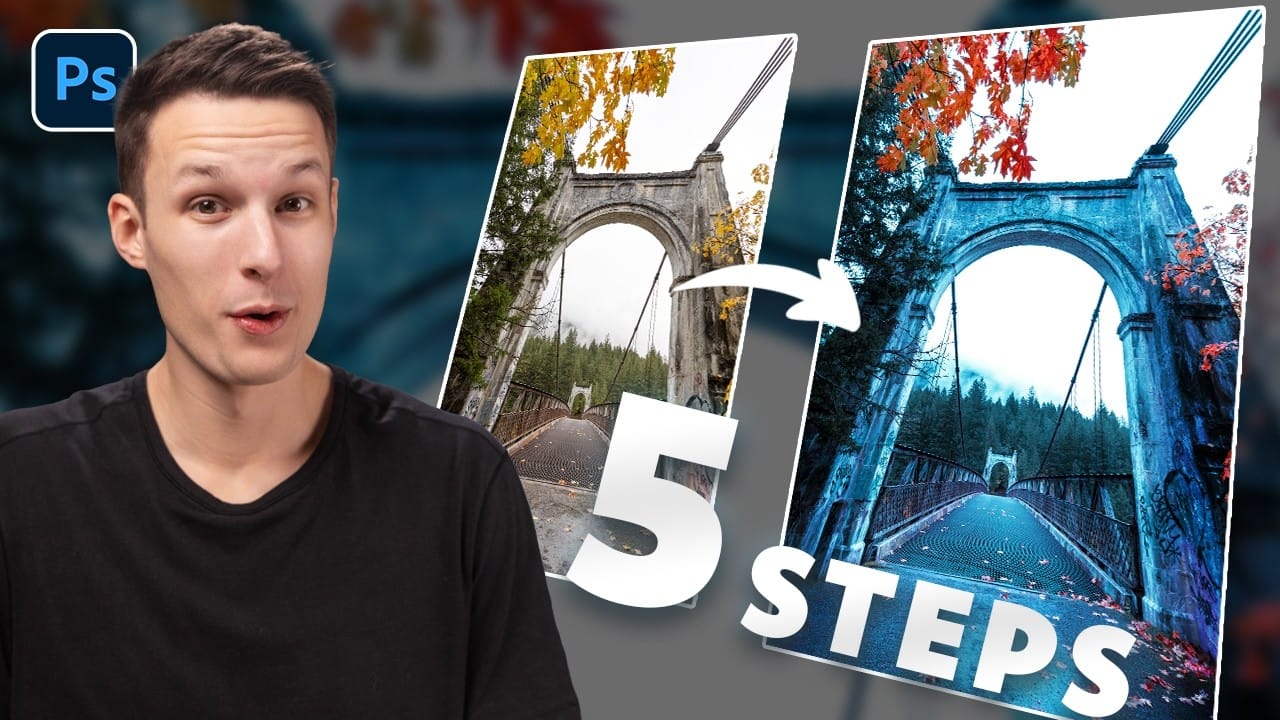
How to Create Dramatic Colors in Photoshop: A 5-Step Color Grading Process
Photography often captures moments in natural tones, but sometimes an image calls for something bolder. Dramatic color grading transforms ordinary photos into striking visual statements that grab attention and evoke emotion. This comprehensive approach combines Camera Raw adjustments with Photoshop's powerful color tools to create rich, cinematic looks. The process works especially well for outdoor scenes where you can push blues, oranges, and complementary colors to their limits. Watch the T
Six easy ways to select colors in Photoshop
In this episode of "3, 2, 1… Photoshop!", longtime Adobe evangelist Julieanne Kost shares essential tips and tricks for selecting colors in Photoshop. Julieanne introduces six easy methods to choose colors effectively, whether you're working on a detailed project or just need a quick color pick. You'll learn how to use the eyedropper tool for precise color selection, manipulate foreground and background colors, and utilize the heads-up-display (HUD) color picker for a more interactive experienc
How to Apply Graphics and Change Colors in Photoshop
Integrating graphics and adjusting colors are fundamental skills in Photoshop, enabling designers and artists to transform disparate elements into cohesive visual narratives. From compositing a logo onto a product image to blending text into a scene, mastering these techniques is crucial for achieving professional results. This video demonstrates practical methods for seamlessly applying graphics from one image to another, extracting specific elements like text, and efficiently changing their c
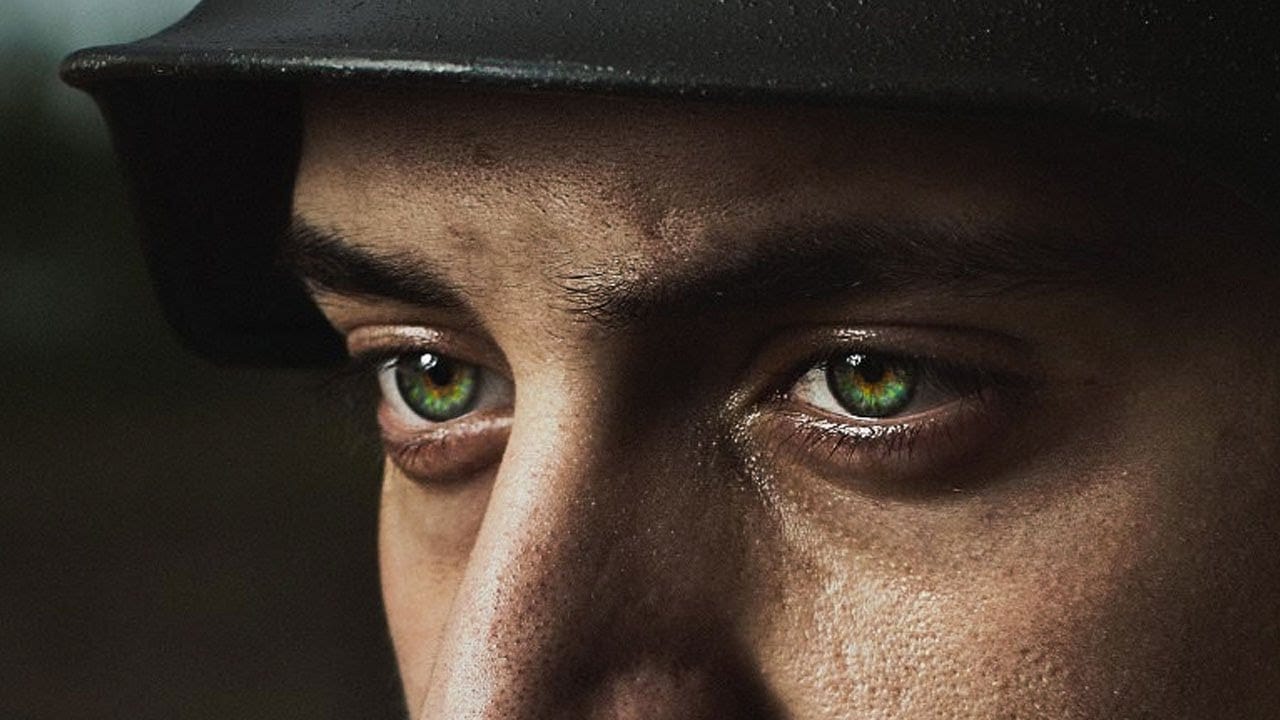
How to Color, Brighten and Sharpen Eyes in Photoshop
In this tutorial by Aaron Nace from Phlearn, learn how to enhance eyes in Photoshop to make them captivating and sharp. Techniques include coloring the eyes by sampling natural hues and adjusting lightness and saturation, using blending modes like "Soft Light" or "Overlay" for a natural look, and softening edges with Gaussian Blur. Dodge and Burn techniques are used to enhance depth and light in the pupils, while selective sharpening draws attention to the eyes, making them stand out in portrai

Get tutorials & freebies delivered to you.

Subscribe to the Photoshop Roadmap newsletter, a weekly roundup of new tutorials, insights and quality downloads, trusted by 6500+ readers.

You might also like

How to Remove Blemishes in Photoshop: Camera Raw vs. Generative AI

Photoshop now offers two distinct approaches to removing skin blemishes automatically. The Camera Raw Filter includes a dedicated Blemishes option that analyzes and cleans skin with a single checkbox, while Generative AI fills a face selection with clean, texture-consistent results using a simple text prompt. Each method has clear...

Common Photoshop Compositing Mistakes and How to Fix Them

Most compositing errors come down to a handful of repeatable problems: mismatched lighting direction, inconsistent white points, misaligned perspective, and atmosphere applied in the wrong layer order. Catching these issues early — ideally before you shoot — saves significant time in post. Watch the Video Practical Tips These corrections apply to nearly...

How to Use the Vectorscope in Camera Raw to Correct Skin Tones

The Vectorscope in Camera Raw gives you a precise, visual way to evaluate and correct skin tones based on hue and saturation data. Because all natural skin tones share a common hue range regardless of ethnicity, the built-in skin tone indicator line serves as a reliable target for getting...

Camera Raw August 2026: AI Blemish Removal, Generative Expand, and More

The August 2026 Camera Raw update adds an AI-powered blemish removal tool that handles skin imperfections automatically, treating blemishes and moles separately so editors stay in control. Alongside that, an improved Generative Expand in the crop tool and a few smaller additions round out a practical update worth knowing....

Wrap Text Around a Subject in 3D Using Photoshop's Warp Tool

Making text appear to wrap around a person or object adds genuine depth to a composition — the kind that's hard to fake with a simple drop shadow. This technique uses two warped text layers, a subject cutout, and a soft shadow to simulate the illusion of cylindrical text...

9 Photoshop Tools That Still Outperform AI for Precision and Control

AI generates images from descriptions, but it cannot hand you the brush. When a project demands exact colors, editable text, precise retouching, or seamless mockups, Photoshop's native tools remain the more reliable choice — not because AI is weak, but because these workflows require control that generative tools simply...

You’ve successfully subscribed to Photoshop Roadmap
Welcome back! You’ve successfully signed in.
Great! You’ve successfully signed up.
Success! Your email is updated.
Your link has expired
Success! Check your email for magic link to sign-in.