Create a Pointillism Effect in Photoshop

Create a Pointillism Effect in Photoshop

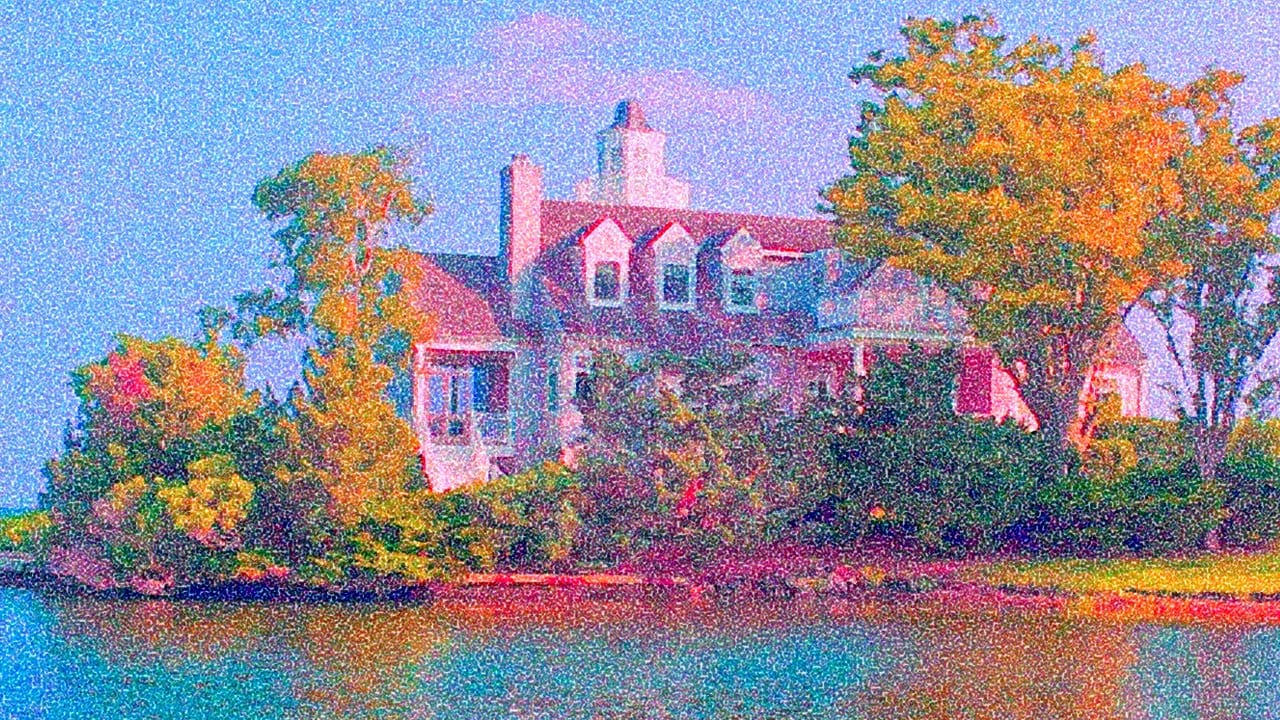
Pointillism, the late 19th-century painting technique that uses small dots of color to form images, creates a distinctive artistic look where colors blend optically when viewed from a distance. This digital recreation technique transforms ordinary photographs into artwork that mimics the style of masters like Paul Signac.

The process combines color matching, artistic filters, and careful layer blending to achieve authentic pointillist aesthetics while maintaining complete control over the final result.

Watch the Video

Video by Photoshop Arthouse. Any links or downloads mentioned by the creator are available only on YouTube

Practical Tips

Master the pointillism effect with these essential techniques:

  • Set your image resolution to 150 PPI and resize the smaller dimension to 750 pixels for optimal dot formation
  • Use Match Color with a reference painting to achieve authentic impressionist color tones before applying filters
  • Convert layers to Smart Objects before filtering to maintain non-destructive editing capabilities
  • Apply the Pointillize filter at 50% opacity over a Palette Knife filter base for realistic texture layering
  • Use Unsharp Mask with 50% amount and 3-pixel radius to enhance edge contrast and create better dot definition

Explore more artistic photo transformation techniques and digital painting effects.
Create an Action to Transform your Photos into Impressionist Paintings
Digital art techniques allow for creative transformation of ordinary images into unique visual pieces. This video explores a method to convert photographs into pointillist-style paintings within Photoshop. Viewers will learn how to set up a reusable Photoshop Action, automating the process of applying artistic filters and color adjustments. This enables quick application of a distinct impressionist aesthetic to various images, enhancing their artistic appeal. Watch the Tutorial: Automate Poin
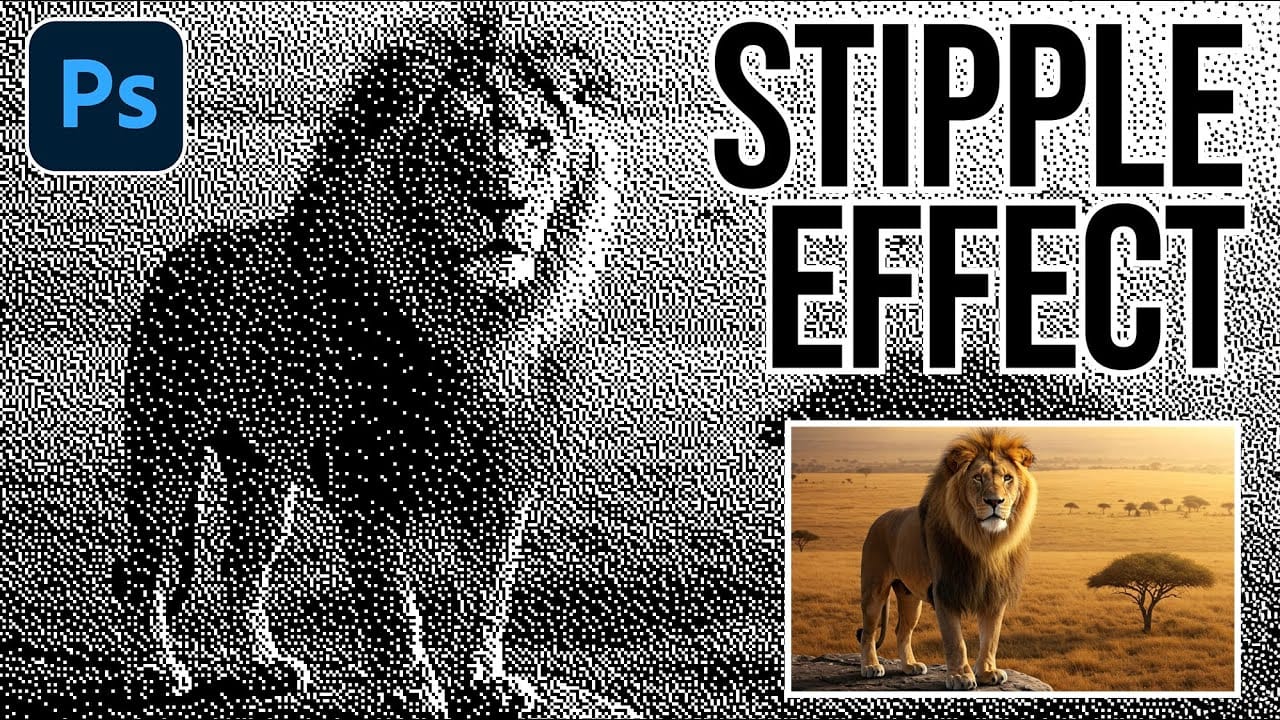
How to Create a Stippled Ink Drawing Effect in Photoshop
Hand-drawn stippled portraits have captivated artists for centuries with their unique texture created entirely from dots and speckles. This pointillistic technique transforms smooth photographic surfaces into artwork that feels both timeless and distinctly handcrafted. This tutorial demonstrates how to recreate that classic stippled ink effect digitally, giving you complete control over dot size and density to match your creative vision. Watch the Tutorial Understanding Bitmap Mode and Dith
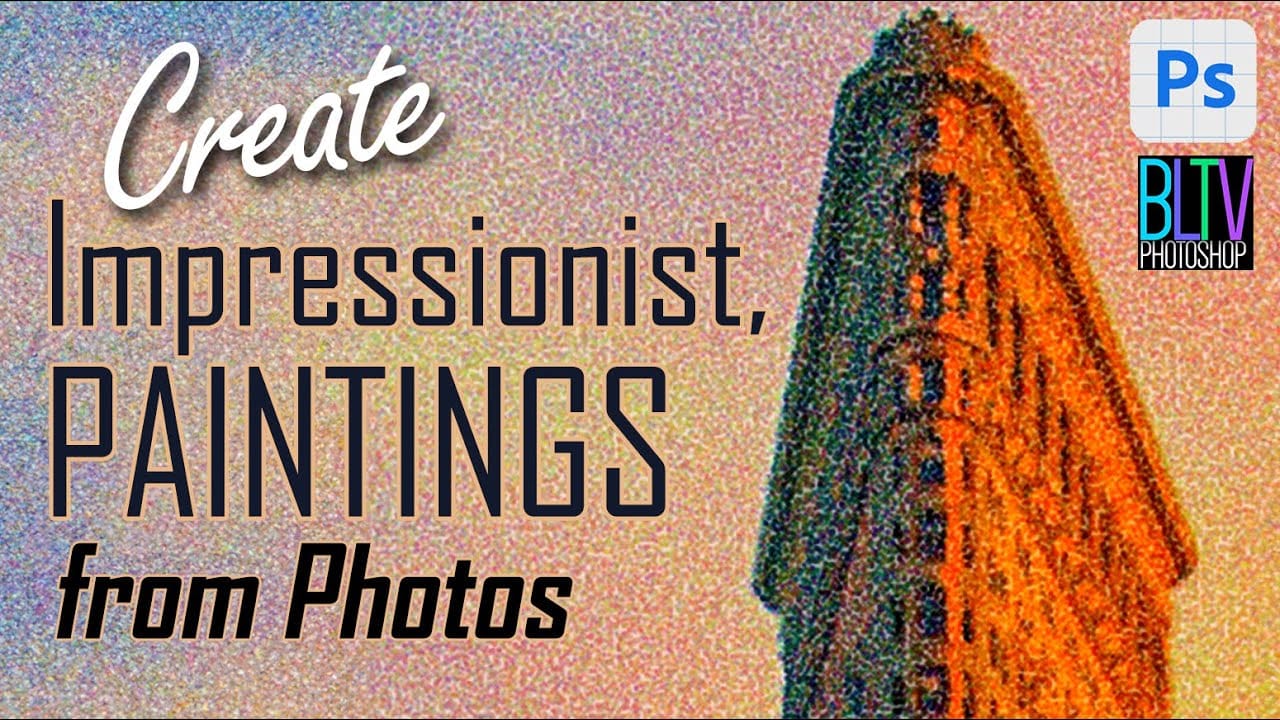
Create impressionist paintings from your photos in Photoshop
One intriguing technique in digital art involves leveraging a master's work as a direct reference for color and tone. This tutorial demonstrates how to use a Claude Monet painting to guide the color matching of your own photographs, achieving a cohesive impressionist style. The process also emphasizes a non-destructive workflow by converting images to Smart Objects, allowing for flexible adjustments and easy photo replacement without redoing effects. Additionally, it highlights efficient conten
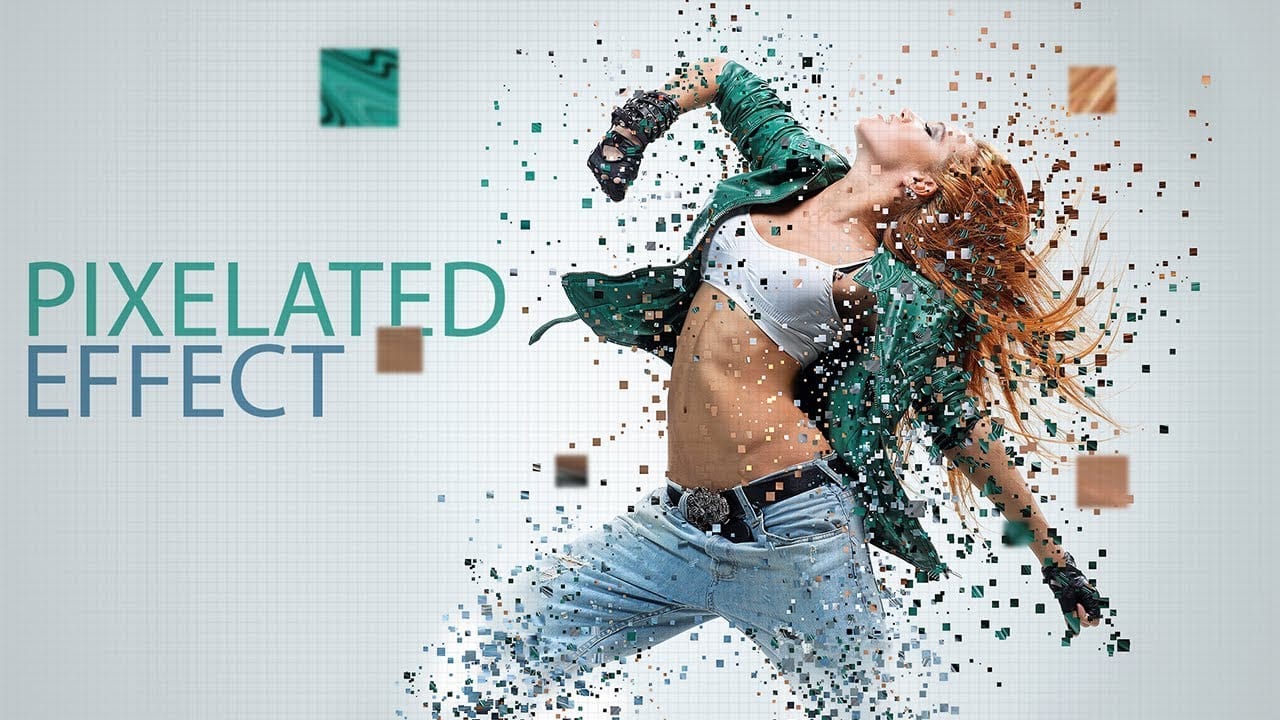
Create a pixelated dispersion effect in Photoshop
Transform ordinary photos into striking digital artwork using Photoshop's pixel manipulation techniques. This tutorial reveals how to deconstruct images into bold, geometric designs that capture the essence of digital pop art and retro gaming aesthetics. Watch the Video Practical Tips for Pixel Art Effects Master the art of digital pixel transformations with these key techniques: * Create custom pixel brushes to control size, spacing, and randomness of pixel elements * Use Liquify filter
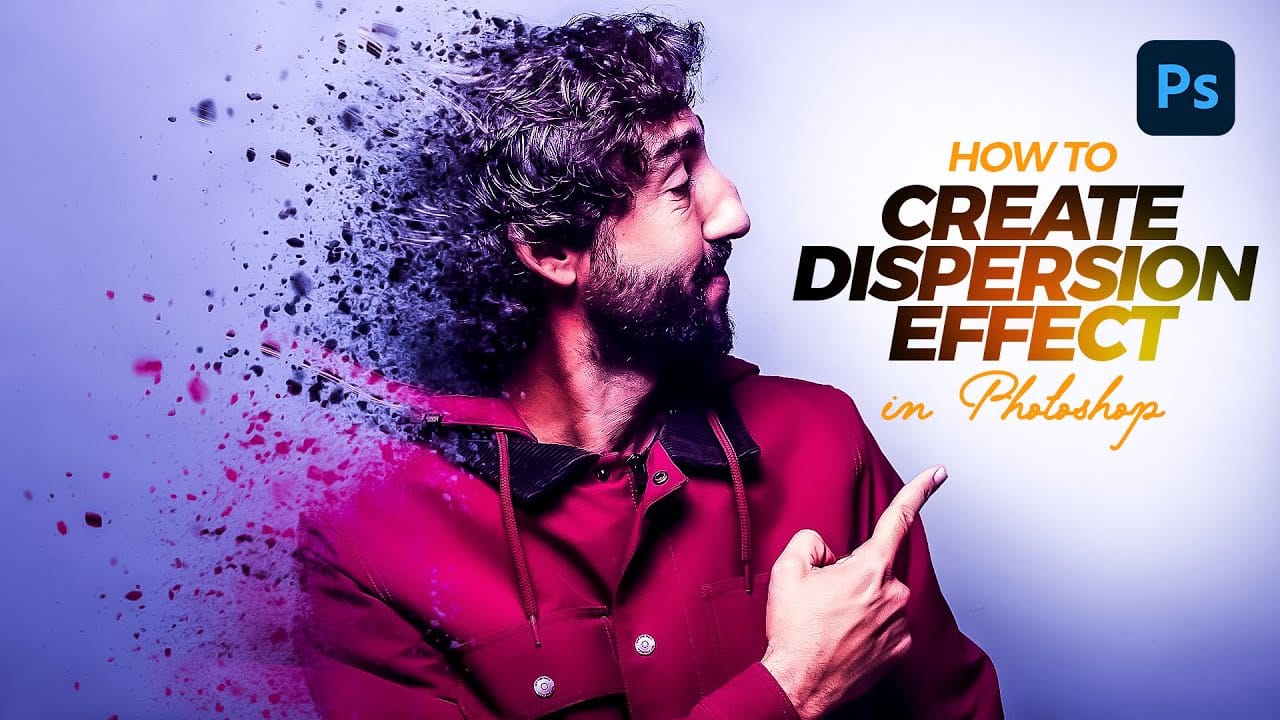
Create a Dispersion Effect in Photoshop
The dispersion effect transforms ordinary photographs into dynamic artwork, creating the illusion that parts of the subject are breaking apart and scattering into particles. This popular technique adds movement and a surreal quality to static images, making them ideal for creative projects and eye-catching digital content. This tutorial provides a step-by-step guide to achieving a professional dispersion effect using Photoshop's versatile tools. You will learn how to combine custom brushes, lay
Learn how to create light rays and dust particles in Photoshop
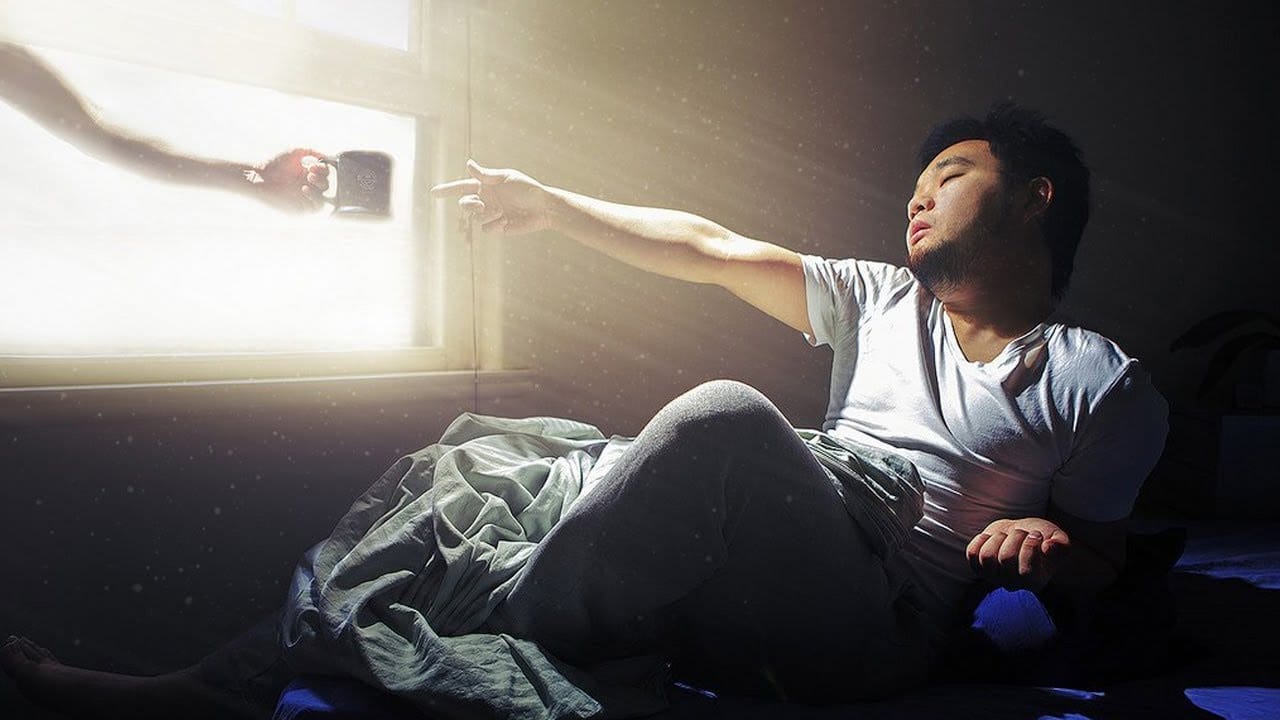
As a reader, you'll find this tutorial by Aaron Nace from Phlearn to be an informative and practical guide. He'll show you how to create stunning light rays and dust particles from scratch in Photoshop, using a custom brush. The step-by-step instructions are easy to follow, making it accessible even for beginners. You'll learn how to set up the brush, adjust the opacity and size, and apply it to your image to achieve the desired effect. The resulting light rays and dust particles will add dept
Create a Powerful Dispersion, Splatter Effect from a Photo in Photoshop
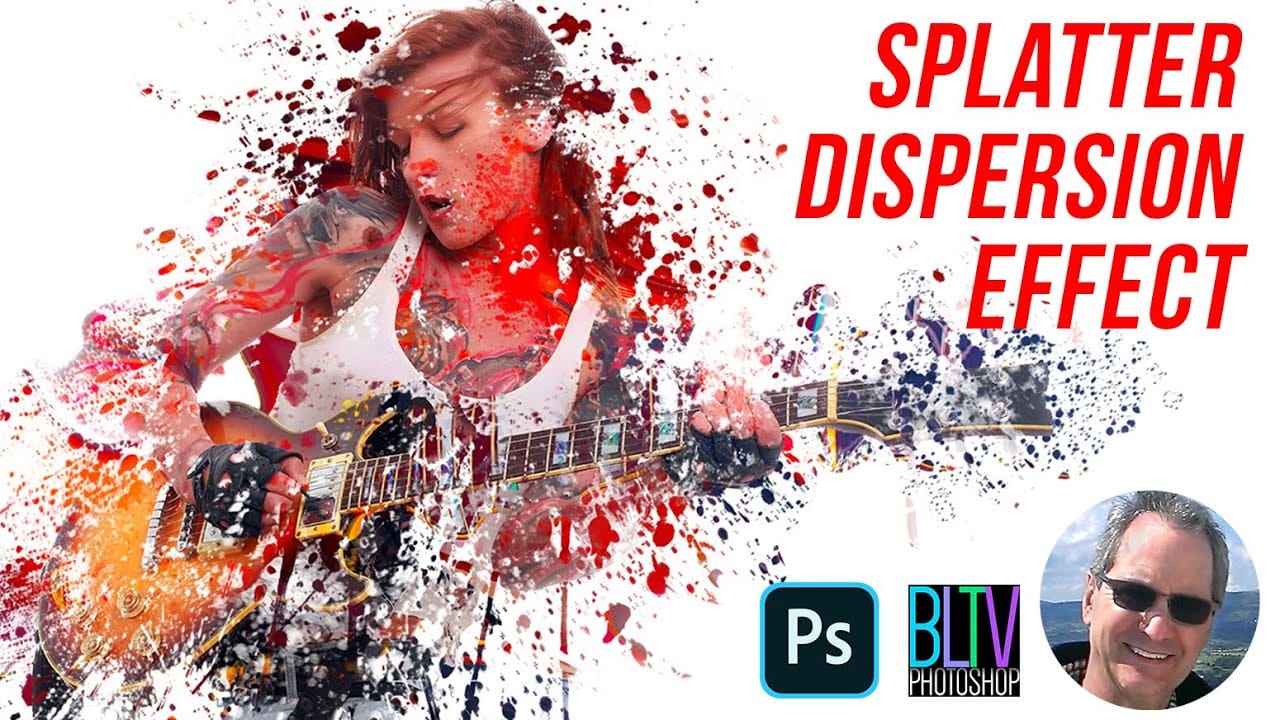
This tutorial explores how to create a striking dispersion and splatter effect in Adobe Photoshop, transforming ordinary photos into dynamic works of art. This technique gives the illusion that parts of your subject are breaking apart and scattering into particles, adding movement and drama to static images. Viewers will learn the essential steps to achieve this popular effect, from preparing your subject and background to utilizing smart objects, layer masks, and custom splatter brushes. The v
How to Create Dotted Halftone Motion Blur Effects in Photoshop
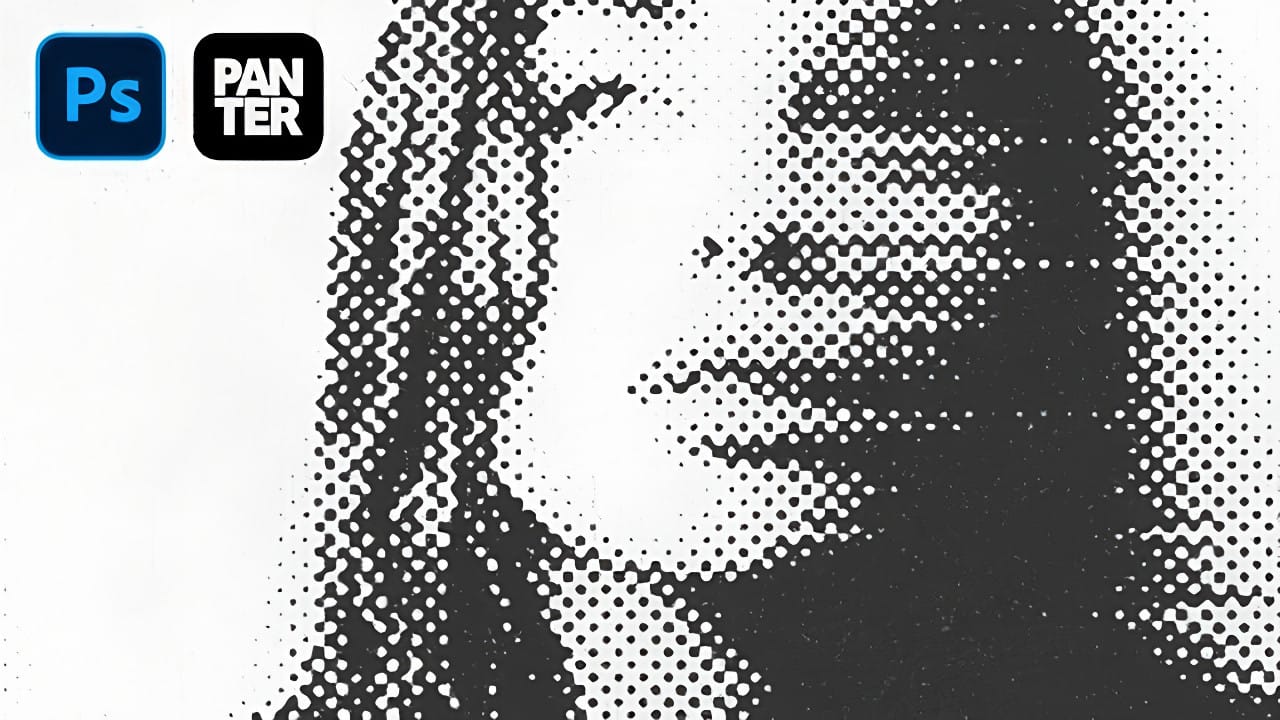
The distinctive look of dotted halftone patterns combined with dynamic motion blur creates striking visual effects that bridge vintage print aesthetics with modern digital design. This technique transforms portrait photography into graphic art pieces with flowing, particle-like textures. The process involves layering multiple filter effects to achieve that coveted Instagram-worthy look where subjects appear to dissolve into dotted trails of movement. Watch the Tutorial Practical Tips for Mo
3 Digital Painting Effects With One Tool in Photoshop
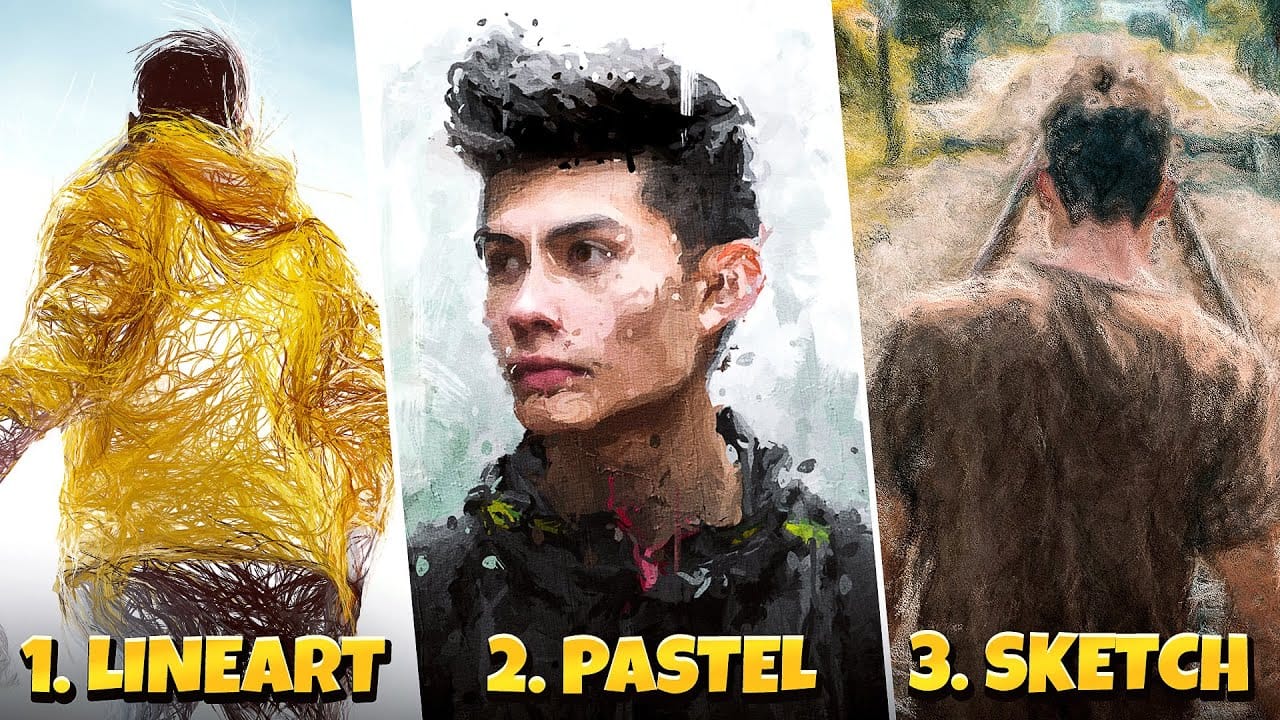
In this tutorial by Pixivu, you'll learn how to create three distinct digital painting effects in Photoshop using just one tool. The tutorial starts with a sketch effect, where you'll use specific brushes to convert your photo into a detailed sketch. The process is straightforward and results in a highly realistic sketch effect. Next, it guides you through creating a pastel oil paint effect with an easy and innovative technique involving four unique brushes. This technique adds rich texture and
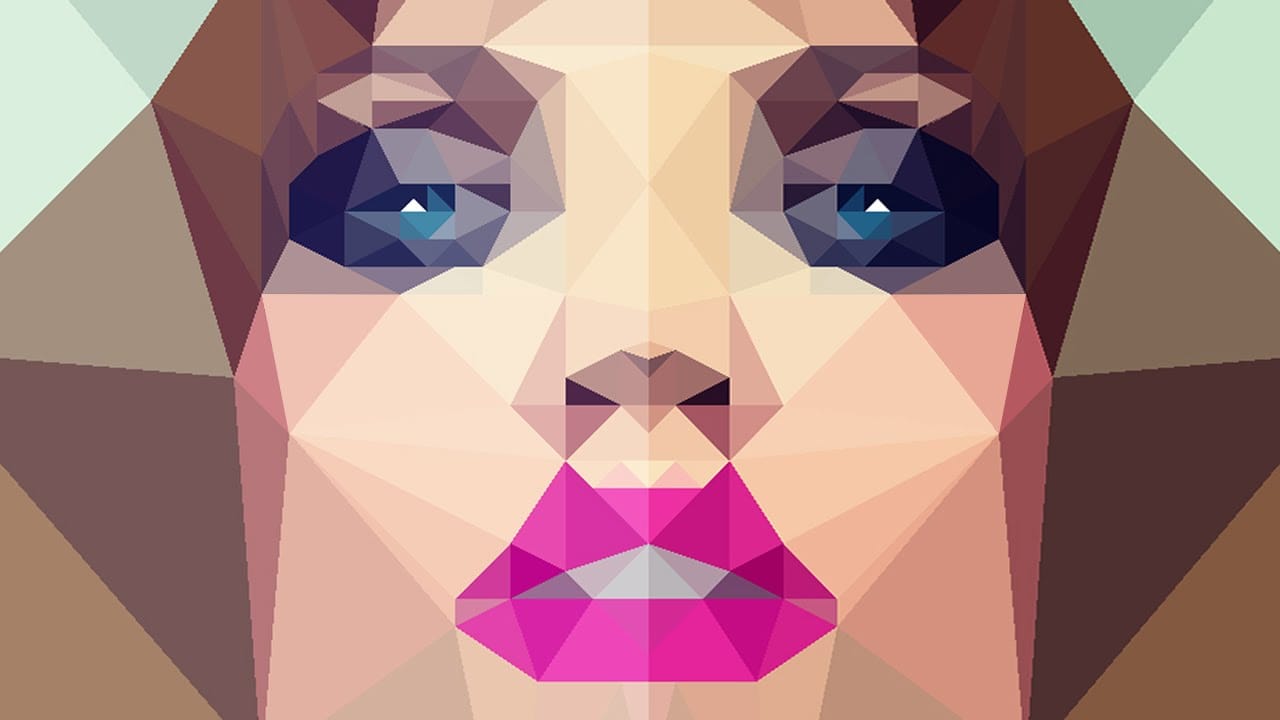
How to Create Low Polygon Images from Photos in Photoshop
In this Photoshop tutorial, you will learn how to transform your photos into stunning low-polygon images. The process is straightforward and can be applied to various types of images, allowing you to create captivating low-poly portraits or abstract artwork. The tutorial, presented by Marty Geller from Blue Lightning TV, guides you through the essential steps to achieve this visually striking effect. You'll discover how to use Photoshop's powerful tools and techniques to seamlessly convert your

Get tutorials & freebies delivered to you.

Subscribe to the Photoshop Roadmap newsletter, a weekly roundup of new tutorials, insights and quality downloads, trusted by 6500+ readers.

You might also like

AI-Powered Beauty Retouching Workflow for Faster Photo Editing

Modern beauty retouching combines traditional techniques with AI-powered tools to dramatically reduce editing time while maintaining professional quality. This workflow demonstrates how automated skin cleanup plugins can handle initial blemish removal, allowing you to focus on detailed work like hair refinement and dodge & burn enhancement. The approach balances efficiency...

Professional Beauty Retouching in Photoshop: Dealing with unusual problems

Professional beauty retouching requires a systematic approach that preserves natural features while addressing challenging imperfections. This comprehensive workflow demonstrates how to handle difficult skin conditions, uneven textures, and color inconsistencies that standard healing tools can't resolve. The process combines multiple frequency separation techniques with strategic dodging and burning...

Professional Beauty Retouching Workflow in Photoshop

Professional beauty retouching requires a systematic approach that balances technical precision with artistic vision. Kate Chibulya, an experienced beauty and fashion retoucher, demonstrates her complete workflow for transforming a creative makeup portrait while maintaining natural skin texture and elegant proportions. This comprehensive process covers everything from initial liquify adjustments and...

How to Trim and Shape Eyebrows in Photoshop

Eyebrow retouching requires precision and the right technique to maintain natural-looking results. Whether you're cleaning up stray hairs, reshaping uneven brows, or reconstructing missing sections, the key lies in understanding how to blend seamlessly with existing hair patterns and skin texture. This comprehensive approach covers three distinct scenarios:...

7 Signs You're a Photoshop Pro - Skill Assessment Guide

Professional Photoshop mastery isn't about memorizing every menu or filter. It's about developing efficient workflows, understanding core concepts, and building muscle memory for essential techniques. Real pros focus on the right tools for their specific needs rather than trying to learn everything. This comprehensive assessment covers...

How to Use Generative Upscale with Multiple AI Models in Photoshop

Pixelated vintage photos and low-resolution images no longer need to stay small. Photoshop's Generative Upscale feature now offers multiple AI models to enlarge images up to 4x their original size while adding remarkable detail and clarity. This new feature includes three distinct AI models—Adobe's Firefly...

You’ve successfully subscribed to Photoshop Roadmap
Welcome back! You’ve successfully signed in.
Great! You’ve successfully signed up.
Success! Your email is updated.
Your link has expired
Success! Check your email for magic link to sign-in.