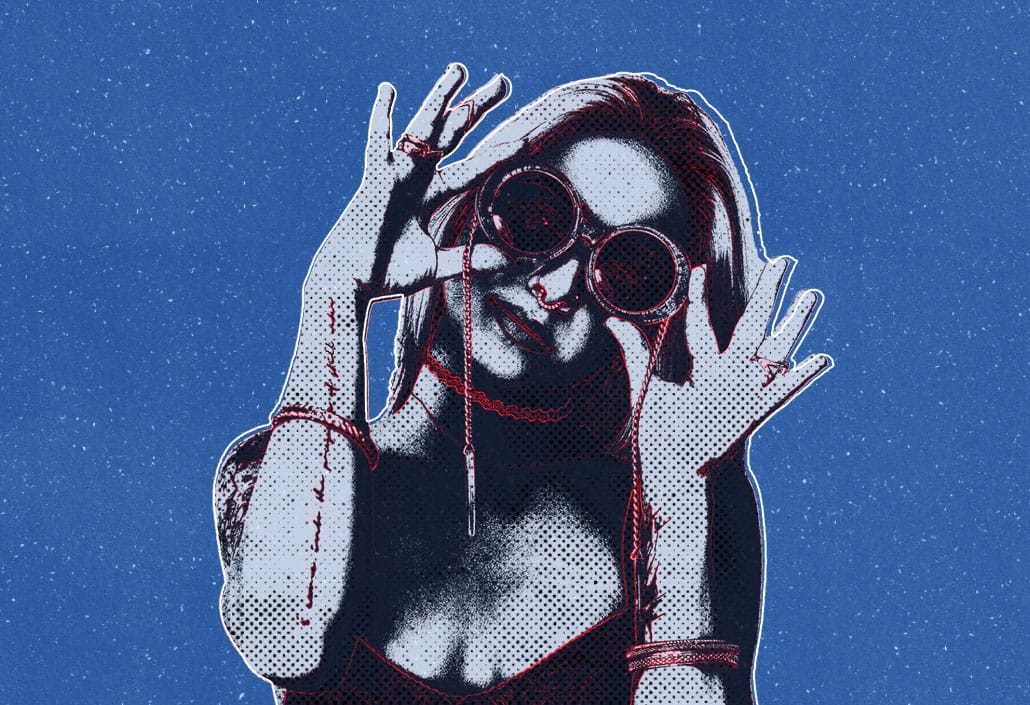
Create a Retro Pop Art Effect with Color Halftone in Photoshop

Create a Retro Pop Art Effect with Color Halftone in Photoshop

Pop art transformed ordinary subjects into bold, graphic statements through vibrant colors and distinctive printing techniques. The movement's signature look came from commercial printing methods, especially the visible halftone dots that created depth and texture in mass-produced images.

This video demonstrates how to recreate that iconic aesthetic digitally, combining artistic filters with halftone patterns to achieve the striking visual impact of 1960s pop art posters and comic book illustrations.

Watch the Video Tutorial

Video by Photoshop Arthouse. Any links or downloads mentioned by the creator are available only on YouTube

The Science Behind Halftone Pop Art

Traditional halftone printing creates the illusion of continuous tones using patterns of dots that vary in size and spacing. Larger dots produce darker areas, while smaller dots create highlights. This mechanical process became an artistic element when pop artists like Roy Lichtenstein embraced the visible dot pattern as part of their aesthetic vocabulary.

Digital halftone effects simulate this printing process by converting image data into dot patterns. The Color Halftone filter separates images into cyan, magenta, yellow, and black channels, each with its own screen angle to prevent interference patterns. This creates the layered, textured appearance that defines the pop art style.

The artistic filters like Paint Daubs and Cutout simplify complex photographic details into bold, graphic shapes. This preprocessing step eliminates unnecessary detail and creates the clean, poster-like quality essential for effective pop art compositions.

Practical Tips for Pop Art Effects

  • Set your image resolution to 300 PPI and width to 5,000 pixels for optimal halftone dot quality and printing compatibility
  • Use the Paint Daubs filter with brush size 4 and zero sharpness to simplify details without losing essential shapes
  • Apply Color Halftone with a 50-pixel radius for medium-sized dots that balance visibility with image detail
  • Copy individual color channels to find the best halftone pattern variation for your specific image
  • Enhance shadow detail with Shadows/Highlights at 100% shadow amount to maintain pop art's high-contrast look

More Tutorials about Halftone Effects

Explore additional techniques for creating vintage and modern halftone effects in Photoshop.
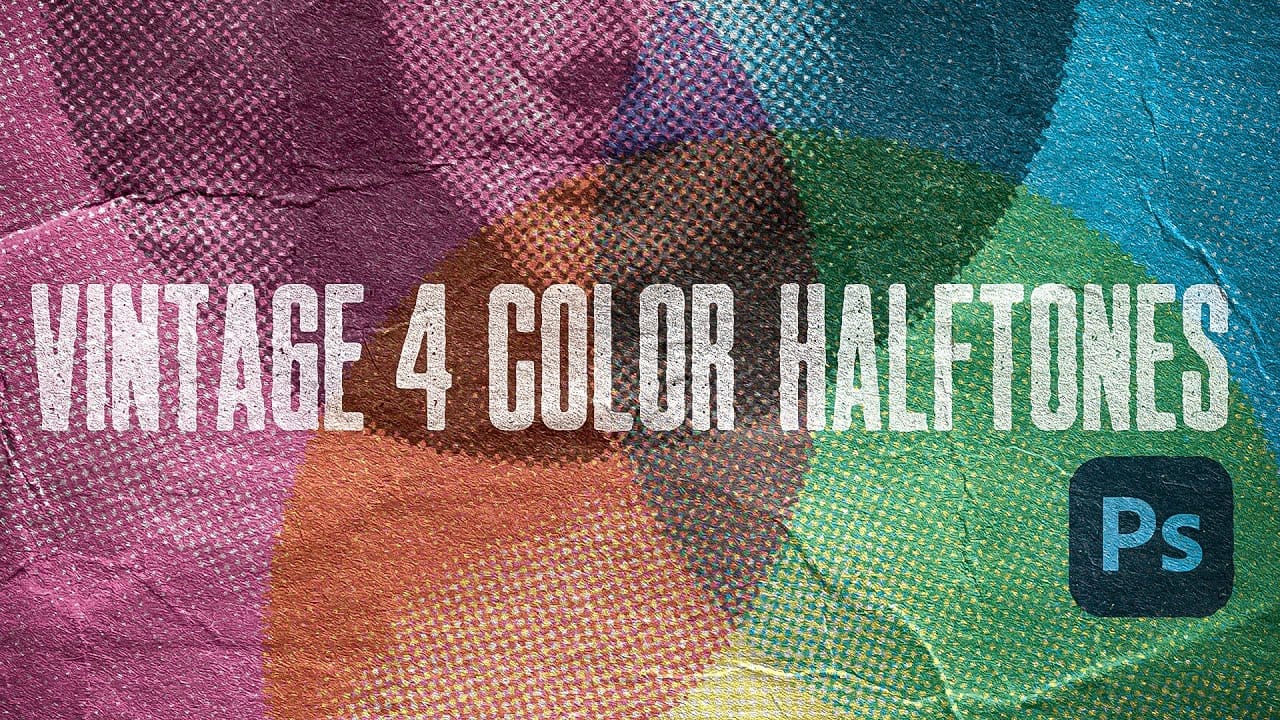
Create awesome retro halftone effects in Photoshop
Photoshop includes built-in halftone filters, but they often lack flexibility and can feel rigid for creative projects. Many designers struggle with creating authentic vintage halftone effects that remain editable and can be applied to different image sizes and compositions without starting over. This tutorial demonstrates a five-layer halftone setup that functions like a live adjustment layer, offering full control over dot size, color, and distressing effects. The system uses seamless pattern
Create an old-school halftone photo effect in Photoshop
Creating authentic vintage halftone effects can be challenging when working with modern digital photography. Many designers struggle to achieve that classic print aesthetic without the result looking artificial or overdone. This tutorial demonstrates a multi-layer approach to building realistic halftone vintage effects using threshold adjustments, pattern overlays, and selective masking. The technique creates depth and authenticity by working with multiple halftone variations rather than a sing
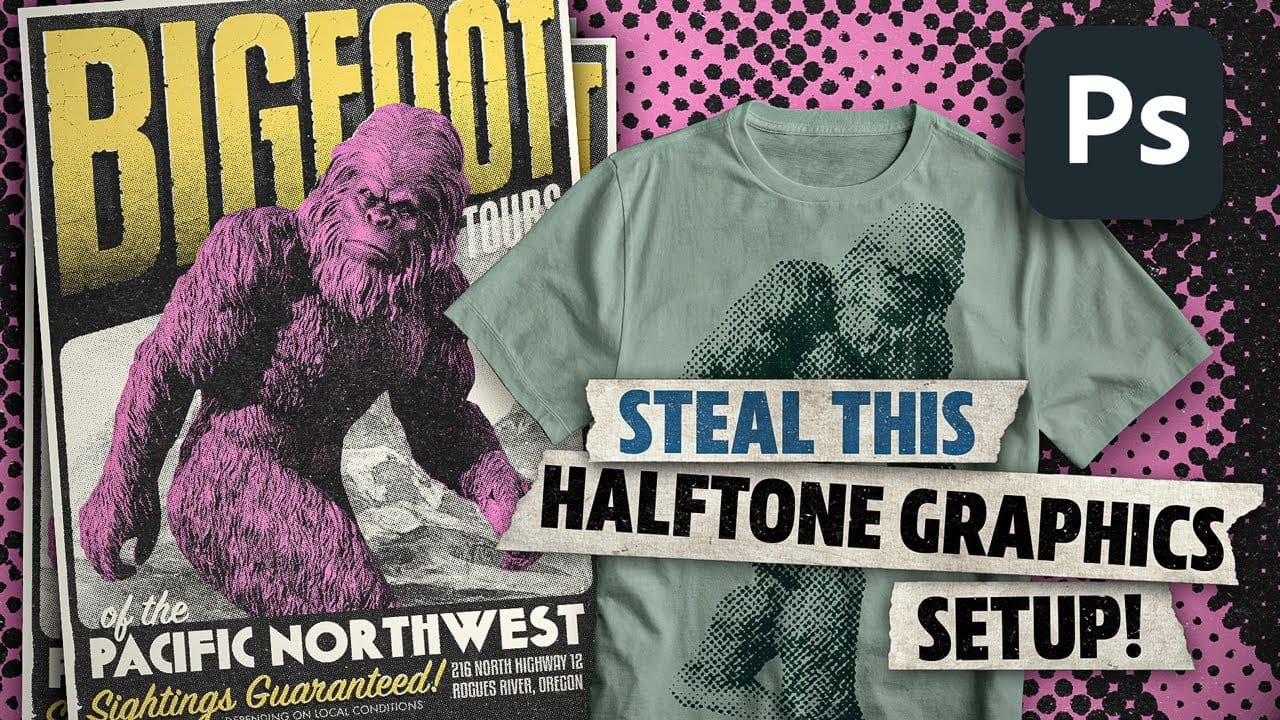
Create Authentic Vintage Halftone Effects with Custom Patterns in Photoshop
Photoshop's built-in Color Halftone filter creates rigid, geometric results that lack the authentic character of vintage print work. The filter also fails to produce true CMYK separations in RGB documents, missing the black channel entirely and creating an unconvincing simulation of traditional printing methods. This technique uses custom patterns and blend modes to create realistic, grungy CMYK halftones that work as live effects. Unlike the standard filter, this approach produces authentic-lo
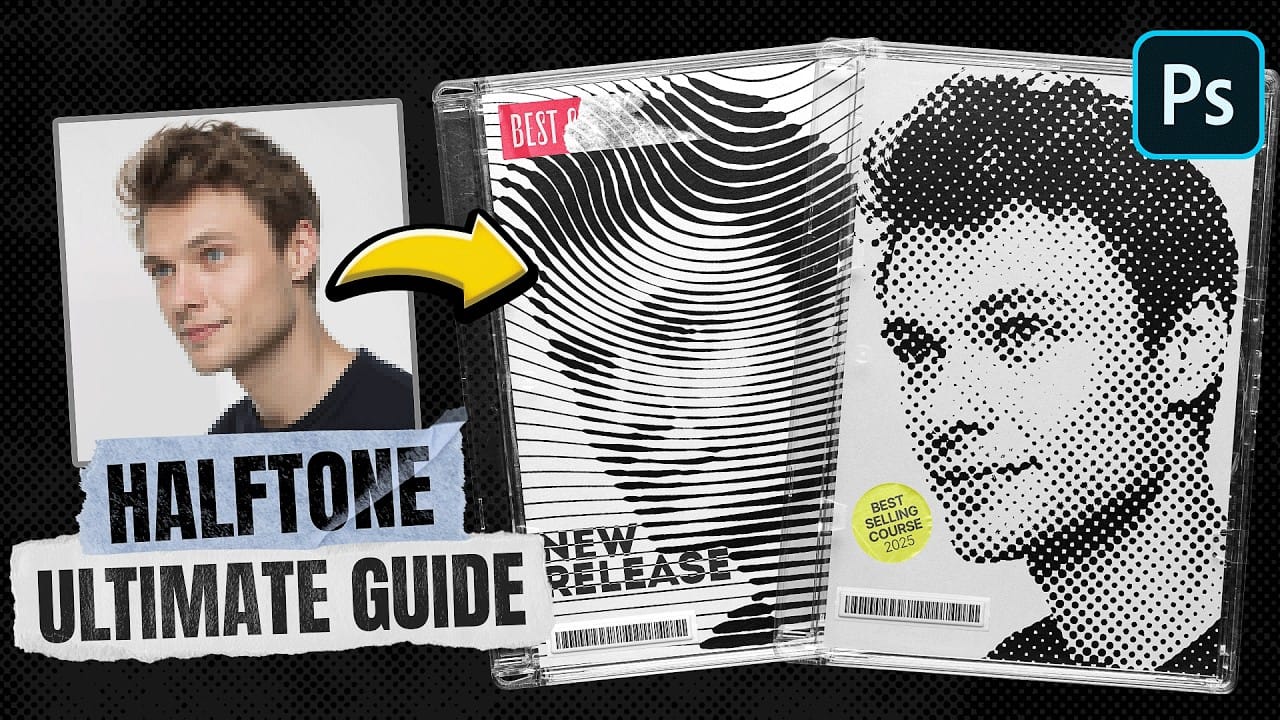
Ultimate Halftone Effect in Photoshop
Halftone effects can transform ordinary photos into striking graphic designs, but many designers struggle with creating patterns that blend naturally with their images. The traditional approach often results in rigid, uniform dots that don't adapt to the underlying image tones and details. This tutorial demonstrates how to create flexible halftone effects using multiple pattern types and blending techniques. You'll learn to build reusable workflows that can be applied to any image instantly, pl

Get tutorials & freebies delivered to you.

Subscribe to the Photoshop Roadmap newsletter, a weekly roundup of new tutorials, insights and quality downloads, trusted by 6500+ readers.

You might also like

Create a Liquid Gel Logo Effect in Photoshop

Liquid gel effects transform flat logos into dimensional, glossy designs that appear to bubble and flow. This technique uses multiple layer styles and strategic duplication to build depth, creating surfaces that catch light like thick, viscous liquid. The method combines gradient overlays, bevel effects, and inner glows across several duplicated...

How to Use Photoshop's AI Sharpen Filter and When It's Worth the Cost

Photoshop's new AI Sharpen filter promises one-click sharpening powered by advanced algorithms. This tool uses technology from Topaz Labs to enhance image details without manual adjustments, but it comes with a significant cost in credits. Understanding when to use this automated approach versus traditional methods like the High...

How to Use Harmonize and Generative Upscale Tools in Photoshop

Creating realistic photo composites requires matching lighting and color between different images—a traditionally time-consuming process. Two new AI-powered tools in Photoshop solve these challenges: Harmonize automatically adjusts lighting and shadows to blend subjects seamlessly into backgrounds, while Generative Upscale enlarges small images without losing detail. These tools work together...

How to Create Convincing Scale Effects in Photoshop Composites

Creating believable scale effects requires more than simply resizing objects—it demands understanding how light, perspective, and atmospheric conditions change with distance. When tiny subjects appear massive or giant objects seem miniature, viewers should feel the illusion is completely natural. This technique combines careful attention to lighting consistency, depth cues,...

How to Flip Images Horizontally and Vertically in Photoshop

Flipping images is a fundamental technique that can dramatically change the composition and impact of your photos. Whether you need to correct the orientation of a subject, create mirror effects, or simply improve the visual flow of your design, knowing how to quickly flip images both horizontally and vertically gives...

How to Use Nano Banana Pro in Photoshop for Background Replacement and Scene Changes

Nano Banana Pro transforms how you place subjects into new environments in Photoshop. This advanced AI model maintains perfect subject likeness while seamlessly integrating them into any background you can imagine. The tool excels at matching lighting, preserving facial features, and even adapting clothing to complement new scenes, all through...

You’ve successfully subscribed to Photoshop Roadmap
Welcome back! You’ve successfully signed in.
Great! You’ve successfully signed up.
Success! Your email is updated.
Your link has expired
Success! Check your email for magic link to sign-in.