Create a Vintage Paris Poster Design in Photoshop

Create a Vintage Paris Poster Design in Photoshop

Vintage poster design captures the timeless appeal of classic advertising with its bold typography, dramatic imagery, and weathered textures. This aesthetic combines strong compositional elements with subtle aging effects to create designs that feel both nostalgic and contemporary.

This tutorial demonstrates how to build a stylized Paris poster using fundamental Photoshop techniques including text manipulation, layer masking, and blending modes to achieve that coveted vintage look.

Watch the Tutorial

Video by Brendan Williams. Any links or downloads mentioned by the creator are available only on YouTube

Understanding Vintage Poster Composition

Classic poster design relies on strong hierarchical relationships between text and imagery. The most effective vintage posters use oversized typography as both a design element and functional communication tool. This approach creates immediate visual impact while maintaining readability across different viewing distances.

The integration of photography with text involves careful consideration of contrast and visual flow. Successful designs often feature dramatic scaling where text elements dominate the upper portion while supporting imagery anchors the lower section. This creates a natural reading path that guides the viewer through the composition.

Texture and grain play crucial roles in establishing authenticity. Vintage aesthetics depend on subtle imperfections that suggest age and printing processes from earlier eras. These elements should enhance rather than overwhelm the primary design components.

Practical Tips for Vintage Poster Design

  • Set up proper margins using guides to maintain consistent spacing and professional appearance throughout your design
  • Convert text to shapes when you need to manipulate individual letterforms or create custom stretching effects
  • Use clipping masks to reveal imagery through text while maintaining clean, editable boundaries
  • Apply grain and texture through Camera Raw filters for non-destructive editing that preserves your original layers
  • Combine black and white adjustments with color blend modes to achieve that signature faded vintage color palette

Explore more poster design techniques and creative approaches.
How to Design a Workshop Poster in Photoshop
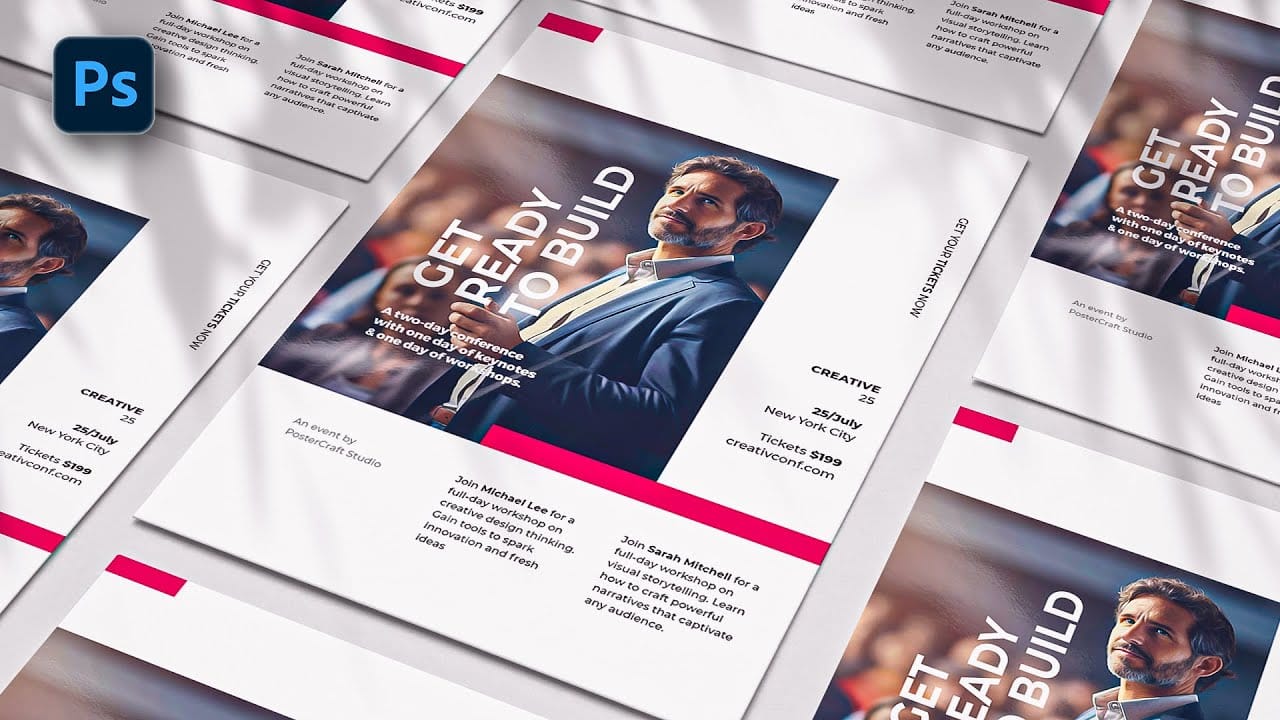
Professional workshop posters combine clean typography with compelling visuals to attract attendees and communicate essential information at a glance. The challenge lies in balancing text hierarchy with visual elements while maintaining readability across different sizes and formats. This Photoshop tutorial demonstrates a structured approach to poster design using basic tools like rectangles, clipping masks, and typography to create a polished workshop announcement. Watch the Tutorial Essen
Crafting a Typographic Poster in Adobe Photoshop
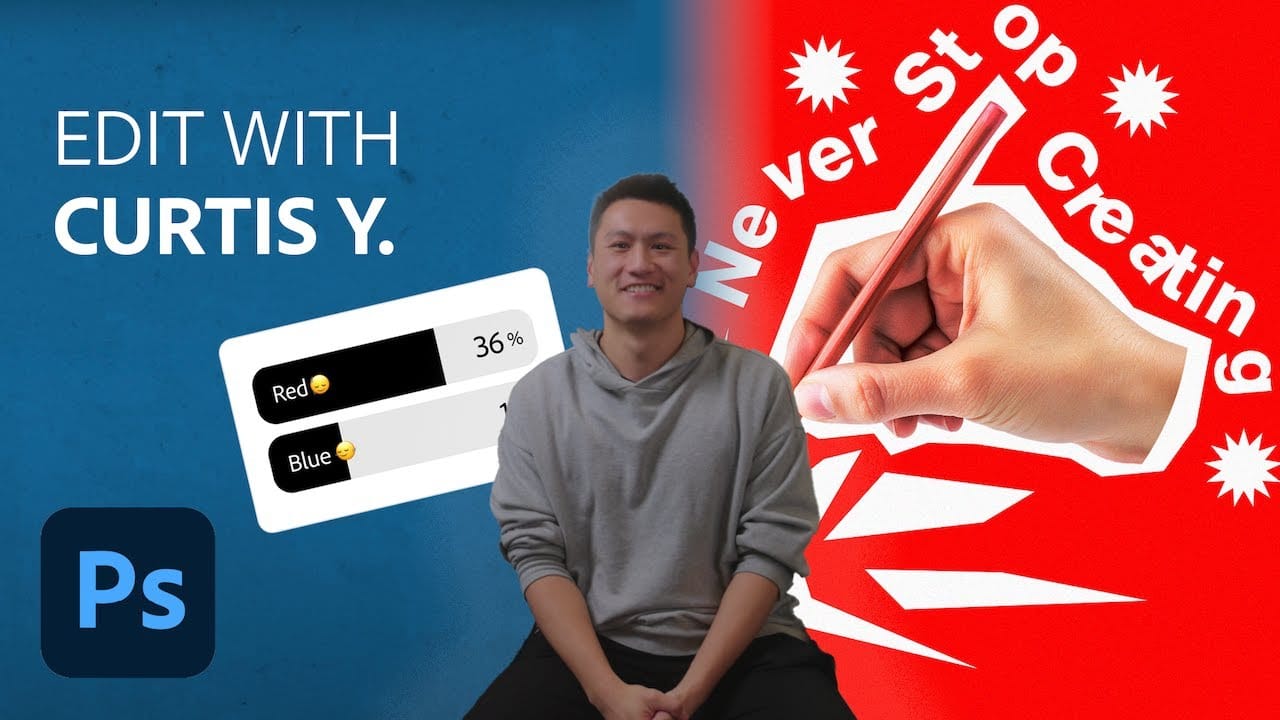
Join Adobe's UX Growth Designer, Curtis Ying, as he transforms a Swiss Typographic poster through an engaging design process. With the input from the Instagram community, this presentation showcases how he carefully selects a bold red background that sets the tone for the entire piece. Throughout the process, Curtis shares his techniques for integrating organic shapes and text that harmoniously flow within the design. Utilizing various Photoshop tools, he guides you step-by-step, making it easy
Create a Creative Text Portrait Poster in Photoshop
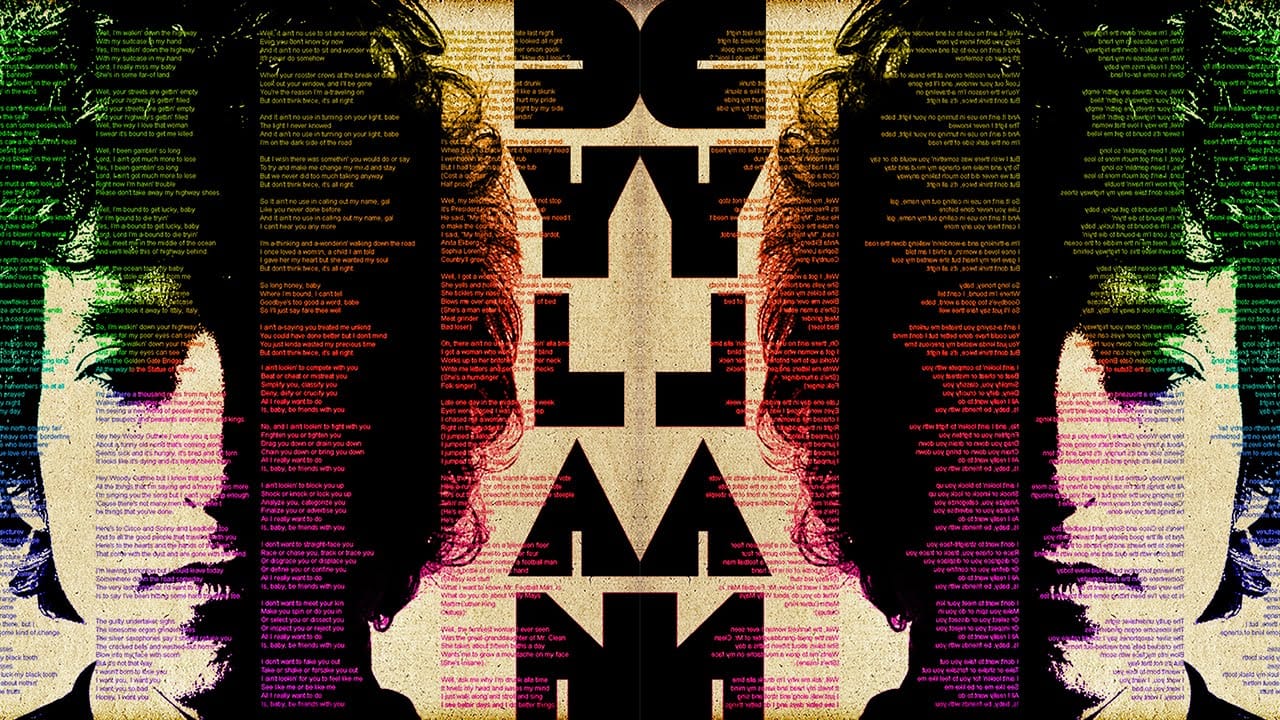
Creating unique visual art often involves blending unexpected elements. This tutorial explores a fascinating technique where a portrait is seamlessly integrated with text, transforming a simple image into a compelling artistic statement. The method specifically focuses on using song lyrics to add a personal and thematic depth to the artwork. In this guide, you will learn how to prepare a subject's portrait, incorporate song lyrics to form the contours of the face, and apply various Photoshop ad
Create a Wonderful 3D Typographic Poster in Photoshop
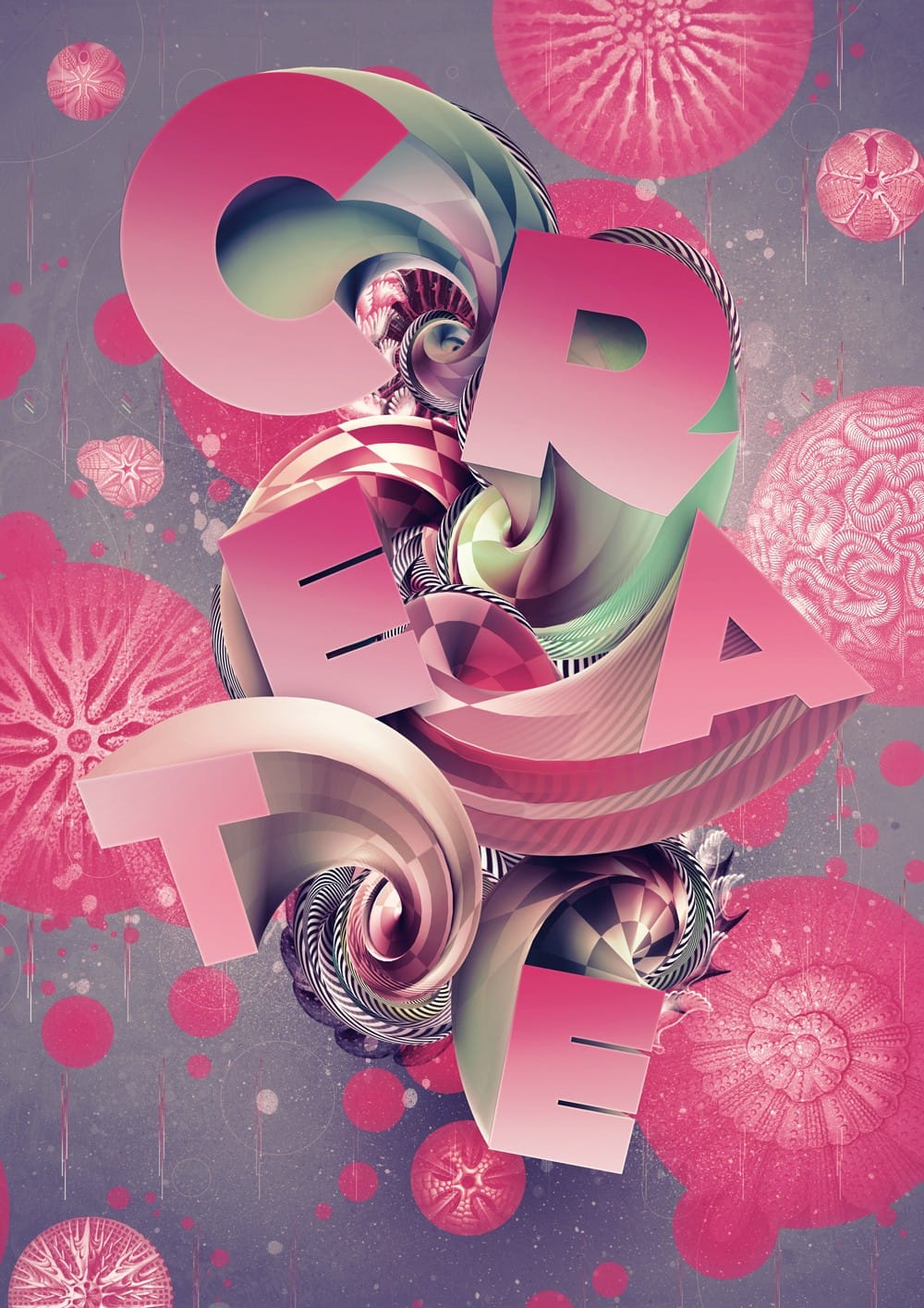
Photoshop's 3D tools have reached impressive new heights, and the Repoussé tool stands out as a notable feature. This tutorial focuses on how to extrude text, providing results akin to those achieved in full 3D applications. By utilizing this innovative feature, one can easily enhance designs with depth and dimension. In addition to the Repoussé tool, the tutorial examines traditional 3D settings, allowing you to fully harness the various material and rendering options available. This explorati

Member discussion

Get tutorials & freebies delivered to you.

Subscribe to the Photoshop Roadmap newsletter, a weekly roundup of new tutorials, insights and quality downloads, trusted by 6500+ readers.

You might also like

How to Create a Molten Metal Text Effect in Photoshop

Molten metal text effects transform ordinary typography into blazing, dimensional masterpieces that appear to glow with intense heat. This technique combines strategic layer styles, textural overlays, and color grading to simulate the appearance of scorching hot metal with fiery edges and realistic surface details. The process builds layers of metallic...

Create a Pop Art Stencil Effect from Photos in Photoshop

Pop art transforms ordinary portraits into bold, graphic statements using simplified colors and high contrast. This distinctive style, popularized by artists like Andy Warhol, reduces complex images to their essential elements while maintaining visual impact through strategic color choices. The stencil approach creates clean separations between color areas, producing artwork...

How to Use AI Masking in Adobe Camera Raw for Professional Photo Editing

Adobe Camera Raw's AI masking tools automatically detect subjects, backgrounds, skies, and landscapes, letting you make precise adjustments to specific areas of your photos. These intelligent masks eliminate the need for manual selection work, while allowing you to combine and refine them for complete creative control. The technique...

How to Remove Objects from Photos Using AI Tools in Photoshop

Photoshop's AI-powered object removal tools can eliminate unwanted distractions from your photos with minimal effort. The Remove Tool and Generative Fill feature automated detection for common distractions like people and wires, plus manual painting options for custom removals. These tools work on separate layers, preserving your original image...

Speed Up Your Color Grading Workflow with Photoshop Actions

Color grading can transform your images, but manually adjusting curves and levels for every photo takes time. Photoshop actions offer a faster approach by applying professional color treatments with a single click. This workflow uses pre-built actions, tints, and LUTs to achieve various moods and styles instantly, letting you layer...

7 Essential Tips for Speed Painting in Digital Art

Speed painting isn't just about working faster—it's about eliminating friction from your creative process. These seven techniques help you get ideas onto canvas quickly without getting bogged down in unnecessary decisions or premature details. Whether you're exploring concepts for professional work or personal...

You’ve successfully subscribed to Photoshop Roadmap
Welcome back! You’ve successfully signed in.
Great! You’ve successfully signed up.
Success! Your email is updated.
Your link has expired
Success! Check your email for magic link to sign-in.