Create an Analog Retro-Futuristic Monitor Effect in Photoshop

Create an Analog Retro-Futuristic Monitor Effect in Photoshop

The distinctive glow of vintage computer monitors carries a powerful nostalgic appeal that transcends generations. Those chunky green pixels, flickering displays, and analog imperfections define an entire era of sci-fi aesthetics. From classic arcade games to retro-futuristic films, this visual language continues to captivate designers and artists.

This tutorial demonstrates how to simulate an authentic pixelated monitor effect in Photoshop using custom patterns and advanced blending techniques. The result goes beyond simple color overlays to create a genuine pixel grid that responds dynamically to your image content.

Watch the Tutorial

Video by Texturelabs. Any links or downloads mentioned by the creator are available only on YouTube

The Science Behind Monitor Pixel Simulation

Digital displays fundamentally work by controlling individual pixels that can only exist in specific states. Early monitors were particularly limited in their color range and resolution, creating the characteristic blocky appearance we associate with retro technology. The Hard Mix blending mode in Photoshop perfectly replicates this binary behavior by forcing pixels into pure black or white states based on their combined luminosity values.

The technique relies on custom pattern tiles containing multiple gray rectangles. When combined with underlying image data through Hard Mix blending, these rectangles selectively turn on or off based on the brightness values beneath them. This creates the illusion of actual monitor pixels responding to image content, much like how real displays modulate individual phosphor elements.

The Mosaic filter plays a crucial role by converting continuous image data into discrete blocks that align perfectly with the pattern grid. This preprocessing step ensures that each "pixel" in the final effect corresponds to a specific brightness value, maintaining the authentic digital display behavior throughout the image.

Practical Tips for Monitor Effects

  • Use pattern tiles that are exactly the same dimensions as your Mosaic filter settings to ensure perfect alignment between the pixel grid and pattern overlay.
  • Apply multiple Drop Shadow effects instead of Outer Glow to create more realistic monitor phosphor bleeding and ghosting artifacts.
  • Convert your base layer to a Smart Object before applying filters so you can easily adjust Mosaic size and source images non-destructively.
  • Enable "Snap to Origin" when positioning pattern overlays to guarantee proper alignment with the document's top-left corner.
  • Group your pixelated layer before adding glow effects to isolate the complex blending modes from the final styling treatments.

Explore more retro and sci-fi visual effects for your creative projects.
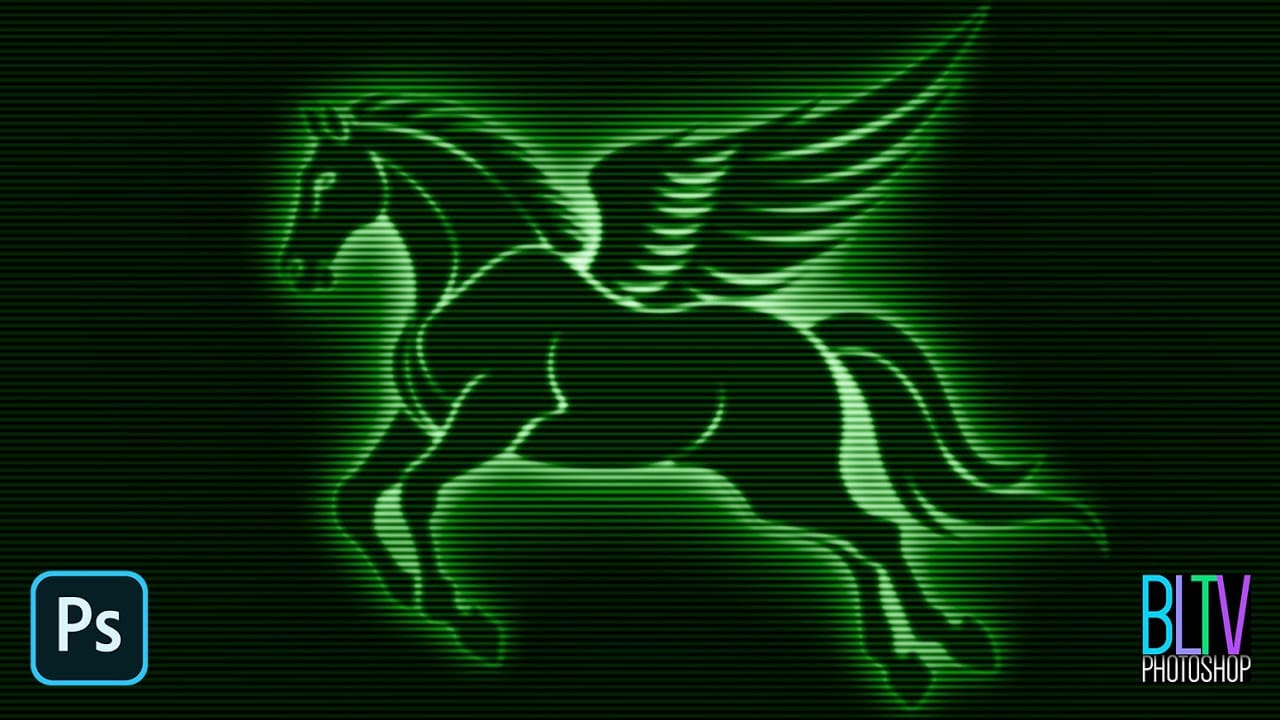
Create a Classic Retro CRT Monitor Effect in Photoshop
In an age dominated by high-definition displays and vibrant color palettes, the distinctive aesthetic of vintage CRT monitors continues to hold a unique appeal. Their characteristic glow, scanlines, and limited color range evoke a sense of nostalgia, making them a popular choice for artists and designers aiming to infuse their work with a retro or futuristic vibe. This tutorial will guide you through the process of recreating the iconic look of graphics displayed on a classic green phosphor mon
Create a retro '50s Sci-Fi poster in Photoshop
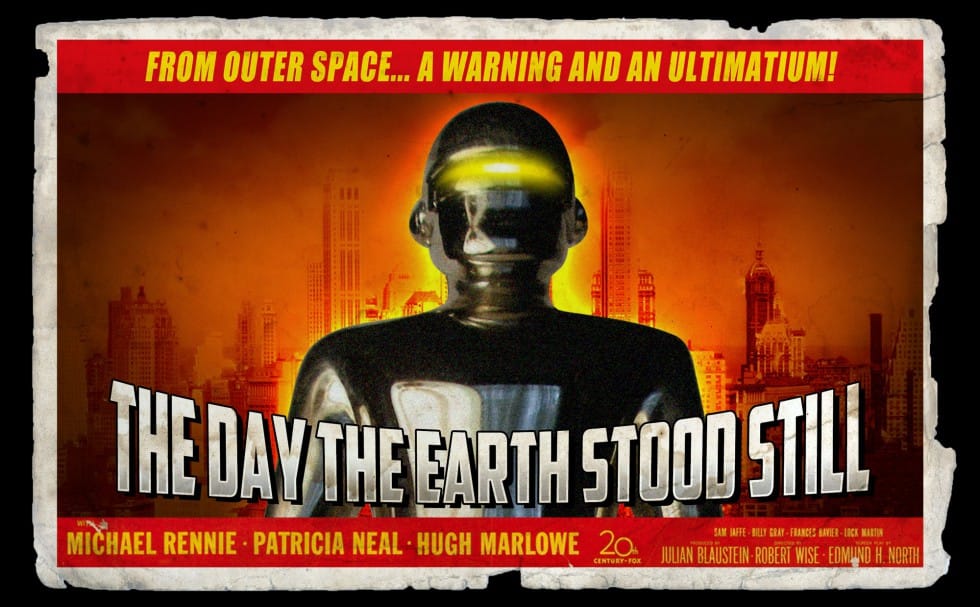
Achieving a distinct vintage sci-fi aesthetic often involves intricate color manipulation beyond simple desaturation. This tutorial demonstrates a surprising approach to color grading, using specific color balance adjustments across shadows, midtones, and highlights to infuse a retro tone. For instance, cyan/red is pushed to +100 in all three tones, while yellow/blue is consistently set to -100. This precise method, combined with the Diffuse Glow filter and careful Brightness/Contrast settings,
Create a Retro Cyberpunk Photo Effect in Photoshop
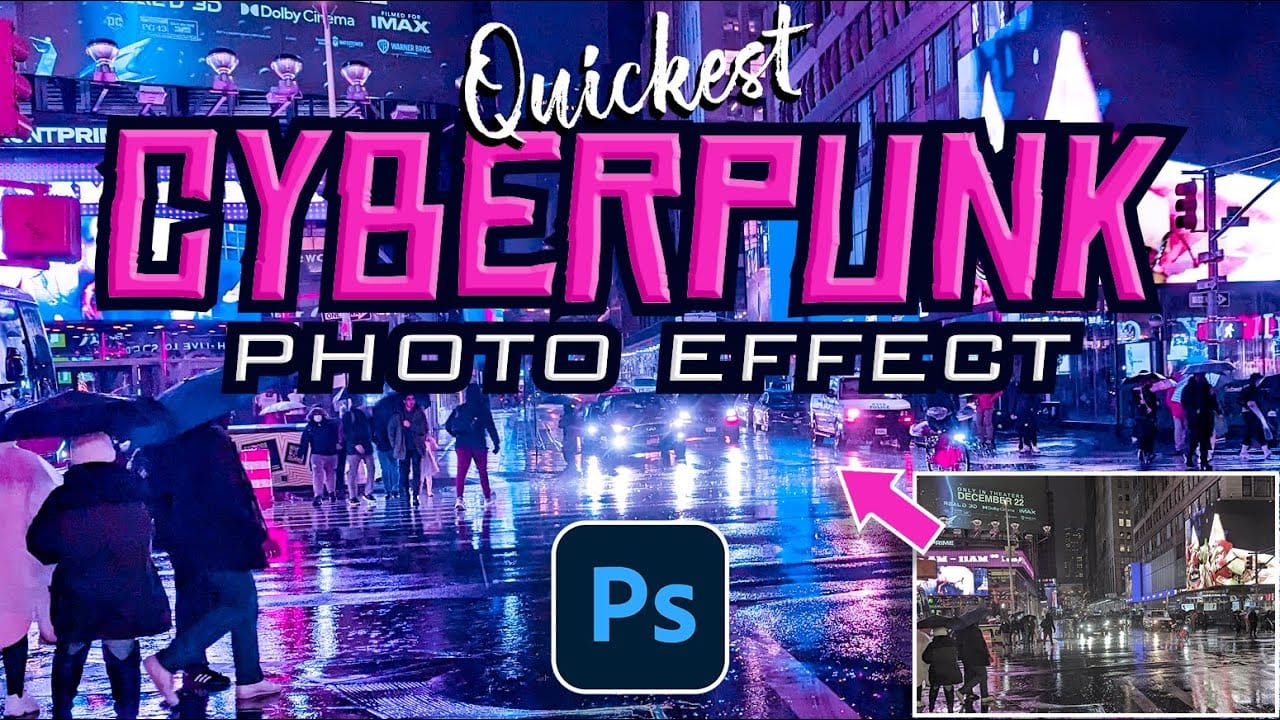
The cyberpunk aesthetic, characterized by its neon-drenched, dystopian urban landscapes, has a distinct visual appeal that continues to capt captivate audiences. This unique style blends high-tech elements with a gritty, low-life atmosphere, often conveyed through specific color palettes and lighting. This tutorial offers a quick and effective method for transforming your ordinary photos into striking cyberpunk images using Adobe Photoshop. You will learn how to leverage the Camera Raw Filter t
Futuristic Neon Text Effect in Photoshop
In this tutorial, Brandon Bias from Ch-Ch-Check It shows you how to create a stunning futuristic, grungy neon text effect on metallic letters using Adobe Photoshop. This effect combines multiple blend modes, textures, and layer styles to achieve a unique and eye-catching design. The tutorial begins with creating a new document and adding a grungy background, then moves on to customizing text with specific fonts and character settings. Through detailed steps, you'll learn how to apply various ef

Get tutorials & freebies delivered to you.

Subscribe to the Photoshop Roadmap newsletter, a weekly roundup of new tutorials, insights and quality downloads, trusted by 6500+ readers.

You might also like

Create a Liquid Gel Logo Effect in Photoshop

Liquid gel effects transform flat logos into dimensional, glossy designs that appear to bubble and flow. This technique uses multiple layer styles and strategic duplication to build depth, creating surfaces that catch light like thick, viscous liquid. The method combines gradient overlays, bevel effects, and inner glows across several duplicated...

How to Use Photoshop's AI Sharpen Filter and When It's Worth the Cost

Photoshop's new AI Sharpen filter promises one-click sharpening powered by advanced algorithms. This tool uses technology from Topaz Labs to enhance image details without manual adjustments, but it comes with a significant cost in credits. Understanding when to use this automated approach versus traditional methods like the High...

How to Use Harmonize and Generative Upscale Tools in Photoshop

Creating realistic photo composites requires matching lighting and color between different images—a traditionally time-consuming process. Two new AI-powered tools in Photoshop solve these challenges: Harmonize automatically adjusts lighting and shadows to blend subjects seamlessly into backgrounds, while Generative Upscale enlarges small images without losing detail. These tools work together...

How to Create Convincing Scale Effects in Photoshop Composites

Creating believable scale effects requires more than simply resizing objects—it demands understanding how light, perspective, and atmospheric conditions change with distance. When tiny subjects appear massive or giant objects seem miniature, viewers should feel the illusion is completely natural. This technique combines careful attention to lighting consistency, depth cues,...

How to Flip Images Horizontally and Vertically in Photoshop

Flipping images is a fundamental technique that can dramatically change the composition and impact of your photos. Whether you need to correct the orientation of a subject, create mirror effects, or simply improve the visual flow of your design, knowing how to quickly flip images both horizontally and vertically gives...

How to Use Nano Banana Pro in Photoshop for Background Replacement and Scene Changes

Nano Banana Pro transforms how you place subjects into new environments in Photoshop. This advanced AI model maintains perfect subject likeness while seamlessly integrating them into any background you can imagine. The tool excels at matching lighting, preserving facial features, and even adapting clothing to complement new scenes, all through...

You’ve successfully subscribed to Photoshop Roadmap
Welcome back! You’ve successfully signed in.
Great! You’ve successfully signed up.
Success! Your email is updated.
Your link has expired
Success! Check your email for magic link to sign-in.