Creating a Colorful Pixelated Effect in Photoshop

Creating a Colorful Pixelated Effect in Photoshop

The colorful pixelated effect transforms ordinary photographs into vibrant, retro-style artwork reminiscent of 8-bit video games and digital pop art. This distinctive visual style combines traditional mosaic filtering with advanced color manipulation to create bold, simplified imagery that captures attention.

This technique works particularly well for portraits, creating striking poster-like results that blend nostalgic pixel aesthetics with modern design sensibilities.

Watch the Tutorial

Video by P A N T E R. Any links or downloads mentioned by the creator are available only on YouTube

Understanding Digital Pixelation and Color Reduction

Digital pixelation in graphic design serves as both a nostalgic callback and a powerful simplification tool. The effect mimics the visual constraints of early computer graphics while creating modern artistic interpretations. Mosaic filtering creates the basic pixel structure by grouping neighboring pixels into uniform squares, establishing the foundation for the retro aesthetic.

Color reduction through posterization plays a crucial role in achieving authentic pixel art appearance. By limiting the color palette to just a few dominant tones, the effect mirrors the technical limitations of vintage gaming systems. This process eliminates subtle gradations and forces bold color transitions that define the pixel art style.

The combination of geometric pixelation and strategic color manipulation creates imagery that feels both technically constrained and artistically intentional. Modern implementations can enhance this effect through selective color adjustments and custom grid overlays that emphasize the digital nature of the final result.

Practical Tips for Colorful Pixelation Effects

  • Work with high-resolution images initially to ensure clean pixel boundaries and better color sampling before applying the mosaic filter
  • Convert layers to Smart Objects before applying filters to maintain non-destructive editing capabilities throughout the process
  • Use posterization levels of 2-4 for authentic pixel art color reduction while maintaining sufficient visual detail
  • Apply curves adjustments after pixelation to enhance contrast and make subject details more prominent within the simplified color palette
  • Create custom grid patterns with subtle highlight effects to emphasize individual pixels and enhance the retro digital aesthetic

Explore more techniques for creating vibrant, stylized imagery in Photoshop.

Create a colorful wallpaper in Photoshop
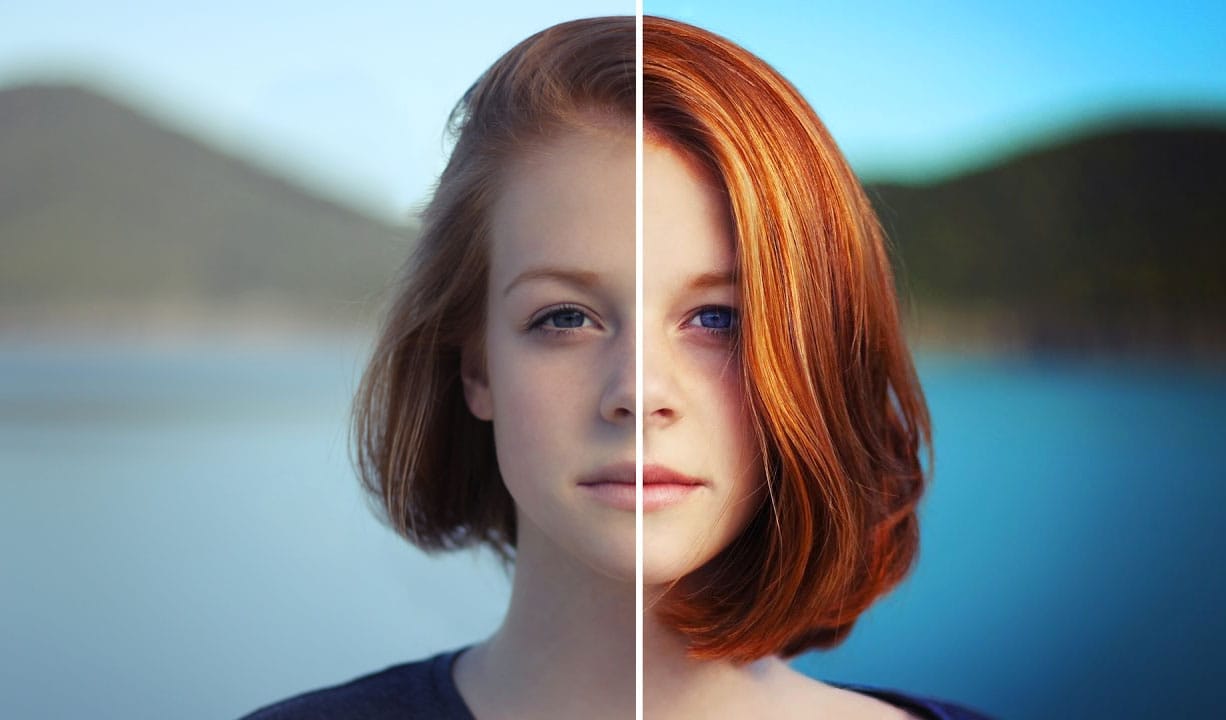
In this Photoshop tutorial by Andrei Oprinca, you'll learn how to create an abstract wallpaper with colorful elements and effects. Oprinca starts by creating a new document with a light gray gradient background, converting it into a smart object, and adding noise. He then extracts a model's hair using the pen tool and refines the edges with the refine edge tool. Various shapes are added using the brush tool, lasso tool, and gradient tool, along with adjustment layers to alter the color tone. Le
How to make colors pop in Photoshop
Kelvin Pimont from Kelvin Designs shares his insights on how to make colors pop in Photoshop. The author explains that this tutorial will teach you how to transform dull photographs into more dramatic and colorful images. According to the author, the key is to make local adjustments to colors and contrast. By selecting specific areas of the image, you can enhance the colors and create a more impactful photo. The author will guide you through the process, showing you the steps to achieve this re
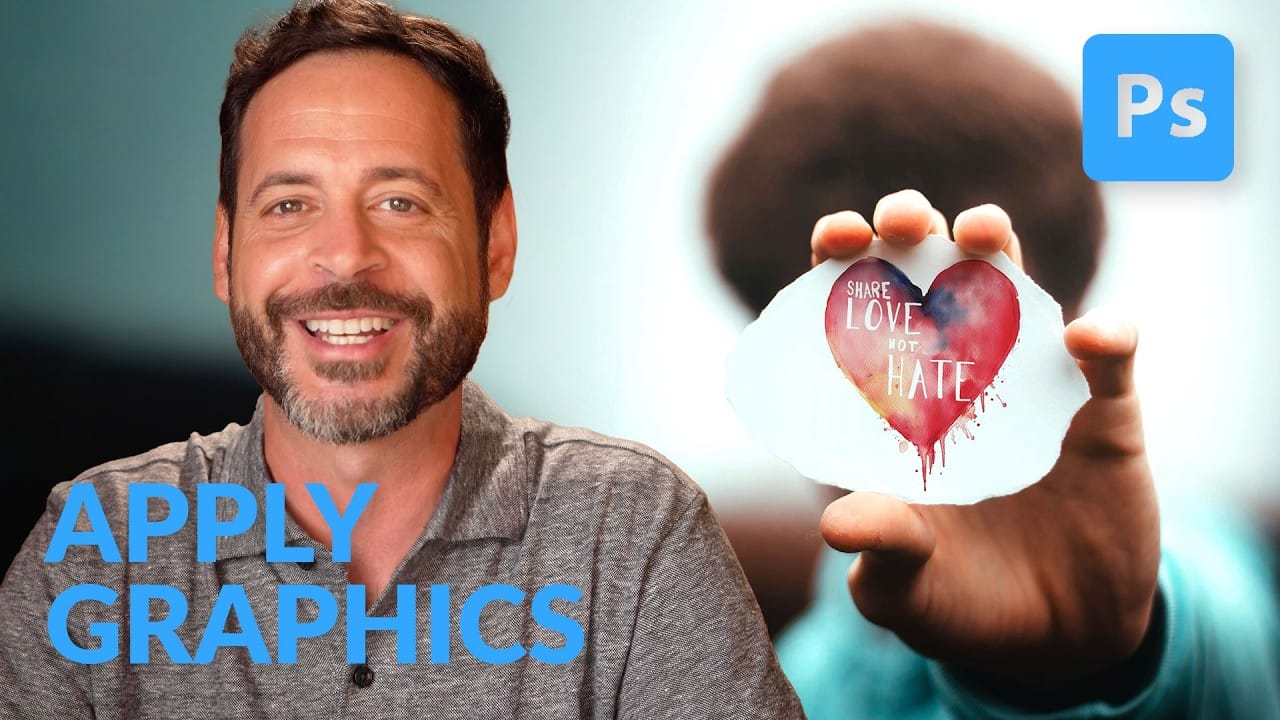
How to Apply Graphics and Change Colors in Photoshop
Integrating graphics and adjusting colors are fundamental skills in Photoshop, enabling designers and artists to transform disparate elements into cohesive visual narratives. From compositing a logo onto a product image to blending text into a scene, mastering these techniques is crucial for achieving professional results. This video demonstrates practical methods for seamlessly applying graphics from one image to another, extracting specific elements like text, and efficiently changing their c
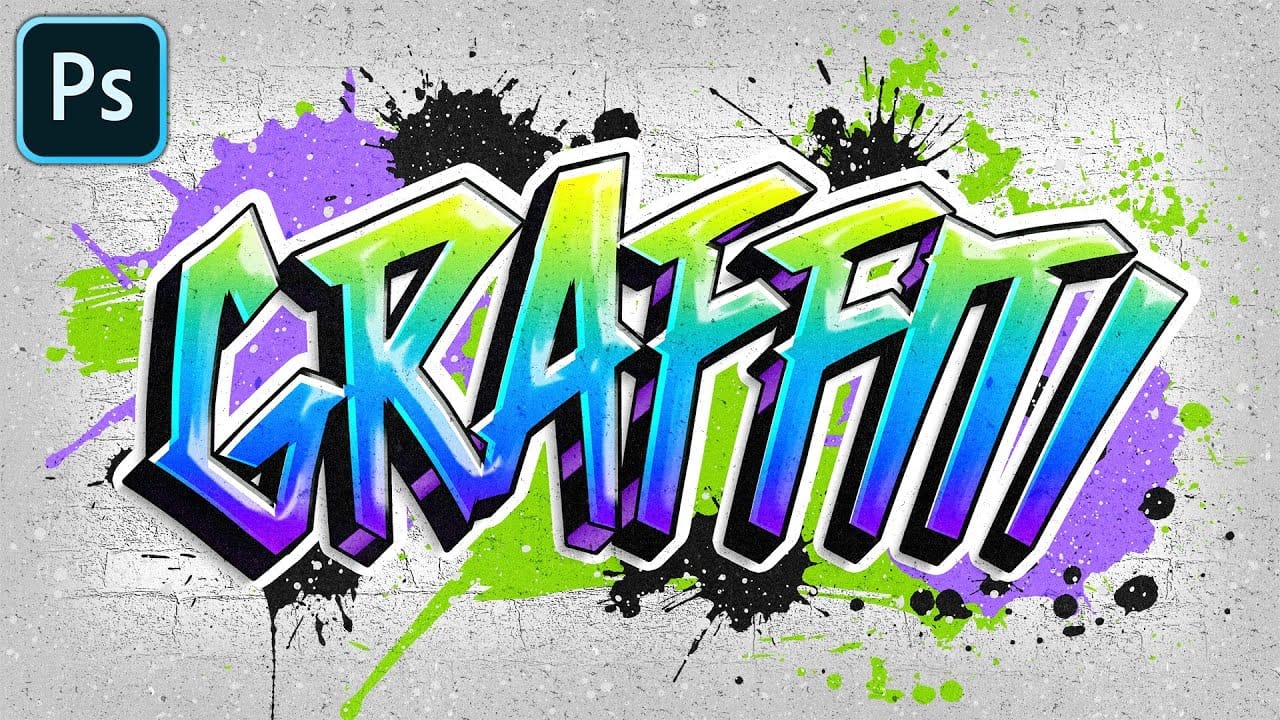
Colorful Graffiti Text Effect in Photoshop
In this tutorial from PhoTuts, you'll learn to create a vibrant and editable graffiti text effect on a concrete wall using basic Photoshop techniques. Embracing an urban street art style, the tutorial guides you through transforming text into striking graffiti, complete with bold colors and realistic textures. Perfect for adding an edgy, contemporary flair to your designs, this tutorial offers insights into creating impactful digital art inspired by street culture. Watch tutorial

Get tutorials & freebies delivered to you.

Subscribe to the Photoshop Roadmap newsletter, a weekly roundup of new tutorials, insights and quality downloads, trusted by 6500+ readers.

You might also like

How to Expand Photos Beyond Their Edges Using AI Generative Expand in Photoshop

Sometimes your best photos need more breathing room or a different aspect ratio. Generative Expand in Photoshop lets you extend your canvas beyond the original image boundaries, using AI to intelligently fill in missing areas with content that matches your scene. This technique works for changing portrait photos to landscape...

How to Create Digital Scrapbook Carousels in Photoshop

Digital scrapbook pages capture memories beautifully, but a single page limits your storytelling. Creating a carousel format lets you design multiple connected panels that work together as one cohesive piece while giving viewers more content to explore. This technique uses frames, custom shapes, and smart export settings to build templates...

How to Use Auto Align Layers in Photoshop for Perfect Layer Alignment

When working with multiple layers that need perfect alignment, manual positioning often falls short. Slight camera movement, different crops, or rotated images can make precise alignment seem impossible through visual adjustment alone. Auto Align Layers automatically handles rotation, scaling, and positioning to create perfect layer alignment, even when images have...

How to Use Nano Banana Pro in Adobe Firefly for Advanced AI Image Generation

Adobe Firefly now includes Gemini 3 with Nano Banana Pro, offering sharper 2K image generation with improved text clarity and precision blending. This advanced AI model works seamlessly within Firefly's generative workspace, enabling powerful workflows like multi-image composition and virtual try-on effects. The integration provides access to sophisticated...

Create Colorful Retro Text Compositions in Photoshop

Retro design trends continue to captivate audiences with their bold colors and geometric shapes. This tutorial demonstrates how to build a complete vintage-inspired composition using text, geometric elements, and vibrant color schemes that capture the essence of classic graphic design. You'll learn to combine typography with custom shapes,...

Photoshop's New Color and Temperature Tool for Advanced Color Grading

Photoshop's latest update introduces temperature and tint controls directly into the adjustment layer panel, bringing white balance tools from Camera Raw into the main editing workspace. This addition transforms color grading workflows by enabling precise local adjustments with custom brushes and blend modes. The new Color and Vibrance...

You’ve successfully subscribed to Photoshop Roadmap
Welcome back! You’ve successfully signed in.
Great! You’ve successfully signed up.
Success! Your email is updated.
Your link has expired
Success! Check your email for magic link to sign-in.