Victorian London streets shrouded in fog create an unmistakable mood that transforms ordinary scenes into cinematic masterpieces. The interplay of light, shadow, and atmospheric haze gives images the kind of depth and character that draws viewers into another world.
This video demonstrates how texture layers can become powerful tools for building atmospheric effects in your digital artwork, moving beyond simple surface treatments to create genuine mood and environmental storytelling.
Watch the Video
Video by SandraD Imagery. Any links or downloads mentioned by the creator are available only on YouTube
Practical Tips for Texture-Based Atmosphere
- Use the foggy night color lookup table as a starting point for moody, cinematic color grading
- Paint black on color lookup masks to expose underlying warm light sources like windows
- Apply cyan photo filters at reduced opacity to introduce cool atmospheric tones
- Set texture layers to overlay blend mode and adjust opacity between 50-75% for subtle integration
- Mask texture layers selectively to prevent overwhelming important focal points in your composition
Related Articles and Tutorials
Explore more techniques for creating atmospheric and lighting effects in your images.
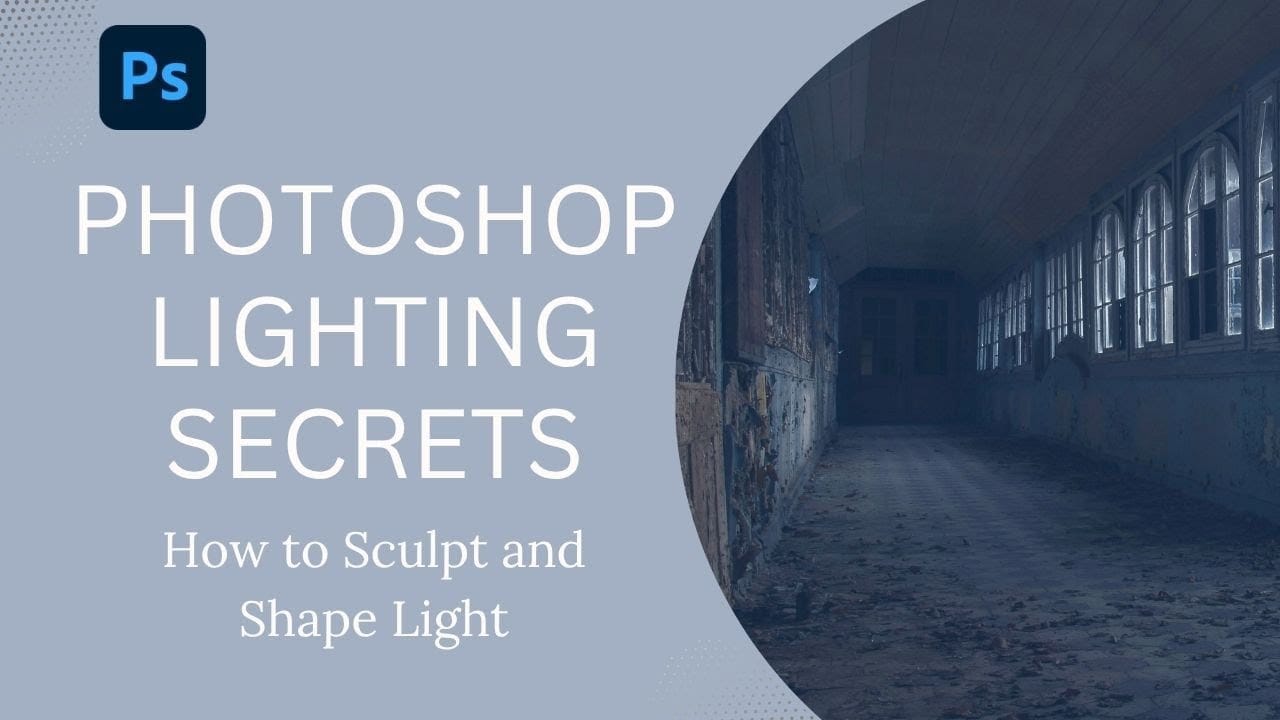
How to Sculpt Light and Add Atmosphere in Photoshop
Light transforms a flat image into something with depth, mood, and visual interest. The ability to enhance existing light sources or create entirely new ones opens up creative possibilities that go far beyond what the camera originally captured.
This tutorial demonstrates how to sculpt light using adjustment layers, selection tools, and atmospheric brushes to create convincing light effects that work naturally with your image's existing lighting conditions.
Watch the Video
Understanding Lig
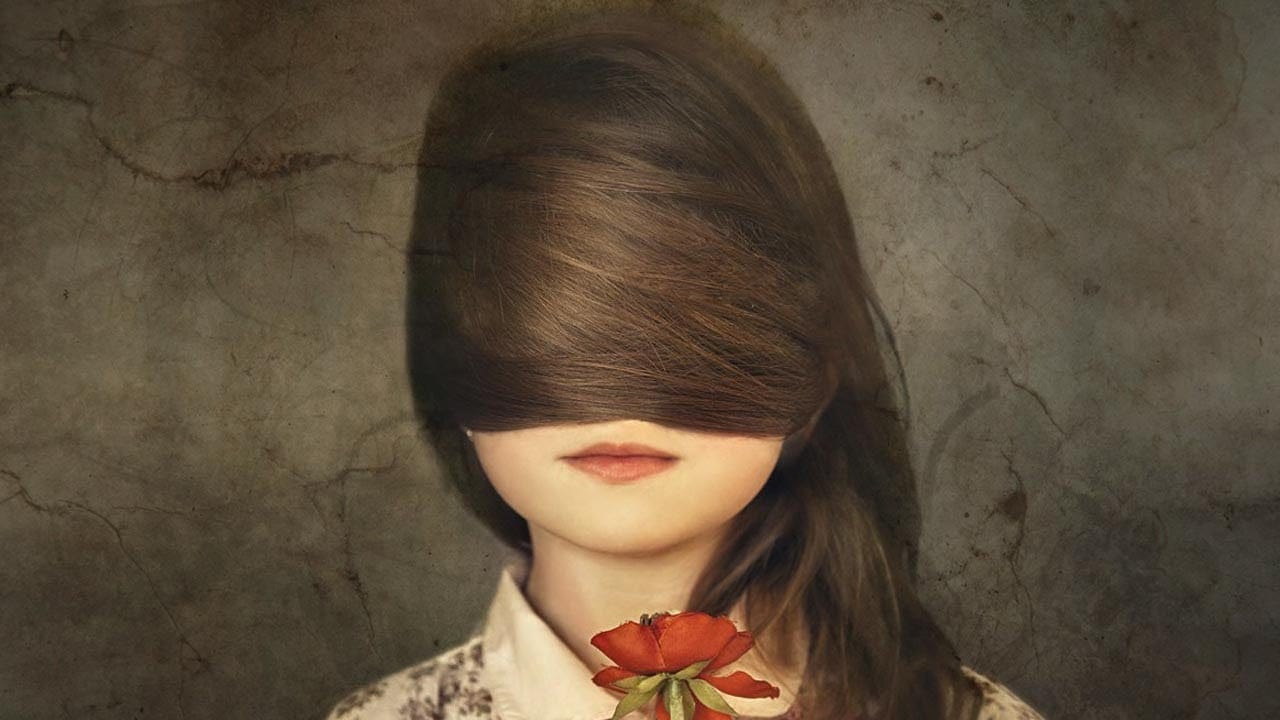
Add a texture to a photo in Photoshop
In this tutorial, you'll discover a straightforward method for incorporating textures into your images. The approach involves combining multiple textures to achieve the desired effect.
The tutorial is presented by Aaron Nace from Phlearn, a renowned expert in the field of photo editing and enhancement. By following along, you'll gain the skills to transform your images and add unique, textured elements that can elevate your visual storytelling.
The step-by-step instructions provided in the tut
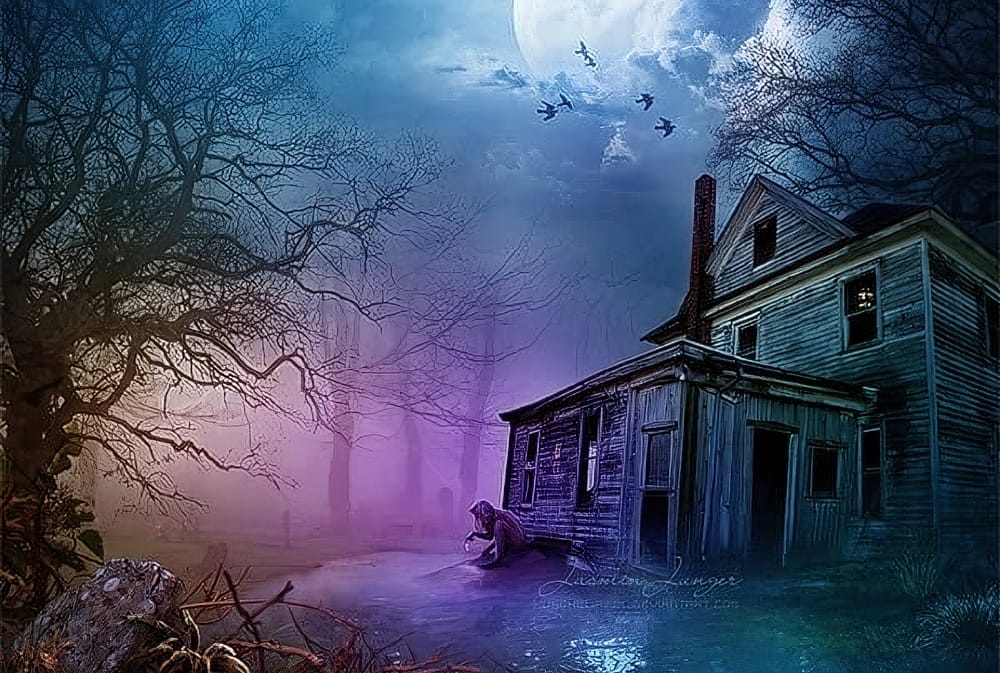
Create Creepy Lighting and Mysterious Atmosphere Effects in Photoshop
This tutorial offers a clear guide on creating eerie lighting and mysterious atmospheric effects in Photoshop. You will learn how to enhance your photos by manipulating different lighting techniques.
The author explains the process step by step, starting with how to select the right colors and apply various effects to a chosen stock image. Each technique is thoroughly detailed, making it easy for you to follow along.
The end results are impressive, showcasing how these methods can transform an
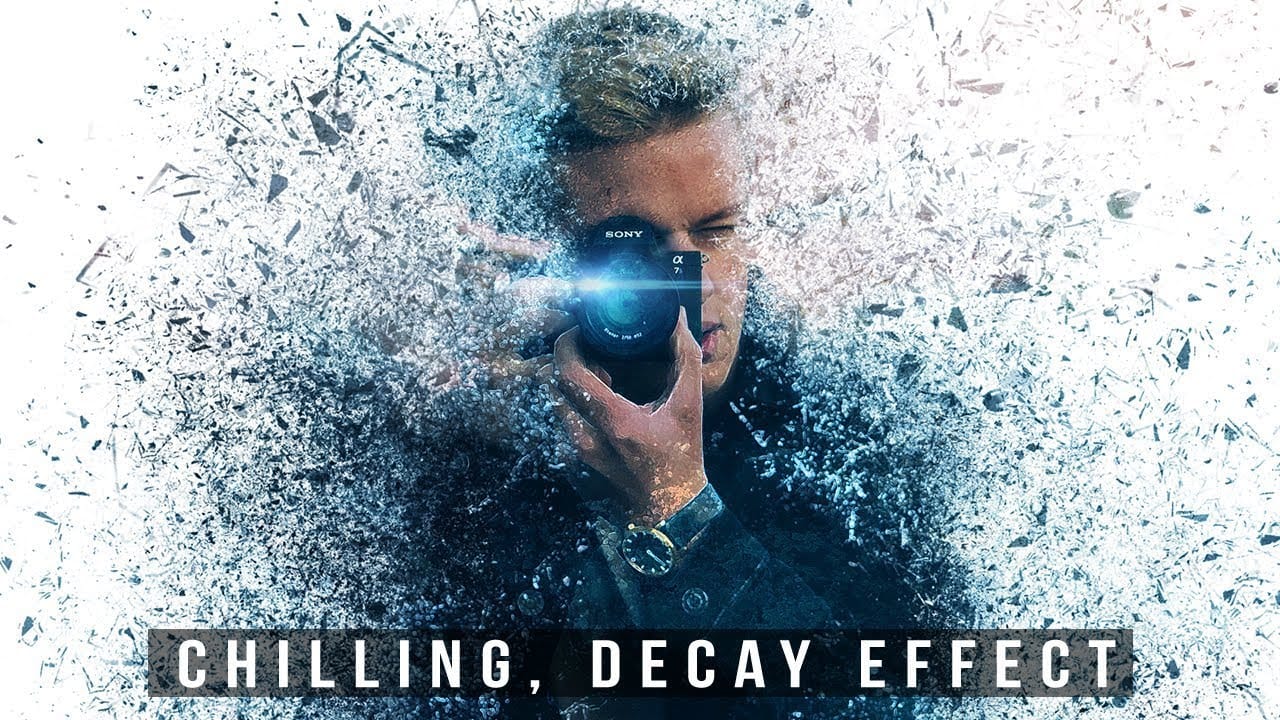
Create a chilling dispersion photo effect in Photoshop
This Photoshop tutorial provides a step-by-step guide on how to create a captivating decay effect using Photoshop brushes. The step by step guide covers the use of various tools, including filters, masks, smart objects, the liquify tool, and textures.
This type of dispersal effect allows for a high level of customization, enabling users to control the intensity of the decay and select the textures that will make the effect truly stand out. By following the author's instructions, readers can lea