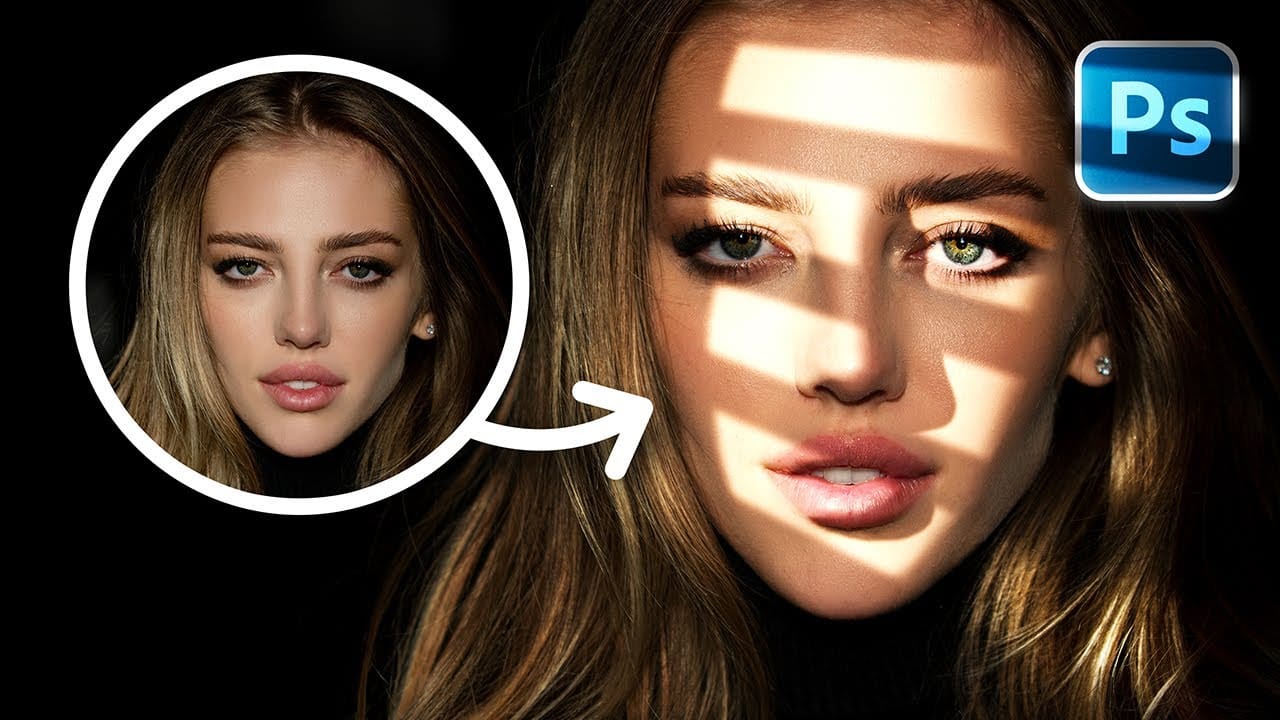
Plain backgrounds can make even the most beautiful portraits feel flat and unfinished. By applying textures selectively to the background while preserving the subject's skin, you can transform a simple studio shot into an artistic image with depth and visual interest.
This technique uses layer masks and blend modes to add multiple texture layers that enhance the background without overwhelming the subject's natural features.
Watch the Video
Practical Tips
These essential techniques will help you achieve professional texture effects on portrait backgrounds:
- Group multiple texture layers together and apply a single black layer mask to control all textures at once
- Use Soft Light blend mode for natural-looking texture integration that preserves the original image tones
- Paint white on the mask with a soft brush to reveal textures only in background areas
- Adjust individual texture layers with Levels (Cmd/Ctrl+L) to control brightness and contrast
- Lower layer opacity to reduce texture intensity and maintain a subtle, professional appearance
Related Articles and Tutorials
Explore more creative portrait enhancement techniques and background improvement methods.
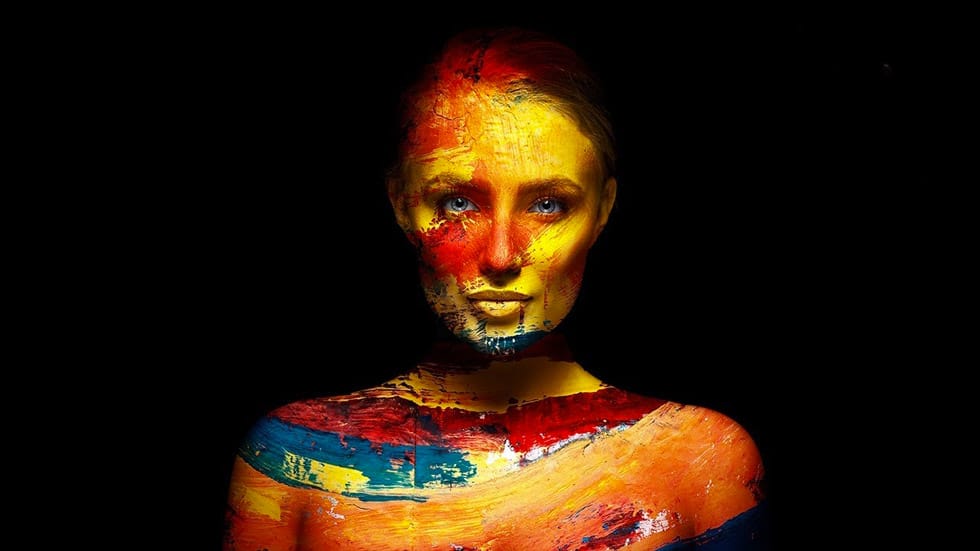
Add Creative Color and Texture to Portraits in Photoshop
In this tutorial by PiXimperfect you will learn how to apply highly realistic paints and textures to portraits in Photoshop. Learn how to manually mold the texture according to the shape of the portrait and use advanced blend modes and blend-if to blend in the colors in the most natural fashion.
In this tutorial, we will also learn how to dodge and burn to add more dimension and make your creative portrait really pop.
Watch tutorial
How to Create Textured Portrait Collages in Photoshop
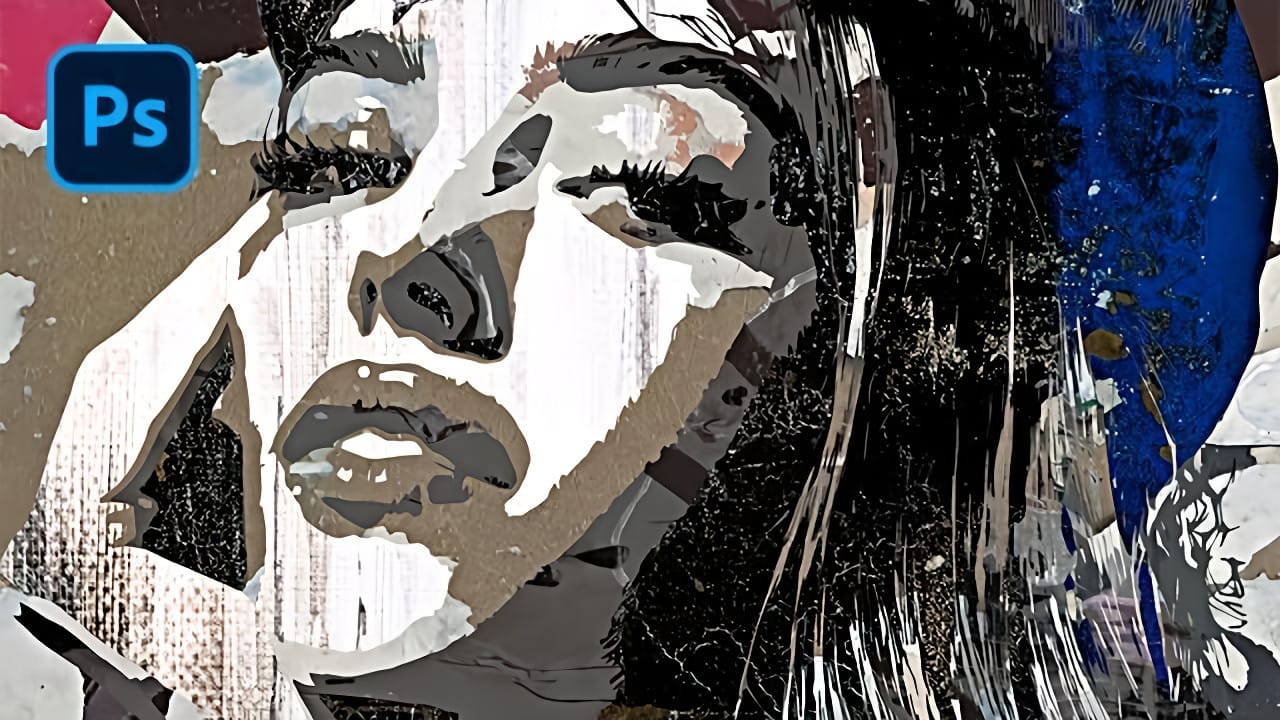
Portrait collages open up creative possibilities that go far beyond traditional photo editing. By combining artistic filters, color manipulation, and texture mapping, you can transform ordinary portraits into striking visual compositions that blend photography with graphic design elements.
This technique breaks down complex imagery into simplified color zones, then maps different textures to each area. The result is a unique artistic effect that maintains the subject's recognizable features whi
Add interest to your backgrounds in Photoshop
As a Photoshop user, you may find yourself in a situation where you want to add some visual interest to the background of your studio photos. Fortunately, this tutorial by Aaron Nace from Phlearn provides a straightforward guide on how to achieve this.
The tutorial covers various techniques that you can use to enhance your backgrounds. You'll learn how to introduce subtle textures, add depth, and create a more visually appealing environment for your subject. These simple adjustments can signifi
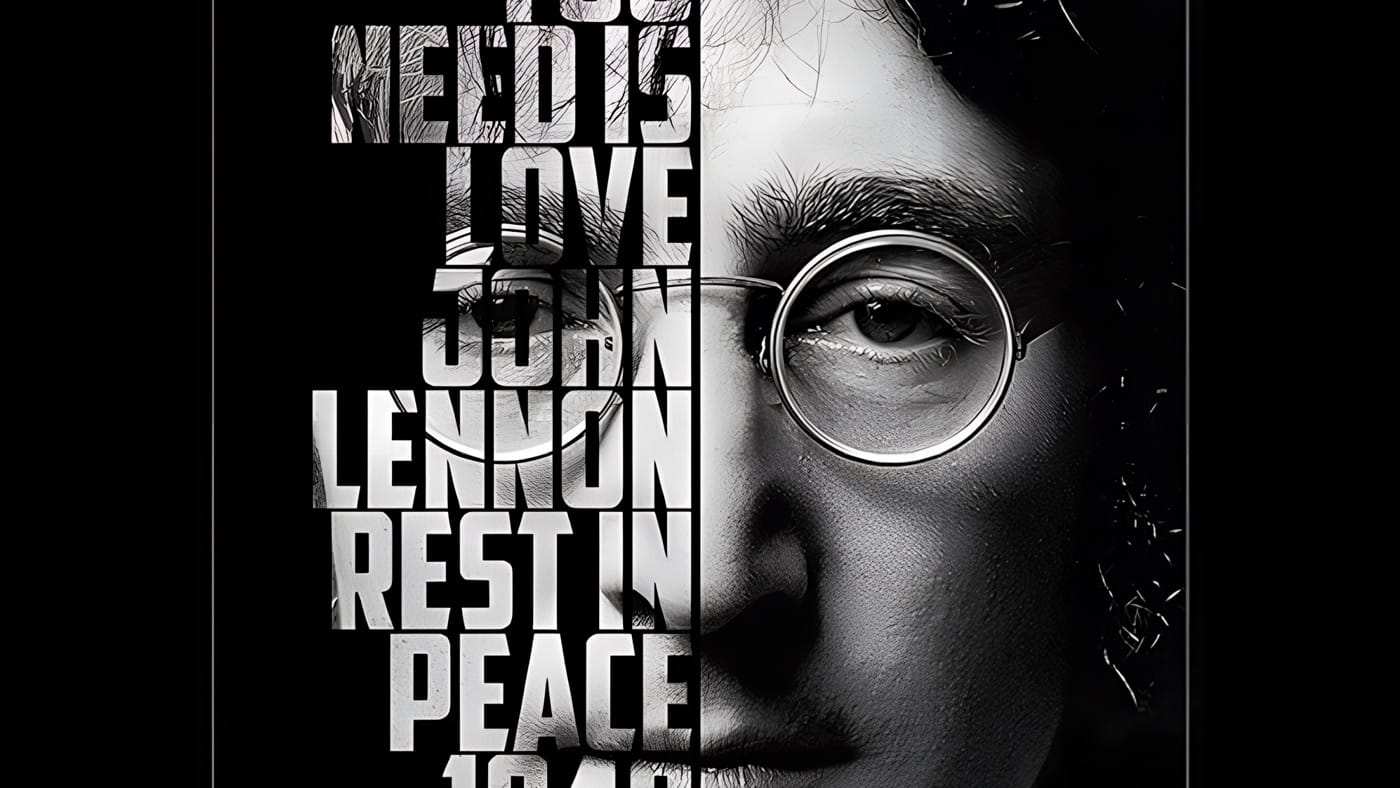
Create a cool text portrait in Photoshop
Learn how to create a striking typographic portrait poster in Adobe Photoshop, transforming a standard photo into an artwork where text defines the contours of the subject's face. You'll practice essential techniques: precise subject selection, background preparation, thoughtful text integration, and subtle refinements to enhance legibility and visual impact.
Watch the Video
Practical Tips for Text Portrait Posters in Photoshop
* Desaturate your base image to black and white early in the p
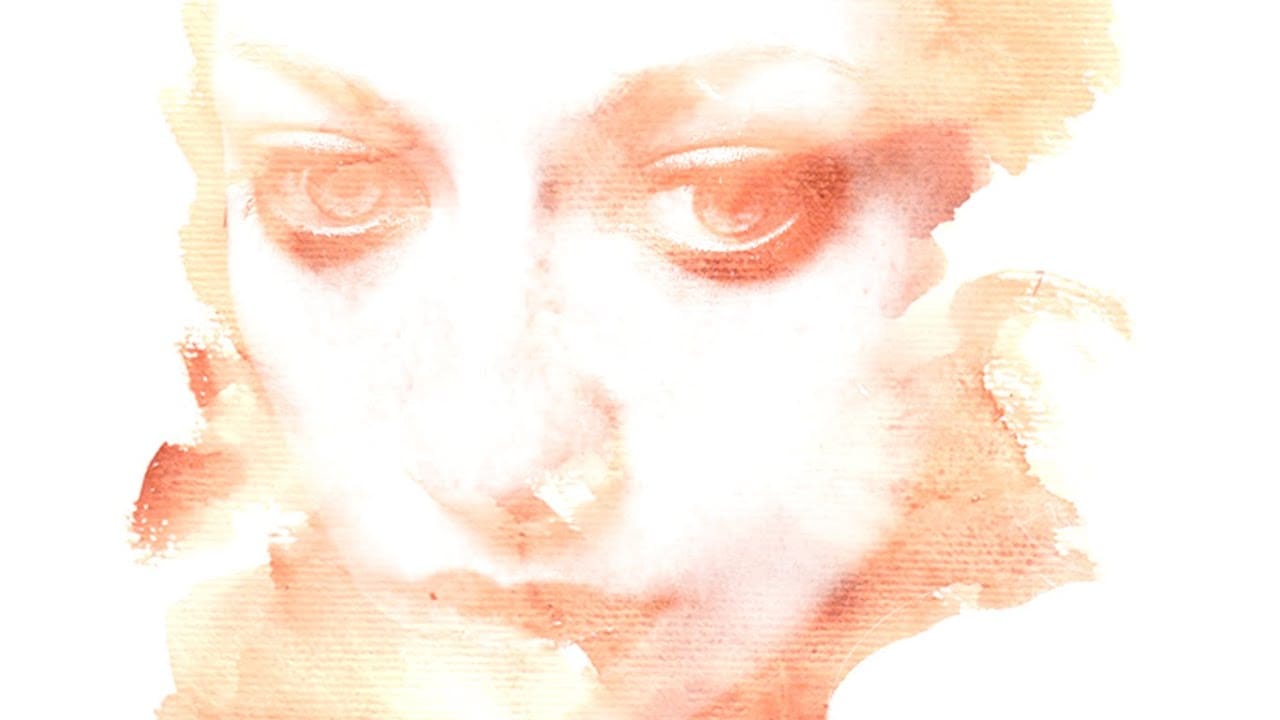
Photoshop Watercolor Photo Effect Tutorial
In this comprehensive tutorial by Arunz Creations, you'll discover how to transform a portrait into a beautiful watercolor painting using Photoshop.
The process begins by organizing your layers into a group and temporarily hiding it. Next, you'll select specific colors from the portrait using the Color Range tool to create a precise selection. After applying the selection as a mask on the group and inverting it, you'll create a new empty layer beneath the group and fill it with white to serve a
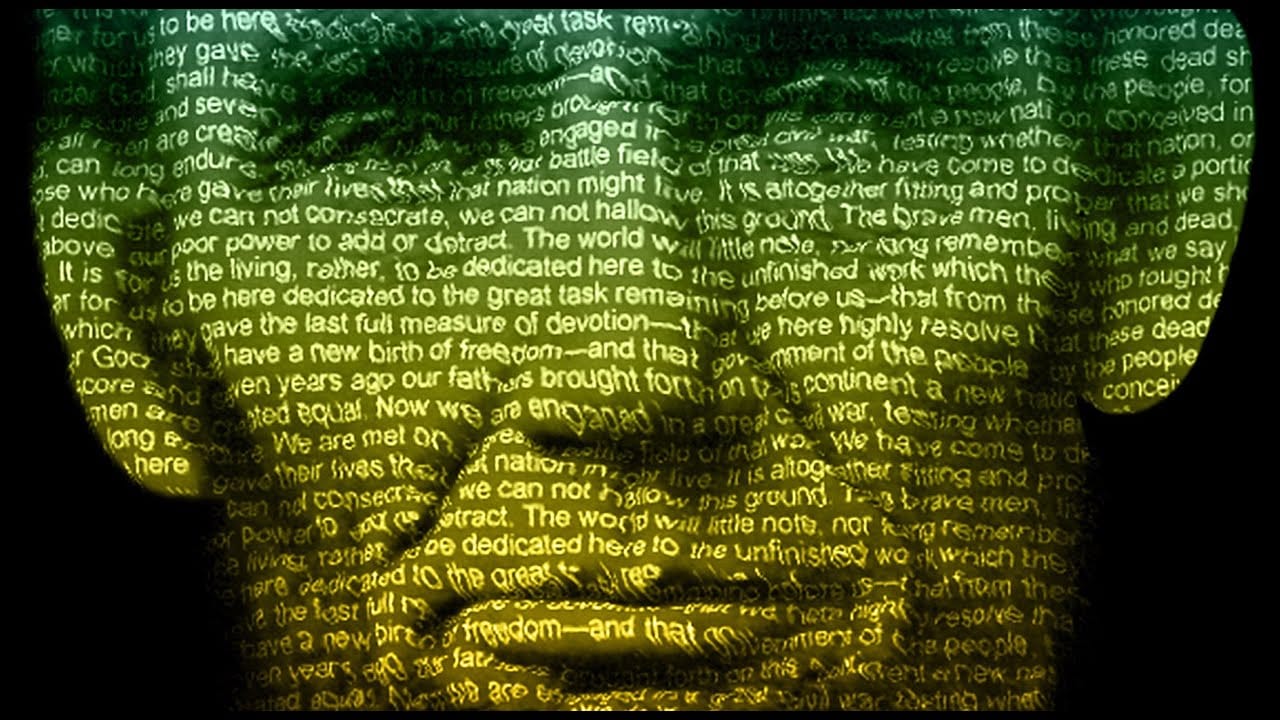
How to make a text poster of a portrait in Photoshop
One surprising technique in creating a text portrait poster involves generating a specific displacement map. The process requires saving a composite snapshot of the subject's head and shoulders as a separate file, then intentionally darkening its levels between 110 and 120.
This approach allows for the dynamic integration of lyrics, prose, or poetry, transforming a simple portrait into a visually rich and thematic artwork.
Watch the Full Tutorial
Practical Tips for Text Portrait Design
*
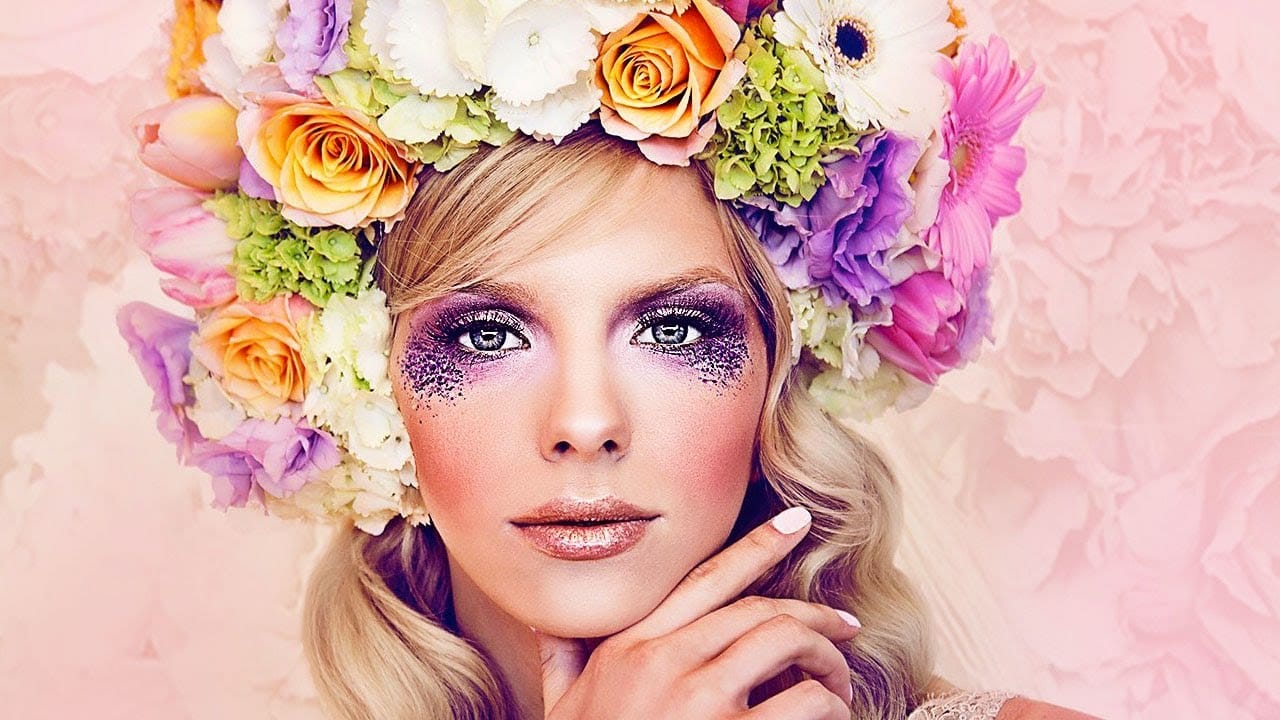
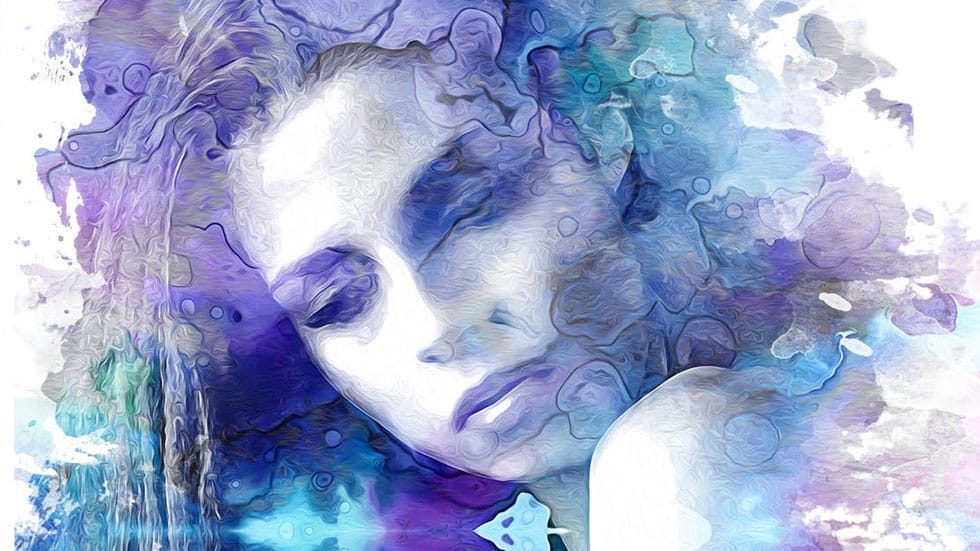
Beautiful watercolor portrait effect in Photoshop
Watercolor portraits blend the precision of photography with the organic beauty of hand-painted art. This technique transforms ordinary photos into flowing, artistic renderings that capture the spontaneous texture and luminous quality of traditional watercolor paintings.
The process combines multiple Photoshop filters with custom brush techniques to build depth and authentic watercolor characteristics.
Watch the Tutorial
Essential Tips for Watercolor Effects
These techniques help create co
How to Add Accessories Using AI in Photoshop
In this Photoshop tutorial, you will explore the process of blending graphics with portraiture for stunning visual results. The Super Zoom feature is highlighted, showing how to upscale graphics without losing resolution. This is crucial for maintaining quality when working with high-resolution images.
You will also learn about applying Gradient Maps for effective color matching. This technique ensures that your graphics and portraits have a cohesive look.
Additionally, the tutorial introduces
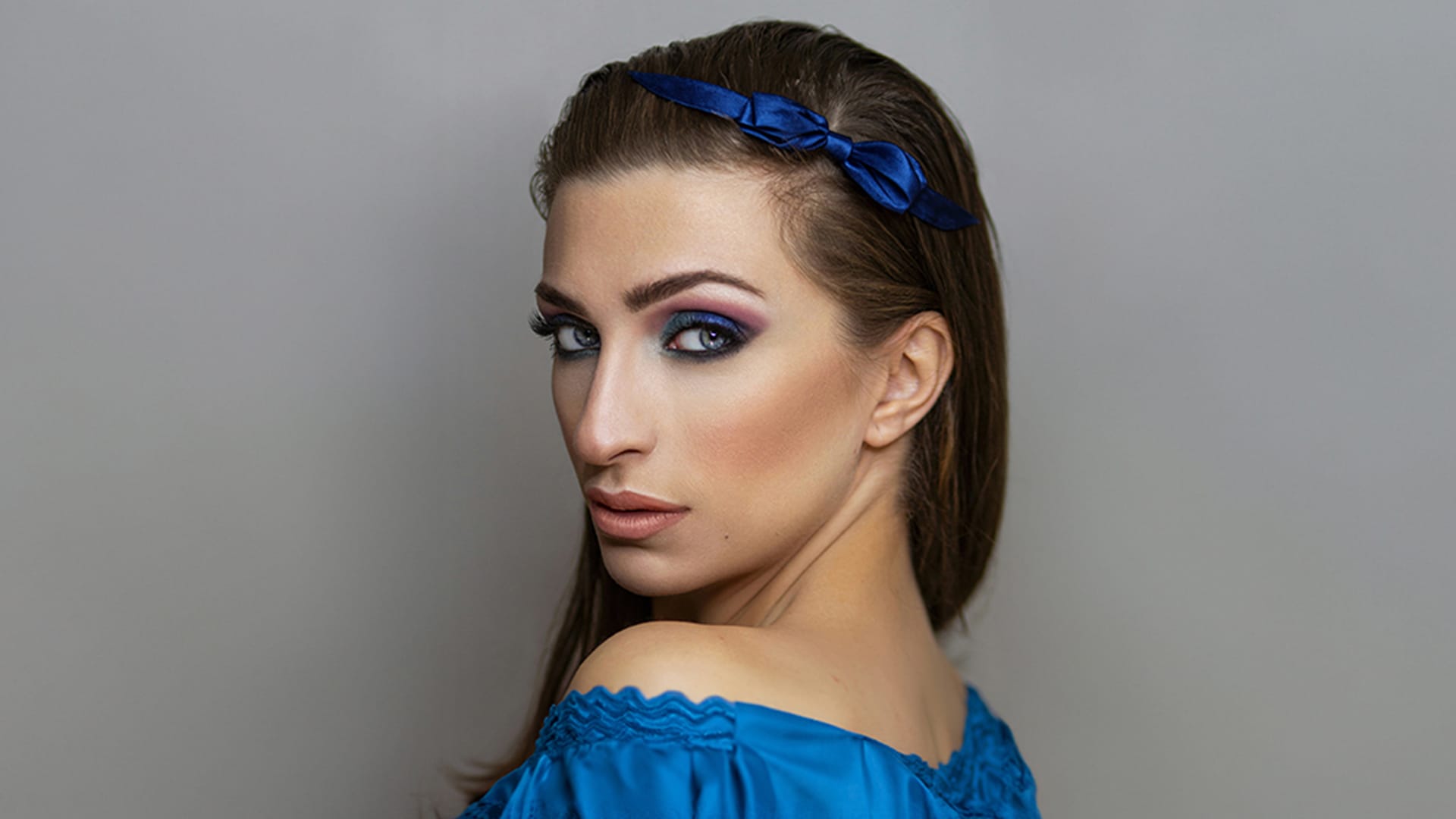
How to Add Realistic Light and Shadow Effects to Portraits in Photoshop
The difference between a flat portrait and one with captivating depth often comes down to how light and shadow play across the subject's features. Professional photographers spend thousands on studio lighting equipment, but digital artists can achieve dramatic lighting effects using only Photoshop tools.
This technique transforms ordinary portraits into striking images with realistic light streaks and corresponding shadows. The method involves creating custom light sources that cast believable