Drawing a viewer's eye to your subject requires more than just good composition. Professional finishing techniques can transform an already strong portrait by adding selective sharpening, creating interesting backgrounds from existing image elements, and using strategic color adjustments to guide attention.
These advanced methods work particularly well when you want to elevate a plain background or emphasize specific areas like the subject's face and eyes without overdoing the entire image.
Watch the Video
Practical Tips
These finishing techniques work best when applied selectively rather than to the entire image.
- Use the clone stamp tool to sample interesting details from your subject, then scale them up and set to soft light blend mode for abstract background elements
- Apply selective sharpening only to key areas like eyes and lips using high pass filter on overlay blend mode with layer masks
- Create an inverted soft light copy of your image to reduce contrast in backgrounds while maintaining subject focus
- Use curves adjustments with warm tones (red up, blue down) painted selectively on the face to draw attention to skin tones
- Convert detail layers to smart objects before applying high pass filter so you can adjust the radius settings later
Related Articles and Tutorials
Explore more techniques for enhancing portraits and directing viewer attention in your images.
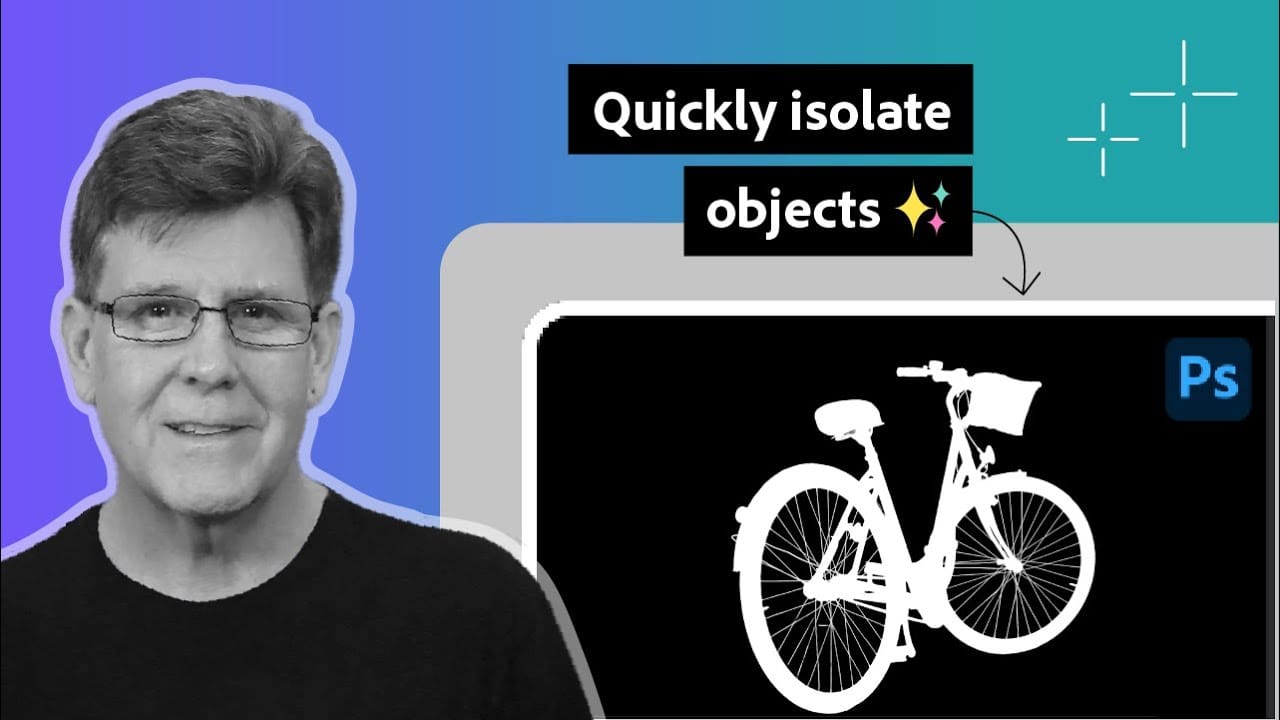
How to Use Photoshop's Select Subject Tool for One-Click Selections
Complex selections in Photoshop just became effortless. The Select Subject tool uses advanced AI to automatically identify and select main subjects in images, even those with intricate details like bicycle spokes or hair.
This tutorial demonstrates how to achieve professional-quality selections with a single click, saving hours of manual masking work.
Watch the Video
Practical Tips for Using Select Subject
* Access Select Subject through the Contextual Task Bar for quickest results - find
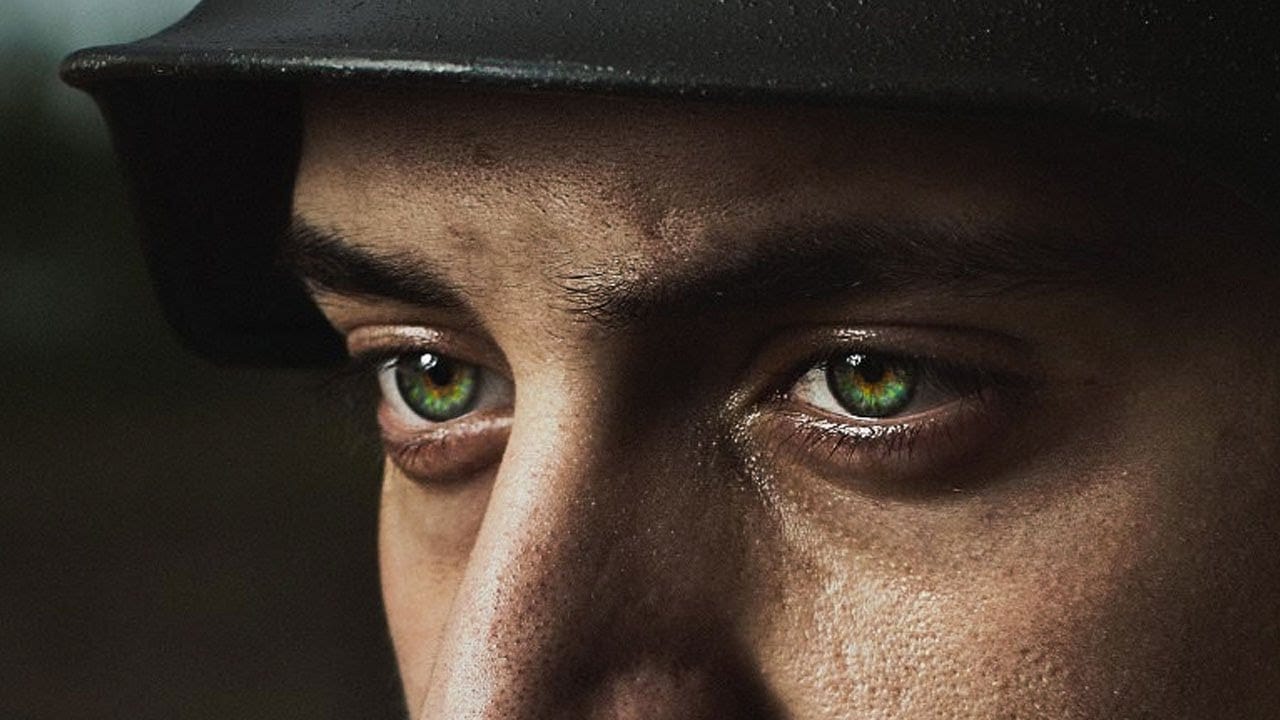
How to Color, Brighten and Sharpen Eyes in Photoshop
In this tutorial by Aaron Nace from Phlearn, learn how to enhance eyes in Photoshop to make them captivating and sharp.
Techniques include coloring the eyes by sampling natural hues and adjusting lightness and saturation, using blending modes like "Soft Light" or "Overlay" for a natural look, and softening edges with Gaussian Blur. Dodge and Burn techniques are used to enhance depth and light in the pupils, while selective sharpening draws attention to the eyes, making them stand out in portrai
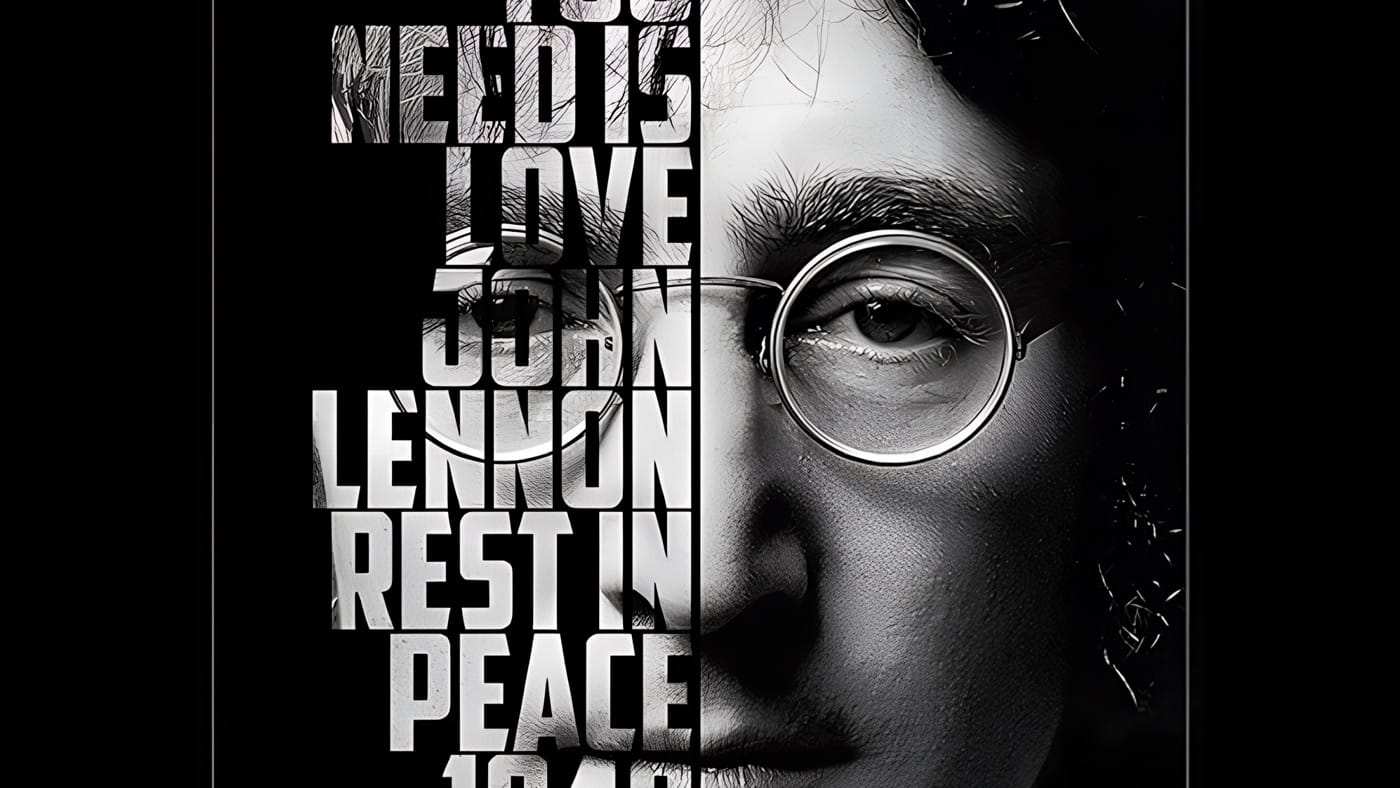
Create a cool text portrait in Photoshop
Learn how to create a striking typographic portrait poster in Adobe Photoshop, transforming a standard photo into an artwork where text defines the contours of the subject's face. You'll practice essential techniques: precise subject selection, background preparation, thoughtful text integration, and subtle refinements to enhance legibility and visual impact.
Watch the Video
Practical Tips for Text Portrait Posters in Photoshop
* Desaturate your base image to black and white early in the p
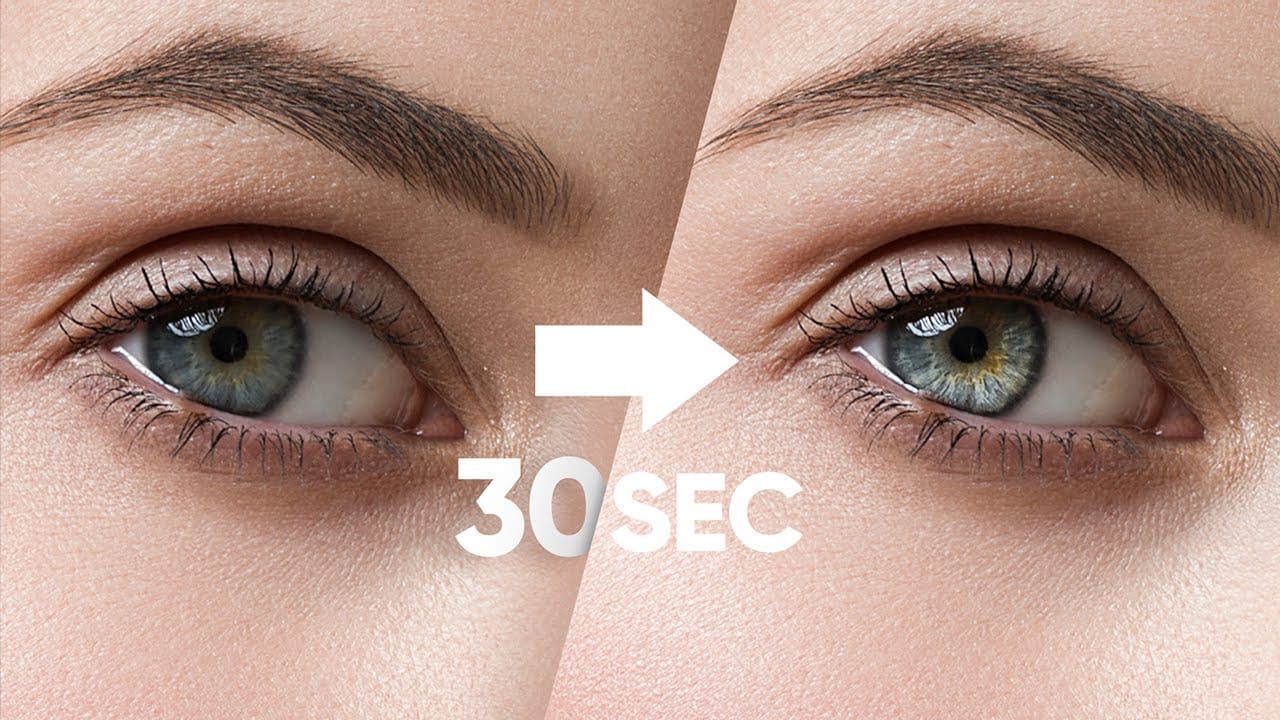
Make Eyes Dramatic in 30 Seconds with Photoshop
In this tutorial, PiXimperfect reveals a fast and effective technique to make eyes more dramatic and engaging in just 30 seconds using Photoshop. The focus is on enhancing the eyes by adding shine and depth, which can significantly elevate the overall impact of a portrait. The method involves using blend modes in combination with simple selections to introduce eye-catching highlights and contrasts.
The tutorial starts by demonstrating how to select the eye areas accurately, ensuring that the ad
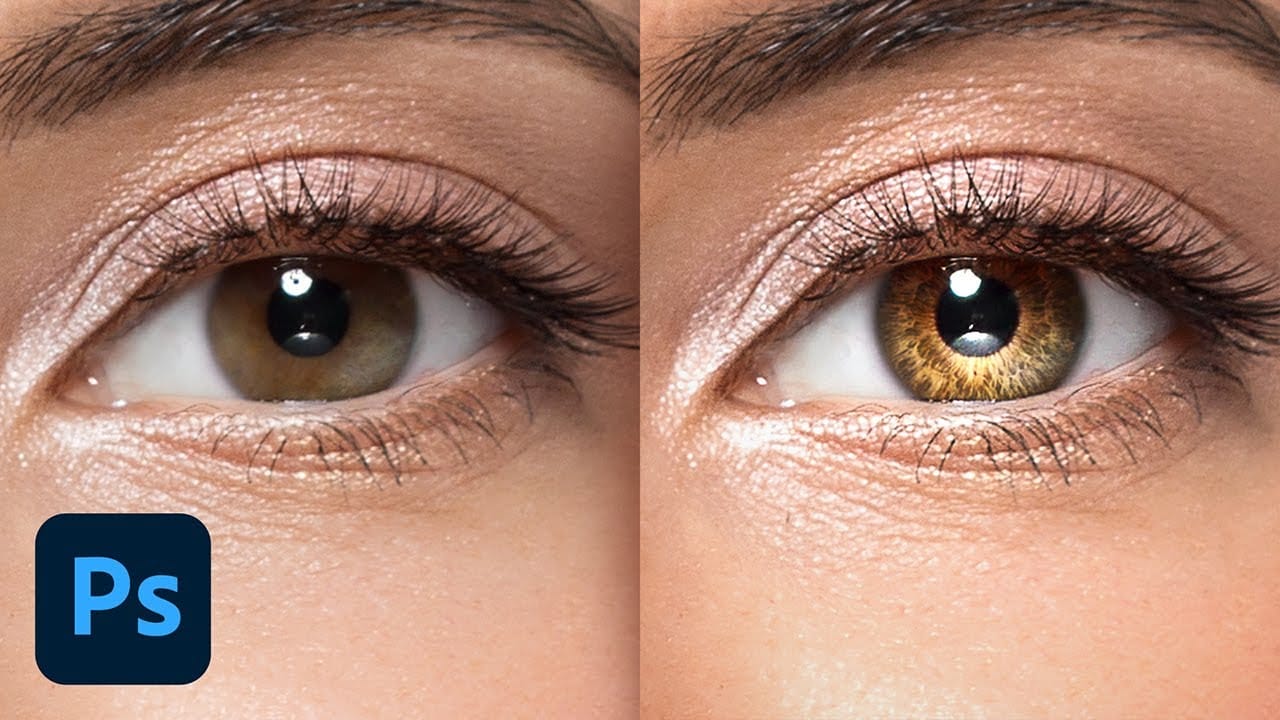
Create Insane Details in the Eyes with Photoshop
In this tutorial from PiXimperfect, you will learn how to add remarkable details to eyes in Photoshop. The process begins with the use of an iris brush that allows you to create intricate highlights and shadows, enhancing the eyes' natural beauty.
As you progress, you'll discover how to incorporate shine with a kicker light, making the eyes stand out and appear more engaging. This step is crucial for adding depth and dimension, pulling viewers' attention directly to the eyes.Finally, the tutori
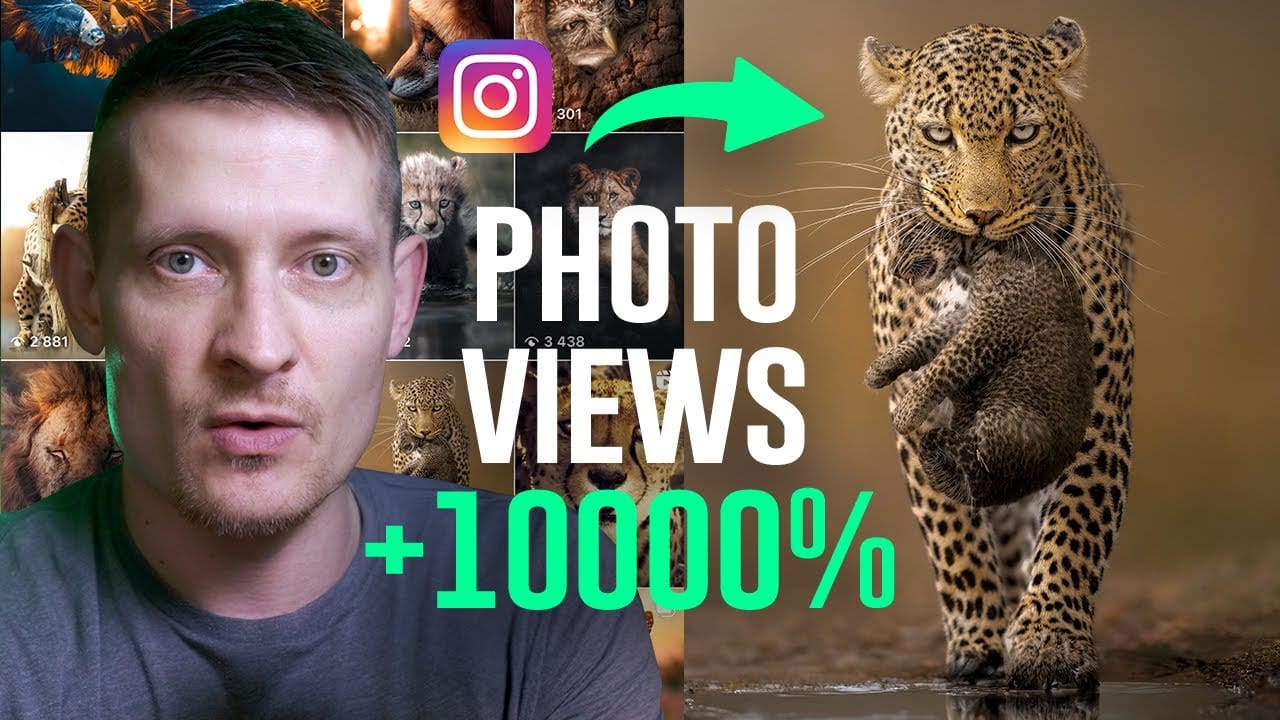
Use This Photoshop Technique to Boost Your Social Media Views
Creating a photo that captures attention on a busy social media feed is a common challenge. Even with a strong composition, an image can get lost in the noise if it lacks the polished, atmospheric quality that makes viewers stop and look closer. The frustration often lies in knowing what to do in post-production to elevate a good photo to a great one.
This video offers a practical look into the editing process behind a wildlife photo that successfully captured a wide audience. By walking throug
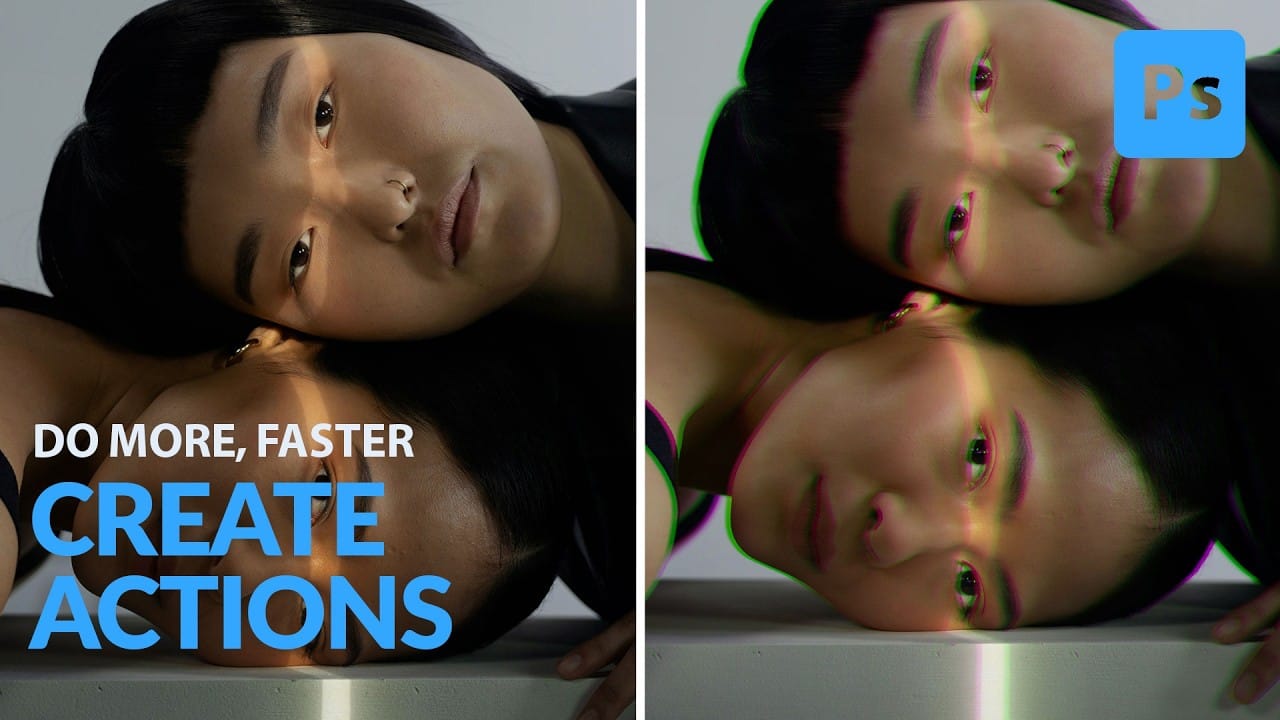
How to Create and Play Back Actions in Photoshop
This Photoshop tutorial from Aaron Nace at Phlearn offers a clear process for blending graphics with portraits. You will learn how to use the Super Zoom feature, which allows you to upscale graphics while maintaining their original resolution. This is crucial for ensuring that your images remain sharp and professional.
The tutorial also covers the use of Gradient Maps to achieve effective color matching between your elements. This technique can enhance the visual coherence of your project. Addi
How to Create a Dramatic Spotlight Effect in the Sky in Photoshop
Adding a dramatic spotlight effect to your images can transform an ordinary sky into a captivating scene, drawing the viewer's eye and enhancing the overall mood. This technique is particularly effective for emphasizing specific elements or creating a sense of grandeur and focus within a composition.
In this tutorial, you will learn how to integrate a realistic spotlight with text into a stormy sky, utilizing Photoshop's powerful blending modes, transformation tools, and non-destructive editing

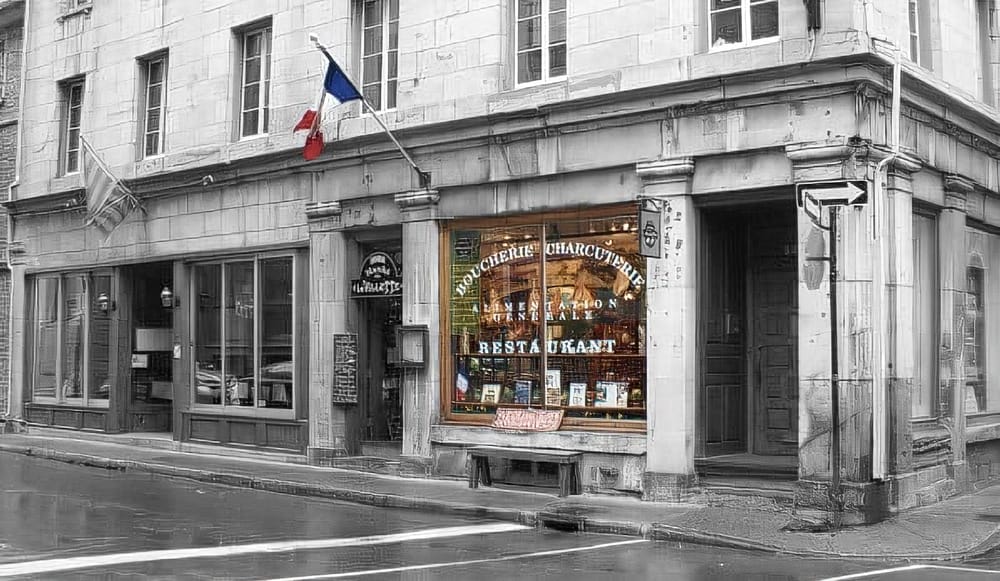
Using Color to Emphasize a Scene With Layers Mask
In this tutorial I'm going to show you what I do when a scene has too much unwanted color and how to emphasize a part of the scene with just a bit of a color to draw attention. Try to find a picture with bright colors or a subject you really want to stand out.
The first thing we need to do is convert your image to black and white. There are a couple of ways to do this. The easiest way is to simply desaturate your image using the Hue/Saturation adjustment layer. The best way to do it is using th