
Using Color to Emphasize a Scene With Layers Mask

Using Color to Emphasize a Scene With Layers Mask

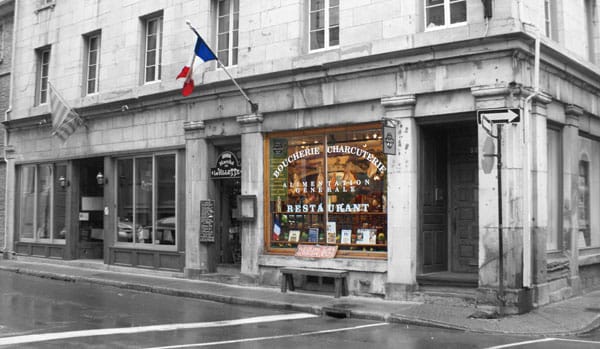
In this tutorial I’m going to show you what I do when a scene has too much unwanted color and how to emphasize a part of the scene with just a bit of a color to draw attention. Try to find a picture with bright colors or a subject you really want to stand out.

The first thing we need to do is convert your image to black and white. There are a couple of ways to do this. The easiest way is to simply desaturate your image using the Hue/Saturation adjustment layer. The best way to do it is using the Black & White layers adjustment because you will have much more control of your image contrast. Remember you will find your layers adjustments at the bottom of your Layers Palette.

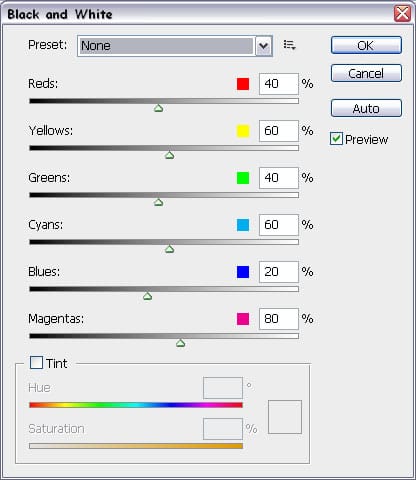
Layers Adjustment
Black and white

Once you have your Black & White window open, you will find you have a lot of control over how that black & white image will look. The most important thing to consider is the contrast. Using the preset at the top of the window you can predefine the settings according to the most common black & white filters. If you want to adjust a specific color, you can use the color sliders below. I usually use the Cyans slider to darken the sky a bit.

Every layers adjustment comes with it´s very own layer mask. We´re going to be using that mask to bring back some color in selected areas we wish to emphasize. When you click on your layers adjustment you´ll notice your Background/Foreground color will automatically be set to black and white. Because your mask is white, we´ll be painting with black.

Black and White

Select your brush tool and right click in the screen to bring up the brush properties. Use a small brush and set the hardness to 50% for a smooth brush stroke. You can set the opacity of the brush by using your numpad. 1 is 10%, 5 is 50%, etc.
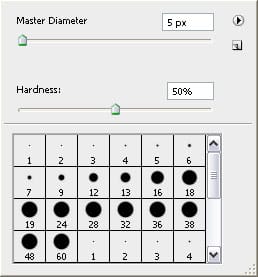
Paint brush

If you accidently paint outside of the subject simply press x on your keyboard. This will switch background color with foreground color. Now that you have the white selected, use it to erase the excess.

Finally, if at any moment you want to check out how your layer mask is going in full view just click on it while holding down ALT. This way you can check if you missed a spot.
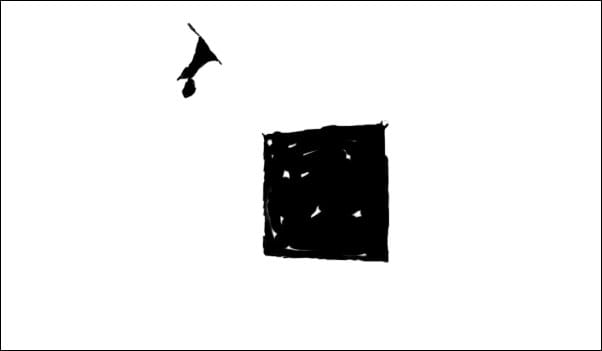
Mask

Using layer masks is a great way to work with specific areas of an image without affecting the rest. Hope you found this tutorial useful and discovered a few new keyboard shortcuts along the way!
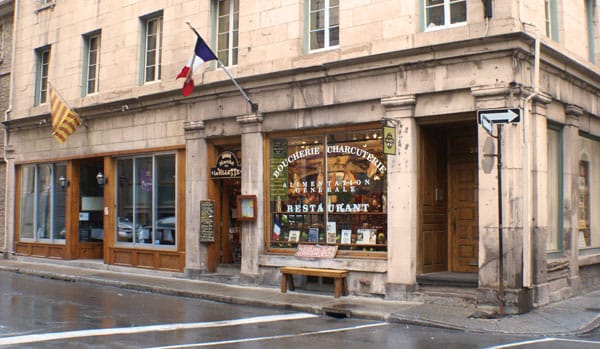
Layer mask tutorial
Layer mask tutorial

Get tutorials & freebies delivered to you.

Subscribe to the Photoshop Roadmap newsletter, a weekly roundup of new tutorials, insights and quality downloads, trusted by 6500+ readers.

You might also like

Create Realistic Rim Light Effects on Portraits in Photoshop

Rim lighting transforms ordinary portraits into dramatic, professional-looking images by adding bright highlights around the edges of your subject. This technique simulates light hitting the outer contours of a person, making them stand out from their background with a natural, glowing effect. The key to convincing rim light lies...

How to Fix Color Fringing in Subject Cutouts Using Clipping Masks

Perfect layer masks can still produce disappointing results when color fringing appears around hair and fur edges. This common problem isn't caused by poor masking technique—it's the original background bleeding through at the edges. Clipping masks offer a powerful solution by allowing you to paint...

Create Beautiful Floral Oval Frames for Portraits in Photoshop

Transform ordinary portraits into elegant artwork with decorative floral oval frames that blend seamlessly with your subject. This technique combines traditional framing with digital floral elements, creating a painterly effect that's perfect for fine art prints and creative portraits. The process involves creating an oval cutout, adding custom...

Create an Old Masters Painting Effect from a Studio Portrait in Photoshop

Old Masters paintings capture drama and character through rich textures, dramatic lighting, and warm color palettes. By combining strategic dodging and burning with selective color adjustments and composite backgrounds, you can transform a simple studio portrait into a classical painterly masterpiece. This technique focuses on enhancing natural textures rather than...

Professional Portrait Retouching with the B.S.T. Method in Photoshop

Professional portrait retouching requires artistic choices that automated tools can't make. The B.S.T. method breaks retouching into three focused steps: removing blemishes with precision, smoothing skin while preserving natural texture, and equalizing skin tones throughout the image. This systematic approach gives you complete control over every...

How to Paint Realistic Jewelry on Portraits in Photoshop

Adding painted jewelry to portraits transforms ordinary photos into fantasy portraits with ornate accessories that never existed. This digital painting technique uses careful layering, proper lighting, and realistic shadows to create convincing rings, earrings, and decorative headpieces. The method combines basic brush work with advanced blending techniques to build up...

You’ve successfully subscribed to Photoshop Roadmap
Welcome back! You’ve successfully signed in.
Great! You’ve successfully signed up.
Success! Your email is updated.
Your link has expired
Success! Check your email for magic link to sign-in.
