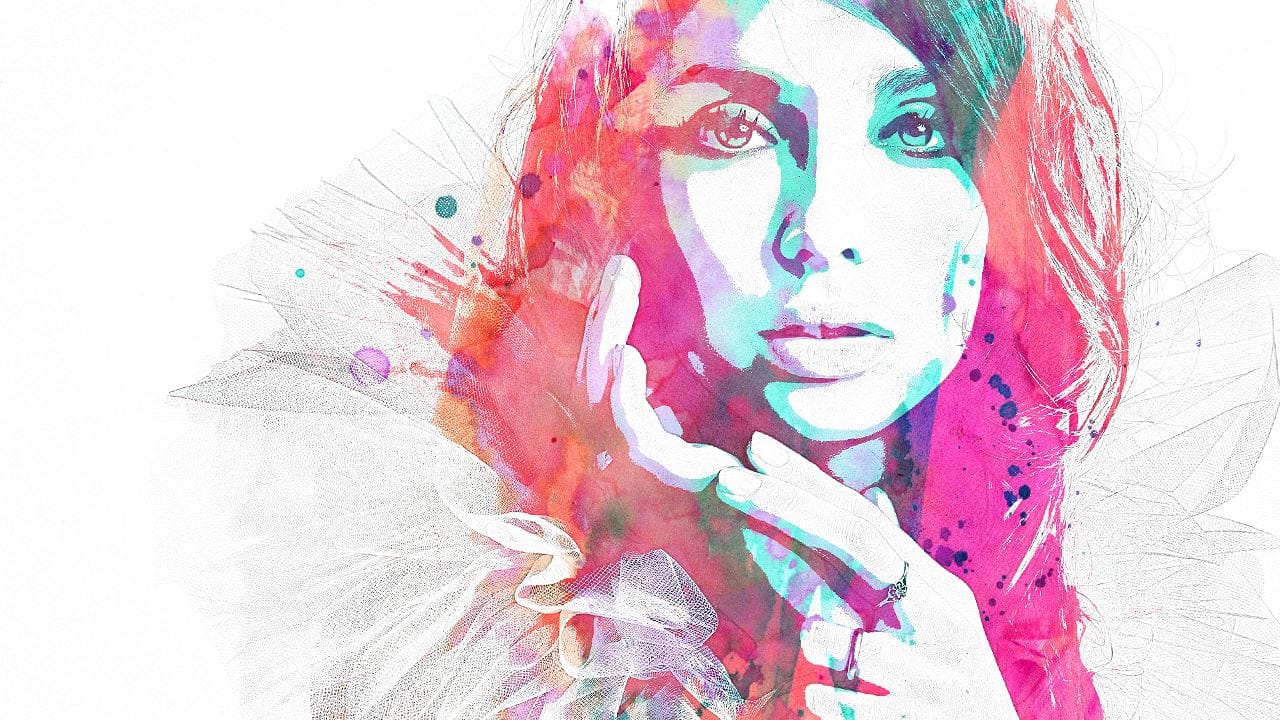
Photoshop actions automate repetitive tasks by recording your steps and playing them back with a single click. Whether you're applying the same effect to multiple images or creating complex edits that you use regularly, actions save time and ensure consistency across your work.
This tutorial demonstrates how to build a split-color effect action from scratch, showing you how to record, test, and modify actions as you create them.
Watch the Video
Practical Tips
These techniques will help you create more reliable and user-friendly actions:
- Test your action frequently while building it by stopping, deleting layers, and replaying to catch errors early
- Use keyboard shortcuts and arrow keys instead of mouse movements for more precise and repeatable positioning
- Enable dialogue boxes for key settings like blur amounts so users can customize the effect for different images
- Add stop messages with instructions to guide users through interactive steps in your action
- Organize actions in folders and use descriptive names to keep your Actions panel manageable
Related Articles and Tutorials
Explore more ways to work with actions and automate your editing workflow.
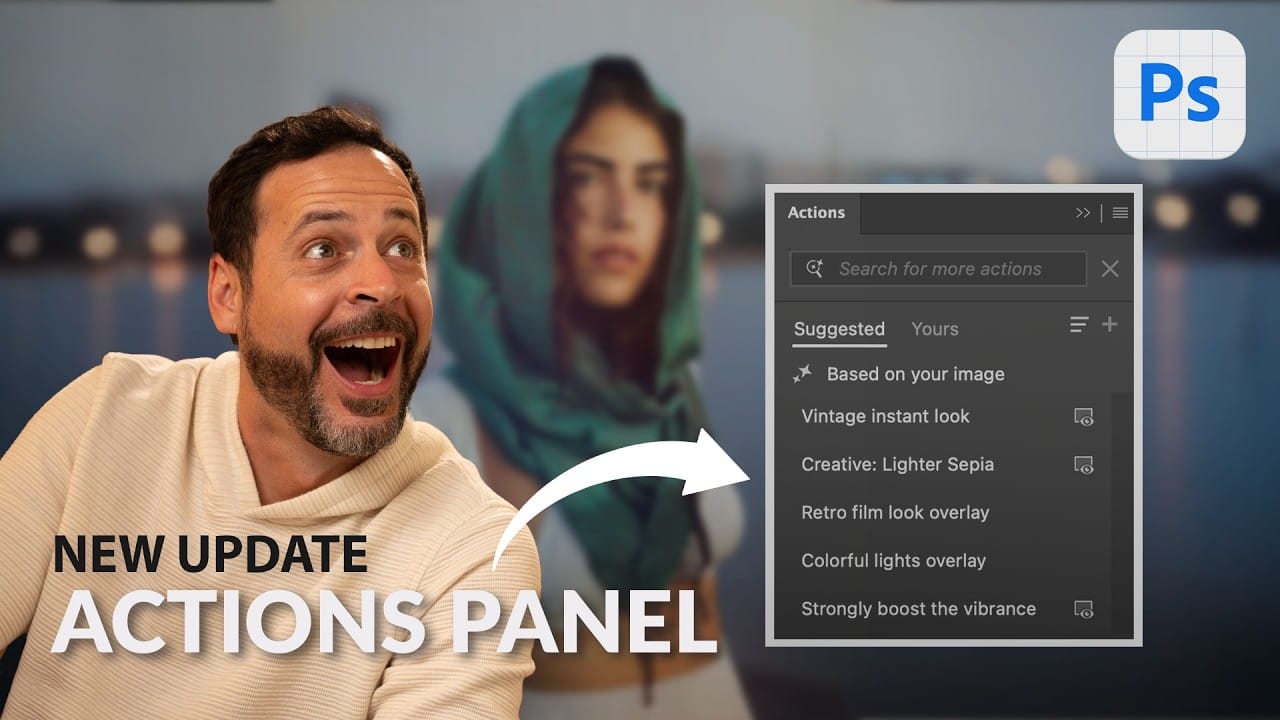
Photoshop Beta: Discover the New Actions Panel
Achieving a specific creative look in Photoshop often requires knowing the right combination of tools and techniques, which can be a significant hurdle for both new and experienced users. While traditional actions can automate repetitive tasks, finding or creating the perfect one for a unique artistic goal isn't always straightforward.
This tutorial explores the completely redesigned Actions panel in Photoshop Beta, which uses AI to simplify complex edits. You will learn how to use natural lang
Download Free Photo Effects Photoshop Actions
Considered difficult to master, actions are often overlooked by most Photoshop users. It's true that actions are not as simple to use as layer styles or even as Photoshop plugins, and that the concept of automation has always be beyond the scope of most us.
But if you take a closer look at Photoshop actions, you will find that they are easy to understand and can help you automate your hard work, such as applying a series of repetitive changes to a group of images, for example. An action no more

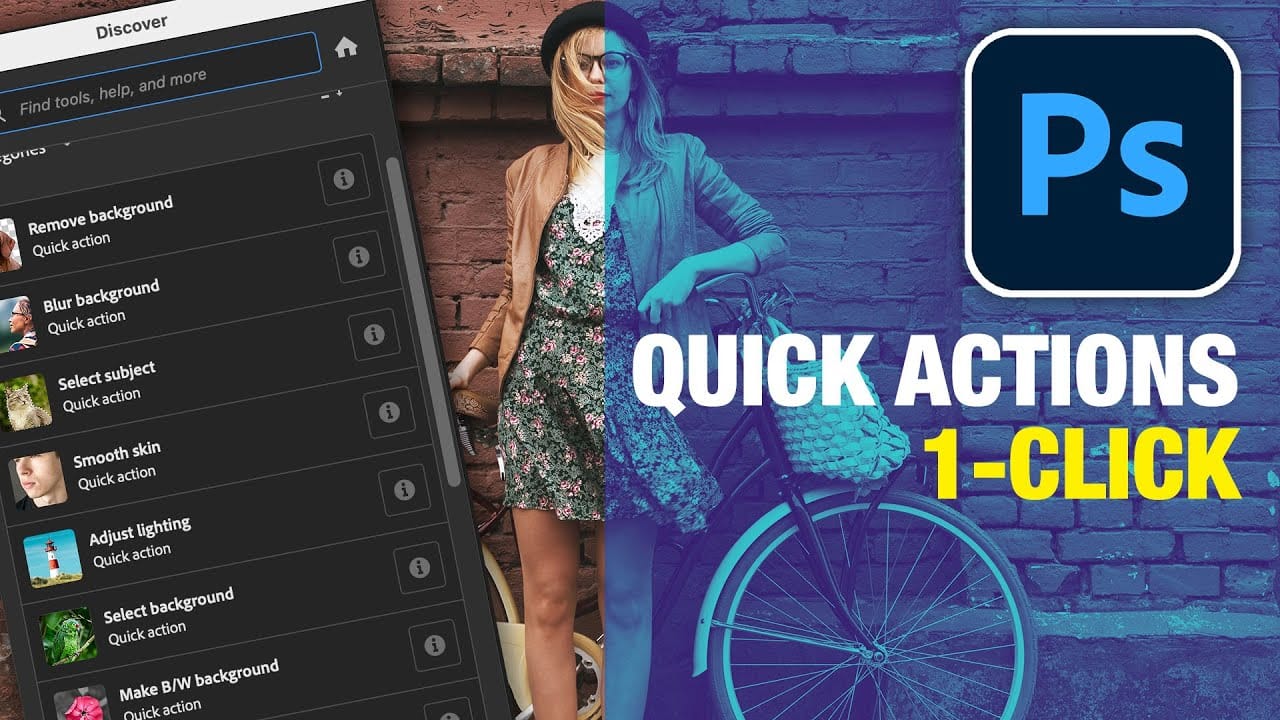
Did you know Photoshop has new Quick Actions?
Discover how to speed up your workflow with Photoshop's new Quick Actions, presented by Colin Smith from Photoshop Cafe. This tutorial reveals the ease and efficiency of using Quick Actions to perform common tasks with just one click. Colin walks you through locating these Quick Actions and demonstrates how to use them to blur backgrounds, apply duotones, remove backgrounds, and more.
While some features, like the Blur Background action, might not always produce perfect results, Colin shares a
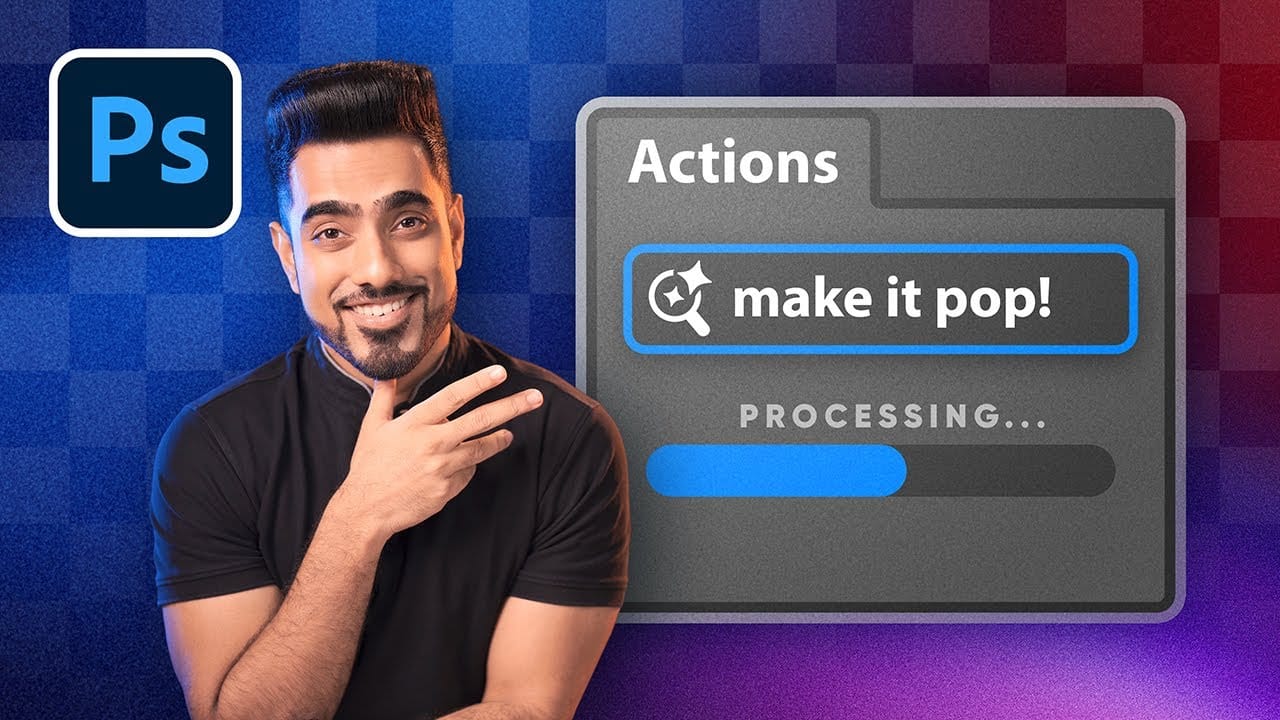
How to Use Photoshop's New AI-Powered Actions Panel
Photoshop's actions just became significantly smarter with AI integration. The new Actions panel understands natural language searches, automatically suggests relevant effects based on your image content, and provides live previews before you commit to changes.
This revolutionary update transforms how designers work with automated processes. Instead of browsing through countless preset names, you can simply type "make it pop" or "remove haze" and watch AI deliver exactly what you need.
Watch
Artistic Photoshop Actions to Make Photography Fun
Photoshop actions are a simple way to speed up editing and give your photos a consistent look without spending hours on adjustments. From subtle color shifts to bold artistic transforms, actions can help you work faster and keep your style consistent across different projects.
They're useful for anyone who wants reliable one-click effects for portraits, landscapes, and creative photography.
Why Creative Fabrica?
You'll notice that all the actions in this roundup come from Creative Fabrica. T

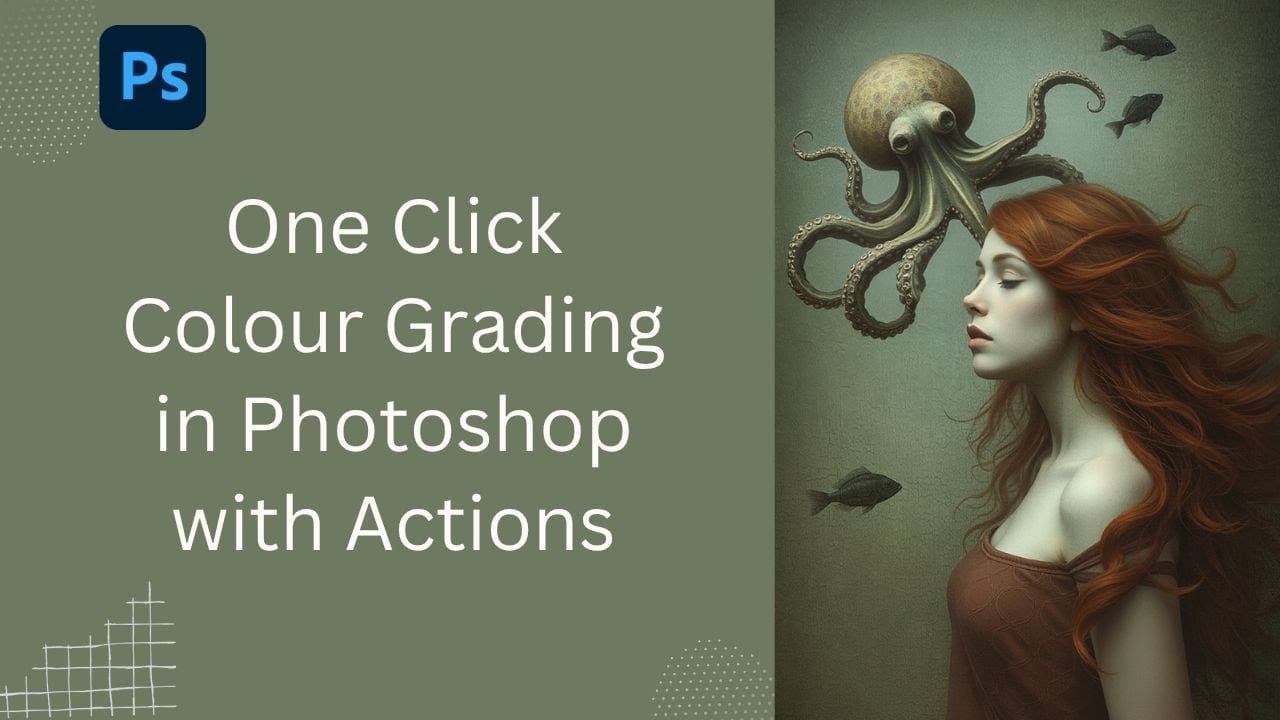
Speed Up Your Color Grading Workflow with Photoshop Actions
Color grading can transform your images, but manually adjusting curves and levels for every photo takes time. Photoshop actions offer a faster approach by applying professional color treatments with a single click.
This workflow uses pre-built actions, tints, and LUTs to achieve various moods and styles instantly, letting you layer multiple effects to build the exact look you want.
Watch the Tutorial
Practical Tips for One-Click Color Grading
* Set your Actions panel to button mode for fa
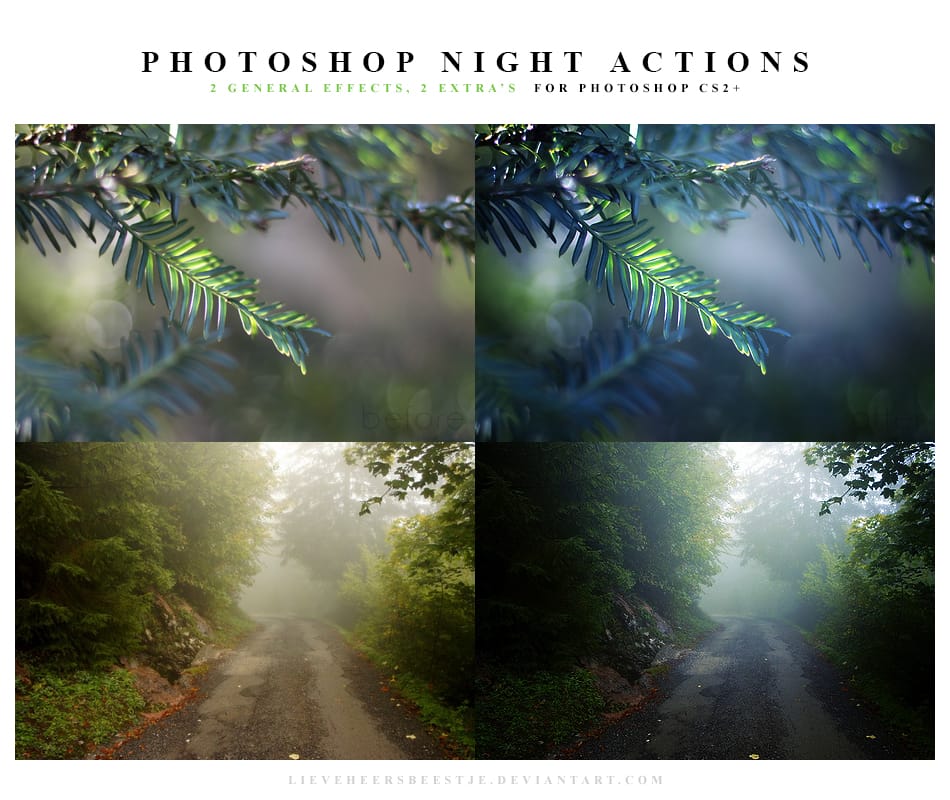
Photoshop Night Actions
Transforming ordinary daytime images into captivating night scenes is now easier than ever. With these free Photoshop Night Actions, you can achieve stunning results with minimal effort. Just a few clicks can turn a bright, sunlit photo into a dramatic nighttime landscape.
These actions are user-friendly, making them suitable for both beginners and those with more experience. You simply load the actions into Photoshop, select your daytime image, and apply the desired effect. Almost instantly, y
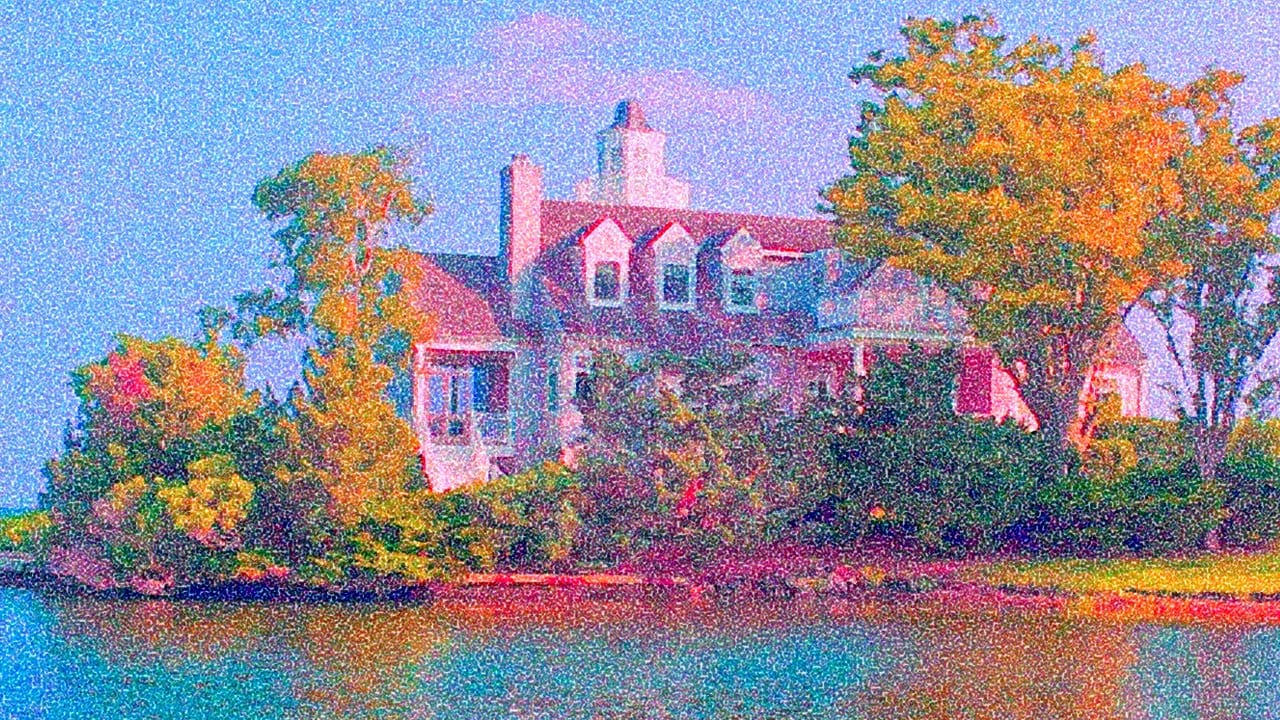
Create an Action to Transform your Photos into Impressionist Paintings
Digital art techniques allow for creative transformation of ordinary images into unique visual pieces. This video explores a method to convert photographs into pointillist-style paintings within Photoshop.
Viewers will learn how to set up a reusable Photoshop Action, automating the process of applying artistic filters and color adjustments. This enables quick application of a distinct impressionist aesthetic to various images, enhancing their artistic appeal.
Watch the Tutorial: Automate Poin
Watercolor and pencil premium Photoshop Action
This add-on offers a straightforward way to turn your photos into beautiful watercolor and pencil artwork using Photoshop. Simply load your desired image, press play on the action, and watch as your photo transforms in real-time.
What stands out is the ease of use. You don't need to be an expert in design; just a few clicks can lead to stunning results. After the initial transformation, you have the flexibility to adjust various elements to achieve the perfect look for your project.
Whether yo