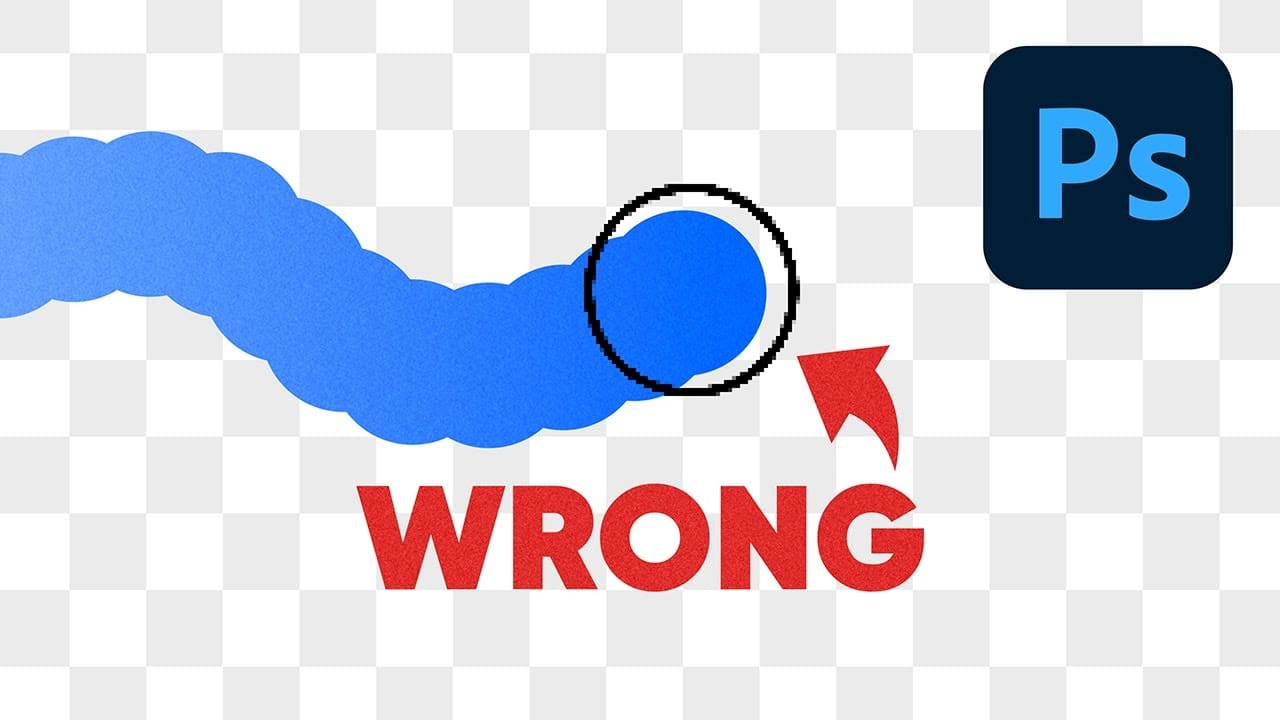
Pen pressure in Photoshop gives you direct control over brush size, opacity, and angle — but most users only scratch the surface of what's possible in the Brush Settings panel. The Wacom Art Pen 2 adds barrel rotation to that mix, letting you physically twist the pen to change brush angle in real time, which opens up a more natural way to work with textured and calligraphic brushes.
Watch the Video
The video below walks through the Brush Settings panel and demonstrates how barrel rotation works with the Wacom Art Pen 2.
Video by photoshopCAFE. Any links or downloads mentioned by the creator are available only on YouTube
Practical Tips
Here are the key techniques covered in the video, drawn directly from the Brush Settings panel workflow:
- Enable Shape Dynamics for pressure-sensitive size: In the Brush Settings panel, turn on Shape Dynamics and set the Control dropdown to Pen Pressure — lighter strokes produce thinner lines, harder strokes produce thicker ones.
- Use the Transfer dynamic for opacity control: Turn on Transfer and set it to Pen Pressure so pressing harder darkens the stroke, making it easier to shade gradually without switching settings.
- Combine size and opacity dynamics together: Running both Shape Dynamics and Transfer simultaneously lets strokes taper in both thickness and darkness, closely mimicking natural media like ink or pencil.
- Set Angle to Rotation for barrel rotation support: With the Wacom Art Pen 2, change the Angle control under Shape Dynamics to Rotation — rotating the pen in your hand will physically rotate the brush tip, useful for calligraphic or textured brushes.
- Lock dynamics so they persist across brushes: Use the lock icon next to a dynamic in the Brush Settings panel to keep that setting active when switching between different brush presets.
Related Articles and Tutorials
Browse more brush resources and tutorials to extend what you've learned here.
 Enrique Flouret