Creased clothing and fold lines in fabric backdrops are common problems that are difficult to control on a shoot day. Using generative AI tools in Photoshop, you can remove them in a matter of clicks — preserving fabric texture, detail, and the overall integrity of the original photograph.
Watch the Video
Video by Glyn Dewis. Any links or downloads mentioned by the creator are available only on YouTube
Practical Tips
These points cover the key decisions and a non-obvious step that makes the technique work reliably.
- Always name the specific item in your prompt — even with an active selection, stating "remove the creases from off the white t-shirt" tells the AI what to act on; omitting this often produces no change at all.
- Use the Firefly Image 5 model for clothing edits — it preserves fabric texture, existing detail such as printed text, and natural shadow without hallucinating new content.
- When cleaning up a backdrop, add an instruction not to change its appearance — a phrase like "do not change the look of the gray background, keep the texture" prevents the AI from smoothing away the canvas effect.
- Set the Remove tool to Auto mode so Photoshop chooses between AI and Content-Aware fill depending on what is being removed — useful for simpler tasks like logo removal where full AI is unnecessary.
- Apply a small Gaussian Blur inside Quick Mask before inverting a subject selection to soften the edge transition, making the background fill blend more naturally with the subject.
Related Articles and Tutorials
More techniques for working with clothing and portraits in Photoshop.
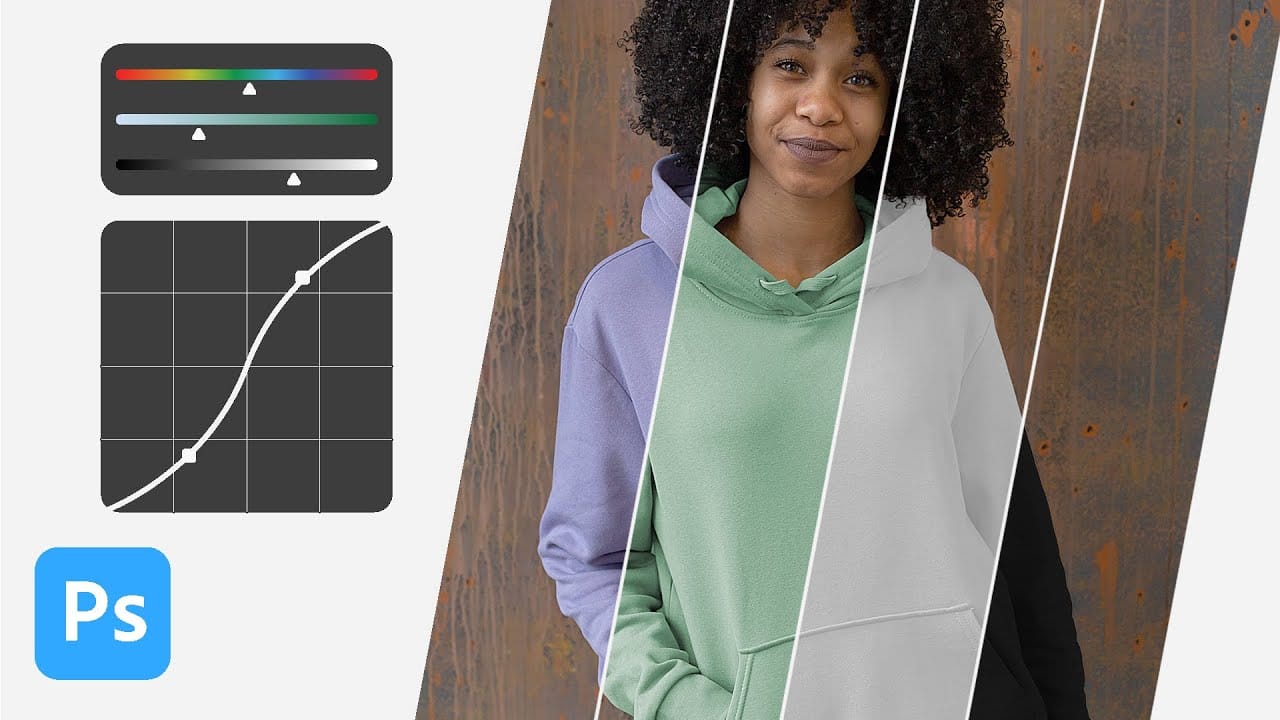
How to change the color of clothing in Photoshop
Changing clothing colors in product photos or portraits requires precise selection techniques and the right adjustment layers to achieve realistic results. Standard color replacement methods often fall short when creating convincing black or white clothing, which demand special attention to highlights and shadows.
This method combines selection tools with dual adjustment layers to control both color and contrast, ensuring your color changes look natural and professional across any fabric type.
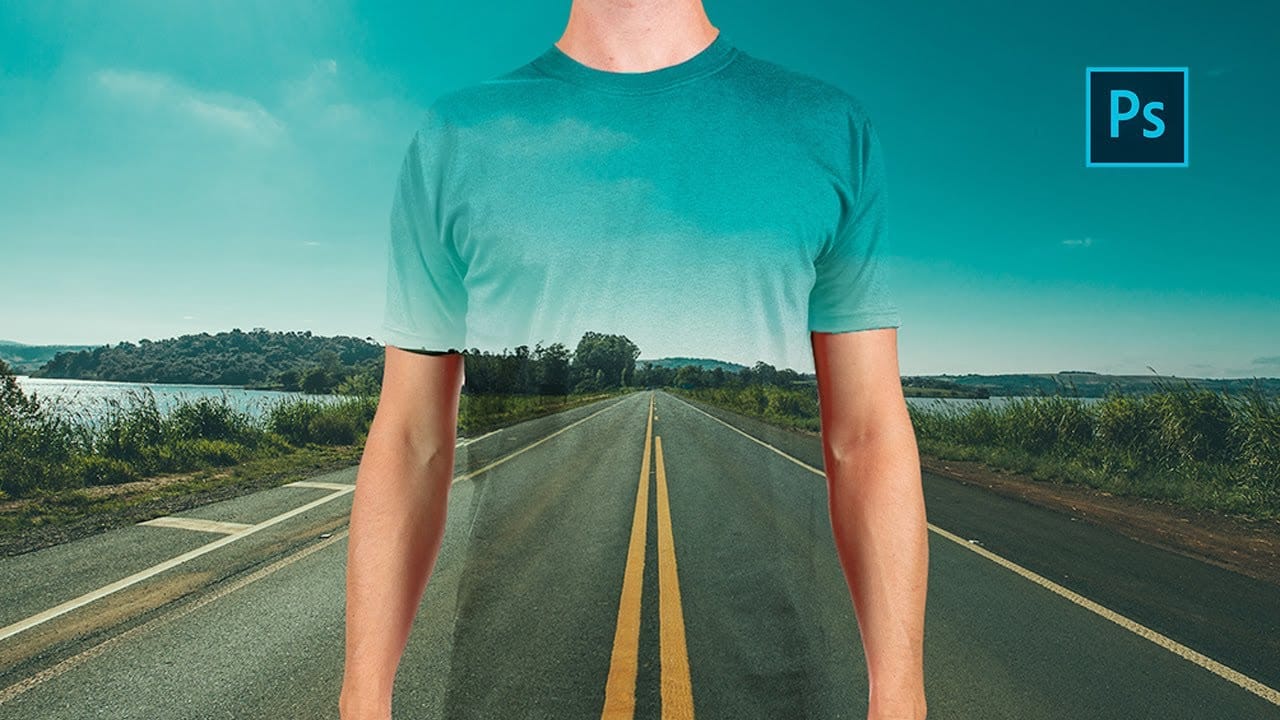
Create a transparent clothes effect in Photoshop
In this Photoshop tutorial you will to achieve a camouflage photo effect where we make t shirt look transparent. It's a super simple tutorial, quite easy for beginners to learn some things.
We will cut out the background and and than separate t-shirt from body and will change the blending mode to make it mix with background. The real trick is to make t-shirt black and white before making it transparent so we don't have any trouble with miss matching colors. Also we will use displacement map, wh
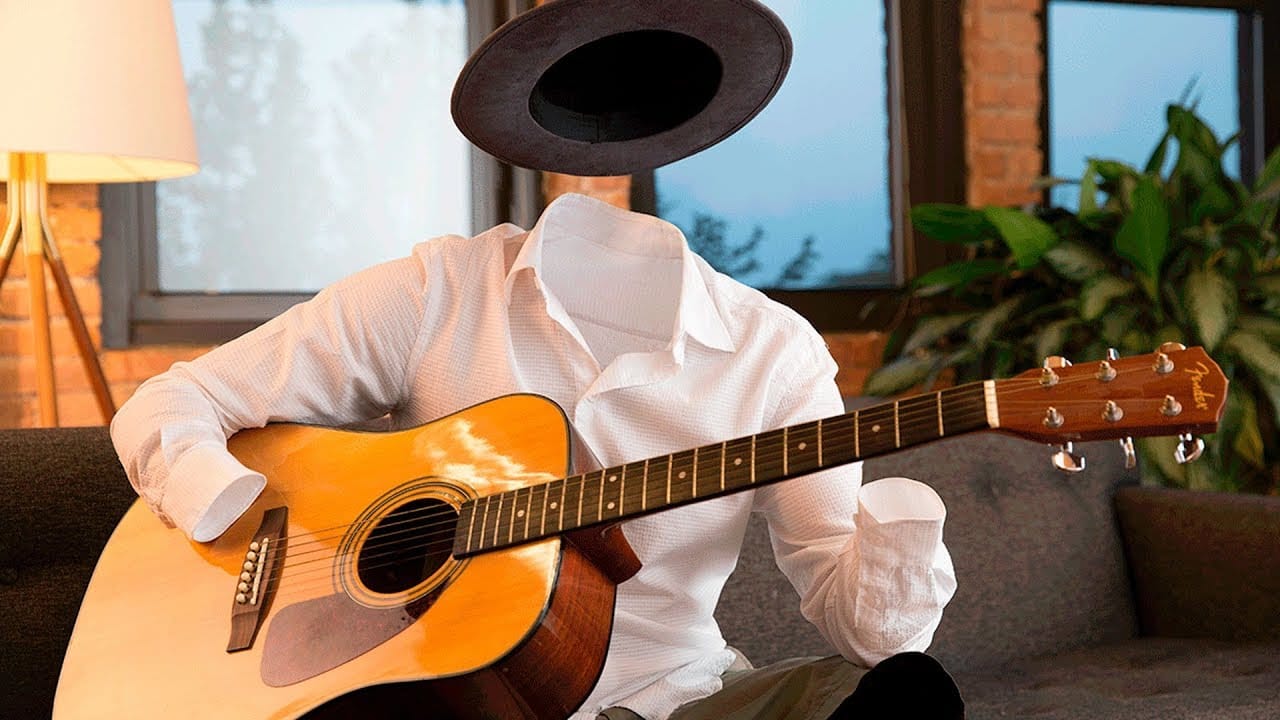
Make yourself invisible in Photoshop
Creating a convincing invisible person effect requires careful planning from photography to post-processing. This technique combines strategic shooting with precise layer masking to make clothing appear empty while maintaining realistic shadows and interactions with props.
The key lies in photographing multiple versions of each scene - one with the subject present and additional shots of empty clothing in identical positions. White clothing significantly simplifies the blending process in post-
How to Create a Molten Metal Text Effect in Photoshop
Molten metal text effects transform ordinary typography into blazing, dimensional masterpieces that appear to glow with intense heat. This technique combines strategic layer styles, textural overlays, and color grading to simulate the appearance of scorching hot metal with fiery edges and realistic surface details.
The process builds layers of metallic gradients, rust textures, and glowing ember effects that create convincing depth and heat distortion. Smart objects keep the text fully editable

Download 30 Free Instagram Photoshop Actions
Changing colors, brightness and contrast of photos is very easy in Adobe Photoshop, But reaching an ideal result takes a lot of time. Using this Photoshop Action will make you reach your ideal result in just a few minutes. This collection, contains 30 Instagram filters color scheme presets! Using these Instagram filters allow you to share stunning photos in Instagram or any other social medias. Download this collection and enjoy.
Download file

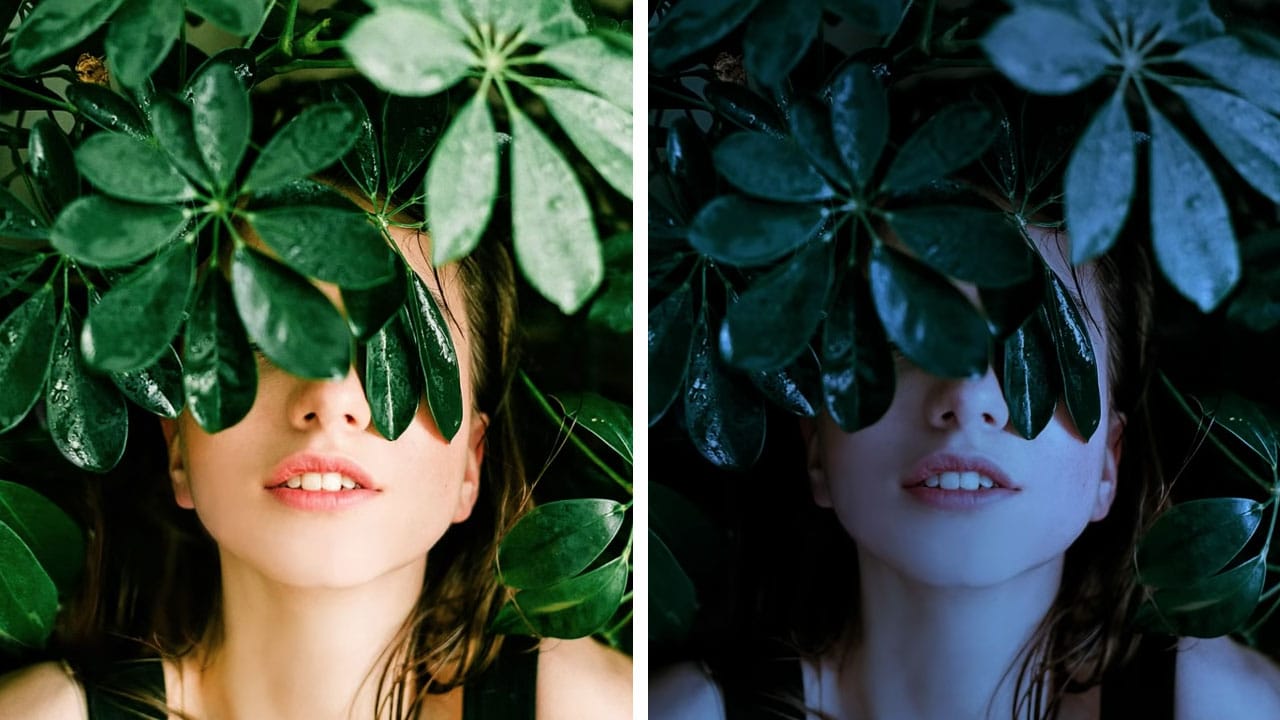
Turn day to night in 2 minutes with Photoshop
In this Photoshop tutorial, the author PiXimperfect shares a simple and effective technique to transform a daytime image into a moonlit night scene. The process only takes about 2 minutes and involves using a few adjustment layers in Photoshop.
The author guides viewers through the steps, explaining how to create the desired night-time effect. By adjusting the levels, curves, and color balance, the daytime lighting is replaced with a soft, moonlit glow. The tutorial is straightforward and easy
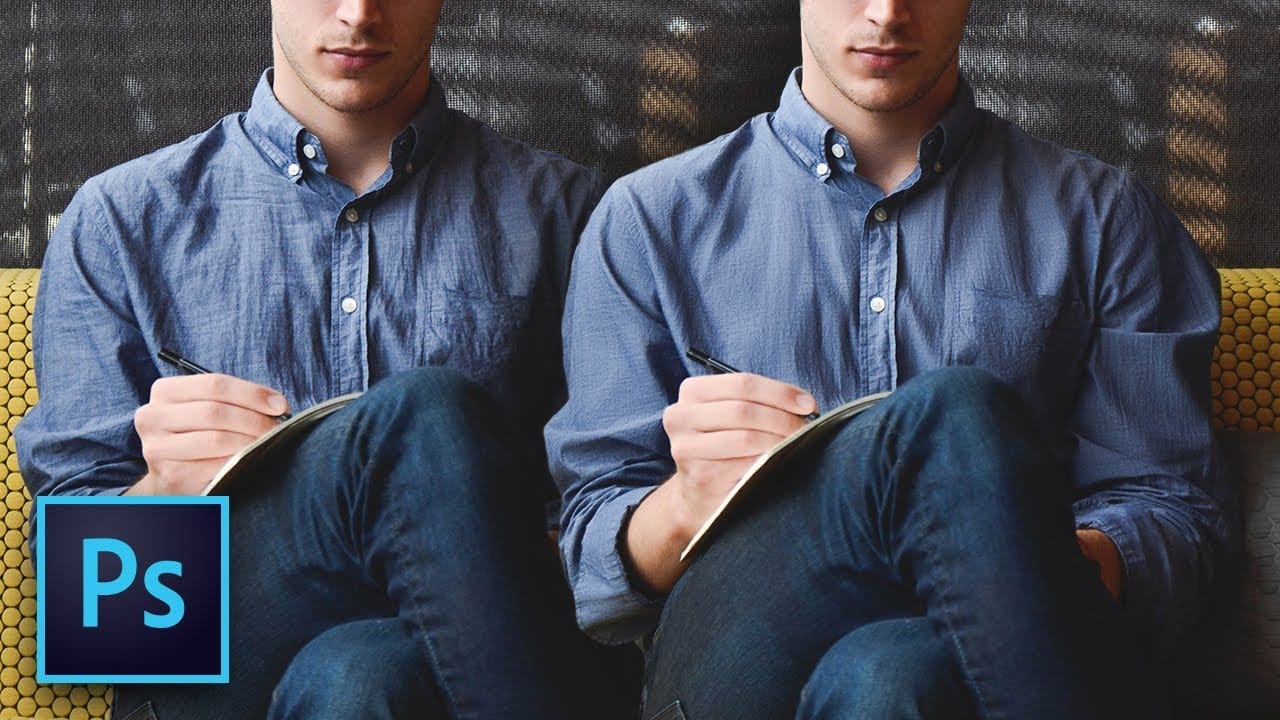
Remove wrinkles from clothes easily in Photoshop
In this tutorial by PiXimperfect you will learn the most natural way to iron your clothes and get the wrinkles off the fabric in Photoshop. Learn to use the amazing power of Frequency Separation to magically even out the creases without disturbing the texture of the fabric.
In this video, we will learn how to separate the image into wrinkles and fabric texture so that we can just work on the wrinkles and not affect the texture. Using the mixer brush, we will even out the wrinkles and creases, a
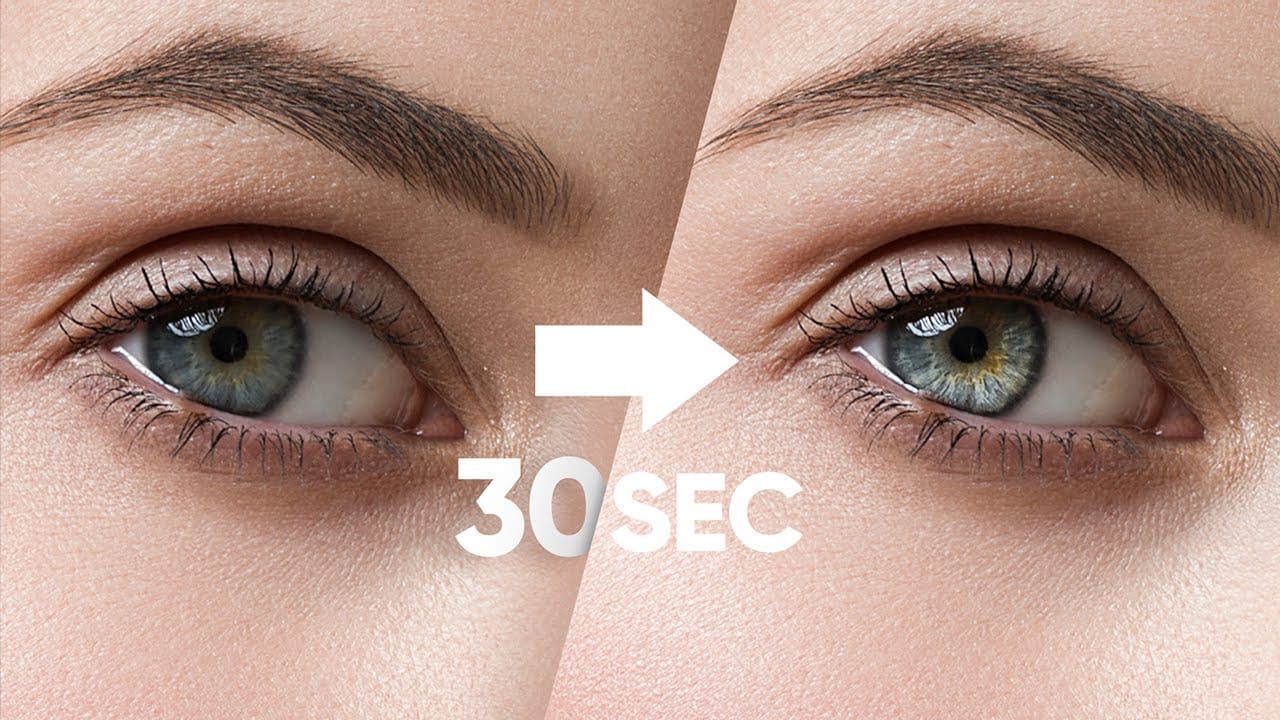
Make Eyes Dramatic in 30 Seconds with Photoshop
In this tutorial, PiXimperfect reveals a fast and effective technique to make eyes more dramatic and engaging in just 30 seconds using Photoshop. The focus is on enhancing the eyes by adding shine and depth, which can significantly elevate the overall impact of a portrait. The method involves using blend modes in combination with simple selections to introduce eye-catching highlights and contrasts.
The tutorial starts by demonstrating how to select the eye areas accurately, ensuring that the ad
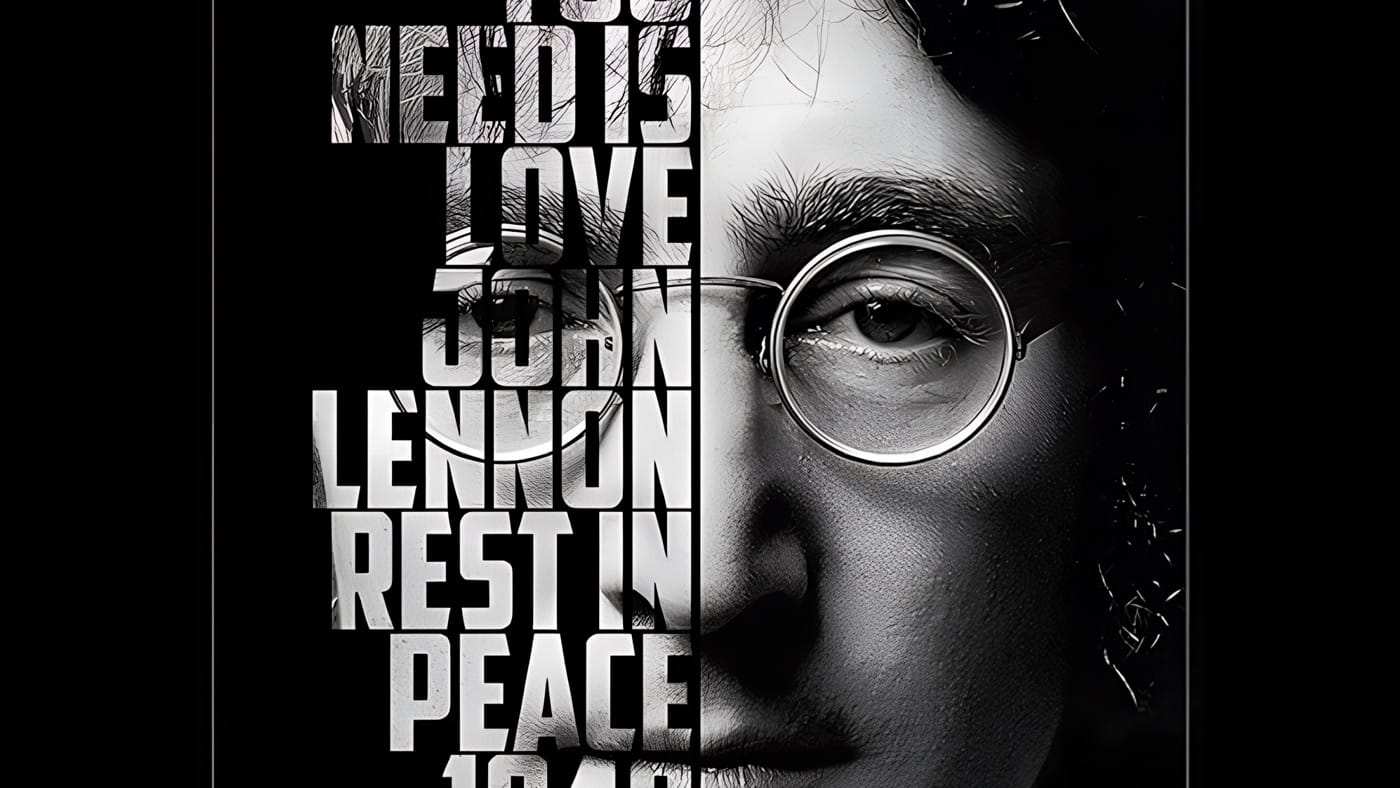
Create a cool text portrait in Photoshop
Learn how to create a striking typographic portrait poster in Adobe Photoshop, transforming a standard photo into an artwork where text defines the contours of the subject's face. You'll practice essential techniques: precise subject selection, background preparation, thoughtful text integration, and subtle refinements to enhance legibility and visual impact.
Watch the Video
Practical Tips for Text Portrait Posters in Photoshop
* Desaturate your base image to black and white early in the p
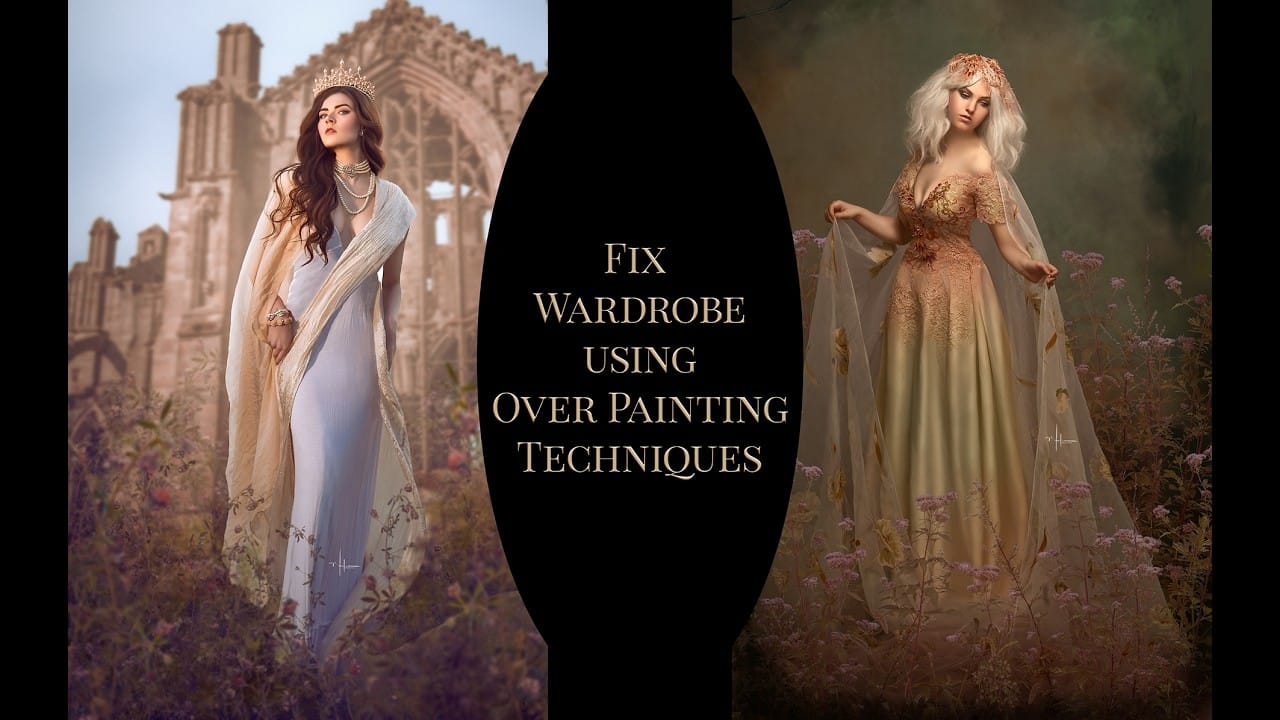
How to Fix Wardrobe Problems in Portraits by Overpainting in Photoshop
A poorly fitting dress, an unflattering sash, or a neckline that just doesn't work can ruin an otherwise strong portrait. Rather than reshooting, overpainting with a brush lets you reshape clothing, slim silhouettes, and even paint an entirely new neckline — all without touching an AI tool.
Watch the Video
Practical Tips
These techniques work best when applied incrementally — small selections, careful sampling, and repeated passes produce more convincing results than trying to fix everythin