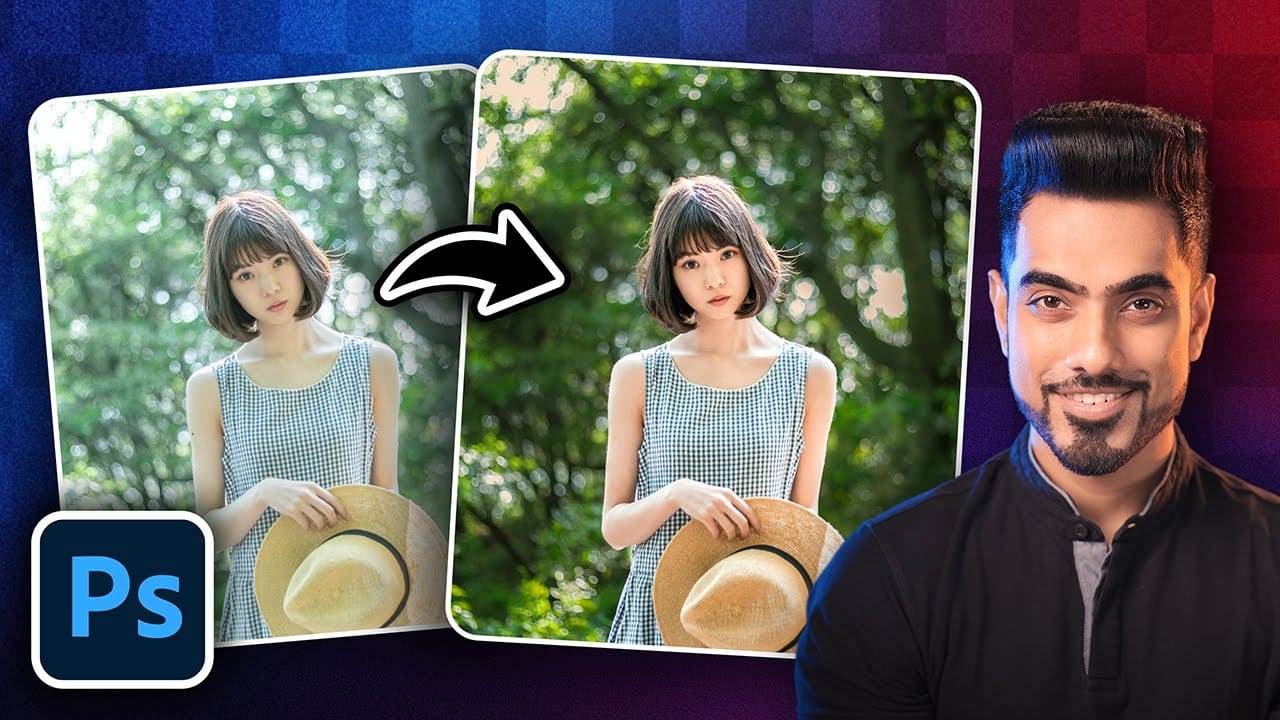

A poorly fitting dress, an unflattering sash, or a neckline that just doesn't work can ruin an otherwise strong portrait. Rather than reshooting, overpainting with a brush lets you reshape clothing, slim silhouettes, and even paint an entirely new neckline — all without touching an AI tool.
Watch the Video
Video by Nikki Harrison. Any links or downloads mentioned by the creator are available only on YouTube
Practical Tips
These techniques work best when applied incrementally — small selections, careful sampling, and repeated passes produce more convincing results than trying to fix everything in one stroke.
- Use the Lasso tool to isolate small sections of fabric before painting, so each stroke stays within a controlled boundary.
- Sample color directly from an adjacent area of the image to keep your painted tones consistent with the existing light and shadow.
- Clip a second layer above your overpaint layer to refine edges without risking accidental marks outside the target area.
- When painting skin tones for a new neckline, study the highlight and shadow structure — the darkest values typically fall between curved forms, while lighter tones appear on the outer swells.
- After merging your painted layers, use Liquify on a duplicate to fine-tune shapes, then mask out any distortion that spills onto adjacent areas like the arms.
Related Articles and Tutorials
More portrait retouching and painting techniques to expand your editing workflow.
Portrait retouching using only the brush tool in Photoshop
What happens when you strip away all of Photoshop's specialized retouching tools and rely on just the basic brush? This unique challenge demonstrates how to achieve professional portrait results using only painting techniques. By working with careful color sampling, low flow settings, and strategic blend modes, you can handle blemish removal, dodging and burning, and color correction without touching the healing brush, clone stamp, or any other specialized tools.
Watch the Video
Practical Ti
How to Remove Distractions, Expand Borders, and Polish a Portrait in Photoshop
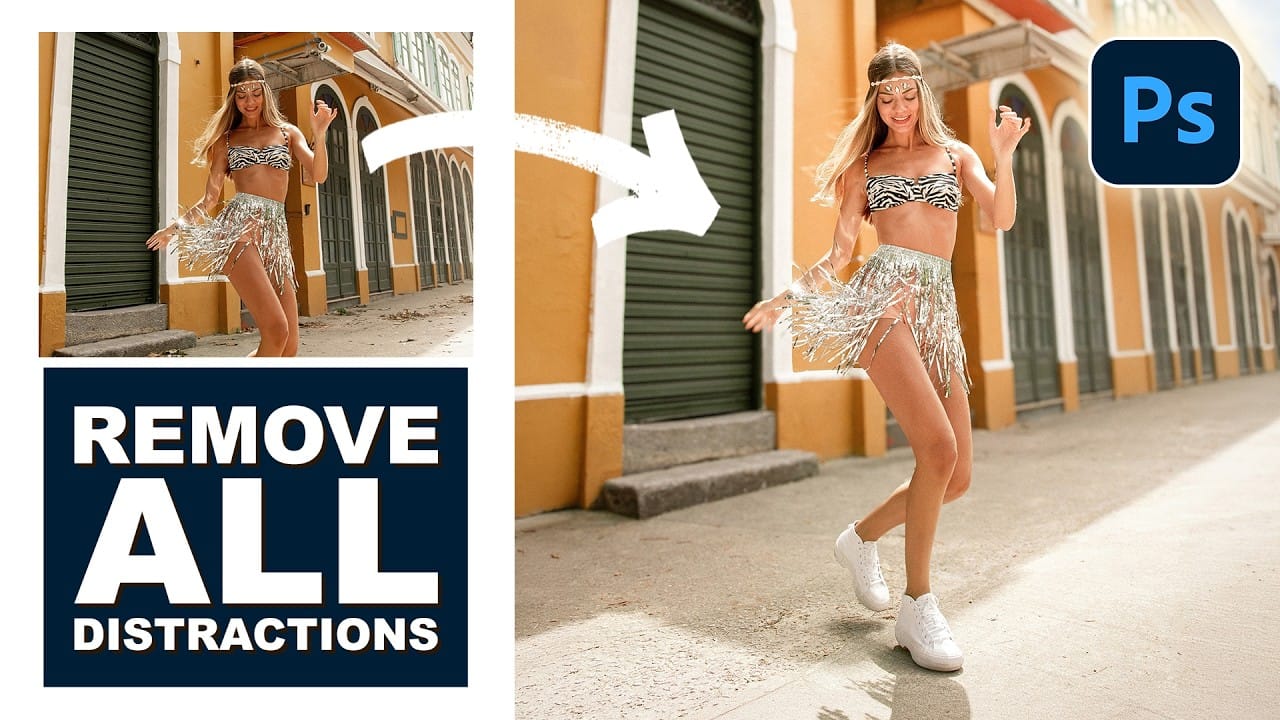
A cluttered background, tight framing, and flat lighting can undermine an otherwise strong portrait. This workflow covers the full process of cleaning up a photo using Photoshop's AI-powered Remove Tool, extending the canvas with Generative Expand, replacing the sky, and finishing with Camera Raw adjustments for grain, vignetting, and background blur.
Watch the Video
Practical Tips
These techniques work together as a sequential editing workflow, each step building on the last to produce a c
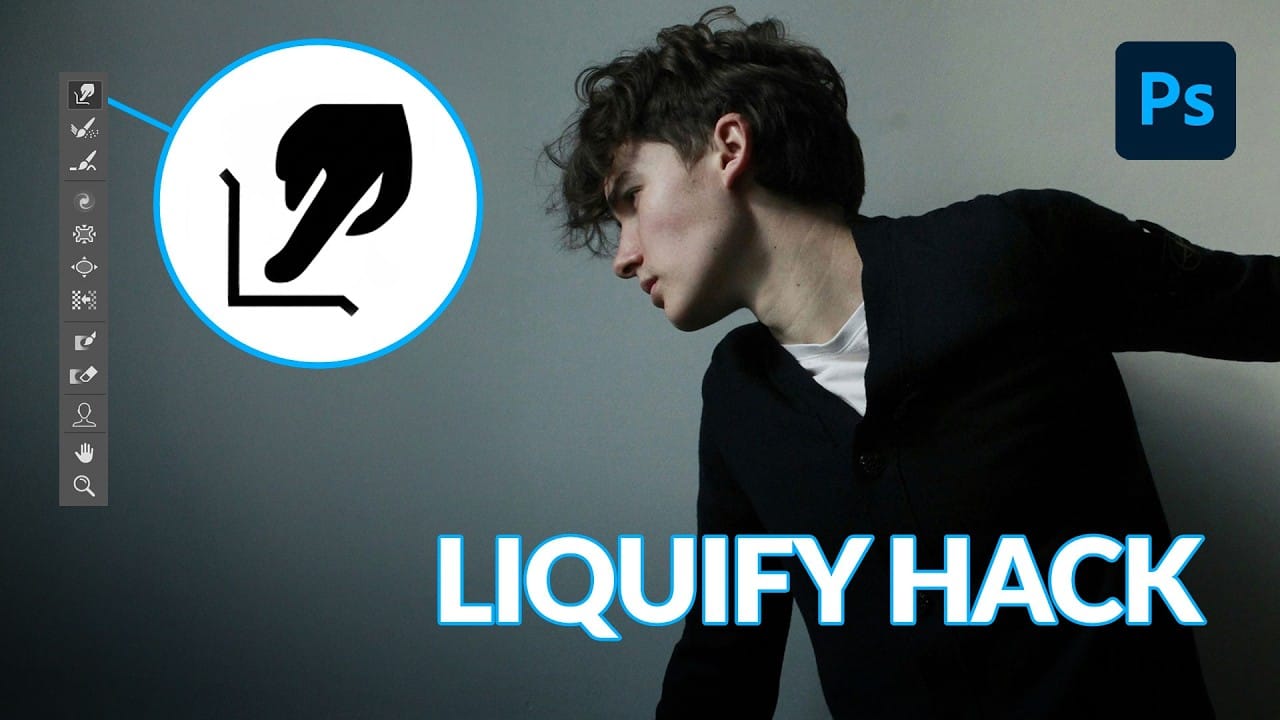
How to Use Photoshop's Liquify Tool for Non-Destructive Portrait Retouching
Clothing wrinkles, hair that lacks volume, and awkward fabric bunching can distract from an otherwise great portrait. Photoshop's Liquify tool offers a powerful solution for smoothing out these issues while preserving the natural look of your subject.
This tutorial demonstrates how to use the Liquify tool non-destructively with smart objects, focusing on clothing adjustments and hair enhancement while maintaining ethical retouching practices.
Watch the Tutorial
Essential Liquify Tool Tips
Add Creative Color and Texture to Portraits in Photoshop
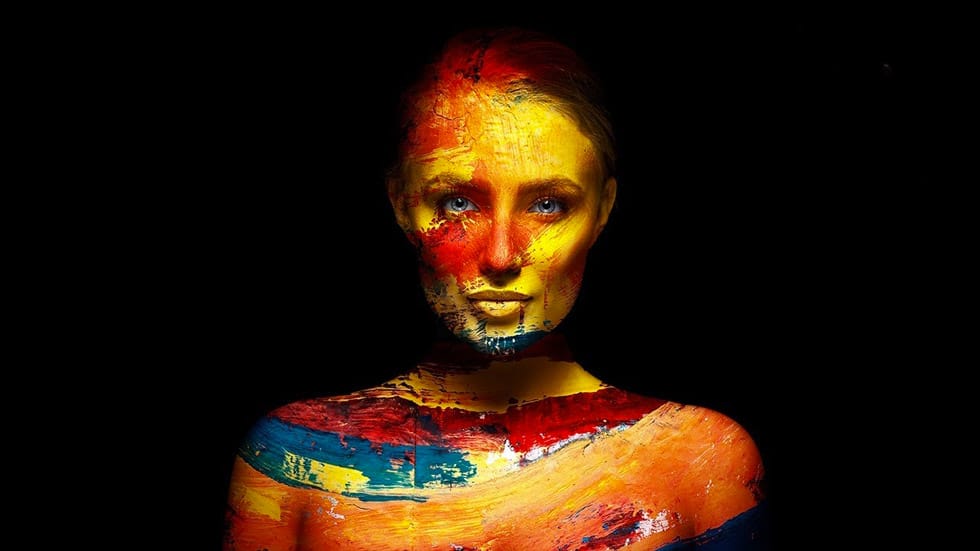
In this tutorial by PiXimperfect you will learn how to apply highly realistic paints and textures to portraits in Photoshop. Learn how to manually mold the texture according to the shape of the portrait and use advanced blend modes and blend-if to blend in the colors in the most natural fashion.
In this tutorial, we will also learn how to dodge and burn to add more dimension and make your creative portrait really pop.
Watch tutorial
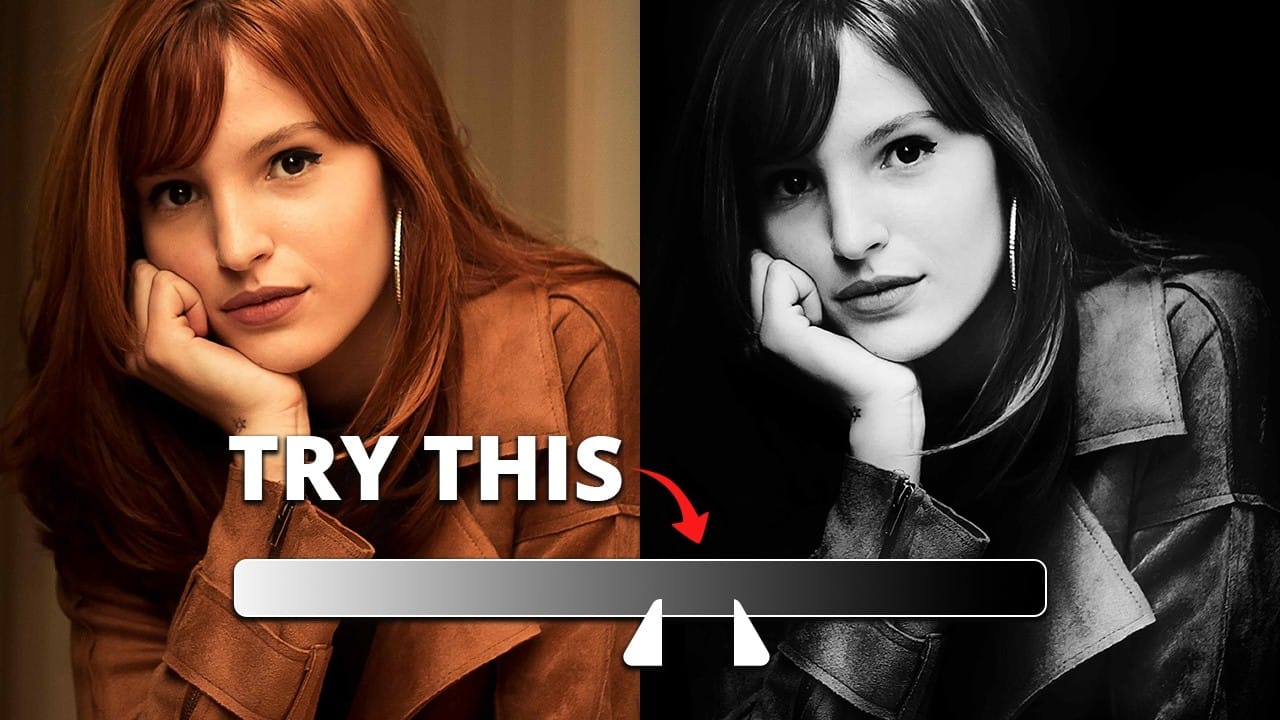
How to Create Studio-Style Black and White Portraits in Photoshop
Professional studio portraits achieve their dramatic impact through carefully controlled lighting that creates striking contrast between subject and background. This technique transforms ordinary photos into compelling black and white portraits by using the existing highlights and shadows in your image to blend seamlessly with a dark background.
The method relies on blend modes and selective masking to isolate your subject while maintaining natural-looking transitions. No expensive studio equip
5 Essential Photoshop Techniques for Better Portrait Editing
Portrait editing often feels overwhelming, especially when trying to balance natural-looking results with professional polish. Many photographers struggle with where to start and which adjustments will have the biggest impact on their images without making them look over-processed.
This tutorial covers five fundamental Photoshop techniques that will immediately improve any portrait. From creating better subject focus to color correction and skin retouching, these methods provide a solid foundat