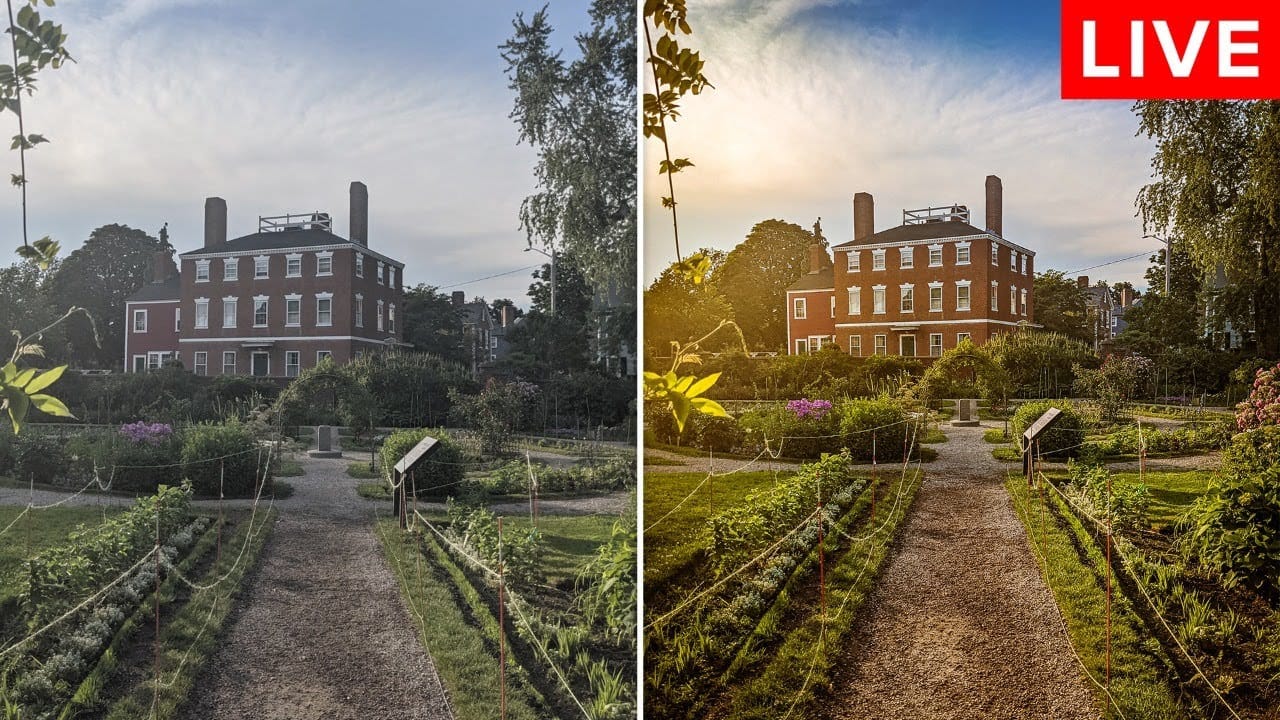
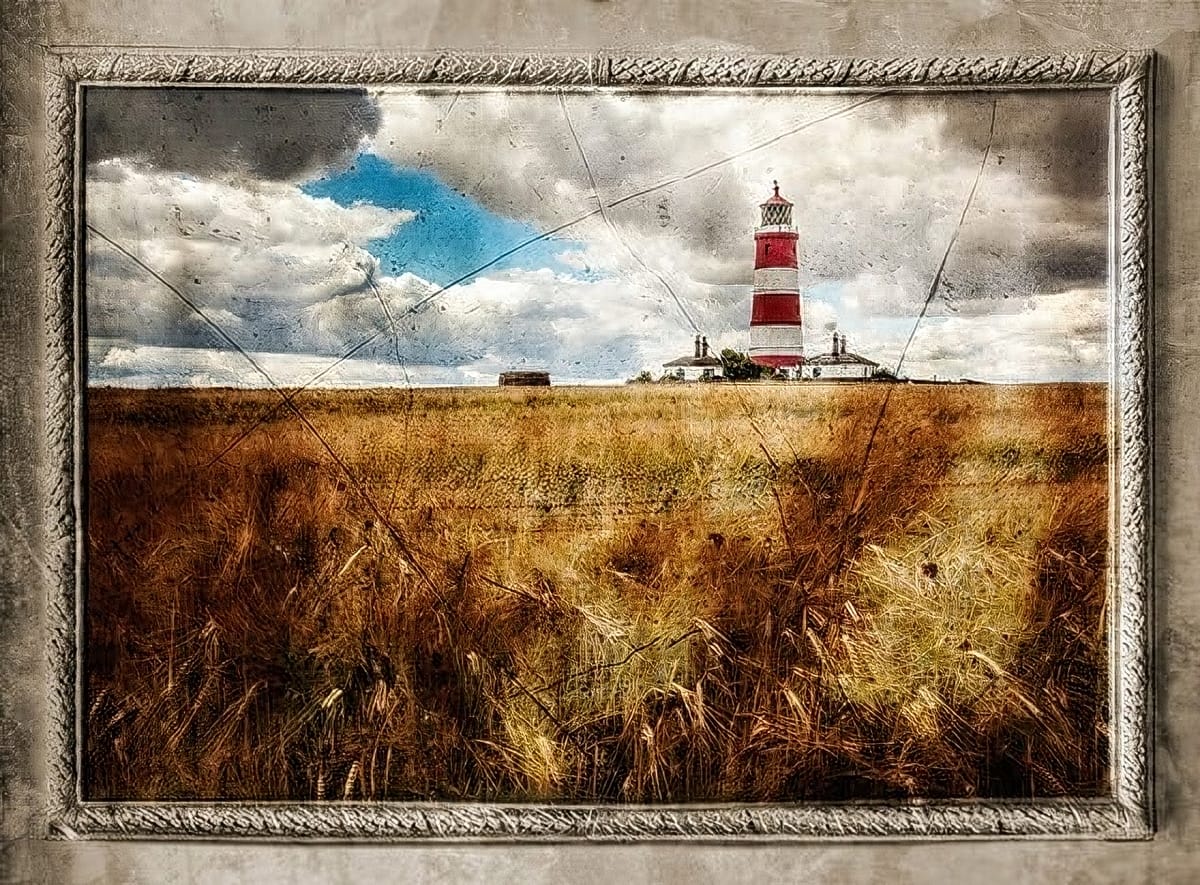
Landscape photos often lose their three-dimensional impact when viewed as flat files, even when the original scene had beautiful depth and lighting. The key to restoring that sense of depth lies in understanding how to work with different layers of your composition—foreground, midground, and background—rather than simply adding overall contrast and saturation.
This technique uses strategic masking and color temperature adjustments to guide the viewer's eye through the image and recreate the natural depth that was present in the original scene.
Watch the Video
Video by Gary McIntyre Photographer. Any links or downloads mentioned by the creator are available only on YouTube
Practical Tips
Here are the key techniques for creating depth in your landscape photos:
- Break your image into three distinct layers: foreground, midground, and background before starting any edits
- Darken the foreground with warmer tones to draw the eye inward, unless there's a specific light source illuminating it
- Apply cooler tones and reduced saturation to background elements to push them into the distance
- Use radial gradients to highlight the midground and emphasize areas where natural light creates contrast
- Paint warmer tones onto sunlit areas with a brush tool to enhance the natural light direction
Related Articles and Tutorials
Explore more techniques for enhancing your landscape and outdoor photography: