How to Apply Gradients to Any Object Using Hue/Saturation and Layer Masks

How to Apply Gradients to Any Object Using Hue/Saturation and Layer Masks

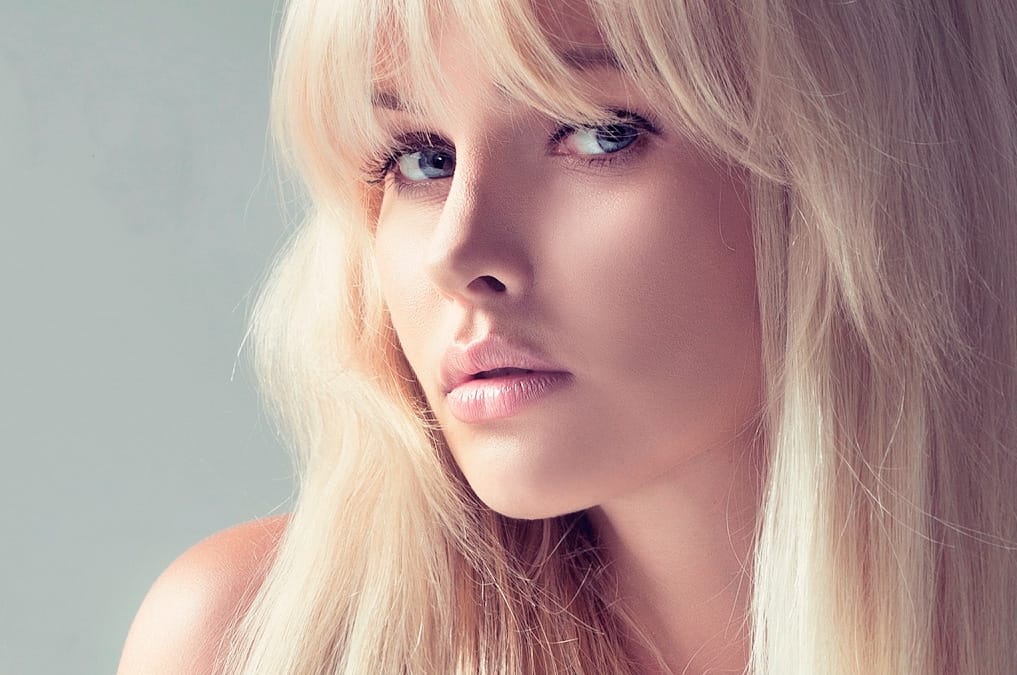
Changing colors and adding gradients to clothing or objects in photos requires precise selection techniques to avoid affecting surrounding elements like skin tones. This method combines hue/saturation adjustment layers with layer masks to create stunning gradient effects while maintaining full control over which parts of your image are affected.

The technique uses dual layer masks—one for the adjustment layer and another for grouping—allowing you to create seamless color transitions that can be modified at any time without starting over.

Watch the Video

Video by PHLEARN. Any links or downloads mentioned by the creator are available only on YouTube

Practical Tips

These key techniques will help you achieve clean, professional gradient effects:

  • Use the eyedropper tool in hue/saturation to select exact color ranges rather than relying on preset color categories
  • Select people using the Object Selection tool, focusing only on skin, hair, and facial features while leaving clothing unselected
  • Fill the layer mask with black using Edit > Fill to hide the adjustment effect from selected areas
  • Group your adjustment layer (Ctrl/Cmd+G) to create a second layer mask for gradient application
  • Apply linear or radial gradients to the group mask using black-to-white gradients for smooth transitions

Explore these additional gradient techniques and color manipulation methods to expand your creative toolkit.
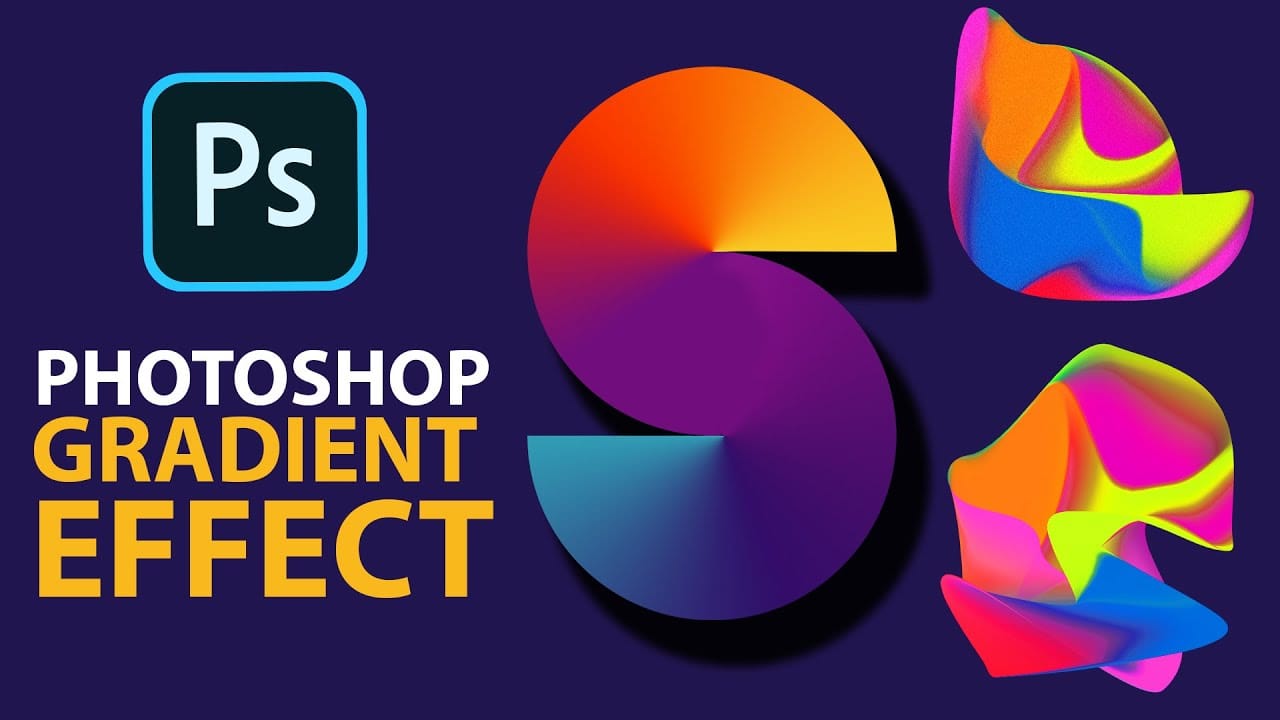
Cerate Stunning Gradient Effects in Photoshop
In this Photoshop tutorial, Trish from Quistt Photoshop demonstrates how to create stunning colorful gradients. This technique is perfect for enhancing lettering designs and art posters. Follow along to learn how to apply vibrant gradients that will make your designs pop. Trish walks you through the process of using gradient tools and adjustment layers to craft beautiful, seamless transitions of color. You'll discover how to use gradients to add depth and dimension to your designs, making them
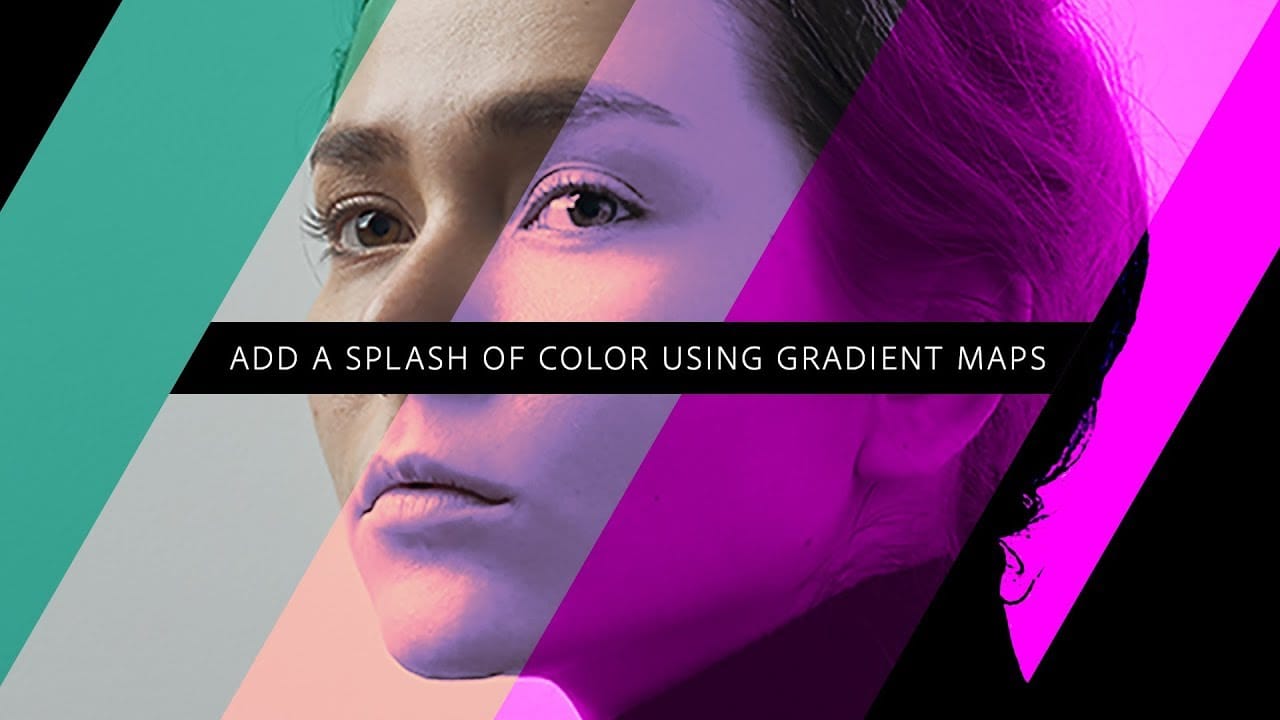
Add a splash of color using gradient maps in Photoshop
In this engaging tutorial, Adobe Evangelist Paul Trani reveals the power of Gradient Maps in Photoshop to introduce stunning colors to your designs. Gradient Maps are a versatile tool that applies color gradients to your images, enabling you to create striking visual effects with ease. Paul walks you through the process of applying and adjusting Gradient Maps, demonstrating how this technique can significantly enhance the depth and vibrancy of your designs. The tutorial covers essential tips an
Epic gradient trick for beautiful light rays in Photoshop
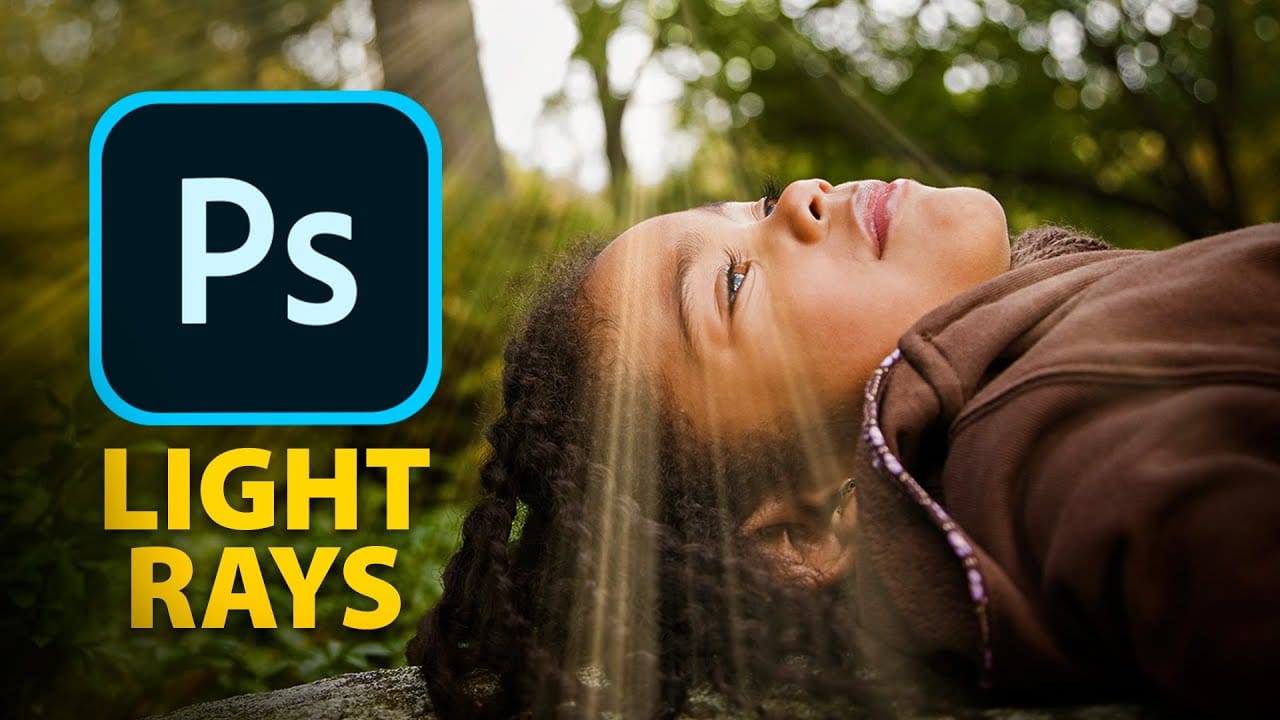
In this tutorial, Jesus Ramirez teaches you how to create stunning light rays in Photoshop using an ingenious gradient trick. By utilizing a Gradient Fill layer in an unconventional way, you can achieve a mesmerizing light ray effect that adds a dramatic touch to your photos. This method is straightforward and effective, making it accessible even for beginners. Part of the Photoshop in-app tutorials, this guide allows you to open the tutorial image directly from Photoshop and follow along with
Create Metal Gradients in Photoshop
Nathaniel Dodson, a renowned expert from TutVid, shares a Photoshop tutorial that explores the art of creating metal gradients. The tutorial offers a nostalgic journey into the realm of skeuomorphic design, guiding the user through the process of crafting a captivating metal gradient. The author delves into the intricacies of color selection, providing valuable insights on the hues that work best for this particular design approach. By following the step-by-step instructions, the user can effor
Creating Complex Colorful Gradients Using Halftone Lines and Gradient Maps in Photoshop
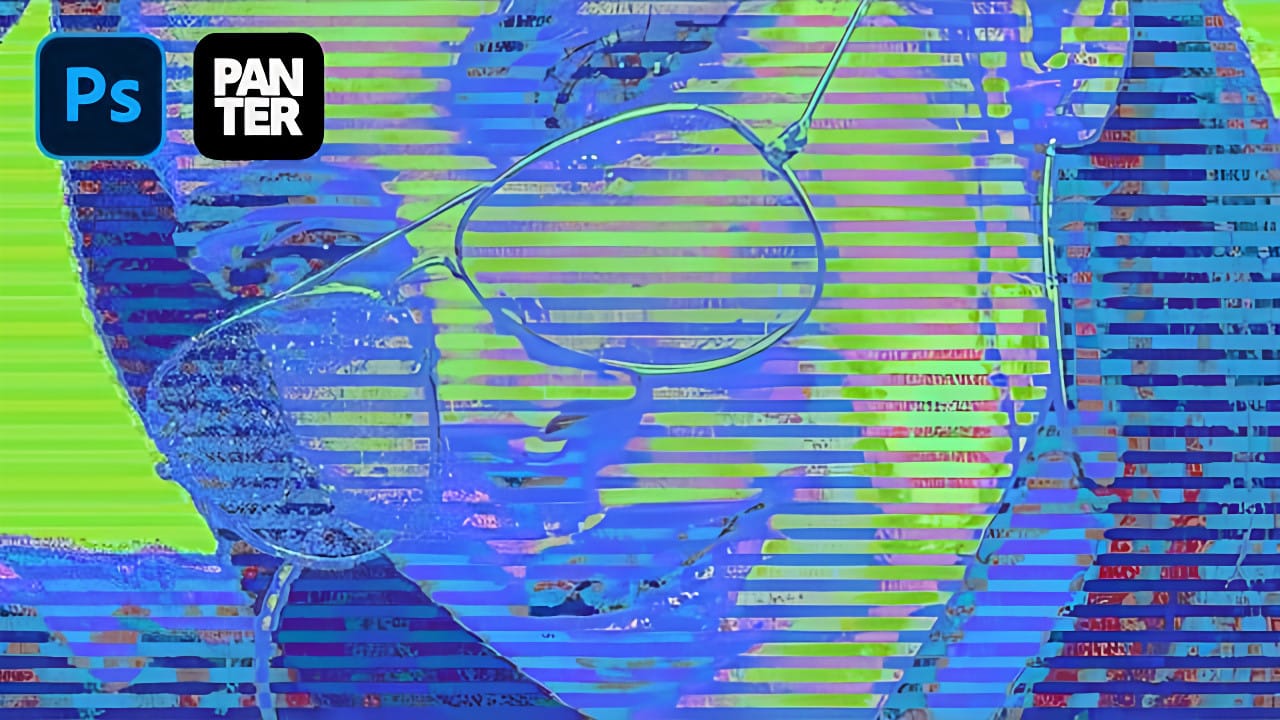
Advanced gradient techniques can transform ordinary portraits into vibrant, stylized artwork that catches the eye immediately. When combined with halftone patterns and noise-based gradient maps, these effects create unexpected color combinations that would be nearly impossible to achieve through traditional methods. This technique opens up entirely new creative possibilities by leveraging Photoshop's hidden gradient map features to generate randomized, complex color schemes over textured line p
Professional color effects with a gradient map
In this Photoshop tutorial, Kevin Roodhorst shares his expertise on using a gradient map adjustment layer to achieve professional color effects. The author explains that this technique is ideal for experimentation, allowing users to explore different color grading options and find what works best for their projects. Through clear and concise instructions, Kevin guides the reader through the process of adding beautiful color grading with a simple yet effective technique. The author suggests that
Quick and Simple Worn Out Psychedelic Poster in Photoshop
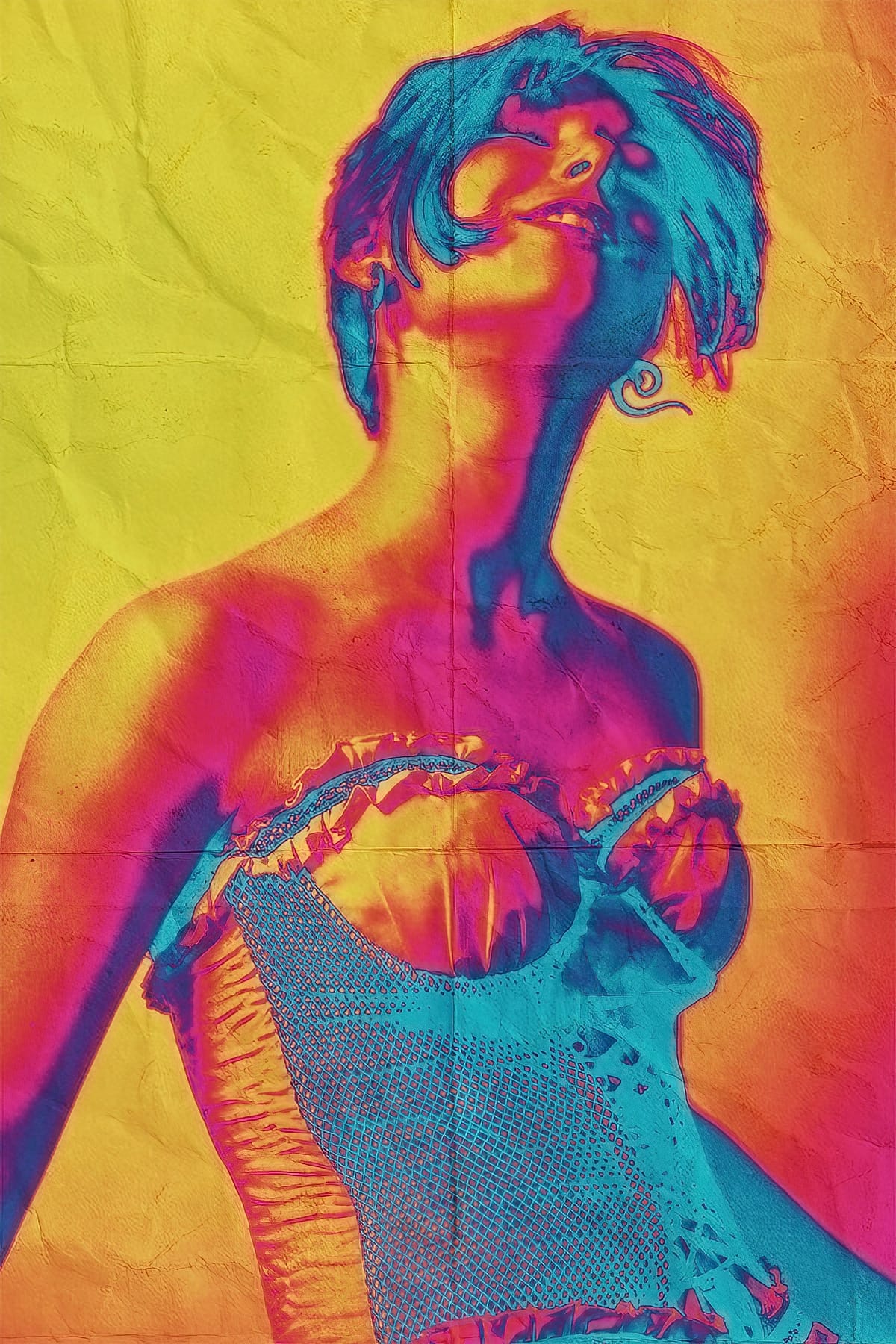
Adobe Photoshop offers a lot of ways to apply color effects to your images. But maybe the Gradient Map adjustment layer is the most flexible and easy to use of them all. With this tool you can apply one of the many great sample gradients provided by Adobe in the standard Photoshop installation. you can create all kinds of color or artistic effects with just one click. And believe me, many, many of them are really outstanding. In this tutorial we are going to create a psychedelic poster with jus
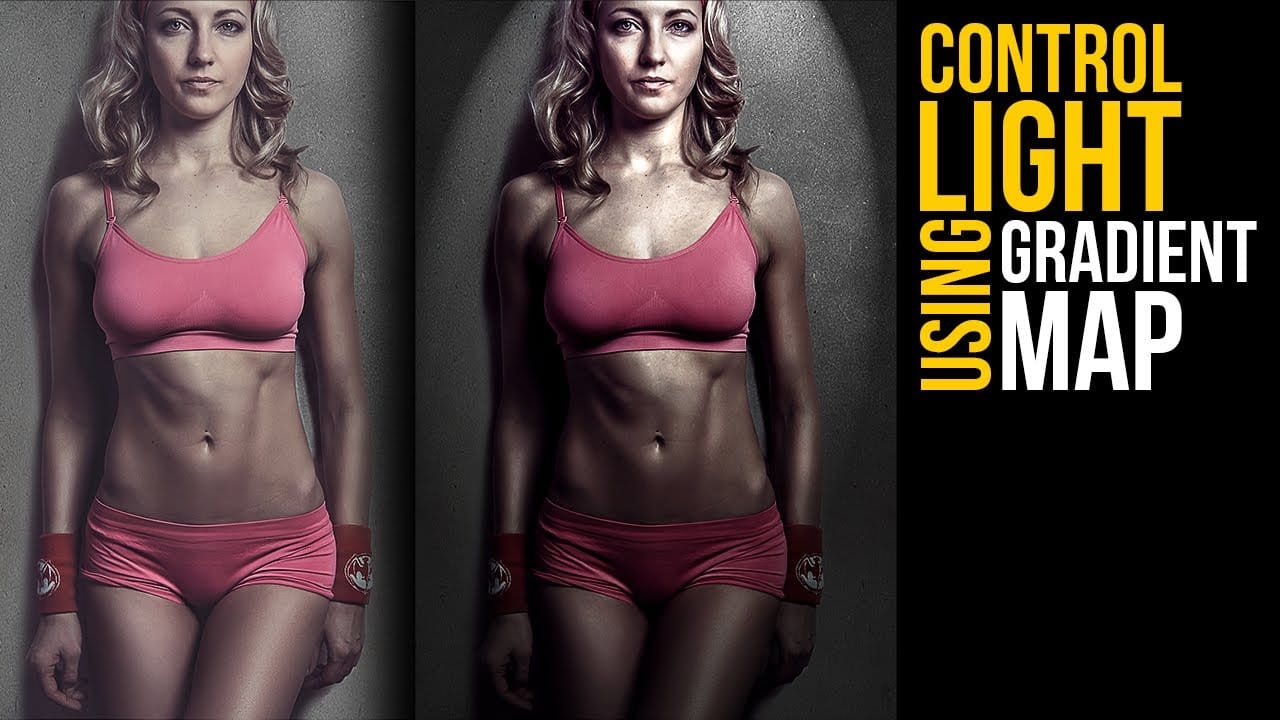
Create lighting effects using Gradient Maps in Photoshop
In this Photoshop tutorial by Unmesh Dinda from Piximperfect you will learn an interesting technique to completely mold and control light in Photoshop using Gradient Maps along with amazing light effects to add drama, depth, and dimension. In this video, learn how to manipulate multiple levels of light. Whether you want to remove shiny flash hotspots or add more shine, make harsh light soft or soft light harsh, with Gradient Maps, you can control almost everything. Gradient Map allows you to co
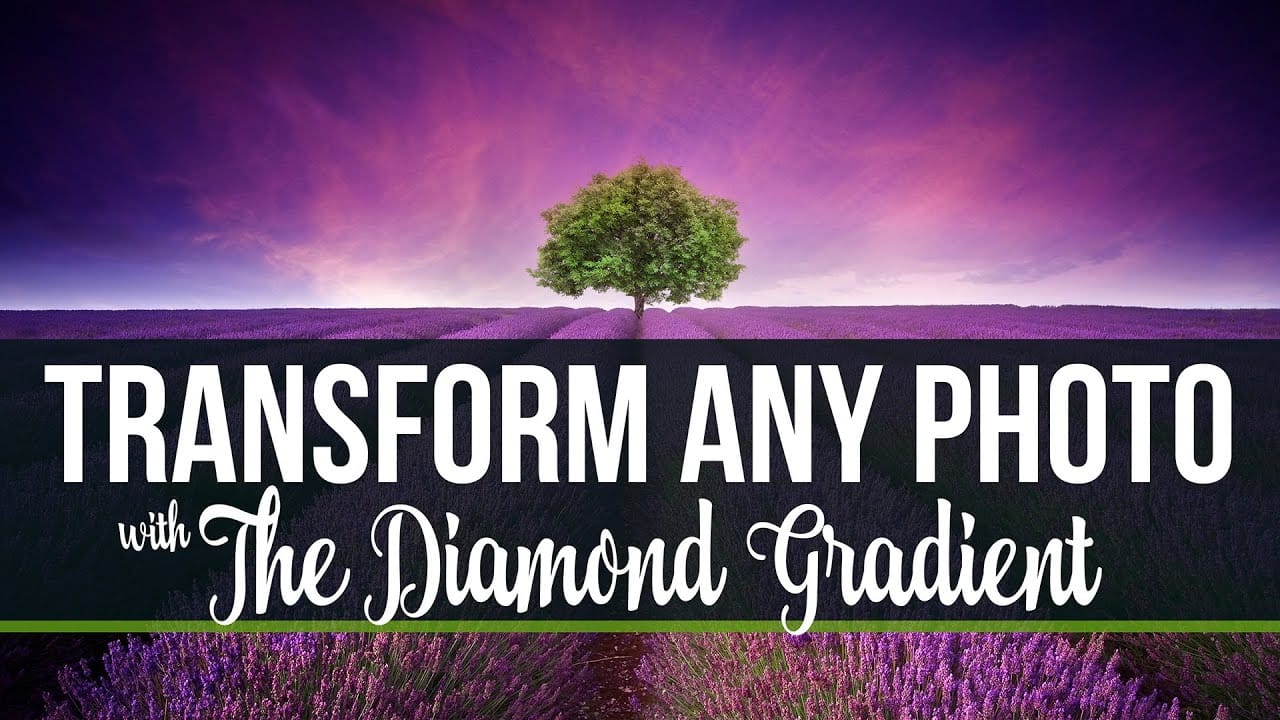
Completely transform any photo with the diamond gradient in Photoshop
In this Photoshop tutorial from F64 Academy, you can discover an interesting technique to enhance your photos using the diamond gradient tool. This method, often overlooked, offers a fresh approach to adding depth and vibrancy to your images. The author stumbled upon this tool by chance while recording the Photoshop Foundations course focused on gradients. This unexpected discovery turned out to be a pleasant surprise, not just for him, but for his audience as well. Throughout the tutorial, yo
Add creative lights and colors to your image in Photoshop
You're about to learn how to transform your images with creative lights and colors in Photoshop. This tutorial will guide you through the process of adding vibrant hues and eye-catching effects to your photographs. First, you'll explore the use of gradients and brushes to enhance your image. These tools will allow you to layer different colors and luminous accents, creating a visually striking result. With a few simple steps, you'll be able to turn your ordinary image into an impressive work of

Get tutorials & freebies delivered to you.

Subscribe to the Photoshop Roadmap newsletter, a weekly roundup of new tutorials, insights and quality downloads, trusted by 6500+ readers.

You might also like

How to Use Color Average for Color Toning in Photoshop

Color average creates a unified color tone by analyzing all the colors in your image and calculating their mathematical average. This technique adds depth and cohesion to photos, composites, and AI-generated images by applying a subtle color wash that ties all elements together. The method works particularly well for composites...

How to Remove Complex Background Elements Using AI in Photoshop

Removing complex background elements like fencing or wire mesh has traditionally been one of the most time-consuming tasks in photo editing. New AI-powered tools in Photoshop can now eliminate these distracting elements while preserving fine details in your subject. This tutorial demonstrates two practical workflows: one using the latest Firefly...

How to Use Photoshop's Auto Layer Rename Feature

Messy layer names like "Layer 52 copy 4" and "Untitled 5" clutter your workspace and slow down complex projects. Photoshop's new auto-rename feature uses AI to automatically identify and name layers based on their content, from "Woman in yellow shirt" to "...

New Generative Fill Features in Photoshop Beta: Reference Images and Credit Tracking

Photoshop Beta introduces significant improvements to Generative Fill that address the most requested features from users. The updated interface now displays your generative credit balance and usage, while the new reference image capability lets you add up to eight specific images to guide AI generation with precise visual examples. These...

Essential Photoshop Tools for Beginners: Brush, Crop, and Move Tool Tutorial

Learning Photoshop tools feels overwhelming when you don't know where to start. This tutorial focuses on three essential tools that form the foundation of most Photoshop work: the brush tool for painting and retouching, the crop tool for resizing and straightening images, and the move tool for positioning...

How to Add Custom Textures to Photos in Photoshop

Adding textures to photographs can transform ordinary images into compelling artistic compositions. This technique uses multiple texture layers combined with strategic blending modes and color adjustments to create depth and visual interest. The process involves layering different texture types—color overlays, surface patterns, and lighting effects—then using masking techniques...

You’ve successfully subscribed to Photoshop Roadmap
Welcome back! You’ve successfully signed in.
Great! You’ve successfully signed up.
Success! Your email is updated.
Your link has expired
Success! Check your email for magic link to sign-in.