Creating Complex Colorful Gradients Using Halftone Lines and Gradient Maps in Photoshop

Creating Complex Colorful Gradients Using Halftone Lines and Gradient Maps in Photoshop

Advanced gradient techniques can transform ordinary portraits into vibrant, stylized artwork that catches the eye immediately. When combined with halftone patterns and noise-based gradient maps, these effects create unexpected color combinations that would be nearly impossible to achieve through traditional methods.

This technique opens up entirely new creative possibilities by leveraging Photoshop's hidden gradient map features to generate randomized, complex color schemes over textured line patterns.

Watch the Tutorial

Video by P A N T E R. Any links or downloads mentioned by the creator are available only on YouTube

Understanding Noise Gradients and Halftone Integration

Traditional gradient maps work with smooth color transitions, but Photoshop's noise gradient option generates randomized color patterns that create entirely different visual effects. This feature has been overlooked by many designers despite its potential for creating unique color schemes that would require extensive manual work to achieve otherwise.

Halftone patterns historically come from print production, where continuous tones were converted into dots of varying sizes to simulate grayscale values. In digital design, these patterns add texture and visual interest while maintaining the underlying image structure. The combination works because:

  • Halftone lines preserve the original image contrast
  • Noise gradients apply complex color mapping to those contrast values
  • The randomization feature generates countless variations instantly

The technique relies on proper contrast adjustment before applying the gradient map, ensuring that the noise colors map correctly to the light and dark areas of the composition.

Practical Tips for Halftone Gradient Effects

  • Use Ctrl+Alt+T then Ctrl+Shift+Alt+T to quickly duplicate halftone lines with consistent spacing
  • Set halftone line opacity to around 30% and blend mode to Hard Light for optimal texture without overwhelming the image
  • Apply Black and White adjustment before gradient mapping to ensure proper contrast distribution
  • Use Selective Color adjustments on whites, neutrals, and blacks to fine-tune contrast before adding the gradient map
  • Click the Randomize button multiple times and use the Inverse option to find the best color combinations for your specific image

More Tutorials About Gradient Effects

Explore additional gradient techniques and creative applications in Photoshop.
Revolutionary Technique: Photoshop's Grain Shaded Gradient Maps
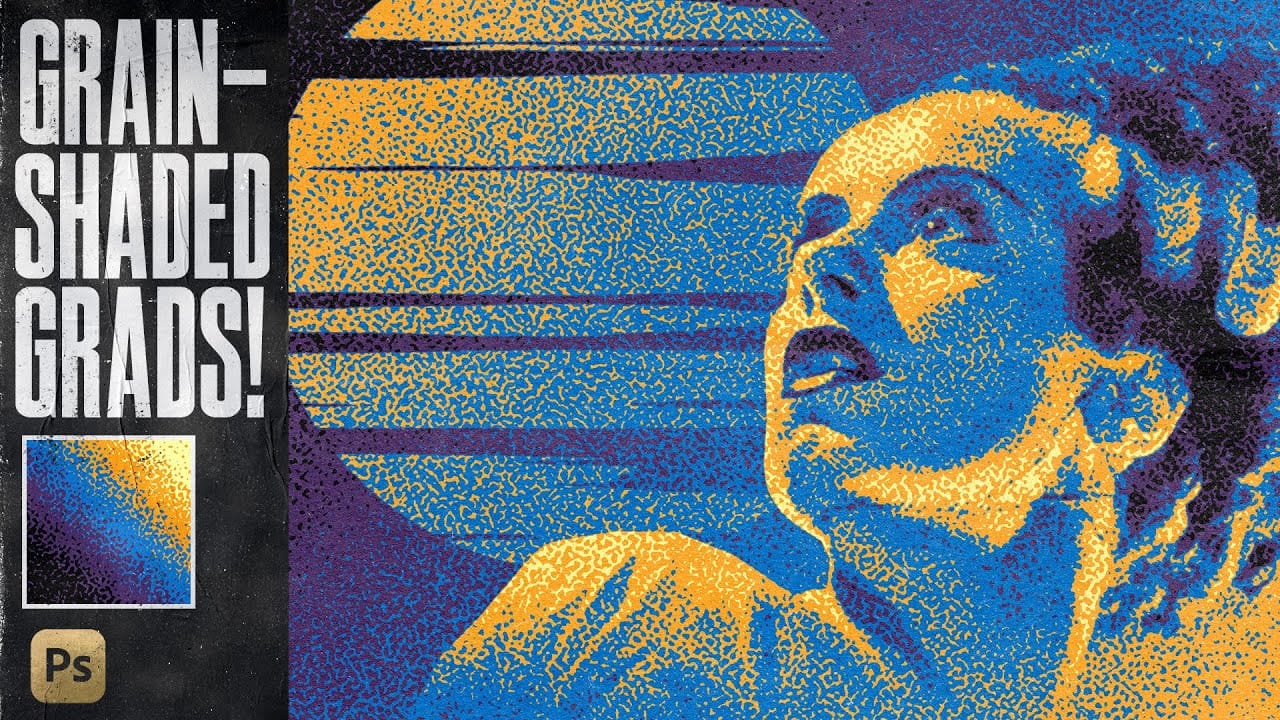
In this tutorial, TextureLabs presents a revolutionary technique to enhance your Photoshop projects using grain-shaded gradient maps. This method offers a fresh approach to creating noise effects that can add depth and interest to your artwork. By utilizing Adjustment Layers, along with specially designed noise patterns and custom gradient presets, you can achieve stunning results. The tutorial walks you through the essential steps to manipulate these elements effectively, allowing for greater
Epic gradient trick for beautiful light rays in Photoshop
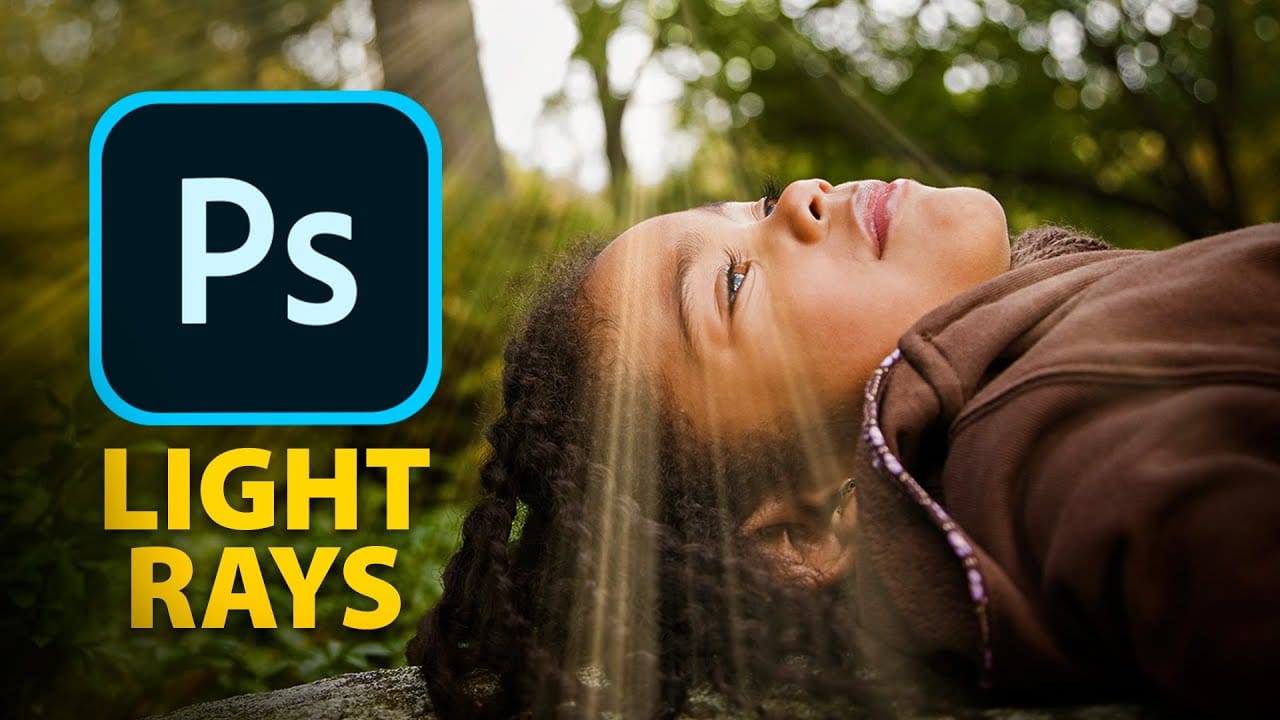
In this tutorial, Jesus Ramirez teaches you how to create stunning light rays in Photoshop using an ingenious gradient trick. By utilizing a Gradient Fill layer in an unconventional way, you can achieve a mesmerizing light ray effect that adds a dramatic touch to your photos. This method is straightforward and effective, making it accessible even for beginners. Part of the Photoshop in-app tutorials, this guide allows you to open the tutorial image directly from Photoshop and follow along with
Create lighting effects using Gradient Maps in Photoshop
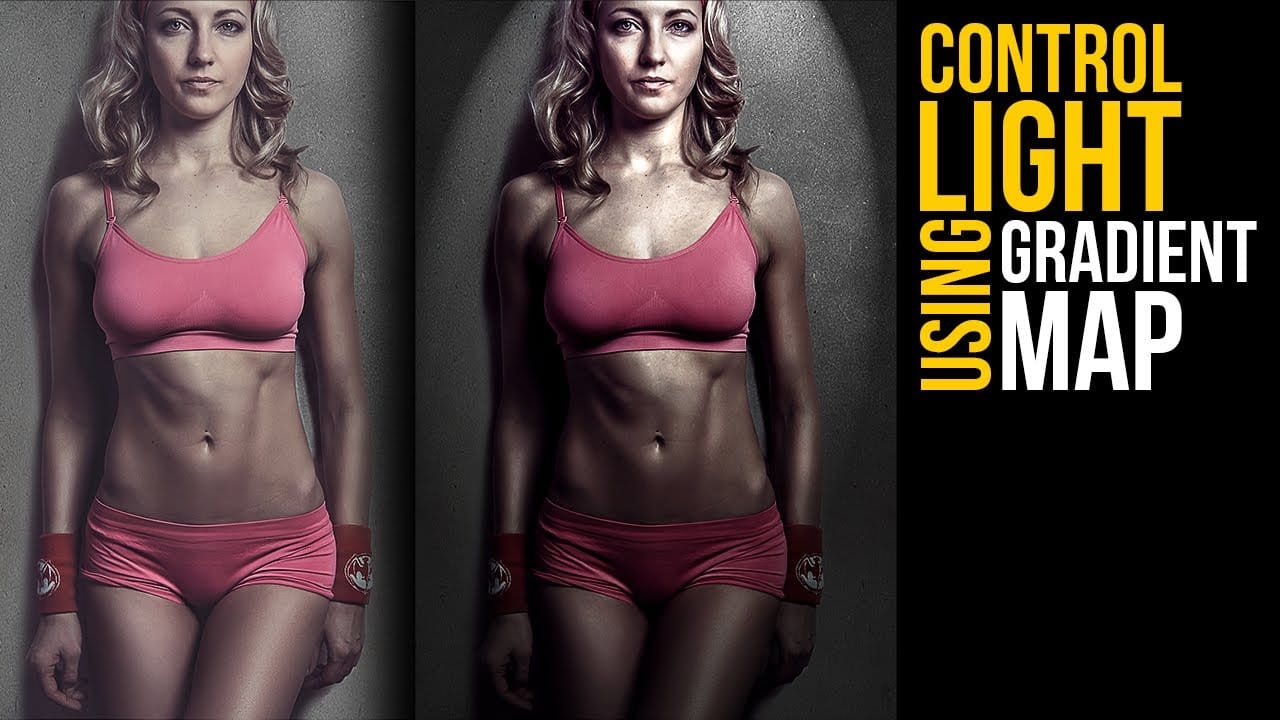
In this Photoshop tutorial by Unmesh Dinda from Piximperfect you will learn an interesting technique to completely mold and control light in Photoshop using Gradient Maps along with amazing light effects to add drama, depth, and dimension. In this video, learn how to manipulate multiple levels of light. Whether you want to remove shiny flash hotspots or add more shine, make harsh light soft or soft light harsh, with Gradient Maps, you can control almost everything. Gradient Map allows you to co
Ultimate Halftone Effect in Photoshop
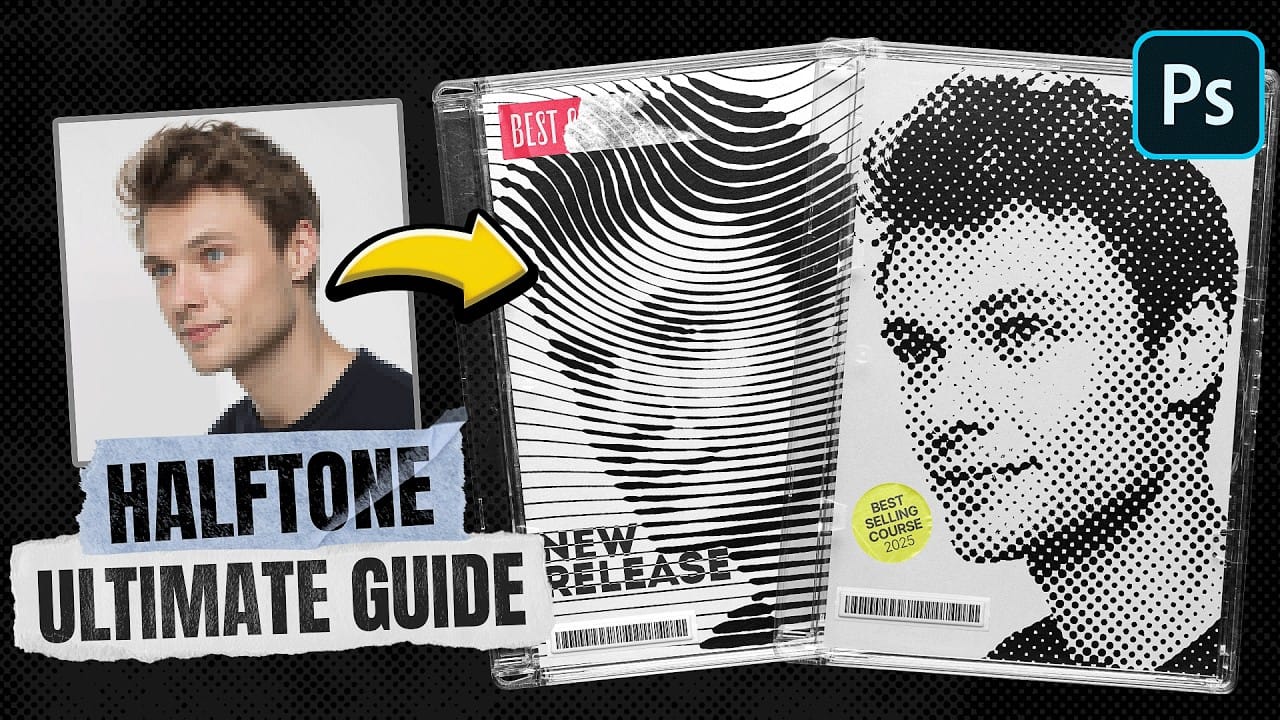
Halftone effects can transform ordinary photos into striking graphic designs, but many designers struggle with creating patterns that blend naturally with their images. The traditional approach often results in rigid, uniform dots that don't adapt to the underlying image tones and details. This tutorial demonstrates how to create flexible halftone effects using multiple pattern types and blending techniques. You'll learn to build reusable workflows that can be applied to any image instantly, pl

Get tutorials & freebies delivered to you.

Subscribe to the Photoshop Roadmap newsletter, a weekly roundup of new tutorials, insights and quality downloads, trusted by 6500+ readers.

You might also like

Create a Liquid Gel Logo Effect in Photoshop

Liquid gel effects transform flat logos into dimensional, glossy designs that appear to bubble and flow. This technique uses multiple layer styles and strategic duplication to build depth, creating surfaces that catch light like thick, viscous liquid. The method combines gradient overlays, bevel effects, and inner glows across several duplicated...

How to Use Photoshop's AI Sharpen Filter and When It's Worth the Cost

Photoshop's new AI Sharpen filter promises one-click sharpening powered by advanced algorithms. This tool uses technology from Topaz Labs to enhance image details without manual adjustments, but it comes with a significant cost in credits. Understanding when to use this automated approach versus traditional methods like the High...

How to Use Harmonize and Generative Upscale Tools in Photoshop

Creating realistic photo composites requires matching lighting and color between different images—a traditionally time-consuming process. Two new AI-powered tools in Photoshop solve these challenges: Harmonize automatically adjusts lighting and shadows to blend subjects seamlessly into backgrounds, while Generative Upscale enlarges small images without losing detail. These tools work together...

How to Create Convincing Scale Effects in Photoshop Composites

Creating believable scale effects requires more than simply resizing objects—it demands understanding how light, perspective, and atmospheric conditions change with distance. When tiny subjects appear massive or giant objects seem miniature, viewers should feel the illusion is completely natural. This technique combines careful attention to lighting consistency, depth cues,...

How to Flip Images Horizontally and Vertically in Photoshop

Flipping images is a fundamental technique that can dramatically change the composition and impact of your photos. Whether you need to correct the orientation of a subject, create mirror effects, or simply improve the visual flow of your design, knowing how to quickly flip images both horizontally and vertically gives...

How to Use Nano Banana Pro in Photoshop for Background Replacement and Scene Changes

Nano Banana Pro transforms how you place subjects into new environments in Photoshop. This advanced AI model maintains perfect subject likeness while seamlessly integrating them into any background you can imagine. The tool excels at matching lighting, preserving facial features, and even adapting clothing to complement new scenes, all through...

You’ve successfully subscribed to Photoshop Roadmap
Welcome back! You’ve successfully signed in.
Great! You’ve successfully signed up.
Success! Your email is updated.
Your link has expired
Success! Check your email for magic link to sign-in.