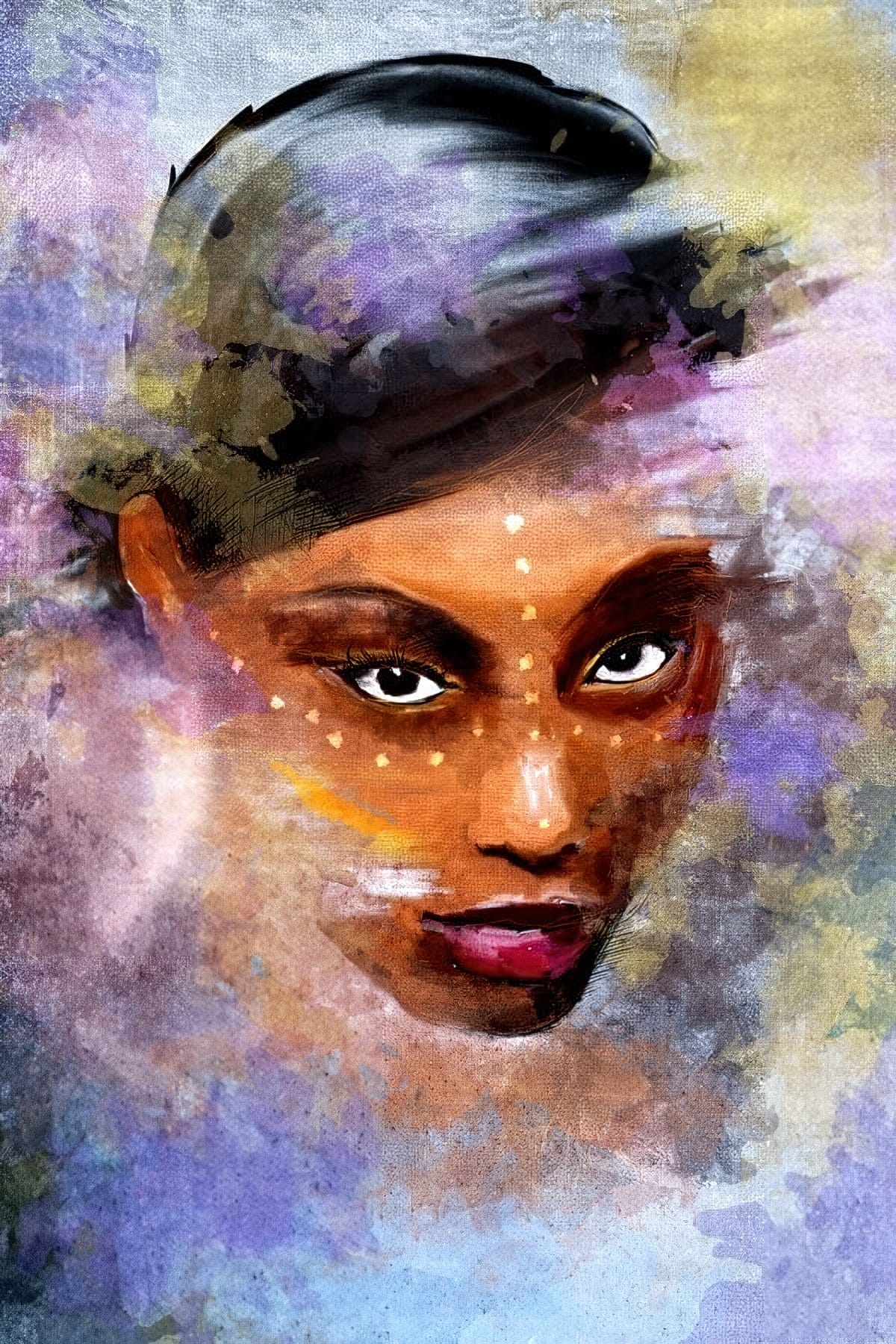
Adding painted jewelry to portraits transforms ordinary photos into fantasy portraits with ornate accessories that never existed. This digital painting technique uses careful layering, proper lighting, and realistic shadows to create convincing rings, earrings, and decorative headpieces.
The method combines basic brush work with advanced blending techniques to build up metallic surfaces and gemstones that integrate seamlessly with the original photograph.
Watch the Video
Video by Nikki Harrison. Any links or downloads mentioned by the creator are available only on YouTube
Practical Tips
Master these essential techniques for painting realistic jewelry on portraits:
- Start with darker base colors and gradually work up to bright highlights for convincing metallic surfaces
- Use clipped layers above your jewelry shapes to keep highlights and shadows contained within the boundaries
- Always add drop shadows on the side opposite your light source to ground the jewelry realistically
- Build jewelry on separate layers and organize them in groups for easy adjustments and color corrections
- Apply pure white highlights sparingly as final touches to create that essential metallic shine
Related Articles and Tutorials
Explore more creative portrait enhancement techniques and digital painting methods.
Add a Painterly Effect to a Portrait in Photoshop
Transforming a simple photograph into a breathtaking pencil sketch is a skill that sits at the intersection of art and technology. For designers seeking to push the boundaries of their creativity, mastering this technique can open up new avenues for artistic expression. Adobe Photoshop, with its vast array of tools and features, provides the perfect platform to achieve this intricate effect. In today's post, we delve into the sophisticated process of turning a photo into a pencil sketch, offerin
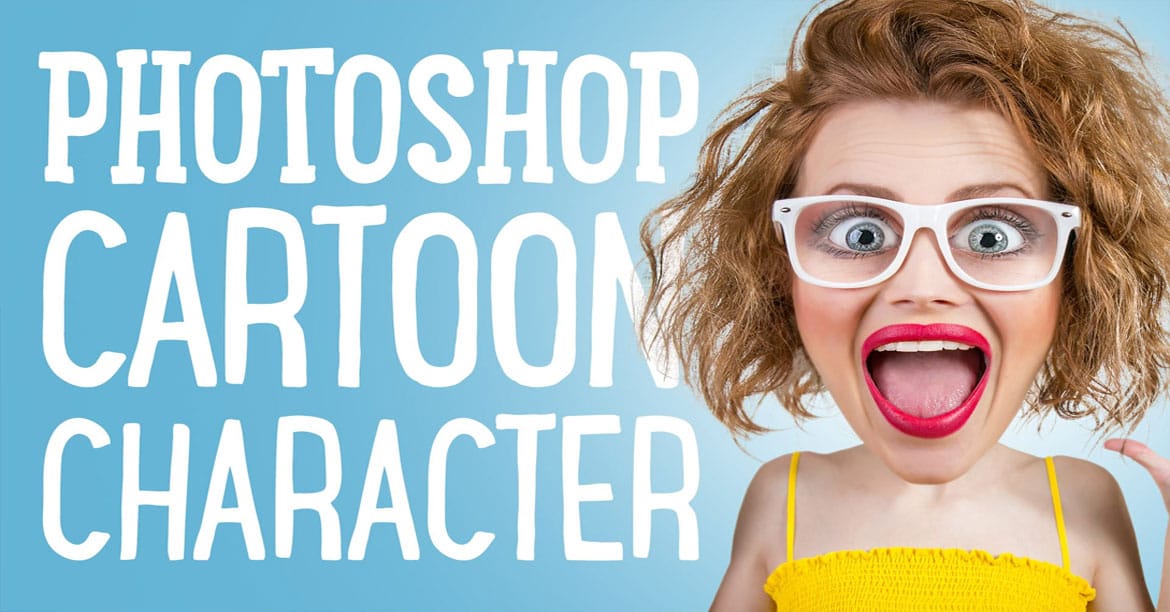
Create hilarious caricatures from your friends' photos
Transform ordinary portraits into playful cartoon characters with exaggerated features and toy-like qualities. This technique combines precise selection methods with creative distortion tools to create caricature-style effects that maintain realistic detail and strong subject resemblance.
The process works best with high-resolution photos featuring good lighting and subjects with shorter hairstyles for easier background removal.
Watch the Video
Essential Tips for Cartoon Portrait Effects
T
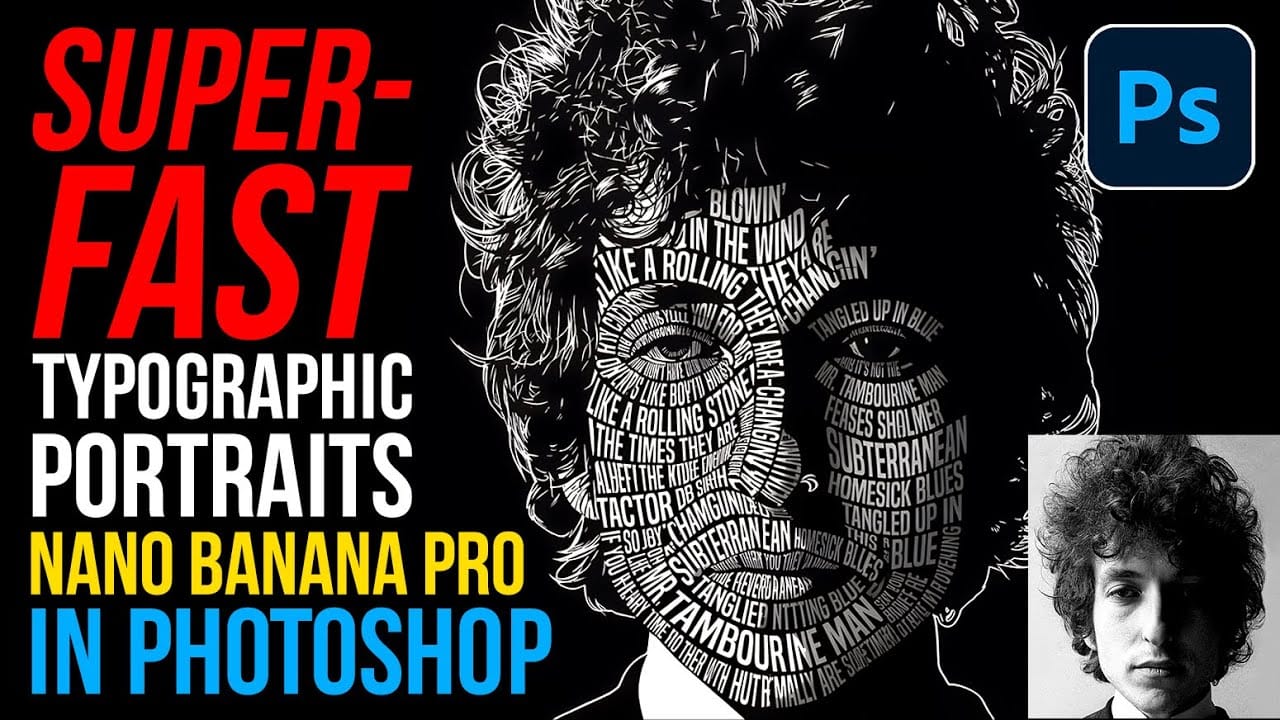
How to Create Typographic Portraits Using AI in Photoshop with Gemini 3
Typographic portraits transform ordinary photos into striking vector-style graphics where flowing text wraps naturally around facial contours and features. This AI-powered technique uses two strategic prompts to first create a high-contrast version of your portrait, then fills it with customizable text that follows the curves and shadows of the face.
The process works with any portrait photo, whether color or black and white, and takes just minutes to complete using the advanced capabilities of
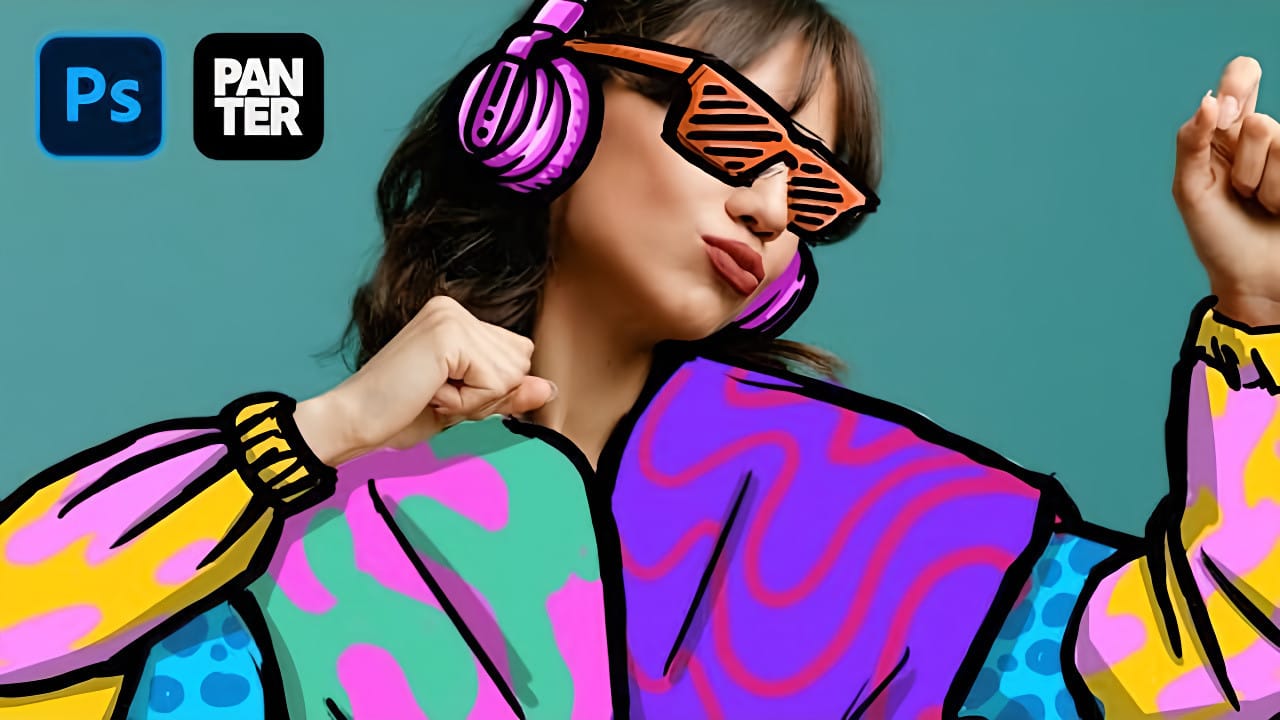
How to Create Colorful Cartoon Doodles on Model Photos in Photoshop
Cartoon-style illustrations layered over photography create a unique visual fusion that bridges reality and artistic expression. This playful approach transforms ordinary portraits into vibrant, graphic compositions that feel both contemporary and whimsical.
The technique combines traditional drawing skills with digital painting tools to create outlined shapes, bold colors, and stylized details that complement the photographic base. The result is an eye-catching style that works perfectly for c
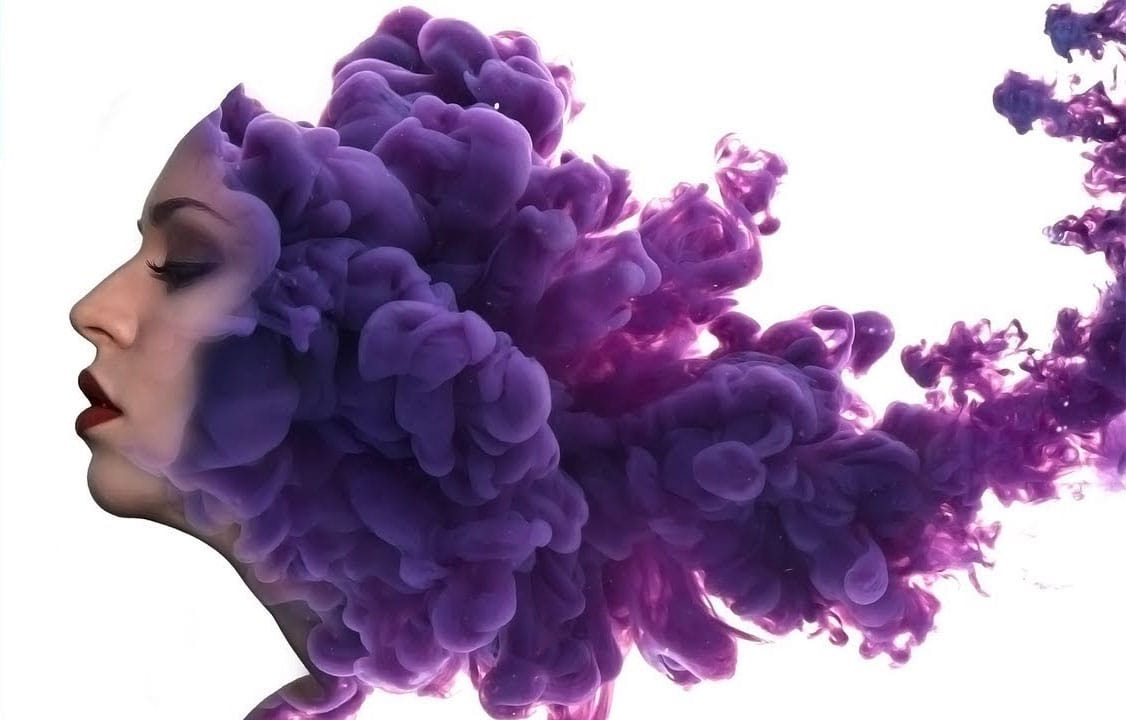
Create a surreal ink in water portrait effect in Photoshop
Ink and smoke effects transform ordinary portraits into striking artistic compositions. This technique blends human features with flowing ink textures to create dramatic, ethereal imagery.
The tutorial demonstrates how to seamlessly merge portrait elements with ink stock images using masking, blending modes, and highlight techniques for a professional result.
Watch the Tutorial
Key Techniques for Ink Portrait Effects
Master these essential steps to achieve smooth blending between portrait
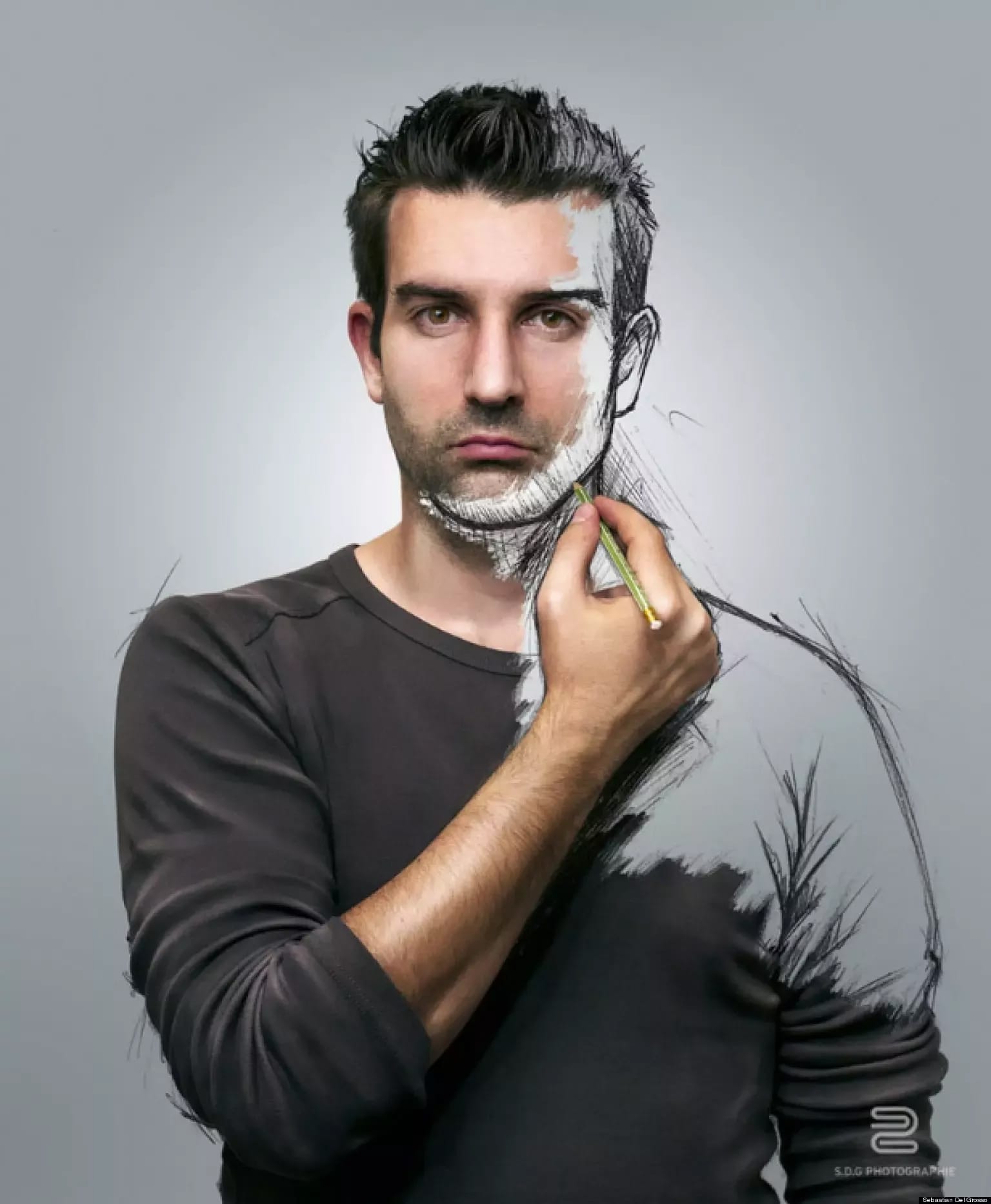
How to create incredible self portrait sketches
This tutorial by Sébastien Del Grosso on 500px Blog guides you through creating self-portrait sketches that blend photography with drawing for a unique artistic effect.
Using a Canon 7D and natural light, Sébastien captures his self-portraits, then prints them with a 90% white opacity layer. He sketches over these prints using a simple pencil, aiming for fast, nervous strokes to emulate construction. Post-processing in Photoshop involves meticulous layer work, selective corrections, and dodge &
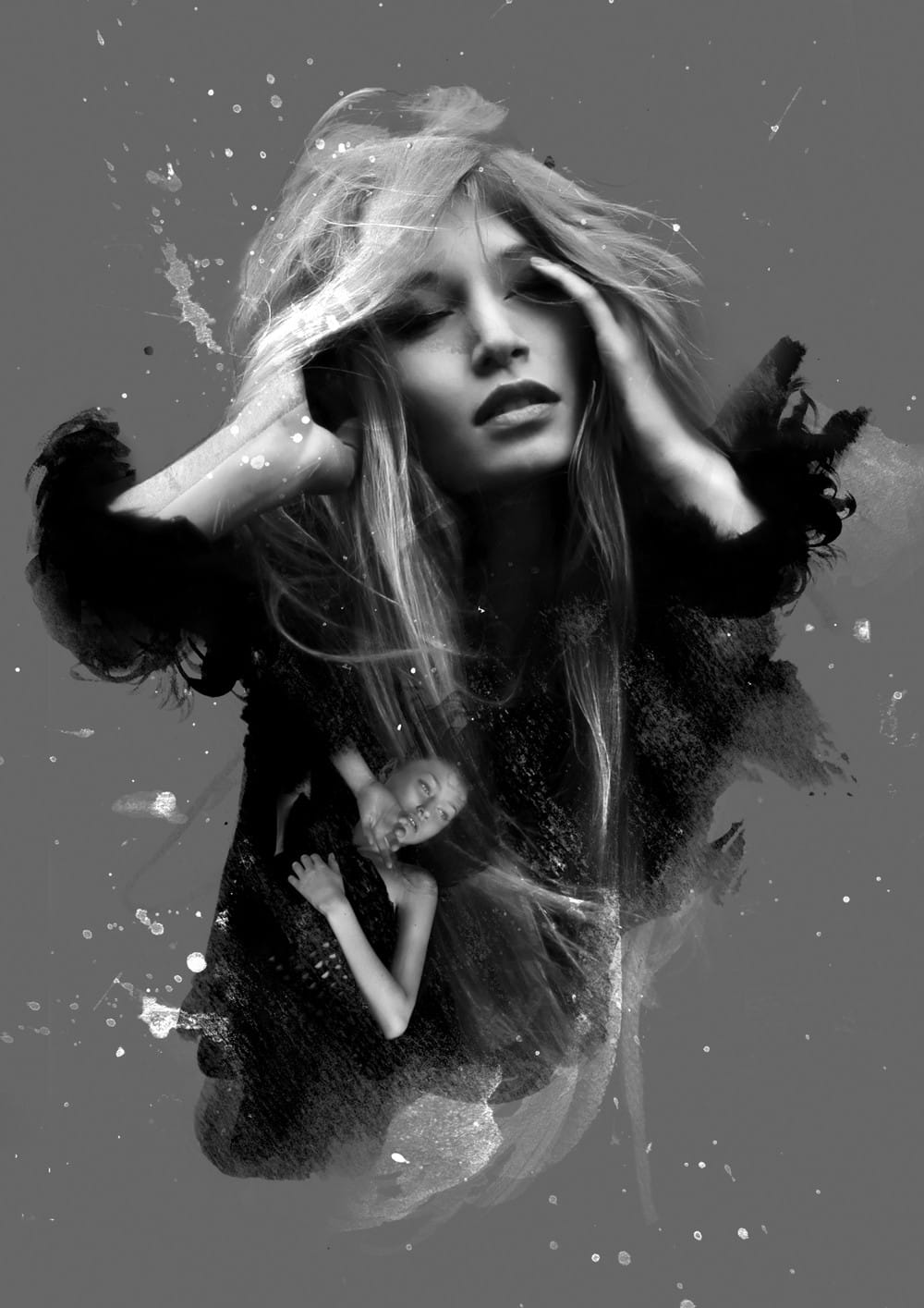
Enhance Portraits With Textured Brushes in Photoshop
Using both traditional and digital art methods can significantly enhance your creative process. This approach allows artists to produce stunning pieces with the realism and texture of traditional mediums, all while meeting tight deadlines. In this tutorial, illustrator and product designer David Mahoney shares his insights on creating a 'tradigital' artwork.
The piece, titled Mad About You, features photography by Bella Tokaeva, showcasing the collaboration of these two artistic forms. David wi
Transform a face into a creative mixed media portrait
This tutorial demonstrates a powerful Photoshop technique for transforming standard photographs into dynamic mixed media portraits. It explores how to achieve a unique artistic aesthetic that blends traditional art elements with digital imagery.
Viewers will learn a non-destructive workflow to apply textured effects and patterns to a portrait, with the added benefit of easily replacing the subject without redoing the entire process. This approach is ideal for artists and designers seeking effic
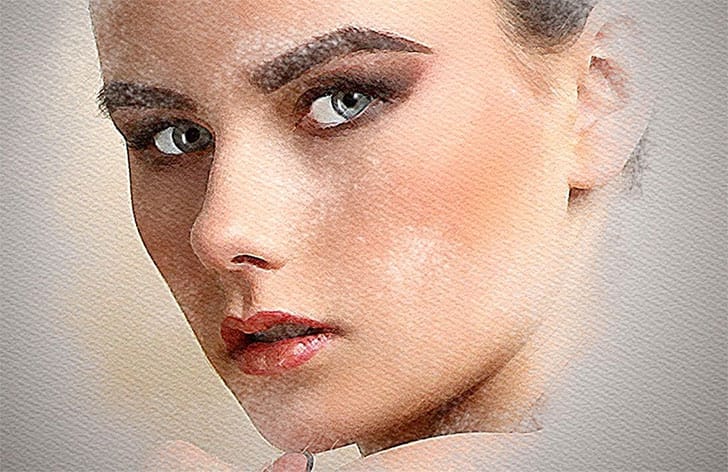
Create a Typographic Portrait in Photoshop
This tutorial explores a creative method for transforming a standard photographic portrait into a unique work of art composed entirely of text. It demonstrates how to combine typography with image manipulation to create a visually compelling and personalized artistic statement.
Viewers will learn how to prepare an image, generate and integrate custom text, and apply advanced Photoshop techniques like displacement mapping to achieve a stunning, text-based artwork that subtly conforms to the cont
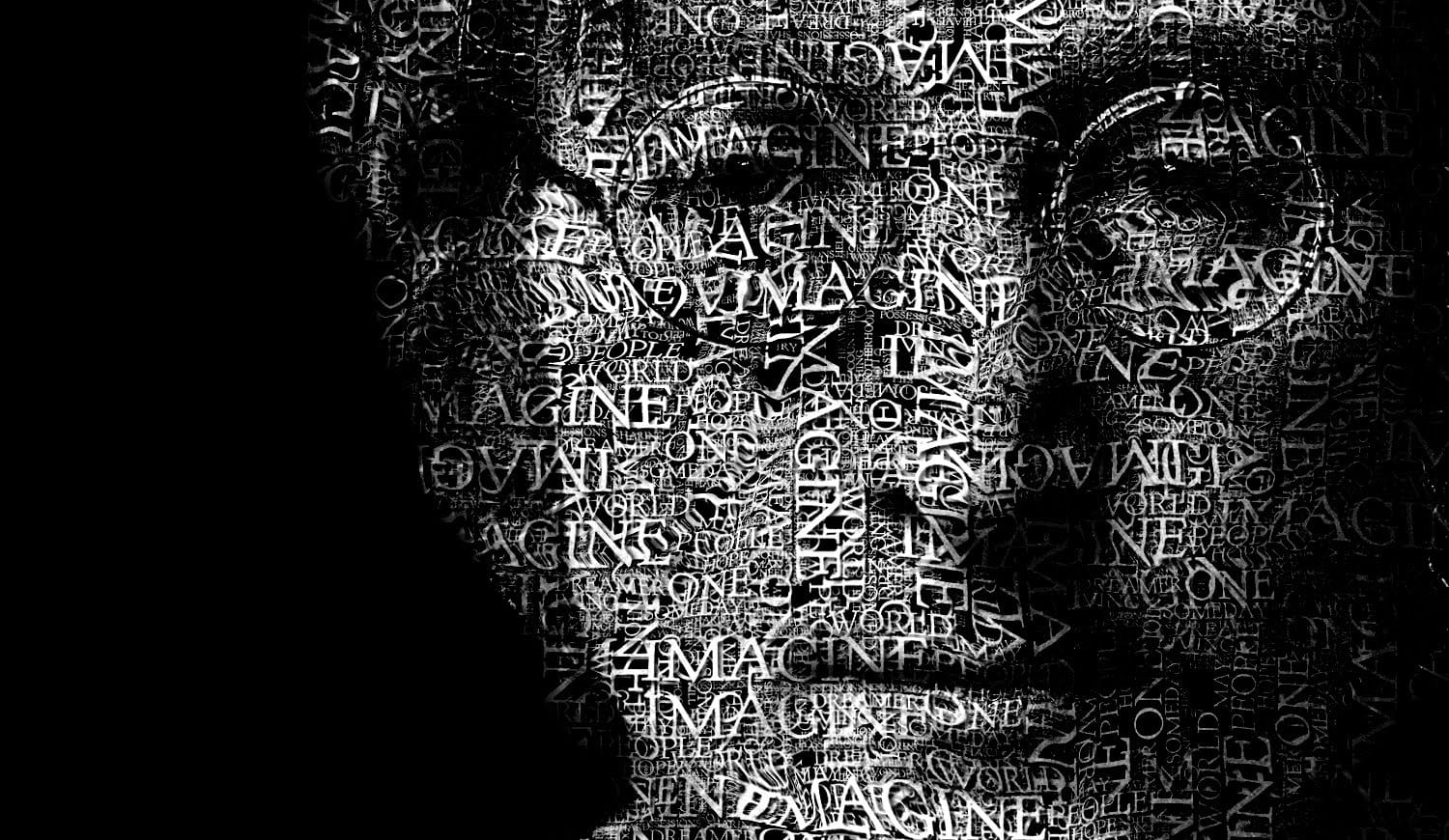
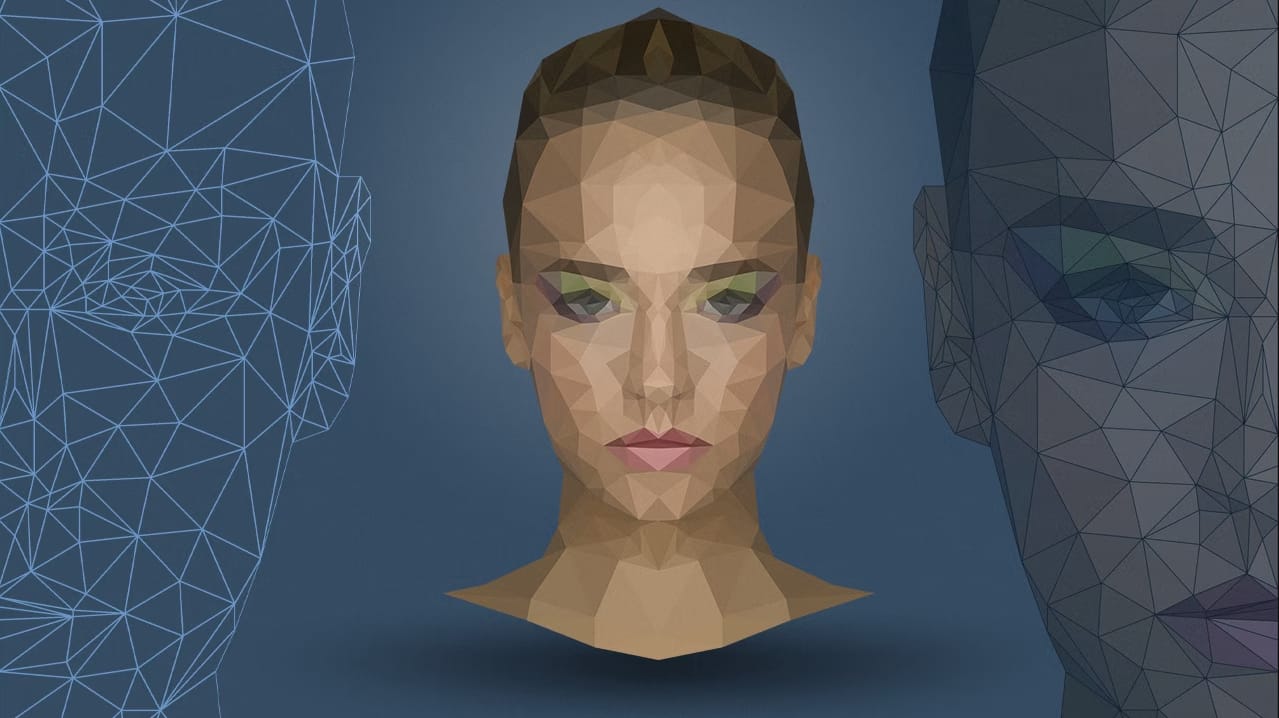
Low Poly Portrait Effect in Photoshop
Low poly art transforms ordinary portraits into striking geometric masterpieces using triangular shapes and averaged colors. This 3D-inspired technique creates visually compelling artwork with fewer polygons for a stylized, modern look.
The process involves creating triangular selections and filling them with the average color of that area, building up a complete geometric portrait one polygon at a time.
Watch the Tutorial
Essential Tips for Low Poly Portraits
Master these key techniques t