How to Create Colorful Cartoon Doodles on Model Photos in Photoshop

How to Create Colorful Cartoon Doodles on Model Photos in Photoshop

Cartoon-style illustrations layered over photography create a unique visual fusion that bridges reality and artistic expression. This playful approach transforms ordinary portraits into vibrant, graphic compositions that feel both contemporary and whimsical.

The technique combines traditional drawing skills with digital painting tools to create outlined shapes, bold colors, and stylized details that complement the photographic base. The result is an eye-catching style that works perfectly for creative projects, social media content, or artistic experimentation.

Watch the Tutorial

Video by P A N T E R. Any links or downloads mentioned by the creator are available only on YouTube

Digital Illustration Over Photography

The hybrid approach of combining hand-drawn elements with photography has roots in mixed media art and graphic design. Digital tools have made this technique more accessible, allowing artists to experiment with layer-based workflows that separate outlines, fills, and shading elements. This method provides flexibility to adjust colors, opacity, and effects without damaging the original artwork.

Professional illustrators often use this technique for editorial work, advertising, and social media content because it creates instant visual impact. The cartoon overlay approach works particularly well when the illustration style contrasts with the realistic photography underneath. Bold, saturated colors and simplified shapes help the drawn elements stand out while maintaining harmony with the photographic base.

Layer organization becomes crucial when working with multiple illustrated elements. Grouping related components like outlines and fills allows for easier color adjustments and keeps the workspace manageable as the composition grows more complex.

Practical Tips for Cartoon Doodle Overlays

  • Set up pen pressure sensitivity in brush settings under Shape Dynamics to create natural line variation
  • Rotate the canvas using R + drag to draw curved shapes more naturally with your hand movement
  • Use Color Overlay effects on outline layers to quickly change colors without repainting
  • Create separate layers for outlines, fills, and shading to maintain editing flexibility
  • Add shading on separate layers with reduced opacity instead of mixing darker colors directly

Explore more techniques for adding artistic elements to portrait photography.
Add Creative Color and Texture to Portraits in Photoshop
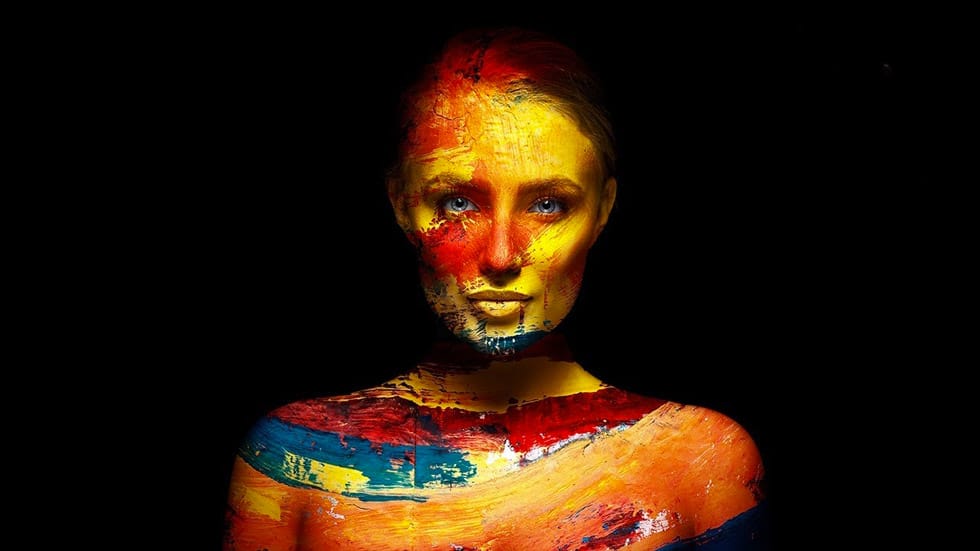
In this tutorial by PiXimperfect you will learn how to apply highly realistic paints and textures to portraits in Photoshop. Learn how to manually mold the texture according to the shape of the portrait and use advanced blend modes and blend-if to blend in the colors in the most natural fashion. In this tutorial, we will also learn how to dodge and burn to add more dimension and make your creative portrait really pop. Watch tutorial
How to Add Special Effects in Photoshop
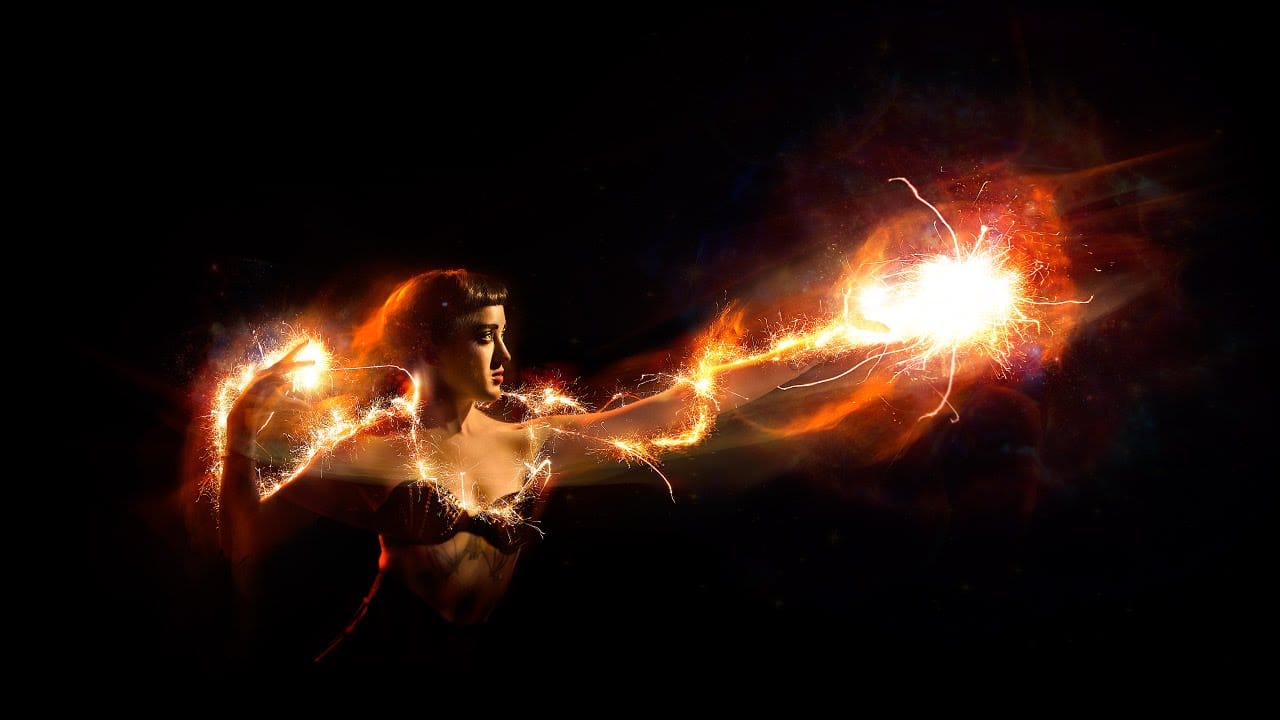
This video tutorial by PHLEARN demonstrates how to add special effects in Photoshop using photos from the same photoshoot. Aaron begins with a photo taken for a Fourth of July sale, featuring sparklers around the subject. The tutorial covers the use of blending modes and adjustment layers to create visually striking effects. Throughout the video, viewers are guided on how to group photos, change blending modes, use the move tool for positioning, and apply layer masks to hide unwanted areas. Add
Add creative lights and colors to your image in Photoshop
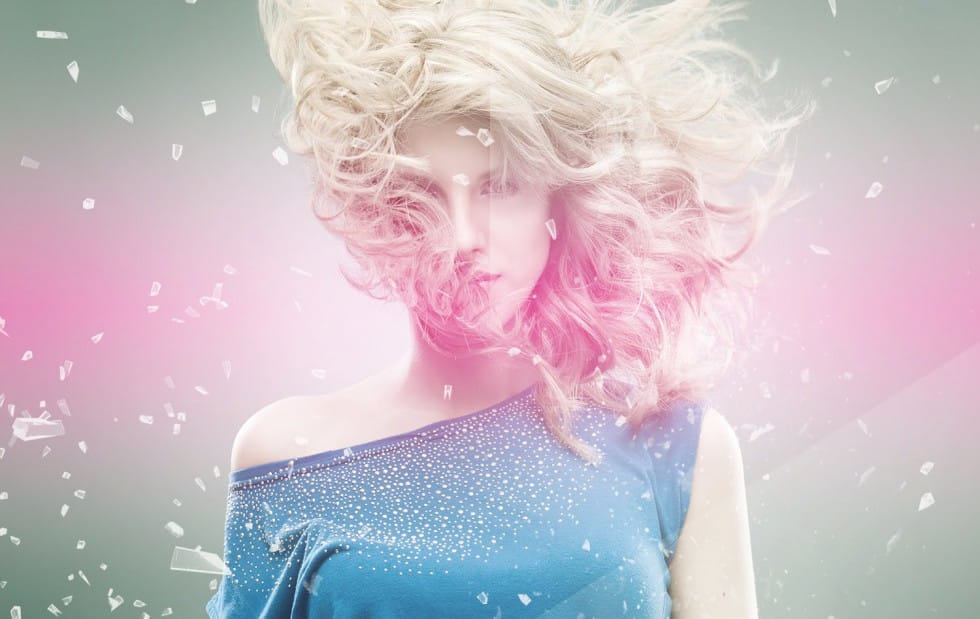
You're about to learn how to transform your images with creative lights and colors in Photoshop. This tutorial will guide you through the process of adding vibrant hues and eye-catching effects to your photographs. First, you'll explore the use of gradients and brushes to enhance your image. These tools will allow you to layer different colors and luminous accents, creating a visually striking result. With a few simple steps, you'll be able to turn your ordinary image into an impressive work of
How to Apply Graphics and Change Colors in Photoshop
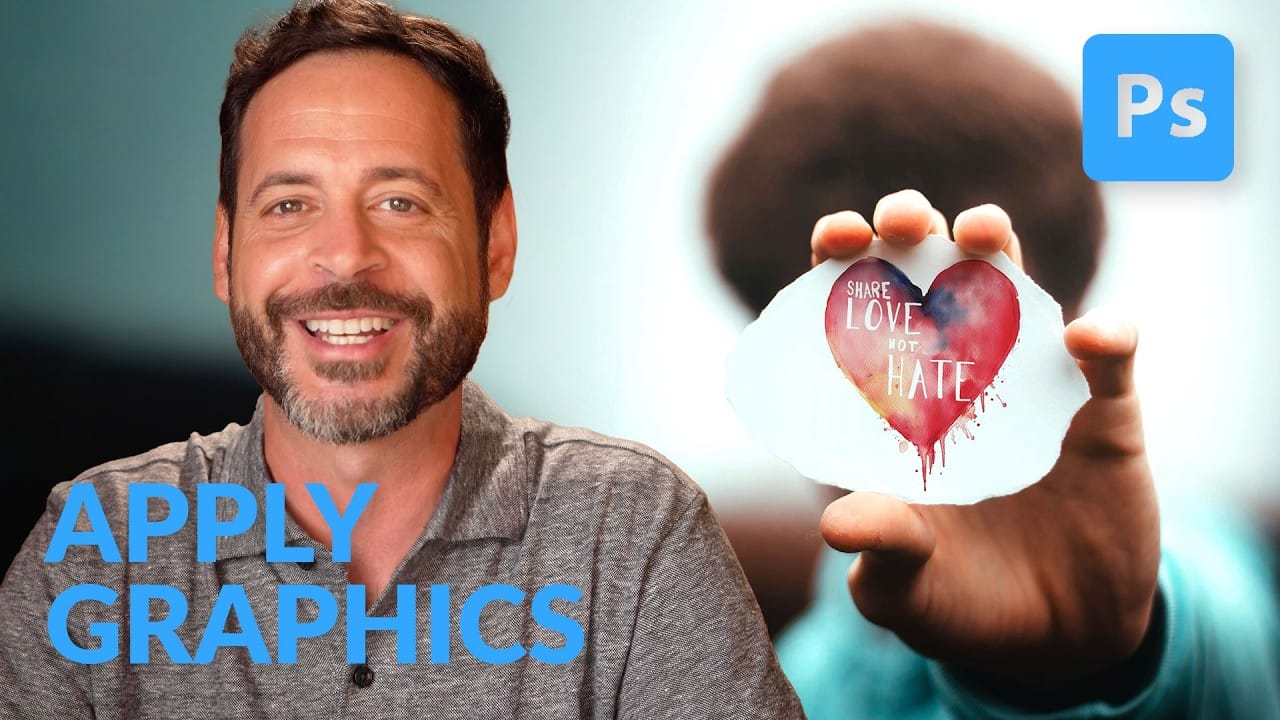
Integrating graphics and adjusting colors are fundamental skills in Photoshop, enabling designers and artists to transform disparate elements into cohesive visual narratives. From compositing a logo onto a product image to blending text into a scene, mastering these techniques is crucial for achieving professional results. This video demonstrates practical methods for seamlessly applying graphics from one image to another, extracting specific elements like text, and efficiently changing their c

Get tutorials & freebies delivered to you.

Subscribe to the Photoshop Roadmap newsletter, a weekly roundup of new tutorials, insights and quality downloads, trusted by 6500+ readers.

You might also like

7 Photoshop AI Tools You're Probably Not Using Yet

Photoshop’s AI features now go far beyond simple object removal. Some of the newer tools can completely change the way you edit photos, create composites, clean up distractions, or expand scenes — often with just a few clicks. The interesting part is that many of these features still feel surprisingly...

Transform Photos into Ink Drawings in Photoshop

Traditional ink drawings capture bold contrasts and artistic expression through pure black and white elements. This technique transforms ordinary photographs into striking ink artwork by combining specific filters with smart object workflows for complete creative control. The method uses oil paint effects, shadow adjustments, and threshold conversion to create authentic...

How to Build Monochromatic Color Palettes with Layers in Photoshop

Creating harmonious color schemes requires understanding how to layer colors strategically rather than relying on single adjustments. A monochromatic palette uses tints, tones, and shades from the same color family to create depth and visual unity. This technique demonstrates how to build rich, textured backgrounds by combining solid color fills,...

How to Use the New 3D Object Rotation Feature in Photoshop

Photoshop's new Rotate Object feature transforms flat 2D images into interactive 3D models that can be repositioned from any angle. This AI-powered tool automatically creates cutouts, maintains original textures, and generates missing details when objects are rotated beyond their original perspective. The feature opens new possibilities for product...

How to Use Depth Range Masking in Camera Raw

Adobe Camera Raw's depth range masking feature allows you to select and adjust specific depth layers in any photograph without needing special camera equipment. Unlike traditional subject and background masks that focus on shapes, depth range masking works with the spatial distance between elements in your image. This...

How to Remove Objects Using Photoshop's Updated Remove Tool Without Credits

Photoshop's updated Remove tool offers powerful AI-powered object removal without consuming any generative credits, regardless of your subscription plan. The tool features automated distraction detection that categorizes different types of visual clutter—from trash and people to urban elements and blemishes—making it easy to selectively remove unwanted...

You’ve successfully subscribed to Photoshop Roadmap
Welcome back! You’ve successfully signed in.
Great! You’ve successfully signed up.
Success! Your email is updated.
Your link has expired
Success! Check your email for magic link to sign-in.