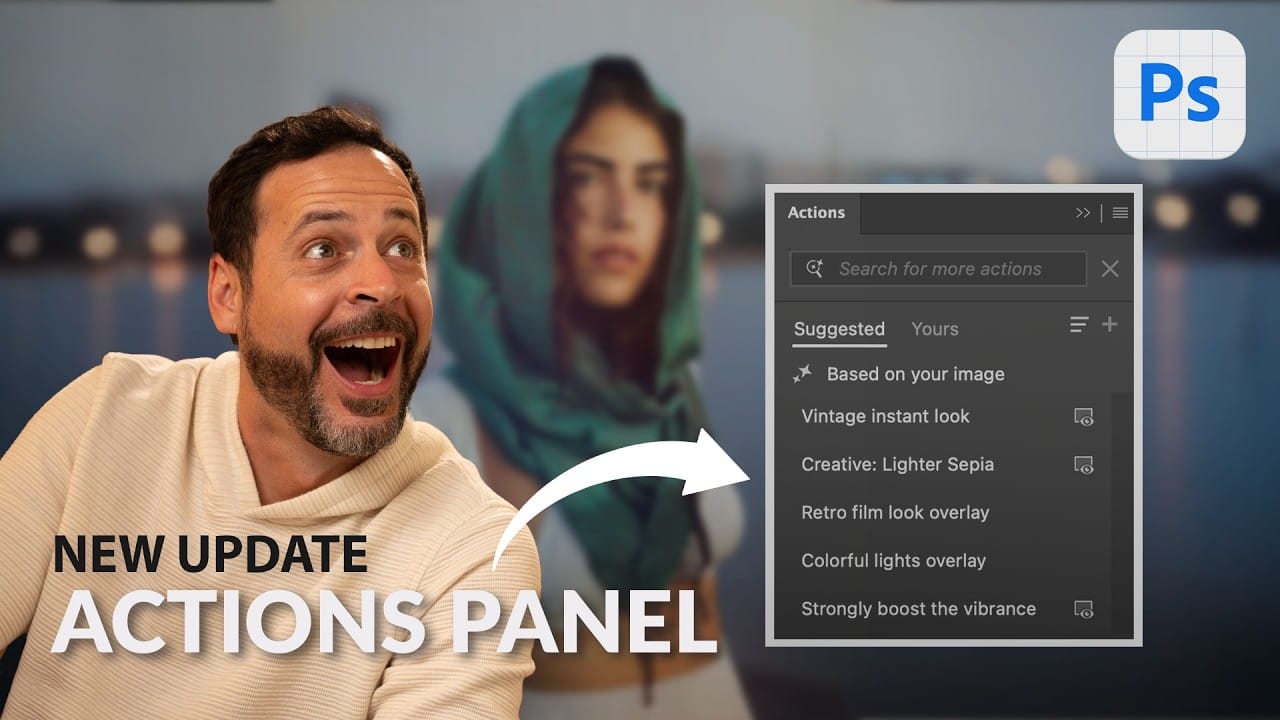
The redesigned Actions panel in Photoshop can catch users off guard when their custom actions seem to disappear. With the new tabbed interface, your previously created actions are still there—they're just located in a different tab than before.
Understanding the new layout will help you quickly access both your custom recorded actions and the built-in action sets that come with Photoshop.
Watch the Video
Video by 2-Minute Design. Any links or downloads mentioned by the creator are available only on YouTube
Practical Tips
These navigation techniques will help you work efficiently with the new Actions panel:
- Switch to the "Yours" tab at the top of the panel to find all your custom recorded actions and default action sets
- Use the search box within the "Yours" tab to quickly locate specific actions by name
- Access the panel menu and select "Classic Actions" to revert to the traditional single-panel view if preferred
- Bookmark frequently used actions by keeping them visible in your preferred tab for faster access
Related Articles and Tutorials
Explore more ways to work with actions and streamline your editing workflow:
Artistic Photoshop Actions to Make Photography Fun
Photoshop actions are a simple way to speed up editing and give your photos a consistent look without spending hours on adjustments. From subtle color shifts to bold artistic transforms, actions can help you work faster and keep your style consistent across different projects.
They're useful for anyone who wants reliable one-click effects for portraits, landscapes, and creative photography.
Why Creative Fabrica?
You'll notice that all the actions in this roundup come from Creative Fabrica. T

How to Create and Play Back Actions in Photoshop
Photoshop actions automate repetitive tasks by recording your steps and playing them back with a single click. Whether you're applying the same effect to multiple images or creating complex edits that you use regularly, actions save time and ensure consistency across your work.
This tutorial demonstrates how to build a split-color effect action from scratch, showing you how to record, test, and modify actions as you create them.
Watch the Video
Practical Tips
These techniques will help you
How to Use Photoshop's New AI-Powered Actions Panel
Photoshop's actions just became significantly smarter with AI integration. The new Actions panel understands natural language searches, automatically suggests relevant effects based on your image content, and provides live previews before you commit to changes.
This revolutionary update transforms how designers work with automated processes. Instead of browsing through countless preset names, you can simply type "make it pop" or "remove haze" and watch AI deliver exactly what you need.
Watch
Photoshop Beta: Discover the New Actions Panel
Achieving a specific creative look in Photoshop often requires knowing the right combination of tools and techniques, which can be a significant hurdle for both new and experienced users. While traditional actions can automate repetitive tasks, finding or creating the perfect one for a unique artistic goal isn't always straightforward.
This tutorial explores the completely redesigned Actions panel in Photoshop Beta, which uses AI to simplify complex edits. You will learn how to use natural lang
Did you know Photoshop has new Quick Actions?
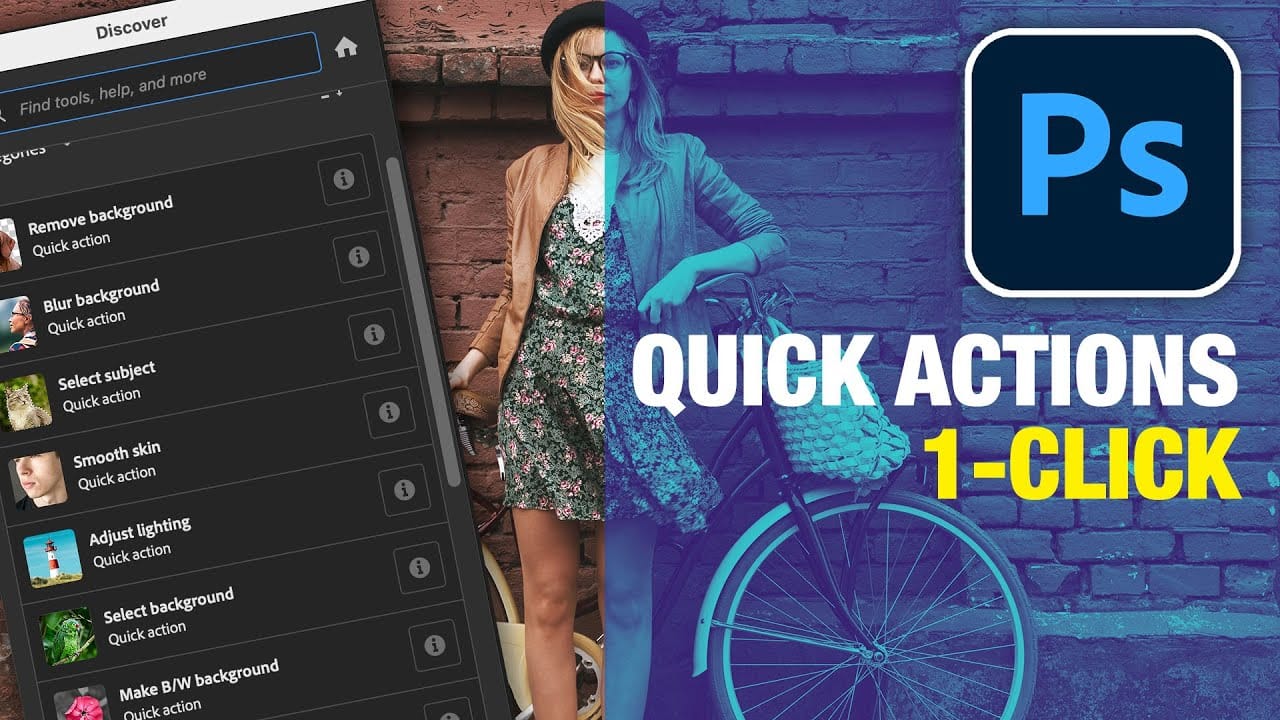
Discover how to speed up your workflow with Photoshop's new Quick Actions, presented by Colin Smith from Photoshop Cafe. This tutorial reveals the ease and efficiency of using Quick Actions to perform common tasks with just one click. Colin walks you through locating these Quick Actions and demonstrates how to use them to blur backgrounds, apply duotones, remove backgrounds, and more.
While some features, like the Blur Background action, might not always produce perfect results, Colin shares a
How to Fix Three Confusing Default Settings in Photoshop
Sometimes Photoshop's default settings can make beginners think their software or hardware is broken. Images that fly around uncontrollably when panning, scroll bars appearing on full-size images, and zoom tools that seem to have a mind of their own are all caused by simple preference settings that can be easily adjusted.
These three navigation behaviors often frustrate new users, but understanding what they do and how to control them will give you a much smoother editing experience.
Watch th
5 hyper-realistic Photoshop sketch actions that are hard to believe aren't actual drawings
It's not a lie to say that Photoshop default artistic effects filters are ugly. Yes, maybe you can find some obscure effects combination that can give you some decent results, but these tools are quite limited overall.
Fortunately some clever artist managed to hack Photoshop to it's maximum extent to create some amazing hyper-realistic effects. Since those effects require multiple and complex steps, they pack them in Photoshop Actions that are almost one-click effects, with just a little interv

How to Create a Sketch Effect in Adobe Photoshop
Actions in Photoshop let you record a series of steps and replay them with a single click. Building a sketch effect action creates a reusable workflow that transforms any photo into a hand-drawn illustration instantly.
This approach saves time and ensures consistent results across multiple images, making it perfect for creating portfolio pieces or processing batches of photos with the same artistic treatment.
Watch the Video
Practical Tips
Follow these key techniques to build an effective