How to Convert a Portrait Photo into a Black and White Logo Design

How to Convert a Portrait Photo into a Black and White Logo Design

Portrait photos can be transformed into bold, graphic logos with the right combination of filters and adjustments. This technique uses Gaussian blur and threshold adjustments to convert photographs into high-contrast black and white designs suitable for branding, badges, or stamps.

The process involves subject isolation, smart filtering, and precise path creation to achieve clean, vector-like results that maintain the portrait's recognizable features while simplifying the overall design.

Watch the Video

Video by Photoshop Arthouse. Any links or downloads mentioned by the creator are available only on YouTube

Practical Tips

These essential techniques will help you achieve professional results when creating portrait logos:

  • Set image resolution to 150 pixels per inch before applying filters to ensure consistent results with the recommended settings
  • Convert your subject and background layers to a Smart Object before applying Gaussian blur for non-destructive editing
  • Balance the 6-pixel Gaussian blur with a threshold value around 171 for optimal contrast and detail retention
  • Use channels panel selections and work paths to create smooth, vector-like edges that eliminate pixelated boundaries
  • Apply circle strokes with bottom align positioning to ensure the border sits outside the shape rather than overlapping the portrait

Explore more creative portrait manipulation and logo design techniques with these tutorials:
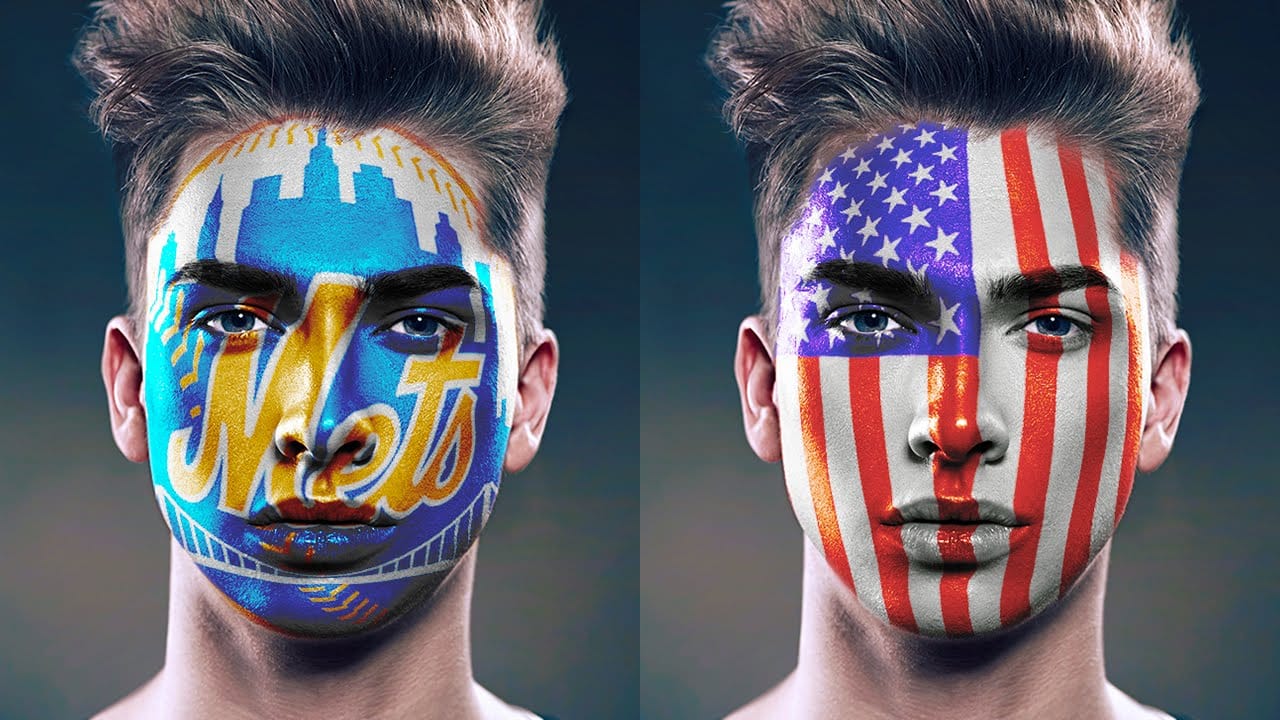
How to Paint Graphics onto a Face in Photoshop
Achieving realistic digital face paint in Photoshop can transform portraits, bringing creative visions to life for various purposes. This technique is particularly effective for applying elements like flags, sports team logos, or intricate designs directly onto a subject's face, making it appear as if the graphic is truly painted on. This video tutorial guides you through the process of seamlessly applying graphics to a face using Photoshop's powerful features. You will learn how to prepare you
Create a Liquid Gel Logo Effect in Photoshop
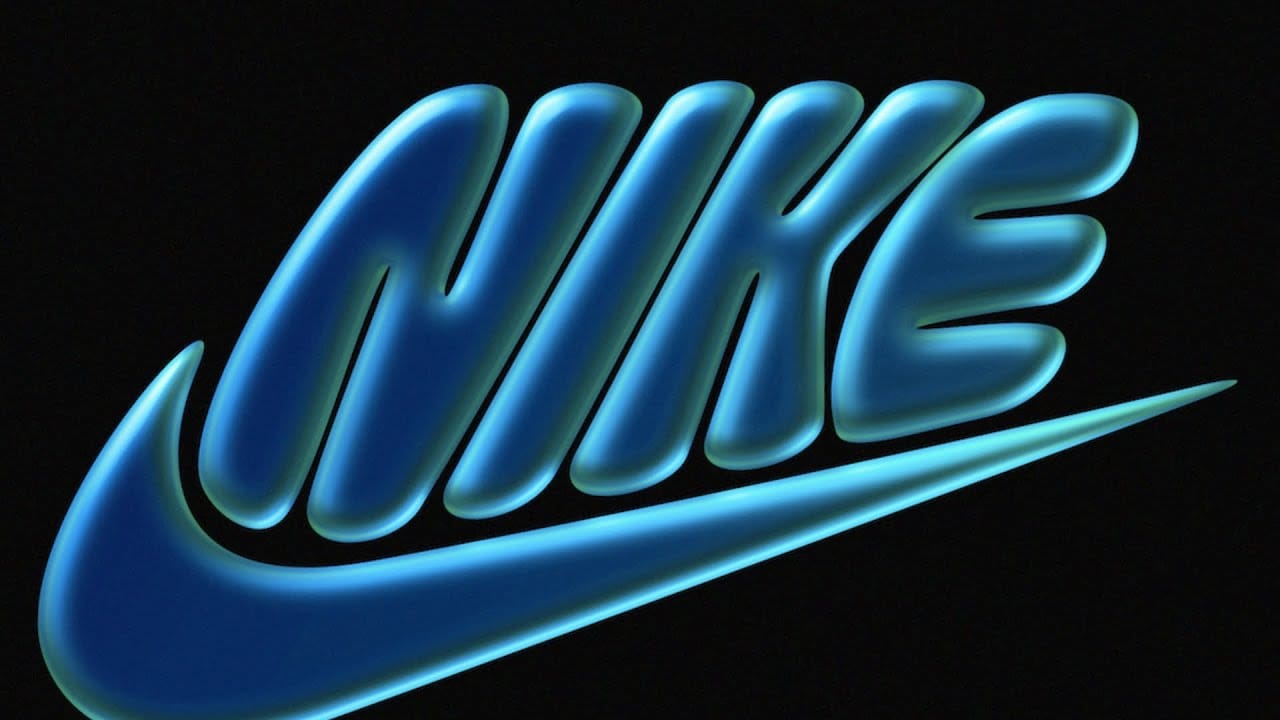
Liquid gel effects transform flat logos into dimensional, glossy designs that appear to bubble and flow. This technique uses multiple layer styles and strategic duplication to build depth, creating surfaces that catch light like thick, viscous liquid. The method combines gradient overlays, bevel effects, and inner glows across several duplicated layers to achieve the signature bubbly, three-dimensional appearance that makes logos stand out with professional polish. Watch the Video Practical
Create a surreal Escher style ribbon face effect in Photoshop
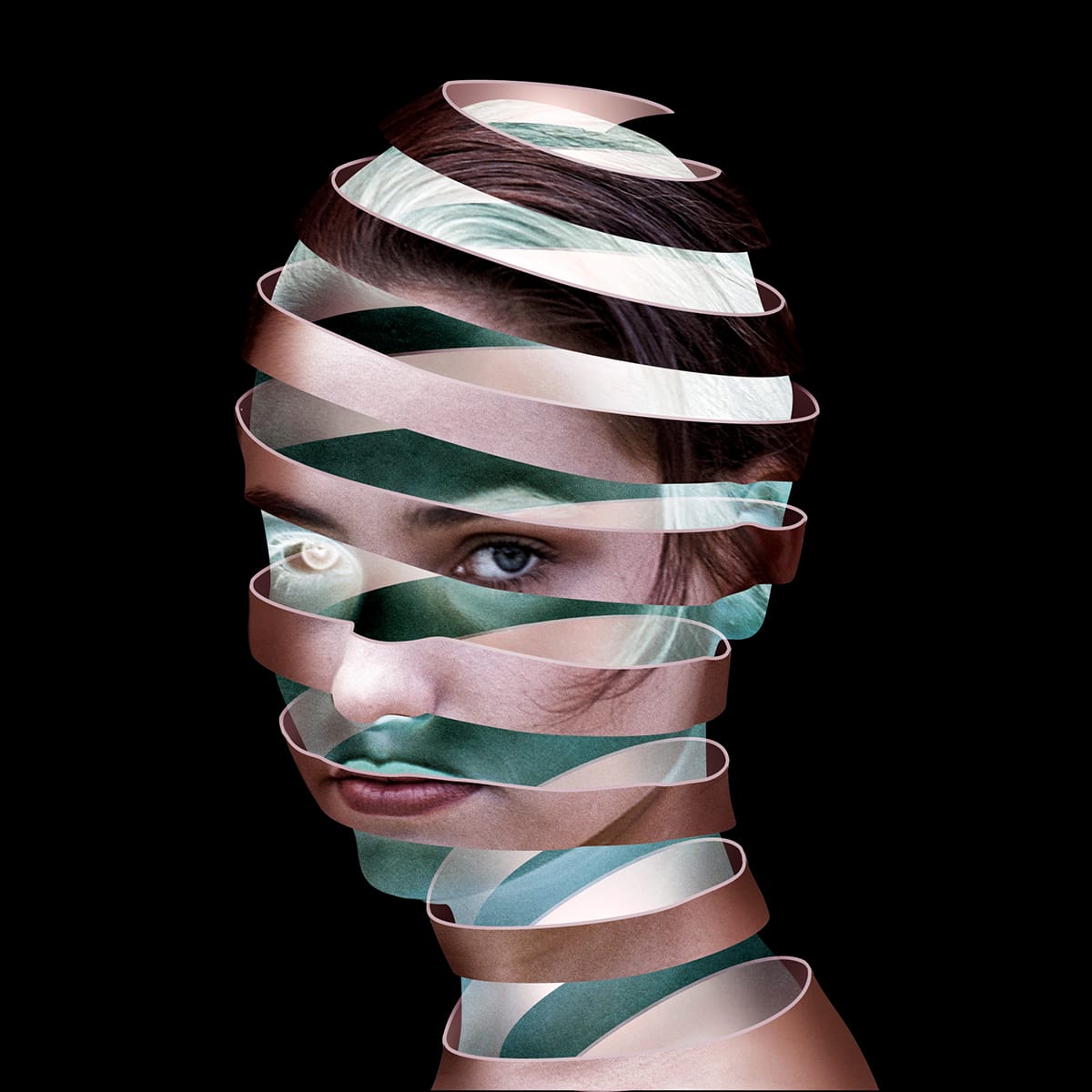
This in-depth tutorial by Steve Caplin of Creative Pro unlocks the secrets of recreating M.C. Escher's iconic ribbon face illusion on your own portrait photos. Learn how to manipulate and distort the image to create the winding ribbon effect, while cleverly incorporating a ghost-like version of the original face for added intrigue. The video guides you through advanced techniques like layer masks and selection tools, allowing you to achieve this captivating and mind-bending visual effect. Read
Create a cool text portrait in Photoshop
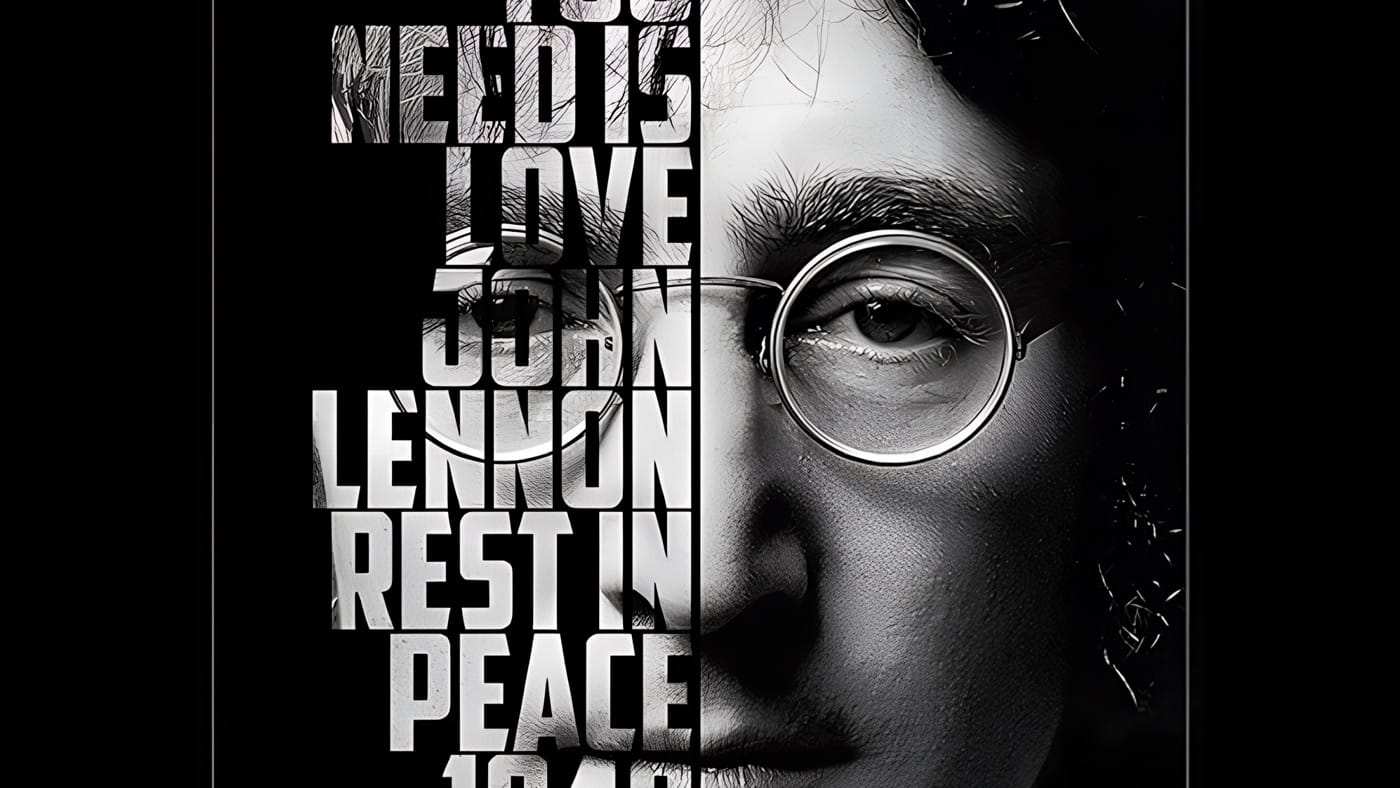
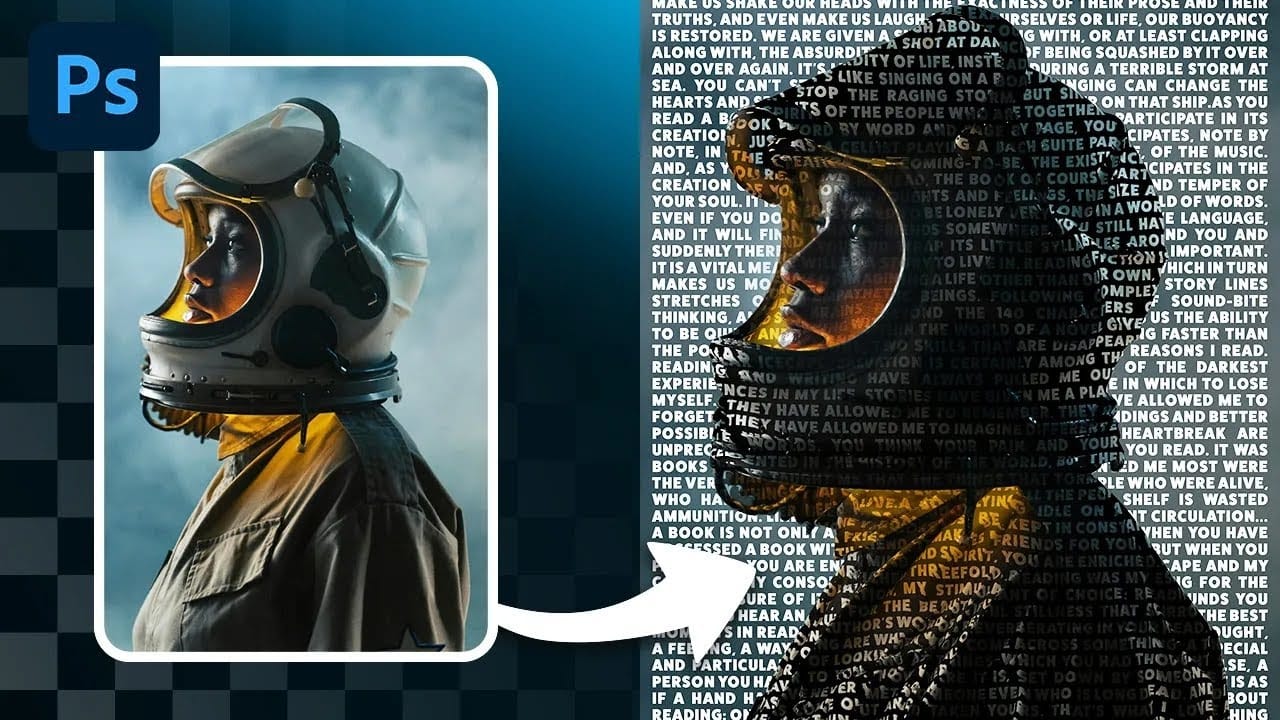
Learn how to create a striking typographic portrait poster in Adobe Photoshop, transforming a standard photo into an artwork where text defines the contours of the subject's face. You'll practice essential techniques: precise subject selection, background preparation, thoughtful text integration, and subtle refinements to enhance legibility and visual impact. Watch the Video Practical Tips for Text Portrait Posters in Photoshop * Desaturate your base image to black and white early in the p
Create a Typographic Portrait in Photoshop
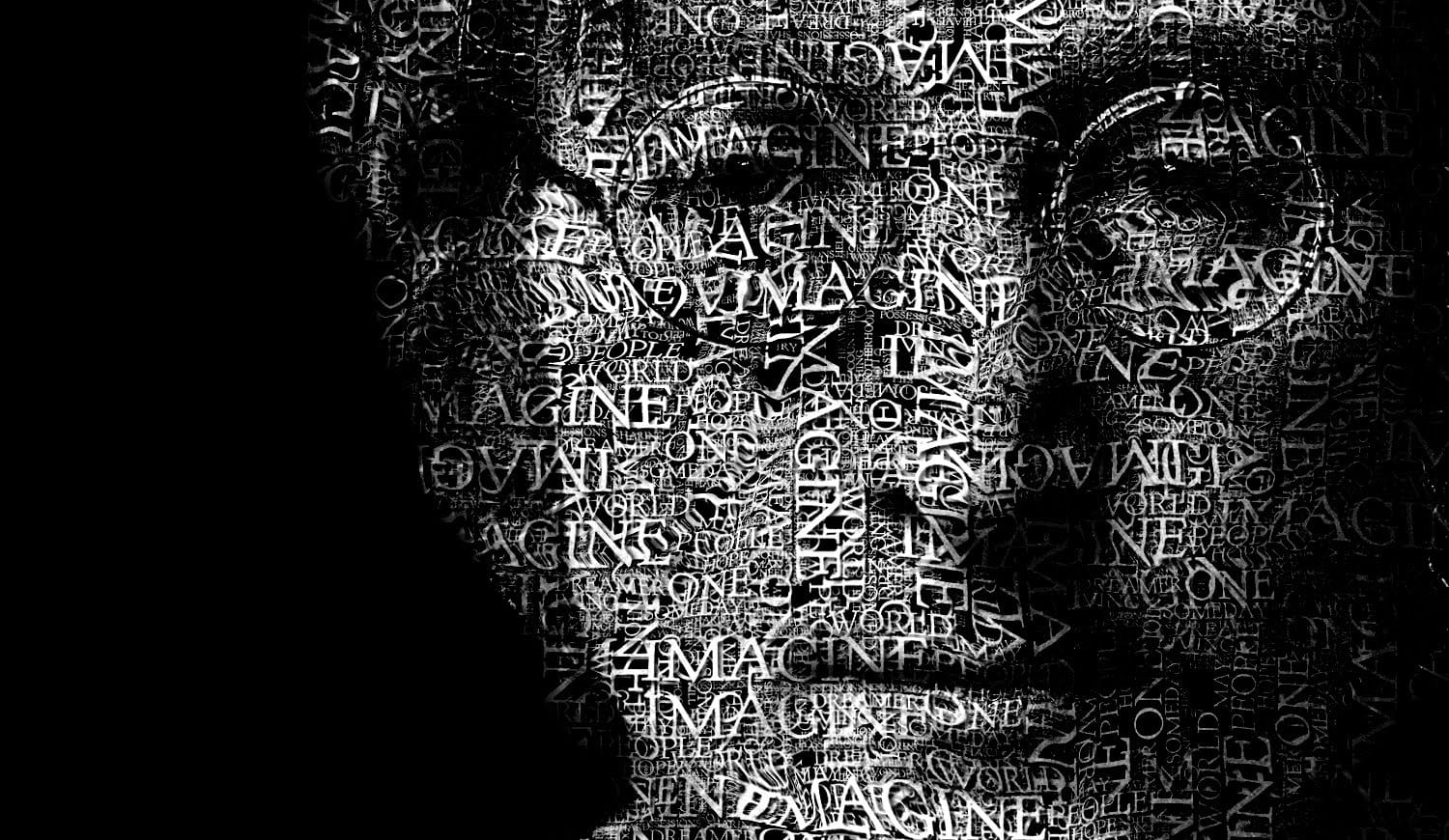
This tutorial explores a creative method for transforming a standard photographic portrait into a unique work of art composed entirely of text. It demonstrates how to combine typography with image manipulation to create a visually compelling and personalized artistic statement. Viewers will learn how to prepare an image, generate and integrate custom text, and apply advanced Photoshop techniques like displacement mapping to achieve a stunning, text-based artwork that subtly conforms to the cont
Create a Striking Text Portrait Poster in Photoshop
Transforming an ordinary portrait into a captivating text-based artwork presents a unique creative challenge in Photoshop. Often, the frustration lies in making text appear to organically wrap around a subject's contours rather than just sitting flat over the image. Achieving this seamless integration, especially when dealing with complex shapes, can feel like navigating an intricate technical puzzle. This tutorial offers a clear pathway to mastering text portrait effects using advanced masking
Surreal floral face photo manipulation in Photoshop
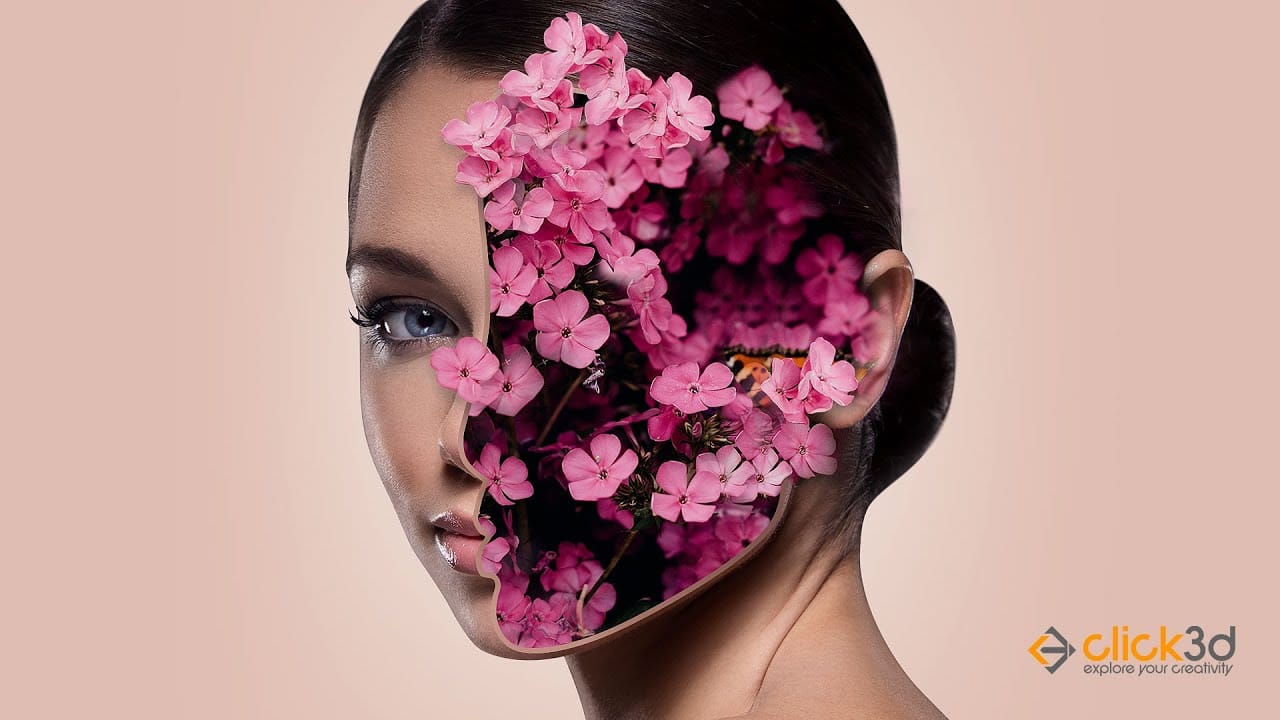
This captivating tutorial shows you how to create a surreal floral face photo manipulation. Learn how to seamlessly transform a portrait into a captivating floral composition. Half-human, half-bloom, this technique offers endless possibilities for book covers, posters, and truly unique artwork. The video will guide you through utilizing layer masks, selection tools, and potentially even floral brushes to achieve this dreamlike effect. Unleash your creativity and create captivating portraits tha
Place a logo onto a bottle in Photoshop
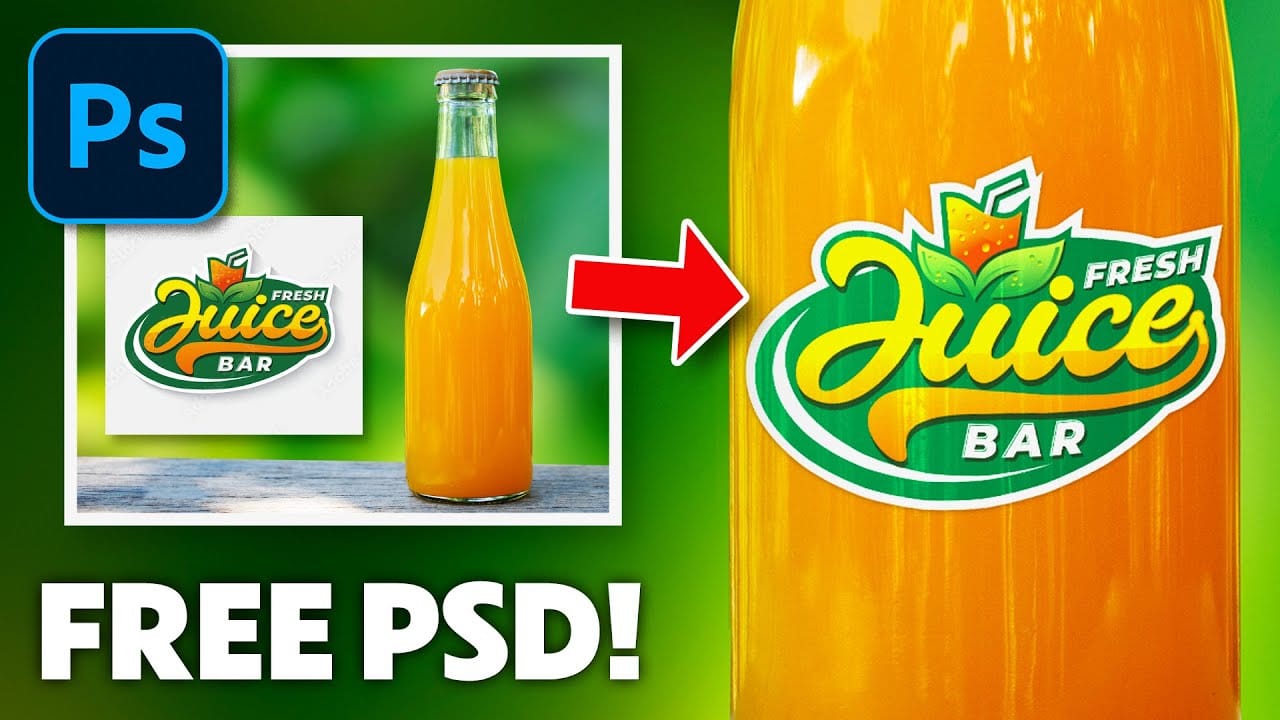
In this detailed tutorial, Jesus Ramirez from PTC Photoshop Training Channel walks you through the process of placing any logo onto a bottle using Photoshop. The tutorial is packed with valuable information and techniques that are essential for both beginners and advanced users. You will learn how to use Smart Objects to ensure your logo retains its quality when resized, and how to apply Clipping Masks to seamlessly integrate the logo onto the bottle's surface. Additionally, the tutorial covers
Transform a face into a creative mixed media portrait
This tutorial demonstrates a powerful Photoshop technique for transforming standard photographs into dynamic mixed media portraits. It explores how to achieve a unique artistic aesthetic that blends traditional art elements with digital imagery. Viewers will learn a non-destructive workflow to apply textured effects and patterns to a portrait, with the added benefit of easily replacing the subject without redoing the entire process. This approach is ideal for artists and designers seeking effic
Create a Floral Typography Text Effect in Photoshop
Learn to create stunning floral typography in Photoshop. This tutorial teaches you to blend vibrant flowers with custom text, achieving a captivating visual that seamlessly integrates botanical elements with your design. Master techniques for realistic depth, perfect for unique posters, art, or personal projects. Watch the Full Tutorial Practical Tips for Crafting Floral Text Effects * Convert masked images to Smart Objects early in the process to maintain editability of layer masks and tr

Get tutorials & freebies delivered to you.

Subscribe to the Photoshop Roadmap newsletter, a weekly roundup of new tutorials, insights and quality downloads, trusted by 6500+ readers.

You might also like

How to Remove Blemishes in Photoshop: Camera Raw vs. Generative AI

Photoshop now offers two distinct approaches to removing skin blemishes automatically. The Camera Raw Filter includes a dedicated Blemishes option that analyzes and cleans skin with a single checkbox, while Generative AI fills a face selection with clean, texture-consistent results using a simple text prompt. Each method has clear...

Common Photoshop Compositing Mistakes and How to Fix Them

Most compositing errors come down to a handful of repeatable problems: mismatched lighting direction, inconsistent white points, misaligned perspective, and atmosphere applied in the wrong layer order. Catching these issues early — ideally before you shoot — saves significant time in post. Watch the Video Practical Tips These corrections apply to nearly...

How to Use the Vectorscope in Camera Raw to Correct Skin Tones

The Vectorscope in Camera Raw gives you a precise, visual way to evaluate and correct skin tones based on hue and saturation data. Because all natural skin tones share a common hue range regardless of ethnicity, the built-in skin tone indicator line serves as a reliable target for getting...

Camera Raw August 2026: AI Blemish Removal, Generative Expand, and More

The August 2026 Camera Raw update adds an AI-powered blemish removal tool that handles skin imperfections automatically, treating blemishes and moles separately so editors stay in control. Alongside that, an improved Generative Expand in the crop tool and a few smaller additions round out a practical update worth knowing....

Wrap Text Around a Subject in 3D Using Photoshop's Warp Tool

Making text appear to wrap around a person or object adds genuine depth to a composition — the kind that's hard to fake with a simple drop shadow. This technique uses two warped text layers, a subject cutout, and a soft shadow to simulate the illusion of cylindrical text...

9 Photoshop Tools That Still Outperform AI for Precision and Control

AI generates images from descriptions, but it cannot hand you the brush. When a project demands exact colors, editable text, precise retouching, or seamless mockups, Photoshop's native tools remain the more reliable choice — not because AI is weak, but because these workflows require control that generative tools simply...

You’ve successfully subscribed to Photoshop Roadmap
Welcome back! You’ve successfully signed in.
Great! You’ve successfully signed up.
Success! Your email is updated.
Your link has expired
Success! Check your email for magic link to sign-in.