Custom chain brushes unlock creative possibilities for digital artwork, fantasy scenes, and decorative designs. This technique transforms a basic chain image into a seamless, paintable brush that automatically links segments together as you draw.
The process combines image preparation, background removal, and precise brush settings to create a tool that flows naturally along any path you paint.
Watch the Video
Video by P A N T E R. Any links or downloads mentioned by the creator are available only on YouTube
Practical Tips
These key adjustments ensure your chain brush paints smoothly and links properly:
- Use the Liquify filter to make chain links sharper and more defined before creating the brush preset
- Increase contrast with Curves adjustment to create stronger definition between chain segments and background
- Convert to Smart Object twice during the process to preserve quality and enable non-destructive editing
- Adjust brush spacing settings first, then enable Shape Dynamics with size jitter and roundness jitter set to zero
- Set angle jitter to "Direction" in Shape Dynamics to make chain segments automatically align with your brush stroke
Related Articles and Tutorials
Explore more custom brush creation techniques and advanced digital art methods:
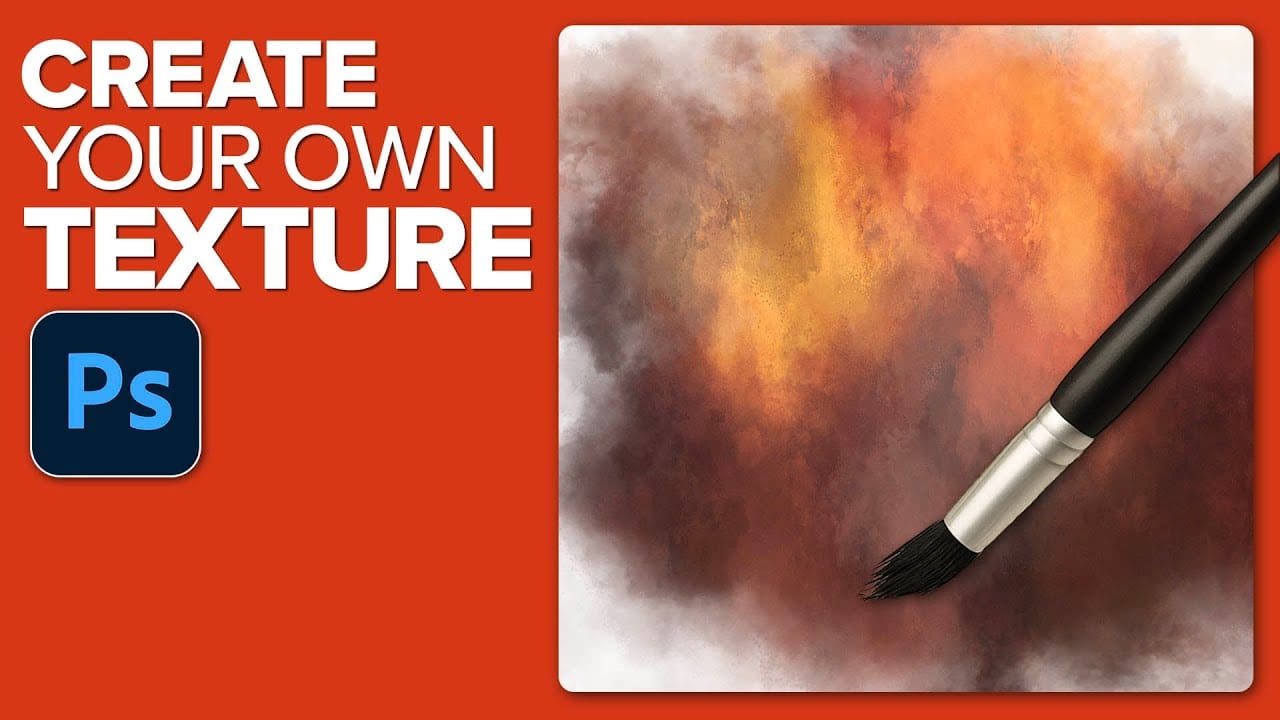
How to Create Custom Textures in Photoshop Using Brushes
Custom textures add depth and character to photos without relying on expensive texture packs. This technique uses specialized Photoshop brushes and blending modes to create unique overlay textures from scratch.
The process combines multiple layers, color variations, and finishing filters to produce professional-quality textures that work perfectly for photo blending projects.
Watch the Tutorial
Essential Tips for Creating Custom Textures
* Start with a large brush size nearly as big as yo
Create and Shape Eyebrows in Photoshop
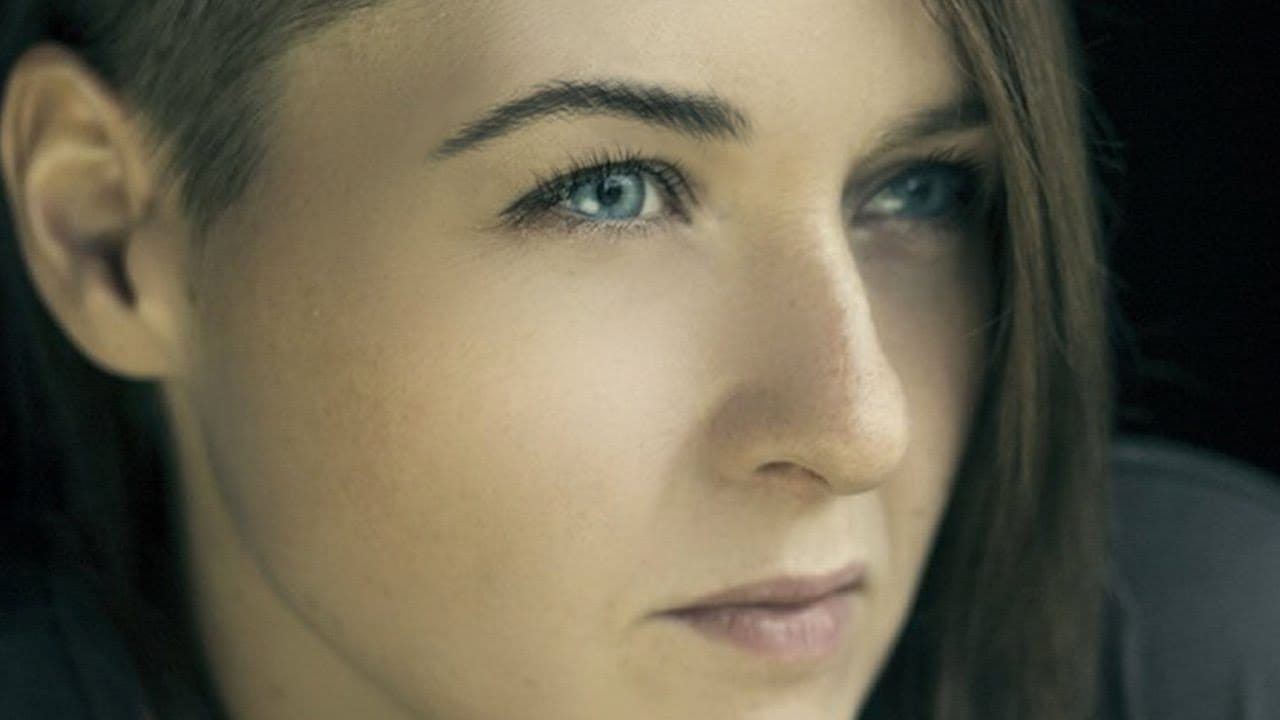
In this tutorial by Aaron Nace from Phlearn, you'll learn how to create and shape eyebrows in Photoshop using custom brushes.
Emphasizing the transformative power of eyebrows in portraits, Aaron demonstrates how to use the Pen Tool to create a path resembling individual hairs. This path is then stroked with the Brush Tool to simulate natural hair texture, with settings adjusted to mimic varying pressure. Additionally, Aaron provides custom eyebrow brushes for download, simplifying the process f
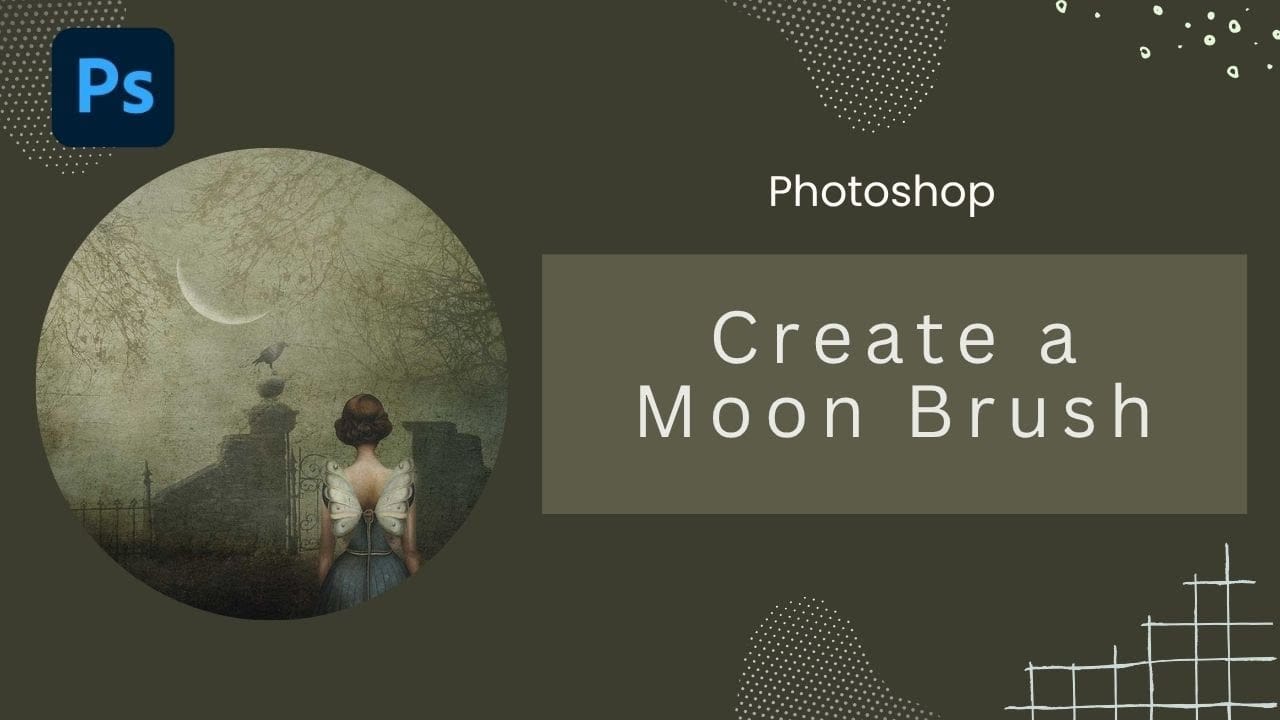
How to Create Custom Moon Brushes in Photoshop
Custom brushes unlock creative possibilities that standard Photoshop tools can't match. Moon brushes add dramatic celestial elements to composite images and fantasy scenes.
This technique transforms moon photographs into reusable brush presets through proper selection, masking, and sizing adjustments.
Watch the Tutorial
Essential Tips for Creating Moon Brushes
* Use the Quick Selection Tool for circular objects like moons, then refine edges with plus and minus options to remove unwanted c
Make highly creative brushes from photos in Photoshop
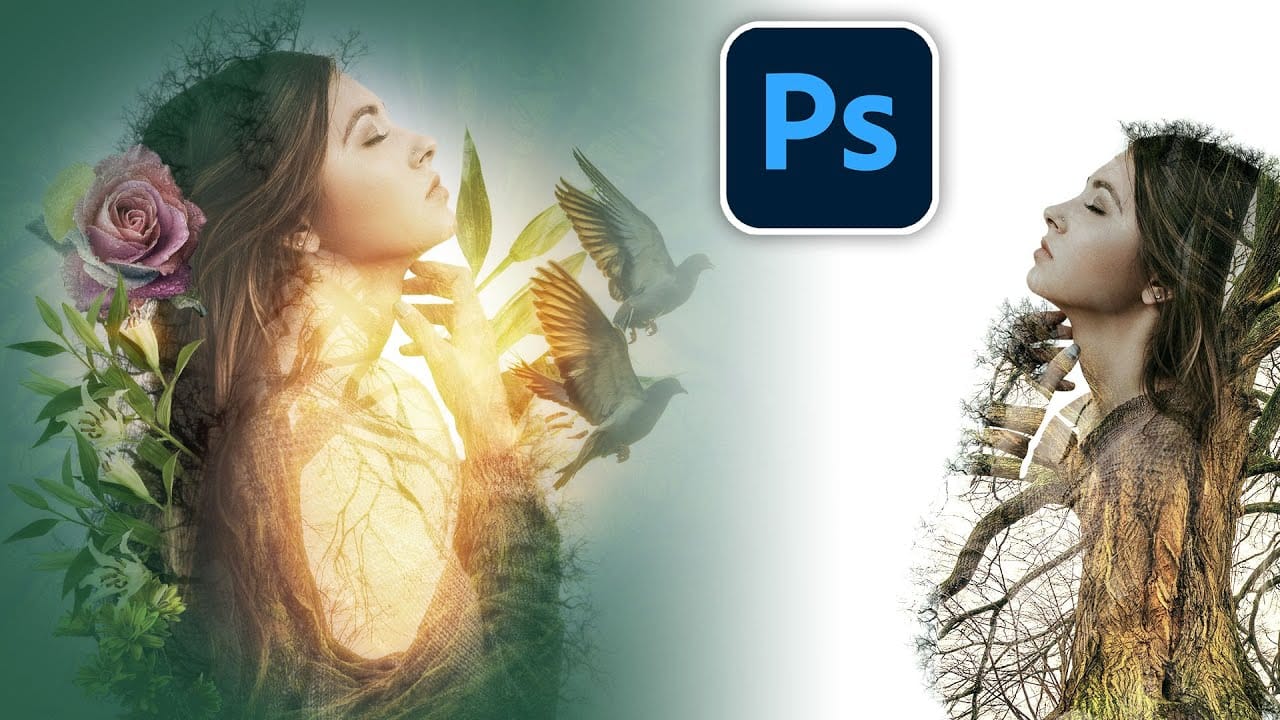
Colin Smith from Photoshop Cafe presents an advanced method for creating the popular double exposure effect in Photoshop. In this tutorial, he explains how to make custom brushes from photos and use them to enhance your composites, digital art, and collages.
Colin's technique focuses on blending two images seamlessly while maintaining their integrity, resulting in a professional and artistic composite. He also provides tips on layer management, masking techniques, and blending modes to elevate
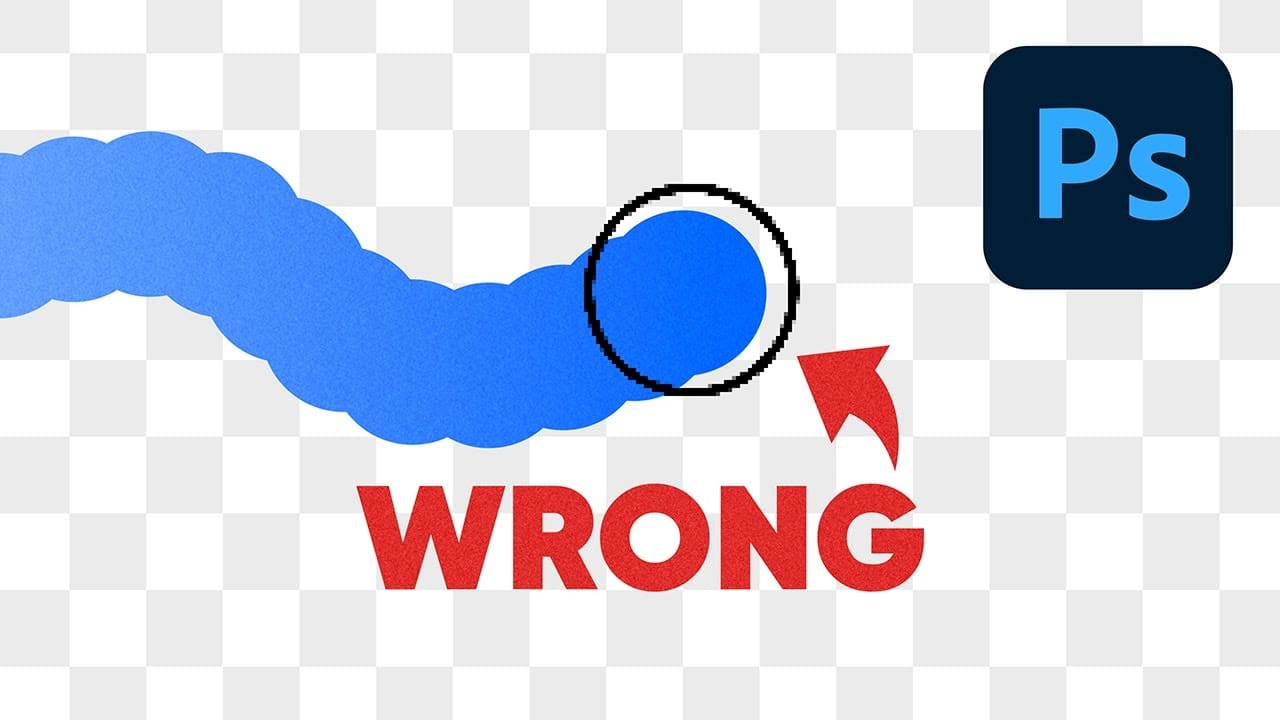
Why Your Photoshop Brush Creates a Caterpillar Effect (And How to Fix It)
One of the most frustrating issues Photoshop users encounter is when their brush strokes suddenly become uneven or thicker than expected. You might start painting with a smooth brush only to see a jagged "caterpillar" effect appear, or notice your soft brush creating strokes that are much thicker than the brush cursor suggests.
This video explains the root cause of these common brush problems and provides practical solutions. You'll discover how Photoshop's spacing settings control brush behavi
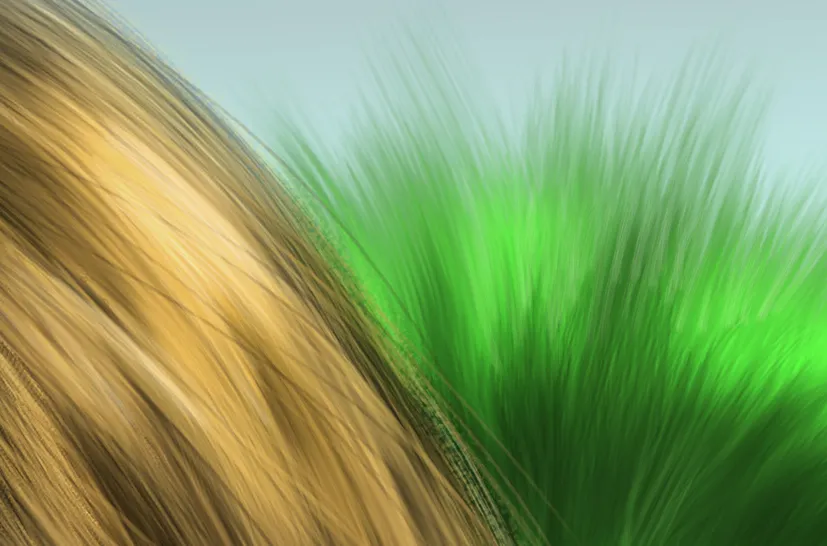
Hair Photoshop Brushes
This custom Photoshop brush is designed specifically for creating hair and fur, making it a valuable tool for artists. To get the best results, it's important to adjust the opacity settings and ensure that the transfer is set to Pen Pressure for both opacity and flow. This simple adjustment allows for more natural and varied strokes, giving your artwork a lifelike quality.
Additionally, the brush pack will be updated over time, so be sure to follow for new additions. This means you can look for
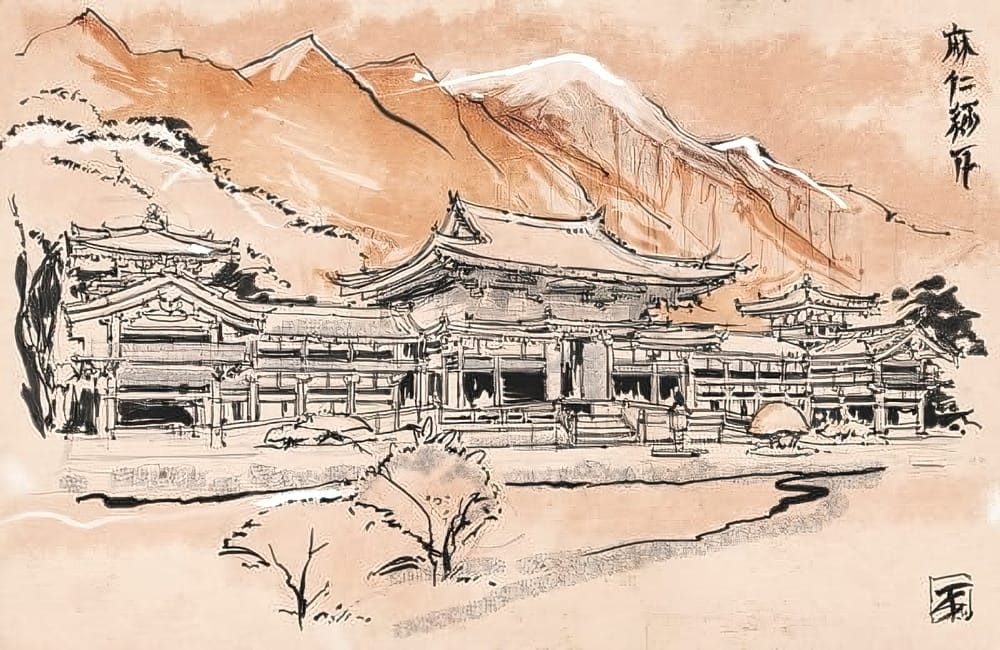
Create Beautiful Japanese Art in Photoshop
The user steps into the world of Japanese-inspired art creation in Photoshop. With a focus on utilizing the program's real-media brushes, the tutorial guides the user through the process of crafting Eastern-themed artwork.
By understanding the versatile capabilities of these brushes, the user can explore various techniques and styles to capture the essence of traditional Japanese art. The tutorial promises to provide a comprehensive introduction, allowing the user to unleash their creativity an
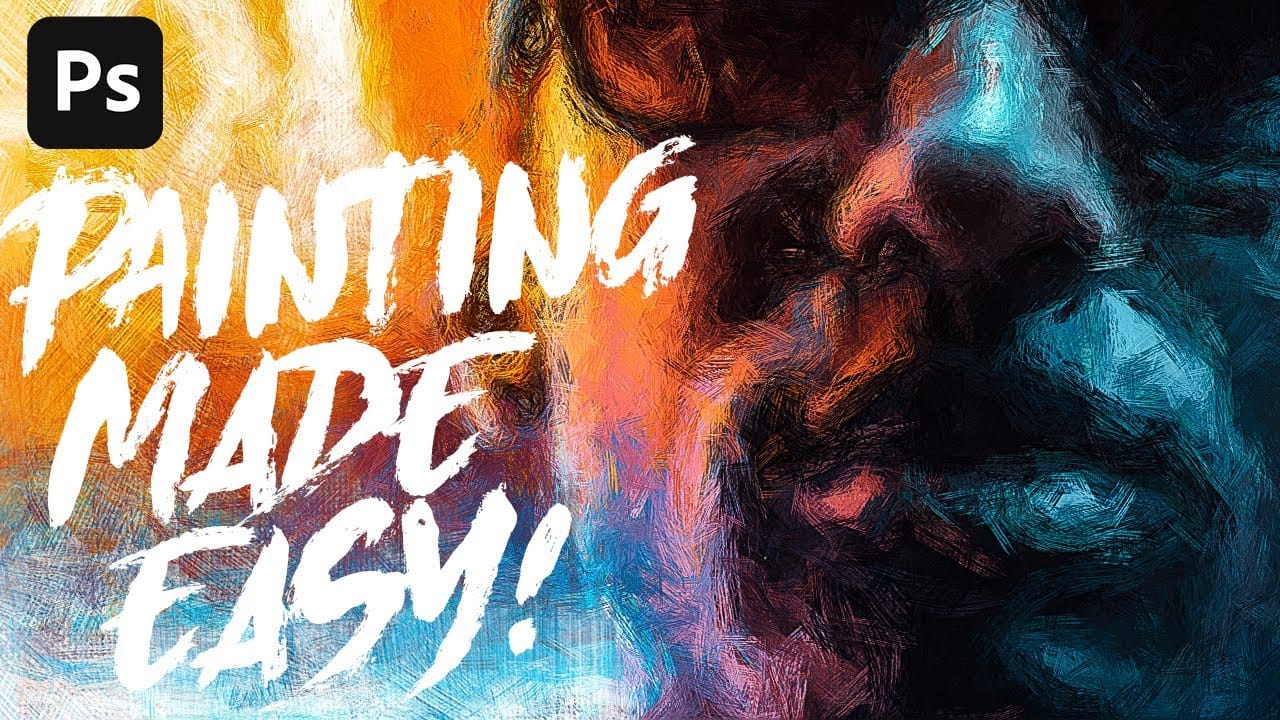
Anyone can create incredible paintings in Photoshop with a single tool
In this tutorial, we'll explore a fun and easy way to create digital oil paintings using Adobe Photoshop. Our focus will be on the art history brush tool, which allows you to produce unique and impressive results.
However, before you start using this tool, it's important to understand its basic principles and be aware of some common issues that may arise during setup. Once you get the hang of it, the art history brush can unlock all sorts of possibilities for your digital art projects.
So let'
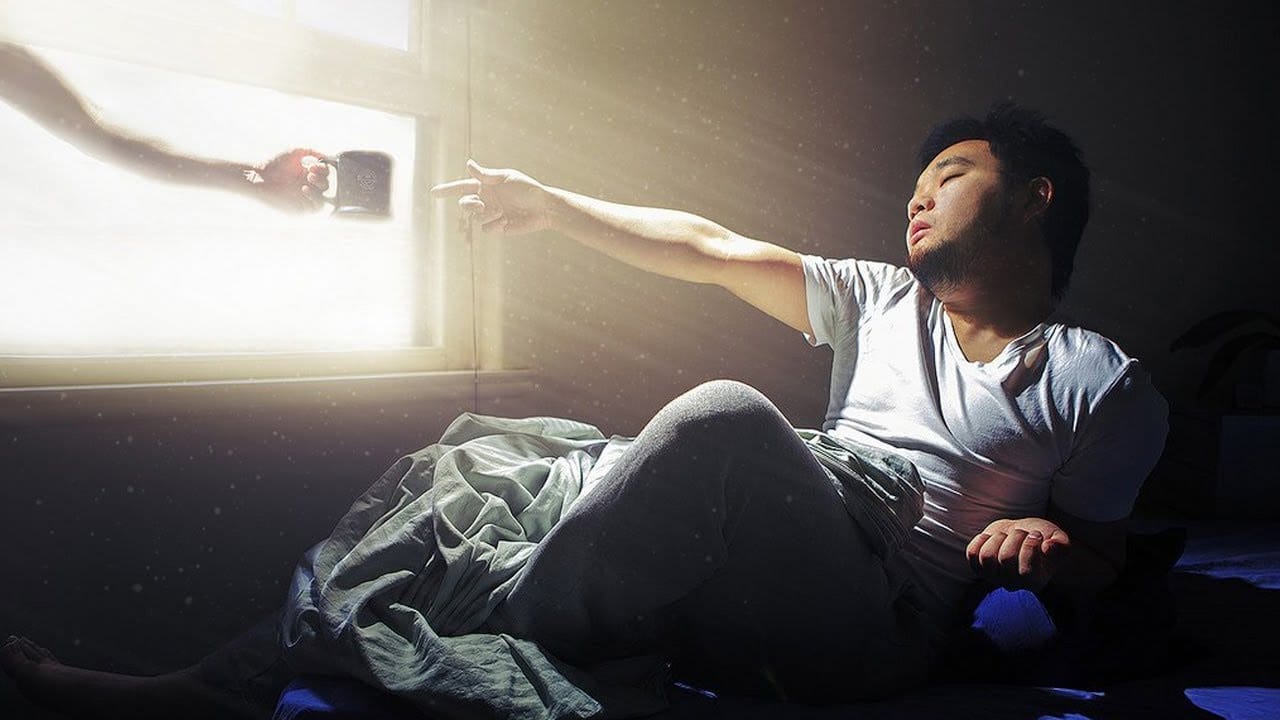
Learn how to create light rays and dust particles in Photoshop
As a reader, you'll find this tutorial by Aaron Nace from Phlearn to be an informative and practical guide. He'll show you how to create stunning light rays and dust particles from scratch in Photoshop, using a custom brush.
The step-by-step instructions are easy to follow, making it accessible even for beginners. You'll learn how to set up the brush, adjust the opacity and size, and apply it to your image to achieve the desired effect.
The resulting light rays and dust particles will add dept