How to Create a Dark Chrome Text Effect in Photoshop Using Advanced Layer Styles

How to Create a Dark Chrome Text Effect in Photoshop Using Advanced Layer Styles

Chrome effects transform ordinary text into polished, metallic masterpieces that command attention. The reflective surfaces and dimensional depth create that premium, high-end look perfect for logos, headlines, and promotional graphics.

This tutorial demonstrates a layered approach using multiple bevel and emboss effects, strategic color choices, and gradient overlays to build realistic chrome text with a dark, sophisticated finish.

Watch the Tutorial

Video by P A N T E R. Any links or downloads mentioned by the creator are available only on YouTube

Understanding Chrome Text Effects in Digital Design

Chrome effects rely on the visual principles of metallic reflection and surface depth. Real chrome surfaces reflect their environment while maintaining distinct highlight and shadow patterns that give them dimensional weight. Digital chrome recreates these properties through careful manipulation of light, shadow, and surface contour.

The layering technique shown in this tutorial builds complexity by stacking multiple bevel and emboss effects with different settings. Each layer contributes specific elements—base reflection, edge definition, surface variation, and color accents. This approach mirrors how light interacts with actual metallic surfaces at different angles and intensities.

Advanced chrome effects often incorporate subtle color variations rather than pure grayscale tones. Blue undertones suggest cool lighting conditions, while warmer accents can reference surrounding light sources or add visual interest without compromising the metallic appearance.

Key Techniques for Chrome Text Effects

  • Start with zero fill opacity on your text layer to let the layer effects create the entire visible appearance
  • Use multiple duplicated layers with different bevel and emboss settings to build surface complexity and realistic light interaction
  • Apply Inner Bevel with custom contours and blend modes like Linear Light and Color Dodge for authentic metallic highlights
  • Incorporate gradient overlays with subtle color shifts to add depth without overwhelming the chrome appearance
  • Add outer glow effects on separate layers positioned below the text to create environmental light reflection

More Chrome and Metallic Text Tutorials

Explore additional techniques for creating stunning metallic text effects in Photoshop.
Electric chrome text effect Photoshop Tutorial
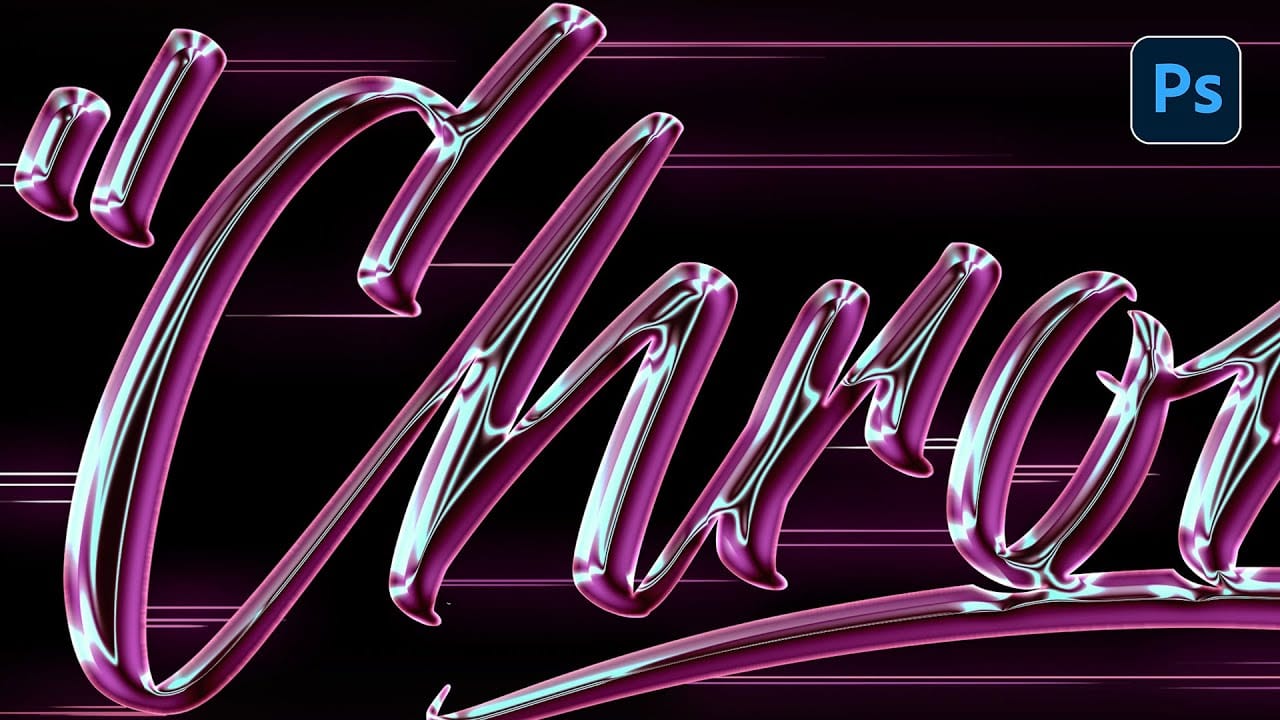
In this tutorial by Angelo Konofaos, you'll learn how to create an electric chrome text effect in Adobe Photoshop. Using blending options and adjustment layers, the tutorial guides you through the process of transforming text into a sleek chrome finish that radiates a vibrant, electric feel. Perfect for adding a futuristic touch to your designs, this tutorial teaches you some interesting techniques to achieve polished and eye-catching text effects that grabs the attention. Watch tutorial
How to Create Chromatic Aberration Text Effect in Photoshop
Chromatic aberration brings that dreamy, vintage camera lens distortion that makes text pop with separated color channels. This optical effect mimics how cheaper lenses struggle to focus all colors at the same point, creating those signature red, green, and blue edges that drift apart. This technique transforms ordinary text into eye-catching graphics perfect for retro designs, album covers, or any project needing that analog photography feel. Watch the Tutorial Understanding Chromatic Aber
How to create a neotribal 3D chrome text effect
In this tutorial, you will explore the fascinating concept of cybersigilism while creating a striking neotribal 3D chrome text effect. This engaging process combines the creative functionalities of Adobe Illustrator, Blender, and Photoshop to produce an impressive visual result. You will begin by forming the foundational 3D text effect in Adobe Illustrator. This step sets the stage for what comes next. Transition into Blender, where you will transform the text into a stunning 3D chrome letterin
Create a sleek chrome logo in Photoshop
Creating a polished chrome logo in Photoshop can significantly elevate a brand's visual identity, lending it a sleek and futuristic appeal. This effect is highly sought after for its ability to convey professionalism and cutting-edge design. This video tutorial demonstrates a comprehensive process for designing a custom chrome logo from the ground up. Viewers will learn how to build a dynamic background, shape reflective elements, and apply advanced layer styles to achieve a realistic metallic

Get tutorials & freebies delivered to you.

Subscribe to the Photoshop Roadmap newsletter, a weekly roundup of new tutorials, insights and quality downloads, trusted by 6500+ readers.

You might also like

7 Photoshop AI Tools You're Probably Not Using Yet

Photoshop’s AI features now go far beyond simple object removal. Some of the newer tools can completely change the way you edit photos, create composites, clean up distractions, or expand scenes — often with just a few clicks. The interesting part is that many of these features still feel surprisingly...

Transform Photos into Ink Drawings in Photoshop

Traditional ink drawings capture bold contrasts and artistic expression through pure black and white elements. This technique transforms ordinary photographs into striking ink artwork by combining specific filters with smart object workflows for complete creative control. The method uses oil paint effects, shadow adjustments, and threshold conversion to create authentic...

How to Build Monochromatic Color Palettes with Layers in Photoshop

Creating harmonious color schemes requires understanding how to layer colors strategically rather than relying on single adjustments. A monochromatic palette uses tints, tones, and shades from the same color family to create depth and visual unity. This technique demonstrates how to build rich, textured backgrounds by combining solid color fills,...

How to Use the New 3D Object Rotation Feature in Photoshop

Photoshop's new Rotate Object feature transforms flat 2D images into interactive 3D models that can be repositioned from any angle. This AI-powered tool automatically creates cutouts, maintains original textures, and generates missing details when objects are rotated beyond their original perspective. The feature opens new possibilities for product...

How to Use Depth Range Masking in Camera Raw

Adobe Camera Raw's depth range masking feature allows you to select and adjust specific depth layers in any photograph without needing special camera equipment. Unlike traditional subject and background masks that focus on shapes, depth range masking works with the spatial distance between elements in your image. This...

How to Remove Objects Using Photoshop's Updated Remove Tool Without Credits

Photoshop's updated Remove tool offers powerful AI-powered object removal without consuming any generative credits, regardless of your subscription plan. The tool features automated distraction detection that categorizes different types of visual clutter—from trash and people to urban elements and blemishes—making it easy to selectively remove unwanted...

You’ve successfully subscribed to Photoshop Roadmap
Welcome back! You’ve successfully signed in.
Great! You’ve successfully signed up.
Success! Your email is updated.
Your link has expired
Success! Check your email for magic link to sign-in.