Circular cropping transforms standard photographs into clean, professional profile images perfect for websites, social media, and presentations. The frame tool method creates non-destructive crops with transparent backgrounds that export seamlessly across different platforms.
This streamlined workflow eliminates the need for complex selections or masks while maintaining full control over image positioning and styling options like custom borders.
Watch the Video
Video by PHLEARN. Any links or downloads mentioned by the creator are available only on YouTube
Practical Tips
Essential techniques for creating perfect circular crops with professional results:
- Double-click the background layer to unlock it before using the frame tool - locked layers prevent frame creation
- Hold Shift while dragging to maintain a perfect circle shape instead of creating an oval
- Use the move tool (V key) or transform (Ctrl/Cmd+T) to reposition or resize the image within the circular frame
- Access the contextual taskbar through Window > Contextual Taskbar if stroke and replacement options don't appear
- Right-click the frame layer and select "Quick Export as PNG" to preserve the transparent background
Related Articles and Tutorials
Explore more cropping and selection techniques to expand your photo editing skills:
How to Create Realistic Crop Circles in Photoshop
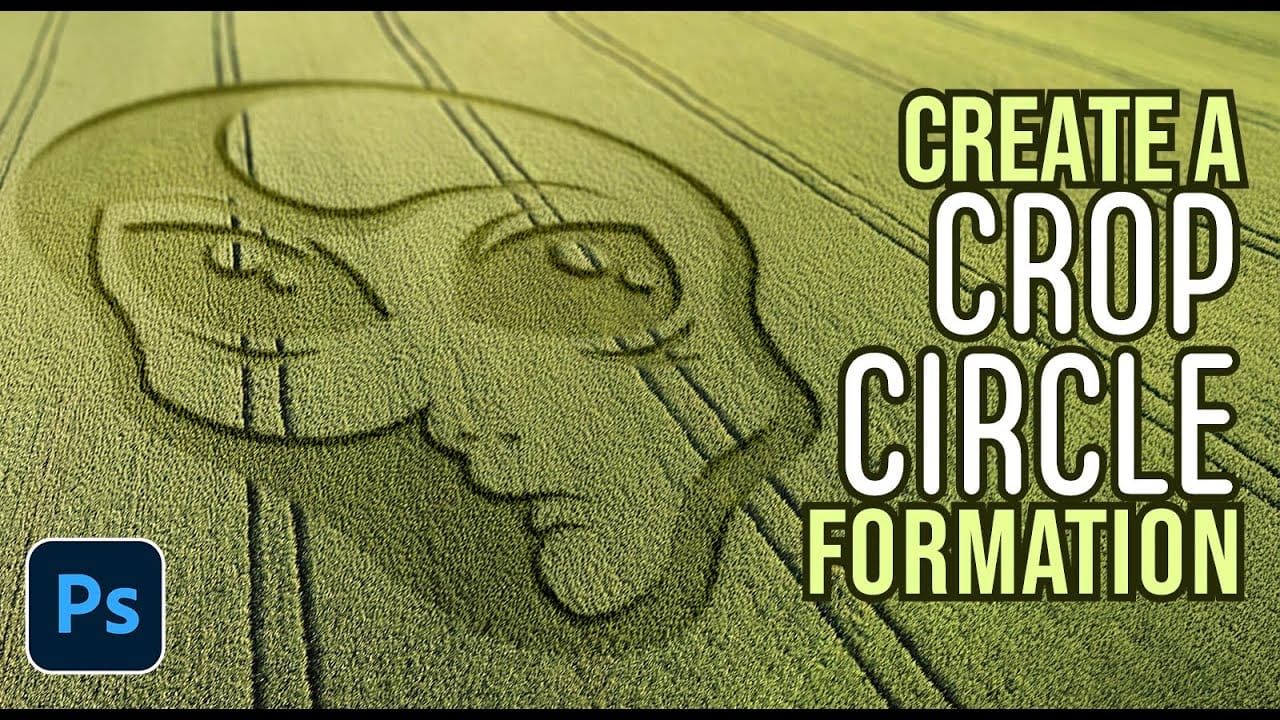
Ancient mysteries meet modern design in the world of crop circles. These intricate patterns carved into fields have captured imaginations for decades, inspiring countless theories about their origins. The geometric precision and otherworldly appearance of crop circles make them compelling subjects for digital art projects.
This tutorial demonstrates how to transform any graphic, logo, or text into a convincing crop circle effect using Photoshop's layering and transformation tools.
Watch the T
How Photoshop's Updated Frame Tool Simplifies Layer Cropping
Cropping individual layers in Photoshop has traditionally required multiple complex steps involving selections, layer masks, or clipping masks. The updated Frame Tool now offers a streamlined drag-and-drop approach that eliminates confusion and reduces workflow steps.
These improvements make layer cropping accessible to beginners while speeding up workflows for advanced users through custom shape integration and simplified image placement.
Watch the Tutorial
Essential Frame Tool Tips
* Ac

The 3 Easiest Ways To Cut Out Images In Photoshop
In this informative tutorial, author Brendan Williams shares three of the most effective techniques for image cropping in Photoshop. The guide covers the infamous Quick Selection Tool, the Channels method, and the highly versatile Pen Tool. Whether you're a newcomer to the program or a seasoned professional, these methods are sure to elevate your workflow and take your work to new heights.
The Quick Selection Tool, known for its intuitive and efficient selection capabilities, is explored in-dep

Crop to Any Ratio and Expand with AI in Photoshop
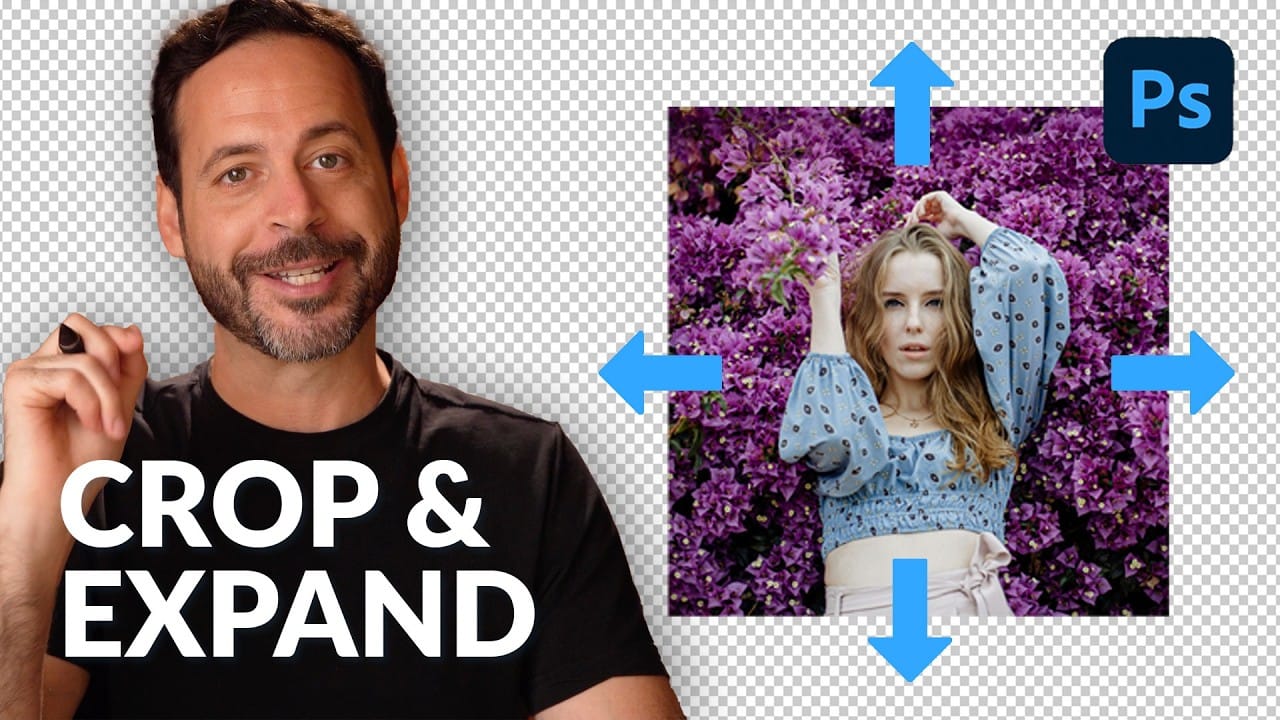
Digital images often require precise dimensions for various outputs, from print to social media. Achieving the perfect crop while maintaining visual integrity can be a challenge, especially when the desired ratio exceeds the original image boundaries.
This tutorial explores how to effectively crop images to specific aspect ratios in Photoshop, demonstrating techniques to not only adjust dimensions but also intelligently expand image content using AI when necessary.
Watch the Video
The Evolu
Quickly Center Anything In Photoshop Using These 2 Methods
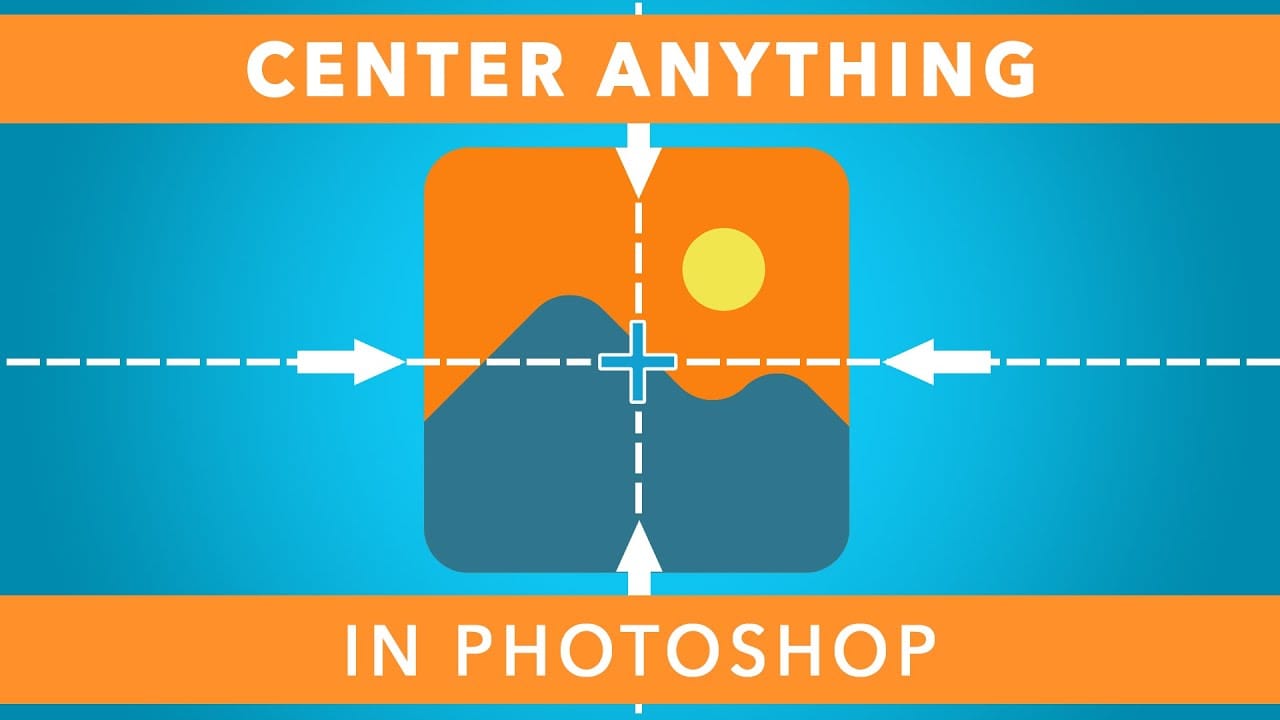
If you want to center an image or a piece of text in Photoshop, it can be frustrating not knowing where to start. In Photoshop there are a few ways to center and align your layers whether you want to work with the entire canvas or just a section of your photo.
In this Photoshop tutorial, you'll learn how to center your images and text to the entire canvas, while also learning how to make custom selections for aligning layers to more specific areas. To add a cherry on top, I'll also show you how
Rotate or straighten images without cropping in Photoshop
In this tutorial, PiXimperfect shows how to rotate or straighten an image without having to crop it in Photoshop. The instructor explains the process of using the Content-Aware Fill feature to fill in the spaces created when rotating the image.
The tutorial guides the viewer through the step-by-step process. First, the image is rotated to the desired angle. Then, the Content-Aware Fill tool is used to fill in the empty spaces around the edges of the image. The author demonstrates how this techn

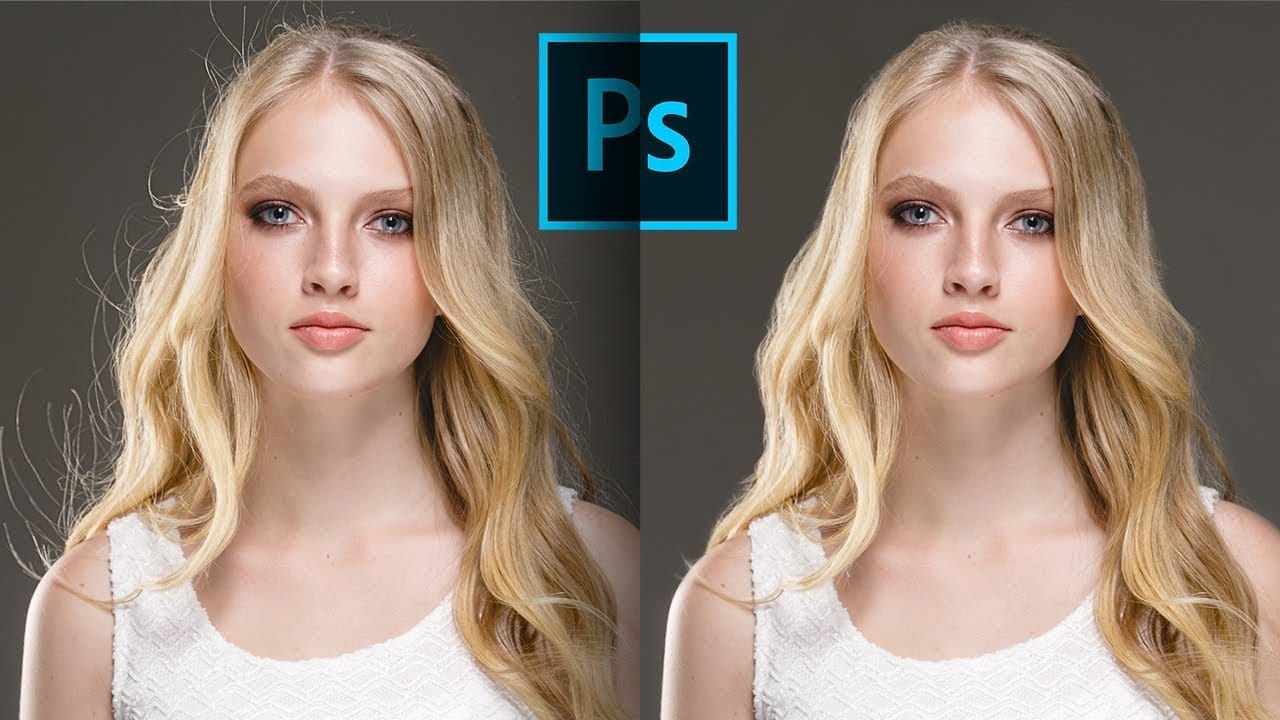
3 steps to remove stray flyaway hair fast in Photoshop
Removing stray flyaway hair in Photoshop can be a quick and efficient process. This guide offers a straightforward workflow that allows you to tackle multiple flyaways at once, saving you time and effort.
The tutorial emphasizes the use of masks, which enables you to manage the unwanted hairs without the tedious job of cloning out each one individually. You will find that by following these three simple steps, you can achieve a clean and polished look for your images.
Whether for portrait phot
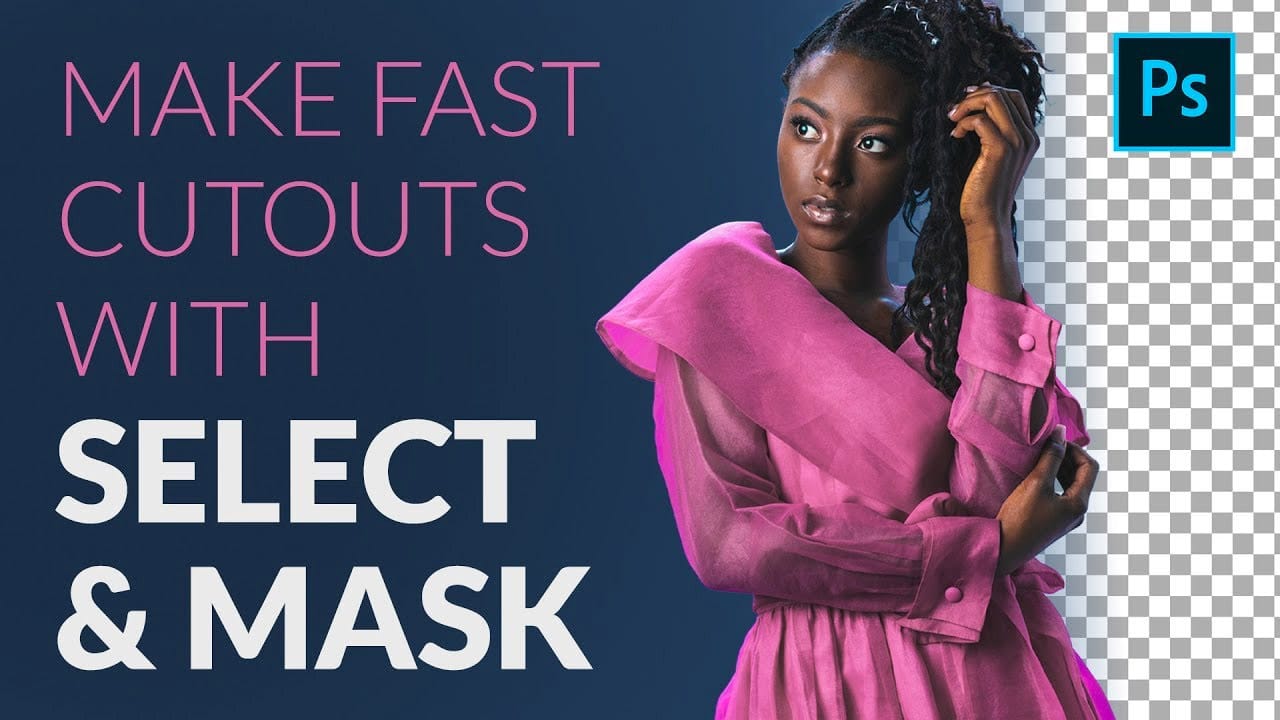
How to Cut Out a Person fast with Select & Mask in Photoshop
In this article Aaron Nace from Phlearn presents a comprehensive tutorial on creating fast and accurate cutouts of people using the Select and Mask feature in Photoshop. The author guides readers through the process, starting with the use of the Quick Selection Tool to make the initial selection, followed by the Refine Edge Tool to clean up the soft edges of hair and clothing. Additionally, the author demonstrates how to change the background color and add a spotlight effect to the subject, draw
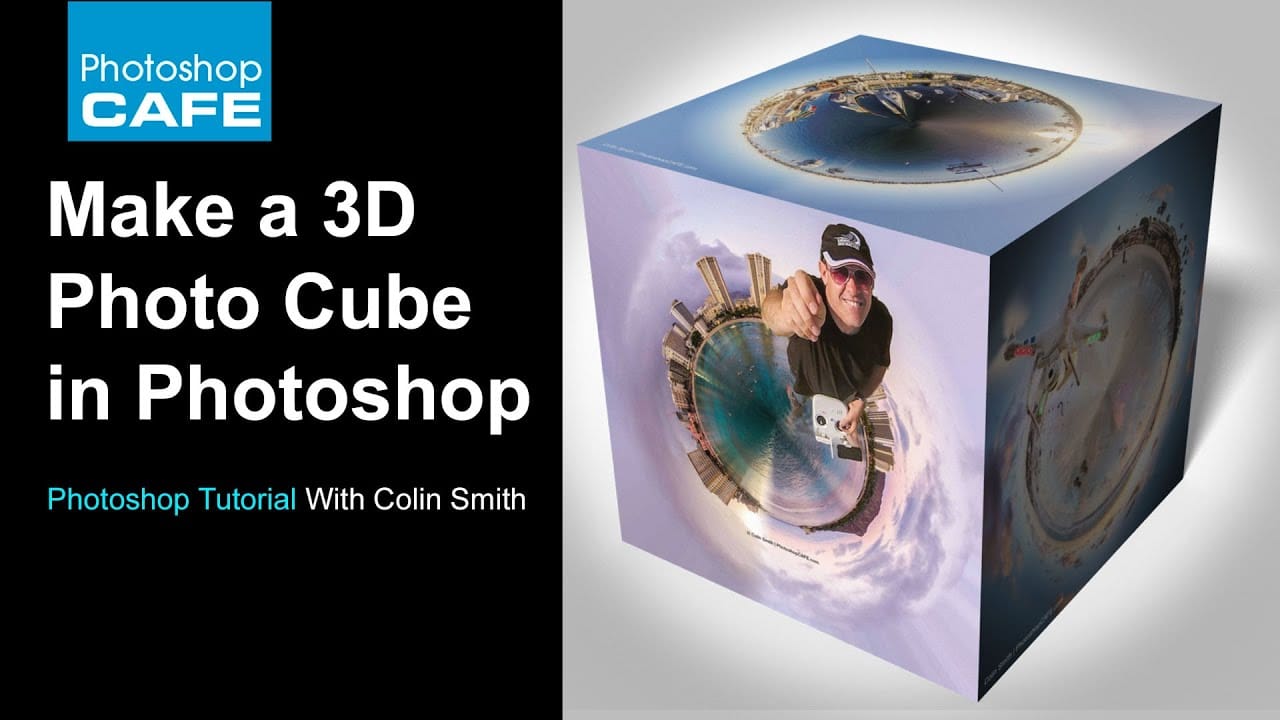
How to make a 3d photo cube in photoshop
According to the tutorial by Colin Smith from Photoshop Cafe, creating a 3D photo cube in Photoshop is a fun and easy process. The instructions are suitable for users of Photoshop CS6 Extended or any version of Photoshop CC.
The author explains that even those with no prior experience in 3D can follow along and create their own 3D photo cube. The tutorial guides the user through the steps of wrapping their photographs onto a 3D cube.
Smith encourages readers to have fun while exploring this fe
How to Use Photoshop's Select Subject Tool for One-Click Selections
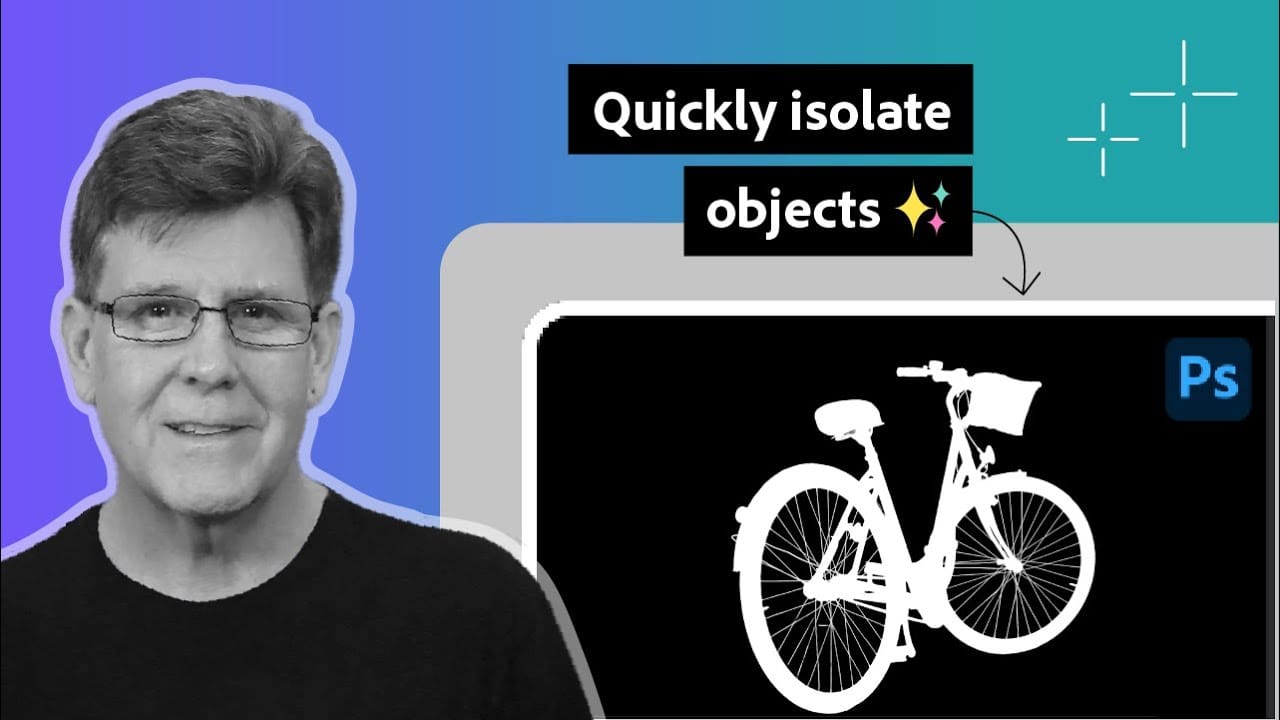
Complex selections in Photoshop just became effortless. The Select Subject tool uses advanced AI to automatically identify and select main subjects in images, even those with intricate details like bicycle spokes or hair.
This tutorial demonstrates how to achieve professional-quality selections with a single click, saving hours of manual masking work.
Watch the Video
Practical Tips for Using Select Subject
* Access Select Subject through the Contextual Task Bar for quickest results - find