How to Create Glitch Effects in Photoshop Using the Wave Filter

How to Create Glitch Effects in Photoshop Using the Wave Filter

Digital glitches transform ordinary images into striking visual disruptions that capture attention instantly. The aesthetic of broken pixels, stretched sections, and fragmented visuals has become a powerful design element in contemporary digital art. This tutorial demonstrates a hidden technique using Photoshop's Wave filter to create authentic-looking glitch effects. Learn how to manipulate wavelength, amplitude, and scale settings to produce convincing digital distortions.

Watch the Video

Video by P A N T E R. Any links or downloads mentioned by the creator are available only on YouTube

Understanding Glitch Art and Digital Distortion

Glitch art emerged from actual technical malfunctions in digital systems, where corrupted data created unexpected visual patterns. Artists began deliberately recreating these errors as an aesthetic choice, turning digital mistakes into intentional design elements. The Wave filter in Photoshop simulates one of the most common types of digital corruption: horizontal and vertical displacement of pixel data. Real glitches often occur when image data gets misinterpreted during transmission or storage, creating the characteristic stretched and fragmented appearance that defines this visual style. Working with smart objects preserves the original image data while allowing multiple iterations of the effect. This non-destructive workflow lets you experiment with different distortion levels and combine multiple glitch variations without permanently altering your source material.

Essential Tips for Creating Wave Filter Glitches

- Convert your layer to a smart object before applying the Wave filter to maintain editing flexibility - Set the shape to Square and reduce generators to 2 for cleaner, more controlled distortion patterns - Decrease the bottom scale to zero and maximize wavelength values for dramatic horizontal stretching effects - Use the Randomize button to generate unexpected variations quickly, then fine-tune the results - Paint on the smart filter mask with black to hide glitch effects in specific areas, or white to restore them

More Tutorials about Glitch Effects

Explore additional techniques for creating digital distortion effects in Photoshop.
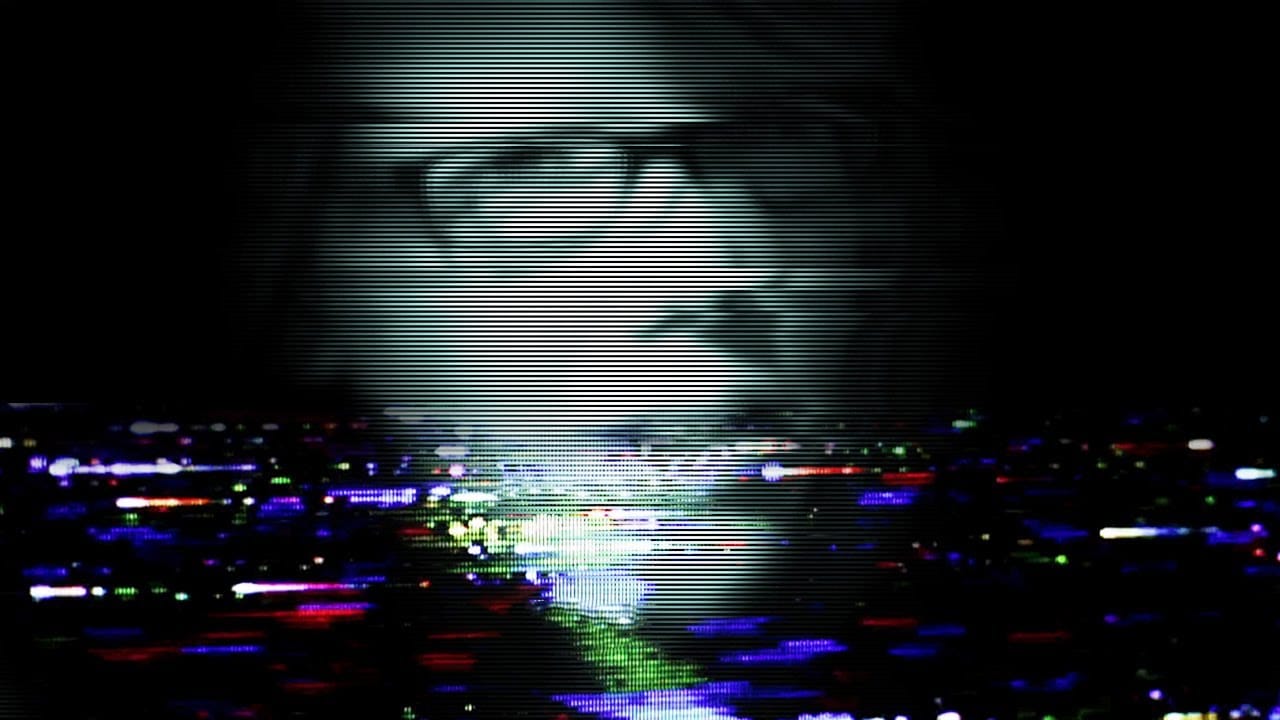
Create a Glitch Art Effect in Photoshop
Glitch art has emerged as a distinctive aesthetic in the digital age, rooted in the unexpected visual outcomes of digital errors. This art form transforms technical malfunctions into deliberate creative expressions, offering a unique visual language. This tutorial explores how to simulate this captivating effect from a standard photograph in Photoshop, guiding you through the essential steps to transform your images into compelling glitch art pieces. Watch the Video The Digital Aesthetic of
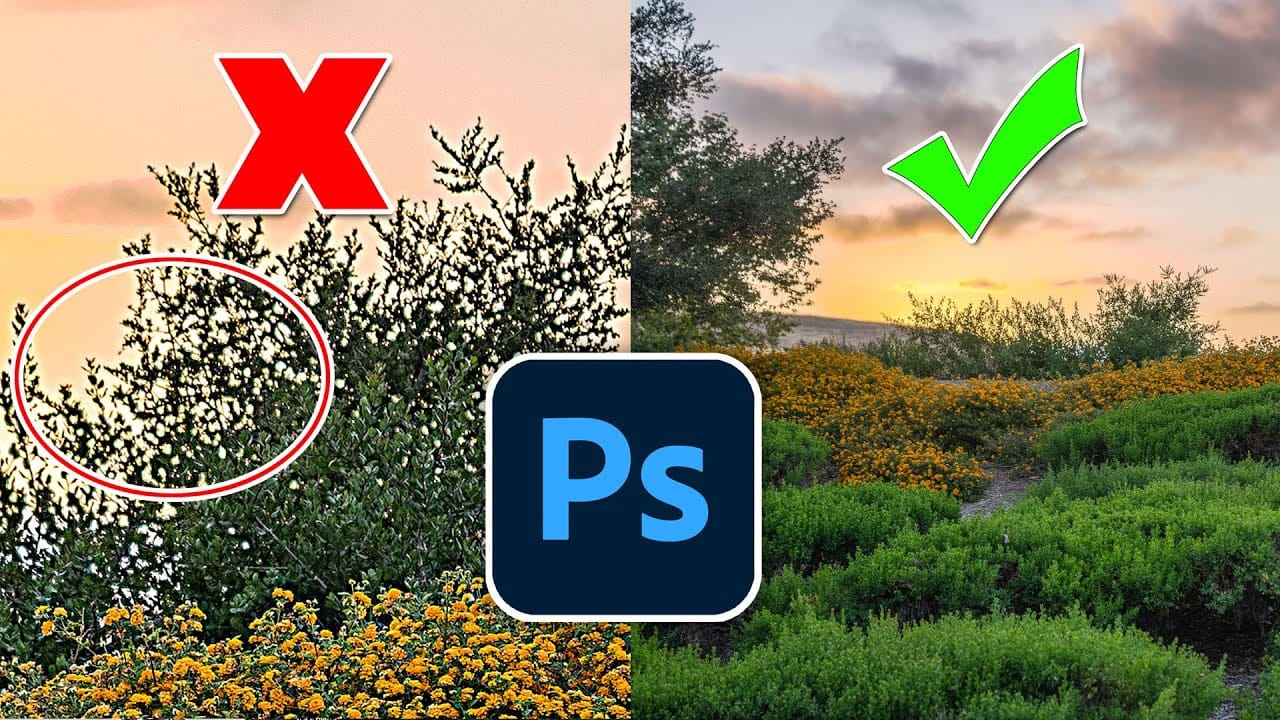
Hidden trick to perfectly sharpen photos in Photoshop
In this detailed tutorial, Colin Smith from Photoshop Cafe uncovers a sophisticated technique for achieving impeccable sharpening results in Photoshop. He dives deep into three essential sharpening methods: Smart Sharpen, High Pass, and Unsharp Mask, each of which offers distinct advantages depending on your editing needs. Colin's approach goes beyond basic sharpening techniques, incorporating a clever twist that enhances the effectiveness of these tools. He demonstrates how to leverage Smart S
Make yourself invisible in Photoshop
According to the author, making yourself invisible in Photoshop is a simple process that anyone can do. The key is to take the right pictures to make the job easy in Photoshop. In this tutorial, Aaron Nace from Phlearn will guide you through the process of taking multiple photos and provide tips and tricks to make the job easy and fun. The basic idea behind making a person invisible has to do with taking a "base image" of anyone and then taking supplemental photos to composite over top the base
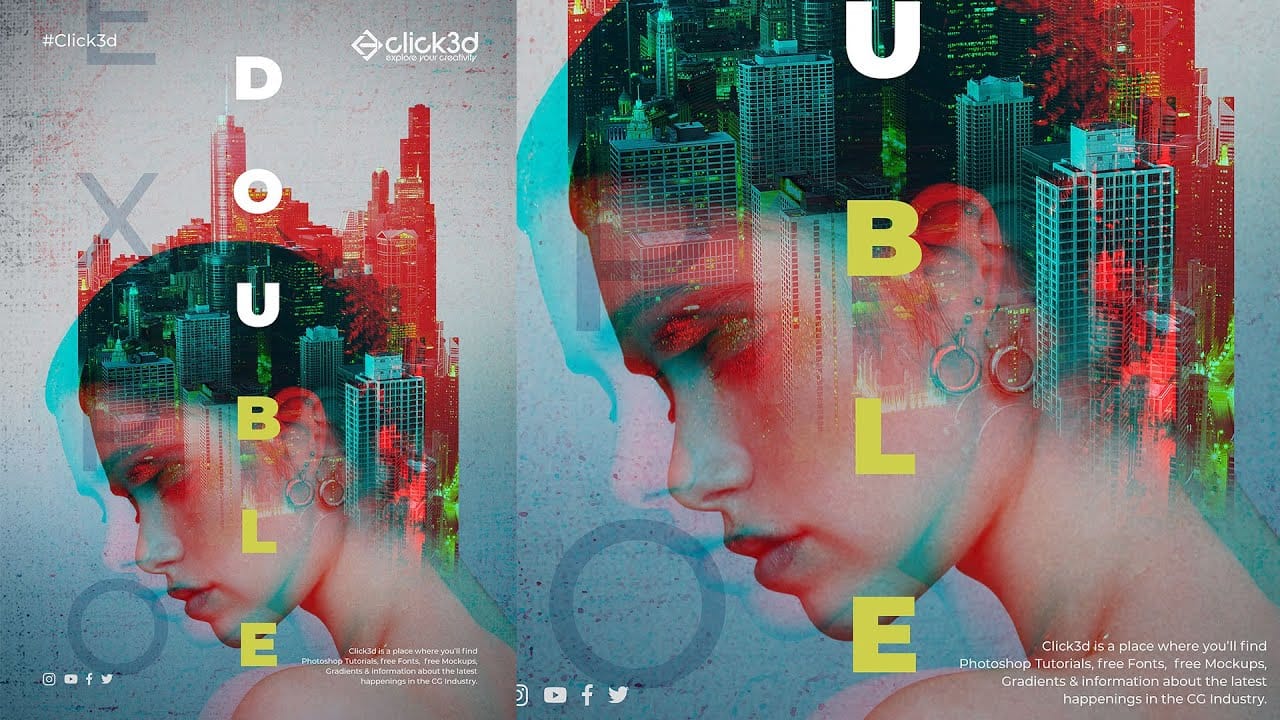
Double Exposure Glitch Poster Design in Photoshop
In this Photoshop tutorial by Click3D, you'll learn how to create a striking double exposure glitch poster design. The tutorial guides you through the process step by step, starting with the basics of setting up your project and selecting your images. You'll discover how to combine double exposure techniques with glitch effects to achieve a unique and eye-catching design. The tutorial covers essential steps like blending layers, applying distortion effects, and refining your poster to enhance t

Get tutorials & freebies delivered to you.

Subscribe to the Photoshop Roadmap newsletter, a weekly roundup of new tutorials, insights and quality downloads, trusted by 6500+ readers.

You might also like

Basic Photoshop techniques you really need to learn

Photoshop hasn’t changed as much as it looks. New features come and go, but the same core techniques keep showing up in real work. If you skip them, everything feels harder than it should. This post focuses on those basics, not as isolated tricks, but as skills you’ll...

How to Use Select Subject for Background Removal and Edge Refinement

Background removal becomes effortless when you know how to use the right tools. AI-powered selection can instantly isolate subjects from their backgrounds, but the real skill lies in refining those selections to create professional results. This guide covers the complete workflow from initial selection to edge refinement, plus creative techniques...

How to Wrap Text Around Any Shape in Photoshop

Creating text that flows naturally around irregular shapes transforms static layouts into dynamic, professional designs. This technique works particularly well for posters, magazine layouts, and editorial designs where text needs to integrate seamlessly with complex subjects rather than simply sitting in rigid rectangular boxes. The process combines selection tools, path...

How to Edit Text in Images Using Generative Fill

Changing text within existing images has traditionally required complex masking and reconstruction techniques. Modern AI-powered tools now make it possible to seamlessly replace words and phrases in photographs while maintaining realistic typography, lighting, and perspective that matches the original scene. This technique works particularly well for signs, storefronts, billboards, and...

How to Remove Dust and Sensor Spots Using Photoshop Tools

Dust spots and sensor particles are inevitable challenges in digital photography, appearing as dark specks that distract from otherwise clean images. Camera sensors collect dust over time, creating consistent spots that show up across multiple photos, particularly in bright sky areas or uniform backgrounds. Both Lightroom and Photoshop offer specialized...

Photoshop vs Affinity Photo: Feature Comparison and Professional Analysis

When choosing professional photo editing software, the decision often comes down to comparing features, performance, and value. This detailed comparison examines the core capabilities of both applications across noise reduction, smart selections, object removal, masking, and AI-powered tools. The analysis covers real-world scenarios that professionals encounter daily, from complex background...

You’ve successfully subscribed to Photoshop Roadmap
Welcome back! You’ve successfully signed in.
Great! You’ve successfully signed up.
Success! Your email is updated.
Your link has expired
Success! Check your email for magic link to sign-in.