How to Create Realistic Cracked Skin using Photoshop

How to Create Realistic Cracked Skin using Photoshop

Transform ordinary portraits into striking, textured images with advanced Photoshop techniques. This tutorial reveals how to add dramatic, realistic skin cracking effects that elevate your creative photo editing skills.

Watch the Tutorial

Video by Photoshop Tutorials. Any links or downloads mentioned by the creator are available only on YouTube

Practical Tips for Creating Cracked Skin Texture

Master the art of adding realistic texture to your digital portraits with these professional techniques.

• Carefully warp and transform your texture layer to match the contours of the subject's face
• Use layer blending modes like Multiply to integrate the texture seamlessly • Adjust levels and saturation to eliminate unwanted greys and whites
• Mask out specific areas like eyes and lips for a more refined result
• Apply subtle grain and sharpening for enhanced realism

Explore more advanced Photoshop techniques for transforming skin in your images.
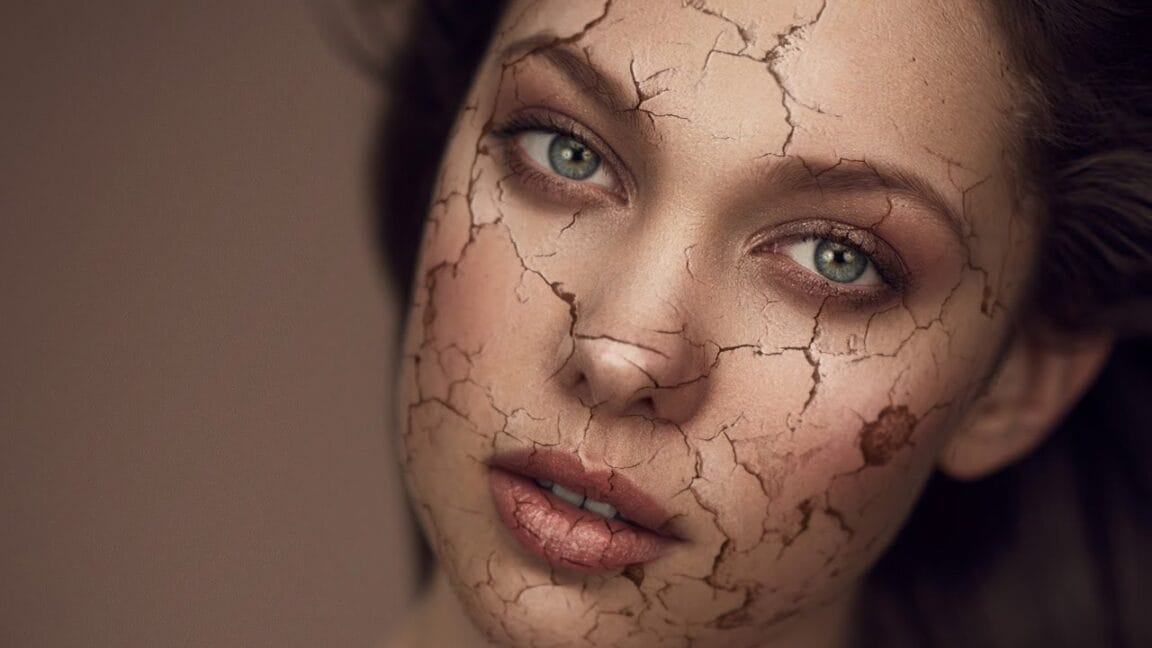
Create a cracked skin effect in Photoshop
In this tutorial by Phlearn, you will learn how to create an impressive cracked skin effect in Photoshop.
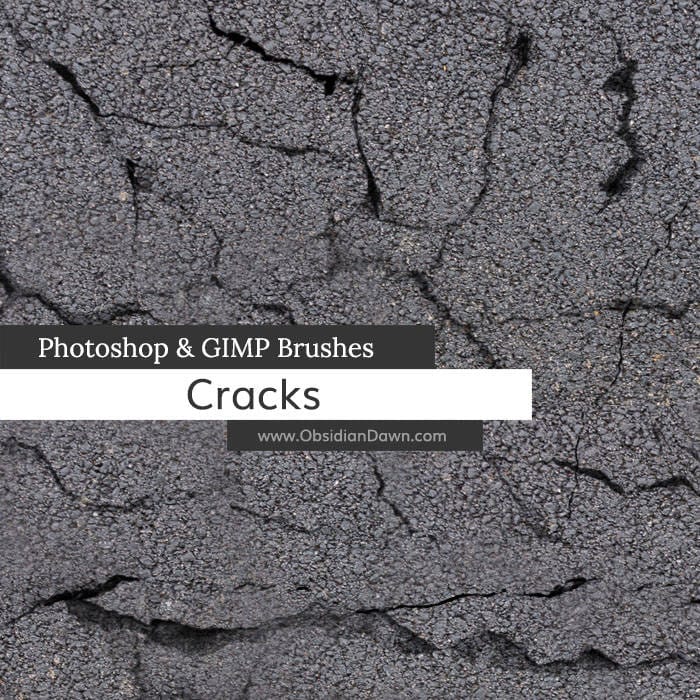
Cracks Photoshop Brushes
The author has created a set of Photoshop brushes that capture the intricate textures of various materials.
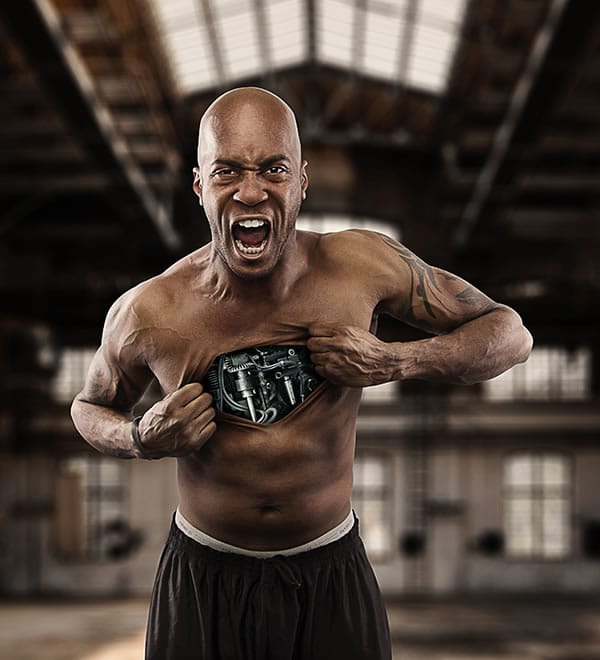
Skin tearing effect in Photoshop
In this tutorial, you will learn how to create a skin tearing effect in Photoshop, and you will also how to light and shoot the photography, as well. Process preview Read more at TutsPlus… More
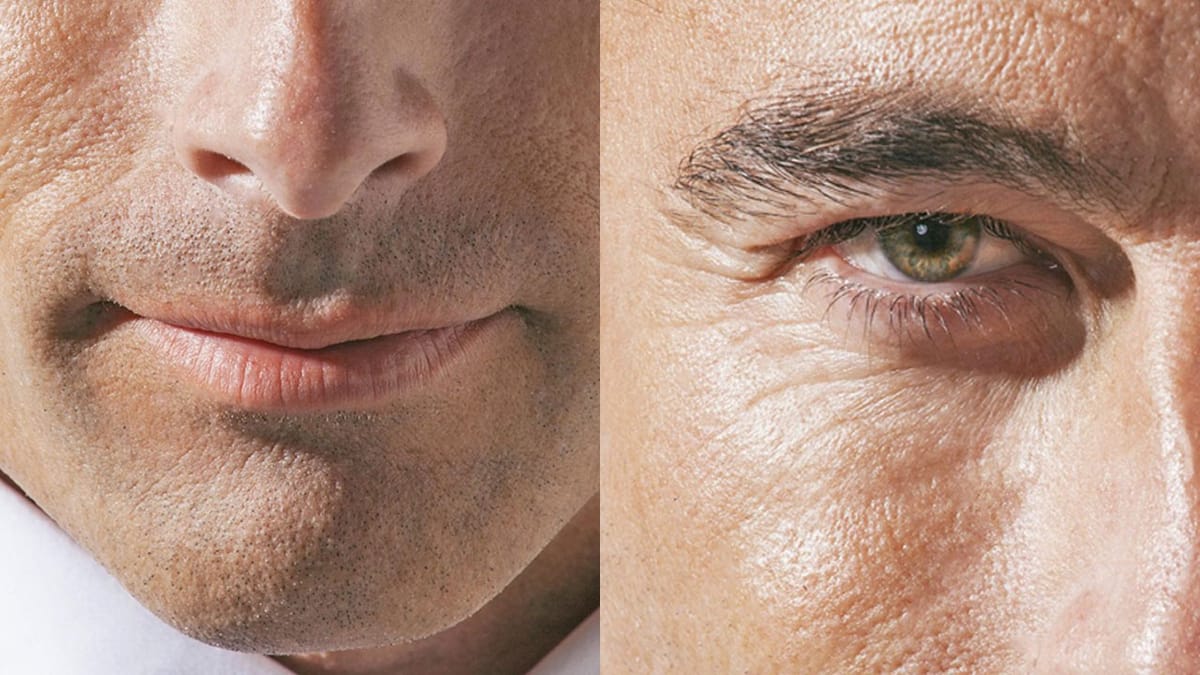
How to Retouch Mature Skin in Photoshop
In this tutorial by Aaron Nace from Phlearn, learn how to retouch handsome, mature men by reducing wrinkles, pores, and adding color back to their skin. The approach emphasizes maintaining natural skin texture and avoiding overly intense edits that remove character. Techniques include using Shadows and Highlights adjustments to soften

Get tutorials & freebies delivered to you.

Subscribe to the Photoshop Roadmap newsletter, a weekly roundup of new tutorials, insights and quality downloads, trusted by 6500+ readers.

You might also like

How to Use Floral Appliqué PNGs to Create Fine Art Portraits in Photoshop

High-resolution floral appliqué PNGs on transparent layers open up a straightforward path to fine art portrait compositing. By combining them with subject cutouts, blend modes, clipped adjustment layers, and foliage brushes, a standard photograph can take on the depth and texture of a painted piece. Watch the Video Practical...

Simulate the 2000s Digicam Look in Photoshop and Camera Raw

Early 2000s point-and-shoot cameras produced a distinctive look: punchy contrast, cool color casts from on-camera flash, deep shadows, and a soft glow around bright areas. This walkthrough covers how to replicate that aesthetic non-destructively using Camera Raw, radial gradient masking, and a blurred highlight layer. Watch...

How to Combine Two Photos in Photoshop Using AI Tools

Placing a subject from one photo into a completely different background used to require a long chain of manual steps. Photoshop's AI-powered tools now handle background removal, color matching, and shadow generation in just a few clicks, making the entire process accessible even to beginners. Watch the...

How to Remove Skin Blemishes and Fix Skin Tones in Camera Raw

Two recent additions to Camera Raw make skin retouching significantly faster: an automatic blemish removal tool with separate controls for moles and freckles, and a vectorscope-based skin tone indicator for correcting off-color skin. Both features work non-destructively inside a smart object workflow, so no pixel data is...

Portrait Retouching in Photoshop: Smooth Skin While Keeping Natural Texture

Smooth skin and natural texture are not opposites — achieving both at once is the mark of a professional retouch. This workflow covers blemish removal, flyaway hair cleanup, dark under-eye correction, and eye brightening, all while keeping the skin looking like skin. Watch the Video Practical Tips These key points...

You’ve successfully subscribed to Photoshop Roadmap
Welcome back! You’ve successfully signed in.
Great! You’ve successfully signed up.
Success! Your email is updated.
Your link has expired
Success! Check your email for magic link to sign-in.