The Orton Effect transforms ordinary landscape photos into dreamy, ethereal images with a signature soft glow. Named after photographer Michael Orton, this technique combines sharp and blurred versions of the same image to create luminous highlights while maintaining detail in the darker areas.
This approach works particularly well for sunset scenes, nature photography, and any image where you want to add atmospheric warmth and visual impact without looking over-processed.
Watch the Video
Video by Christian Möhrle - The Phlog Photography. Any links or downloads mentioned by the creator are available only on YouTube
Practical Tips for Orton Glow Effects
- Start with proper exposure - recover highlight and shadow detail in Camera Raw before applying the effect
- Use the Fade command immediately after applying Gaussian Blur for streamlined workflow and better control
- Try different blending modes - Lighten for balanced results, Overlay for drama, Screen for dreamy brightness
- Protect the shadows using Blend If controls to prevent the glow from flattening dark areas
- Keep opacity moderate - typically 20-40% works best for natural-looking results
Related Articles and Tutorials about Glow Effects
Explore more techniques for creating stunning light effects and atmospheric enhancements.
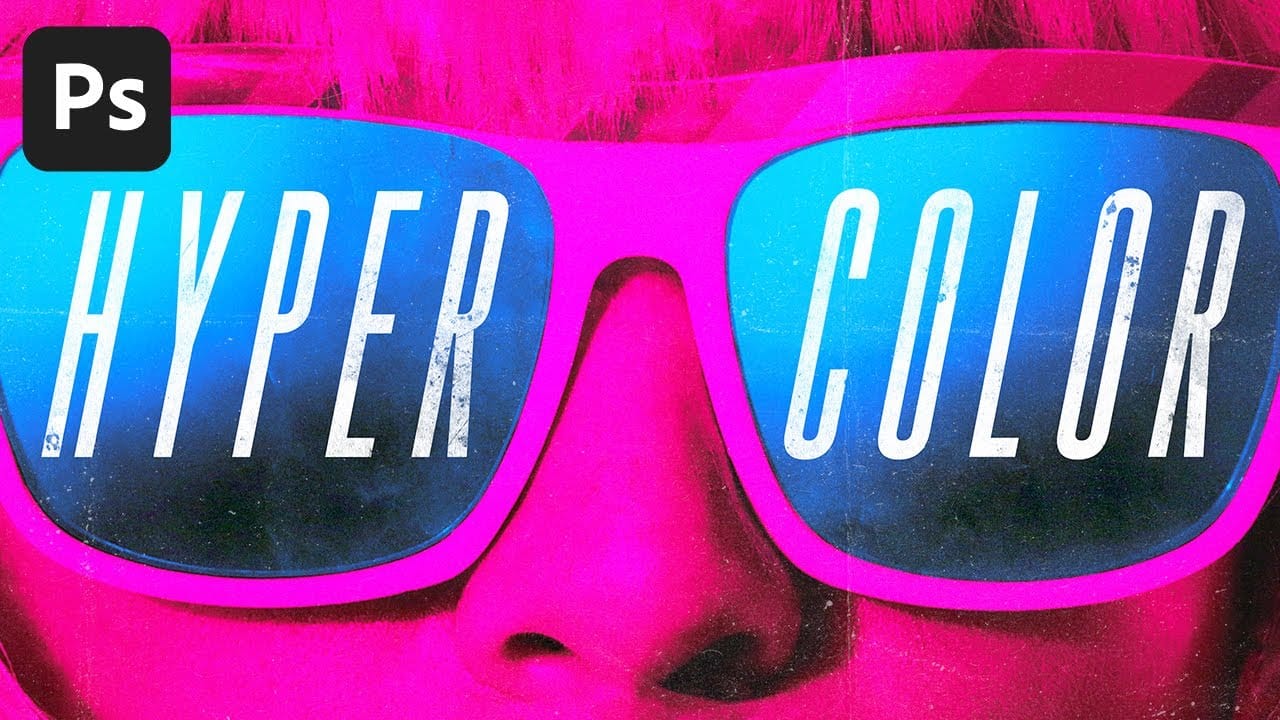
The Secret to Eye-Popping Color Overlays in Photoshop!
In this insightful tutorial, TextureLabs unveils a powerful technique for creating vibrant and striking color overlays in Photoshop. The focus is on leveraging fundamental color theory principles to produce gradient maps that truly stand out.
You'll start by learning how to apply color overlays and tints that add a unique flair to your designs. The tutorial walks you through a method for crafting gradient maps that not only enhance the visual appeal of your images but also give them a captivati
How to create a sun glow effect in Photoshop
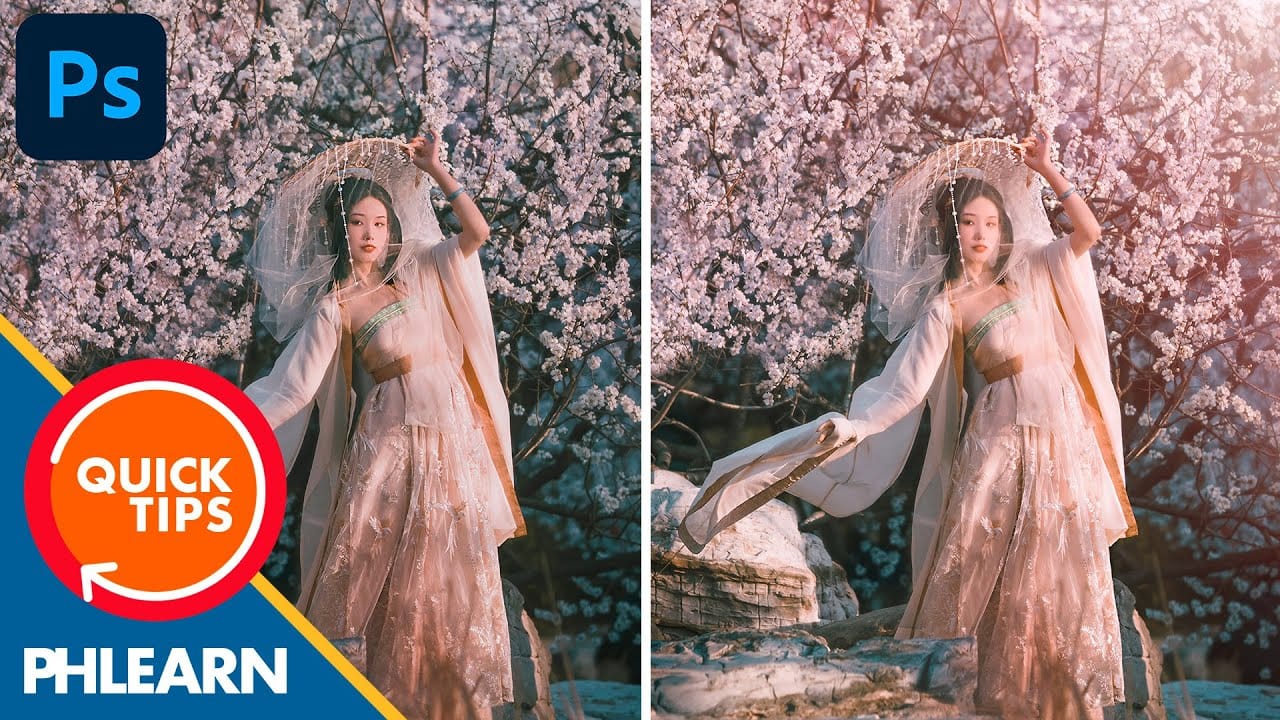
In this tutorial, Aaron Nace shows how to add a vibrant sun glow effect to your photos with ease. The process involves a few straightforward steps to simulate the warm, radiant look of sunlight. Aaron explains how to use blending modes, gradients, and layer adjustments to achieve a natural and eye-catching glow.
The tutorial includes a free Sun Glow Gradient, which you can download and use immediately to enhance your images. This effect is perfect for adding a dreamy, sunlit atmosphere to your
Create the Cinematic Bloom Glow Effect in Photoshop
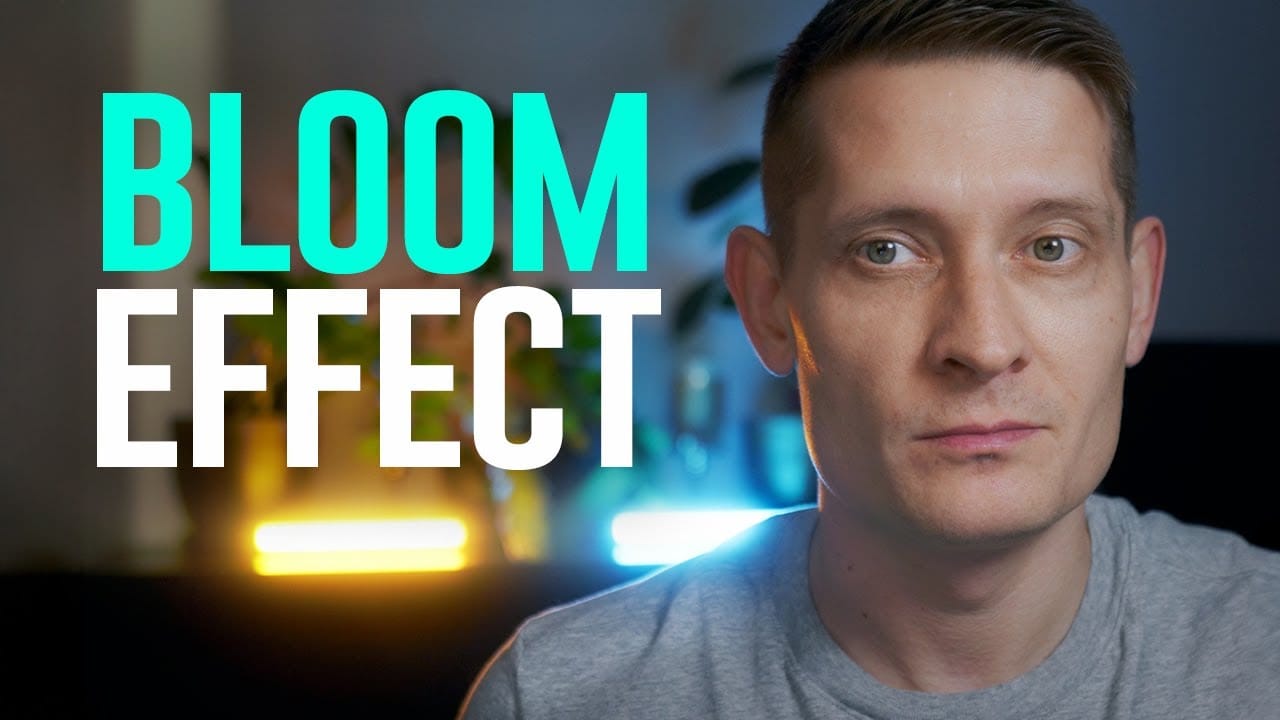
This guide will walk you through the steps to create a stunning bloom effect using Photoshop and DaVinci Resolve.
This technique enhances your highlights, infusing your photos and videos with a cinematic glow that adds a dreamy atmosphere.The bloom effect simulates the appearance of black diffusion filters commonly found in photography and cinematography. These filters soften images and contribute a soft, glowing quality to highlights. This approach is ideal for anyone looking to enrich their v
Epic gradient trick for beautiful light rays in Photoshop
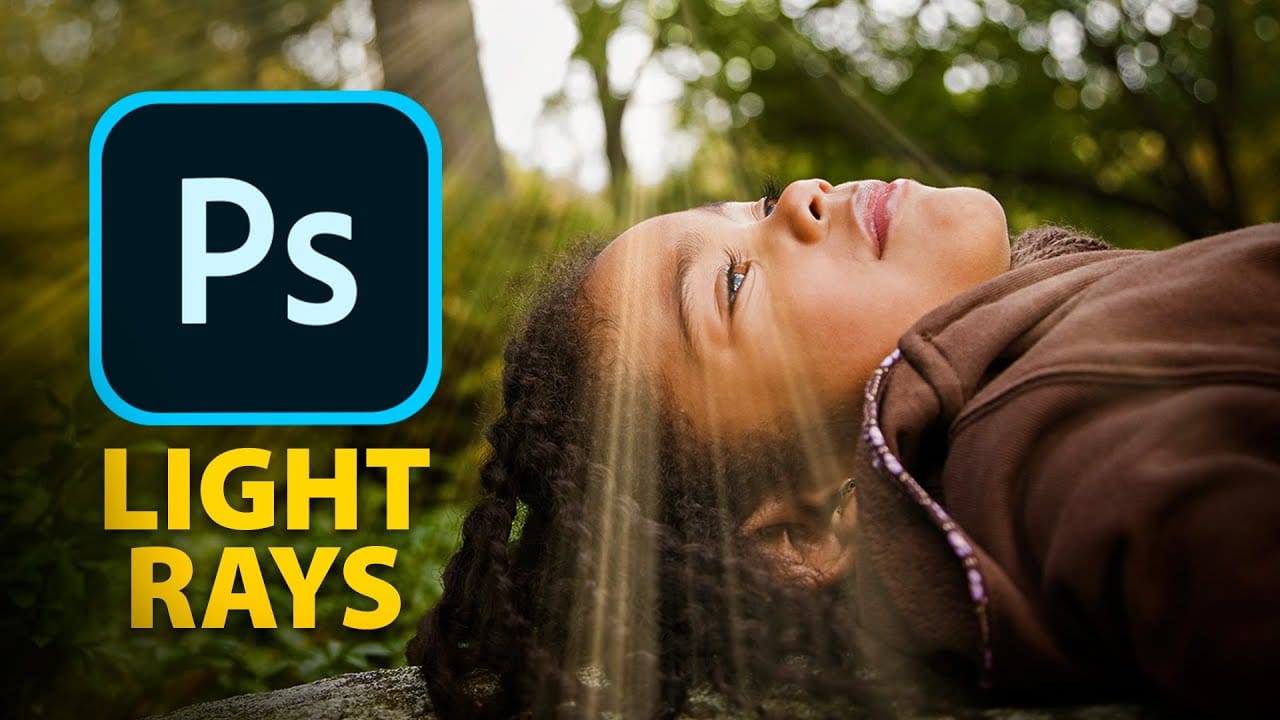
In this tutorial, Jesus Ramirez teaches you how to create stunning light rays in Photoshop using an ingenious gradient trick. By utilizing a Gradient Fill layer in an unconventional way, you can achieve a mesmerizing light ray effect that adds a dramatic touch to your photos. This method is straightforward and effective, making it accessible even for beginners.
Part of the Photoshop in-app tutorials, this guide allows you to open the tutorial image directly from Photoshop and follow along with