How to Edit Snow in Landscape Photos Using AI Masking Tools

How to Edit Snow in Landscape Photos Using AI Masking Tools

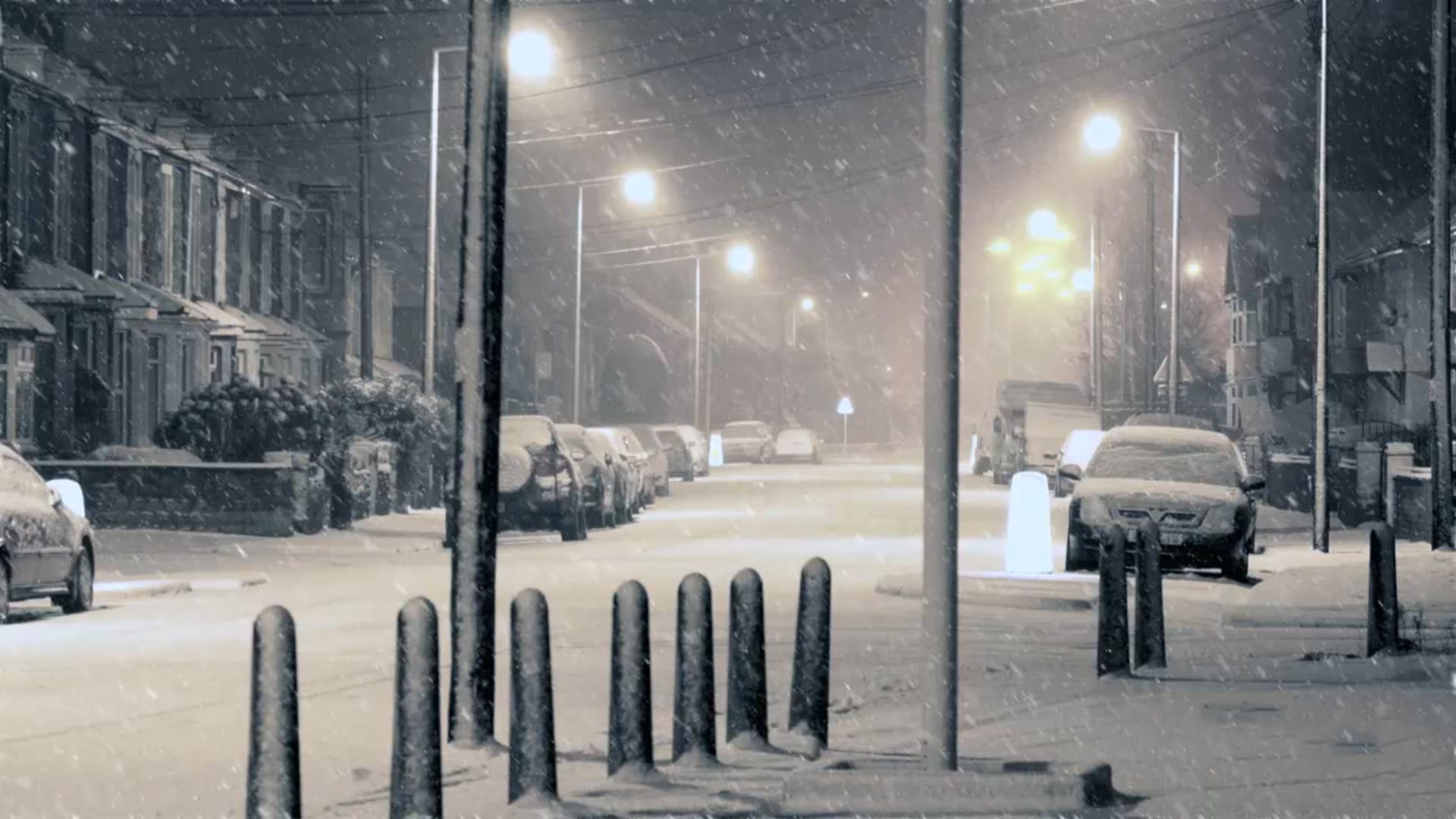
Editing winter landscapes traditionally requires careful masking to enhance different elements like snow, sky, and vegetation separately. The new AI landscape tool automatically detects and creates precise masks for these elements, including snow, making complex edits surprisingly simple.

This workflow works identically across multiple platforms, allowing you to enhance winter scenes with targeted adjustments that bring out texture in snow, deepen sky colors, and boost vegetation saturation in seconds rather than hours.

Watch the Video

Video by PHLEARN. Any links or downloads mentioned by the creator are available only on YouTube

Practical Tips

Follow these key techniques to get the most from AI landscape masking:

  • Use the clarity slider in the effects panel for snow masks to enhance texture and definition
  • Lower highlights and raise shadows on snow to prevent overexposure while maintaining detail
  • Shift sky color temperature toward blue to create contrast with warm snow tones
  • Boost saturation on vegetation masks to make foreground elements pop against white backgrounds
  • Open images as smart objects when using Camera Raw in Photoshop for non-destructive editing

Explore more techniques for enhancing winter scenes and working with AI-powered editing tools.
How to Edit Landscape Photos in Adobe Photoshop or Lightroom
Landscape photography often presents unique challenges and opportunities for post-processing. Capturing the grandeur of nature requires not only a keen eye but also the ability to refine and enhance images to truly convey the scene's atmosphere and depth. This video tutorial demonstrates a comprehensive workflow for editing landscape photos, primarily utilizing Adobe Camera Raw (compatible with Lightroom) and Photoshop. Viewers will learn how to apply non-destructive adjustments, create depth t
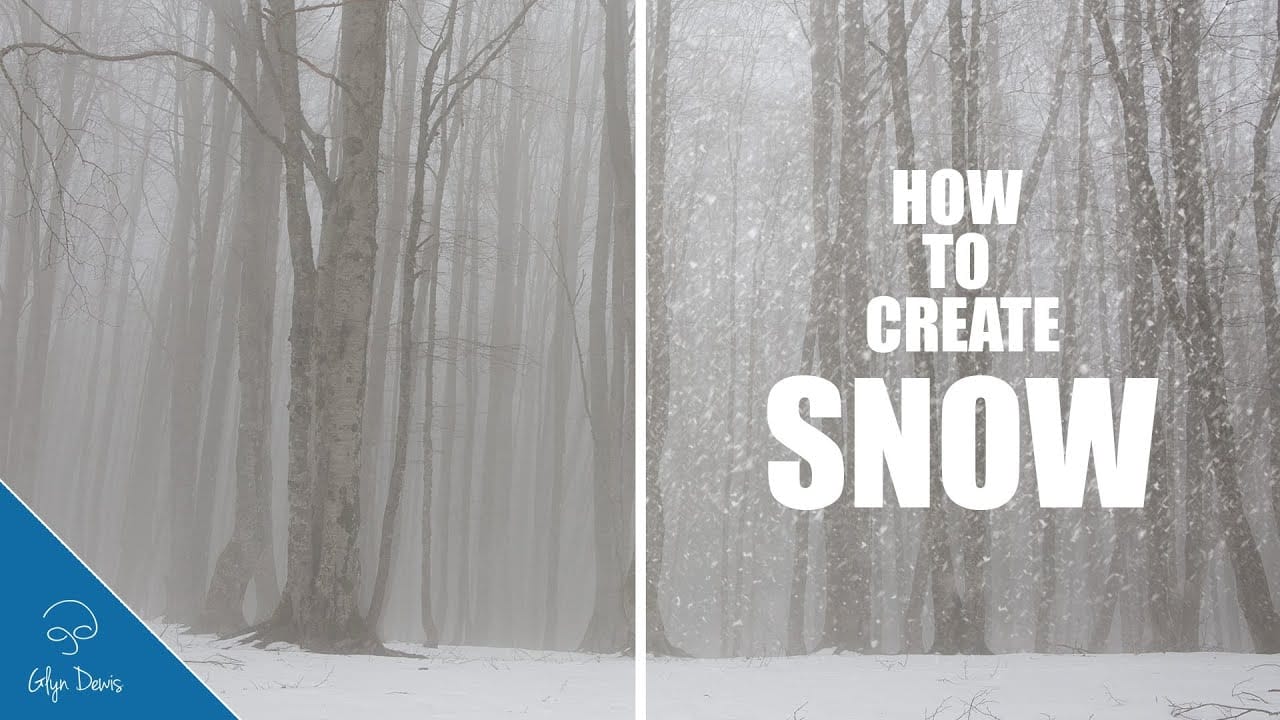
Add a Snow Storm Effect to a Regular Winter Photo in Photoshop
The serene beauty of a winter landscape often hinges on the delicate dance of falling snow, transforming ordinary scenes into magical vistas. Capturing this ephemeral quality in photography, however, often requires more than just waiting for the perfect storm. Digital artistry can enhance or even generate these atmospheric elements, lending a profound sense of depth and realism to any image. This tutorial unveils a surprisingly effective method for generating photorealistic snow using just a fe
Create a Winter Snow Scene with Photoshop
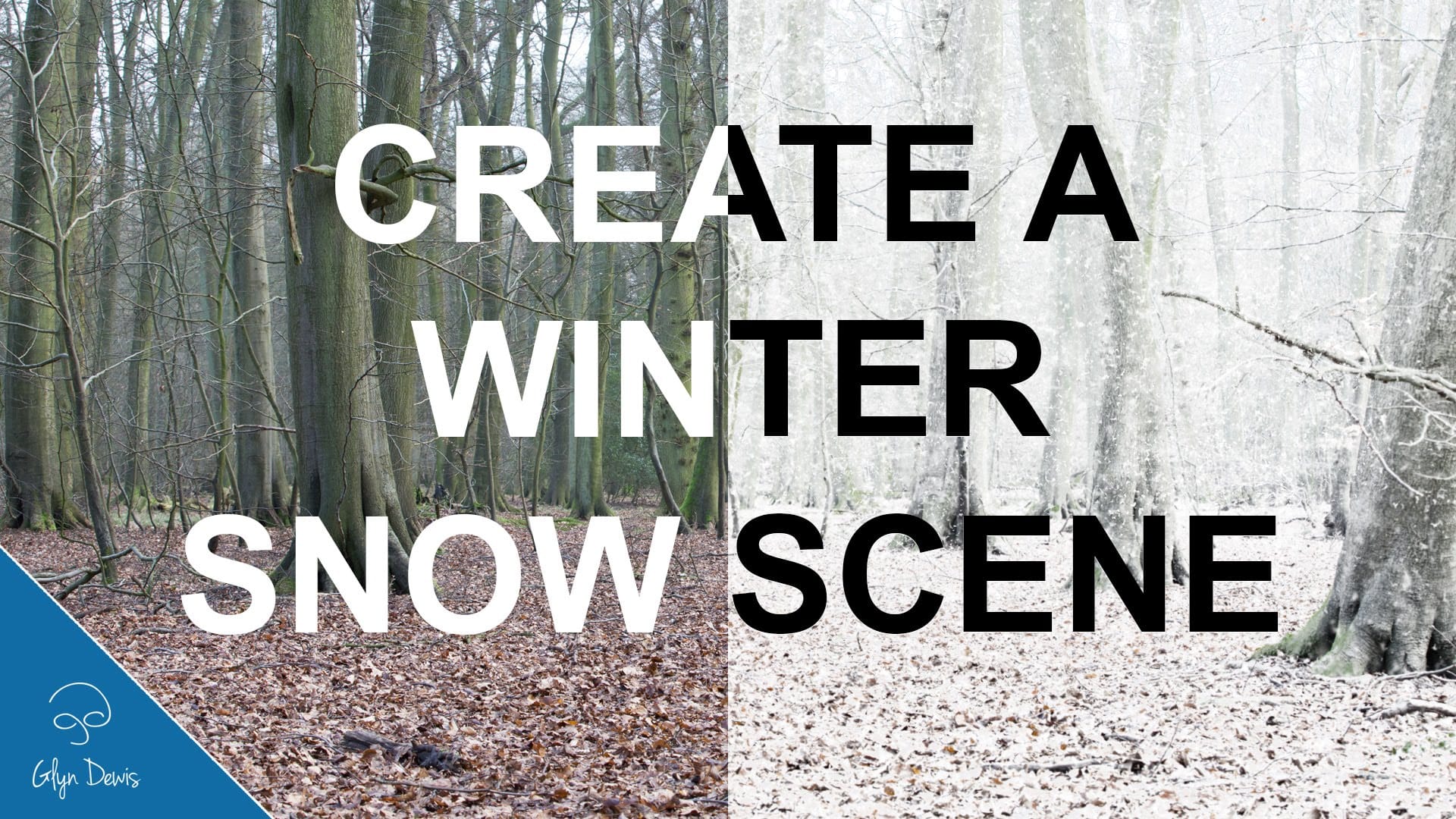
In this tutorial, you'll learn how to transform a regular photograph into a captivating winter snow scene using Adobe Photoshop. The step-by-step approach is straightforward and easy to follow, making it accessible for both beginners and experienced Photoshop users. The tutorial covers the key techniques required to add realistic-looking snow to your image. You'll discover how to create a snowy atmosphere, including snowflakes and icy effects, to bring your scene to life. The instructor's clear
Create a Winter Wonderland Scene in Photoshop
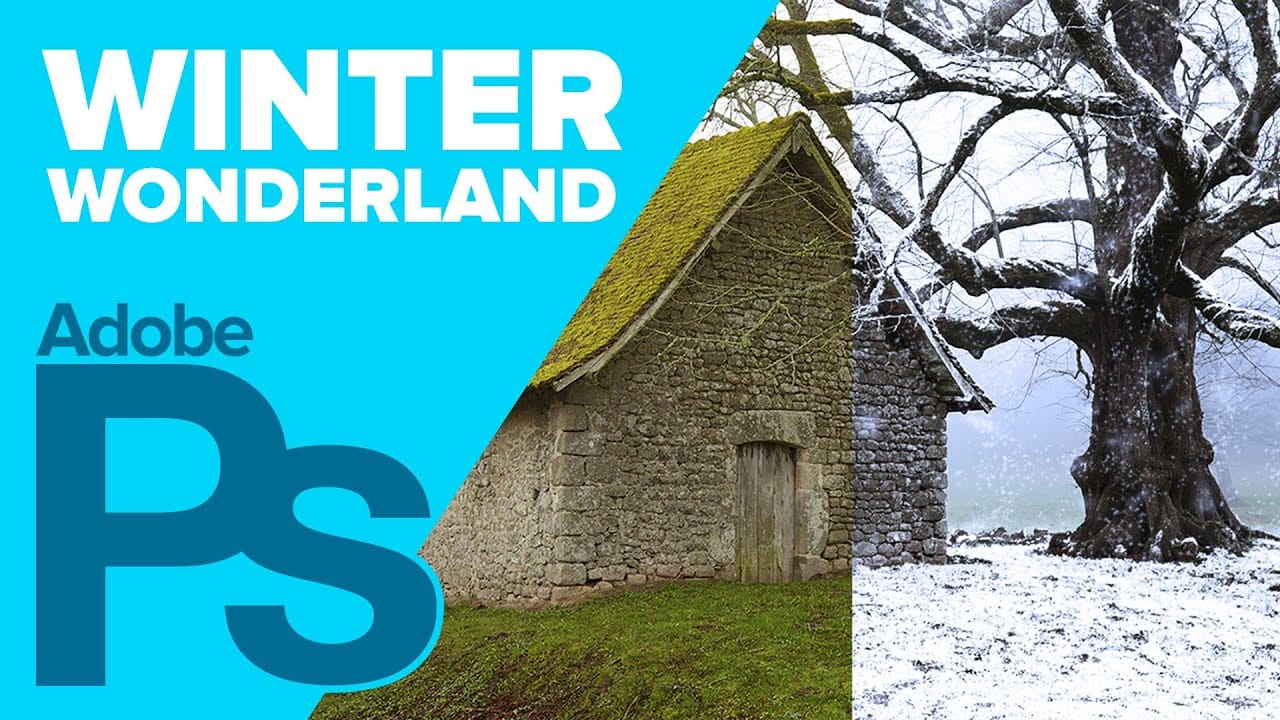
In this tutorial by Howard Pinsky from Ice Flow Studios, you will learn how to transform a regular photo into a stunning winter wonderland scene using Adobe Photoshop. This detailed guide breaks down the process step by step, making it easy for anyone to follow along. You'll start by adjusting the initial image to set the right atmosphere. Pinsky focuses on techniques like adding snow effects, adjusting colors, and incorporating seasonal elements to enhance the winter feel. Each step is clearly
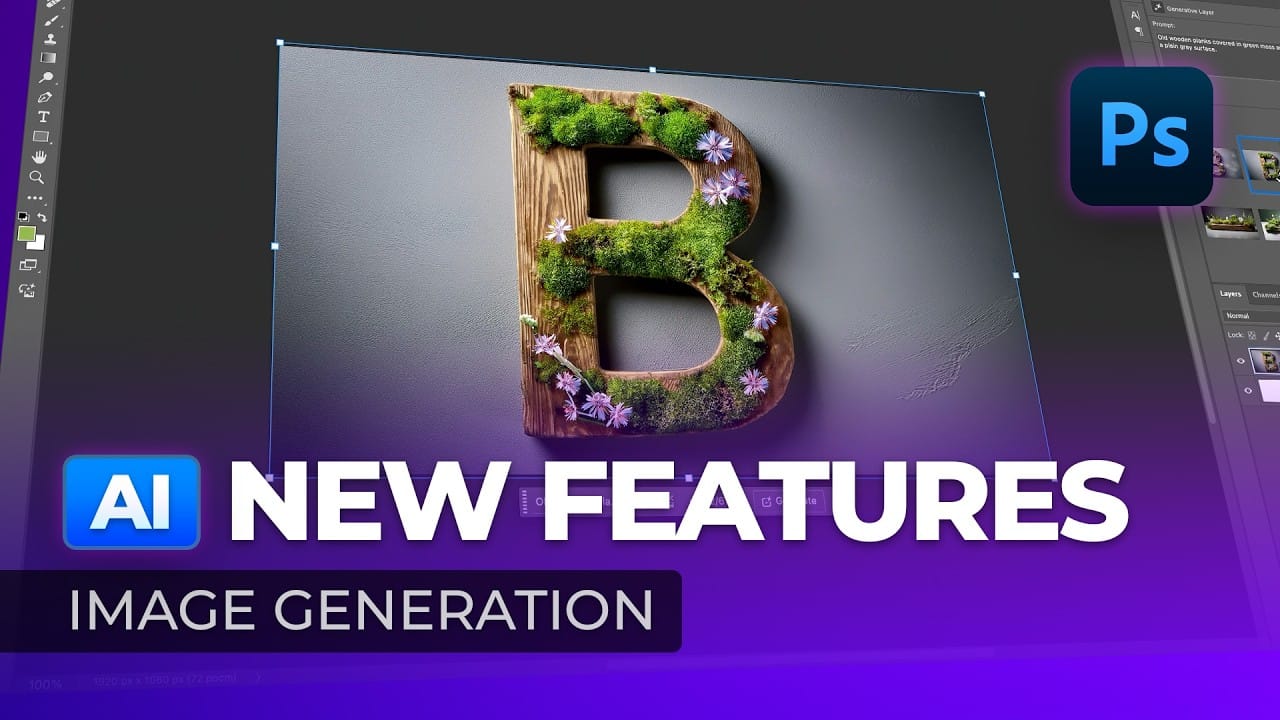
10 Ways AI Completely Transformed My Photoshop Techniques
Repetitive tasks like making complex selections, removing unwanted objects, and cleaning up blemishes can consume hours of an editor's time. While traditional Photoshop methods offer precise control, they are often slow and require significant technical skill for what should be simple fixes. This guide demonstrates how to integrate modern AI features into your daily workflow. You will learn practical techniques for everything from one-click selections and generative fills to automated retouchin
Strategic Guide to Photoshop's AI Tools: Which Tool, When, and Why
Over the past few years, Adobe has been strategically integrating AI-powered features that are redefining what's possible in image editing, positioning Photoshop at the forefront of the generative AI revolution. Rather than simply adding standalone AI tools, Adobe is thoughtfully weaving intelligence into Photoshop's core workflows, creating something far more sophisticated than the typical AI feature additions we see elsewhere. But here's the challenge: having all these options doesn't automat
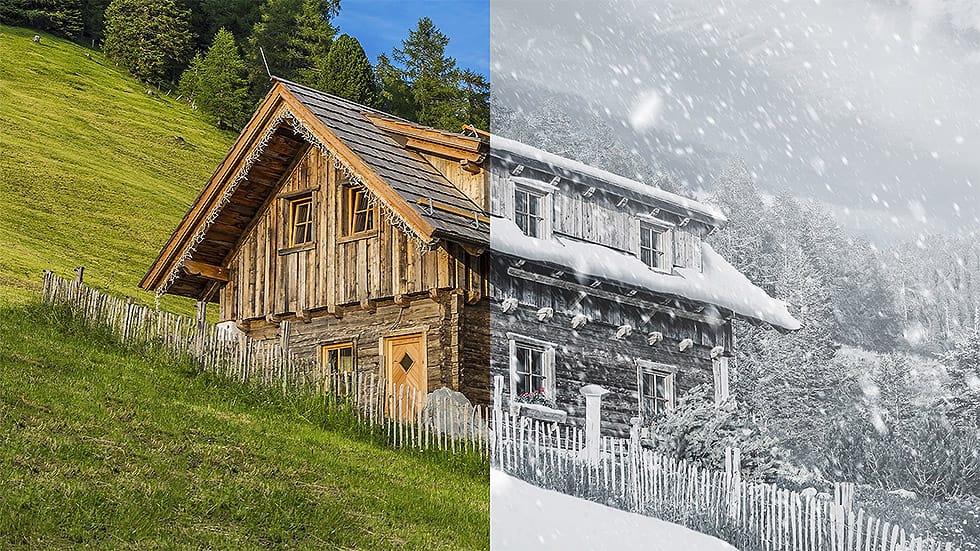
Transform a summer photo into a winter scene
In this tutorial, you will learn how to transform a summer photo into a captivating winter scene using Photoshop. The instructor expertly guides you through desaturating colors to create a wintry feel, adding snow to trees, grass, and the ground, and creating falling snow with custom brushes. The tutorial also covers using adjustment layers to enhance contrast and add a cold blue tint, completing the transformation. This technique is ideal for creating seasonal photo manipulations, adding a fes
Add a realistic snowfall to a photo in Photoshop
Winter scenes gain magical atmosphere when snowflakes drift naturally through the frame. This video demonstrates how to build a realistic snow brush from scratch using Photoshop's noise filters and brush settings. The technique creates multiple layers of snow at different sizes and blur levels to simulate depth, from distant background flakes to prominent foreground snowfall. Watch the Video Practical Tips for Creating Realistic Snow Building convincing snowfall requires attention to depth
New Photoshop AI Features – Smarter, Faster, and More Efficient Tools!
Editing detailed selections, adjusting colors, and removing backgrounds in Photoshop can be tedious, especially when working with complex edges like hair or challenging objects. Manual work often stalls creative flow and makes it tough to achieve clean, professional results on tight deadlines. This article introduces essential, time-saving features in the latest Photoshop update—including advanced AI-powered selection, color, and removal tools. Learn how these updates streamline everyday editin
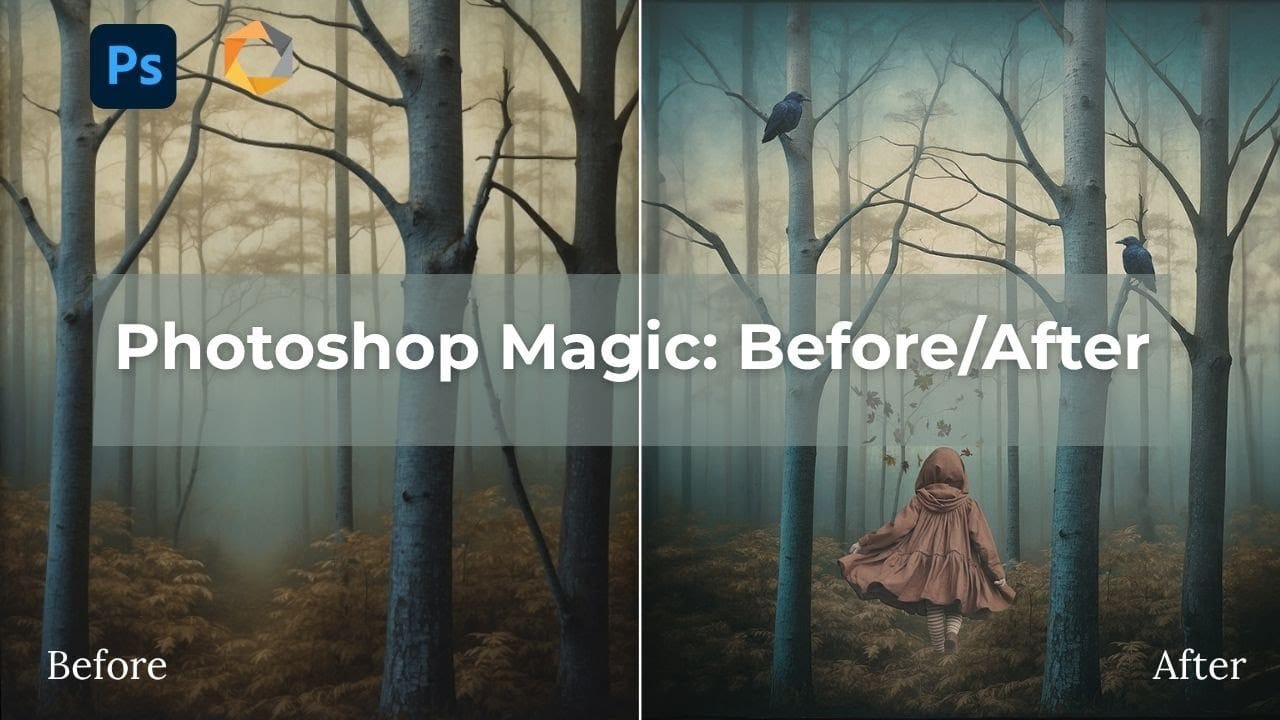
Creating AI-Enhanced Autumn Fantasy Images in Photoshop
Fantasy imagery comes alive when artificial intelligence meets traditional photo manipulation techniques. AI-generated backgrounds provide the perfect foundation for creating moody, atmospheric scenes that would be difficult or impossible to capture with a camera alone. This approach combines the creative potential of AI image generation with Photoshop's precise editing tools to craft compelling visual narratives. The result is a seamless blend of imagination and technical skill that transforms

Get tutorials & freebies delivered to you.

Subscribe to the Photoshop Roadmap newsletter, a weekly roundup of new tutorials, insights and quality downloads, trusted by 6500+ readers.

You might also like

How to Remove Eye Bags Using Dodge and Burn in Photoshop

Eye bags can dramatically age a portrait, making subjects appear tired or unhealthy. Traditional removal methods often destroy skin texture or create unnatural results that look obviously retouched. This professional dodge and burn technique removes even severe eye bags while preserving every detail of natural skin texture. The method uses...

How to Fix Crossed Eyes and Lazy Eyes in Photoshop

Portrait photographers and retouchers often encounter images where subjects have crossed or lazy eyes, which can distract from an otherwise great shot. Whether caused by timing, lighting, or natural eye alignment issues, these problems can be corrected effectively without compromising image quality. This tutorial demonstrates two practical approaches: using AI-powered...

How to Contract a Selection to Eliminate White Edge Artifacts.

White edge artifacts can ruin otherwise perfect cutouts, appearing as unwanted halos around selected objects after background removal. These artifacts occur when selection edges capture tiny fragments of the original background, creating visible white outlines that become obvious against new backgrounds. The Contract modifier in Photoshop's Select menu...

How to Use New Camera Raw Adjustment Layers in Photoshop Beta

Three new adjustment layers in Photoshop beta bring Camera Raw's most powerful tools directly into your layers panel. Color and Vibrance, Clarity and Dehaze, and Grain adjustments now work as standard adjustment layers, eliminating the need for smart objects while maintaining all the precision masking and blending capabilities...

How to Wrap Designs Around Complex Objects Using Displacement Maps in Photoshop

Professional mockups require more than simply placing a design onto an object. Complex surfaces like crushed aluminum cans demand advanced techniques to achieve realistic wrapping that follows every contour and deformation. This process combines displacement mapping, smart objects, and blending modes to create reusable templates that automatically conform any design...

How to Fix Three Confusing Default Settings in Photoshop

Sometimes Photoshop's default settings can make beginners think their software or hardware is broken. Images that fly around uncontrollably when panning, scroll bars appearing on full-size images, and zoom tools that seem to have a mind of their own are all caused by simple preference settings that can...

You’ve successfully subscribed to Photoshop Roadmap
Welcome back! You’ve successfully signed in.
Great! You’ve successfully signed up.
Success! Your email is updated.
Your link has expired
Success! Check your email for magic link to sign-in.