Creating convincing sticker effects requires more than just adding basic shadows and highlights. The key lies in building up multiple texture layers, proper lighting effects, and subtle surface details that make digital text appear physically attached to a surface.
This technique transforms flat vector text into dimensional stickers complete with authentic edges, surface gloss, and realistic depth that mimics how real adhesive stickers catch and reflect light.
Watch the Video
Video by P A N T E R. Any links or downloads mentioned by the creator are available only on YouTube
Practical Tips
Master these essential techniques to achieve convincing sticker realism:
- Layer multiple shadow effects with drop shadow, outer glow, and inner glow to create proper depth and edge definition
- Use minimal spatter filter settings (spray radius: 1, smoothness: 2) to add subtle edge texture without overdoing the distortion
- Apply noise layers with screen blend mode and clipped masks to simulate the fine texture of printed vinyl material
- Create glossy highlights using solid color layers with ocean ripple distortion and screen blending for realistic surface reflection
- Paint selective gloss areas on layer masks to control where highlights appear, mimicking how real stickers reflect light
Related Articles and Tutorials
Explore more techniques for creating realistic physical effects and dimensional text treatments.
100+ Brilliant Photoshop Text Effects: The Ultimate 2026 Roundup
You won’t admit this: You spend hours making text look like liquid gold. Not for clients. Not for your portfolio. Just because. Here’s the thing: Text effects are your guilty pleasure. You tell yourself you’re “practicing.” You say you’re “building skills.” But really? You just love watching letters transform into
 Enrique Flouret
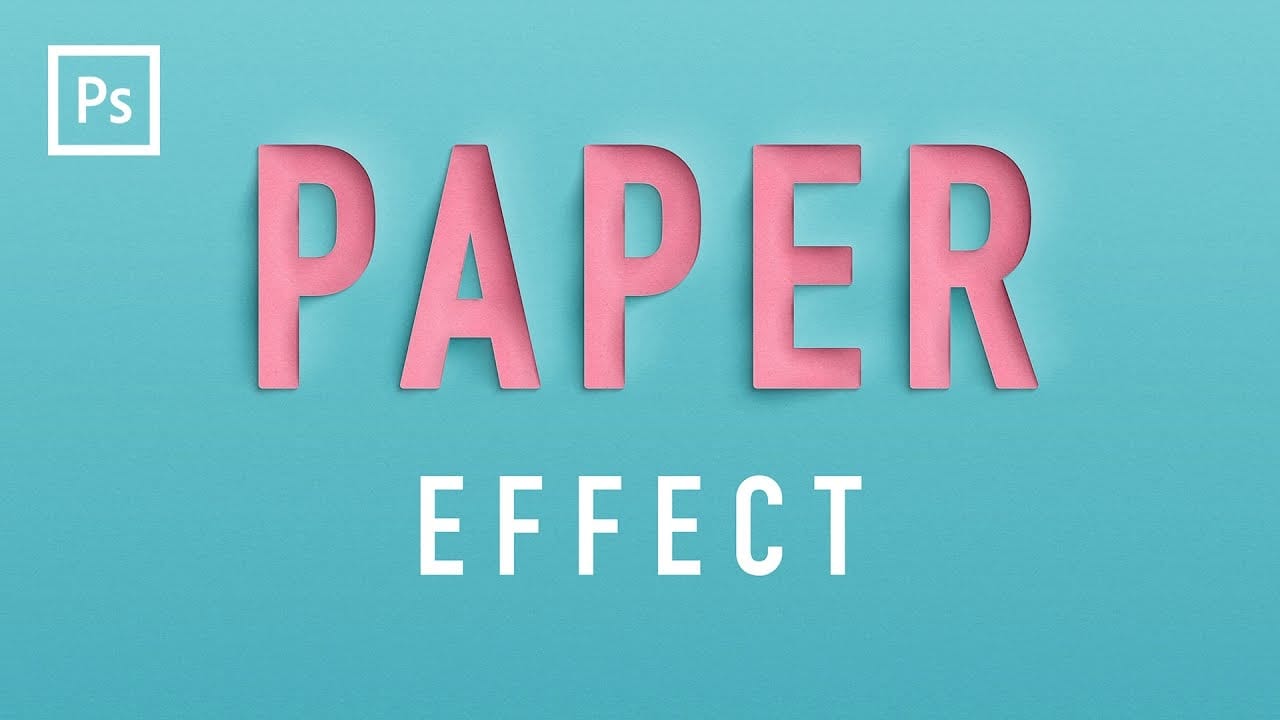
Create a Realistic Paper Cutout Text Effect in Photoshop
Elevate your typography with a realistic paper cutout effect. This Photoshop tutorial provides a step-by-step guide to adding depth and dimension to your custom lettering designs.
Learn how to craft intricate shadows and highlights, transforming flat text into a stunning, layered paper artwork.
Watch the Video
Practical Tips for Paper Cutout Effects
Master the subtle nuances of light and shadow to achieve a convincing paper cutout look in Photoshop.
* Create a new Photoshop document at 3
Create a Rubber Stamp Text Effect in Photoshop
Digital design often seeks to replicate the tactile feel of real-world objects. This video explores how to achieve the authentic appearance of a rubber stamp within Adobe Photoshop.
Viewers will learn to design custom text and frames, apply distressed textures, and integrate this unique stamp effect onto any image, enhancing their projects with a vintage or official aesthetic.
Watch the Video
The Art of Digital Texturing: Replicating Physical Effects
Replicating physical textures in digita

Realistic Blend Effect in Photoshop
In this advanced Photoshop tutorial, WebFlippy guides you through creating a realistic blend effect for text, graphics, or logos on any surface. This tutorial is designed to help you seamlessly integrate elements into various backgrounds, making them look like a natural part of the scene.
WebFlippy starts by demonstrating how to properly blend text or logos using Photoshop's powerful tools and techniques. You'll learn how to adjust and match the texture, lighting, and perspective of your surfac

Create a realistic tattoo out of any design in Photoshop
Digital tattoo creation transforms flat illustrations into convincing skin art through careful texture work and blending techniques. The key lies in making computer-generated designs look hand-drawn and naturally integrated with skin.
This technique converts vector artwork or digital drawings into realistic tattoos by adding organic line variation, proper lighting effects, and skin integration that mimics how real ink settles beneath the surface.
Watch the Video
Practical Tips
Master these

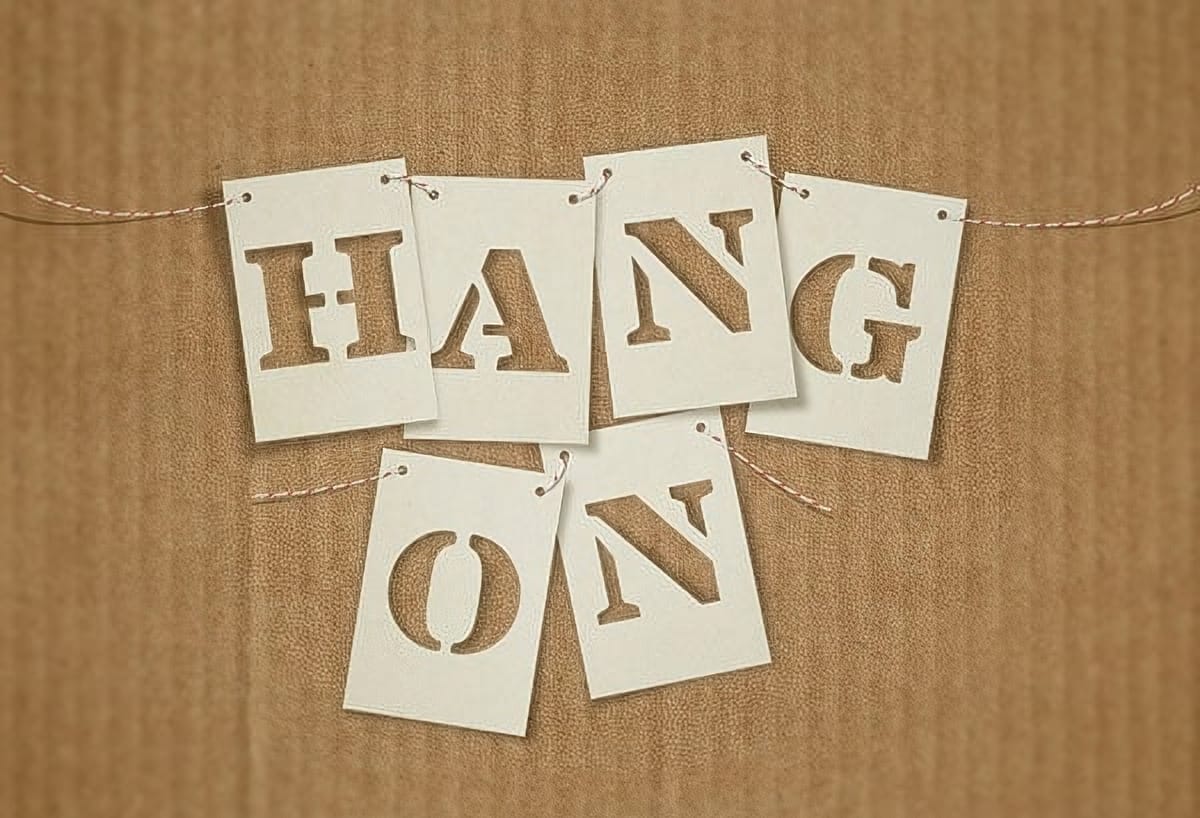
How to Create a Hanging Stencil Banner Photoshop
Warping objects is a fantastic way to achieve realistic effects, and this tutorial by Tuts+ demonstrates how to create a simple yet striking stencil banner text effect in Adobe Photoshop.
You'll learn how to use shape properties, smart objects, textures, layer styles, and brushes to craft each letter as a sheet of paper with the letter cut out, hanging from a string like banner. The tutorial also covers using the Warp command to add realism and depth to your design.
Perfect for creating festiv
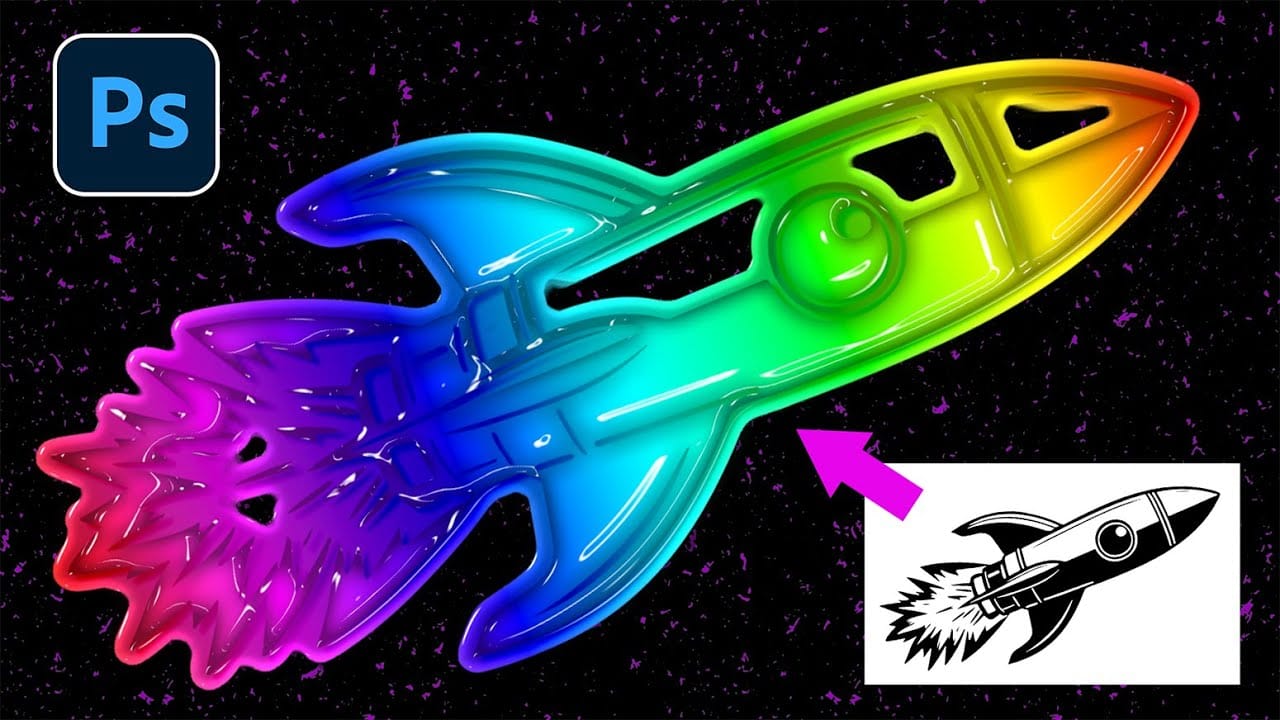
How to Create Retro Molded Plastic Text Effects in Photoshop
The distinctive look of vintage molded plastic carries a unique charm that defined countless products from toys to electronics in decades past. This glossy, dimensional aesthetic brings instant retro appeal to modern designs, combining smooth beveled surfaces with vibrant colors and realistic depth.
This tutorial demonstrates how to recreate that authentic molded plastic appearance using Photoshop's layer styles and smart objects. You'll learn to transform ordinary text and graphics into convin
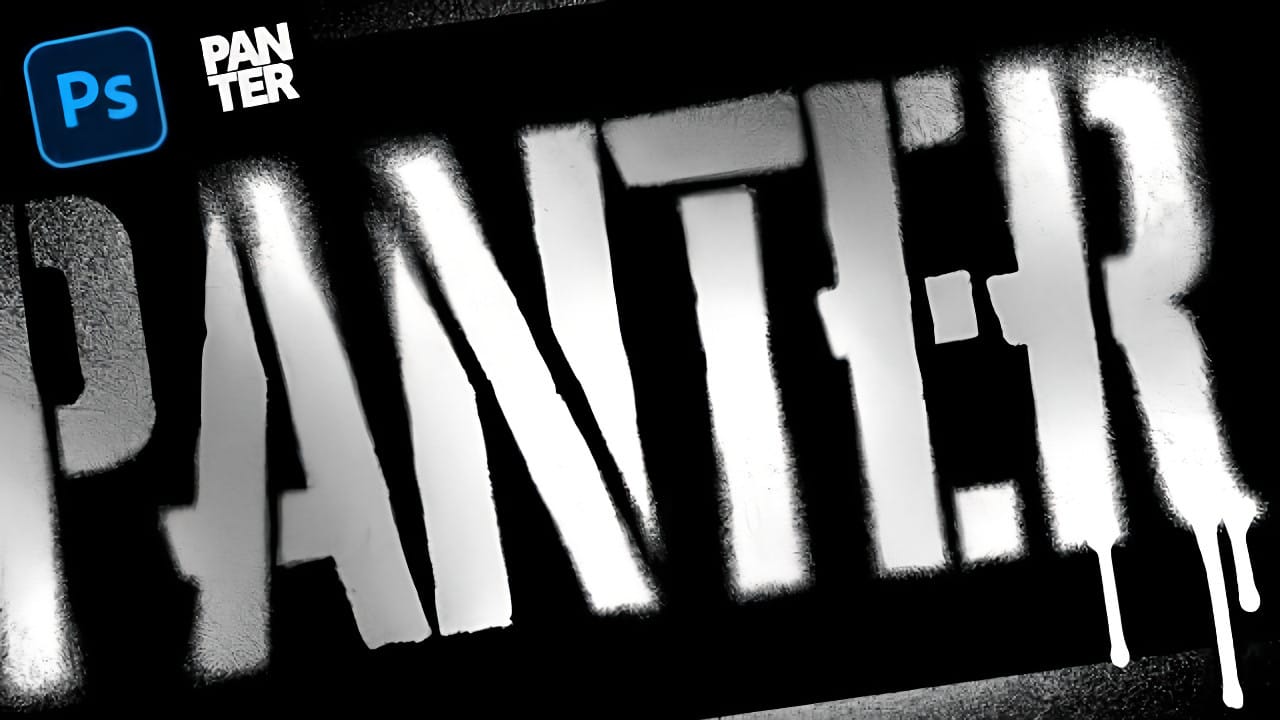
How to Create a Stencil Spray Paint Text Effect Using Photoshop, Firefly & Illustrator
Street art transforms simple text into bold statements with that unmistakable spray paint look. The rough, organic texture of stenciled letters creates an edgy aesthetic that stands out from polished digital fonts.
This technique combines multiple Adobe tools to achieve authentic graffiti-style text, complete with realistic drips and that characteristic dissolving spray effect that makes stencil art so compelling.
Watch the Tutorial
The Power of Multi-Tool Workflow
Creating realistic spray
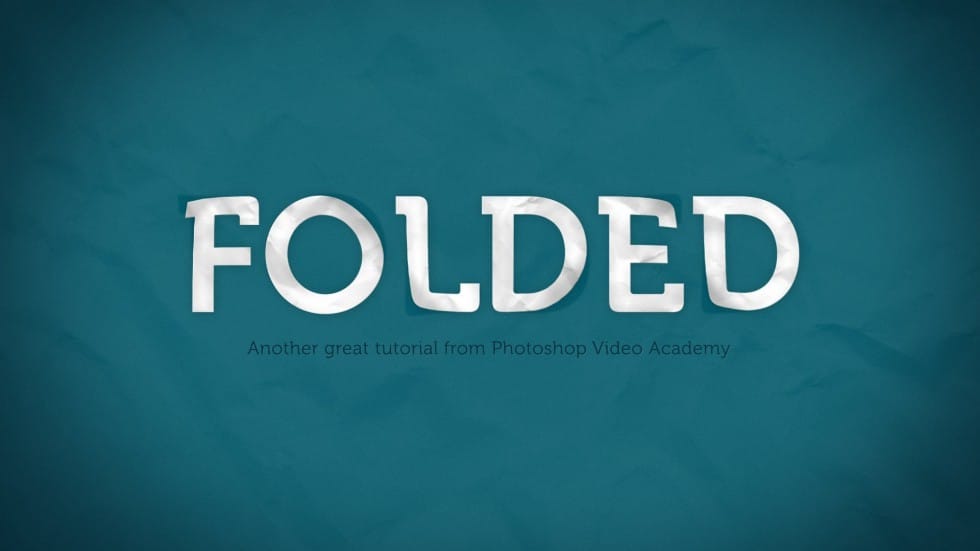
How to Create a Folded Paper Text Effect in Photoshop
Want to give your text a unique, handcrafted feel? This tutorial shows how to create a compelling folded paper text effect in Photoshop.
Learn to make letters appear as if they are peeling up from the page, adding depth and visual interest to your designs.
Watch the Video
Practical Tips for Creating Folded Paper Text Effects
Achieving a convincing folded paper effect involves careful manipulation of text, shadows, and textures. Here are some key tips from the tutorial to help you master th
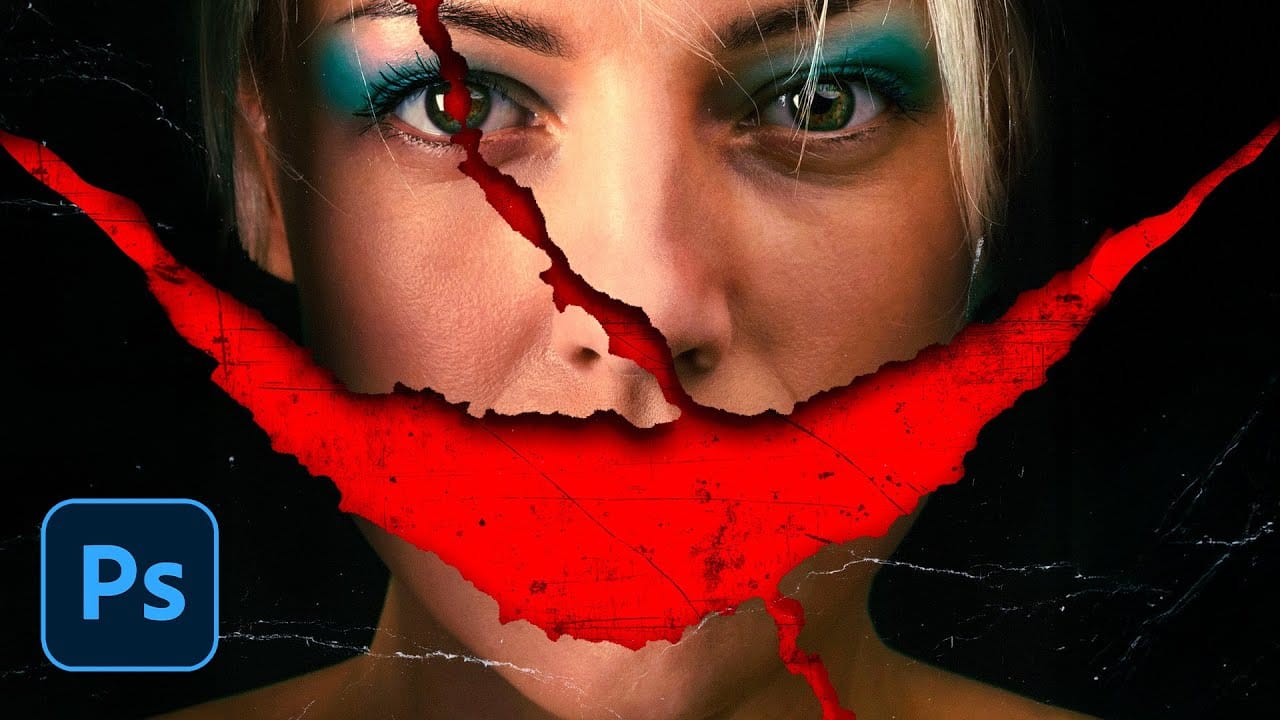
How to Create a Realistic Paper Tear in Photoshop
Movie posters with torn paper effects create a sense of mystery and depth that draws viewers in. The technique reveals contrasting elements beneath the surface — perhaps a gritty red background behind a clean portrait, or weathered textures that suggest hidden stories.
This approach transforms simple portraits into dramatic compositions that feel both vintage and contemporary. The key lies in creating realistic paper edges, strategic shadows, and layered textures that make the tear look authent