How to Create a Realistic Paper Tear in Photoshop

How to Create a Realistic Paper Tear in Photoshop

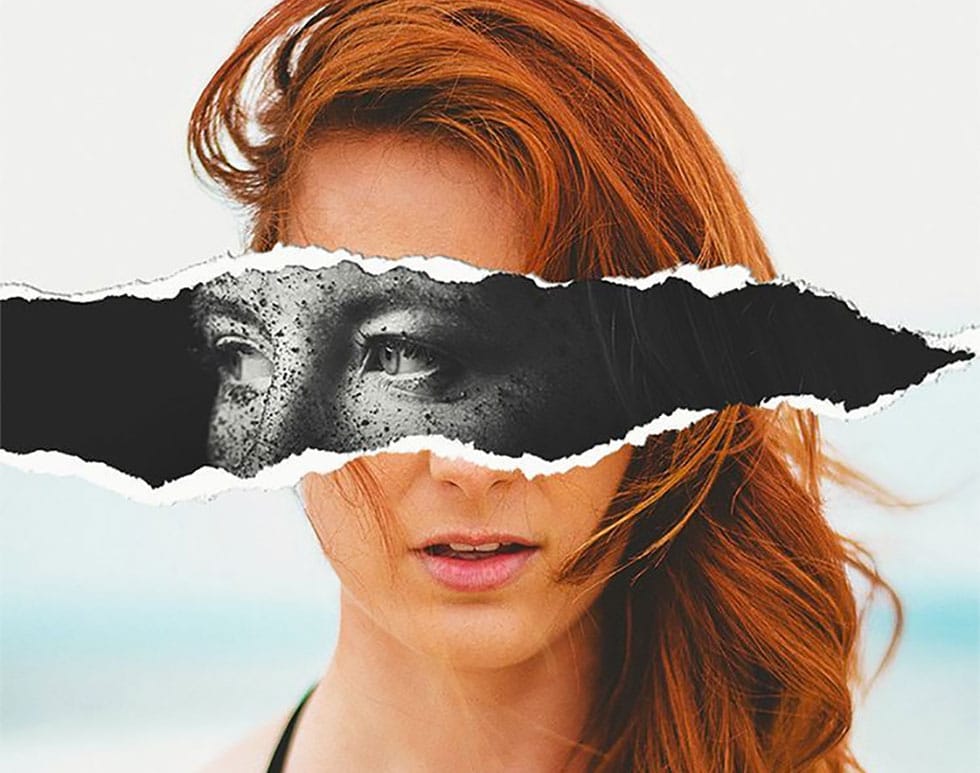
Movie posters with torn paper effects create a sense of mystery and depth that draws viewers in. The technique reveals contrasting elements beneath the surface — perhaps a gritty red background behind a clean portrait, or weathered textures that suggest hidden stories.

This approach transforms simple portraits into dramatic compositions that feel both vintage and contemporary. The key lies in creating realistic paper edges, strategic shadows, and layered textures that make the tear look authentic rather than digitally imposed.

Watch the Video Tutorial

Video by Nucly • Photoshop and Creative Design Training. Any links or downloads mentioned by the creator are available only on YouTube

Understanding Paper Tear Techniques

The realistic paper tear effect relies on multiple crystallize filters applied at different intensities to create authentic-looking edges. Each application builds upon the previous one, starting with large tears and refining down to fine paper textures.

The fade command becomes crucial when controlling how these filters interact with your original mask. Setting the blend mode to multiply ensures the tear never expands beyond your intended boundaries while adding realistic irregularities.

Key techniques for authentic paper tears:

  • Layered crystallize effects — large, medium, and fine applications
  • Select and mask smoothing to refine jagged digital edges
  • Multiple shadow layers for depth and dimension
  • Grunge textures applied with multiply blend modes
  • Film grain overlays for surface authenticity

Practical Tips for Paper Tear Effects

  • Draw tear paths slowly with intentional hand jitter — the natural shakiness creates more believable paper edges than smooth, precise lines
  • Apply crystallize filters in three stages — high settings first (around 30), then medium (15), then fine details (4) for realistic paper fiber texture
  • Use multiply blend mode when fading crystallize effects — this prevents the tear from expanding beyond your original mask boundaries
  • Create multiple shadow layers with different transforms — one subtle internal shadow, one warped drop shadow, and one hard edge shadow for maximum depth
  • Add grunge textures above colored backgrounds — use curves to eliminate midtones and keep only the dark scratches and weathering marks

More Tutorials About Paper Effects

Explore additional techniques for creating compelling paper-based photo manipulations.
How to Create a Torn Paper Portrait Effect in Photoshop
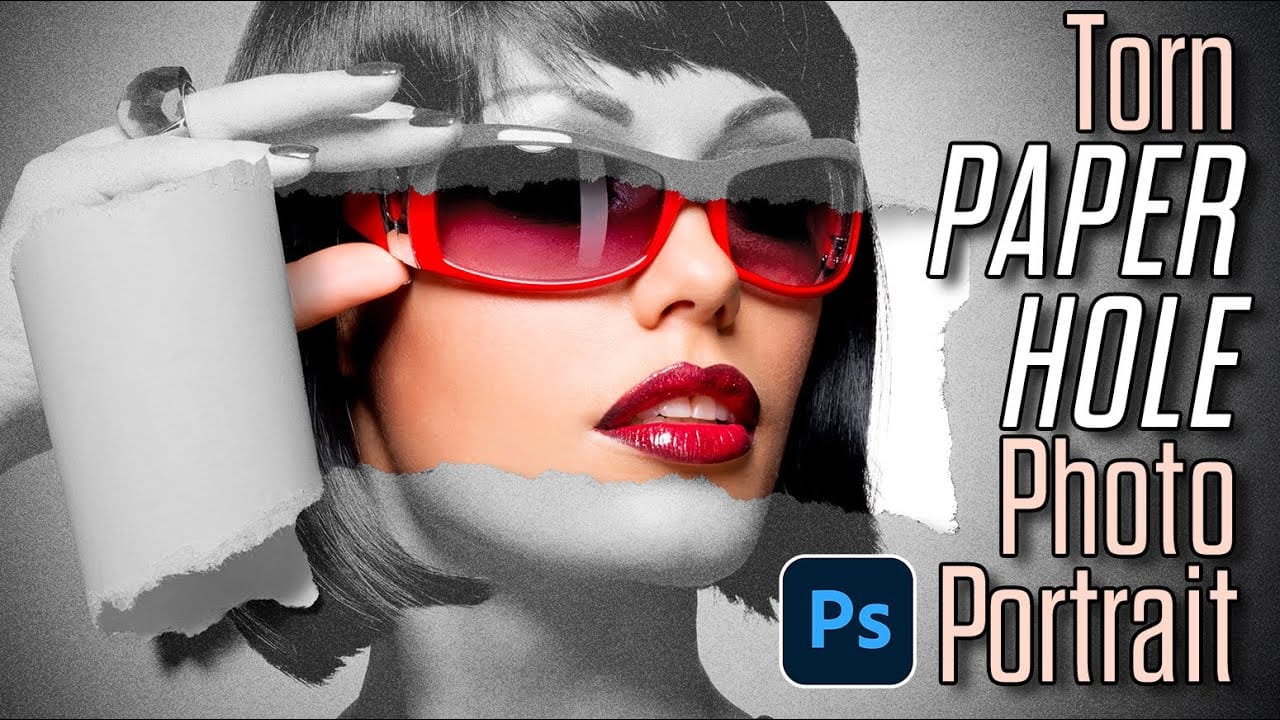
Torn paper portraits create dramatic visual storytelling by revealing layers of meaning beneath the surface. This artistic technique transforms ordinary portraits into compelling compositions that suggest hidden depths, contrasts, or dual perspectives. The effect works particularly well when combining different treatments of the same subject—such as color and black-and-white versions—or when creating symbolic narratives about identity, memory, or transformation. Watch the Video Understandin
Create an impressive torn paper effect in Photoshop
In this photoshop photo effect tutorial from Tutorials Junction you will learn how to create this somewhat popular torn paper effect. The effect is actually very simple to create, compared to how good it looks. All you have to do is apply some layers masks and use good quality torn paper brushes. You will need two portrait photos with slightly different poses to get the best effect. The author uses one black and white photo and another one in color to give more impact to the final image. Watch
Create ripped paper portrait effect in Photoshop
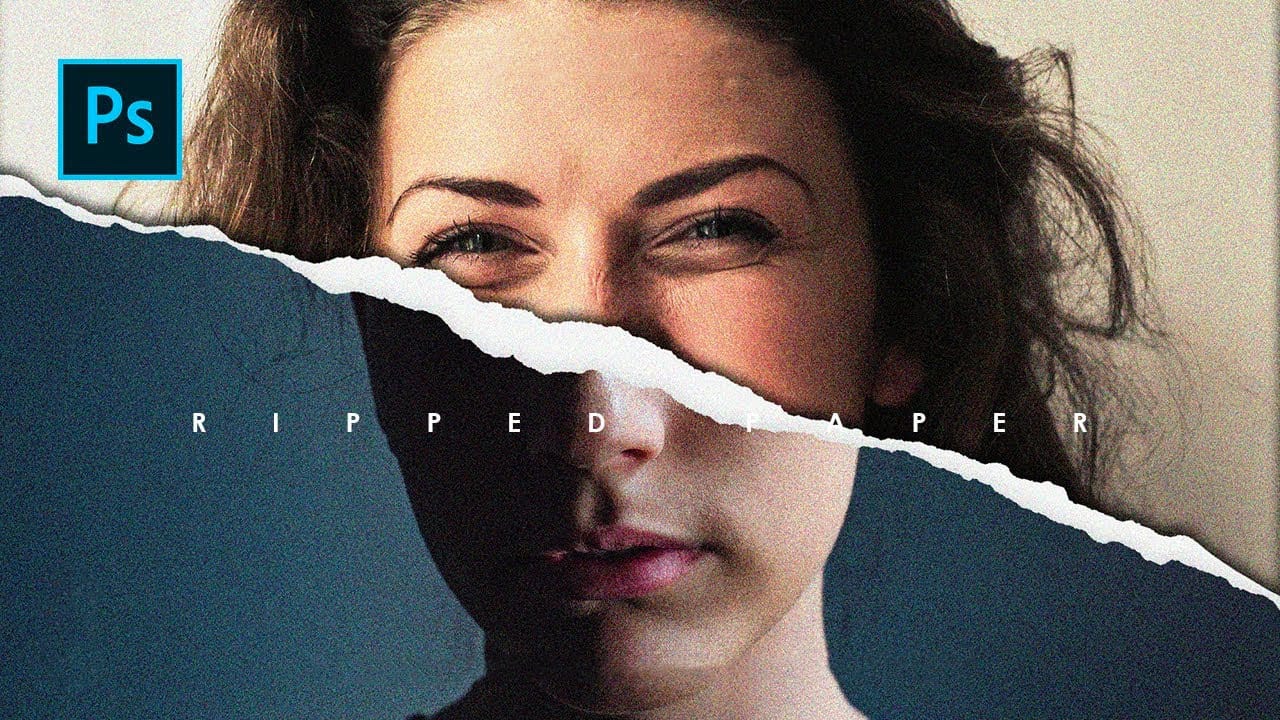
This video will show you how to create a captivating ripped paper photo manipulation effect. Learn how to create a realistic tear that reveals a hidden image beneath, effectively layering two portraits into one unique composition. The video will guide you through using layer masks and selection tools to achieve a seamless tear effect, while also exploring techniques for adding texture and depth to the "paper" for a believable final outcome. Watch tutorial
Create a Crumpled Paper Effect in Photoshop
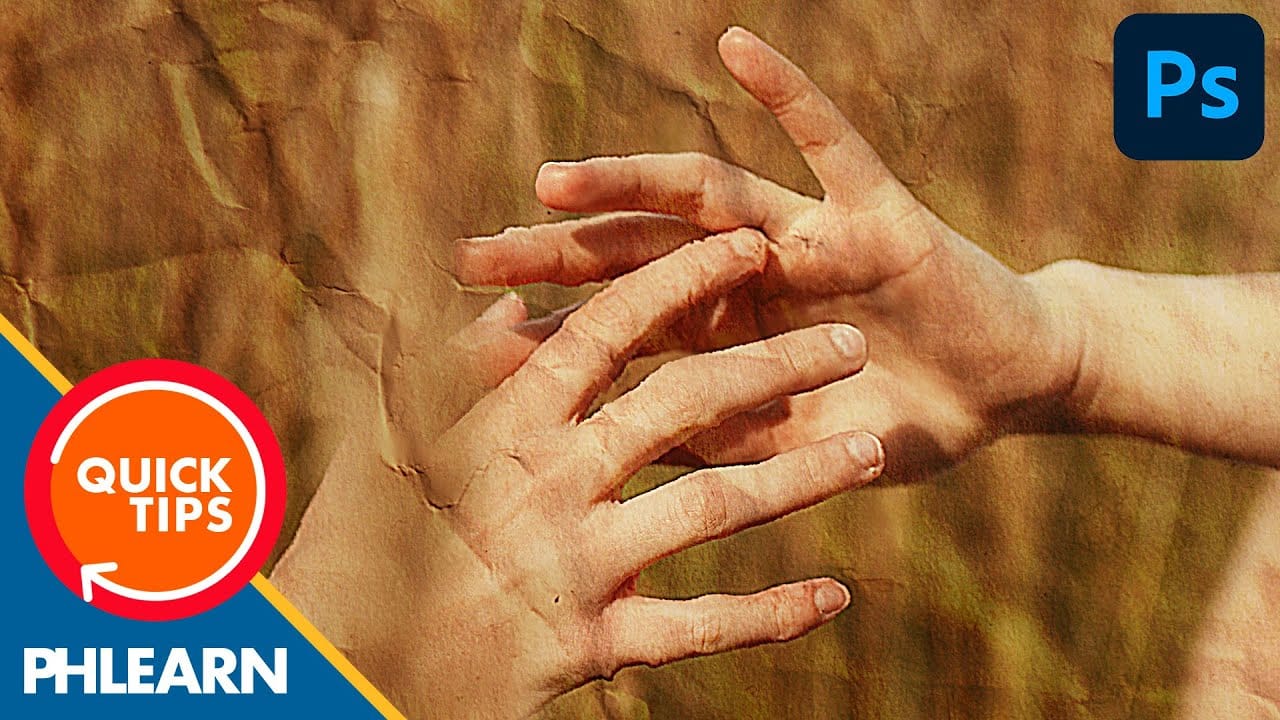
In this detailed tutorial, Aaron Nace walks you through the process of creating a realistic crumpled paper effect in Photoshop. This technique is perfect for adding texture and visual interest to your photos and poster designs. Aaron begins by demonstrating how to select and prepare your base image, which is crucial for achieving a convincing crumpled look. He then moves on to applying various distortions and adjustments that simulate the appearance of crumpled paper. Throughout the tutorial, A

Get tutorials & freebies delivered to you.

Subscribe to the Photoshop Roadmap newsletter, a weekly roundup of new tutorials, insights and quality downloads, trusted by 6500+ readers.

You might also like

How to Remove Skin Blemishes and Fix Skin Tones in Camera Raw

Two recent additions to Camera Raw make skin retouching significantly faster: an automatic blemish removal tool with separate controls for moles and freckles, and a vectorscope-based skin tone indicator for correcting off-color skin. Both features work non-destructively inside a smart object workflow, so no pixel data is...

Portrait Retouching in Photoshop: Smooth Skin While Keeping Natural Texture

Smooth skin and natural texture are not opposites — achieving both at once is the mark of a professional retouch. This workflow covers blemish removal, flyaway hair cleanup, dark under-eye correction, and eye brightening, all while keeping the skin looking like skin. Watch the Video Practical Tips These key points...

How to Use Camera Raw's Blemish Removal Tool in Photoshop

Camera Raw 18.5 introduced an automatic blemish removal tool that does something previous solutions rarely managed: it removes skin imperfections while preserving the underlying skin texture. It also distinguishes between temporary marks and permanent ones like moles, giving you separate controls for each. Watch the Video Practical Tips These...

Portrait Slice Effect in Photoshop Using Step and Repeat

The portrait slice effect splits a single image into offset vertical bars, creating the illusion of a displaced or fragmented face. The entire technique relies on layer masks and a lesser-known Photoshop shortcut called step and repeat — no filters, no AI, no destructive edits required. Watch the Video Practical...

How to Remove Blemishes in Photoshop: Camera Raw vs. Generative AI

Photoshop now offers two distinct approaches to removing skin blemishes automatically. The Camera Raw Filter includes a dedicated Blemishes option that analyzes and cleans skin with a single checkbox, while Generative AI fills a face selection with clean, texture-consistent results using a simple text prompt. Each method has clear...

Common Photoshop Compositing Mistakes and How to Fix Them

Most compositing errors come down to a handful of repeatable problems: mismatched lighting direction, inconsistent white points, misaligned perspective, and atmosphere applied in the wrong layer order. Catching these issues early — ideally before you shoot — saves significant time in post. Watch the Video Practical Tips These corrections apply to nearly...

You’ve successfully subscribed to Photoshop Roadmap
Welcome back! You’ve successfully signed in.
Great! You’ve successfully signed up.
Success! Your email is updated.
Your link has expired
Success! Check your email for magic link to sign-in.