How to Use the New Edge Refinement Tool in Camera Raw and Fix Complex Mask Edges

How to Use the New Edge Refinement Tool in Camera Raw and Fix Complex Mask Edges

Camera Raw's new edge refinement tool helps clean up rough mask edges, but it has limitations when dealing with complex subjects like trees and foliage. While the tool works well for simple architectural elements by contracting or expanding mask edges, intricate organic shapes require additional techniques to achieve professional results.

This advanced workflow combines the new edge tool with strategic brush masking to handle even the most challenging edge scenarios, ensuring your selective adjustments look natural and precise.

Watch the Video

Video by photoshopCAFE. Any links or downloads mentioned by the creator are available only on YouTube

Practical Tips

Master edge refinement with these essential techniques:

  • Increase exposure dramatically to reveal edge problems that would otherwise remain hidden during subtle adjustments
  • Use the edge refinement slider sparingly - even small movements can dramatically improve mask quality
  • For complex foliage, use subtract brush with auto mask to clean edges while keeping the minus sign away from tree areas
  • Switch to black and white overlay view to better assess mask edge quality before making final adjustments
  • Add missing areas using select objects tool with brush mode to paint over areas that should be included in your mask

Explore these advanced masking techniques to expand your selective editing skills.
How to Use AI Masking in Adobe Camera Raw for Professional Photo Editing
Adobe Camera Raw's AI masking tools automatically detect subjects, backgrounds, skies, and landscapes, letting you make precise adjustments to specific areas of your photos. These intelligent masks eliminate the need for manual selection work, while allowing you to combine and refine them for complete creative control. The technique works with any image format and preserves all your adjustments when using smart objects, making it perfect for non-destructive editing workflows that you can modify
Photoshop auto masks, new feature no one is talking about
Making precise selections in Photoshop has historically been one of the most time-consuming and challenging aspects of image editing. From intricate hair strands to complex tree foliage, achieving a clean mask often required significant manual effort and advanced techniques. However, recent advancements in artificial intelligence are rapidly transforming this fundamental process. The video demonstrates the groundbreaking improvements in Photoshop's auto-masking capabilities, specifically within
How to Use AI Depth Masking in Photoshop for Targeted Subject and Background Editing
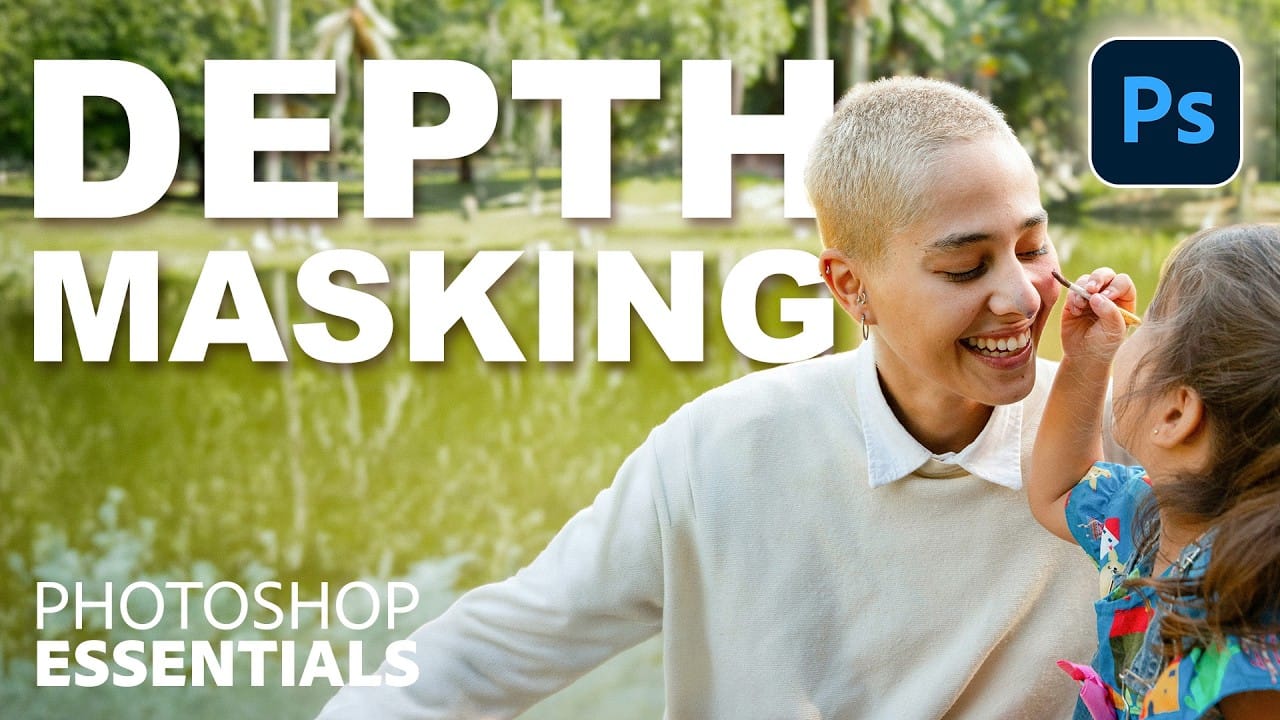
AI depth masking revolutionizes how you select and edit specific areas of your photos by analyzing three-dimensional space rather than shapes or colors. This powerful feature uses artificial intelligence to calculate depth layers, allowing you to brighten subjects while darkening backgrounds or apply targeted adjustments based on distance from the camera. The technique works within Camera Raw Filter and preserves all your edits when using smart objects, making it perfect for non-destructive wor
Transform Your Photos with These Photoshop Masks
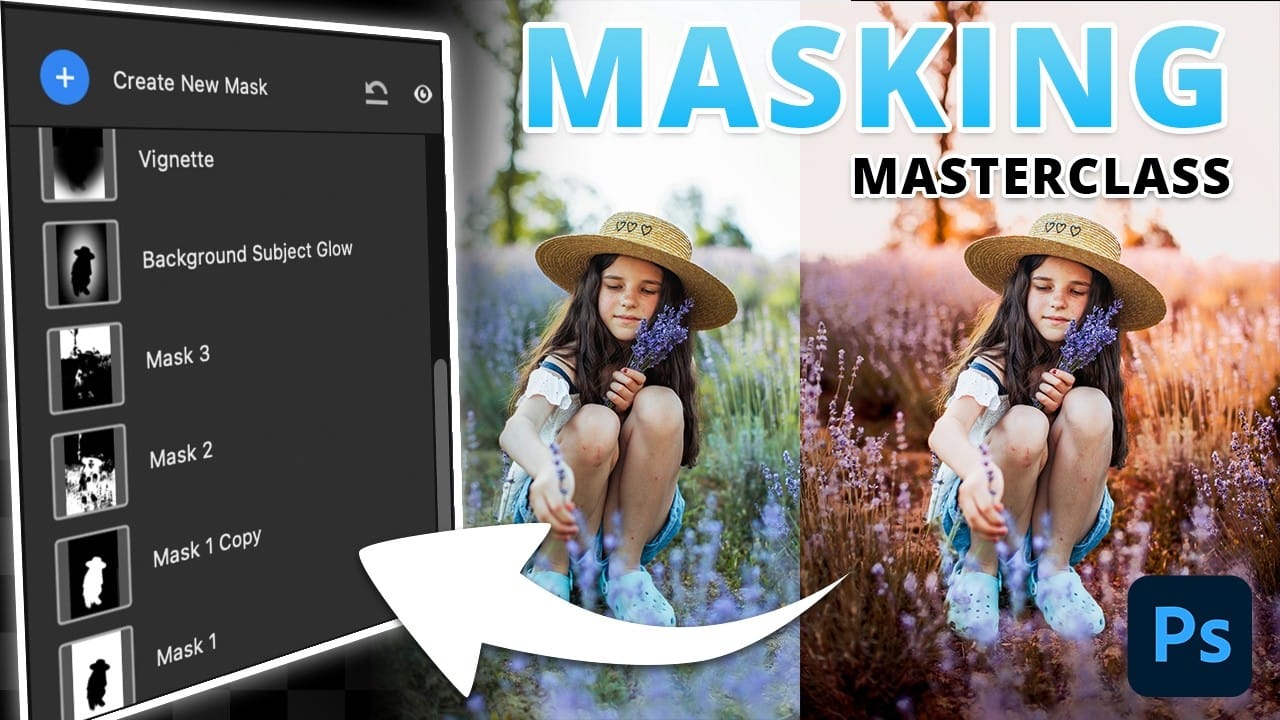
Masking in Photoshop is a powerful technique to isolate and enhance different parts of an image. However, many users find it complicated and time-consuming, often sticking to basic masks or selections that limit creative control. This can make photo editing feel frustrating and slow, especially when trying to achieve subtle but impactful adjustments. This tutorial introduces a structured masking workflow within Camera Raw that simplifies the process while giving you precise control over highlig
Cutting Out Complex AI Images Using Channel Masking in Photoshop
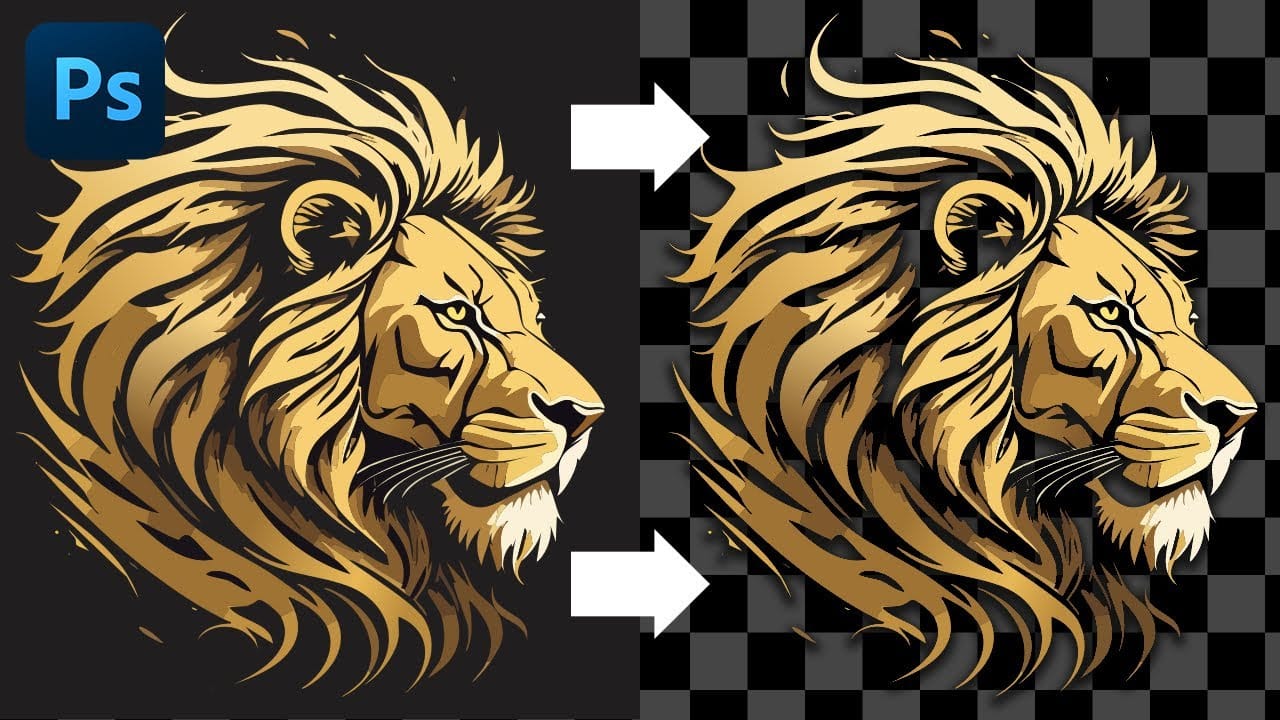
AI-generated images often contain intricate details that challenge standard background removal tools. When automatic selection methods fail to capture complex edges and fine details, manual techniques become essential. This technique demonstrates how to use channel masking to create precise selections that preserve every detail of your AI artwork. Watch the Tutorial Essential Tips for Channel Masking * Select the channel with the highest contrast between your subject and background before
Select People, the most requested new photoshop feature
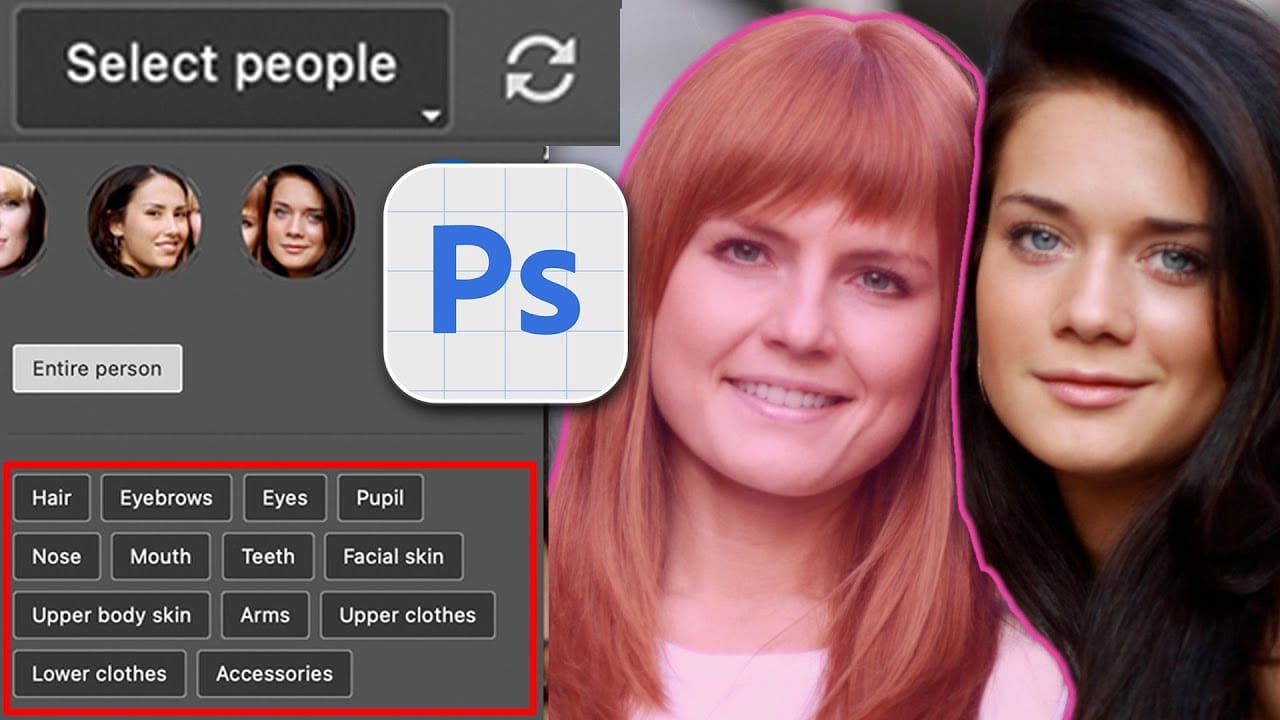
Achieving precise selections in image editing, especially when dealing with complex subjects like people, has historically been one of Photoshop's most time-consuming tasks. Manual masking of hair, intricate clothing, or multiple individuals often requires significant effort and a keen eye for detail, posing a common challenge for photographers and designers alike. This video introduces a groundbreaking new feature in Photoshop that dramatically simplifies this process. Viewers will discover ho
Create Crazy Good Selections in Photoshop With Quick Mask
In this Photoshop tutorial by Colin Smith from Photoshop Cafe, you'll discover the powerful capabilities of the Quick Mask tool for making precise and intricate selections. The tutorial dives into various techniques for using Quick Mask to cut out images and create complex selections with ease. Colin Smith demonstrates practical tips and tricks to leverage Quick Mask effectively, helping you achieve high-quality results in your photo editing and design projects. Throughout the tutorial, you'll
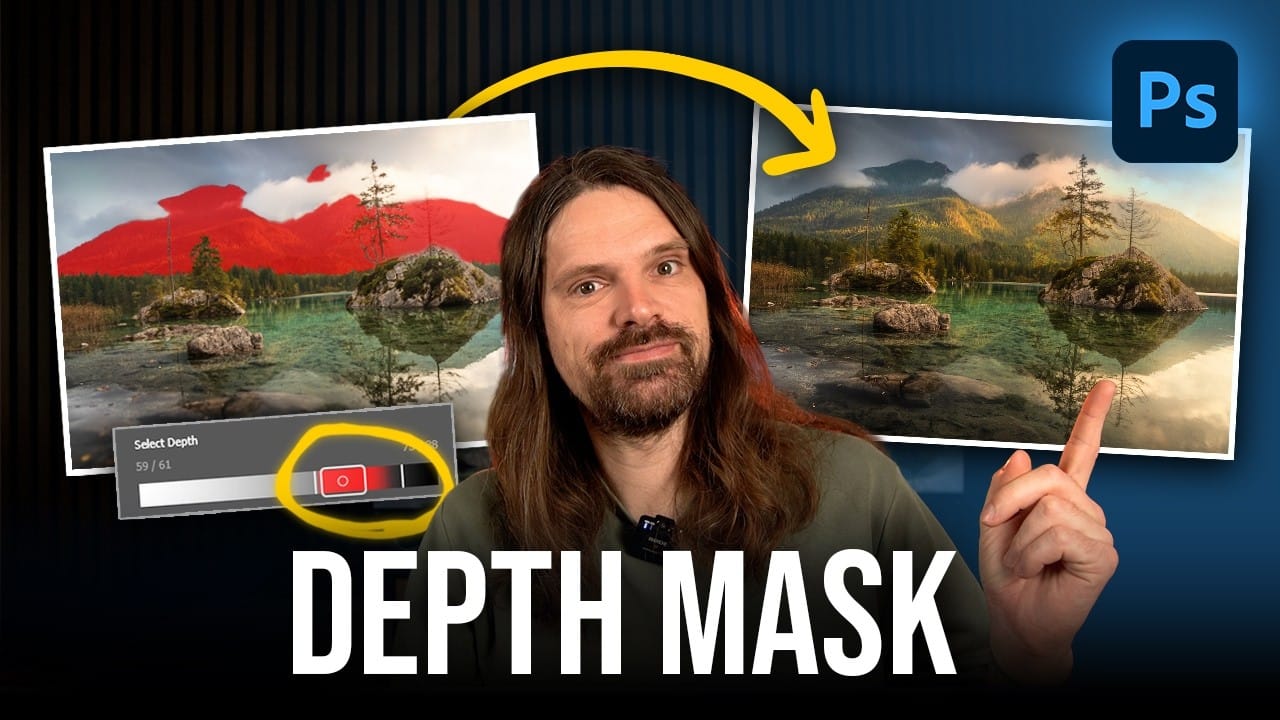
How to Use the New Depth Mask in Adobe Camera Raw for Landscape Photography
Adobe's latest Camera Raw update introduces a powerful depth mask that works with any image, not just smartphone photos with depth data. This new masking tool analyzes distance information in your photos to create precise selections based on how far objects are from the camera. The depth mask excels at targeting specific areas like distant mountains or foreground elements, making it particularly valuable for landscape photographers who need to enhance depth and atmosphere in their images. Wat
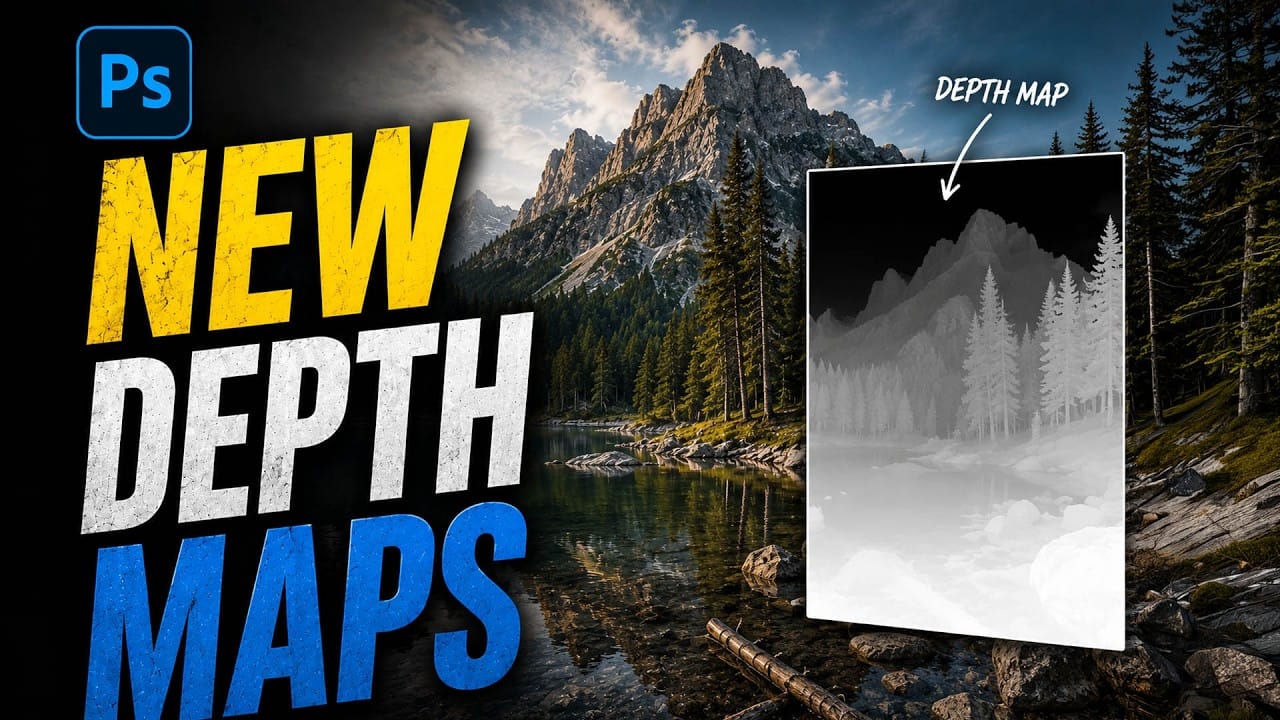
How to Use Depth Range Masking in Camera Raw
Adobe Camera Raw's depth range masking feature allows you to select and adjust specific depth layers in any photograph without needing special camera equipment. Unlike traditional subject and background masks that focus on shapes, depth range masking works with the spatial distance between elements in your image. This AI-powered tool creates a depth map from any photo, letting you target foreground, midground, or background areas with precision. The technique works particularly well for atmosph

Get tutorials & freebies delivered to you.

Subscribe to the Photoshop Roadmap newsletter, a weekly roundup of new tutorials, insights and quality downloads, trusted by 6500+ readers.

You might also like

Create Realistic Rim Light Effects on Portraits in Photoshop

Rim lighting transforms ordinary portraits into dramatic, professional-looking images by adding bright highlights around the edges of your subject. This technique simulates light hitting the outer contours of a person, making them stand out from their background with a natural, glowing effect. The key to convincing rim light lies in...

How to Use Photoshop's Layer Cleanup Tool to Organize Messy Projects

Complex editing projects with Generative Fill and Expand often result in dozens of unnamed layers cluttering your workspace. The new Layer Cleanup tool automates the tedious process of renaming layers and removing empty ones, transforming chaotic layer panels into organized, manageable structures. This workflow improvement saves significant time during post-production...

How to Use Curves for Composite Color Matching in Photoshop

Curves adjustments are essential for making composite elements look natural and cohesive. Understanding how curves manipulate light values and color channels gives you precise control over matching different elements to their new backgrounds. The key to successful color matching lies in analyzing the color temperature and brightness relationships between your...

How to Fix Color Fringing in Subject Cutouts Using Clipping Masks

Perfect layer masks can still produce disappointing results when color fringing appears around hair and fur edges. This common problem isn't caused by poor masking technique—it's the original background bleeding through at the edges. Clipping masks offer a powerful solution by allowing you to paint...

Create Beautiful Floral Oval Frames for Portraits in Photoshop

Transform ordinary portraits into elegant artwork with decorative floral oval frames that blend seamlessly with your subject. This technique combines traditional framing with digital floral elements, creating a painterly effect that's perfect for fine art prints and creative portraits. The process involves creating an oval cutout, adding custom...

How to Use Dynamic Text Shapes in Photoshop 2026

Photoshop 2026's Dynamic Text tool transforms text formatting with new shape options that go beyond traditional block layouts. The updated tool includes circular, arch, and bow configurations that automatically format text while maintaining professional typography standards. This feature eliminates the complex manual work previously required for curved text...

You’ve successfully subscribed to Photoshop Roadmap
Welcome back! You’ve successfully signed in.
Great! You’ve successfully signed up.
Success! Your email is updated.
Your link has expired
Success! Check your email for magic link to sign-in.