How to Use Depth Range Masking in Camera Raw

How to Use Depth Range Masking in Camera Raw

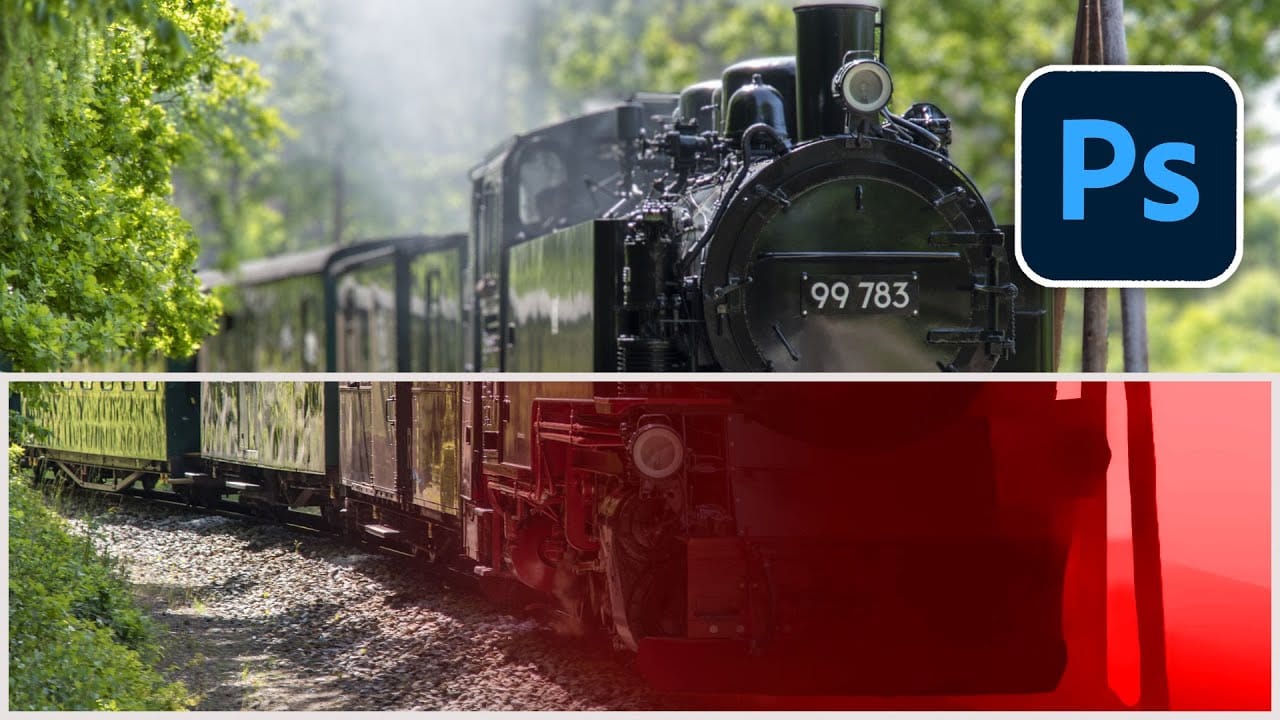
Adobe Camera Raw's depth range masking feature allows you to select and adjust specific depth layers in any photograph without needing special camera equipment. Unlike traditional subject and background masks that focus on shapes, depth range masking works with the spatial distance between elements in your image.

This AI-powered tool creates a depth map from any photo, letting you target foreground, midground, or background areas with precision. The technique works particularly well for atmospheric adjustments like reducing haze, warming distant elements, or creating natural-looking depth effects.

Watch the Video

Video by Matt Kloskowski. Any links or downloads mentioned by the creator are available only on YouTube

Practical Tips

Master depth range masking with these essential techniques for better results:

  • Click different areas of your photo to preview how the depth map segments foreground, midground, and background elements
  • Use the depth map preview to understand how the tool interprets spatial relationships before making adjustments
  • Adjust the main anchor point first, then fine-tune the falloff sliders to control how much surrounding depth gets included
  • Combine depth range masks with subtract masks (like sky selection) to refine areas that overlap depth boundaries
  • Focus on atmospheric adjustments like dehaze, temperature, and exposure rather than trying to select specific objects

Explore more advanced masking and depth techniques to enhance your photo editing workflow:
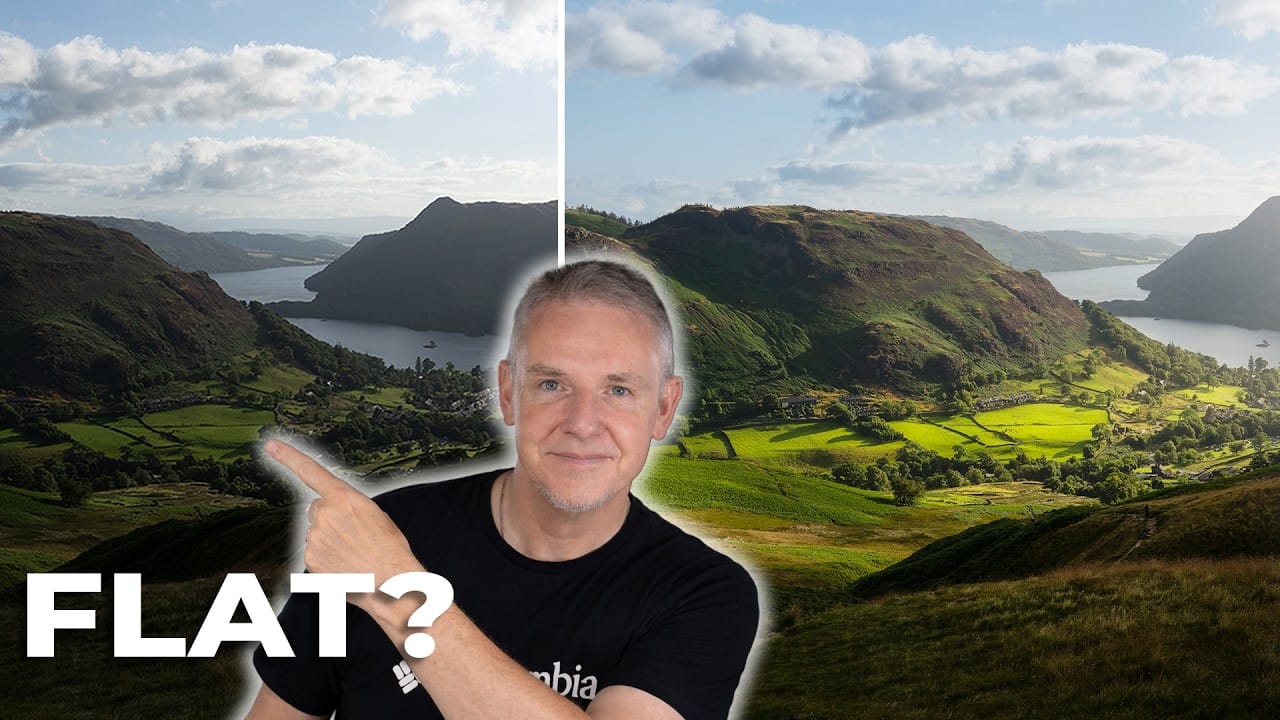
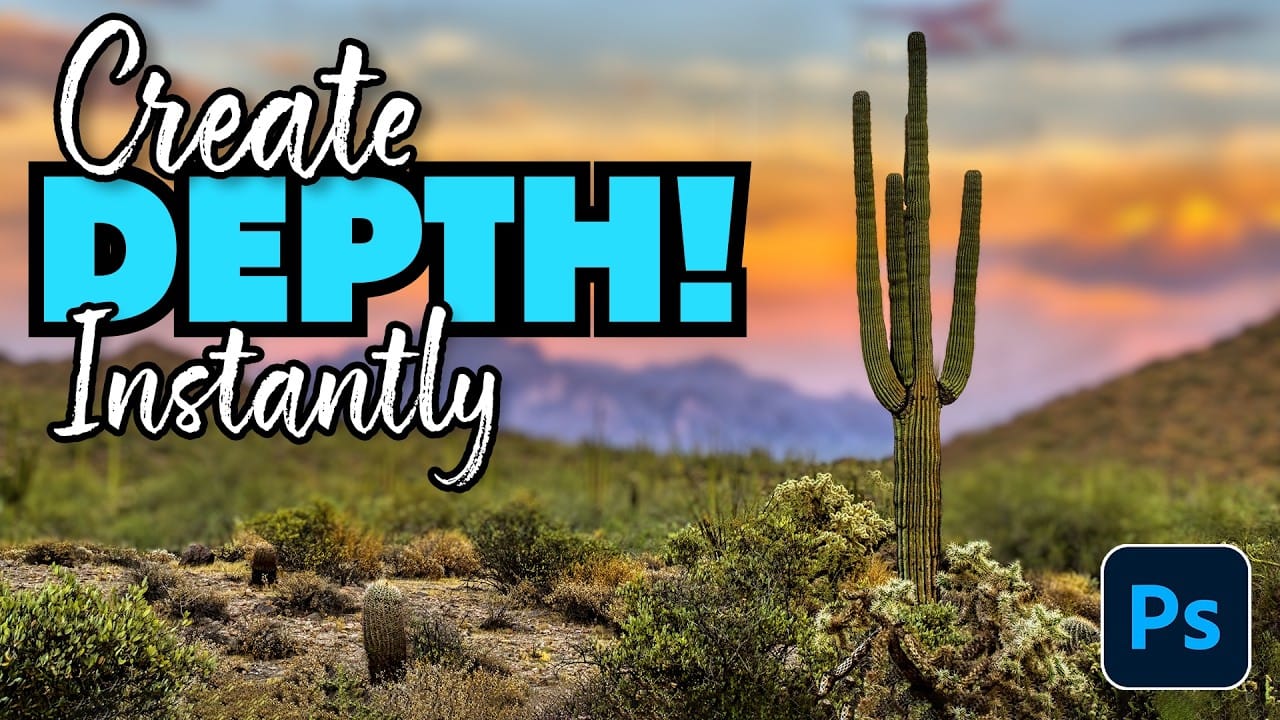
How to Add Depth to Flat Landscape Photos Using Layer-Based Editing
Landscape photos often lose their three-dimensional impact when viewed as flat files, even when the original scene had beautiful depth and lighting. The key to restoring that sense of depth lies in understanding how to work with different layers of your composition—foreground, midground, and background—rather than simply adding overall contrast and saturation. This technique uses strategic masking and color temperature adjustments to guide the viewer's eye through the image and recreate the nat
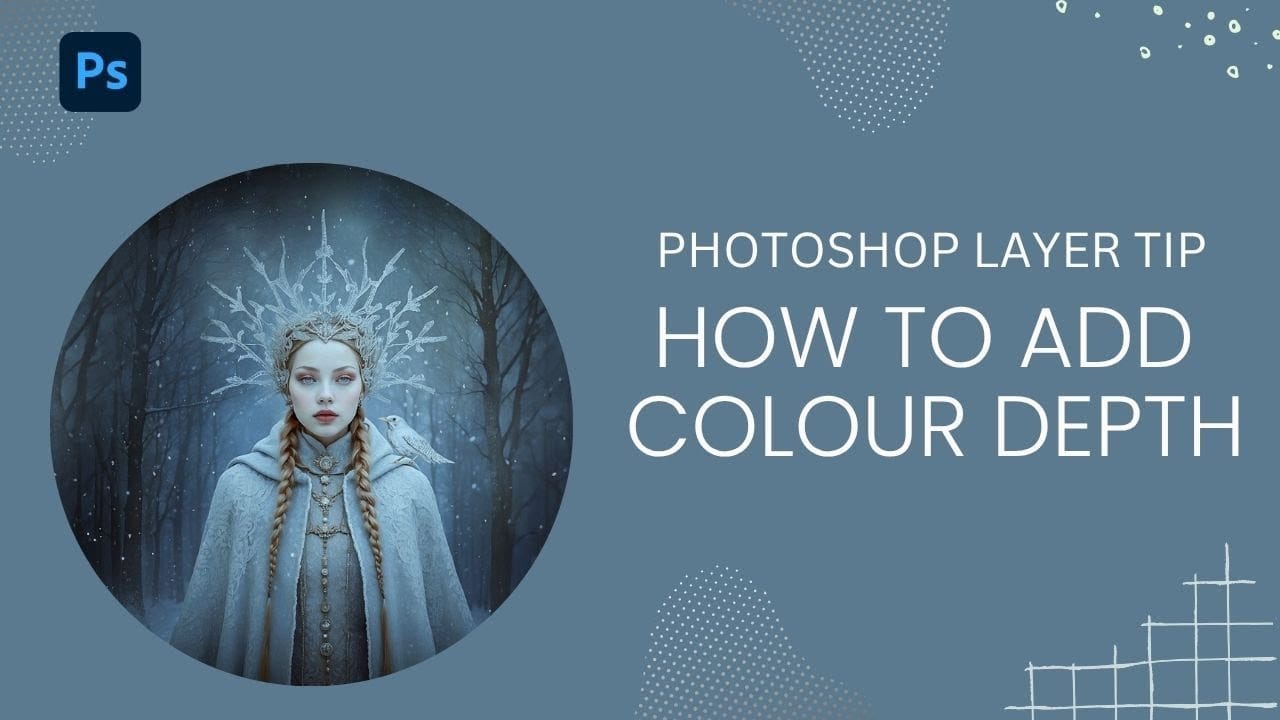
How to Add Color Depth Using Color Dodge Layers in Photoshop
Color depth transforms flat images into rich, dimensional works that hold the viewer's attention. The secret lies in selectively enhancing specific areas rather than applying blanket adjustments that can muddy your colors. The color dodge technique offers precise control over where and how you add vibrancy. This method works particularly well for portrait enhancement, bringing life to eyes, lips, hair, and jewelry without creating an over-processed look. Watch the Tutorial Understanding Non
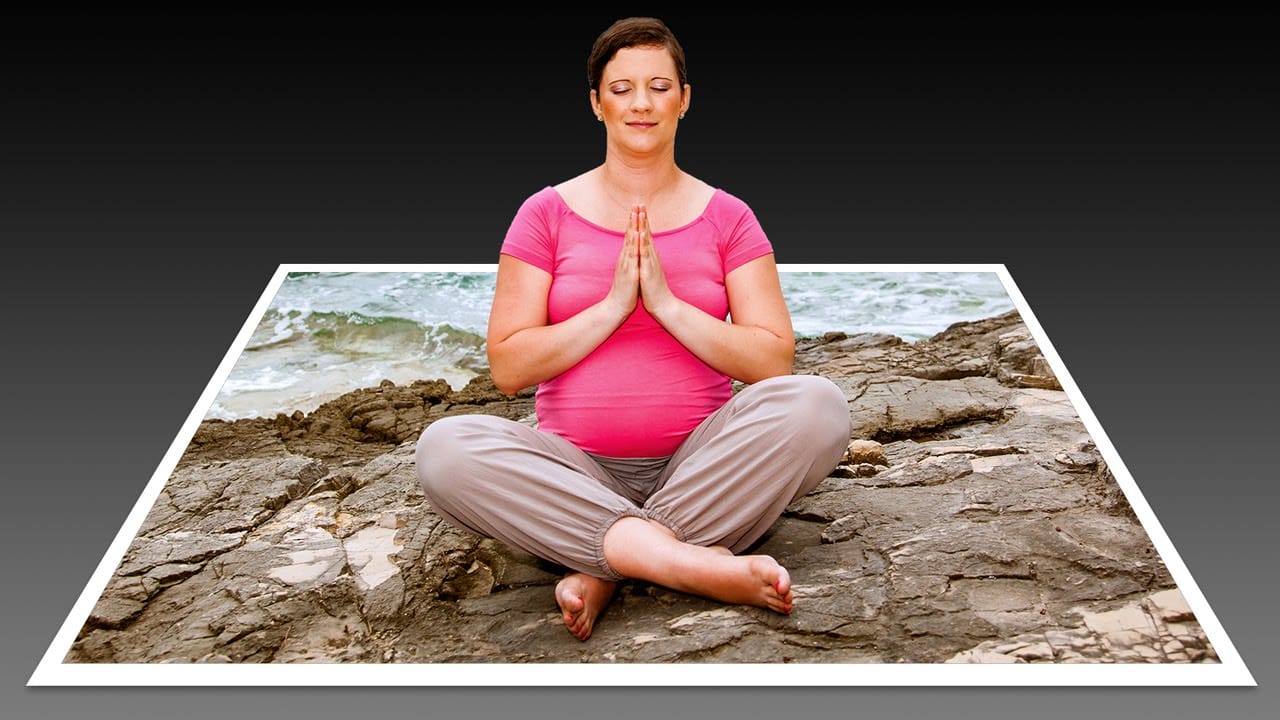
Create a 3D Pop-Out Photo Effect
This tutorial explores a classic Photoshop technique that brings a dynamic, three-dimensional quality to ordinary photographs. It offers a creative approach to making images more engaging by introducing an illusion of depth. Viewers will learn how to make any object or person appear to pop out of its background, giving images a unique visual depth and engaging appeal. The video guides you through the process, from initial image preparation and subject isolation to the final application of the p
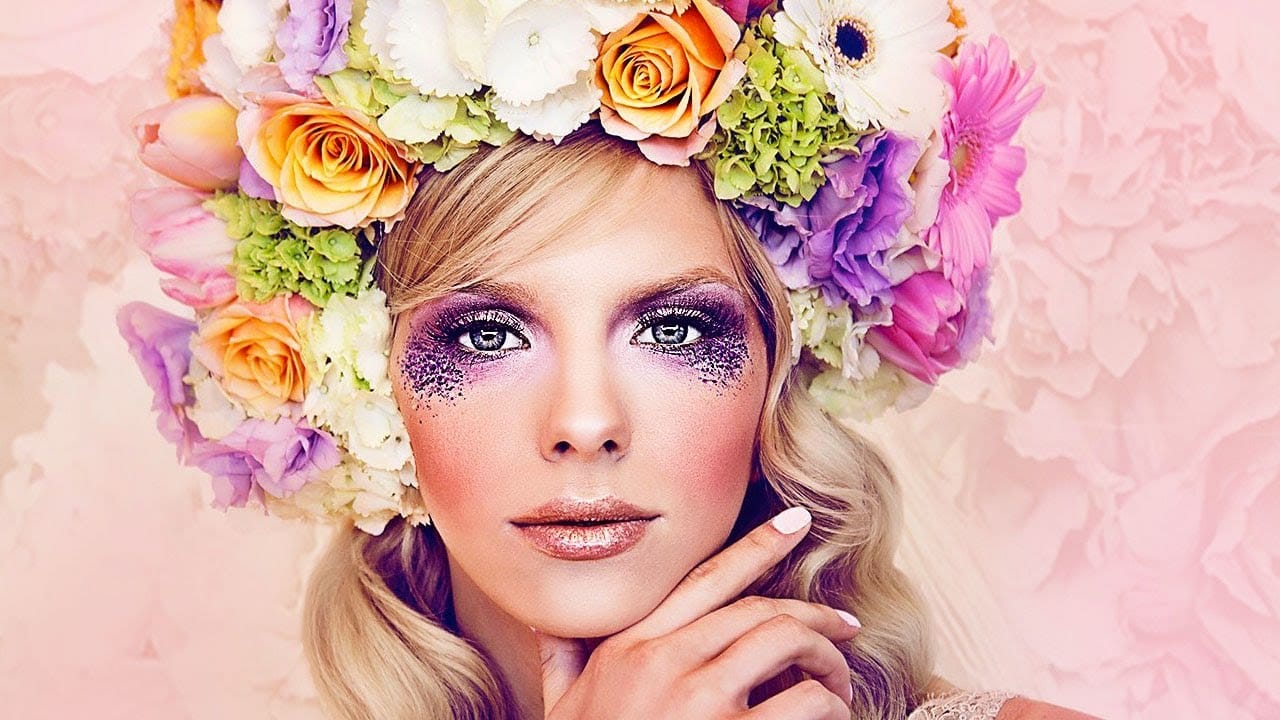
Add interest to your backgrounds in Photoshop
Drawing a viewer's eye to your subject requires more than just good composition. Professional finishing techniques can transform an already strong portrait by adding selective sharpening, creating interesting backgrounds from existing image elements, and using strategic color adjustments to guide attention. These advanced methods work particularly well when you want to elevate a plain background or emphasize specific areas like the subject's face and eyes without overdoing the entire image. W
Magically change focus of photos in Photoshop
In this Photoshop tutorial, Colin Smith demonstrates the most powerful way to change the depth of field or background blur in your photos. This technique leverages depth maps, neural filters, and lens blur to achieve professional results. Colin starts by explaining how to create and use depth maps, which are essential for controlling the focus and blur levels in specific areas of your photo. Depth maps allow you to simulate a shallow depth of field, making your subject stand out against a blurr
How to Create Realistic Depth Blur Effects in Photoshop
Creating professional depth of field effects can transform flat images into dynamic photographs with natural-looking focus transitions. Two powerful methods in Photoshop offer different advantages: Neural Filters provide automated depth detection with atmospheric effects like haze, while Camera Raw Filter delivers precise manual control with customizable bokeh shapes. Both techniques work with the standard version of Photoshop and can simulate expensive camera lens effects on any photo with a w
Using Clarity and Dehaze for Natural Depth in Images
Photoshop's new Clarity and Dehaze adjustment layers offer precise control over image depth, but they're often misused to create harsh, over-processed effects. Understanding how these tools work at different frequency levels helps you enhance natural atmospheric perspective instead of destroying it. Clarity affects microcontrast in small details, while Dehaze works on larger contrast areas globally. Using them selectively and often in reverse creates more convincing spatial relationships betwee
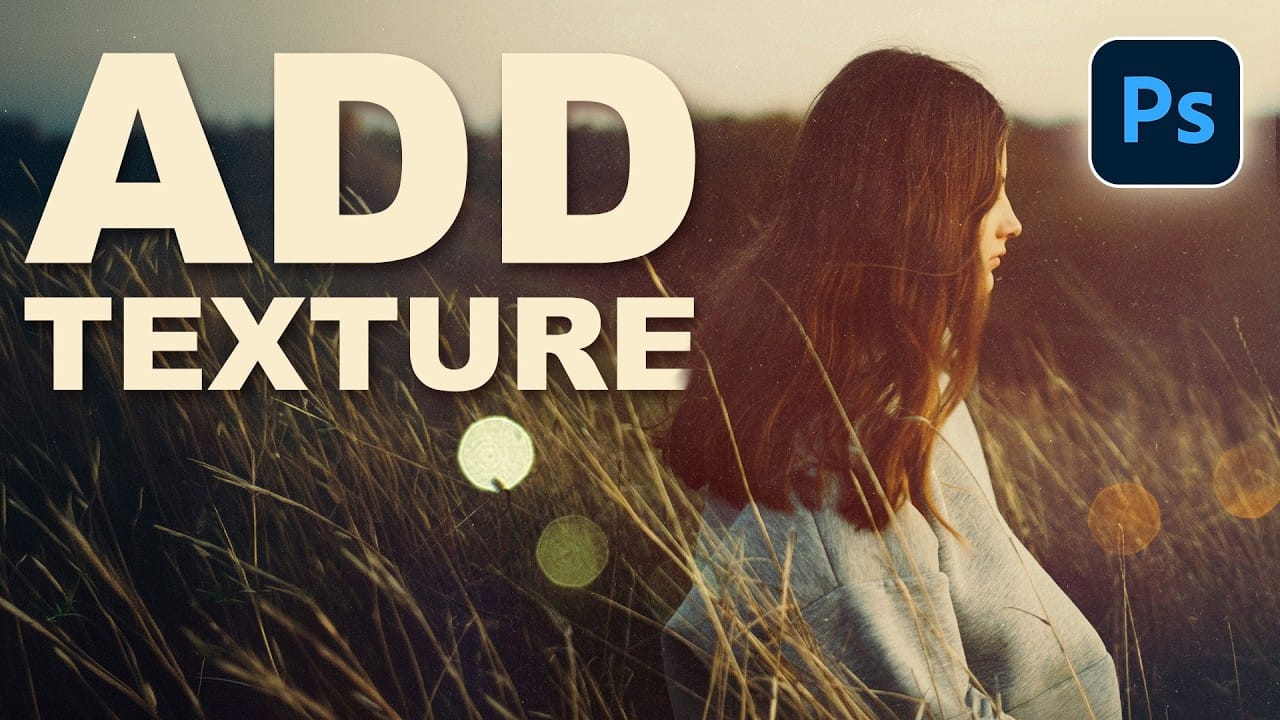
How to Add Custom Textures to Photos in Photoshop
Adding textures to photographs can transform ordinary images into compelling artistic compositions. This technique uses multiple texture layers combined with strategic blending modes and color adjustments to create depth and visual interest. The process involves layering different texture types—color overlays, surface patterns, and lighting effects—then using masking techniques to control exactly where each texture appears in your final image. Watch the Video Practical Tips Master photo te
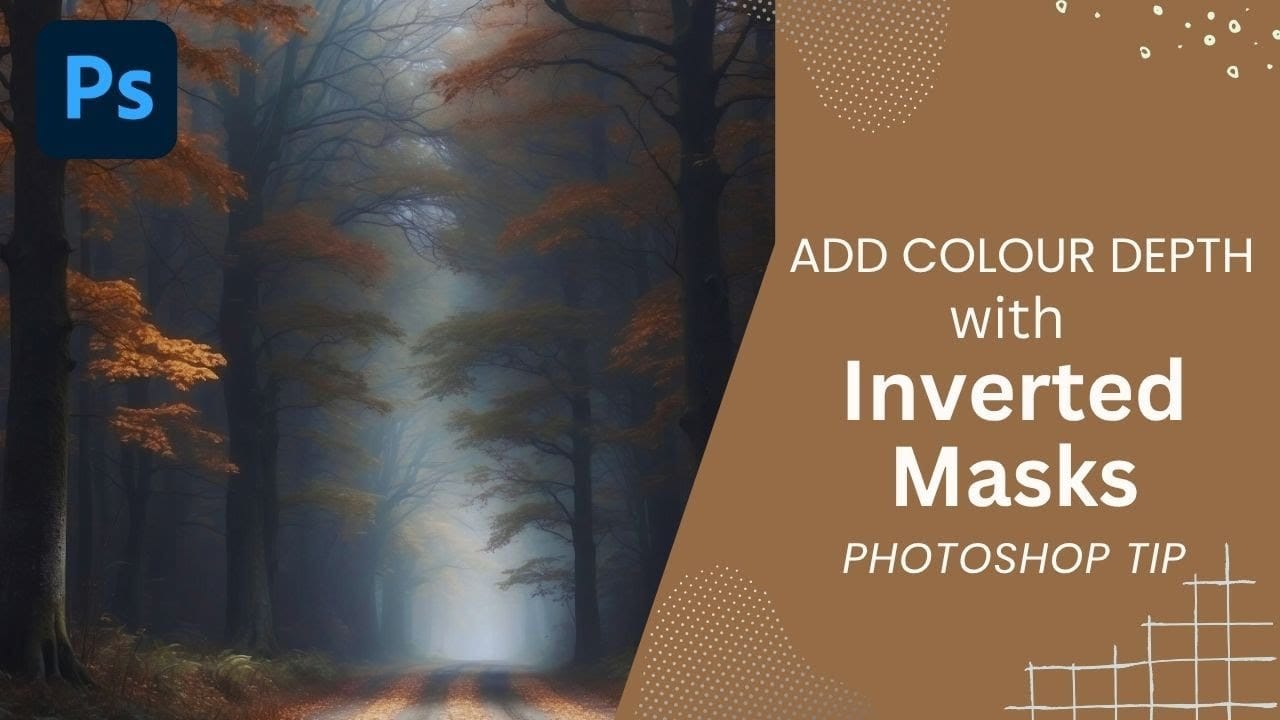
How to Use Inverted Masks in Photoshop to Add Color Depth and Texture
Forest photography often lacks the color depth and texture detail that makes images truly captivating. Flat foliage and monotone tree trunks can leave your landscape photos feeling lifeless, no matter how carefully composed. Inverted mask offer a precise solution for selectively enhancing specific areas of your images. This technique allows you to brush in texture overlays and targeted color fills exactly where they're needed most, creating dimensional depth that transforms ordinary forest scen
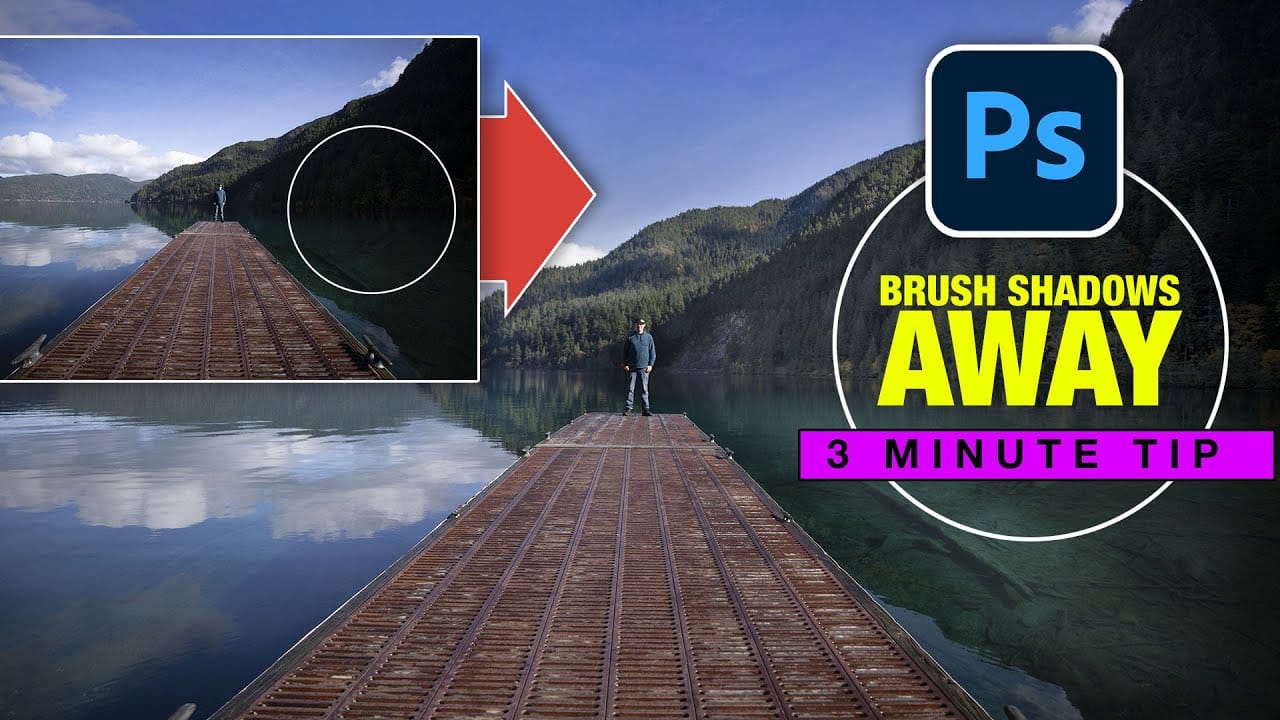
Instantly Recover details in photos with Photoshop
In this tutorial, Colin Smith reveals an effective technique for recovering hidden details in photos using Photoshop. The focus is on a method known as reverse dodge and burn, which allows you to selectively enhance shadow and highlight areas to bring out fine details. Colin demonstrates how to paint over shadows and highlights in a realistic manner, blending the adjustments seamlessly into the image. This approach helps to restore lost details and improve the overall dynamic range of your phot

Get tutorials & freebies delivered to you.

Subscribe to the Photoshop Roadmap newsletter, a weekly roundup of new tutorials, insights and quality downloads, trusted by 6500+ readers.

You might also like

Transform Photos into Ink Drawings in Photoshop

Traditional ink drawings capture bold contrasts and artistic expression through pure black and white elements. This technique transforms ordinary photographs into striking ink artwork by combining specific filters with smart object workflows for complete creative control. The method uses oil paint effects, shadow adjustments, and threshold conversion to create authentic...

How to Build Monochromatic Color Palettes with Layers in Photoshop

Creating harmonious color schemes requires understanding how to layer colors strategically rather than relying on single adjustments. A monochromatic palette uses tints, tones, and shades from the same color family to create depth and visual unity. This technique demonstrates how to build rich, textured backgrounds by combining solid color fills,...

How to Use the New 3D Object Rotation Feature in Photoshop

Photoshop's new Rotate Object feature transforms flat 2D images into interactive 3D models that can be repositioned from any angle. This AI-powered tool automatically creates cutouts, maintains original textures, and generates missing details when objects are rotated beyond their original perspective. The feature opens new possibilities for product...

How to Remove Objects Using Photoshop's Updated Remove Tool Without Credits

Photoshop's updated Remove tool offers powerful AI-powered object removal without consuming any generative credits, regardless of your subscription plan. The tool features automated distraction detection that categorizes different types of visual clutter—from trash and people to urban elements and blemishes—making it easy to selectively remove unwanted...

Photoshop 27.6: Complete Guide to New Features and Tools

Photoshop 27.6 introduces several powerful features that streamline common editing tasks. From bringing reflection removal directly into the main interface to AI-powered distraction detection, these updates focus on making complex workflows more accessible and efficient. The update also includes enhanced generative models, improved layer management tools, and a redesigned...

How to Create Realistic Trees from Digital Stamp Brushes in Photoshop

Tree stamp brushes provide an efficient starting point for digital landscapes, but transforming flat stamps into convincing natural elements requires specific layering and painting techniques. This comprehensive tutorial demonstrates how to build complete environmental scenes by combining background creation, water effects, and detailed tree painting methods that add depth and...

You’ve successfully subscribed to Photoshop Roadmap
Welcome back! You’ve successfully signed in.
Great! You’ve successfully signed up.
Success! Your email is updated.
Your link has expired
Success! Check your email for magic link to sign-in.