How to Add Color Depth Using Color Dodge Layers in Photoshop

How to Add Color Depth Using Color Dodge Layers in Photoshop

Color depth transforms flat images into rich, dimensional works that hold the viewer's attention. The secret lies in selectively enhancing specific areas rather than applying blanket adjustments that can muddy your colors.

The color dodge technique offers precise control over where and how you add vibrancy. This method works particularly well for portrait enhancement, bringing life to eyes, lips, hair, and jewelry without creating an over-processed look.

Watch the Tutorial

Video by SandraD Imagery. Any links or downloads mentioned by the creator are available only on YouTube

Understanding Non-Destructive Color Enhancement

The color dodge method relies on non-destructive editing principles that preserve your original image data. Each color enhancement exists on its own layer, allowing complete control over individual adjustments long after the initial edit.

This technique differs from traditional lighting adjustments because it focuses purely on color richness rather than brightness. The approach works by sampling existing colors from your image and applying them selectively with low flow settings.

  • Separate layers for each area (lips, eyes, hair, jewelry)
  • Low flow percentages (5-16%) for subtle application
  • Color sampling from existing image tones
  • Opacity adjustments for fine-tuning intensity

Practical Tips for Color Dodge Enhancement

  • Create a new blank layer for each area you want to enhance rather than working on a single layer
  • Keep brush flow between 5-16% to build color gradually and avoid harsh application
  • Sample colors from lighter areas within the same region for natural-looking highlights
  • Use the Alt/Option key to quickly switch between brush and eyedropper tools
  • Apply this technique at the end of your workflow after completing other color corrections

Explore more techniques for enhancing colors and adding depth to your Photoshop projects.
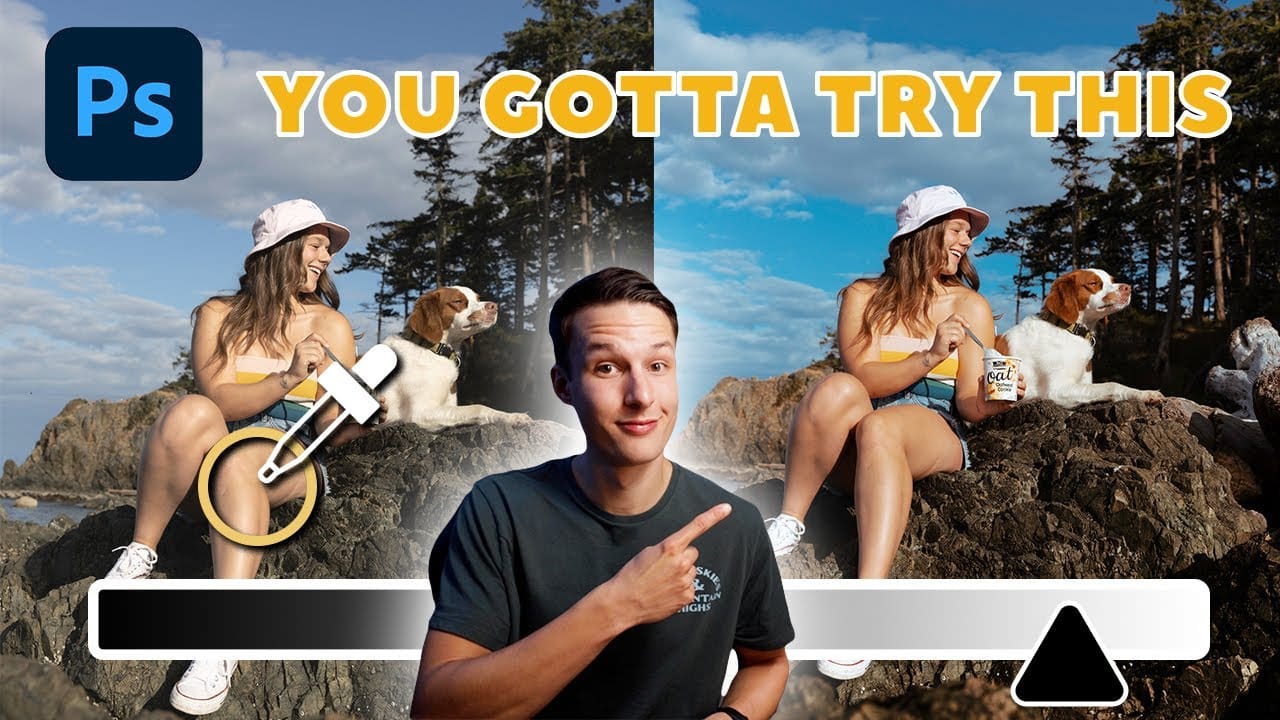
3 must-try techniques to enhance colors in Photoshop
When you're editing a photo in Photoshop, making your colors pop is likely on the top of your to-do list. There are a variety of great tools to use in Photoshop, but with these three techniques, you will be able to get more rich colors in your edits, while also having more control over how they appear. With the help of layer masks, blend if, and camera raw, you'll be surprised by how these lesser-known Photoshop tricks can improve the look of your edits. Watch tutorial
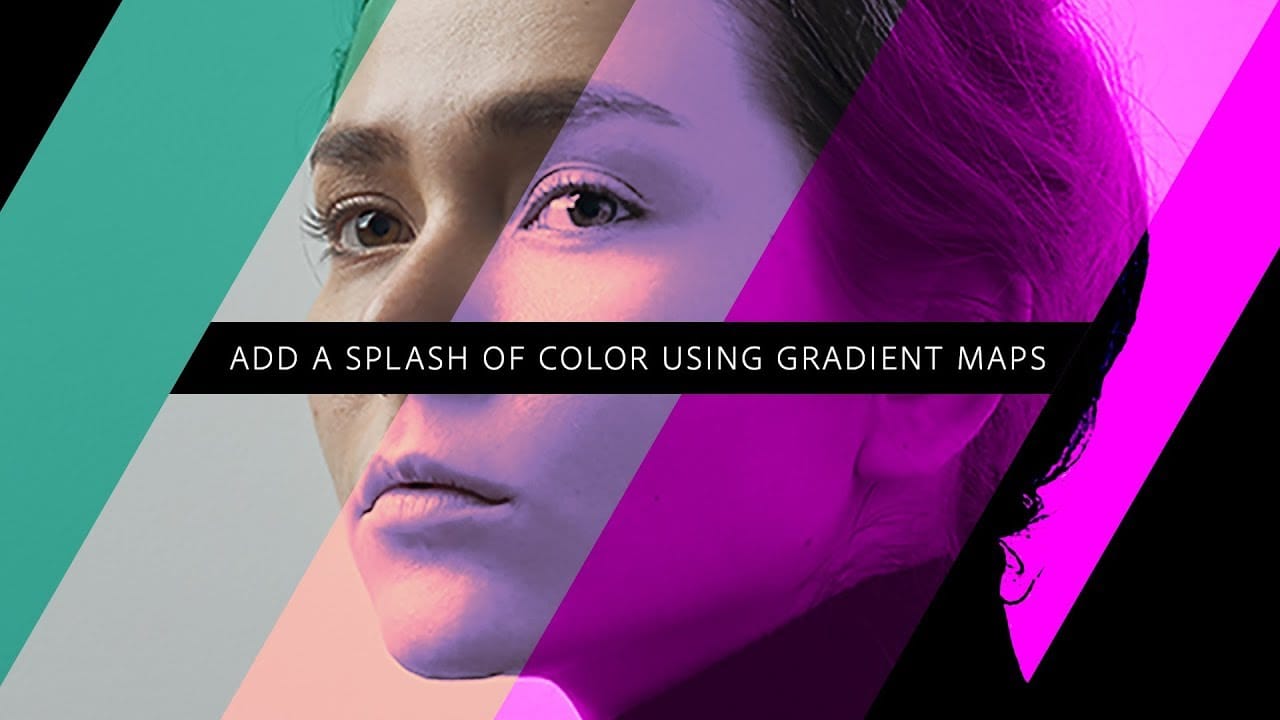
Add a splash of color using gradient maps in Photoshop
In this engaging tutorial, Adobe Evangelist Paul Trani reveals the power of Gradient Maps in Photoshop to introduce stunning colors to your designs. Gradient Maps are a versatile tool that applies color gradients to your images, enabling you to create striking visual effects with ease. Paul walks you through the process of applying and adjusting Gradient Maps, demonstrating how this technique can significantly enhance the depth and vibrancy of your designs. The tutorial covers essential tips an
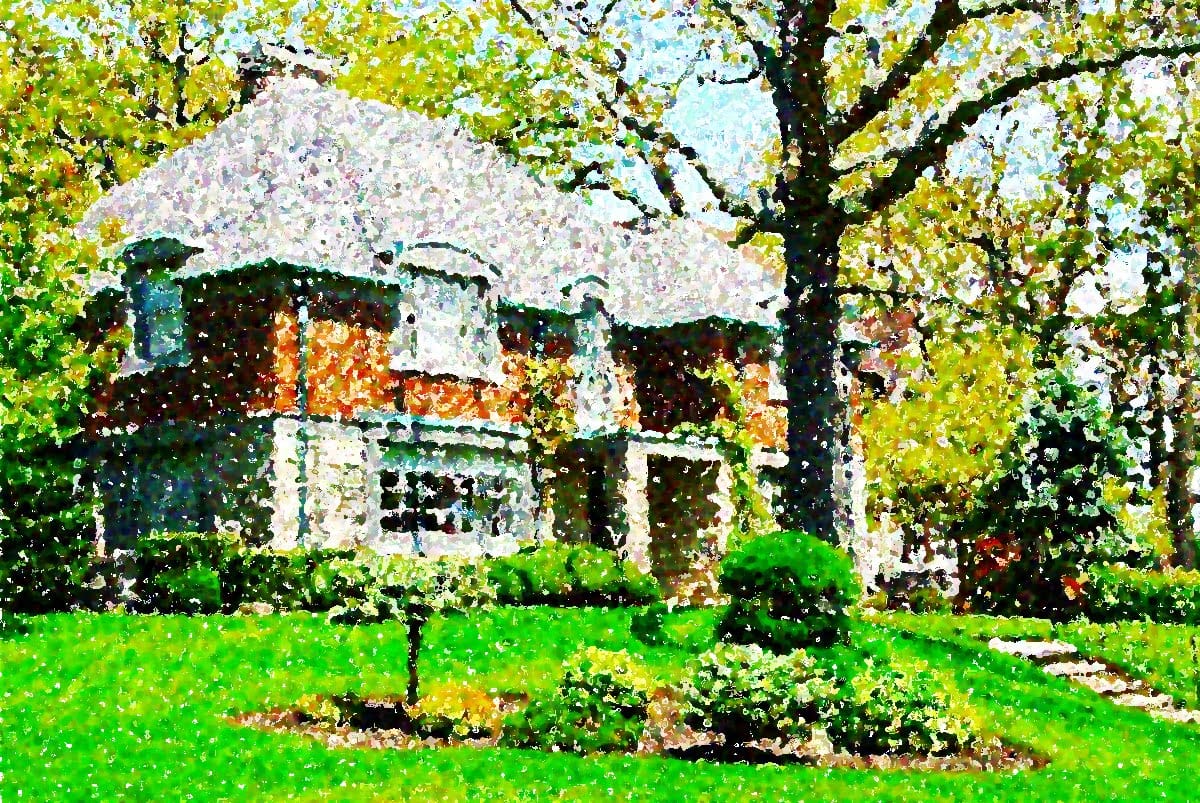
Apply a nice saturated paint effect to your photos in Photoshop
This beginner-friendly Photoshop tutorial by Marcin Mikus will teach you how to transform a regular photo into a painting. Marcin begins by duplicating the background layer, enhancing the image's vibrance and saturation for a vivid look. Next, they convert the duplicated layer into a smart object and apply the "Oil Paint" filter, adjusting the settings to achieve the desired painted effect. The tutorial also suggests experimenting with other artistic filters like "Colored Pencil" for various st
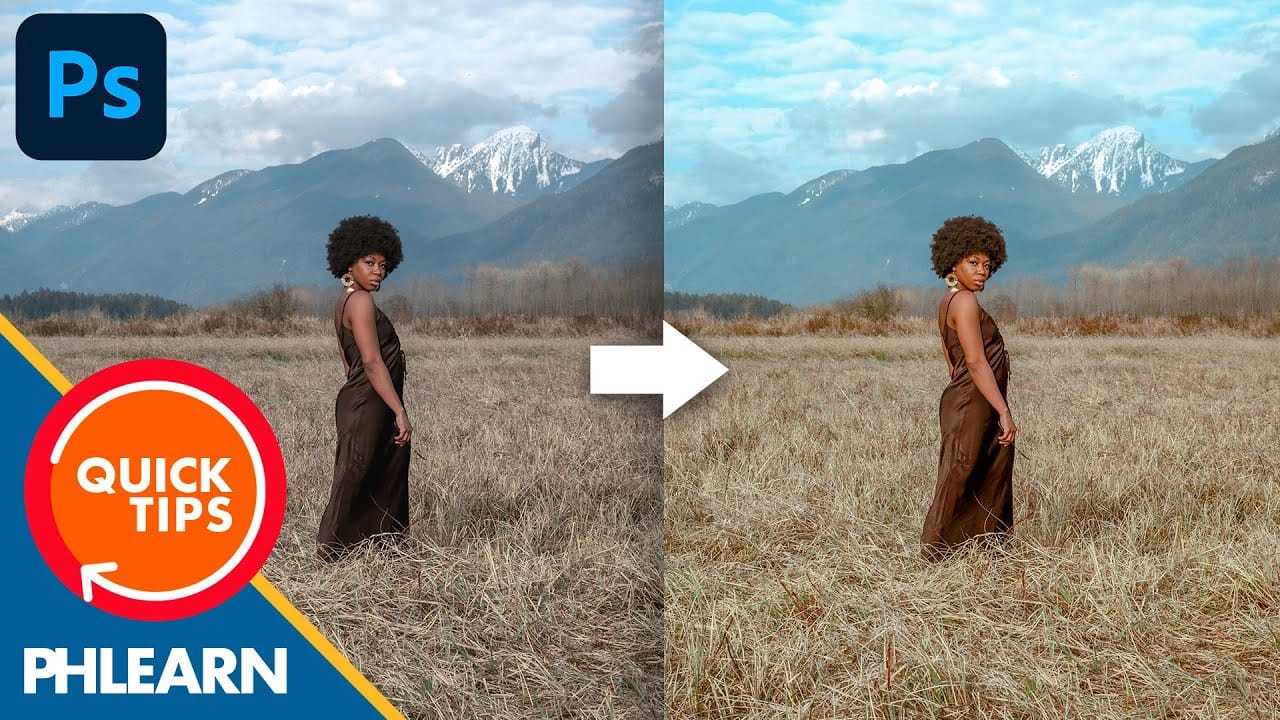
Create a bright and beautiful color grade in Photoshop
In this tutorial, Aaron Nace from Phlearn demonstrates how to enhance your photos with a bright and vibrant color grade using the Camera RAW filter in Photoshop. This technique is particularly effective for model photography and landscape shots, offering a way to elevate the visual appeal of your images with a polished, professional finish. Aaron guides you through the process of applying and adjusting color grades, showing how the Camera RAW filter can be used to fine-tune colors and achieve a

Get tutorials & freebies delivered to you.

Subscribe to the Photoshop Roadmap newsletter, a weekly roundup of new tutorials, insights and quality downloads, trusted by 6500+ readers.

You might also like

How to Use AI Masking in Adobe Camera Raw for Professional Photo Editing

Adobe Camera Raw's AI masking tools automatically detect subjects, backgrounds, skies, and landscapes, letting you make precise adjustments to specific areas of your photos. These intelligent masks eliminate the need for manual selection work, while allowing you to combine and refine them for complete creative control. The technique...

How to Remove Objects from Photos Using AI Tools in Photoshop

Photoshop's AI-powered object removal tools can eliminate unwanted distractions from your photos with minimal effort. The Remove Tool and Generative Fill feature automated detection for common distractions like people and wires, plus manual painting options for custom removals. These tools work on separate layers, preserving your original image...

Speed Up Your Color Grading Workflow with Photoshop Actions

Color grading can transform your images, but manually adjusting curves and levels for every photo takes time. Photoshop actions offer a faster approach by applying professional color treatments with a single click. This workflow uses pre-built actions, tints, and LUTs to achieve various moods and styles instantly, letting you layer...

7 Essential Tips for Speed Painting in Digital Art

Speed painting isn't just about working faster—it's about eliminating friction from your creative process. These seven techniques help you get ideas onto canvas quickly without getting bogged down in unnecessary decisions or premature details. Whether you're exploring concepts for professional work or personal...

Professional Color Grading Techniques in Photoshop

Color grading transforms ordinary photos into compelling images with professional mood and atmosphere. These non-destructive techniques let you adjust tones, enhance specific colors, and create cinematic looks while preserving your original image data. Master these four essential color grading methods to develop a consistent editing workflow that elevates your photography....

How to Save Cut-Out Elements with Transparent Backgrounds in Photoshop

Creating seamless photo composites requires properly saving cut-out elements with transparent backgrounds. Whether you're extracting people, objects, or other elements for later use, the file format you choose determines how easily you can place these elements into new scenes. Two main approaches work best: saving as PSD files...

You’ve successfully subscribed to Photoshop Roadmap
Welcome back! You’ve successfully signed in.
Great! You’ve successfully signed up.
Success! Your email is updated.
Your link has expired
Success! Check your email for magic link to sign-in.