Using Clarity and Dehaze for Natural Depth in Images

Using Clarity and Dehaze for Natural Depth in Images

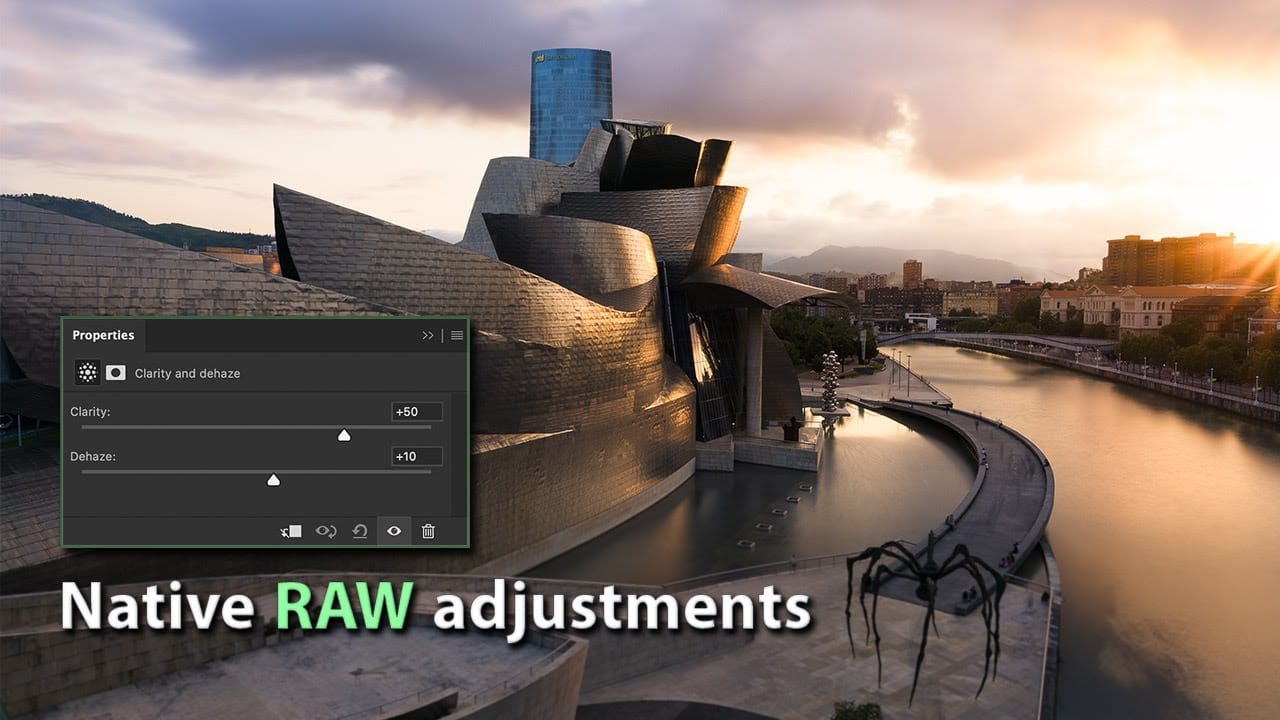
Photoshop's new Clarity and Dehaze adjustment layers offer precise control over image depth, but they're often misused to create harsh, over-processed effects. Understanding how these tools work at different frequency levels helps you enhance natural atmospheric perspective instead of destroying it.

Clarity affects microcontrast in small details, while Dehaze works on larger contrast areas globally. Using them selectively and often in reverse creates more convincing spatial relationships between foreground and background elements.

Watch the Video

Video by f64 Academy. Any links or downloads mentioned by the creator are available only on YouTube

Practical Tips

Here are key techniques for using clarity and dehaze effectively:

  • Use negative clarity values on backgrounds to create light, airy atmospheric effects that mimic natural distance
  • Apply positive clarity selectively to foreground elements while masking out distant objects to maintain depth
  • Change dehaze layers to Luminosity blend mode to avoid unwanted blue color shifts in skies
  • Create separate adjustment layers for foreground and background areas using Select Subject and inverted masks
  • Avoid pushing both sliders positive globally as this flattens all elements to the same visual plane

Explore more techniques for creating natural depth and dimension in your images:
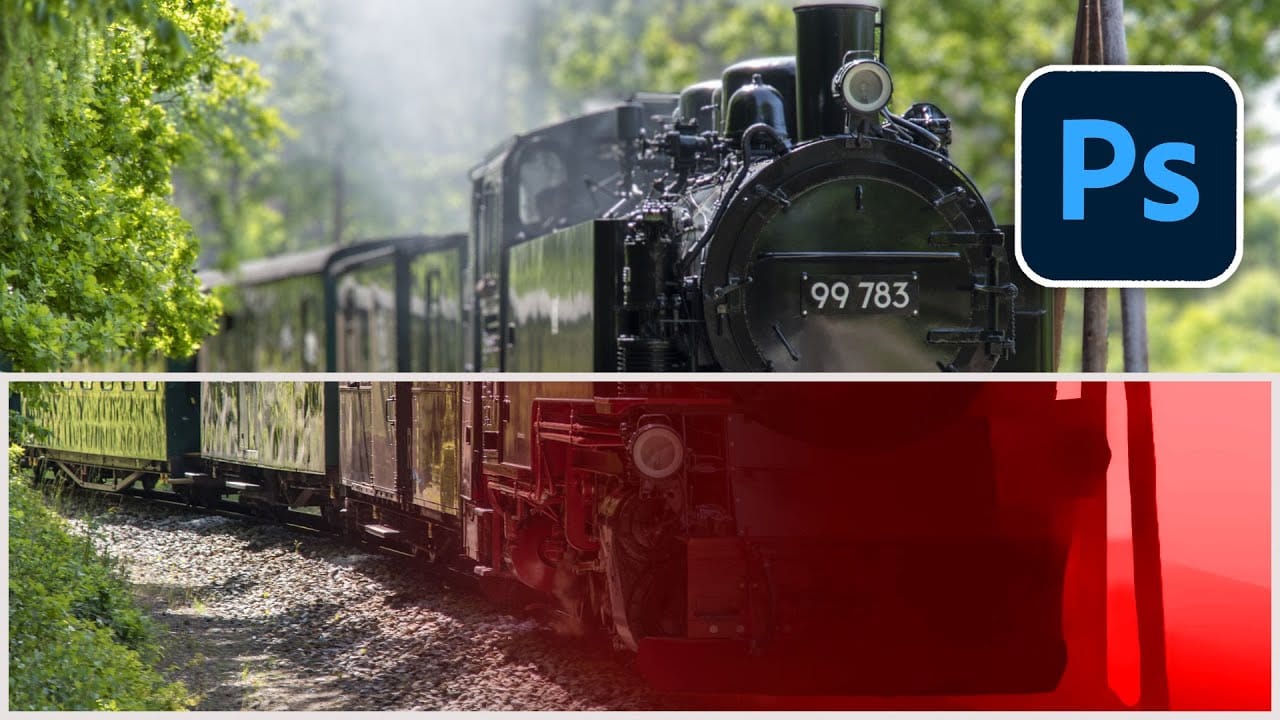
How to Use Clarity and Dehaze Adjustments in Photoshop
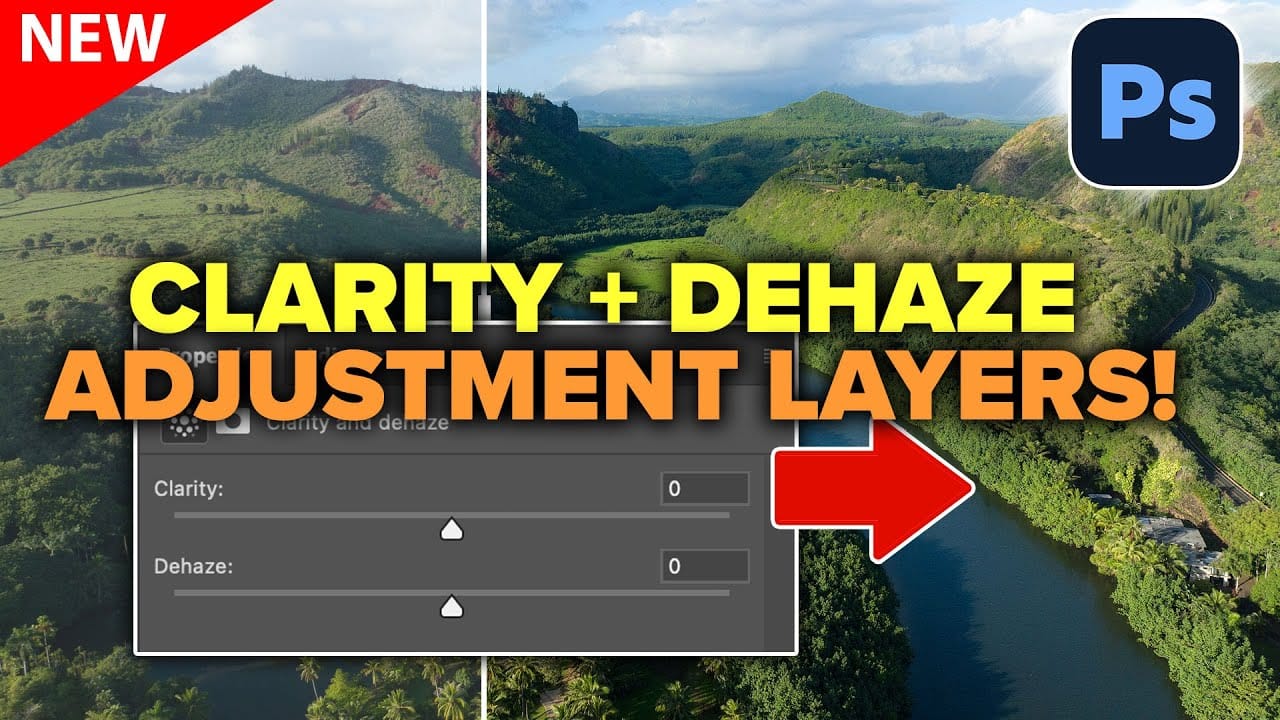
Two of the most popular adjustments from Camera Raw—Clarity and Dehaze—are now available as adjustment layers in Photoshop beta. These tools work on different image frequencies to enhance contrast and cut through atmospheric haze, giving you precise control over midtone contrast and low-frequency areas. Understanding how these adjustments affect different parts of your image helps you combine them effectively for maximum impact while maintaining natural-looking results. Watch the Video Prac
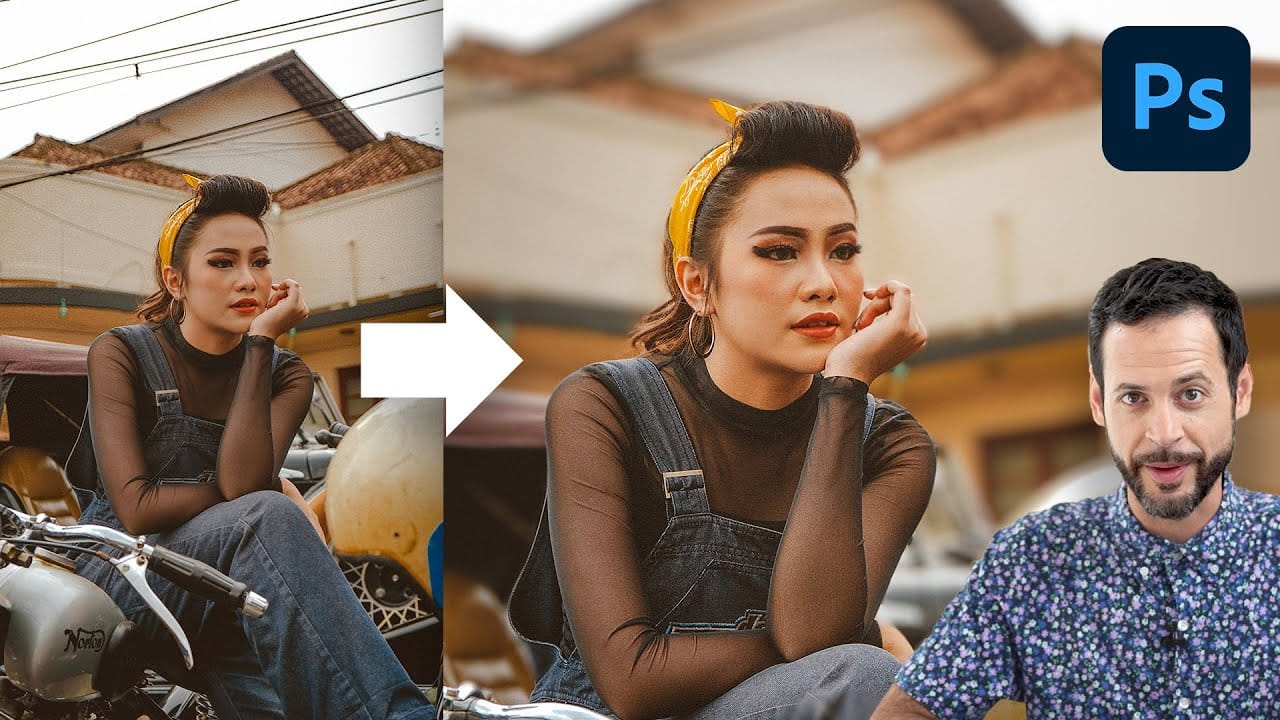
Automatically blur backgrounds in Photoshop
Aaron Nace dives into Photoshop's new Depth Blur Neural Filter, a tool designed to simplify the process of blurring backgrounds and simulating a shallow depth of field. This tutorial covers how to use this feature to quickly achieve a soft, out-of-focus background with minimal effort. Aaron provides a step-by-step guide on applying the Depth Blur Neural Filter, highlighting its ease of use and efficiency. He also examines the tool's performance, discussing its strengths and any potential limita
Photoshop January 2026 Update: 5 New Features Including Grain and Clarity Adjustment Layers
Photoshop's January 2026 update brings five significant features that streamline common editing tasks. The highlight is new adjustment layers for grain and clarity effects, eliminating the need to work in Camera Raw for these adjustments. The update also introduces an improved generative AI model with higher resolution output and enhanced reference image capabilities, plus a more effective Remove Tool for cleaner object removal. Watch the Video Practical Tips Here are key techniques for wo
How to Add Color Depth Using Color Dodge Layers in Photoshop
Color depth transforms flat images into rich, dimensional works that hold the viewer's attention. The secret lies in selectively enhancing specific areas rather than applying blanket adjustments that can muddy your colors. The color dodge technique offers precise control over where and how you add vibrancy. This method works particularly well for portrait enhancement, bringing life to eyes, lips, hair, and jewelry without creating an over-processed look. Watch the Tutorial Understanding Non
Magically change focus of photos in Photoshop
In this Photoshop tutorial, Colin Smith demonstrates the most powerful way to change the depth of field or background blur in your photos. This technique leverages depth maps, neural filters, and lens blur to achieve professional results. Colin starts by explaining how to create and use depth maps, which are essential for controlling the focus and blur levels in specific areas of your photo. Depth maps allow you to simulate a shallow depth of field, making your subject stand out against a blurr
Mastering Skin Smoothing with Frequency Separation
In photography, achieving flawless subject skin can often be a challenge. Blemishes, uneven tones, and harsh shadows frequently detract from an otherwise great photo, leading to frustration for both photographers and subjects. This guide explores frequency separation, a powerful technique that allows precise skin retouching without sacrificing natural texture. Learn how to apply this method, enhance it with advanced steps, and integrate tools that streamline your workflow for professional resul
5 Ways Topaz DeNoise Can Improve Your Photos
Changing the ISO settings of the camera is one of the tricks expert photographers use to take crisp clear photographs in low light conditions. Unfortunately, using higher levels of ISO has an annoying downside: It adds more noise to the photographs. Sure, Photoshop does have some basic filters that let you get rid of the noise in photos. But the adjustment settings on those filters are very limited, especially when it comes to high ISO photos. This is why many professional photographers are no
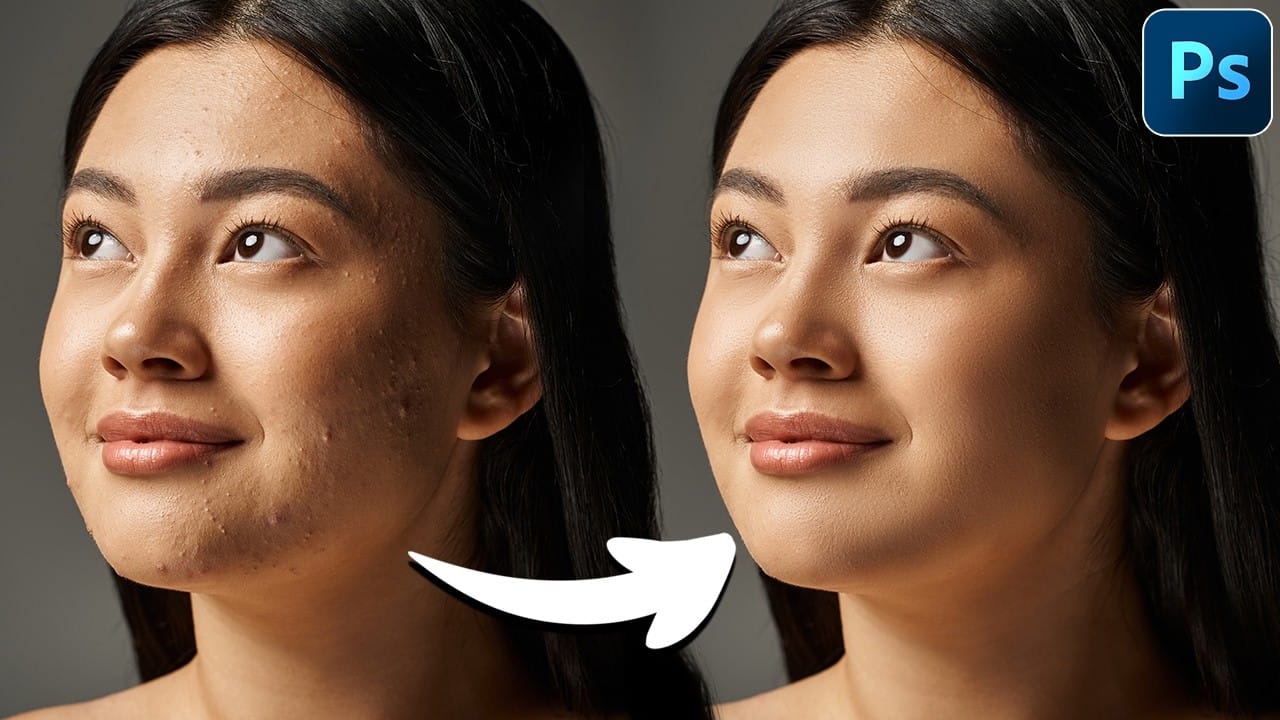
Natural Skin Smoothing in Photoshop
Professional beauty retouching demands techniques that smooth skin while preserving natural texture. This advanced method combines inverted layers with Vivid Light blend mode to create seamless skin enhancement without the artificial "plastic" look common in over-processed images. The technique works by canceling out layer information through inversion, then selectively applying blur and sharpening filters to reconstruct realistic skin texture while eliminating blemishes and color irregularitie
How to Use New Camera Raw Adjustment Layers in Photoshop Beta
Three new adjustment layers in Photoshop beta bring Camera Raw's most powerful tools directly into your layers panel. Color and Vibrance, Clarity and Dehaze, and Grain adjustments now work as standard adjustment layers, eliminating the need for smart objects while maintaining all the precision masking and blending capabilities you expect. This breakthrough allows photographers to apply global-quality Camera Raw adjustments with local control, creating more efficient workflows without file bloat
Frequency Separation Beauty Retouch With The Mixer Brush
In this Photoshop tutorial, the author Kevin Roodhorst shares the professional way to soften skin for high-end retouching. The tutorial focuses on the technique of frequency separation, which is a widely used method in the world of photo editing. The author explains that frequency separation involves separating the image into two layers: the high-frequency layer, which contains the details and textures, and the low-frequency layer, which contains the overall color and tone. By working on these

Get tutorials & freebies delivered to you.

Subscribe to the Photoshop Roadmap newsletter, a weekly roundup of new tutorials, insights and quality downloads, trusted by 6500+ readers.

You might also like

How to Create Digital Collages Using Layers and Blend Modes in Photoshop

Digital collages combine multiple images through strategic layering and blending techniques to create compelling visual stories. This beginner-friendly approach demonstrates how to build complex compositions by layering textures, portraits, and objects while using blend modes to seamlessly integrate each element. The process focuses on practical workflow techniques including smart object...

Building Complex Composites Using Generative Fill and Layer Blending

Complex surreal composites require more than just combining random images. The key to professional results lies in systematic layering, consistent masking techniques, and building a reusable library of generated elements. This approach transforms scattered AI-generated content into cohesive artistic visions. The tutorial demonstrates how to deconstruct an existing composite to...

How to Add Any Face to Mount Rushmore Using Photoshop and AI

Adding faces to Mount Rushmore creates striking digital art that combines portrait photography with AI-powered stone carving effects. This technique uses generative AI to transform any portrait into a realistic granite sculpture that matches the lighting, texture, and monumental style of the famous presidential memorial. The process combines traditional selection...

Creating Floral Wreath Overlays in Photoshop

Floral overlays transform ordinary portraits into magical compositions perfect for pet photography, baby portraits, and creative projects. This technique shows you how to build custom floral wreaths using AI-generated base elements and real floral PNG files, creating frames that can hold any subject in the center. The process combines symmetry...

Concept Development and Mood Boarding with Firefly Boards for Fashion Design

Fashion design concept development traditionally requires gathering inspiration from multiple sources, creating mood boards, and iterating through ideas before presenting to clients. Firefly Boards streamlines this entire workflow into a single workspace where you can source inspiration, generate new variations through AI remixing, and organize final concepts into professional presentations....

How to Use Dynamic Text Shapes in Photoshop

The Dynamic Text tool introduced in 2025 was revolutionary for automatic text sizing and layout, but 2026 brings an exciting update that adds shape options to this powerful feature. You can now create circular text, arches, and bow configurations with the same intelligent resizing capabilities that made the original tool...

You’ve successfully subscribed to Photoshop Roadmap
Welcome back! You’ve successfully signed in.
Great! You’ve successfully signed up.
Success! Your email is updated.
Your link has expired
Success! Check your email for magic link to sign-in.