Two of the most popular adjustments from Camera Raw—Clarity and Dehaze—are now available as adjustment layers in Photoshop beta. These tools work on different image frequencies to enhance contrast and cut through atmospheric haze, giving you precise control over midtone contrast and low-frequency areas.
Understanding how these adjustments affect different parts of your image helps you combine them effectively for maximum impact while maintaining natural-looking results.
Watch the Video
Video by photoshopCAFE. Any links or downloads mentioned by the creator are available only on YouTube
Practical Tips
Master these frequency-based adjustments with these essential techniques:
- Use Clarity to enhance midtone contrast in textures and clothing details, but mask it away from skin tones to avoid unflattering results
- Apply Dehaze to cut through atmospheric haze in landscapes and dramatically enhance cloud definition in skies
- Combine both adjustments with Unsharp Mask to target high, mid, and low frequencies for complete image enhancement
- Convert your layer to a smart object before applying filters to maintain non-destructive editing flexibility
- Reduce vibrance after using Dehaze to counteract the automatic saturation boost and restore natural colors
Related Articles and Tutorials
Explore more advanced adjustment techniques and new editing features:
TOP New Features in Photoshop – May 2025 Update
Many Photoshop users frequently encounter common challenges such as time-consuming manual selections for complex objects, difficulties in achieving precise color adjustments across an image, or struggling with inconsistent results when removing unwanted elements like reflections. These hurdles often slow down the creative process, making it frustrating to achieve a desired professional look efficiently.
This guide explains how Photoshop's latest updates introduce powerful new functionalities, i
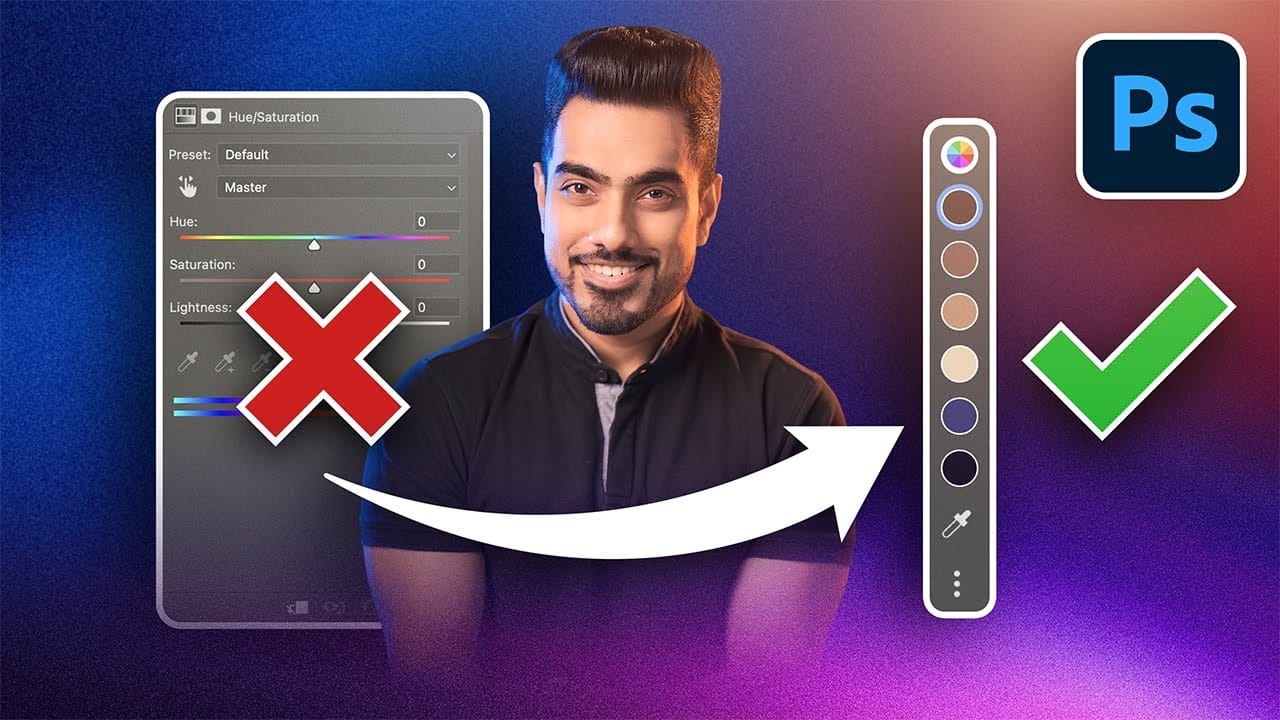
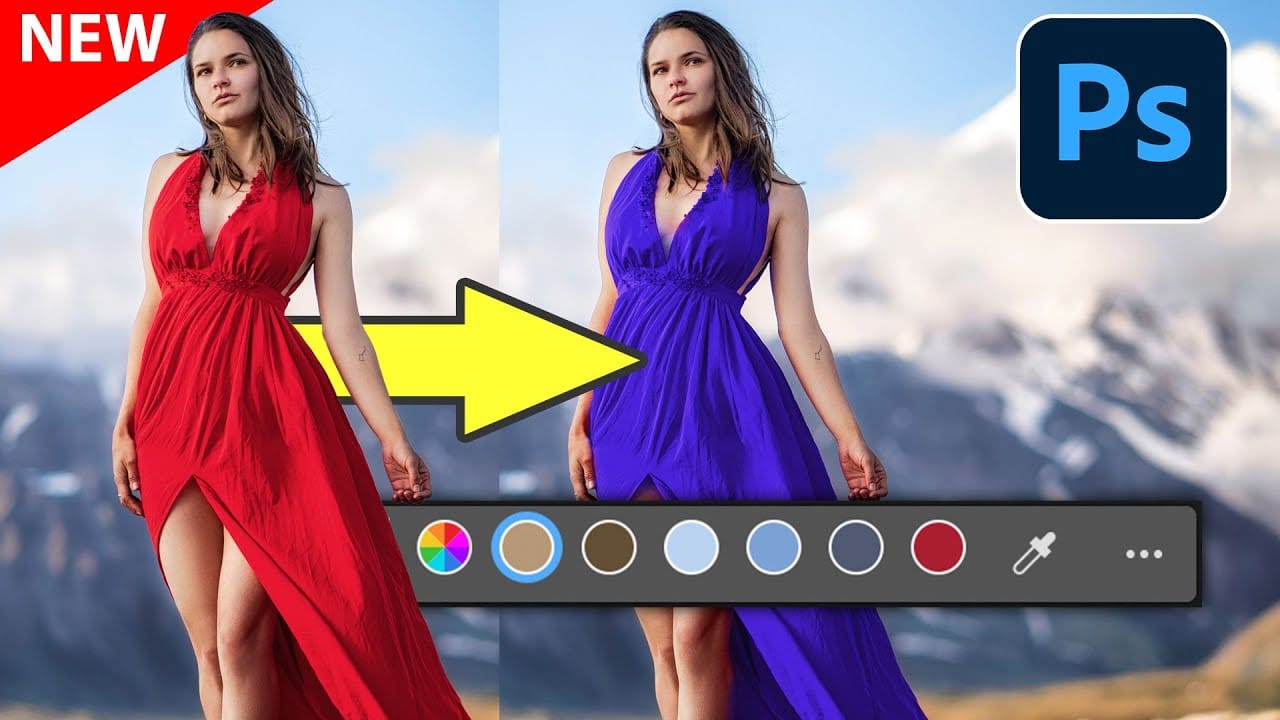
Photoshop's New Adjust Colors Feature vs Traditional Hue/Saturation
Color adjustments just became dramatically simpler in Photoshop. The new Adjust Colors feature automatically detects the six most prominent colors in any image, letting you target and modify specific hues with a single click. No more guessing which color range to select or struggling with imprecise selections.
This intuitive approach transforms what used to be a multi-step process into an instant workflow. Traditional hue/saturation adjustments often missed their target or required extensive fi
Photoshop 2025: New Adjustment Brush Tool Explained
This tutorial by Aaron Nace introduces the new Adjustment Brush Tool in Photoshop 2025. This tool lets you make specific adjustments to the color and light in areas of your image. The tool creates a separate adjustment layer, meaning you can edit your image without changing the original information. You can find the Adjustment Brush Tool in the Tools panel and select properties like Hue, Saturation, Brightness, Contrast, and Exposure to adjust.
The tutorial explains that to start, you open your
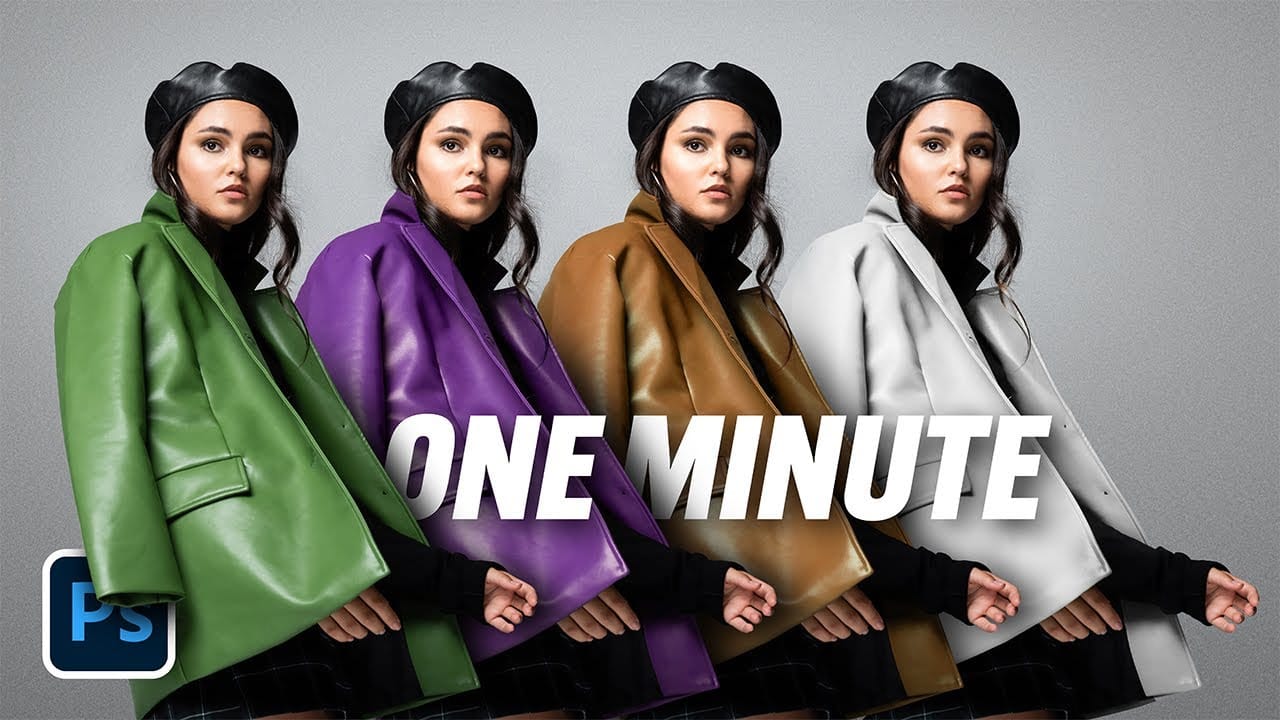
The easiest way to change any color in Photoshop
Changing the color of specific elements within an image can often be a frustrating challenge for designers and photographers. Achieving a precise color shift without affecting surrounding areas, or dealing with complex selections, often leads to a time-consuming and imperfect process.
This guide introduces a highly efficient method utilizing Photoshop's latest updates, specifically the "Adjust Colors" feature found in the contextual taskbar. This technique simplifies accurate color manipulation
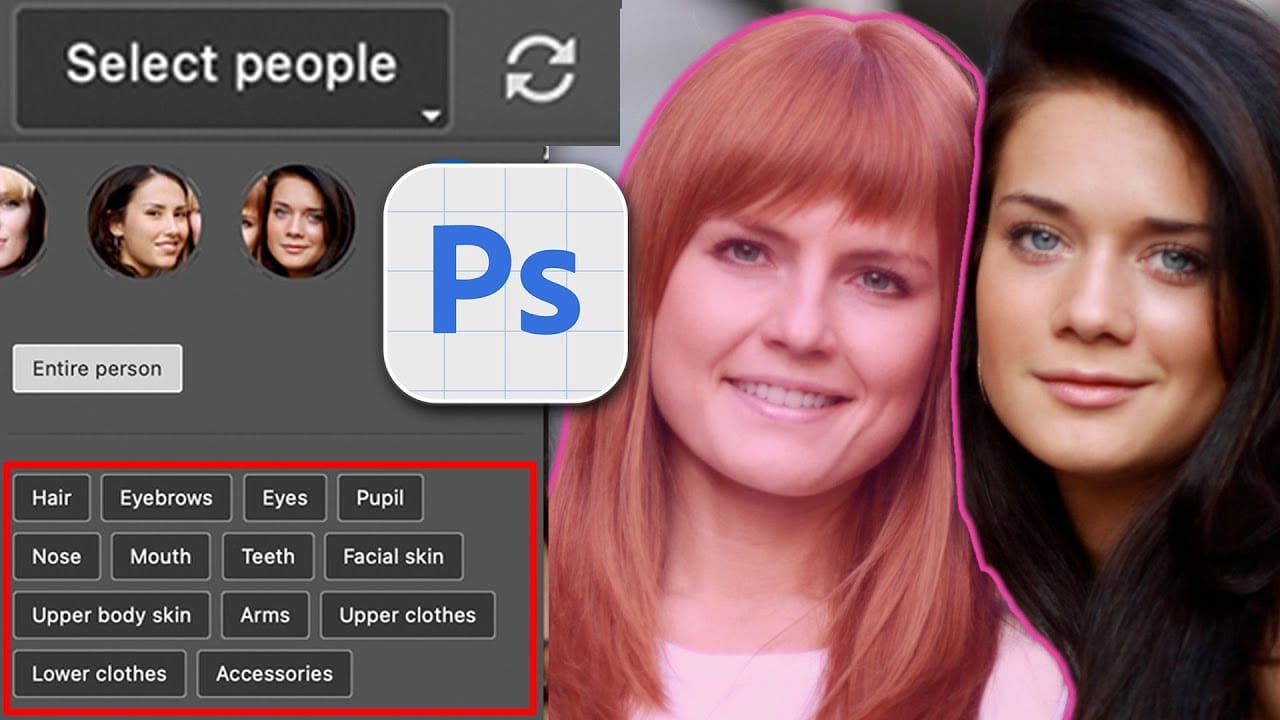
Select People, the most requested new photoshop feature
Achieving precise selections in image editing, especially when dealing with complex subjects like people, has historically been one of Photoshop's most time-consuming tasks. Manual masking of hair, intricate clothing, or multiple individuals often requires significant effort and a keen eye for detail, posing a common challenge for photographers and designers alike.
This video introduces a groundbreaking new feature in Photoshop that dramatically simplifies this process. Viewers will discover ho
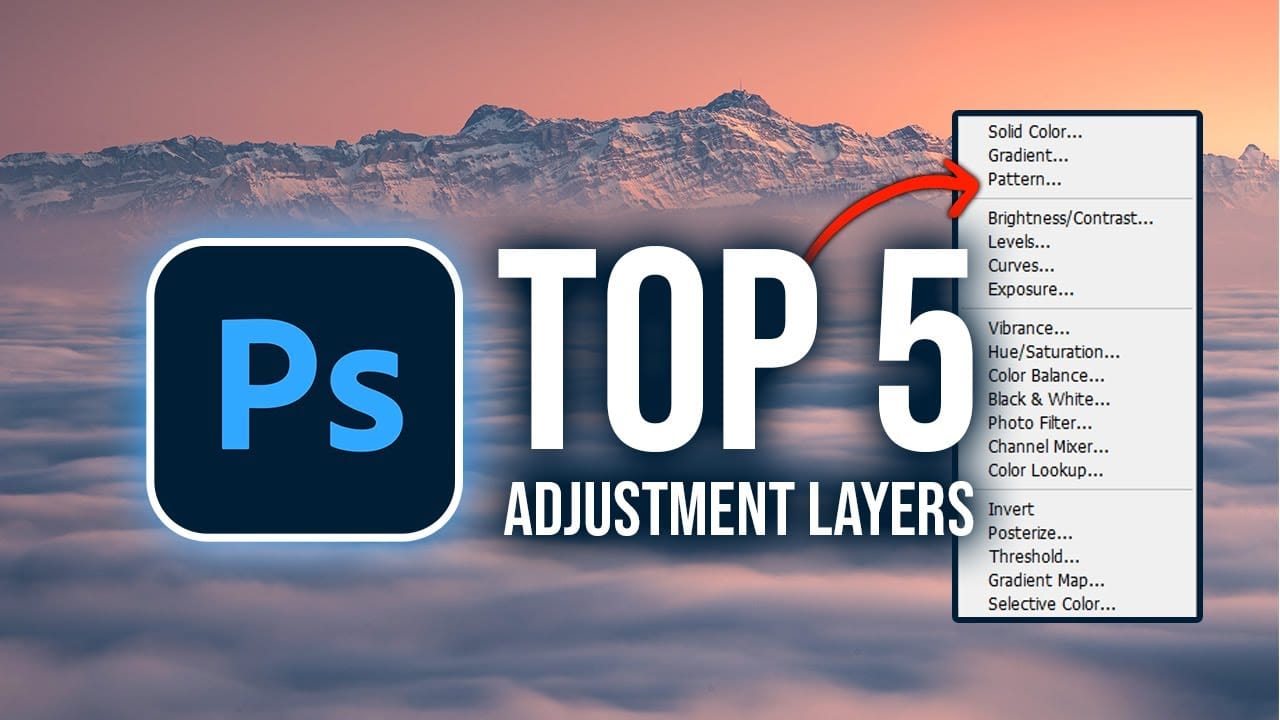
Master Photoshop Adjustment Layers for Non-Destructive Editing
Fine-tuning images without destroying original pixel data transforms ordinary photos into compelling visuals. Adjustment layers provide the flexibility to experiment with colors, contrast, and tones while maintaining complete control over every edit.
This comprehensive guide demonstrates how to harness Photoshop's most powerful adjustment layers for landscape photography, from basic contrast enhancements to sophisticated color grading techniques.
Watch the Tutorial
Understanding Non-Destruc
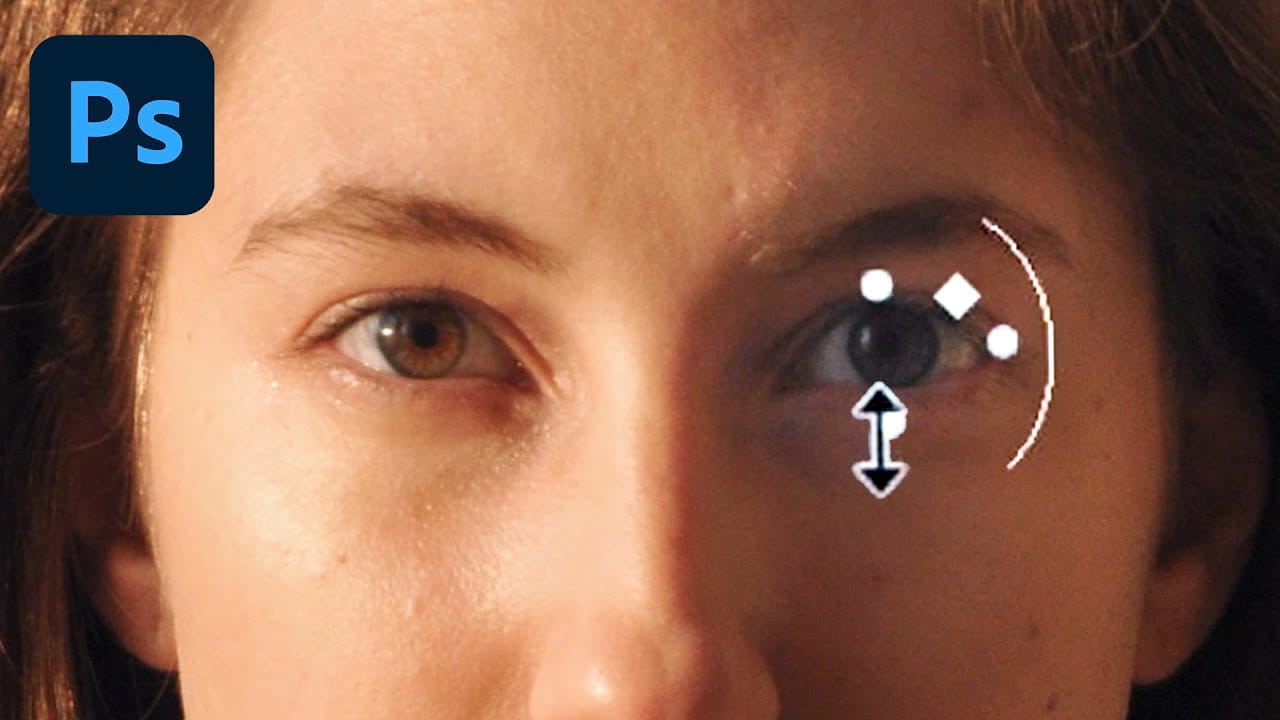
How to Adjust and Change Facial Features in Photoshop
Today we're testing out Photoshop's Face-Aware Liquify and Smart Portrait Neural Filters to adjust facial features and expressions of a subject! Learn how to make subtle adjustments to the size and positioning of facial features, and how to change facial expressions to evoke different emotions. Aaron Nace demonstrates how to use these powerful tools while maintaining care and respect for your clients and subjects.
Explore the potential of these advanced Photoshop features to enhance portraits,
New Photoshop Feature for Changing Colors
Working on the color palette of an image is a fundamental task in photo editing, enabling designers and photographers to evoke different moods, correct imbalances, or simply reimagine visual elements. While Photoshop has long offered robust tools for color manipulation, achieving precise and natural-looking changes often required a multi-step workflow and a deep understanding of complex adjustments.
This video introduces a groundbreaking new feature in Photoshop's beta version, designed to stre
New Photoshop AI Features – Smarter, Faster, and More Efficient Tools!
Editing detailed selections, adjusting colors, and removing backgrounds in Photoshop can be tedious, especially when working with complex edges like hair or challenging objects. Manual work often stalls creative flow and makes it tough to achieve clean, professional results on tight deadlines.
This article introduces essential, time-saving features in the latest Photoshop update—including advanced AI-powered selection, color, and removal tools. Learn how these updates streamline everyday editin
100 Wonderful Photoshop Photo Effects tutorials
Learn how to create awesome photo effects in photoshop with this gallery of 100 impressive Photoshop tutorials.
 Enrique Flouret