How to Create Retro Molded Plastic Text Effects in Photoshop

How to Create Retro Molded Plastic Text Effects in Photoshop

The distinctive look of vintage molded plastic carries a unique charm that defined countless products from toys to electronics in decades past. This glossy, dimensional aesthetic brings instant retro appeal to modern designs, combining smooth beveled surfaces with vibrant colors and realistic depth.

This tutorial demonstrates how to recreate that authentic molded plastic appearance using Photoshop's layer styles and smart objects. You'll learn to transform ordinary text and graphics into convincing three-dimensional plastic elements that capture the essence of classic retro design.

Watch the Video

Video by Photoshop Arthouse. Any links or downloads mentioned by the creator are available only on YouTube

Practical Tips for Molded Plastic Effects

  • Use thick, rounded fonts for better plastic appearance—thin letterforms don't capture the molded quality effectively
  • Adjust filter settings proportionally when working with different document resolutions to maintain consistent visual results
  • Convert elements to smart objects before applying effects to preserve editability and allow for easy adjustments
  • Create expanded background shapes around your main elements to simulate the realistic thickness of molded plastic
  • Use the Ring-Triple gloss contour for authentic plastic highlights and the Rolling Slope Descending contour for realistic surface variation

Explore more techniques for creating vintage-inspired typography and dimensional text effects.
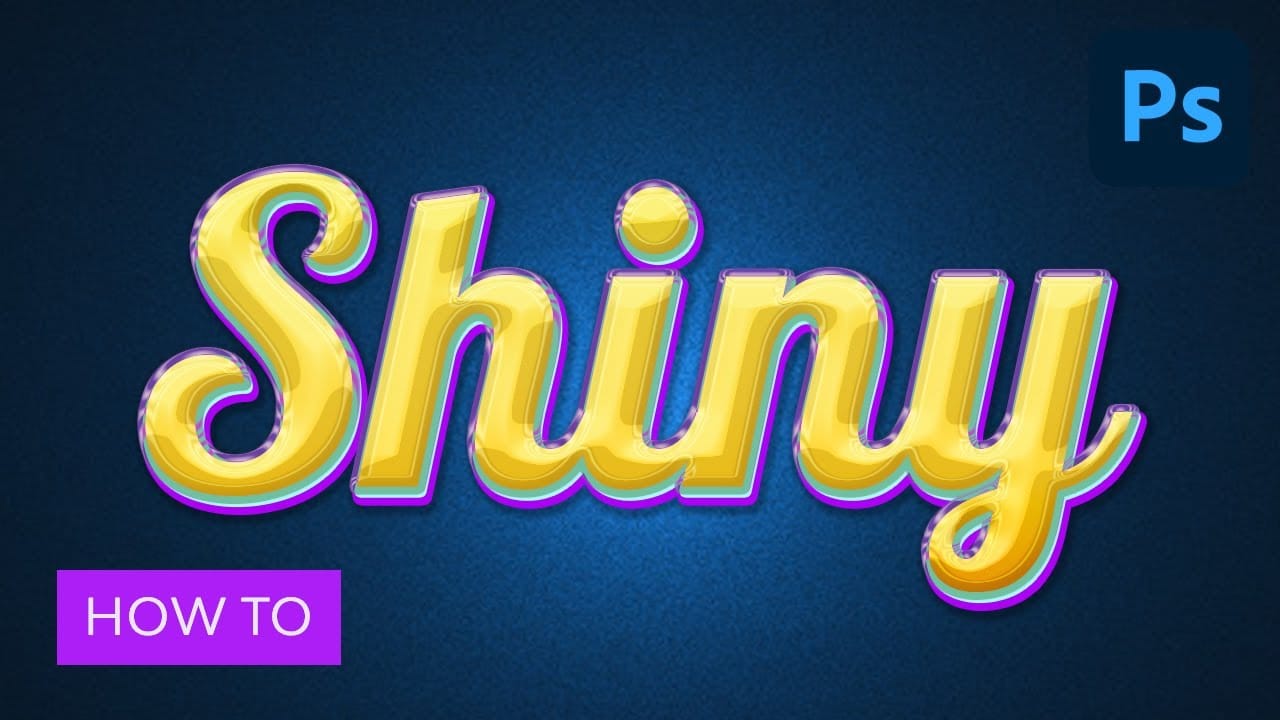
Colorful Glossy and Shiny 3D Text Effect in Photoshop
In this Envato Tuts+ tutorial, Monikazza Grubena demonstrates how to create a glossy text effect in Photoshop using the layer style panel. The tutorial is straightforward and efficient, ideal for both beginners and experienced users. Monikazza explains the process clearly, making it easy to follow along and replicate the effect on your own projects. The tutorial also highlights the value of Envato Elements, which offers a wide range of professional shiny and glossy text effects, along with othe
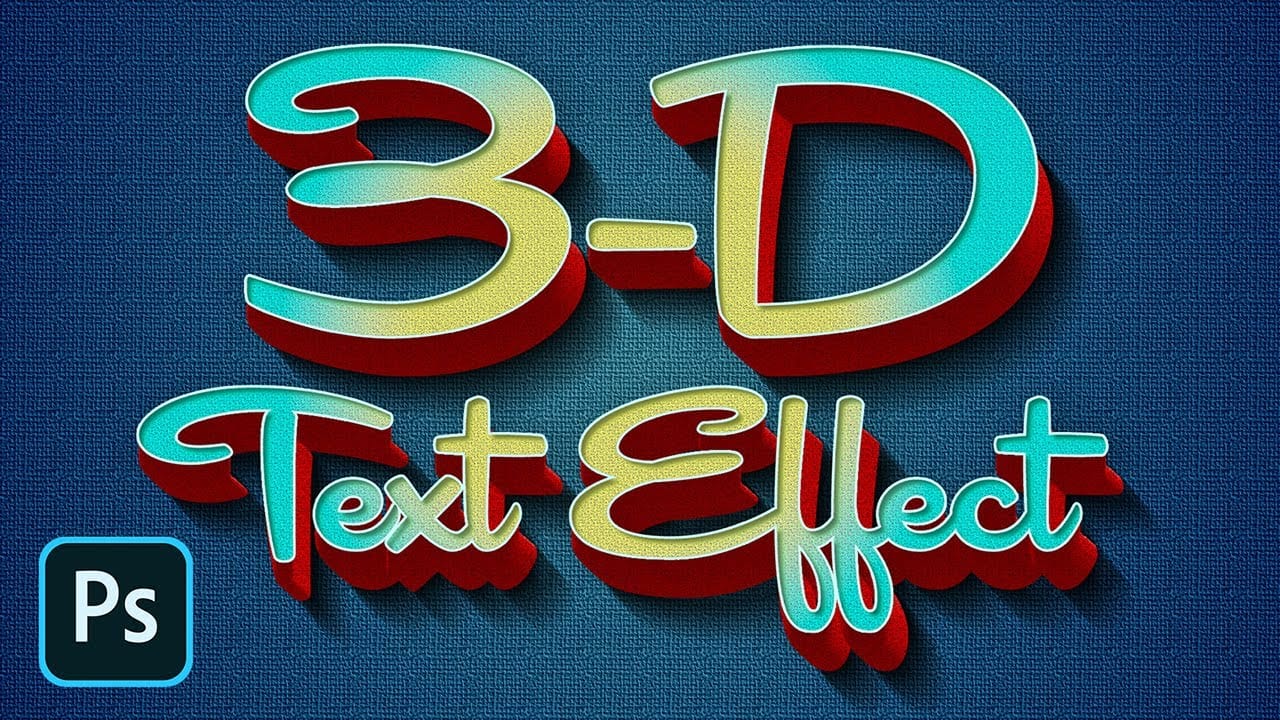
How to Create a Retro 3D Text Design in Photoshop
The allure of retro design continues to captivate, offering a nostalgic aesthetic that can add unique character to modern projects. Creating dynamic 3D text effects is a powerful way to infuse this vintage charm into your digital art, transforming flat typography into eye-catching, dimensional elements. This tutorial provides a comprehensive guide to crafting a compelling retro 3D text design in Photoshop. You will learn essential techniques for building depth, applying intricate layer styles,
Create a cool text portrait in Photoshop
This tutorial explores the process of creating a powerful typographic portrait poster using Adobe Photoshop. It transforms a standard photo into a visually striking artwork where text forms the contours of a subject's face. Viewers will learn essential Photoshop techniques, from precise subject selection and background preparation to the artful integration of text and subtle refinements that enhance legibility and visual impact. Watch the Video The Art of Typographic Portraiture Typographi
How to Create a 3D Retro Text Effect in Adobe Photoshop
In this Adobe Photoshop tutorial by Spoon Graphics, you'll learn how to create a great-looking retro text effect. Using a mix of layer styles and clever Photoshop techniques, this tutorial guides you through the process step-by-step. The best part is that it utilizes Smart Objects, allowing you to non-destructively create the effect, meaning the original type element can still be updated to change the wording. This approach ensures flexibility and ease of editing while achieving a stylish retr

Get tutorials & freebies delivered to you.

Subscribe to the Photoshop Roadmap newsletter, a weekly roundup of new tutorials, insights and quality downloads, trusted by 6500+ readers.

You might also like

How to Change Object Colors in Photoshop Using Hue/Saturation

Changing the color of specific objects in your photos requires precision and the right technique. The key is creating an accurate selection and using a targeted adjustment layer that affects only your chosen subject while preserving the rest of the image. This method combines the Object Selection tool with Hue/...

Create a Distorted Wave Glitch Effect in Photoshop

Digital distortion effects transform ordinary portraits into striking visual art by warping reality through deliberate technical manipulation. This technique uses multiple wave filters layered together to create increasingly complex distortions, while selective masking preserves important facial features from becoming completely unrecognizable. Watch the Video Practical Tips Master the wave distortion...

How to Create Glow Motion Effects with Gradient Maps in Photoshop

Motion blur combined with colorful gradients creates striking visual effects that transform ordinary photos into dynamic, cinematic images. This technique uses gradient maps to automatically color light and dark values, producing flowing color transitions that follow the movement of your subject. The process involves subject isolation, strategic gradient placement, path...

How to Use Reference Images with Generative Fill in Photoshop

Reference images revolutionize how Generative Fill works, letting you guide AI with actual photos instead of text prompts. This feature enables precise clothing swaps, object replacements, and realistic additions by showing the AI exactly what you want rather than describing it. The technique works with everything from custom t-shirts and...

How to Remove Eye Bags Using Dodge and Burn in Photoshop

Eye bags can dramatically age a portrait, making subjects appear tired or unhealthy. Traditional removal methods often destroy skin texture or create unnatural results that look obviously retouched. This professional dodge and burn technique removes even severe eye bags while preserving every detail of natural skin texture. The method uses...

You’ve successfully subscribed to Photoshop Roadmap
Welcome back! You’ve successfully signed in.
Great! You’ve successfully signed up.
Success! Your email is updated.
Your link has expired
Success! Check your email for magic link to sign-in.