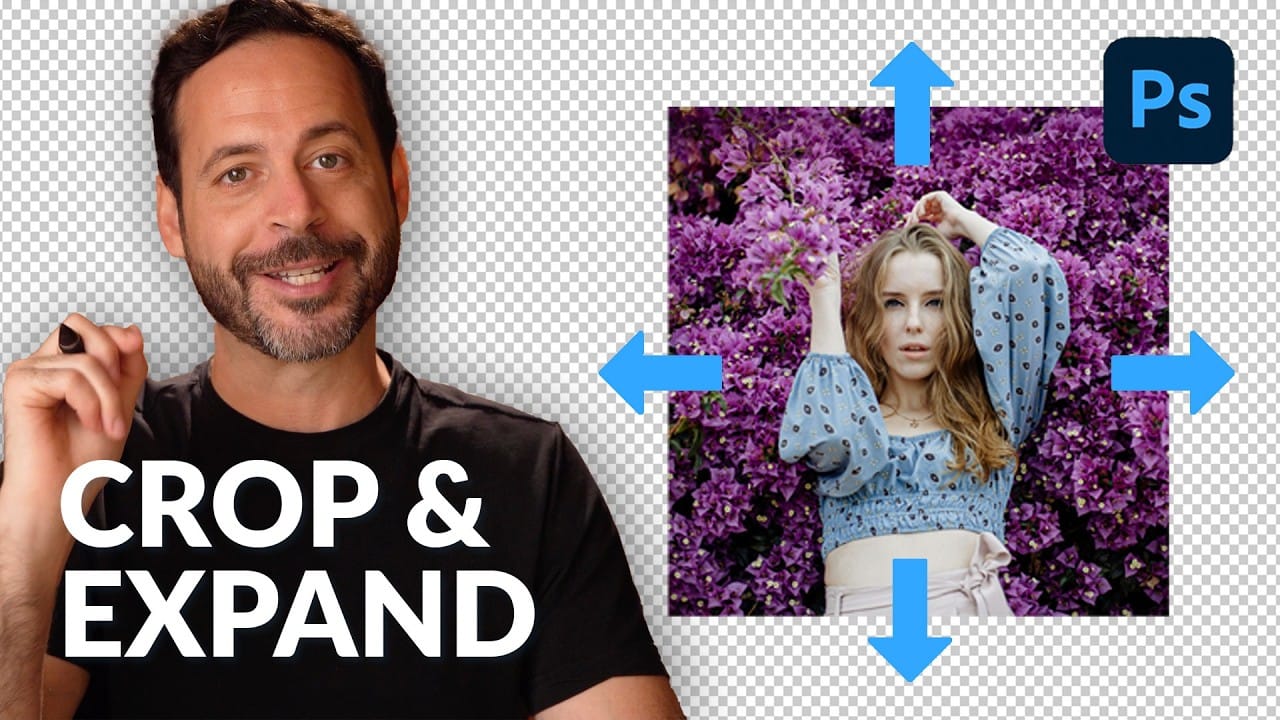
Sometimes your best photos need more breathing room or a different aspect ratio. Generative Expand in Photoshop lets you extend your canvas beyond the original image boundaries, using AI to intelligently fill in missing areas with content that matches your scene.
This technique works for changing portrait photos to landscape orientation, adding more space around subjects, or even changing the camera angle of existing photographs entirely.
Watch the Video
Video by PHLEARN. Any links or downloads mentioned by the creator are available only on YouTube
Practical Tips
These key techniques will help you get the best results when expanding your photos with AI:
- Use the Crop Tool (C) and set Fill to "Generative Expand" before dragging to extend your canvas in any direction
- Enable "Enhance Detail" in the Properties panel after generation to improve the quality of AI-generated areas
- Combine Firefly Image Model 3 for initial expansion with Gemini 2.5 Nano Banana for better face and hand details
- Use "Select All" then Generative Fill with prompts like "zoom out 10%" to change camera angles after expanding
- Keep AI-generated content expectations realistic - quality will be lower than original but improves with enhancement
Related Articles and Tutorials
Explore more AI-powered photo editing techniques and advanced cropping methods:
Crop to Any Ratio and Expand with AI in Photoshop
Digital images often require precise dimensions for various outputs, from print to social media. Achieving the perfect crop while maintaining visual integrity can be a challenge, especially when the desired ratio exceeds the original image boundaries.
This tutorial explores how to effectively crop images to specific aspect ratios in Photoshop, demonstrating techniques to not only adjust dimensions but also intelligently expand image content using AI when necessary.
Watch the Video
The Evolu
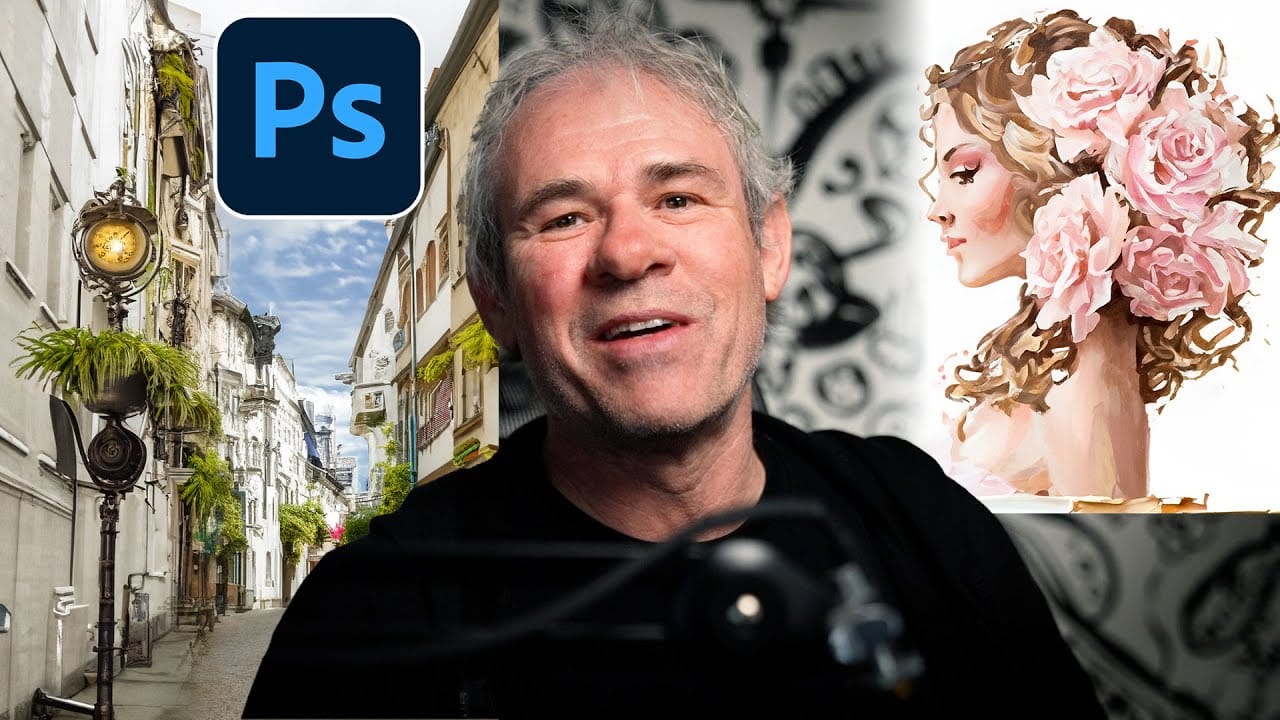
Photoshop Generative Expand and Composite Techniques Using AI-Generated Images
AI-generated imagery opens up endless creative possibilities, but the real magic happens when you know how to refine and enhance these digital creations. Raw AI images often need compositional adjustments, element removal, and seamless blending to reach their full potential.
This tutorial demonstrates practical techniques for extending canvas space, removing backgrounds, and creating cohesive composites using Photoshop's modern tools. The workflow combines traditional compositing skills with AI
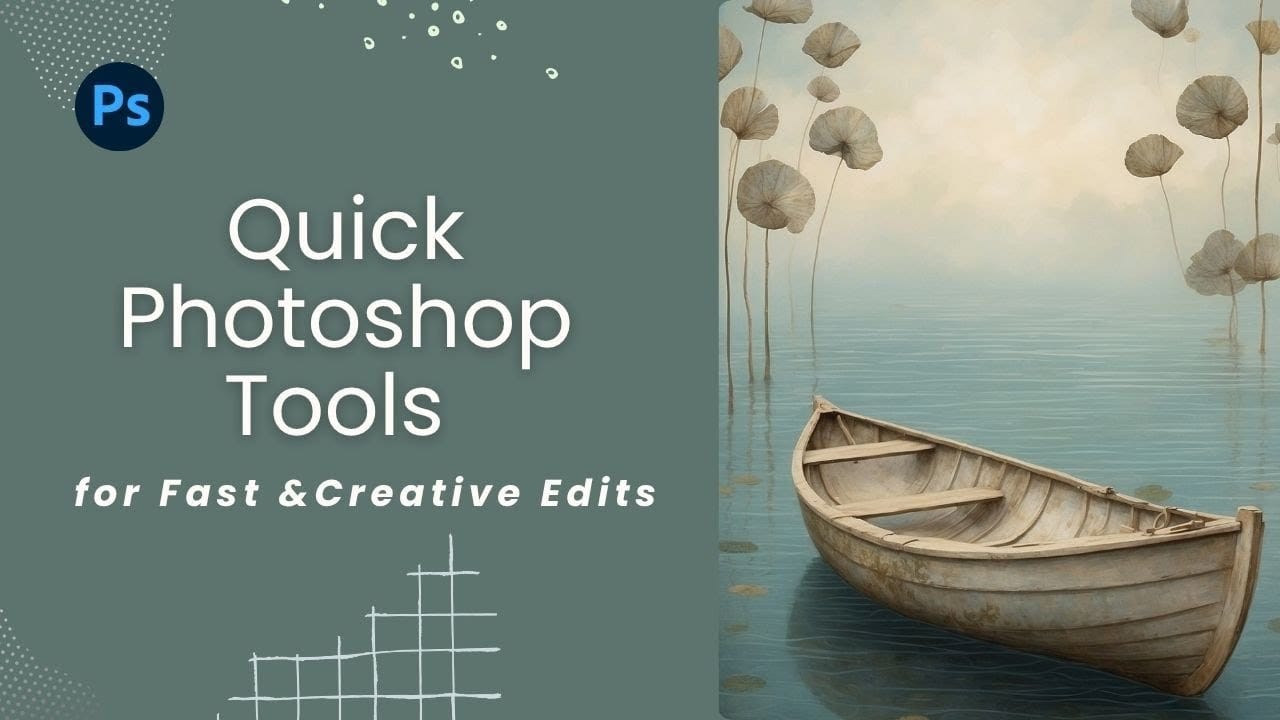
Discover Hidden Photoshop AI Tools to Transform Your Photos
Transform ordinary photographs into captivating works of art using advanced Generative AI features in Photoshop. This guide reveals a powerful, often overlooked technique to unlock incredible artistic potential from your images.
Discover how to apply stunning styles, from delicate watercolors to bold Art Deco and futuristic visions, by mastering a subtle yet impactful control within Photoshop's AI capabilities.
Watch the Video
Understanding Generative AI's Creative Control
Generative AI to
Complete Guide to AI Photo Editing with Photoshop's Generative Fill
Modern photo editing has entered a new era where artificial intelligence can solve complex visual problems in seconds. Tasks that once required hours of manual work—removing unwanted objects, changing skies, adding realistic elements—can now be accomplished with simple selections and text prompts.
This comprehensive tutorial demonstrates 37 practical applications of Photoshop's AI-powered generative fill feature. From basic sky replacements to advanced portrait retouching, these techniques show