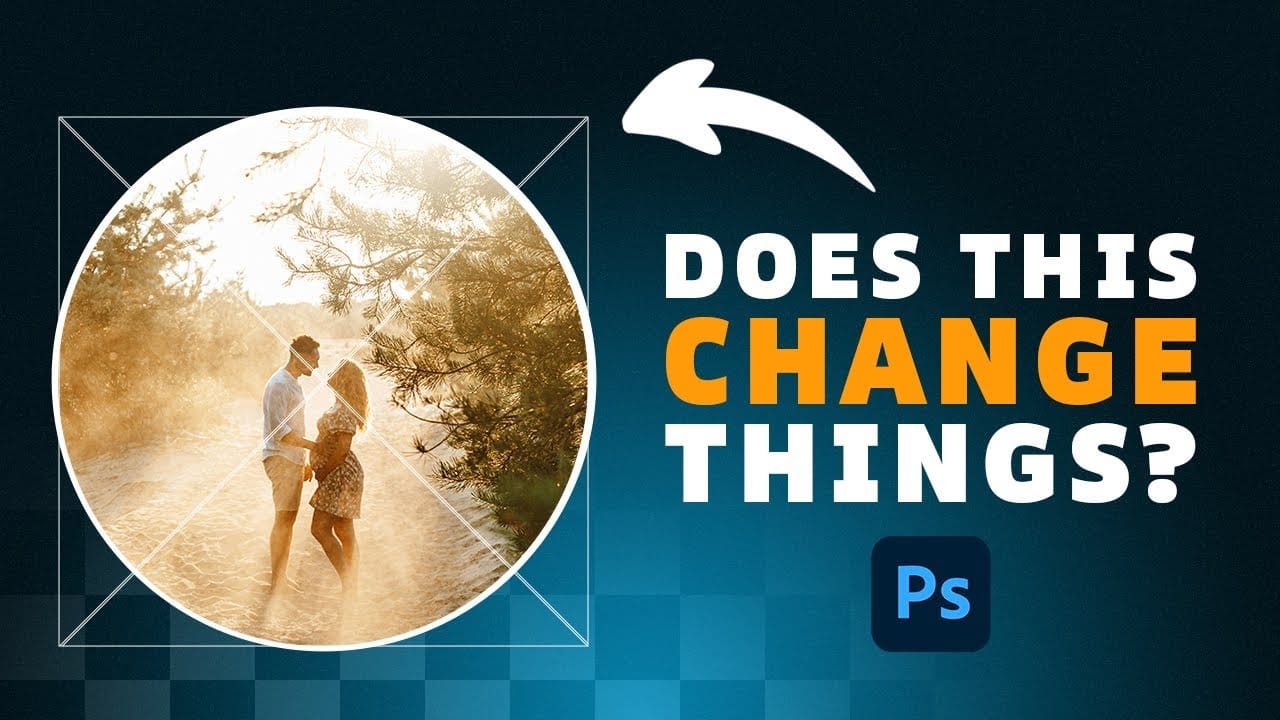
When working with complex layered files, layer thumbnails that display the entire canvas instead of just the layer content make it difficult to identify specific layers at a glance. This common issue occurs when the layers panel is set to show the "entire document" rather than focusing on the actual layer boundaries.
Adjusting this setting transforms unclear, tiny thumbnails into clear previews that show only the relevant content for each layer, making layer navigation much more efficient.
Watch the Video
Video by 2-Minute Design. Any links or downloads mentioned by the creator are available only on YouTube
Practical Tips
Use these essential techniques to optimize your layers panel visibility and workflow:
- Access panel options by clicking the menu icon (three horizontal lines) in the top-right corner of the layers panel
- Change thumbnail contents from "Entire Document" to "Layer Bounds" to show only active pixels
- Adjust thumbnail size in the same panel options menu to match your screen size and preference
- Apply this setting once and it will remain active for all future documents
- Use larger thumbnails when working with detailed graphics or small text elements
Related Articles and Tutorials
Explore more workspace optimization and interface customization techniques: