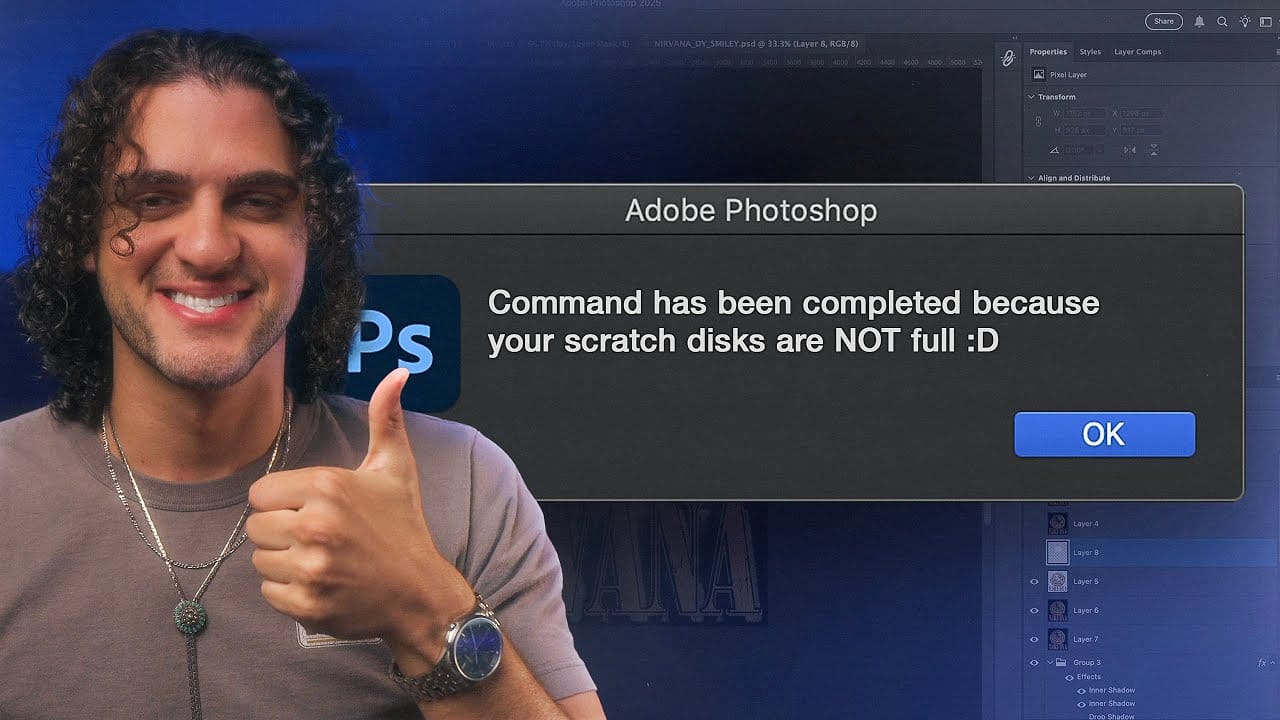
The scratch disk full error stops Photoshop mid-edit and can even prevent it from opening at all. Understanding what a scratch disk actually is — and knowing where to look — makes the difference between a quick fix and repeated frustration.
Watch the Video
Video by Glyn Dewis. Any links or downloads mentioned by the creator are available only on YouTube
Practical Tips
These steps address the most common causes of the scratch disk error, from freeing space on the correct drive to adjusting settings that reduce demand over time.
- Check the Scratch Disks panel first to confirm which drive Photoshop is using — free space on other drives does not help unless that drive is selected.
- Aim for at least 100 GB free on your primary scratch drive, as Adobe recommends this as a baseline for troubleshooting the error.
- Assign a fast, dedicated drive as your scratch disk if storage on your main drive is consistently tight — an external SSD works well for this purpose.
- Quit and relaunch Photoshop if the warning returns during a session, since working allocations can build up even after closing documents.
- Lower your History States count in Performance preferences to reduce scratch disk demand, keeping in mind you will have fewer undo steps available.
Related Articles and Tutorials
More tutorials to help you keep your editing workflow running smoothly and efficiently.
How to Fix Photoshop's Scratch Disk Full Error Permanently
Few things destroy creative momentum like Photoshop's dreaded "scratch disk full" error. This technical roadblock strikes at the worst possible moment—right when inspiration hits and your project is flowing perfectly.
The error occurs when Photoshop runs out of temporary storage space for your work files. This tutorial walks through both quick emergency fixes and permanent solutions to eliminate this frustrating interruption from your design workflow.
Watch the Tutorial
Practical Tips for S
Unleash the Beast: Optimizing Photoshop Performance for a Smoother Workflow
Photoshop is the undisputed king of digital image manipulation. A powerful tool capable of bringing even the most ambitious creative visions to life. However, as our projects grow and files get larger, even the most powerful computers can struggle. Slow loading times, laggy brushes, and the spinning beach ball can kill our creativity and halt our workflow. But fear not. Many ways exist to optimize Photoshop's performance and unleash its full potential.
Immediate Performance Boosters:
Before w

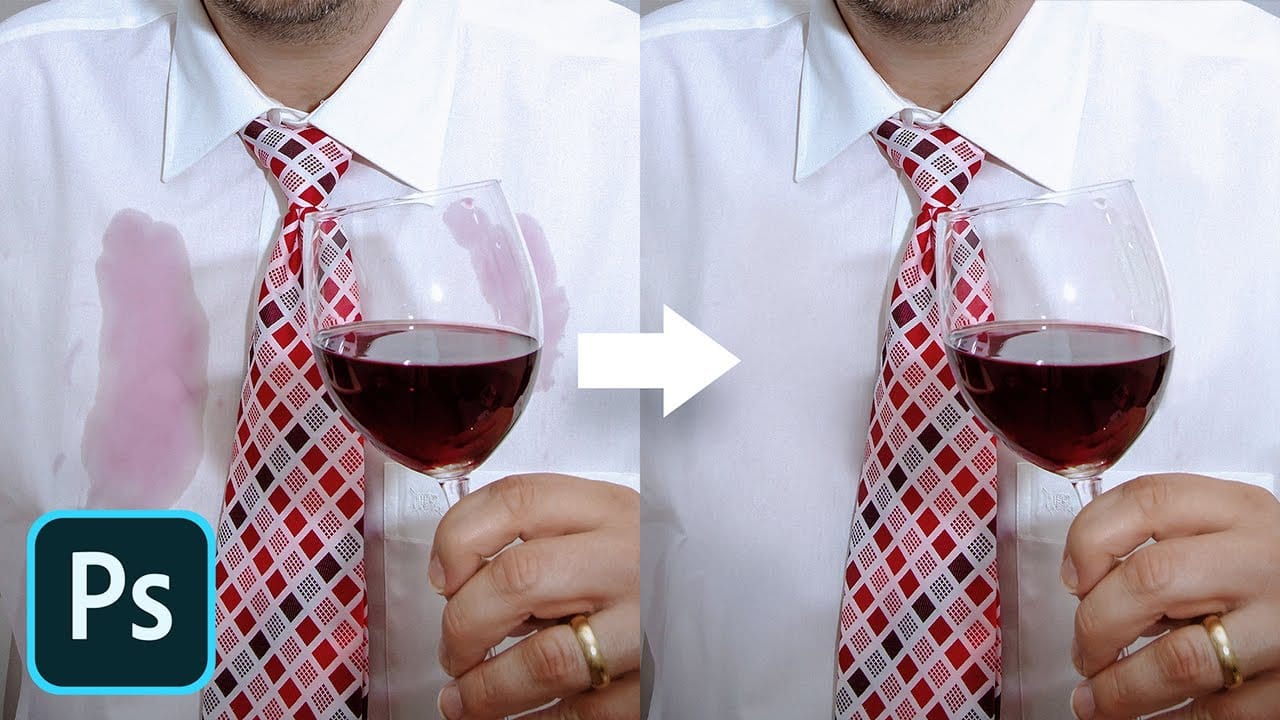
Remove any stain with frequency separation in Photoshop
In this captivating Photoshop tutorial, PiXimperfect guides viewers on how to effortlessly remove any stain using the Frequency Separation technique. Through clear step-by-step instructions, the author demonstrates the power of this versatile tool, allowing users to address discoloration without compromising the underlying texture or the natural folds of the surface.
PiXimperfect's expertise shines as they skillfully navigate the Photoshop interface, showcasing the precise methods needed to ach
How to Remove Distractions, Expand Borders, and Polish a Portrait in Photoshop
A cluttered background, tight framing, and flat lighting can undermine an otherwise strong portrait. This workflow covers the full process of cleaning up a photo using Photoshop's AI-powered Remove Tool, extending the canvas with Generative Expand, replacing the sky, and finishing with Camera Raw adjustments for grain, vignetting, and background blur.
Watch the Video
Practical Tips
These techniques work together as a sequential editing workflow, each step building on the last to produce a c

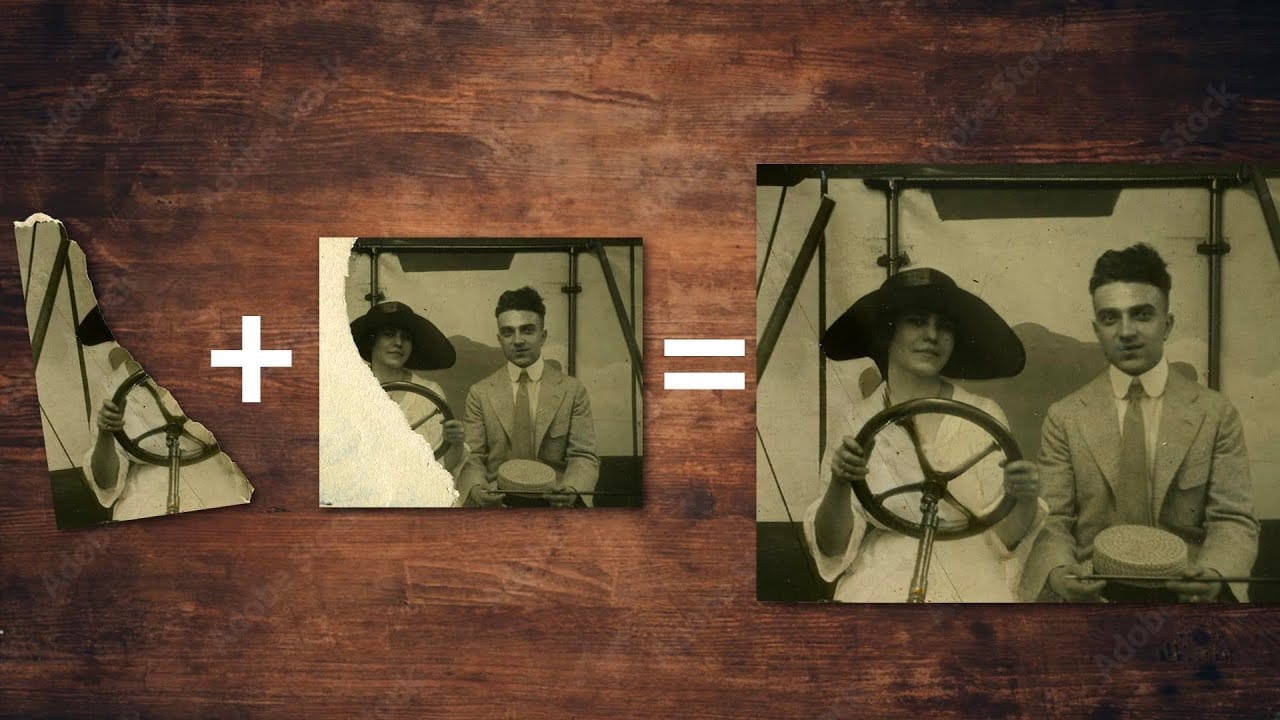
How to repair an old torn photo in Photoshop
Old family photographs often suffer from tears, scratches, discoloration, and missing pieces over time. These precious memories can seem beyond repair, but with the right approach, even severely damaged photos can be restored to their former glory.
This comprehensive restoration workflow covers everything from reassembling torn pieces to removing blemishes and correcting color casts that develop in aging photographs.
Watch the Video
Practical Tips
These essential techniques will help you t
How Photoshop Photo Restoration Got Better Than Ever
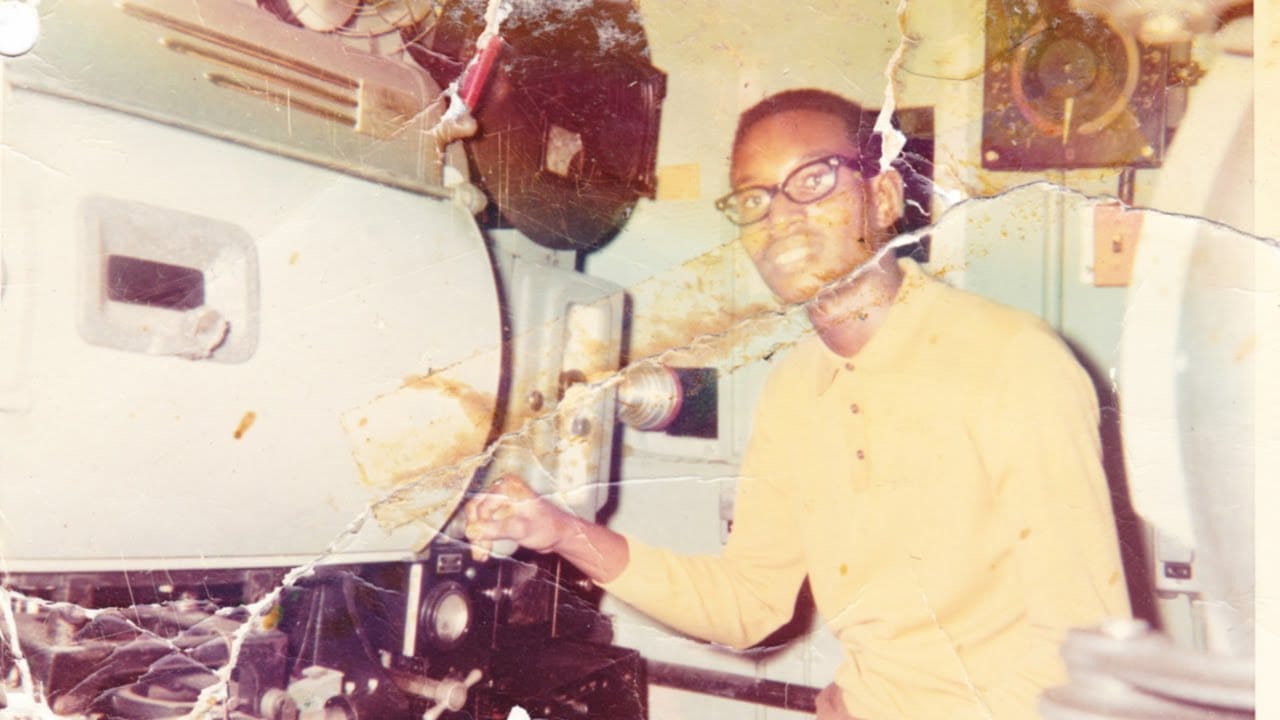
This tutorial by Matt Kloskowski on Photoshop photo restoration reveals an impressive evolution in photo editing technology over the past few years. Many tasks that once required extensive time and complex processes can now be completed in just minutes. This is especially relevant after recent storms, which emphasized the need for restoring valuable family memories.
Photoshop's new tools and techniques make it easier than ever to tackle damaged images. Kloskowski emphasizes that achieving perfe
How to Remove Dust and Sensor Spots Using Photoshop Tools
Dust spots and sensor particles are inevitable challenges in digital photography, appearing as dark specks that distract from otherwise clean images. Camera sensors collect dust over time, creating consistent spots that show up across multiple photos, particularly in bright sky areas or uniform backgrounds.
Both Lightroom and Photoshop offer specialized tools designed to tackle these imperfections efficiently. Understanding when to use each application's strengths can streamline your workflow a

How to Use Photoshop's Layer Cleanup Tool to Organize Messy Projects
Complex editing projects with Generative Fill and Expand often result in dozens of unnamed layers cluttering your workspace. The new Layer Cleanup tool automates the tedious process of renaming layers and removing empty ones, transforming chaotic layer panels into organized, manageable structures.
This workflow improvement saves significant time during post-production and makes it easier to navigate complex documents without manual reorganization.
Watch the Video
Practical Tips
These strat
Testing Photoshop 2025's One-Click Remove Tool
Photoshop 2025 introduces a revolutionary "Find Distractions" feature that automatically identifies and removes unwanted elements from your photos with a single click. This new capability can detect wires, cables, and people, then use generative AI to seamlessly eliminate them without manual selection.
The feature works within the existing Remove Tool, combining automatic detection with the flexibility to manually paint over additional elements you want to remove.
Watch the Video
Practical